Mobile menu toggle

Top stories - page 5

Stop using these stupid, stupid passwords immediately

By

Stupid passwords
You’re not a idiot. Stop acting like one.
Photo: ChatGPT/Cult of Mac

Some people simply can’t stop using stupid, weak passwords. An analysis of the phrases used to secure various accounts in 2024 finds that “123456” was used 3 million times, making it the most popular. And the rest of the top 10 are all easily guessed also, with “password” showing up in the No. 4 slot.

It’s World Password Day, a good opportunity to change the horribly weak ones you’re using now. Especially as Apple makes it easy

Don’t let iOS 18’s radically redesigned Photos app throw you for a loop

By

An image of the icon for Apple's new Photos app in iOS 18, along with the words,
The revamped Photos app in iOS 18 is a big change. Learn how to use it now.
Image: D. Griffin Jones/Cult of Mac

Apple’s redesigned Photos app in iOS 18 brings the biggest changes ever to how you browse your pictures, videos and memories on your iPhone. Gone are the separate tabs across the bottom. Now the Photos app delivers a single, scrollable view. Scroll up to see your library; scroll down to sort through albums, people and memories.

It takes some getting used to — and the big changes are driving some people absolutely insane. To get a grip on all the changes, you need to learn where to find your recently saved images, deleted photos and your album of hidden photos.

Here’s how it works.

Things you can do with an old Apple Watch

By

What To Do With An Old Apple Watch
Here are six useful things you should consider before you chuck it in a drawer.
Image: D. Griffin Jones/Cult of Mac

There are a few useful things you can do with an old Apple Watch after you upgrade to a new one. You might think of the Apple Watch as being a disposable product — because who would wear two watches? But there are actually quite a few surprising use cases for having a daily Apple Watch and a secondary watch.

Keep reading or watch our latest video.

How to make apps avoid the MacBook screen notch

By

Make apps avoid the MacBook notch
It’s easy to make apps avoid the MacBook notch
Image: Cult of Mac

If your favorite app doesn’t work well with the screen notch in your MacBook Pro or MacBook Air, there is a solution. Apple created a “Scale to fit below built-in camera” setting that always puts the app into the space below the notch when in full-screen mode.

And it can be set for individual apps. Here’s how.

Apple Watch Move ring vs. Exercise ring: What’s the difference?

By

Don't get your Move and Exercise rings mixed up
Image: Graham Bower/Cult of Mac

Closing your three Apple Watch Activity rings can become such an obsession that it’s easy to forget why you’re doing it. But what does it really mean to close an Apple Watch ring? The Stand ring seems obvious. We all know we shouldn’t sit around on our asses all day. But how about the Move and Exercise rings, which sound so similar?

Actually, no. The Apple Watch’s Move and Exercise rings are very different, and understanding that difference is massively important if you want to achieve your fitness goals.

How to hard-lock your iPhone in a hurry

By

Know how to hard-lock your iPhone in a hurry.
Photo: Ed Hardy/Cult of Mac

If you find yourself in a situation where a police officer or federal agent — like a TSA person at the airport — requests or demands your iPhone, should you hand it over? Many folks say no, never. But if you do, at least know how to hard-lock it in a hurry before it leaves your hand. That will help protect your data on the device.

How to remove duplicate photos on iPhone, iPad and Mac

By

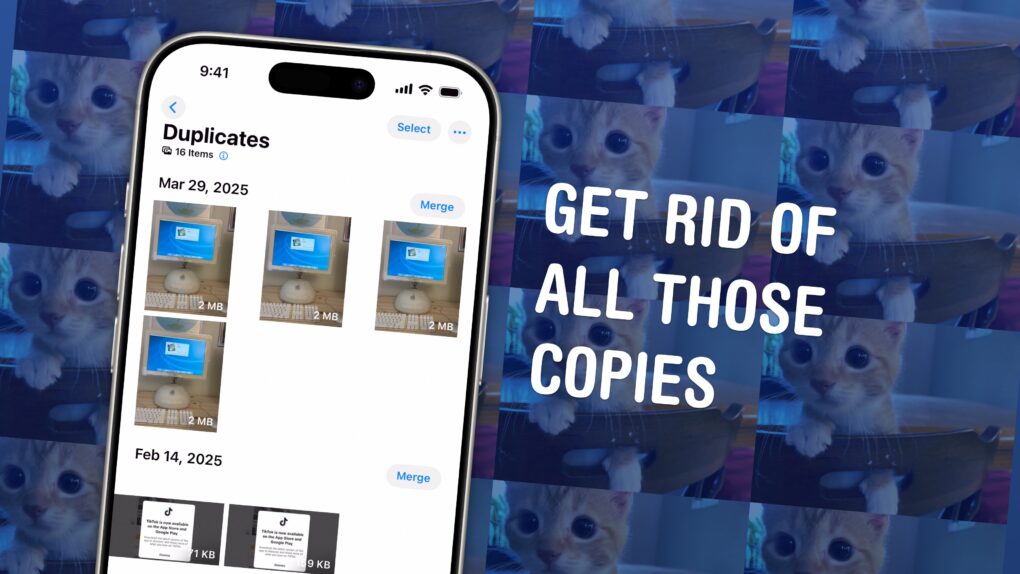
Get Rid of All Those Copies
Find and delete copies of your photos on your iPhone.
Image: D. Griffin Jones/Cult of Mac

You could have dozens of copies of the same images in your Photos library, taking up space on your phone and in your iCloud account. Luckily, Apple offers an easy-to-use little tool that lets you find duplicate photos and delete the copies, all right from the Photos app.

These types of duplicate images can accumulate more quickly than you might expect. They arise if you make a copy of a photo to edit, if you screenshot a photo to bump it to the top of your Camera Roll, or if you and your partner both upload the same picture to your Shared iCloud Photo Library. In fact, I found hundreds of duplicates in my own carefully curated library.

It’s a surprisingly sophisticated feature that took Apple engineers a fair amount of smarts to cook up (more on that later). Here’s how to use Apple’s duplicate image remover and get rid of all those unnecessary files. Keep reading or watch our video instructions.

Top 6 Siri tricks and features (without Apple Intelligence)

By

6 other things Siri can do
After much research, I’ve finally discovered some other uses for Siri.
Image: D. Griffin Jones/Cult of Mac

Believe it or not, there are actually quite a few helpful tricks Siri can do — besides setting timers and sending texts. Granted, there’s a lot of things Siri can’t do, especially with the recent news that the smarter, more capable Siri promised with Apple Intelligence and the total LLM-powered overhaul are both significantly delayed.

Nonetheless, after many hours of research, I have come across six neat things you can ask Siri you might find surprising or handy. Keep reading our list or watch our video.

How to change the default web browser on iPhone or iPad

By

How to change default iPhone browser
Safari isn't the only options as default iPhone browser. You can change it.
Image: Ed Hardy/Cult of Mac

You can easily change the default browser on your iPhone if you prefer to use Google Chrome, Mozilla Firefox, Microsoft Edge or any other alternative. Maybe you use a PC at home and want your bookmarks, history and passwords to sync to your iPhone. Or maybe you simply prefer something other than Apple’s Safari browser.

Whichever browser you set as your iPhone’s default will open when you tap on a link from Messages or Mail, get AirDropped a URL, scan a QR code, search the web with Siri and perform other tasks. This doesn’t mean Safari will be deleted, however. Apple’s stock app will remain installed on your iPhone if case you decide to switch back (which is super-easy).

Here’s how to change the default browser on your iPhone — and transfer your bookmarks and data, too. Keep reading or watch our quick video.

5 secret tips and tricks in Safari on iPhone

By

5 Safari Tricks & Secrets
Get the most out of the browser in your pocket.
Image: D. Griffin Jones/Cult of Mac

Since I spend a lot of time using Safari on my iPhone, any new tips and tricks I learn can feel life-changing. Apple’s mobile web browser proves absolutely instrumental to my iPhone usage (and odds are, it does for you, too).

Here are a few of my favorite hidden features. These Safari tips will help you browse the web faster, clean up your experience and restore tabs you accidentally close. I also have a handy Shortcut you can download at the end.

Keep reading or watch our video.

3 tips to take better pictures with your iPhone

By

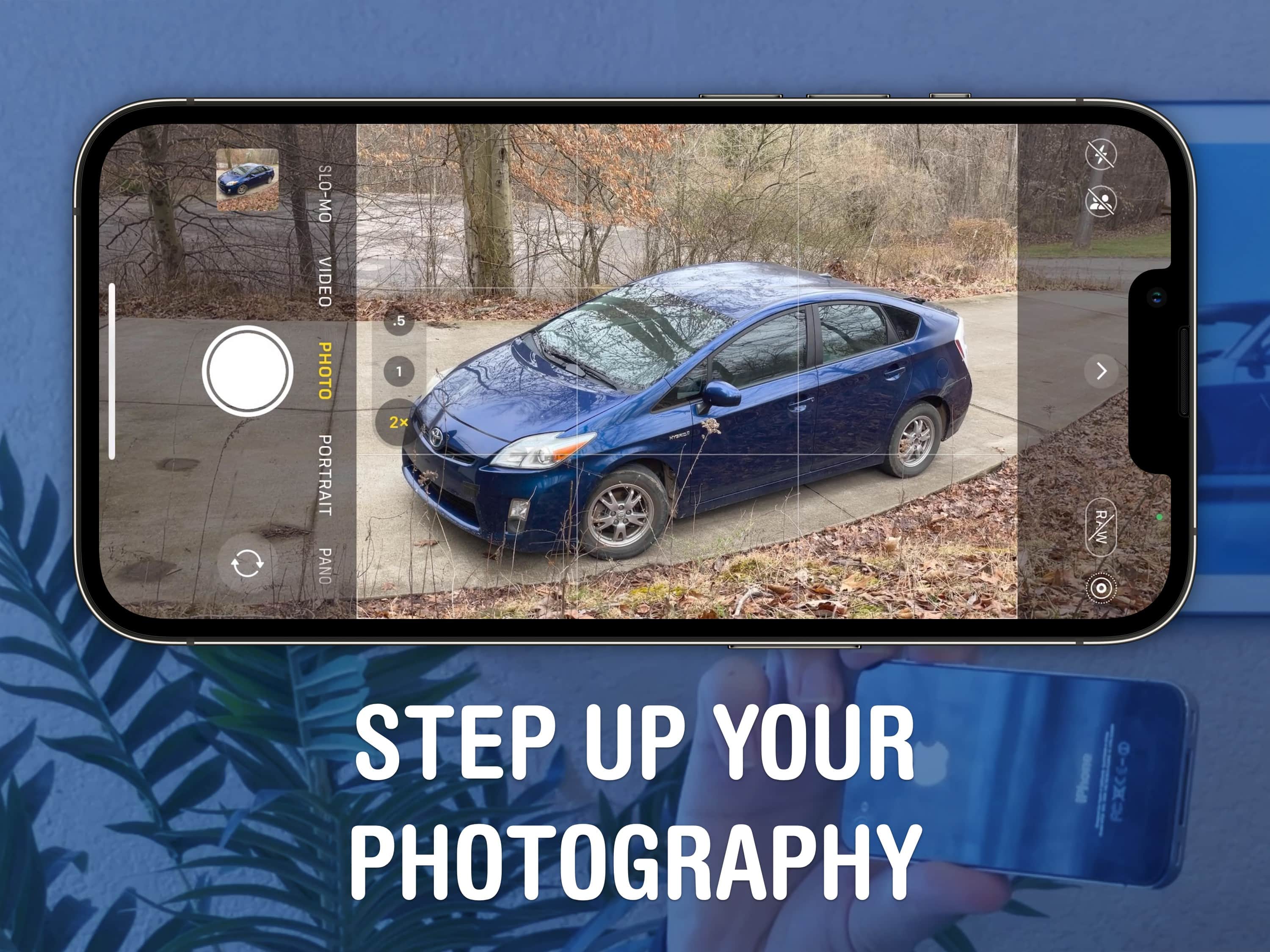
Step up your photography
A beautiful, well-framed picture will almost make a Prius look good.
Image: D. Griffin Jones/Cult of Mac

You should get comfortable with the world’s handiest camera so you can capture memories that will last a lifetime. After all, more and more people are leaving behind family point-and-shoot cameras for the smartphones in their pockets. With our iPhone photography tips, you won’t need the latest and greatest in your pocket.

If you know the ins and outs of photography, you can make the most out of a years-old camera. In fact, the winner of the 2020 iPhone Photography Awards took the prize-winning picture on an iPhone 4!

No matter what phone you have, check out these pointers for the casual and curious. And watch our video to see them in action.

Here’s your introduction to Apple Music Classical

By

Class up the joint
An elegant streaming service for a more civilized age.
Image: Public domain/D. Griffin Jones/Cult of Mac

Apple Music Classical is a new app for iPhone specifically designed as a great experience for browsing and listening to instrumental music. Its catalog of 5 million tracks has been carefully curated and tagged by composer, work, movement, instrument, orchestra, artist and more.

Why does there need to be a separate app for classical music? Apple says it succinctly on its support page: classical music “has longer and more detailed titles, multiple artists for each work, and hundreds of recordings of well-known pieces.” This app “is designed to support the complex data structure of classical music.”

This is how to discover, find, add and listen to music in Apple Music Classical.

What happens when you report a spam text?

By

Stop the Madness
How to keep spam texts at bay… and how effective it might (not) be.
Image: EEIM/Wikimedia Commons/D. Griffin Jones/Cult of Mac

How can you report a spam text you get on your iPhone, and what happens when you report it? Where does the report go? Does anyone look at these things?

Apple has useful tools like Hide My Email and Sign in with Apple for managing email spam, but text spam can be far more annoying. You don’t have a spam filter for your texts, and texts can be easier to fake.

If you’re getting spam texts, there are a few different steps you can take to can it, and I’ll walk you through all of them.

How to get missing Apple apps back on your iPhone and iPad

By

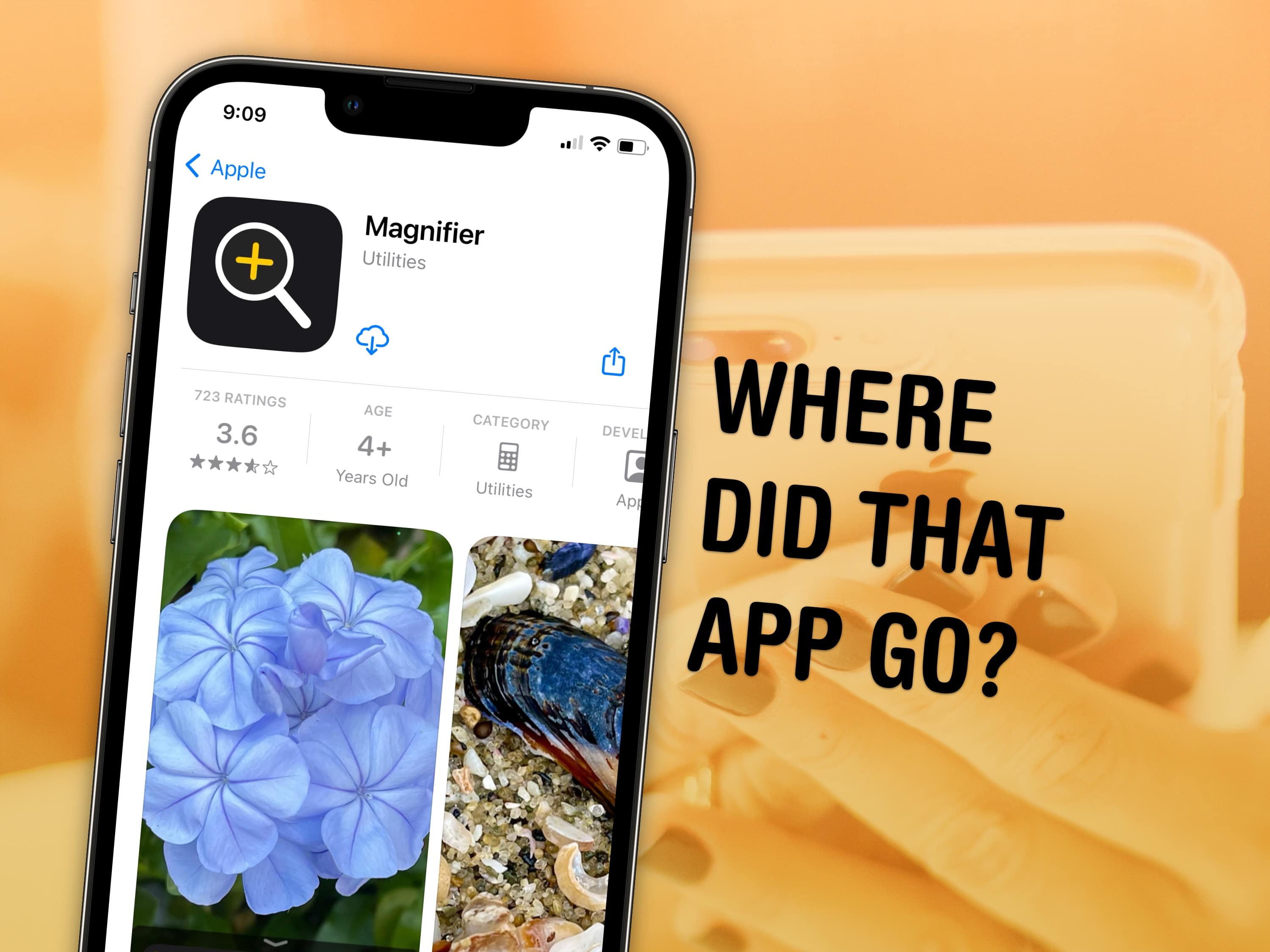
Where did that app go?
Sometimes these things just disappear on you.
Image: Kristin Hardwick/Wikimedia Commons/D. Griffin Jones/Cult of Mac

You can visit the App Store to download Apple apps like Music, Podcasts, Weather, Maps and Find My missing from your iPhone or iPad. If you can’t find them. It’s possible you uninstalled them and your device needs to download them again. Or they might have simply disappeared from your Home Screen, and are now hiding in the App Library.

There are also a few iPhone apps that Apple hasn’t made available on iPad. This was the case with Calculator until very recently, so you may need to install an update to get it.

I’ll walk you through all the possibilities, showing you how to get Apple’s stock apps back on your iPhone or iPad.

Today in Apple history: Apple bids farewell to the Newton

By

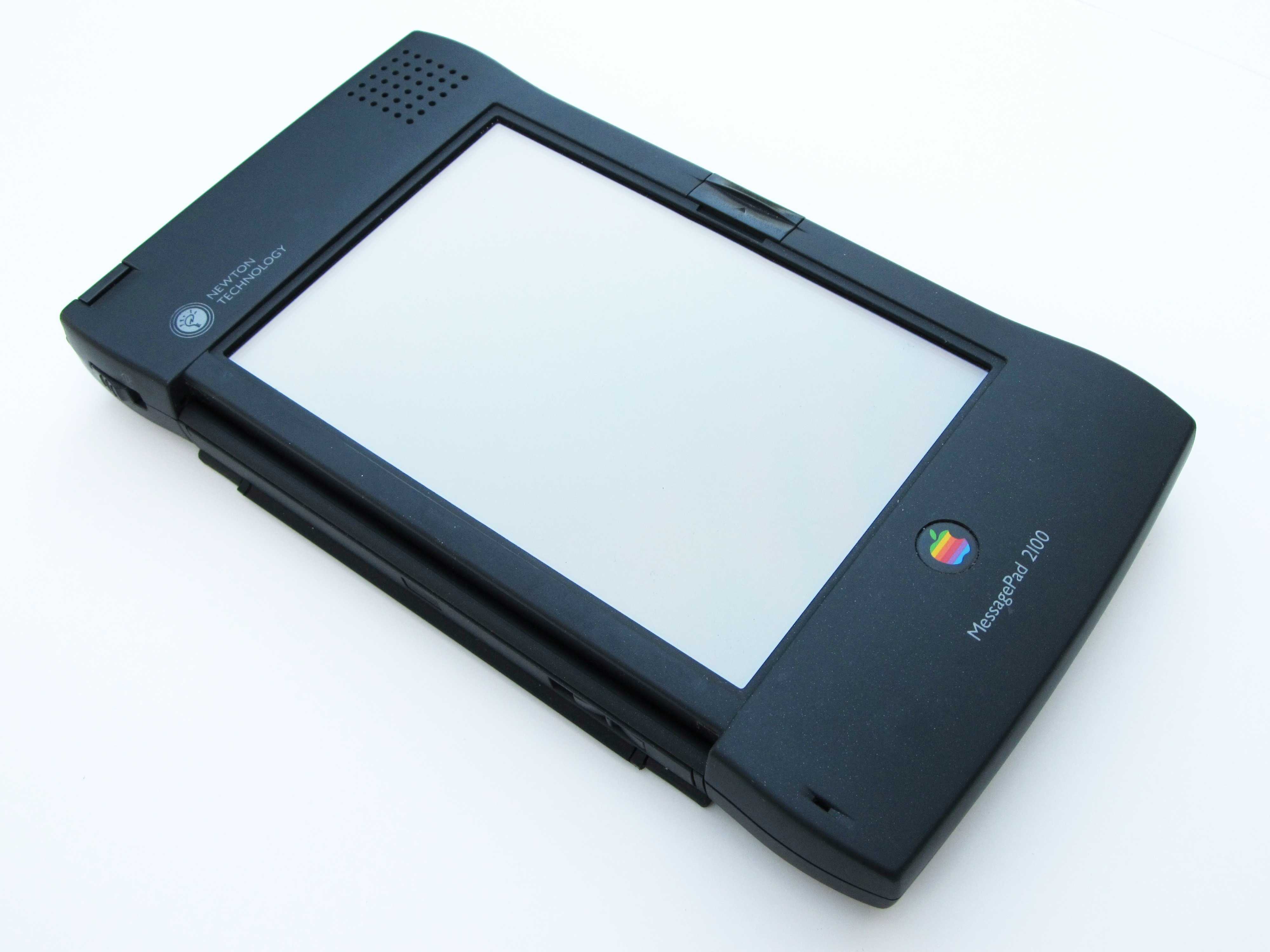
The Newton MessagePad 2100 was the last hurrah for Apple's Newton line.
The MessagePad was a product ahead of its time.
Photo: Moparx

February 27: Today in Apple history: Apple discontinues Newton MessagePad February 27, 1998: Apple discontinues work on the Newton MessagePad product line, the series of personal digital assistants the company launched five years earlier, and Newton OS, the operating system the devices run upon.
“This decision is consistent with our strategy to focus all our software development resources on extending the Macintosh operating system,” Apple’s interim CEO Steve Jobs says in a press release. “To realize our ambitious plans we must focus all of our efforts in one direction.”

Enable iPhone ‘guest mode’ before handing it to someone else

By

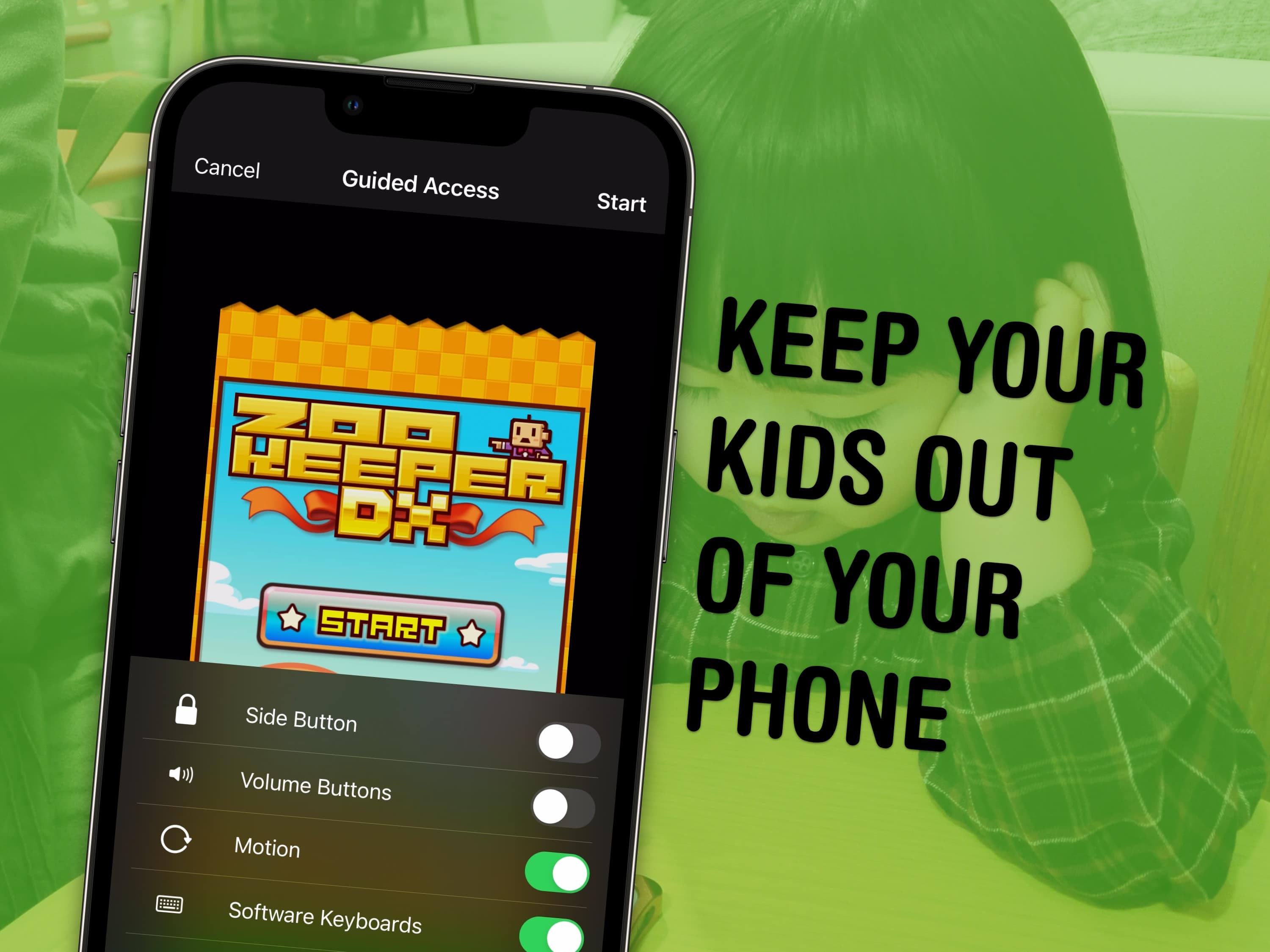
Keep your kids out of your phone
Lock your kids into a game (like Zookeeper) when they have your phone.
Image: MIKI Yoshihito/Wikimedia Commons/D. Griffin Jones/Cult of Mac

You can use a feature called Guided Access to lock down your iPhone to a single app before you hand it to a kid or someone else. You might want to let your offspring play a game, or pass your phone around for controlling music, or hand it off to show someone a video … but you probably don’t want them going rogue and reading your texts or calling your mom.

In Accessibility settings, you can enable Guided Access to limit your iPhone to a single app before you hand it off. It’s a kind of quick and dirty “guest mode.”

This will help you keep your phone — and your privacy — safe. You can even disable features like the volume buttons and set up time limits.

Always squinting? There’s more than one way to zoom in on your Mac screen.

By

What Does That Say?
Sometimes it can be hard reading your screen.
Image: D. Griffin Jones/Cult of Mac

It’s easy to zoom in on your Mac screen and get a closer look at your display. If the text is just too small to read, or perhaps you’re making some graphics and you need pixel-perfect alignment, a simple tweak to your Mac settings is all you need.

Using your Mac’s zoom feature, you can hit a keyboard shortcut or use a multitouch gesture on your trackpad to zoom in on your screen. I’ll show you how to use this handy feature. Plus, I’ll cover Hover Text and Display Scaling, two more features that help you embiggen the words on your Mac screen.

Today in Apple history: Happy birthday, Steve Jobs!

By

Steve Jobs-inspired art
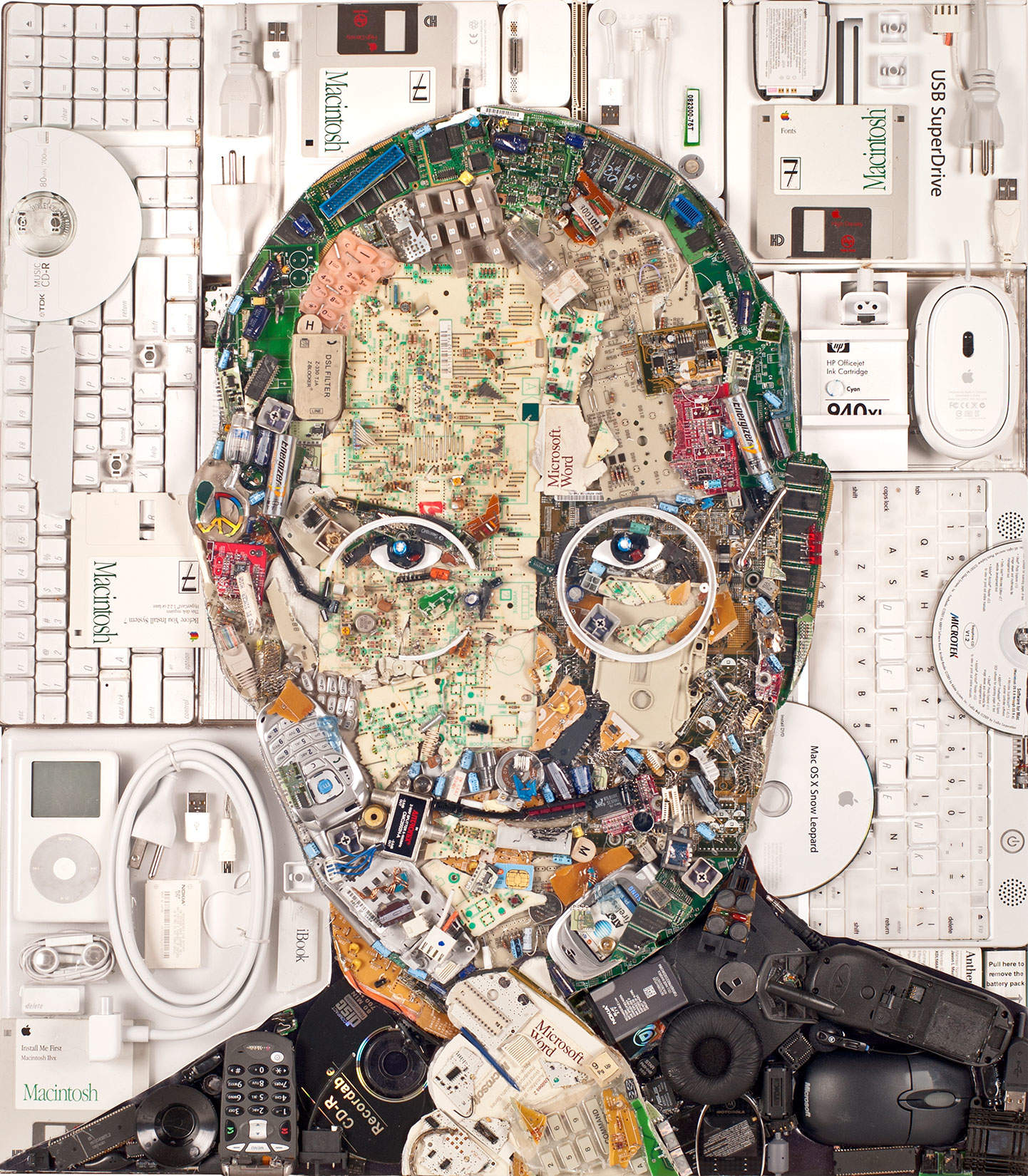
Steve Jobs was born on this day in 1955.
Photo: Jason Mercier

February 24: Today in Apple history: Steve Jobs birthday February 24, 1955: Steve Jobs is born in San Francisco. He will go on to co-found Apple and become one of the most important figures in the history of consumer technology. He’s also probably a big part of why you’re reading this website right now.

Happy birthday, Steve! Let’s take a moment to reflect on your innovation, artistry and overall brilliance.

Live weather, awesome astronomy, fun faces: Customize your iPhone Lock Screen

By

There are a lot of ways to customize the Lock Screen in iOS 16.
Image: D. Griffin Jones/Cult of Mac

You can radically customize the Lock Screen of your iPhone with a bunch of widgets, aesthetics and styles. If you liked the themed custom Home Screens people were putting together using Shortcuts and Widgetsmith, you’ll love the level of creativity you can express with customized Lock Screens.

Read on to see all the features or watch our video.

Sign into email, get your photos and more on the iCloud website

By

Find your photos and files online.
All of your photos and files are in the cloud anyway — with iCloud.com, you can access them from any computer.
Image: Matthew Bowden/Wikimedia Commons, D. Griffin Jones/Cult of Mac

You can use the iCloud website to access all of your online Apple services from any computer, tablet or phone. This includes Find My, Mail, Photos, Invites, Files, Pages, Numbers, Keynote, Notes, Calendar and Reminders. It’s really convenient if you need to find a lost device, print a file or download a picture from a different computer you’re not signed into.

The iCloud website provides easy access to all of Apple’s cloud services — and it’s even customizable for those who use it often. Let me show you how it works.

How to use the Dvorak keyboard on iPhone

By

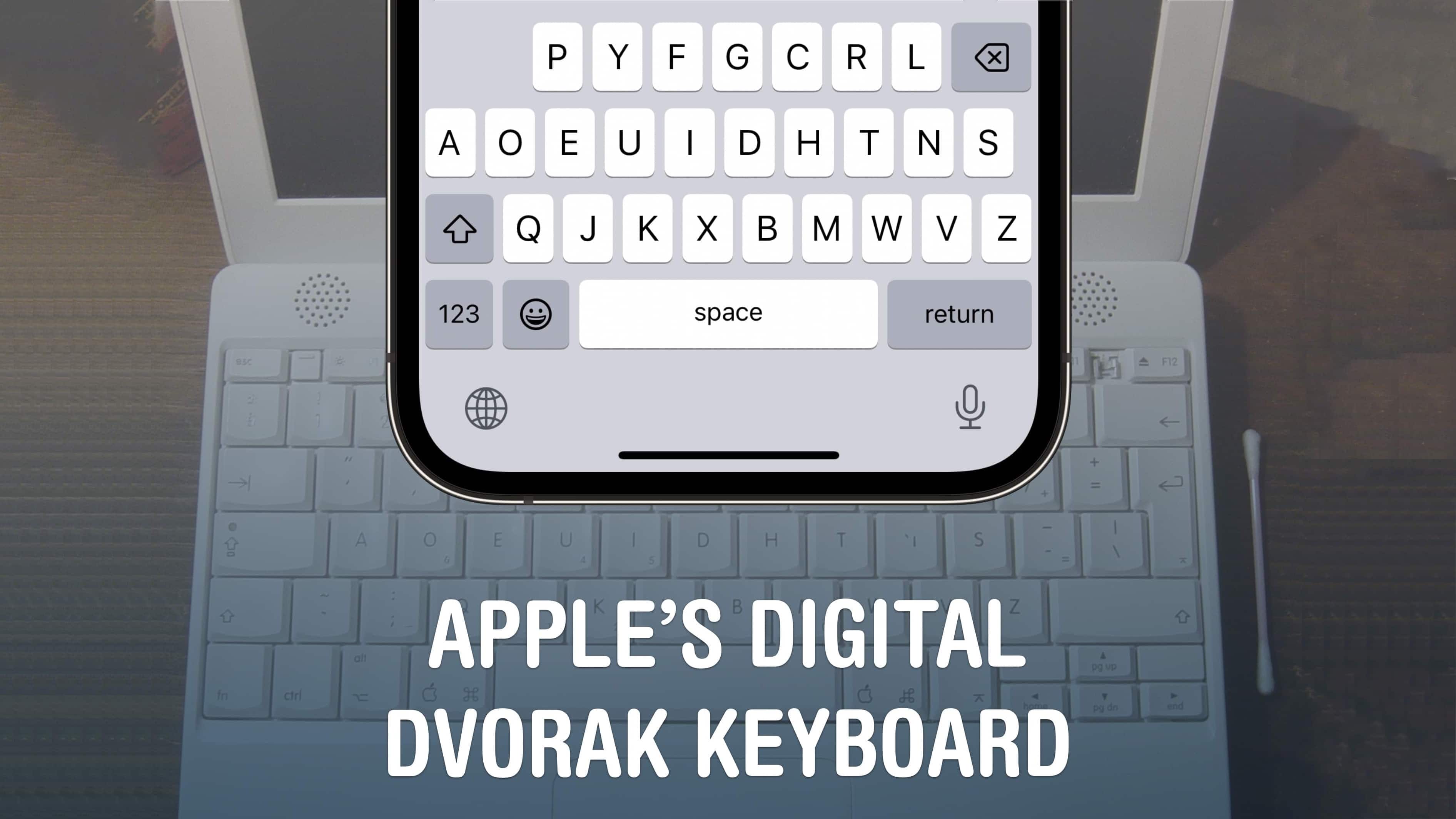
Apple’s digital Dvorak keyboard.
Apple’s digital Dvorak keyboard brings the alternative layout to iPhone.
Image: Michael Bunsen/Wikimedia Commons and D. Griffin Jones/Cult of Mac

The Dvorak keyboard layout offers a different way of arranging the 26 letters of the alphabet. Dvorak puts all the most common letters right on the center row for increased typing speed. It also balances the most common letters across all 10 fingers to reduce strain. Physical Dvorak keyboards have been available for computers forever, but finally, you can get it on your iPhone and iPad.

Control your Apple TV from your iPhone or Apple Watch

By

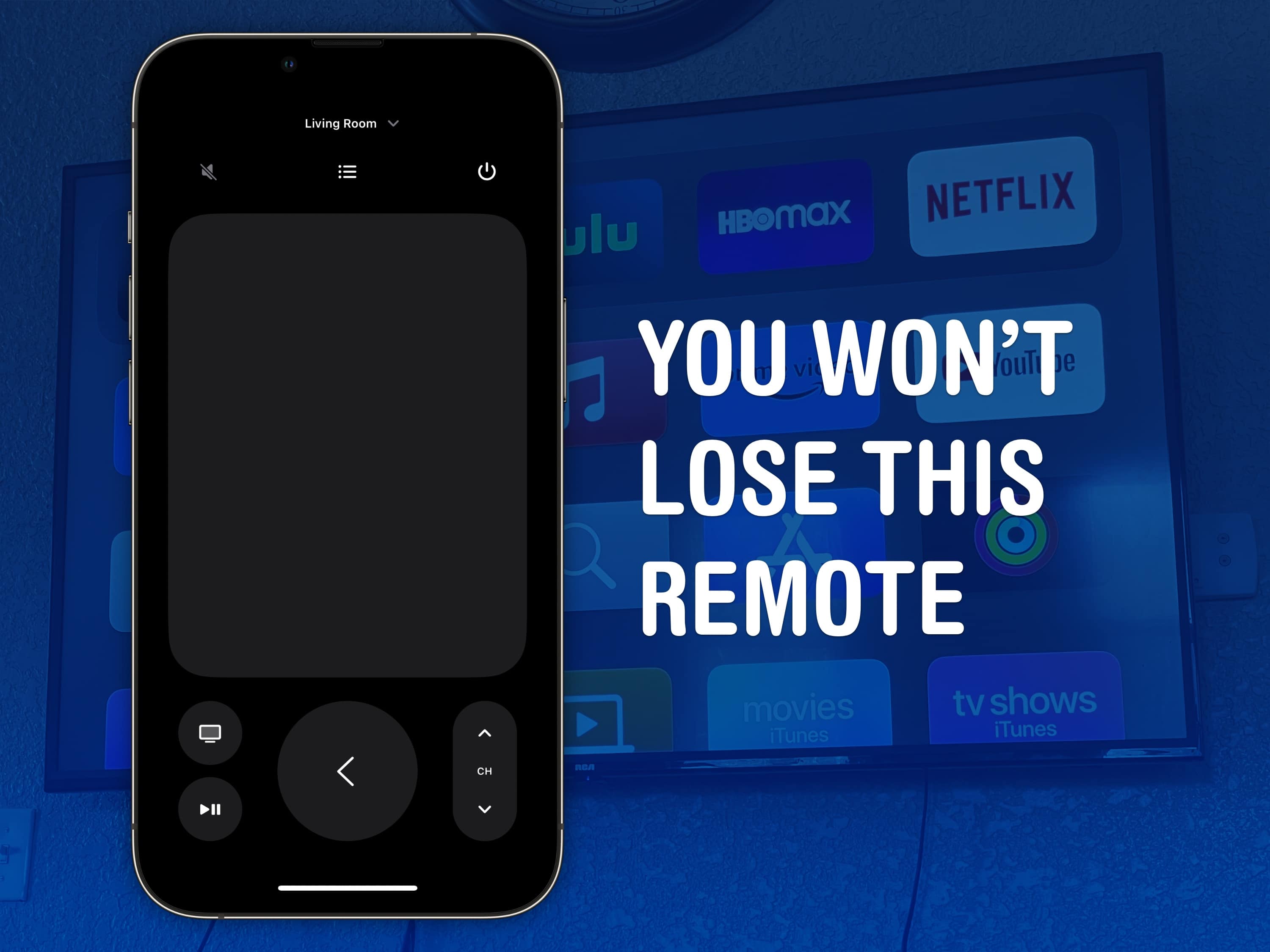
You won’t lose this remote
The Apple TV remote is easy to lose, but it’s harder to lose your phone — much less the Apple Watch strapped to your arm.
Image: D. Griffin Jones/Cult of Mac

You can use your iPhone (or even your Apple Watch!) as a remote for your Apple TV. It’s a convenient feature when you’ve lost the remote in the couch cushions. (You can use your iPhone to help find it as well.)

Even if your remote’s not gone missing, sometimes it’s sitting on the table way over there and you don’t want to interrupt a show by asking for someone to pass it to you. Or maybe, someone is intentionally hogging the remote and you want to pause the video yourself. Either way, it’s really easy to do from an iPhone or an Apple Watch.

Track your medications on iPhone in the Health app

By

Don’t Skip Your Meds
Your iPhone and Apple Watch can help you track your meds.
Image: MorgueFile/Wikimedia Commons/D. Griffin Jones/Cult of Mac

The Apple Health app on your iPhone will help you track your medications. It has a lot of advanced options for all kinds of medicine — you can set up schedules, log your activity and even get advice on drug interactions. If you can connect with your health care provider through the Health app, setting it up is incredibly simple. Otherwise, you can just scan the label on the bottle using the camera to import it.

Let me show you how to get started.

Prepare for emergencies by setting up Medical ID on your iPhone

By

This may save your life.
It probably won’t, but it may.
Image: Helitak430/Wikimedia Commons/D. Griffin Jones/Cult of Mac

It’s very important to set up your iPhone Medical ID so it’s ready in case you find yourself in an emergency situation. First responders can check your iPhone to get critical information about any allergies or preexisting conditions that could make a huge difference in their ability to help you.

It might be unpleasant to think about, but providing this vital information could prove lifesaving if an accident leaves you unconscious.

If you haven’t yet done so you’ll be happy to know it only takes a couple of minutes to update your medical records in the Health app on your iPhone. Here’s how to do it.