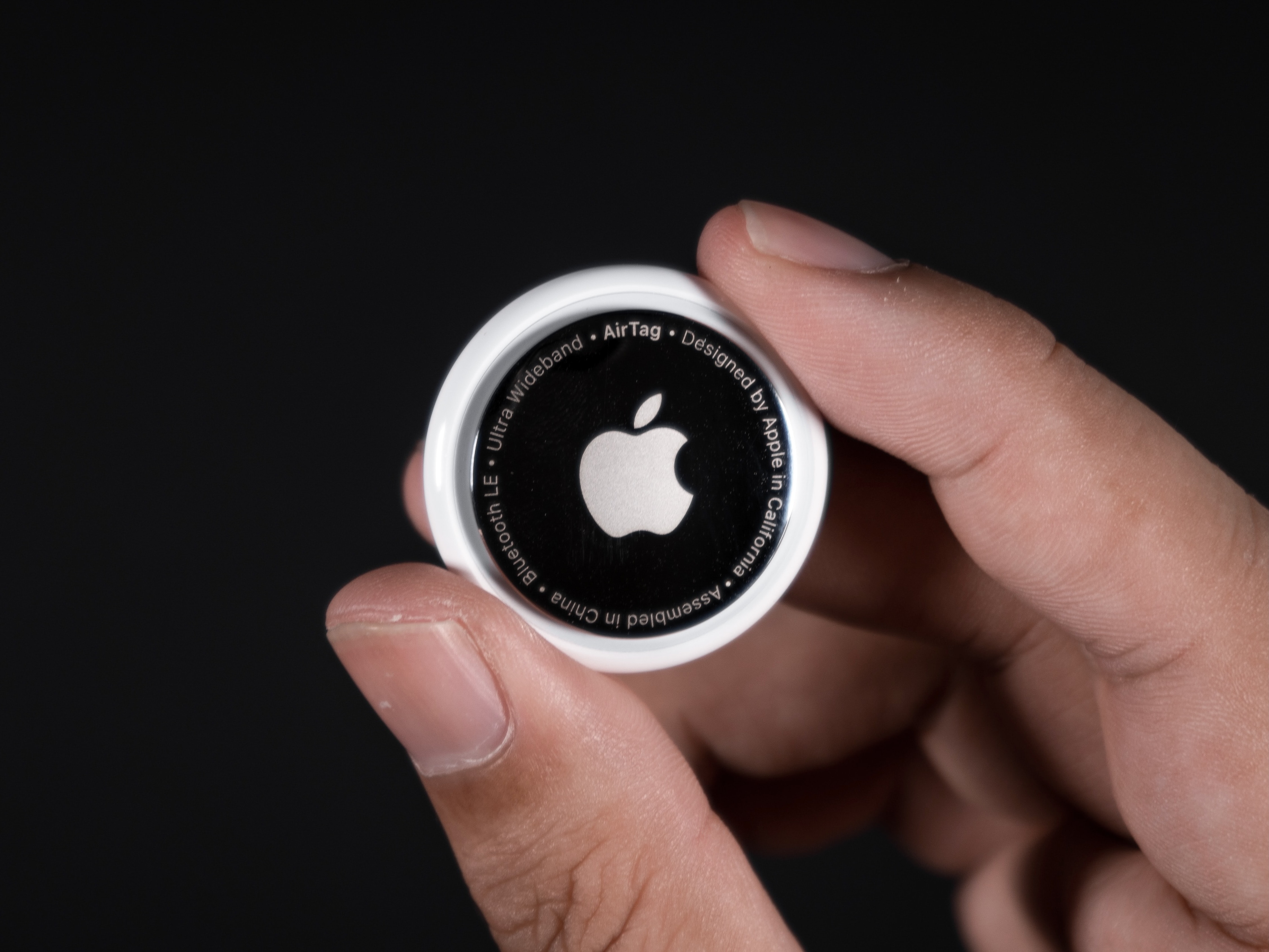
An AirTag in a bag can find a solution to an absolute calamity. Image: D. Griffin Jones/Cult of Mac
Traveling is a lot easier if you can keep track of your stuff with AirTags in your luggage. It’s been in the news lately: Airlines have lost flyers’ bags and people have recovered them because they had the foresight to put an AirTag in the luggage. You can make sure it’s with you all the way along your journey and quickly find it among the baggage claim at your final destination.
Copy a link to a YouTube video that starts partway through and save everyone some time. Image: D. Griffin Jones/Cult of Mac
Say you want to send someone a YouTube link with a timestamp, to show them a specific part halfway through. Doing this is really easy from both the YouTube website or the app.
Let me show you how to share a YouTube video that starts at a specific time.
Or, more accurately, back up your iMessage history. Image: D. Griffin Jones/Cult of Mac
You can back up your text messages (and iMessages) with iMessage Exporter, a free tool for the Mac. Whether you want to preserve your family message history for sentimental reasons, or need to keep conversation records for business, iMessage Exporter will get the job done.
You might already back up your messages in iCloud, but Apple charges an arm and a leg for space. You can save space (and money) by making a local backup and clearing out your cloud storage.
Start the year off saving cash by canceling any App Store subscriptions you don't want. Photo: David Švihovec/Unsplash License/Modified by Cult of Mac
It’s a new year, and it’s a fine time to clear out some of the mistakes of the past. That includes no longer paying for apps or services you don’t use anymore. Luckily, it’s easy — if you know how to cancel subscriptions on your Apple devices.
Here’s how to find everything you’ve signed up for through the App Store, see what it’s costing you, and cancel it if you’ve lost interest. Or perhaps save a bit of money by changing how often you’re billed.
Journal lets you build a scrapbook or a diary on your iPhone. Image: D. Griffin Jones/Cult of Mac
A diary can be a great and invaluable record of your life, but who has time for that? Well, now you do: Apple’s iPhone Journal app makes keeping a diary a breeze. Really, it couldn’t be any easier.
Apple’s Journal app, newly updated in iOS 18, lets you build a record of your life into a multimedia digital diary. Your iPhone will pull together details from your photos, locations and events to give you prompts for memories worth writing about.
Here’s the nitty gritty on using the Journal app — and its latest features.
You can quickly and secretly switch out of Private Browsing without anyone noticing. Image: Dosso Dossi/Public domain
So, you’ve been using Safari’s Private Browsing mode on your iPhone or iPad, for whatever reason, but you forget to close out of the tab. The next time you open Safari, you’ll be thrown into whatever unscrupulous web page you had open last time — and the result can range from unfortunate to embarrassing, depending upon what you were looking at and where you are when you unexpectedly resume the Private Browsing session.
Luckily, iOS offers a foolproof way to avoid reopening a Private Browsing mode session. Let me show you how.
You’ll be one happy duck with your new AirPods. Photo: Apple
If you’re a super lucky duck, then Santa may have left you a pair of AirPods. They are truly one of the best products Apple ever made, because they really do offer a huge upgrade on all previous headphones. Here’s how to set up your new AirPods.
Stick an AirTag in your car in case it's stolen. Photo: Mark Chan/Unsplash
The Apple AirTag is arguably among the company’s most useful product releases in recent years. Once you set up an AirTag, it gives you powerful options for locating it (and whatever you attach it to). Put one of Apple’s tracking tags on an item like a keychain or luggage, and you can easily track its location from your iPhone, Mac, or iPad. If you’re wondering,do AirTags make noise, the answer is yes, but only in specific circumstances.
Since AirTag’s launch, numerous reports have detailed how the tracking tag helped owners find lost items. If you recently acquired an AirTag, here’s how you can set it up the right way and use it properly.
Screen Sharing is a great way to give remote tech support. Image: Daniel Aragay/Wikimedia Commons/D. Griffin Jones/Cult of Mac
A little-known feature in macOS lets you share your Mac’s screen to someone else’s Mac directly from the Messages app — no third-party apps or downloads required. It’s great if you need to give tech support to a far-off family member in a pinch. Often, you just need to see what’s happening instead of counting on what your dear old father is trying to describe over the phone.
Get him to share his Mac’s screen with you, and you likely can solve his problem quickly. Even better, it’s not complicated setting up screen sharing on a Mac like it is on a PC. It takes only a few clicks in the Messages app. Let me show you all around this awesome hidden feature.
Turn on Battery Percentage to get the exact number. Image: D. Griffin Jones/Cult of Mac
Being able to see your iPhone battery percentage right in the status bar is incredibly useful. You can keep an eye on it throughout the day if you’re getting low and need to top up.
The standard battery icon gives you a rough idea of where your iPhone stands. But instantly seeing the exact battery percentage number can give you peace of mind. It’s useful seeing the precise number without pulling down Control Center or checking a battery widget, wherever you are.
For those of you with real battery anxiety, you can even add a widget to your Lock Screen and Home Screen. I’ll show you how.
It's a Christmas miracle for Apple! (Or just good marketing.) Photo: Ste Smith/Cult of Mac
December 15, 2003: Almost eight months after launching the iTunes Music Store, Apple celebrates its 25 millionth download.
The song in question? Appropriately enough for this time of year, a Frank Sinatra cover* of the Christmas classic “Let It Snow! Let It Snow! Let It Snow!”
Chill out and silence the sounds of your environment with the sounds of rain, the ocean and more. Image: D. Griffin Jones/Cult of Mac/W.carter/Wikimedia Commons
Working in an office or in the city, you’re probably inundated with noise from people chattering, cars running and nearby music. Your iPhone has a built-in feature called Background Sounds for playing rain noises or white noise to tune it all out.
You don’t need to download any apps or pay a cent; it comes for free on your Mac and iPhone. Let me show you how it works.
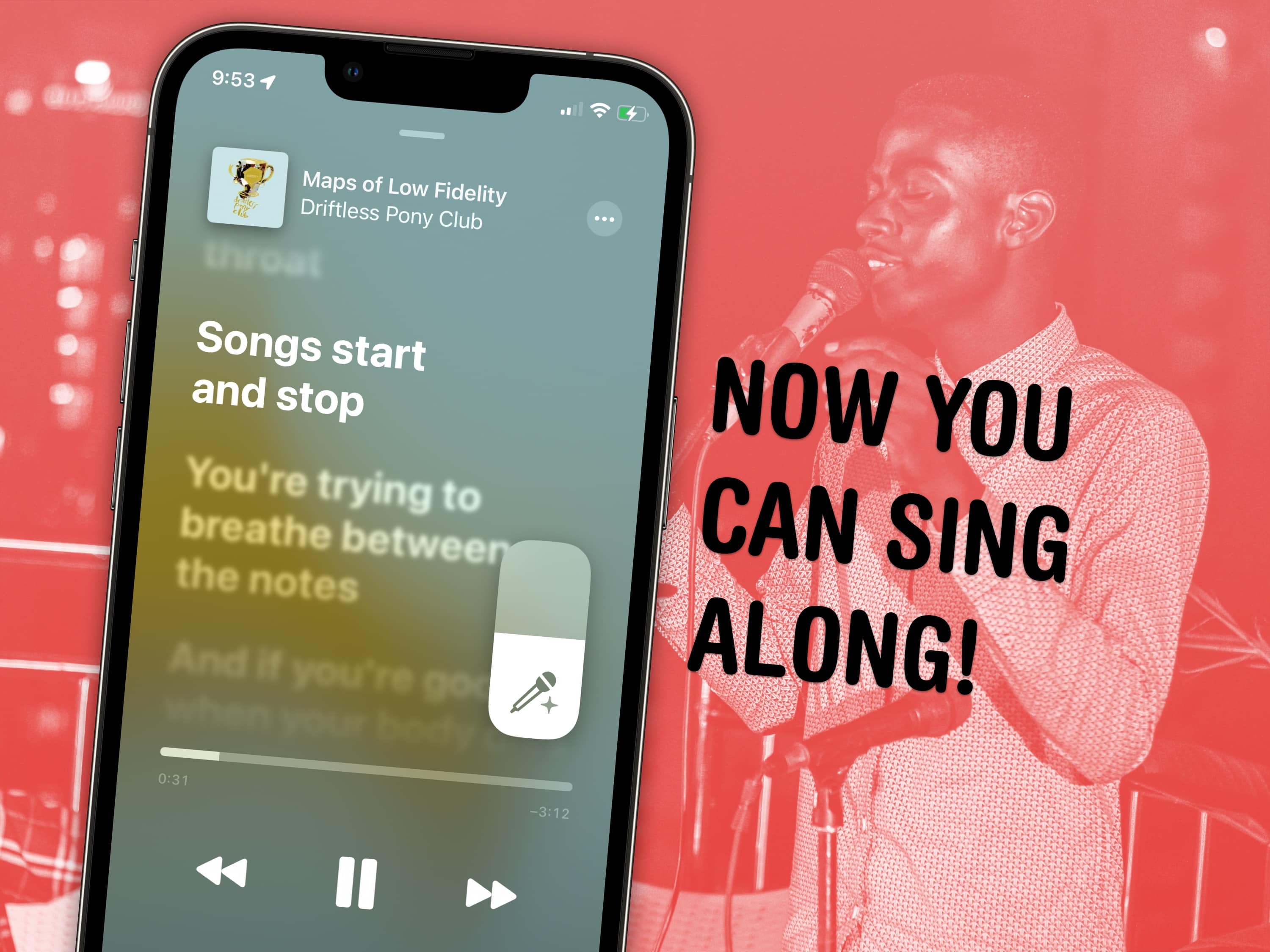
Apple Music now has a karaoke feature for singing along. Image: Ronyyz/Wikimedia Commons, D. Griffin Jones/Cult of Mac
Apple Music has a karaoke mode for people who love to sing along as they listen. Apple Music Sing lets you turn down the lyrics so you can karaoke to your favorite hits with just one tap.
In fact, I’m using it right now to listen to some of my favorite music without the lyrics distracting me from reading and writing. Let me show you how it works!
Bringing on Gil Amelio was viewed as a big coup for the Apple board. Photo: Apple
November 9, 1994: Gil Amelio, a businessman with a reputation as a talented turnaround artist, joins Apple’s board.
Coming off his impressive revitalization of two other tech companies, National Semiconductor and Rockwell International, Amelio’s appointment at Apple sparks widespread celebration. Many Apple watchers think his arrival means the company’s dark days are over. Sadly, Amelio’s turnaround tricks won’t work in Cupertino.
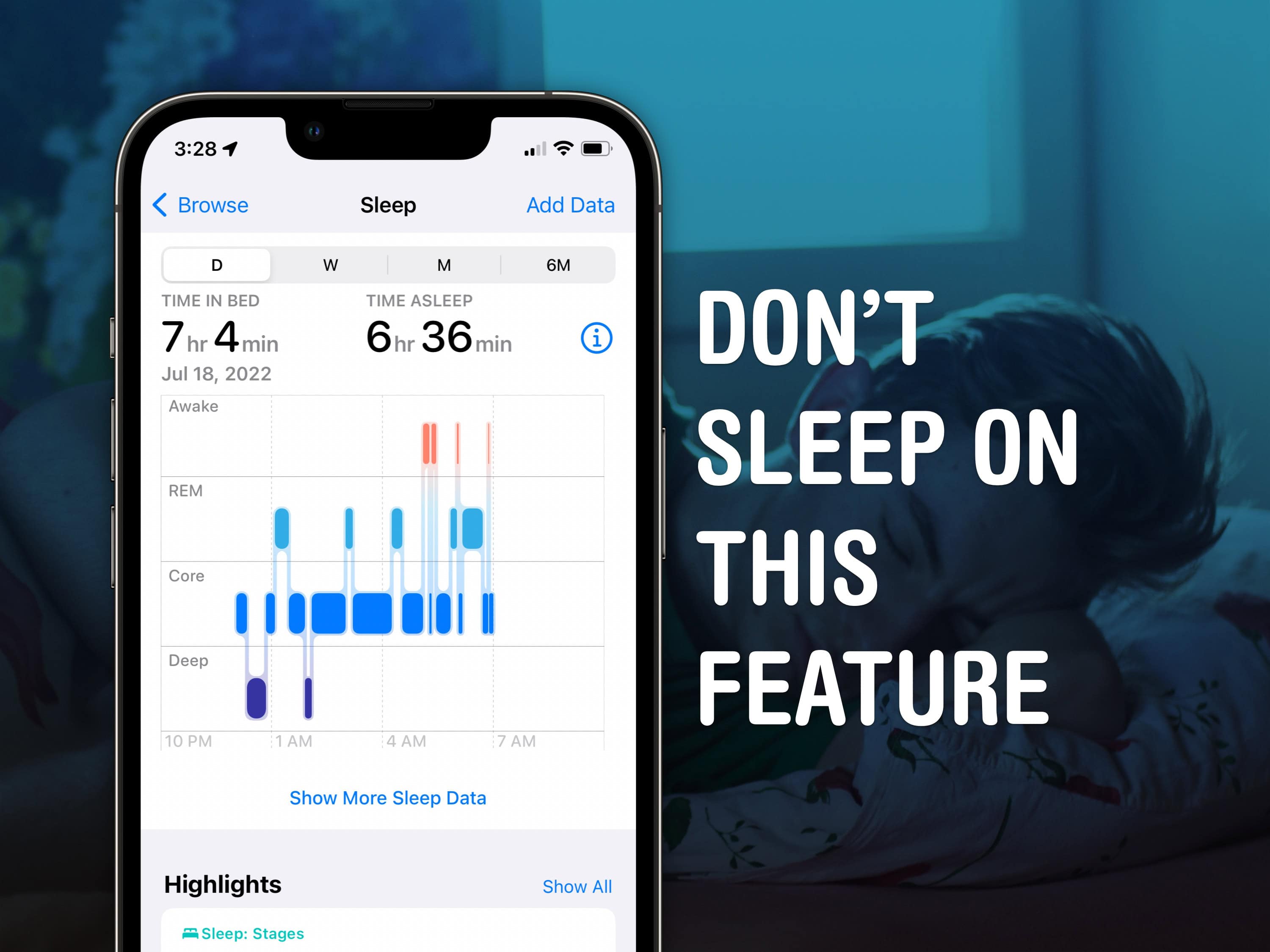
Sleep tracking on Apple Watch is pretty advanced. Image: D. Griffin Jones/Cult of Mac
Apple Watch sleep stage tracking might help you get to the bottom of what’s going on with your sleep. Ever since watchOS 9, it can track what sleep stage you’re in. That means you can see if you’re not getting enough deep sleep or REM sleep, or if you’re waking up too often in the middle of the night. If you have insomnia or sleep apnea, this information could be very useful.
Read on to see how to use the advanced sleep stage tracking on Apple Watch.
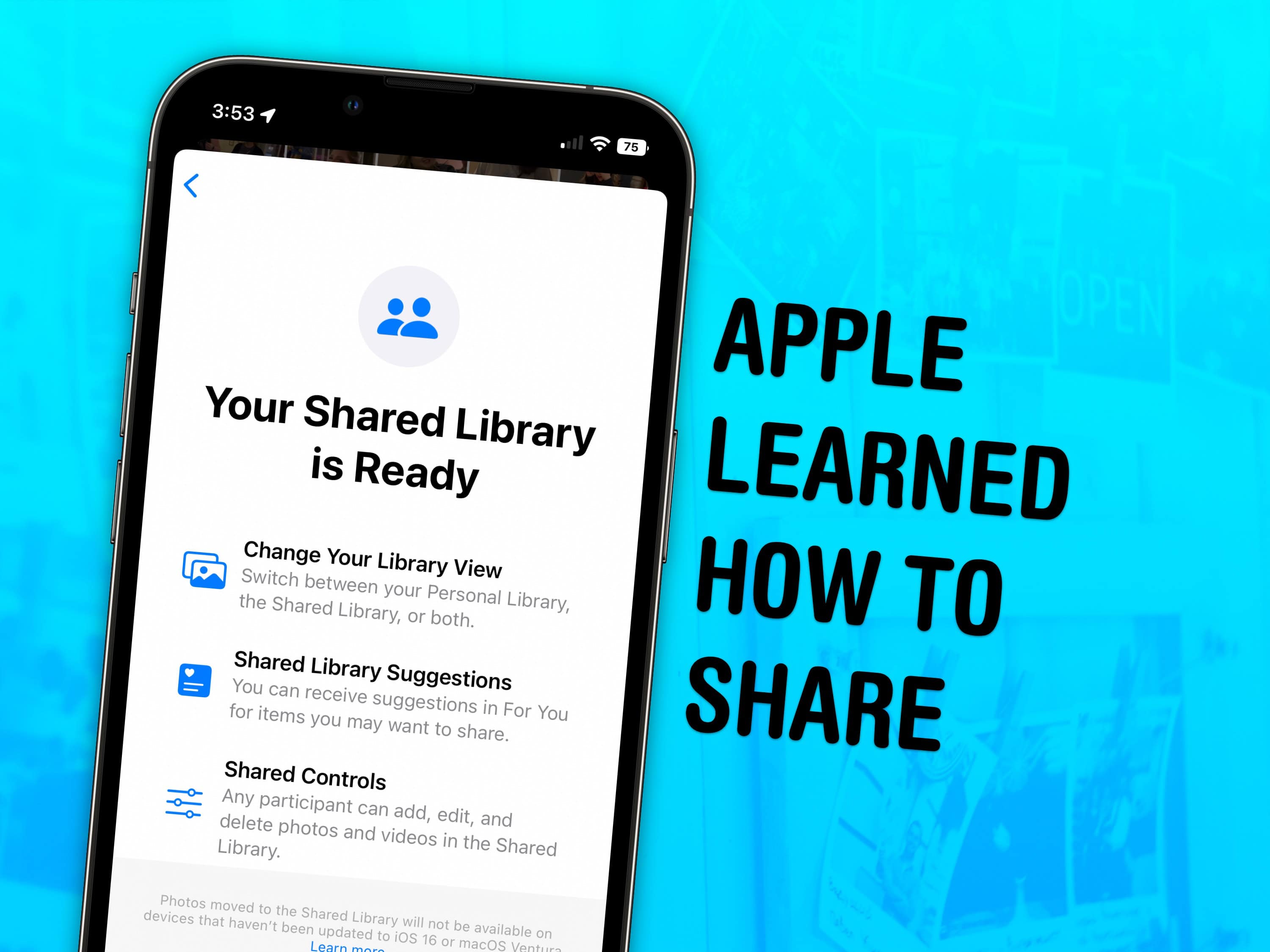
Sharing a photo library with your family is super easy. Image: D. Griffin Jones/Cult of Mac
Skip the hassle of manually sending your family all the vacation photos — enable a shared iCloud Photo library instead. Everyone in your family automatically gets all the family photos as if the images were in their own camera roll — in full quality.
Your iPhone will identify faces in photos (securely and privately), and any pictures of people who are in the family will be added to the shared library. If all of your phones are in the same place while you’re taking a lot of pictures, even if you aren’t in them (like at an aquarium or a museum), those pictures will be added automatically, too. As you’re shooting in the camera, you can easily toggle between the shared library for everyone and the private photo library on your own devices.
Starting a Shared Photo Library with your family is the best way to organize family photos. Continue reading to see how to turn it on.
Charging the Magic Mouse 2 remains a headache. Photo: Apple
When it comes to new tech, the focus understandably falls on what’s changed, not what stayed the same.
That’s absolutely the case for the new M4 iMac, which Apple unveiled on Monday. Plenty of attention is (rightly) being lavished on the iMac’s guts. The M4 chip is a screamer, and the machine now comes with 16GB of unified memory as standard, a welcome change. And the new colors look great.
However, one thing that drives Apple customers bonkers has stayed the same. That one thing is Apple’s terrible mouse — or, more specifically, the ridiculous location of the charging port on the Magic Mouse.
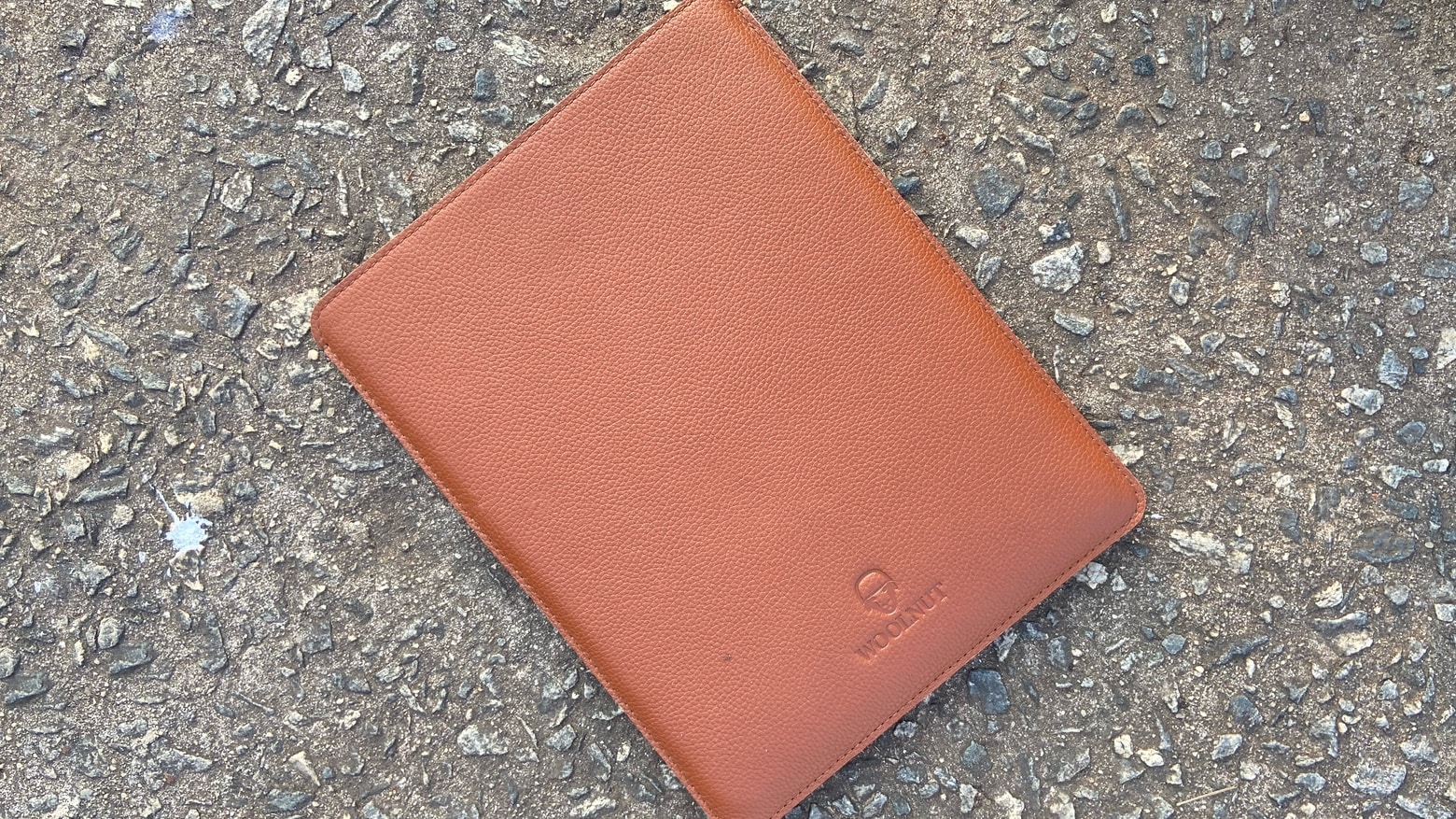
The Woolnut Leather Sleeve for iPad Pro offers an exceptional look and feel. Photo: Ed Hardy/Cult of Mac
Any case can protect your iPad, and the right one can also make it look handsome. The Woolnut Leather Sleeve has a minimalist vibe, but the pebbled leather gives a very sophisticated appearance to the iPad Pro.
I wrapped several of my Apple tablets in the case over years, I can share what’s it’s really like to use.
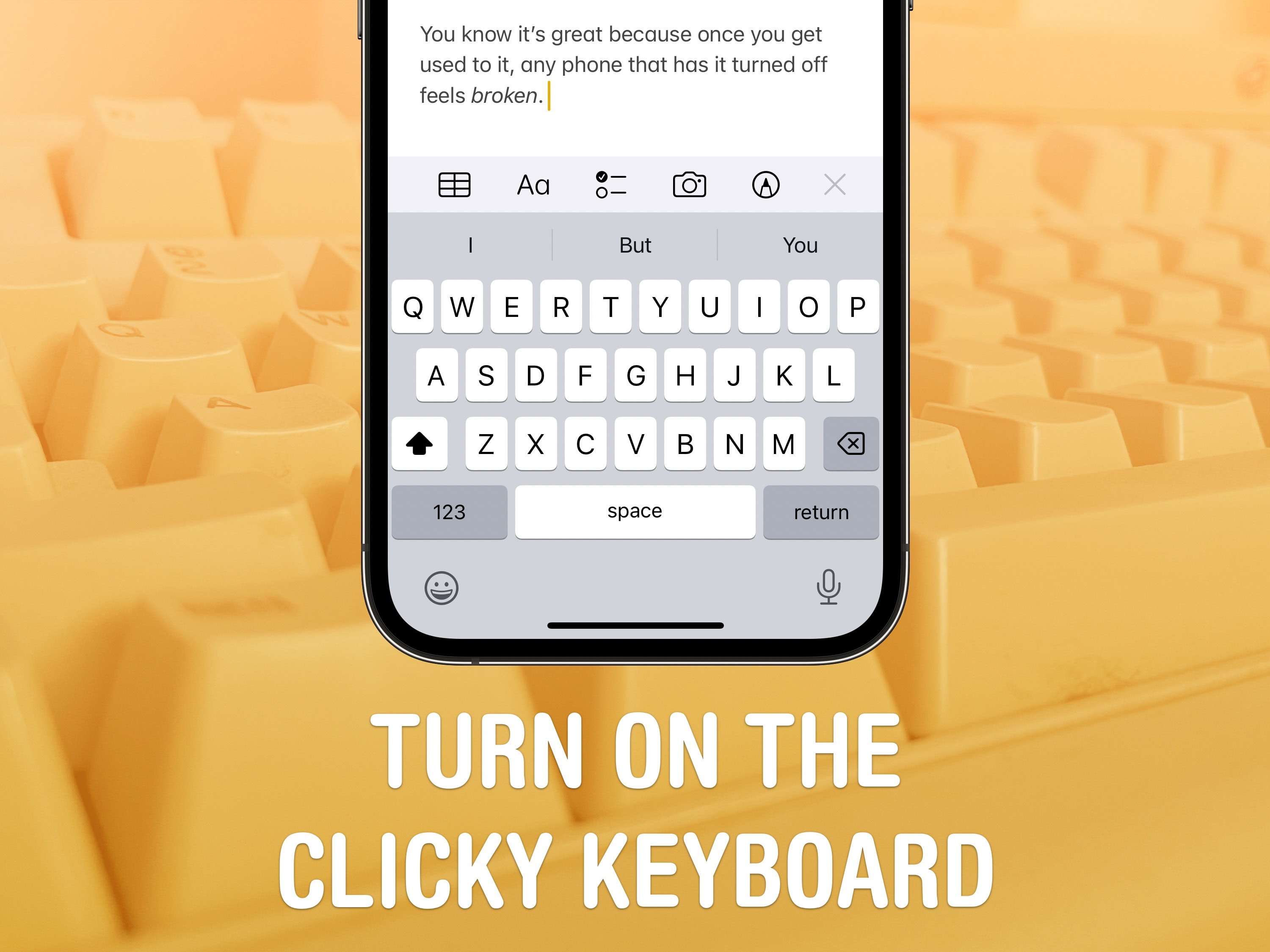
Get a clicky keyboard on your phone, too. Image: D. Griffin Jones/Cult of Mac
Studies show that a haptic keyboard improves touchscreen typing speed and input accuracy, but very few people know you can enable it on your iPhone.
Android phones years ago had haptic keyboards, but without a precision vibration motor, the haptic feedback was too slow to complete the illusion. With the Taptic Engine — hardware in every iPhone since the iPhone 6s that can simulate all kinds of vibrating textures — Apple created a perfectly convincing effect to enable the haptic keyboard way back in iOS 16.
Leaving the keyboard click sounds on in public is a minor social faux pas, but you really do type better when you have some sort of feedback for hitting the keys. It feels incredible. I turned it on years ago, and every time I type something in on a friend’s phone without it enabled, it feels broken. You can’t go back once you turn it on — it’s that great.
It's time to learn a new language or two. Photo: Babbel
With this Babbel lifetime subscription, you get unlimited access to all of Babbel’s language-learning lessons in 14 different languages for just $179.97. Valued at $599, this Babbel discount (nearly 70% off) is too good to be true — which is why it is for a limited time only.
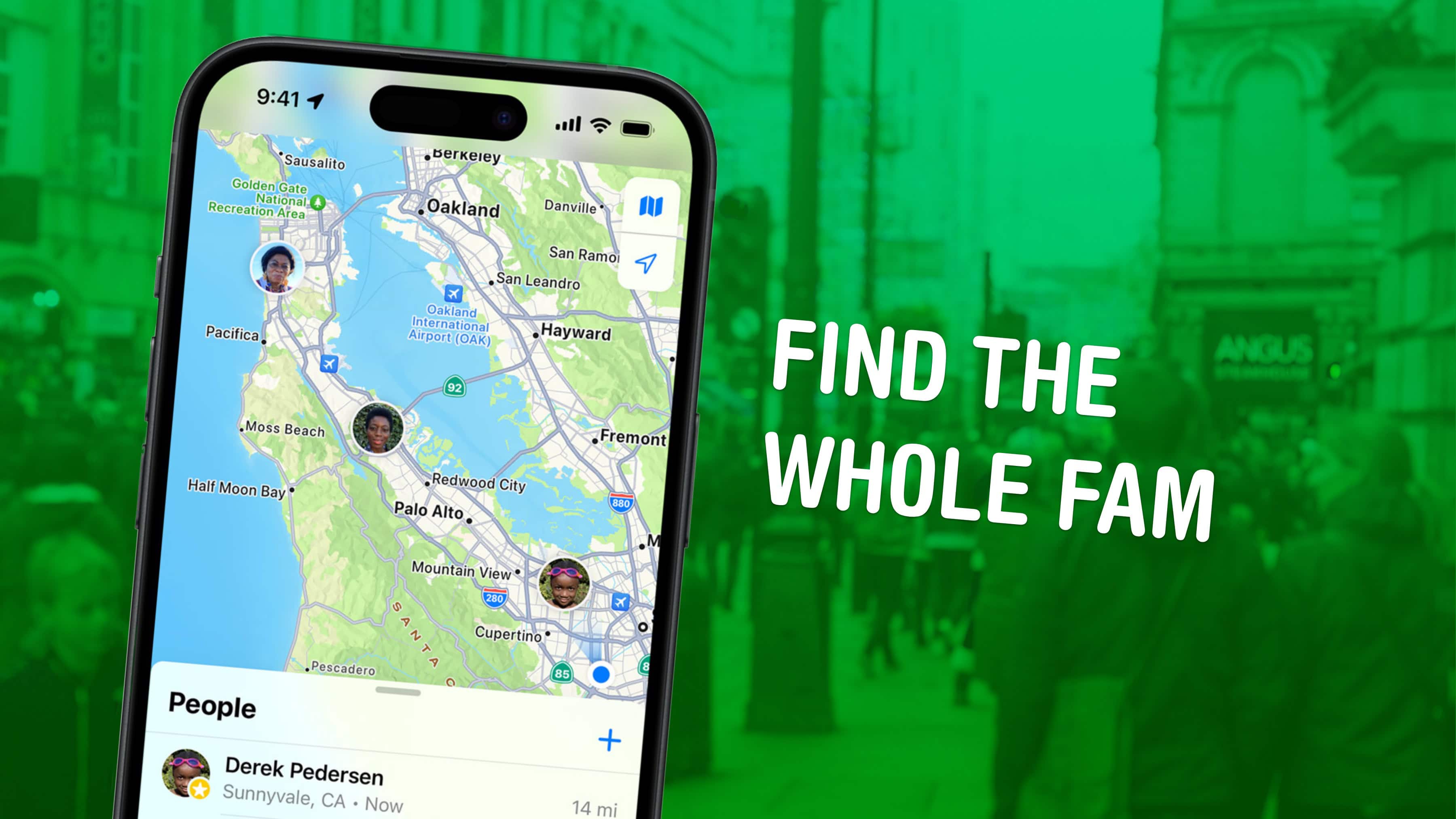
Find My is the built-in way to share location on iPhone. Image: Apple/D. Griffin Jones/Cult of Mac
Location sharing is an incredibly versatile feature of iOS that makes coordinating with others much easier. Whether you’re meeting up with someone, exploring a new place, or spending the day out with friends, it’s a breeze to share your location. This feature is especially helpful in large public spaces, such as malls, amusement parks, and stadiums. If you’re wondering how does sharing location work on iPhone, you can check out this detailed guide:Everything You Need to Know About Location Sharing in iOS.
Giving directions on precisely where to pick up someone along a street block or in a parking lot is made much easier by sending a pin in an iMessage chat. With Family Sharing, I can see if my wife is on her way home without first sharing her ETA in Apple Maps. Another benefit is that I can use Find My to ping her phone if it’s lost in the house.
Ducking autocorrect. What a shot piece of software. It’s such an overcorrecting dock. Image: D. Griffin Jones/Cult of Mac
Here is how to stop your iPhone from autocorrecting swear words. It’s not a simple toggle switch in Settings, unfortunately — but it’ll only take you a few minutes to fix it once and for all.
Apple presents an annoyingly family-friendly image. It doesn’t want the iPhone to autocorrect a swear word to protect the innocence of children. It doesn’t want porn on the App Store (even if it’s a tap away in Safari).
Luckily, for the adults in the room, it’s all surface-level means of protection. Here’s how you can get your iPhone to let you swear again.
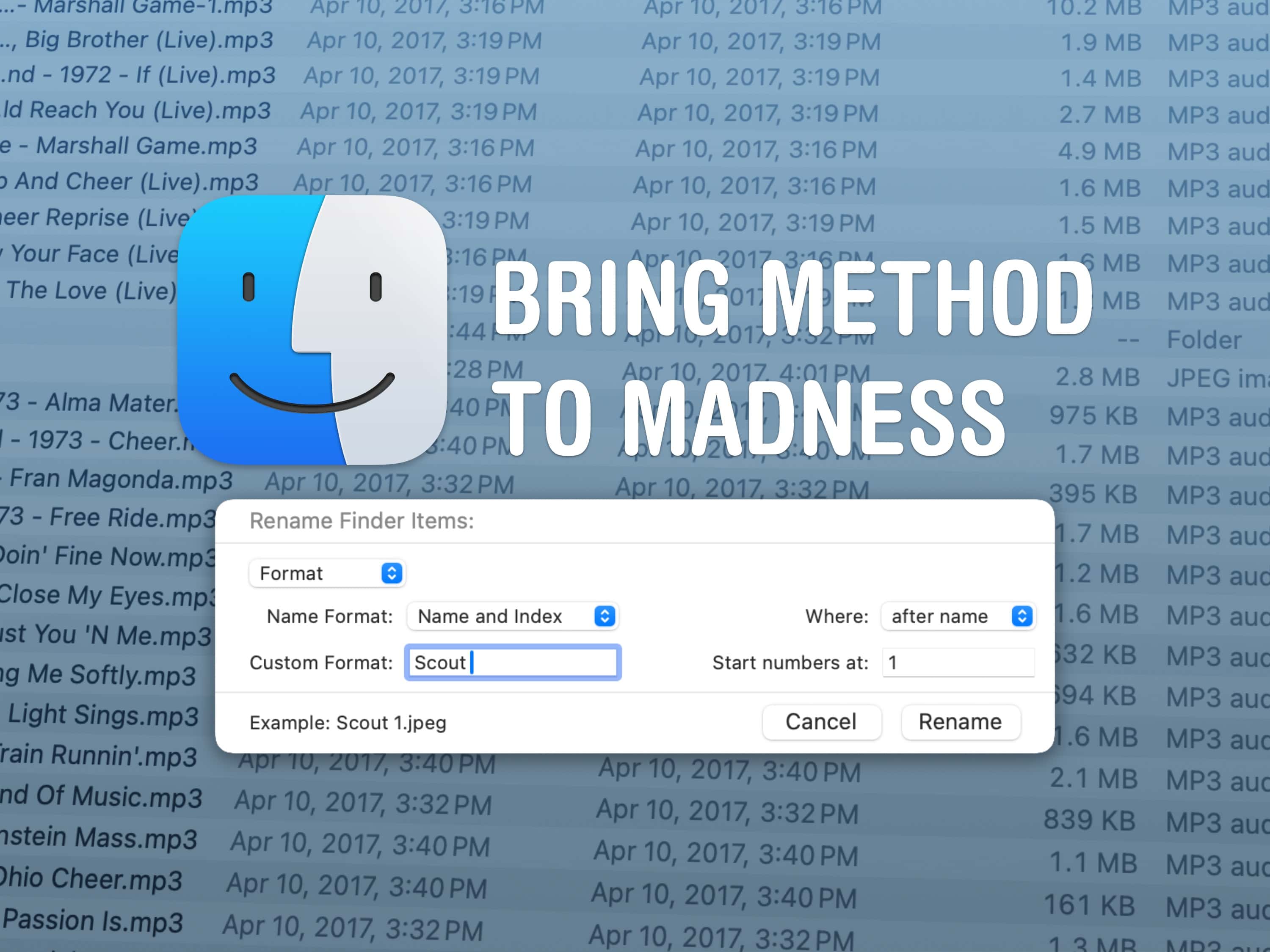
Restore order to your file system. Image: D. Griffin Jones/Cult of Mac
It’s easy to rename multiple files at once on a Mac using the Finder’s batch rename tool. If you have a big series of pictures, videos, screenshots or documents in a series, you can use this feature to rename them all in a similar format and sequence.
You don’t have to take on such a tedious task by hand.
Ever wonder what these symbols mean? Image: D. Griffin Jones/Cult of Mac
Those tiny, cryptic symbols on clothing tags and car dashboards can confuse anyone. However, your iPhone camera can quickly decipher the meaning of laundry symbols and dashboard icons. You don’t need to look up a guide or Google their meaning. Just take a picture and your iPhone will tell you.
While in my testing the iPhone didn’t identify every single symbol, the feature will do in a pinch. And if you want to use a third-party app for the best possible results, I can recommend two that I found on the App Store that can help you.

 Traveling is a lot easier if you can keep track of your stuff with AirTags in your luggage. It’s been in the news lately: Airlines have lost flyers’ bags and people have recovered them because they had the foresight to put an AirTag in the luggage. You can make sure it’s with you all the way along your journey and quickly find it among the baggage claim at your final destination.








 December 15, 2003: Almost eight months after launching the iTunes Music Store, Apple celebrates its 25 millionth download.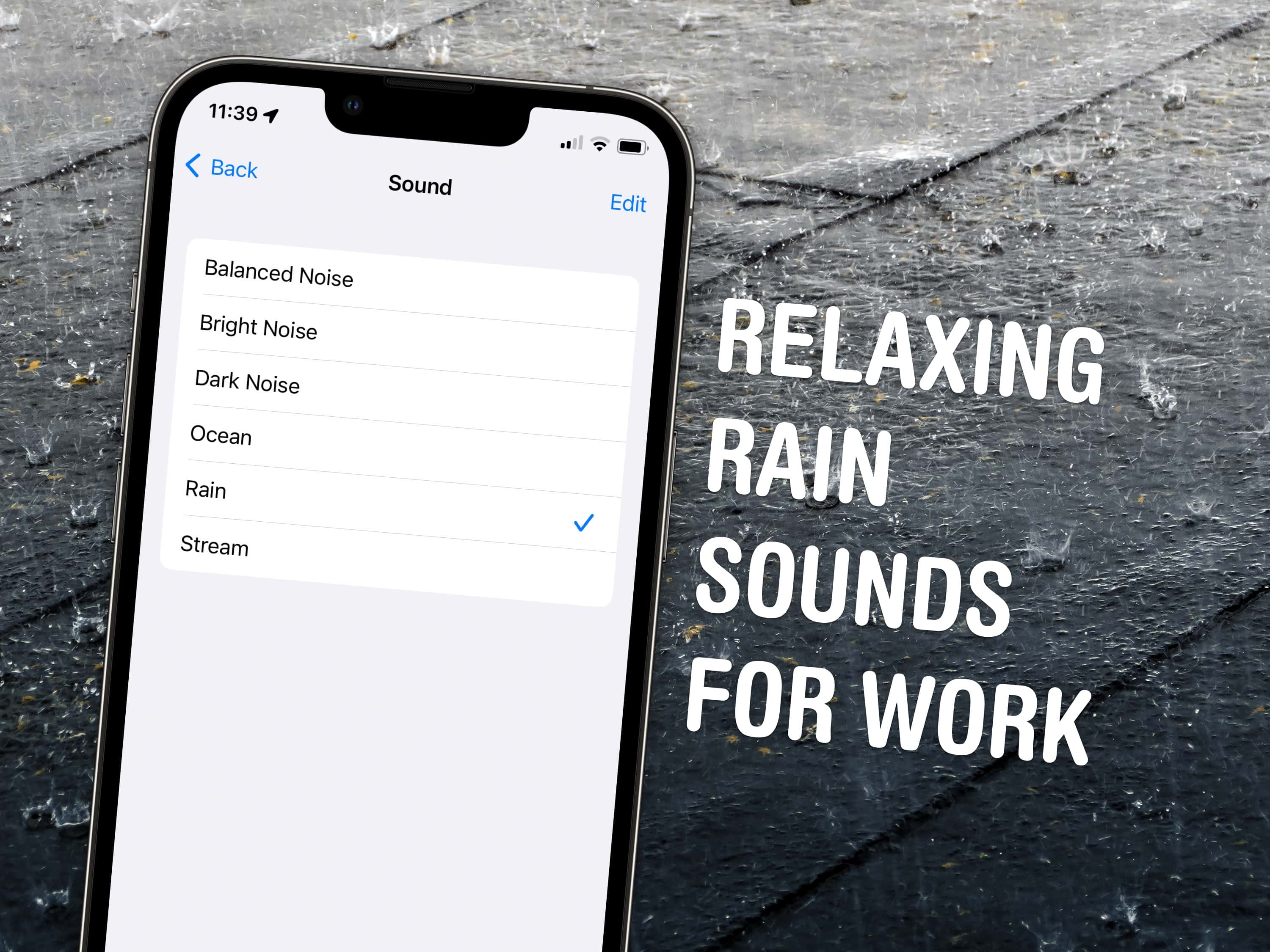

 November 9, 1994: Gil Amelio, a businessman with a reputation as a talented turnaround artist, joins Apple’s board.