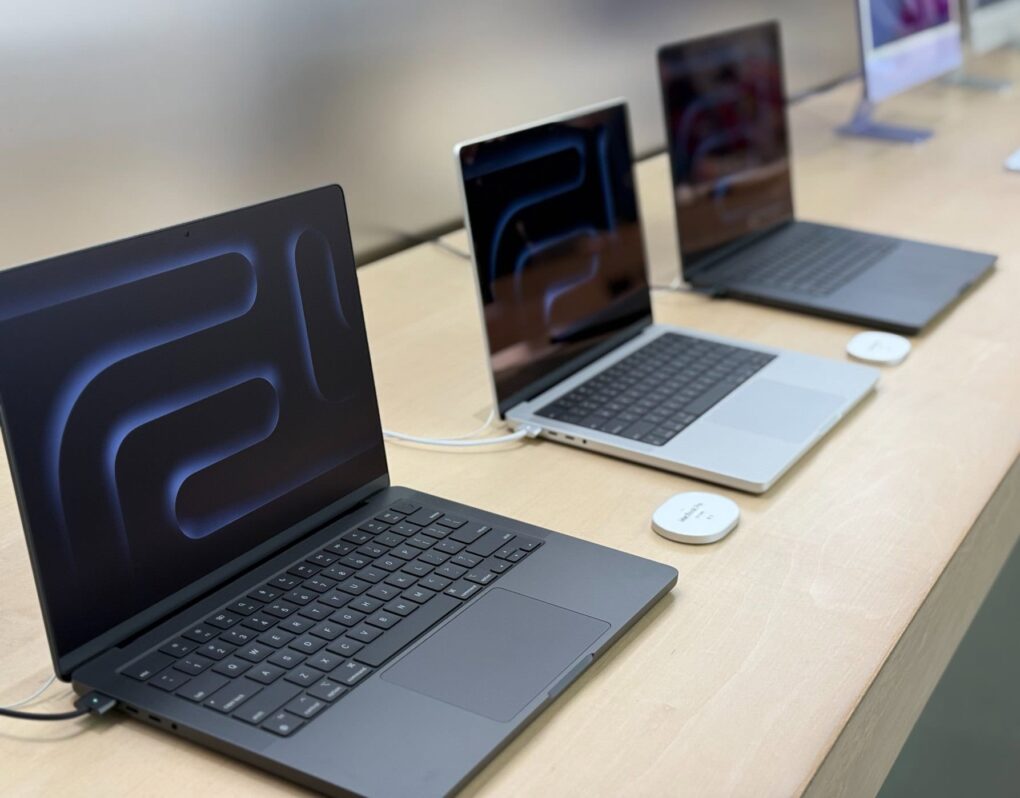
Slow charging your Mac is now easier to spot. Photo: David Snow/Cult of Mac
Your MacBook will now warn you when you plug in a slow charger. Apple quietly introduced this feature in macOS Tahoe 26.4.
The “Slow Charger” warning can help you quickly identify underpowered adapters that could slow down charging or affect your MacBook’s performance during use.
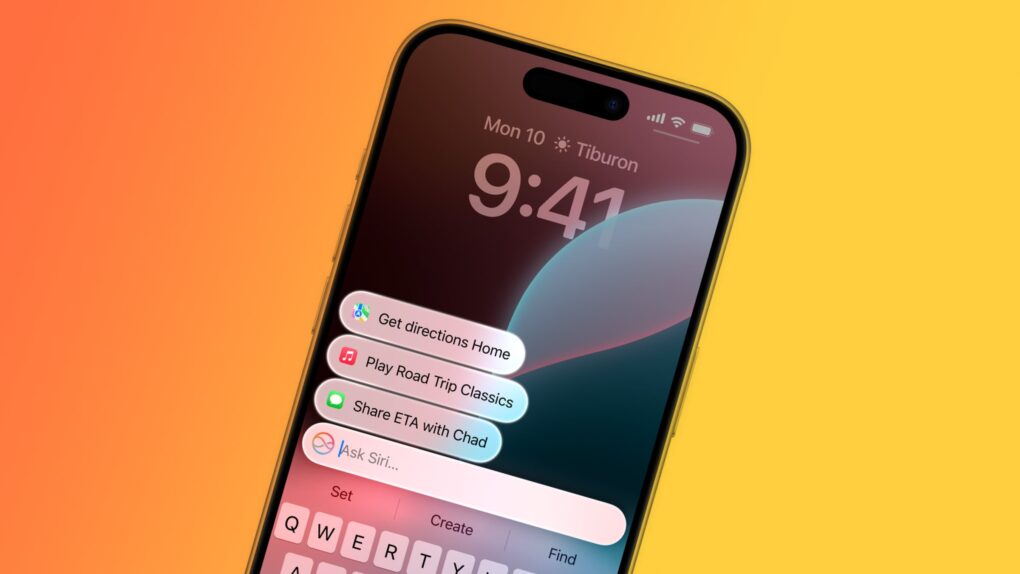
A major upgrade will make Siri the gateway to AI on Apple devices. Image: Cult of Mac
Apple plans a top-to-bottom revamp of Siri in iOS 27 that turns the beleaguered voice assistant into an AI chatbot at the heart of iPhones, Macs and iPads, according to a new report.
Apple might even launch a standalone Siri app that, like competing apps from ChatGPT and Google Gemini, serves as a central hub for all the user’s interactions with the AI assistant.
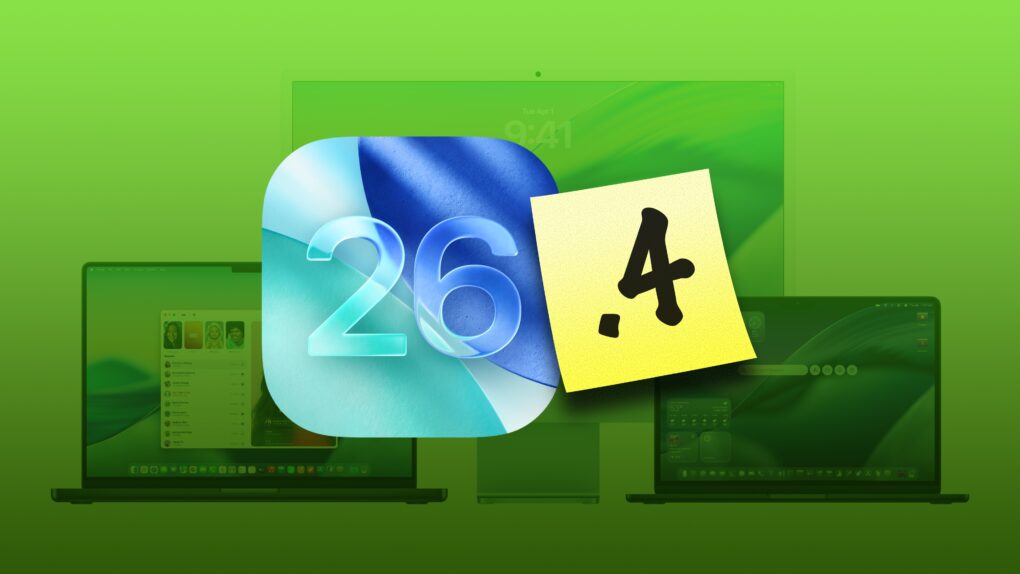
There's a big macOS update out for your Mac. Photo: Apple/D. Griffin Jones/Cult of Mac
macOS Tahoe 26.4, which Apple released Tuesday, brings several noticeable improvements and changes to the Mac’s operating system. While not a massive overhaul, this is exactly the kind of point update Tahoe needs right now.
Let’s take a look at what’s new in macOS Tahoe 26.4.
Whether you have a MacBook Neo, Air or Pro, this tips will give you the best battery life. Photo: Apple
Every MacBook boasts industry-leading battery life. But everything comes to an end. It may take a full day or more, but MacBooks do eventually run out of charge.
If you want to take your M5 Max MacBook Pro to the coffee shop to get work done, and you leave your power cable at home — even if you’re editing 8K ProRes video streams in Final Cut Pro — you still might be ordering breakfast, lunch and staying for dinner.
Of course, that low battery warning always comes at the most inopportune time. With that in mind, there are a few tricks to get even more unplugged time with your MacBook. Keep reading or watch our quick video.
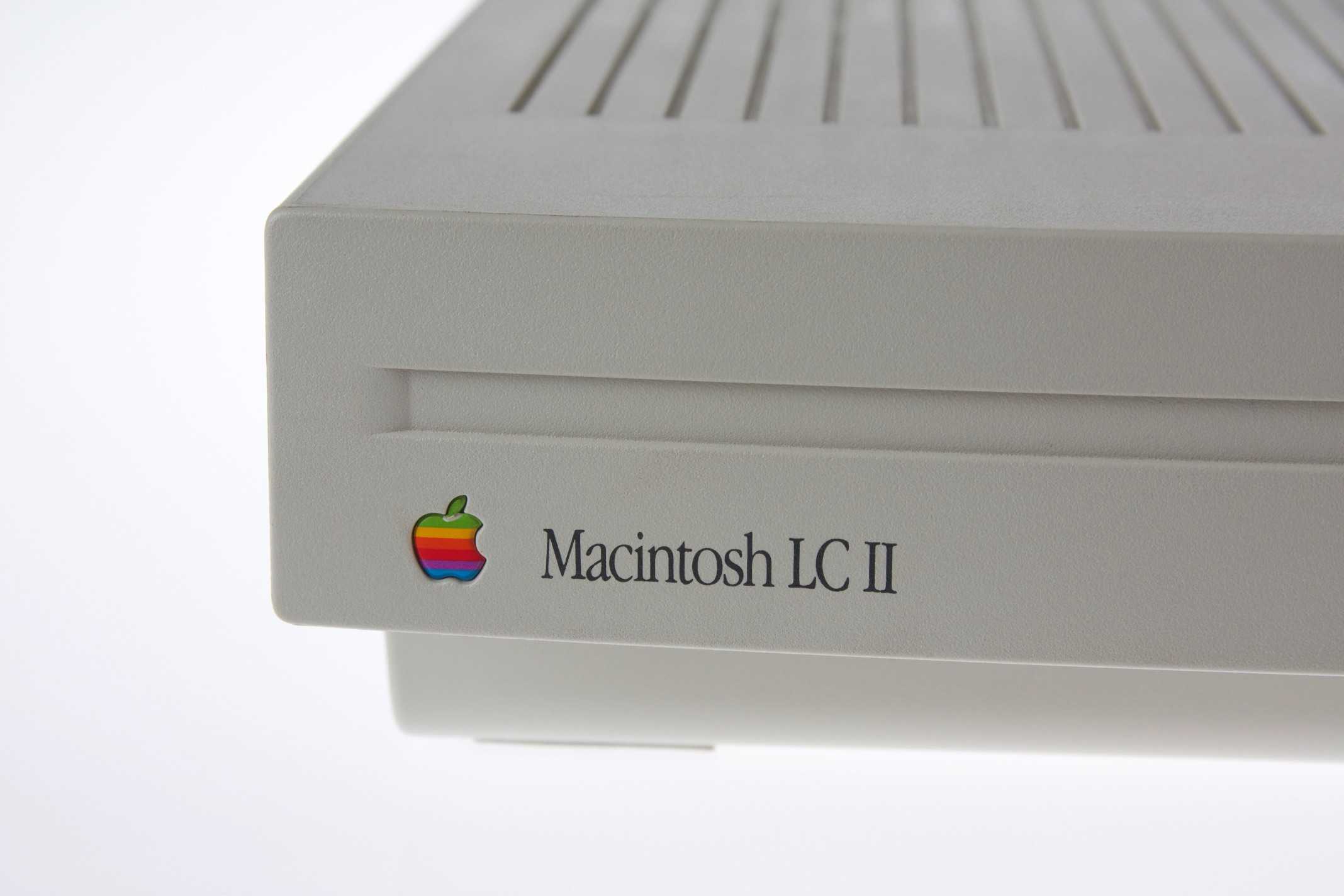
The Macintosh LC II was more powerful and cheaper than its predecessor. Photo: Jonathan Zufi
March 23, 1992: The “headless” Macintosh LC II arrives, wooing value-oriented customers with a beguiling mix of updated internals and budget pricing.
Designed to take up minimal space underneath a monitor (sold separately), the Mac LC II is destined to become a hit. In retrospect, the entry-level machine is roughly analogous to today’s Mac mini.
The Twentieth Anniversary Mac offered a glimpse of the future. Photo: Apple
March 20, 1997: Apple launches its Twentieth Anniversary Macintosh, a futuristic, special-edition Mac that’s ahead of its time in every way. Not part of any established Mac line, it brings a look (and a price!) unlike anything else available — and Apple delivers them to buyers in a limo!
And yet the Twentieth Anniversary Macintosh promptly bombs. Today, it’s a collector’s piece.
The IIfx was the fastest Mac of its day. Photo: Old Computr
March 19, 1990: The ultra-fast Macintosh IIfx makes its debut, sporting a hefty price tag appropriate for such a speedy machine.
The fastest Macintosh of its day, it boasts a CPU running at a “wicked fast” 40 MHz. It gains an additional speed bump from a pair of Apple-designed, application-specific integrated circuits. Prices start at $9,870 and run up to $12,000 — the equivalent of $24,561 to $29,862 in 2026 money!
The MacBook Neo's SSD is a NAND chip soldered to the motherboard. Screenshot: DirectorFeng
A MacBook Neo can be upgraded to 1TB of storage, but the DIY project isn’t for amateurs. A video demonstrating the process shows that it takes skills, experience and the right equipment.
Still, it’s interesting to watch. Especially as it also shows how easy it is to disassemble the MacBook Neo.
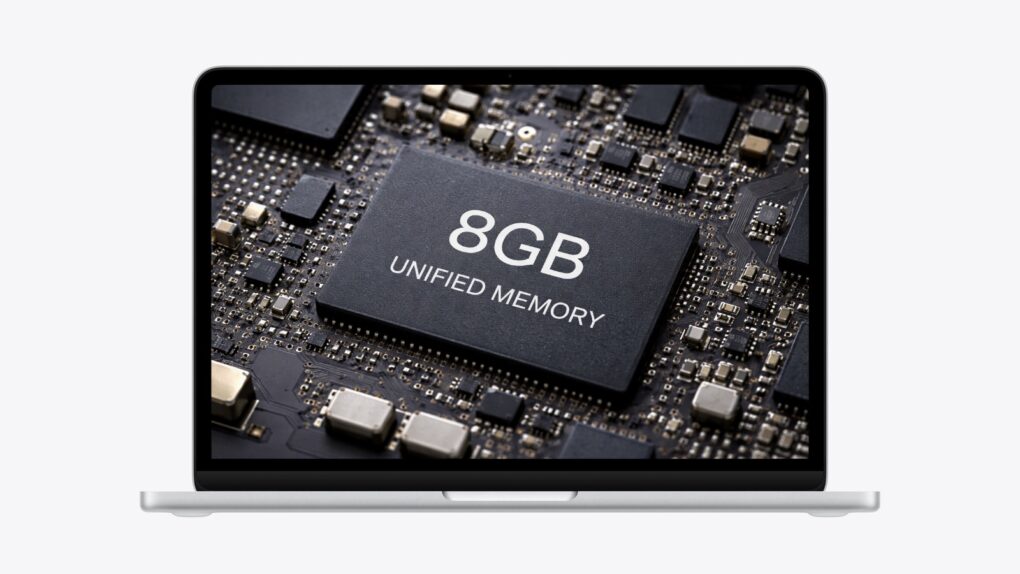
MacBook Neo includes just 8GB of RAM. And that's a good thing. AI image: Apple/ChatGPT/Cult of Mac
The MacBook Neo comes with 8GB of RAM, and that’s great news for all Mac users, even if they never buy a Neo. It means current and older Apple computers will continue to offer speedy performance when running macOS for years to come.
The Macintosh 7100 was not Carl Sagan's favorite computer. Photo: Matt Gibson/Flickr CC
March 14, 1994: Apple introduces the Power Macintosh 7100, a midrange Mac that will become memorable for two reasons.
The first is that it is among the first Macs to use new PowerPC processors. The second is that it results in Apple getting taken to court by astronomer Carl Sagan — not once but twice.
★★★★☆
The two best colors. Photo: D. Griffin Jones/Cult of Mac
The MacBook Neo exceeds all expectations and defies all logic. It’s a $599 computer that’s not slow. The cheap laptop sports a light aluminum unibody with exceptional fit and finish, along with a gorgeous, bright Retina display. It runs on an iPhone chip, yet it’s incredibly fast with unbelievable battery life.
The name itself, Neo, reminds you that this is not a computer made out of spare parts. It’s a bespoke industrial design with a brand-new display and feature set. That feature set excludes things that longtime members of the cult consider quintessential Mac features — a backlit keyboard, an ambient light sensor and a MagSafe connection.
Nonetheless, the MacBook Neo will be a lot of people’s first exposure to the Mac. I wanted to know what their experience will be like — and I think they’ll be very happy.
The MacBook Neo looks like a sweetheart for switchers. Image: Cult of Mac
This week on the Cult of Mac podcast: The MacBook Neo is the obvious star that emerged from this week’s tsunami of Apple product announcements. Its potent combo of good looks, surprisingly good performance and an extremely appealing price tag makes it a powerful lure for bringing new people into the Apple world.
We discuss the new laptop’s strong points — as well as some definite drawbacks.
Also on the Cult of Mac podcast:
The brawny M5 Pro and M5 Max chips in the latest MacBook Pros sound absolutely mind-blowing.
The iPhone 17e looks like a great upgrade to Apple’s budget handset.
The new Airs (iPad and MacBook) also seem great, if not that surprising.
And we wrap up the show with the results from last week’s predictions game.
Listen to this week’s episode of the Cult of Mac podcast in the Podcasts app or your favorite podcast app. (Be sure to subscribe and leave us a review if you like it!) Or watch the video live stream, embedded below.
You may want to pick up the M5 models instead. Photo: D. Griffin Jones/Cult of Mac
The recently introduced high-end M5 MacBook Pro may be a spec bump update before the M6 models bring radical new changes. But before you commit to sitting this generation out, you should know the M6 models will likely come with some caveats.
An all-new design with new features (like a slimmer chassis and touch screen) usually brings with it an all-new price that’s higher than before. If you’re holding out for the M6 Pro or Max models, you may be waiting for longer than you expect. And if you’re just getting the base model, well, the rumored changes may not come at all.
This isn’t pure speculation; Apple has a proven track record of pulling all these tricks. Here are three reasons why the M5 MacBook Pro may actually be the better choice for you.
That citrus color is pretty neo-n, isn't it? But the real reason has more to do with exuding "fun, friendly and fresh." Photo: Apple
The bold, unconventional name of Apple’s new entry-level laptop — MacBook Neo — surprised just about everyone, including many folks who expected the simple moniker “MacBook.” And it turns out the reasoning behind “Neo” is just as vivid as the laptop’s color palette, according to a new report.
Windows world hand-wringing over the affordable MacBook Neo has begun. Photo: Apple
Apple just did something that was, until very recently, almost unthinkable: It put a Mac laptop on sale for $599. And, no big surprise, the new MacBook Neo announced Wednesday already sparks concerns among PC mavens about hordes of users rushing to Apple. A new report from Windows land shows it.
“Windows OEMs are going to feel the heat, too,” the commentator wrote. “For years, OEMs have gotten away with shipping what can essentially be described as e-waste in this price bracket.”
MacBook Neo is great, but it misses out on these features. Photo: Apple/ChatGPT
To make the new MacBook Neo — Apple’s most affordable laptop yet at just $599 — the company obviously needed to make some compromises. To keep costs down, Apple removed or scaled back several features that come standard on the MacBook Air and MacBook Pro.
Every wise shopper should consider the limitations of the MacBook Neo before jumping on Apple’s fun-looking new laptop.
Which should you get? Image: Apple/D. Griffin Jones/Cult of Mac
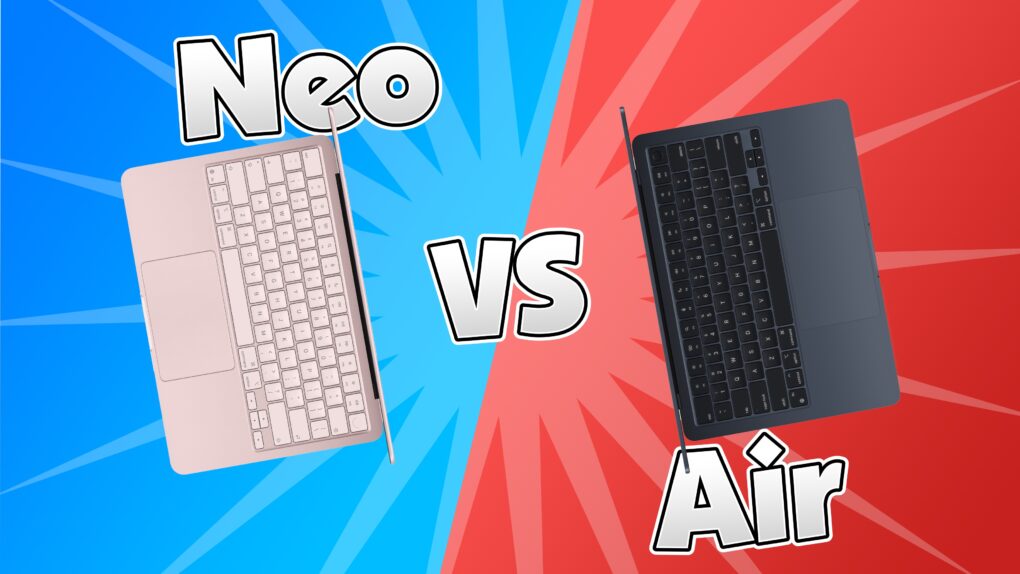
The MacBook Neo is Apple’s newest low-end MacBook. Does that mean there’s no reason to buy a MacBook Air anymore? Would power users go straight for the MacBook Pro? I don’t think so. There are still plenty of reasons to buy Apple’s midrange MacBook Air vs. the MacBook Neo.
Apple did a good job differentiating the two computers — there’s no configuration of the Neo that overlaps with the Air. Picking between the two should be straightforward. If you want more than 512GB storage, 8GB of memory or support for multiple external displays, you should opt for the MacBook Air. If you don’t need that much power or high specs, the Neo will do just great for you.
Here are all the differences between the two laptops.
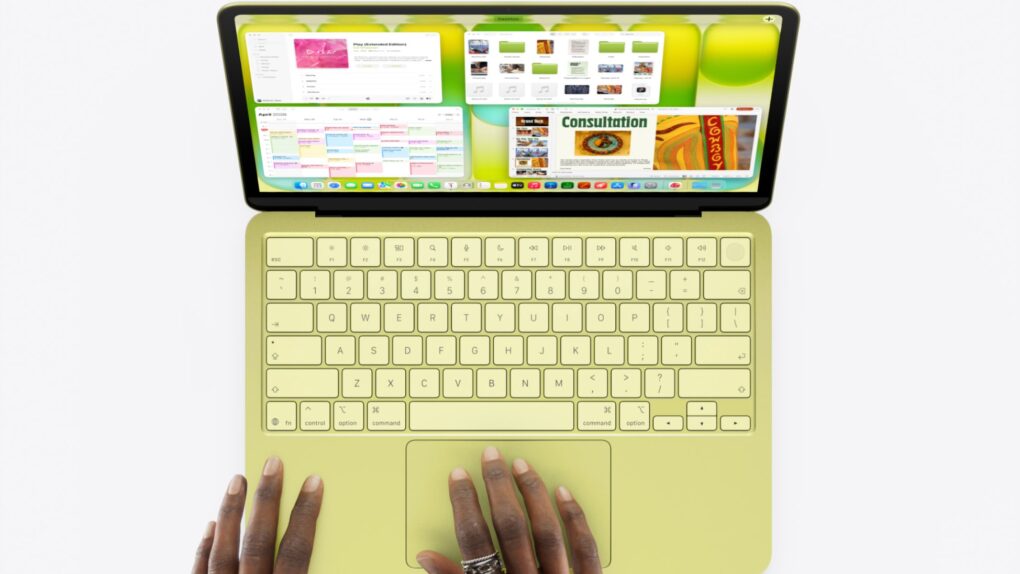
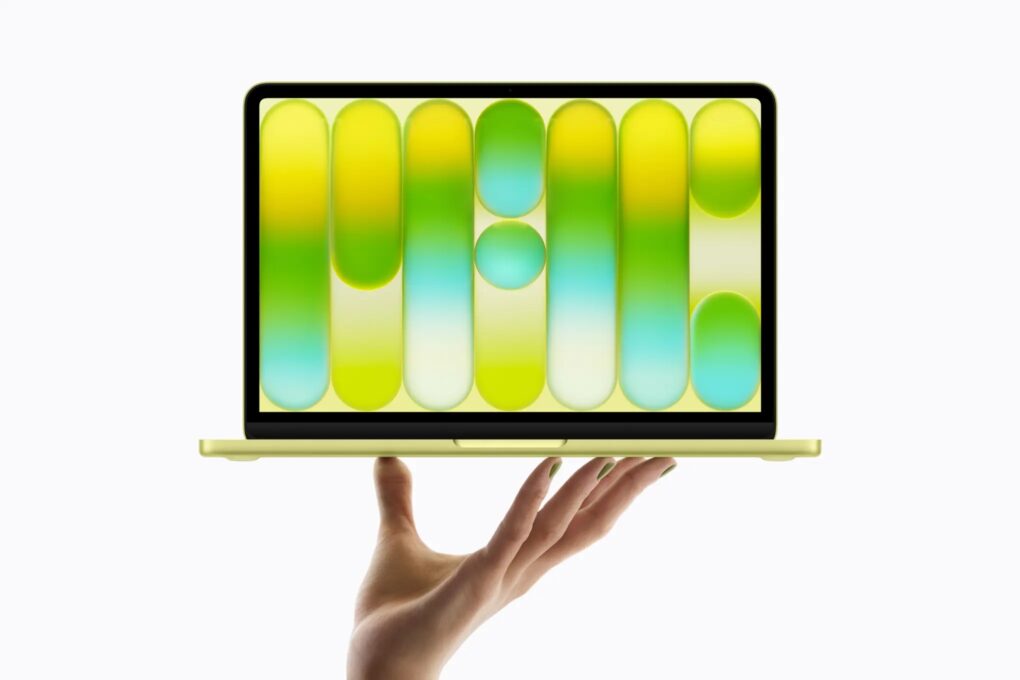
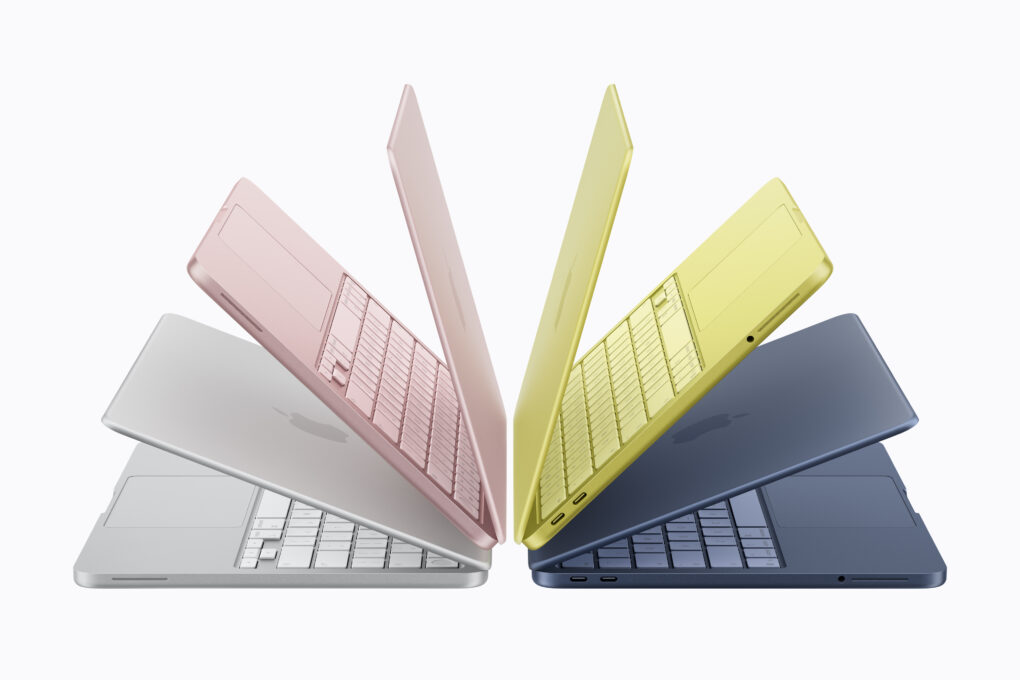
The supremely affordable MacBook Neo comes in four colors: silver, blush, citrus and indigo. Image: Apple
Apple introduced the MacBook Neo on Wednesday, unveiling the company’s most affordable laptop ever. It comes in four gorgeous, vibrant colors — silver, blush, indigo and citrus — and costs just $599 (or $499 with Apple’s education discount).
“We’re incredibly excited to introduce MacBook Neo, which delivers the magic of the Mac at a breakthrough price,” said John Ternus, Apple’s senior vice president of hardware engineering, in a press release. “MacBook Neo is a laptop only Apple could create. It features a durable aluminum design in four beautiful colors; Apple silicon-powered performance; all-day battery life. There is simply no other laptop like it.”
Apple’s just-announced MacBook Neo as well as the new M5 Pro/Max-equipped MacBook Pros, M4 iPad Air, M5 MacBook Air and iPhone 17e are now available for preorder. The new Studio Display and Studio Display XDR are also available to order starting Wednesday.
All devices will start shipping and hit retail stores starting March 11.
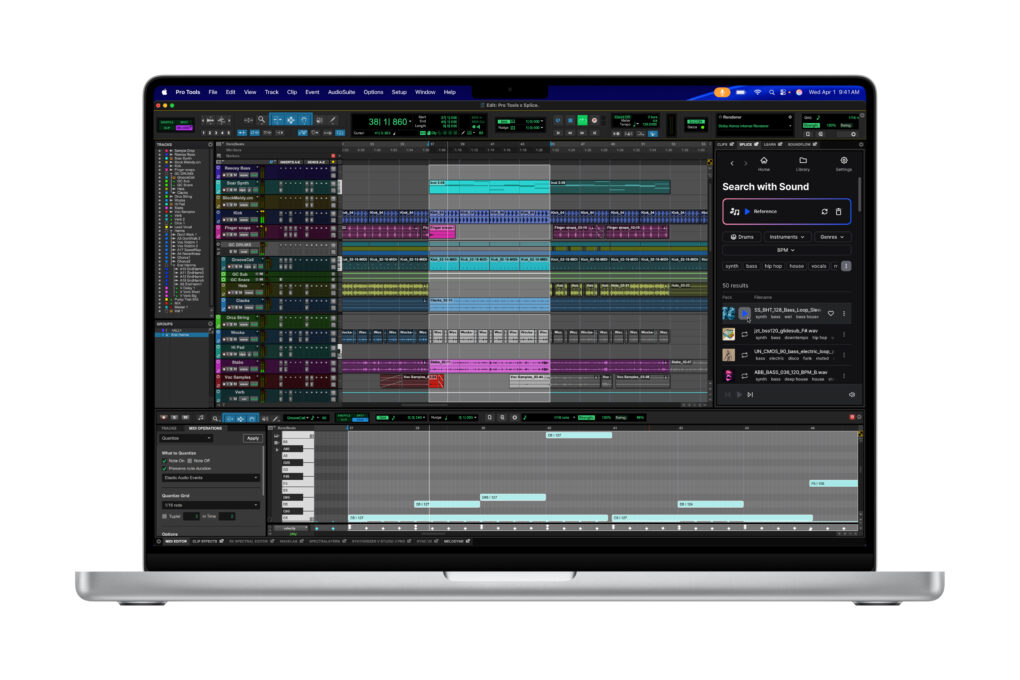
The high-end M5 MacBook Pros is ideal for sound design and composition, in powerful apps like Avid Pro Tools. Image: Apple
As of Tuesday, Apple has refreshed its entire MacBook lineup with M5 silicon. And while the new machines bring meaningful upgrades across the board, buyers should brace for higher prices than last year.
Whether you’re eyeing the new MacBook Air or the pro-grade MacBook Pro, here’s a breakdown of what to expect at every price point.
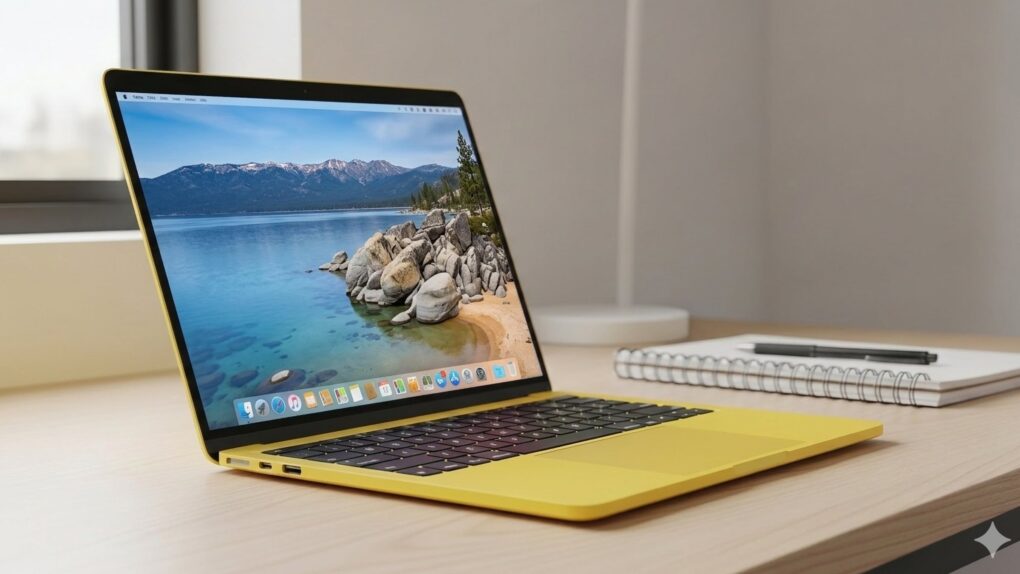
Apple's upcoming entry-level laptop, possibly called the "MacBook Neo," reportedly will come in a variety of eye-catching colors. AI image: Gemini/Cult of Mac
Update: Apple launched the MacBook Neo on Wednesday. Learn all about it:
It looks like Apple itself spoiled this week’s biggest product reveal: A new laptop called the “MacBook Neo” briefly appeared on the company’s website Tuesday.
Apple quickly deleted the info after it leaked. While not confirmed, the name seems like it would align with the rumored features of the entry-level laptop. Rumors indicate it will come in fun colors, with a price tag low enough to compete with Windows laptops.
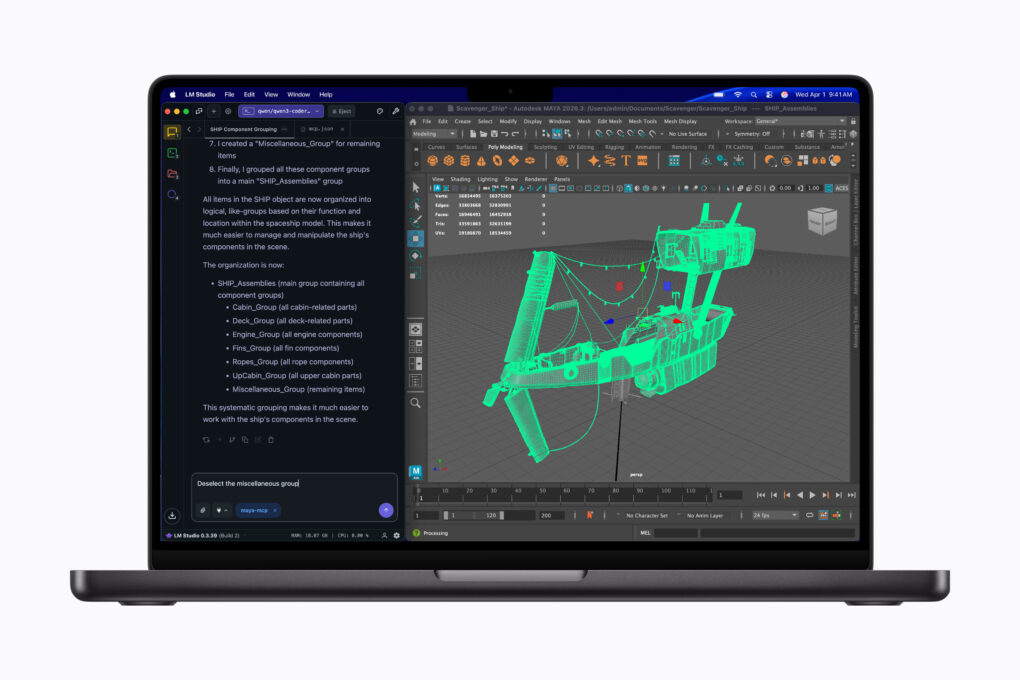
Run local LLMs and powerful 3D modeling software simultaneously on the MacBook Pro. Image: Apple
Apple’s long-rumored M5 Pro- and M5 Max-powered MacBook Pros are finally official. The new laptops look visually the same, but pack updated internals that promise a massive leap in performance.
“MacBook Pro with M5 Pro and M5 Max redefines what’s possible on a pro laptop, now up to 4x faster than the previous generation,” said John Ternus, Apple’s senior vice president of hardware engineering, in a press release Tuesday.
Apple's most popular laptop just got even better. Photo: Apple
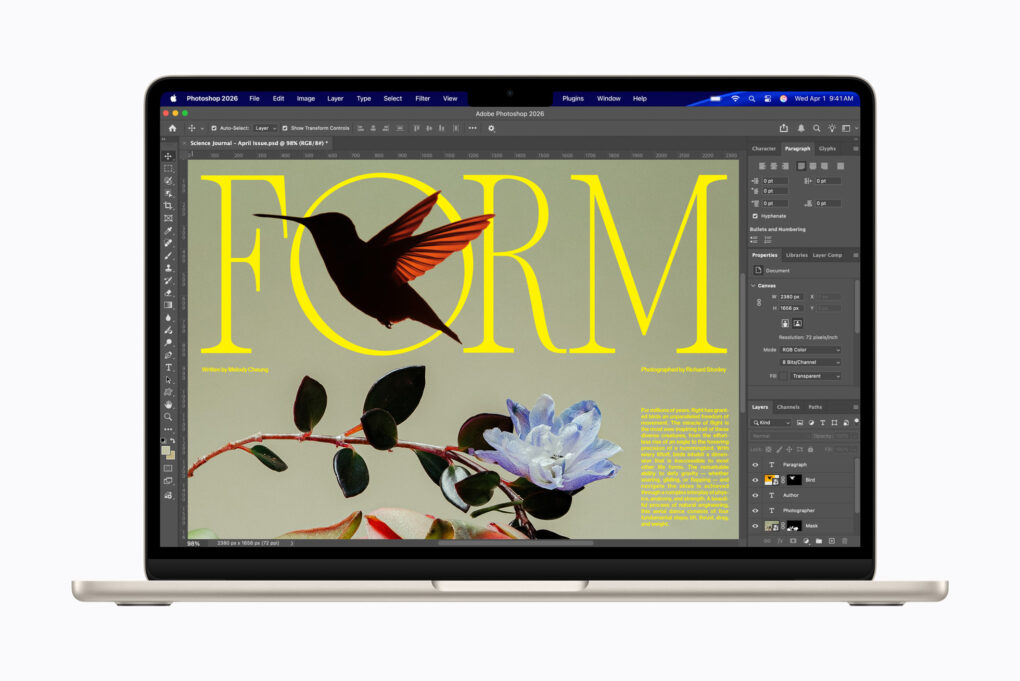
Apple’s best-selling laptop got even better with Tuesday’s launch of the M5-powered MacBook Air. It features no major design changes, but it sports a faster processor than before, adds storage capacity and shifts to Apple’s N1 chip for improved connectivity.
“The new MacBook Air with M5 brings incredible performance and even more capability to the world’s most popular laptop,” said John Ternus, Apple’s senior vice president of Hardware Engineering. “With M5, MacBook Air powers through a wide range of tasks, from everyday productivity to creative workloads, and is even faster for AI.
“Now featuring double the starting storage, as well as Wi-Fi 7 and Bluetooth 6, in a sleek and durable design with long battery life, MacBook Air is the perfect laptop for anyone who values the unrivaled combination of performance and portability,” he added.
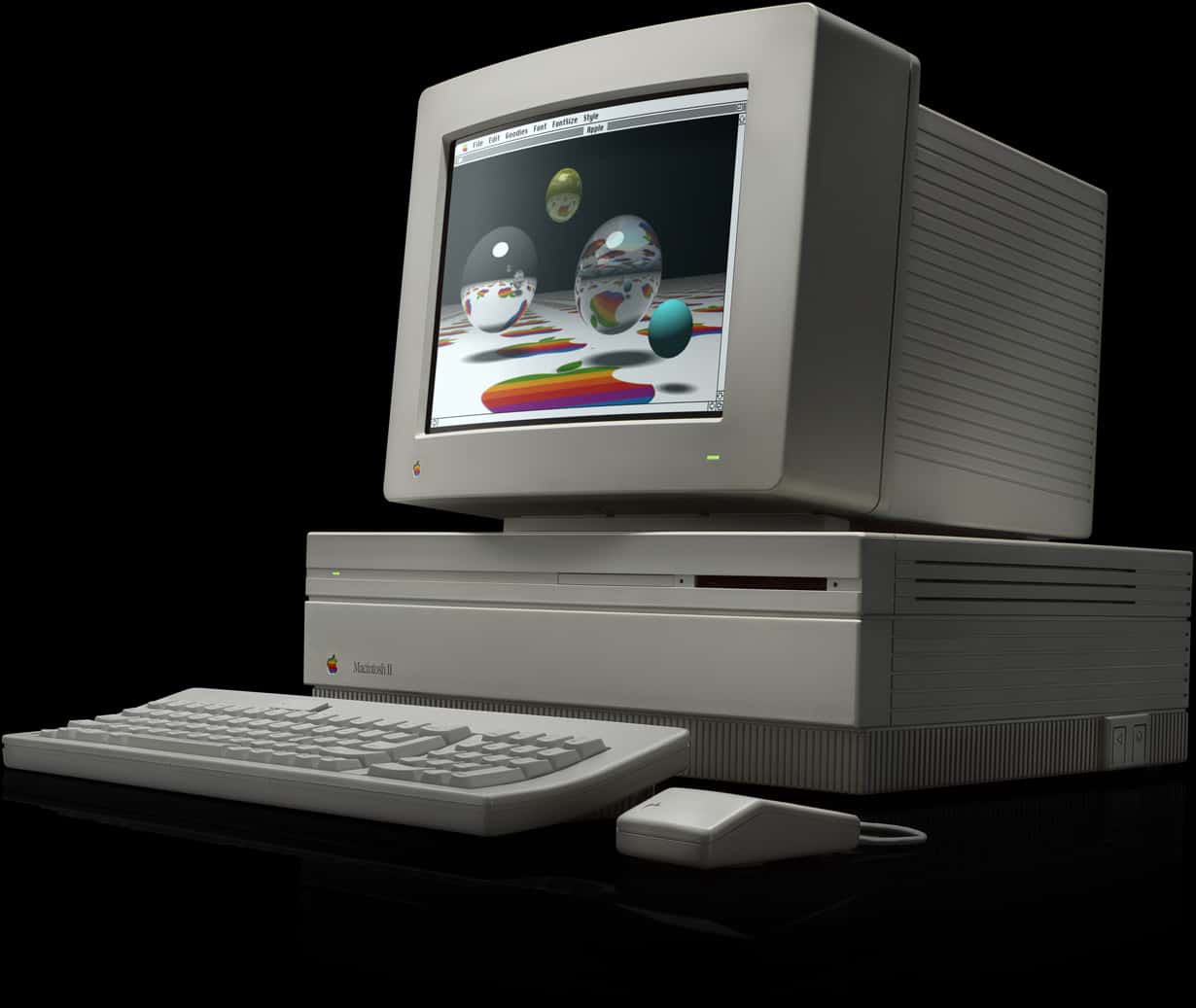
The Mac II was an enormously impressive machine for its day. Photo: Apple
March 2, 1987: Three years after releasing the original Macintosh 128K, Apple launches a proper sequel, the almighty Macintosh II.
Although four Mac models already have been released, the definitive, full-number name of the Macintosh II makes clear that this is a major upgrade for the product line. With a massive hardware boost, optional color display (!) and a new open architecture, it does not disappoint!
Running Apple II programs on your Mac was pretty darn awesome. Photo: Microwavemont/YouTube
March 1, 1991: Apple introduces the Apple IIe Card, a $199 peripheral that lets users turn Macs into fully functioning Apple IIe computers.
The ability to emulate the popular Apple IIe on a Mac brings Apple’s two operating systems side by side for the first time. While not quite the equivalent of Apple letting you run iOS on a Mac today, it’s not a world away.


 March 23, 1992: The “headless” Macintosh LC II arrives, wooing value-oriented customers with a beguiling mix of updated internals and budget pricing.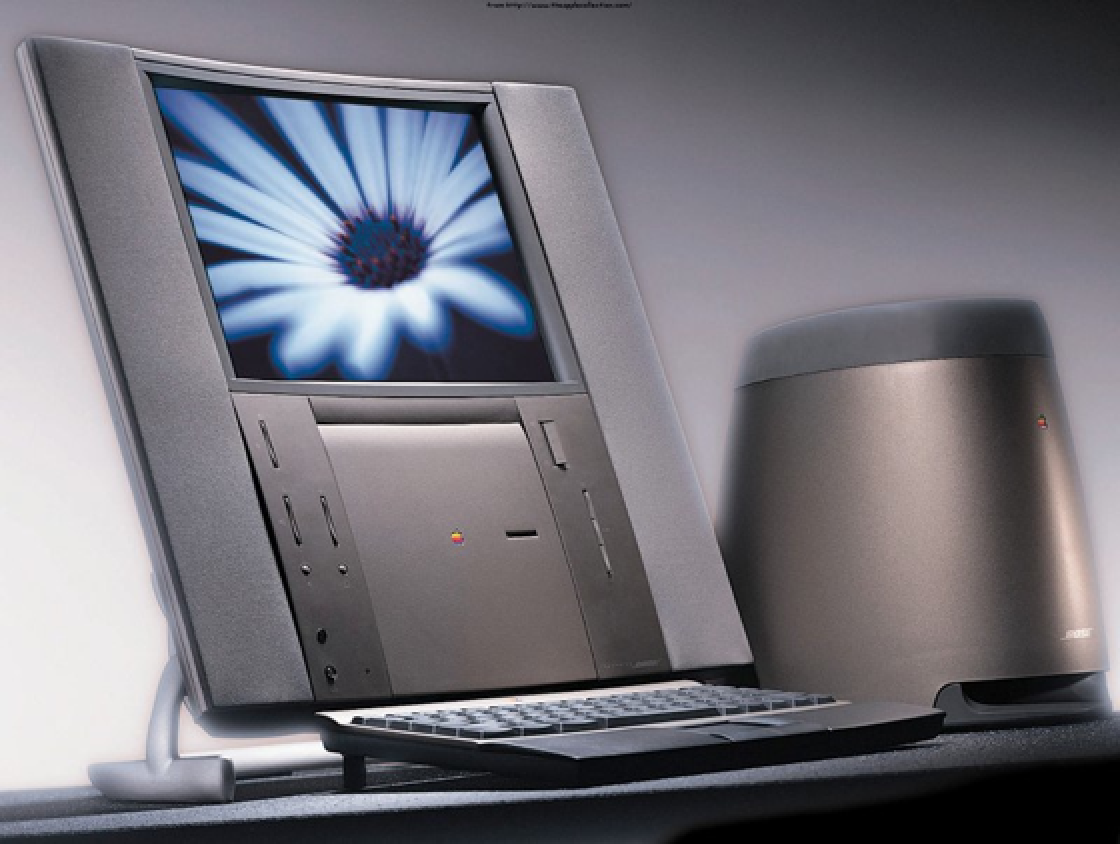
 March 20, 1997: Apple launches its Twentieth Anniversary Macintosh, a futuristic, special-edition Mac that’s ahead of its time in every way. Not part of any established Mac line, it brings a look (and a price!) unlike anything else available — and Apple delivers them to buyers in a limo!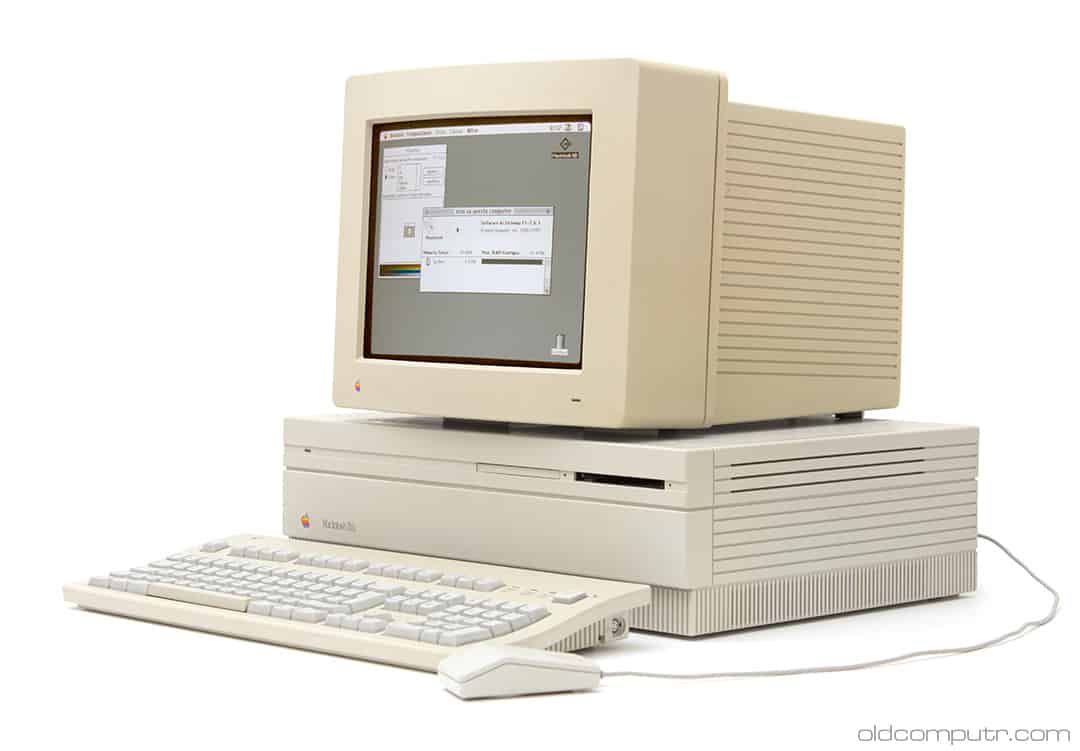
 March 19, 1990: The ultra-fast Macintosh IIfx makes its debut, sporting a hefty price tag appropriate for such a speedy machine.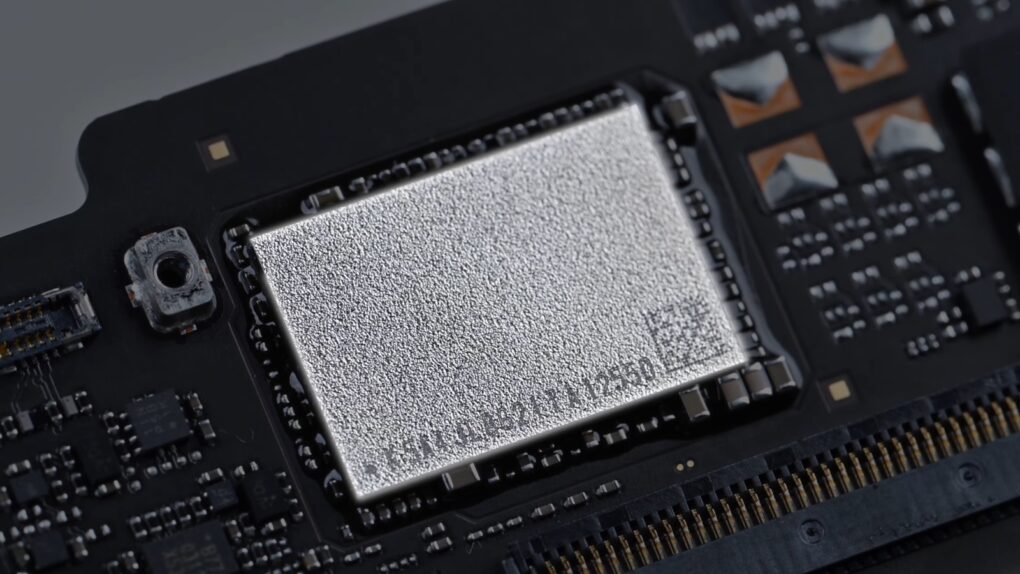

 March 14, 1994: Apple introduces the Power Macintosh 7100, a midrange Mac that will become memorable for two reasons.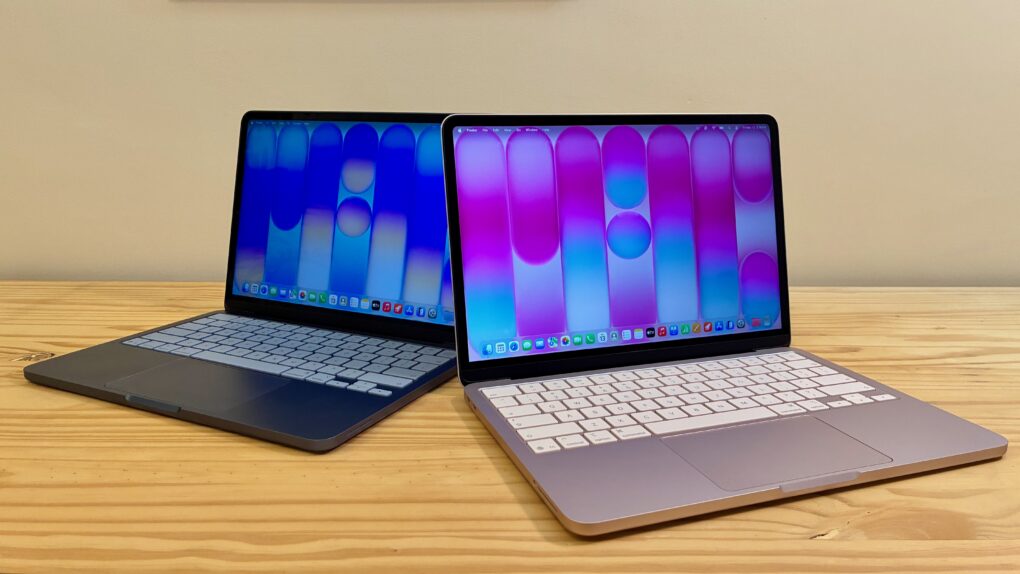



 March 2, 1987: Three years after releasing the original Macintosh 128K, Apple launches a proper sequel, the almighty Macintosh II.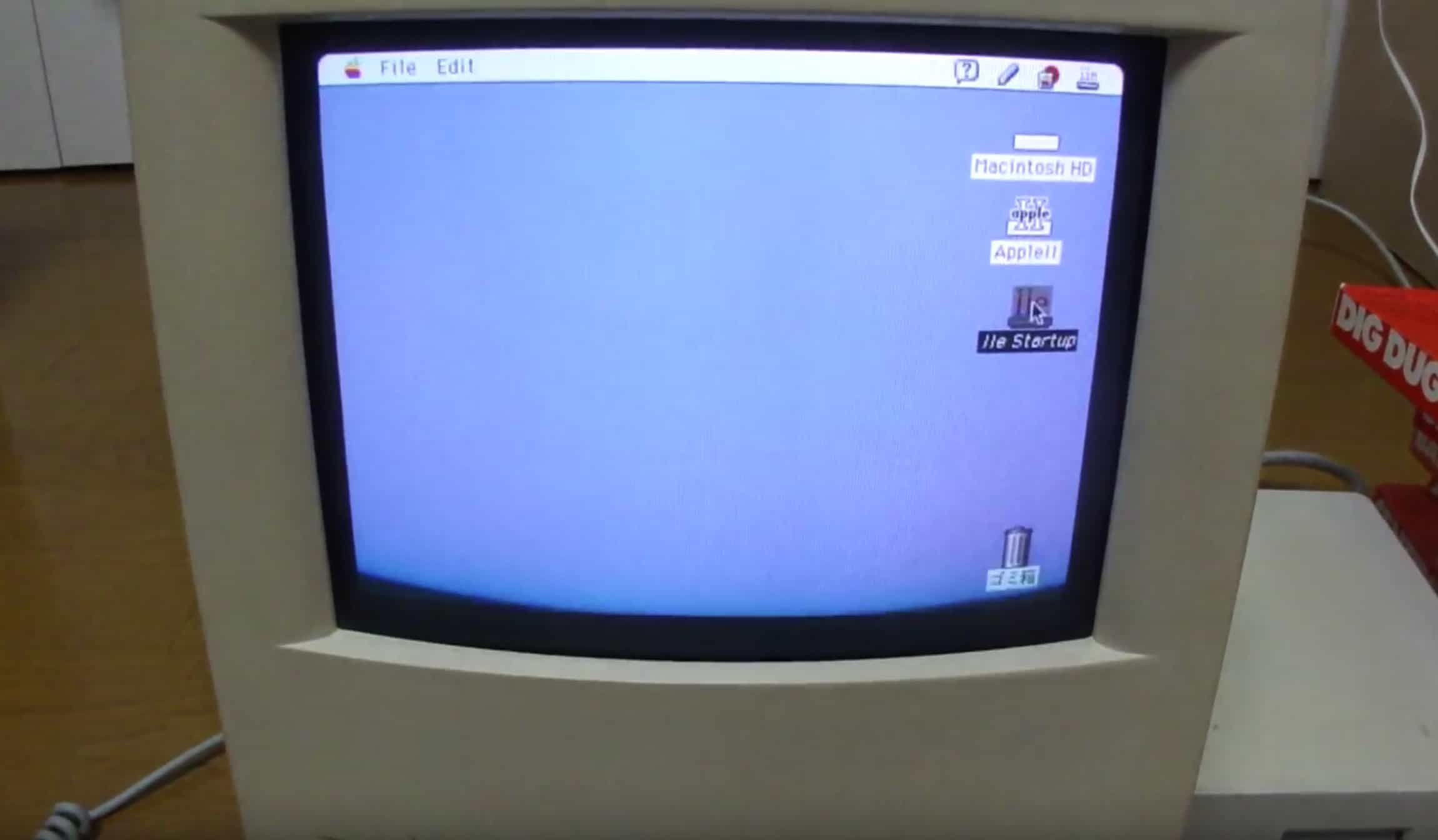
 March 1, 1991: Apple introduces the Apple IIe Card, a $199 peripheral that lets users turn Macs into fully functioning Apple IIe computers.