Sound Check evens out the volume of Apple Music songs. Photo: Charlie Sorrel/Cult of Mac
The song you’re listening to on your iPhone is a bit too quiet, so you adjust the volume. Perfect. Then the song ends, and the next one blasts your ears. You fumble your iPhone from your pocket and tap the volume down a notch or two.
Thanks, Apple Music. Why can’t you just play all the songs at the same volume? Obviously that’s what everyone wants.
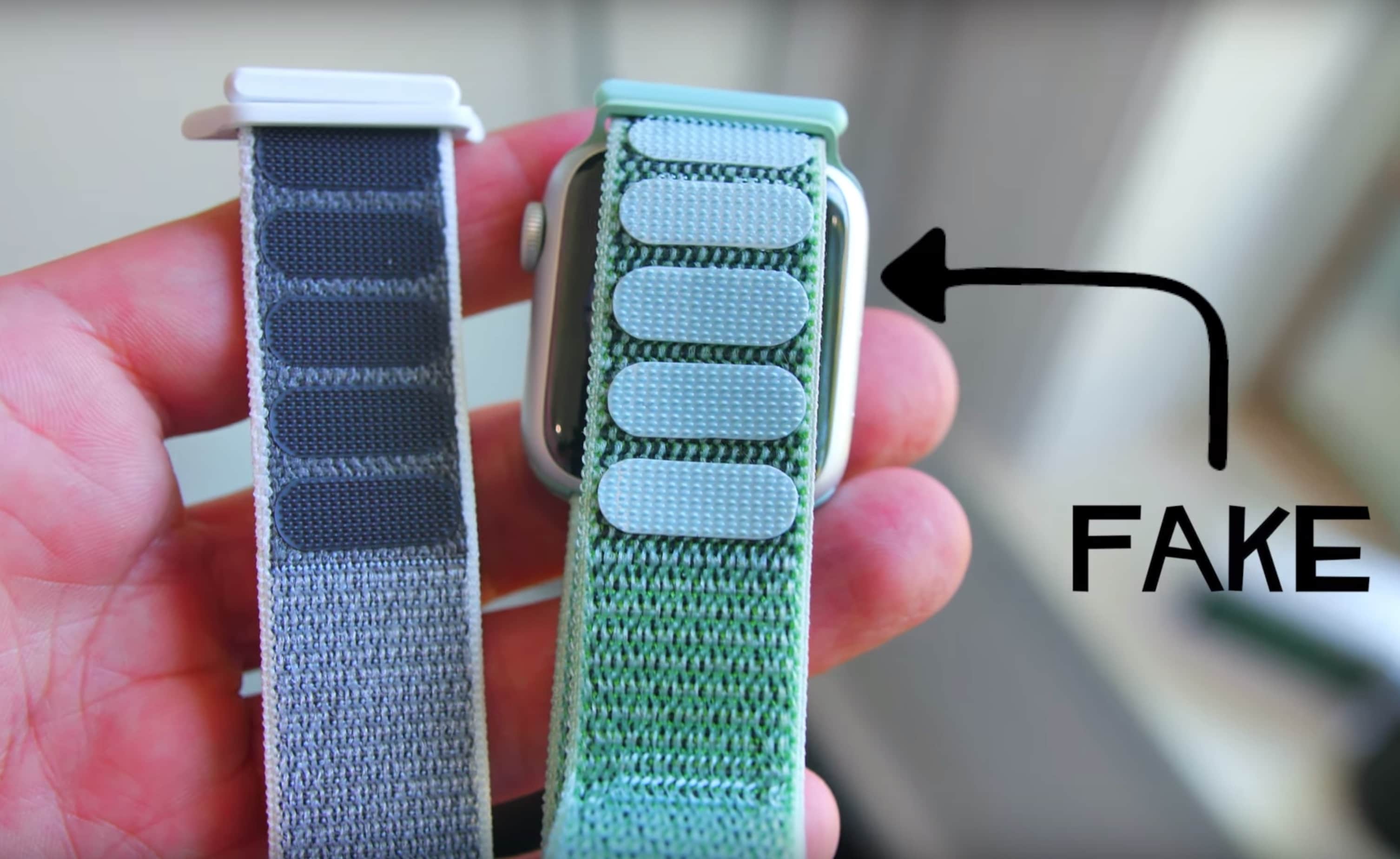
Accessorizing your Apple Watch with a slew of bands can be an expensive undertaking. But if you know where to look, you can find some high-quality bands that seem just as good as Apple’s — but only cost a fraction of the price.
The CultCast host Erfon Elijah is out with a new video today that will show you how you can pimp out your Apple Watch with multiple colorful bands without breaking the bank. The trick is knowing where to look on eBay and Amazon.
Subtitles — like many accessibility features — can be useful to anyone. Photo: Cult of Mac
Both macOS and iOS have excellent built-in support for subtitles. And many video player apps will play a subtitle file for you if you just drop it into the same folder as a movie, or even drag and drop it onto a movie that’s already playing.
But if your hearing is fine, why should you bother with subtitles? I came up with a short list:
The audio on the movie/TV show is unclear.
English isn’t your first language, and you appreciate the help.
You want to watch a movie with the sound low.
You don’t understand the accents in that British TV drama.
The good news is that subtitles are easy. And the bad news? There is none.
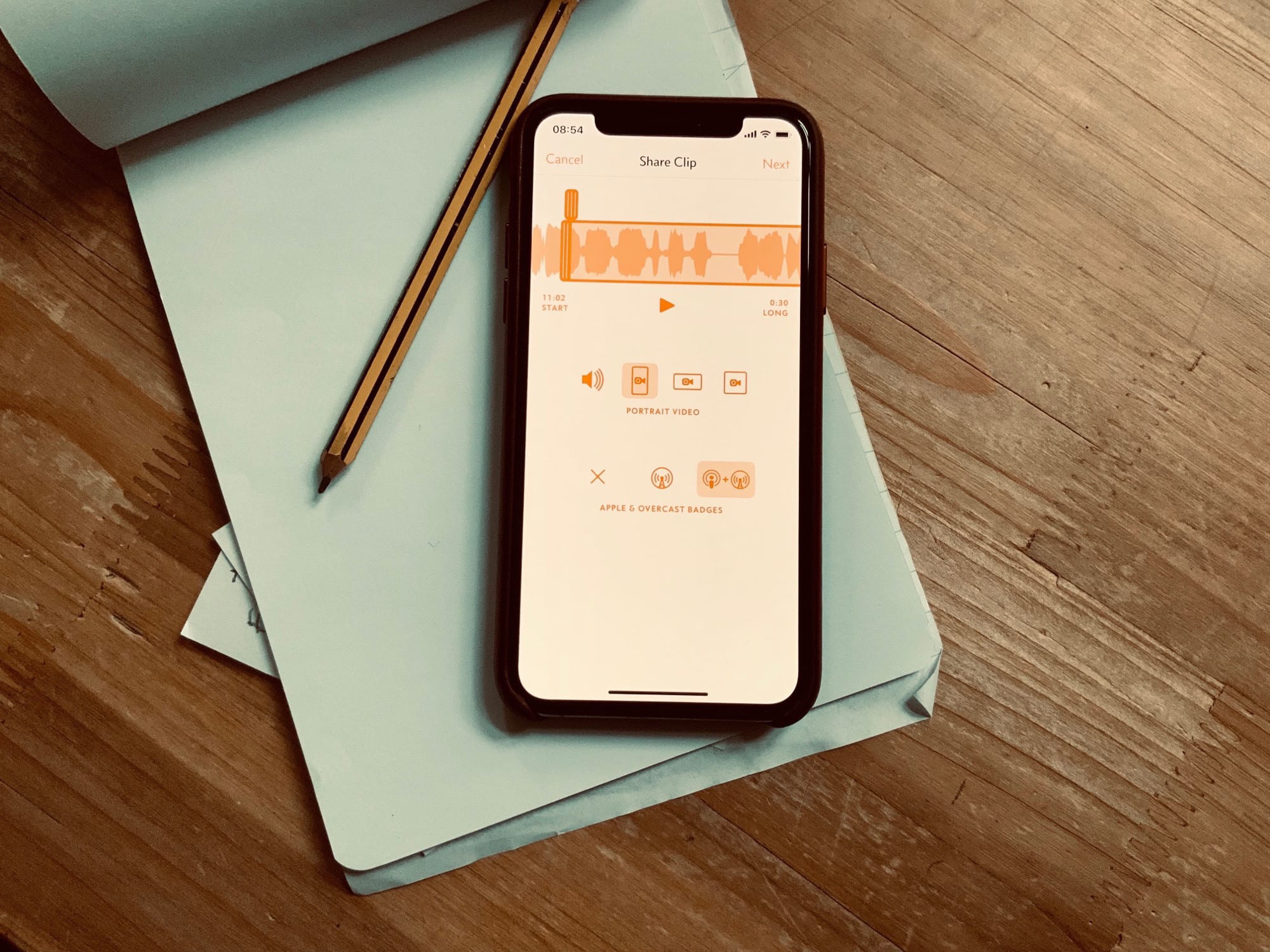
Share podcast clips in Overcast. Photo: Charlie Sorrel/Cult of Mac
You’re listening to an awesome podcast, and one of the hosts makes a super-smart point about a fascinating subject. It’s so good that you just want to share it with people. But how? Tweet a link to the podcast along with a timecode so folks can hunt down that pithy quip themselves? Good luck! People on Twitter are too lazy to… well, they’re just too lazy.
But if you use the Overcast podcast player app, then you can now share a short audio or video clip of any podcast, to Twitter, Instagram, or anywhere else. It’s dead easy, and it might be the best thing to happen to podcasts in quite a while.
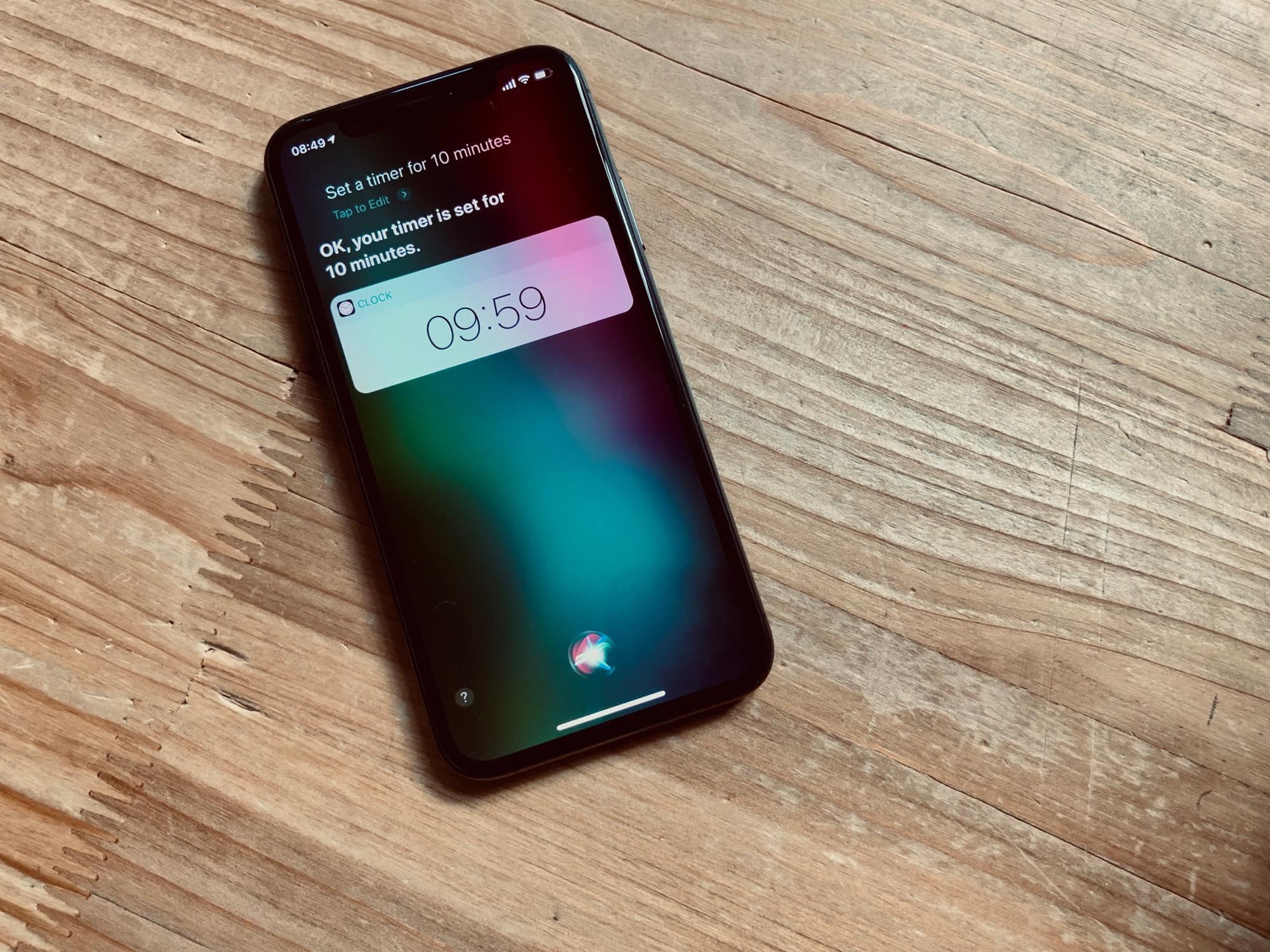
Even Siri can manage to set alarms and timers without screwing it up. Photo: Charlie Sorrel/Cult of Mac
Siri may still be hopeless, but one thing it’s always been good at is setting alarms. In fact, I don’t use Siri much at all any more1, but for alarms and timers, I use it exclusively. Even with iOS 12’s great 3-D Touch timer widget, Siri is quicker.
Today we’ll see how to tell Siri to create an alarm, set a timer, how to edit an alarm, and how to delete one.
Twitter is a swamp of spoilers. You can’t move for tweets about the plot of the new Star Wars movie or spoilers about whatever new TV show is dropping all its new episodes this week. There are two ways to avoid spoilers. One is to avoid Twitter entirely.
The other is to mute keywords, so you don’t see references to — well, references to whatever you want. Mutes don’t have to be about the long-awaited meeting between Spock and Obi-Wan, though. You can mute anything. You could avoid all mentions of President Donald Trump, for example. Brits could stanch the flow of Brexit mentions. Or you might temporarily mute mentions of a sports event if it’s taking over your timeline.
Readdle’s Wi-Fi Transfer gets our ‘stamp’ of approval. Photo: Charlie Sorrel/Cult of Mac
If you have an old Mac that doesn’t support AirDrop, or you use a PC with your iPhone or iPad, then getting files from one to the other is a real pain. Readdle’s Documents app fixes this, making it easy to beam anything from one place to the other, wirelessly. Today we’re going to see just how easy it is. And one other neat trick is that you can use this on any computer, not just your own.
Dust off any old USB keyboard and get your Bluetooth back in action. Photo: Charlie Sorrel/Cult of Mac
You wake up or restart your Mac, and nothing is connected. Your Bluetooth keyboard does nothing. You wiggle your Bluetooth mouse or trackpad, and the on-screen pointer refuses to wiggle in response. The problem? Your Mac’s Bluetooth is switched off. But how do you switch it back on without a mouse? If you ever find yourself in this situation, here’s a simple guide onturn on Bluetooth Mac without mouse.
Today we’ll see how to activate Bluetooth on an iMac, Mac Pro or Mac mini 1 without having to touch a mouse or trackpad. All you need are a USB keyboard, Spotlight and one clever trick.
Good morning! I am the Clever Coffee Dripper! Photo: Charlie Sorrel/Cult of Mac
Good day, sleepy humans. I assume you are a fellow appreciator of delicious coffee, and that you suffer the same morning paradox as me: You just woke up, and are still rather groggy. And yet you also want to make a great cup of coffee. After all, you can’t drink that many in a day without wigging out.
The answer is here: It’s the Clever Dripper, and it’s almost impossible to make a bad cup of coffee with it. Not only that, but it might make the best coffee you’ve ever tasted.
Here’s one piece of history we don’t want to erase. Photo: Charlie Sorrel/Cult of Mac
Have you got some embarrassing entries in your Safari browsing history? Or maybe it’s a question of security: You don’t want your iPad’s history to fall into the wrong hands, etc.
Smutty jokes aside, there are plenty of legit reasons to clear your Safari history on your iPhone or iPad. And the good news is that Safari for iOS has some great tools for doing so. For example, did you know that you can clear just the last hour of browsing history, or the past couple of days?
Get ready to learn how to sanitize your Safari history on iOS devices.
Somebody’s been doing some really hard listening here. Photo: Charlie Sorrel/Cult of Mac
If I’m watching a TV show and a great song comes on, I usually try to find my iPhone in time to shazam it. I almost always fail, as 1) TV shows don’t tend to play entire songs without people talking over them and 2) I can never find my phone in time. Or rather I’m too lazy to look for it.
A similar thing happens for movies, only I promise myself that I’ll check the credits at the end, and I seldom do.
My dad, old-school guy that he is, likes to call up the TV company and ask them. Maybe I’ll do that when I’m retired, if there are still TV companies with phone numbers.
But did you know that there’s an almost 100% foolproof way to find that awesome track that played in that TV show you saw last night? It’s called Tunefind, and it’s great.
A perfect music-making combo. Photo: Charlie Sorrel/Cult of Mac
At first glance, the decade-old OP-1 synthesizer from Swedish musical instrument makers Teenage Engineering looks about as standalone as it gets.
The tiny device couples a short, piano-style keyboard with a screen. And it contains a drum machine, several synthesizers, a sampler, a handful of sequencers, a virtual four-track tape recorder and even an FM radio. You can create entire tracks on it with no other gear, or you can hook it up to electric guitars and microphones and bring the outside world in.
But it also pairs surprisingly well with an iPad. You can record audio back and forth, but things go much deeper than that. You also can use the OP-1’s hardware keyboard to play instruments on the iPad, and use iPad MIDI apps to control the synthesizers on the OP-1.
Making music with an iPad and a synth
If you own both pieces of gear already, hopefully this how-to will give you some new ideas about making music with an iPad. But if you only own an iPad, this in-depth article will provide tips for using your tablet with other music gear.
And if you know nothing about the OP-1, or about Teenage Engineering’s work in general, you’ll learn why the company is kind of the Apple of the synth world. Teenage Engineering is known for its incredible interface design — and for having a quirky personality similar to 1984-era Apple, when the brand-new Mac was making waves.
Discover the secrets of the Activity app. Photo illustration: Graham Bower/Cult of Mac
At first glance, the iPhone Activity app seems pretty simple. It’s basically just a calendar to keep track of your daily Activity Rings. But if you know where to look, you’ll find a surprising number of pro features buried beneath that slick, simple interface.
So check out our top 10 iPhone Activity app tips and discover some indispensable stats that will help take your fitness to the next level.
This weekend I made a shortcut that takes a list of songs, adds up the total duration, and shows it in a notification.
The first part was easy. The Shortcuts app has a great action that can tell you anything about an iTunes Media file (or any other media file), including its duration. I whipped up a shortcut to cycle through a list of music tracks, adding up the durations along the way. It took five minutes, tops.
Then things started to go wrong. The shortcut returned the total duration in seconds. I don’t know about you, but for me, a number like 4,166.867 isn’t that useful. I prefer something like 01:09:26, or 1 hour 9 minutes and 36 seconds. The problem was, I couldn’t get from one to the other.
WTF is going on here? Photo: Charlie Sorrel/Cult of Mac
I love my AirPods, but I hate that they don’t fit right in my ears. They’re not designed to seal the ear canal, and therefore block external noise, but they often sit so loose in my ears that a) I can’t hear them without setting the volume way too high, and b) they feel like they’re about to fall out.
Today we’ll see how to add grippy dots to your AirPods. These dots will make the AirPods fit snugly in your ears, but — crucially — they will still fit in their charging case.
Never lose your old messages again. Photo: Charlie Sorrel/Cult of Mac
Why would you bother to back up your iMessages? After all, they’re all stored in iCloud these days, right? Well, yes your messages are all stored in iCloud, but they’re not backed up up there. They’re synced, which means that if you delete a message thread, it’s gone forever. The answer is to make a local backup, which requires a Mac. Which is ridiculous in 2019, but there you go.
Here’s how to back up your iMessages in case the worst happens.
How low can you go? Photo: Charlie Sorrel/Cult of Mac
The quick answer is “Yes, of course you should.” The more complex answer is “But only if you need it.” Your iPhone has an equalizer built in, although it’s not exactly easy to find. Annoyingly-hidden-yet-essential interface elements aside, there’s usually not much point in tweaking the EQ of your Apple Music library unless you have a problem in your setup.
Oh man, who wants to walk all the way over there? Photo: Charlie Sorrel/Cult of Mac
Maybe you need to restart your Apple TV. Perhaps something didn’t load right, or the whole thing is acting screwy. It happens. The Apple TV is just another iOS computer after all. And while unplugging your Apple TV is one valid option, that means getting off your couch. And what do TV lovers hate more than unnecessary exercise? Nothing, that’s what. Happily for you, my lazy friend, you can restart the AppleTV using the remote. If you can find it.
Want a more defined core? Your Apple Watch can help. Photo: Graham Bower/Cult of Mac
For many guys wanting to get in shape, a chiseled six-pack is the ultimate goal. But achieving that iconic washboard look is not easy. Especially as you get older.
Fortunately, your Apple Watch can help you along the way to achieving a tighter core. Apple’s Health app, Activity app and even the Breathe app have a role to play. Here’s how to get a six-pack with a little help from your iPhone and Apple Watch.
This may be too far gone for a warranty repair. Photo: Charlie Sorrel/Cult of Mac
iOS 12.2 brought many changes and additions to the iPhone and iPad — four new Animoji (giraffe! boar!), better-quality voice messages — but one handy new feature may go unnoticed unless you know where to look. Now, you can check the expiration date of your iPhone or iPad warranty right there on the device itself.
This video is going to look great on your Micro.blog. Photo: Charlie Sorrel/Cult of Mac
If you’re sick of YouTube’s ever-shifting terms, or you don’t like how lame Instagram has become, and you just want somewhere to post your videos without interference, then why not post them on your own microblog? Thanks to an update to Micro.blog, you can now do just that, as easily as posting a photo.
Photos app is usually pretty good at recognizing people. Photo: Charlie Sorrel/Cult of Mac
The Photos app’s Faces feature is fantastic. It does a pretty good job of gathering all the pictures of a person together, for both browsing and search. And it’s really easy to add new faces to the list. But what about managing those faces? What if the Photos app’s AI added some photos of a stranger into the photos of your husband?
It’s easy to tell your iPhone or iPad that a photo does not contain the person it thinks it does. Unfortunately, it’s a real pain to find the setting you need to tweak.
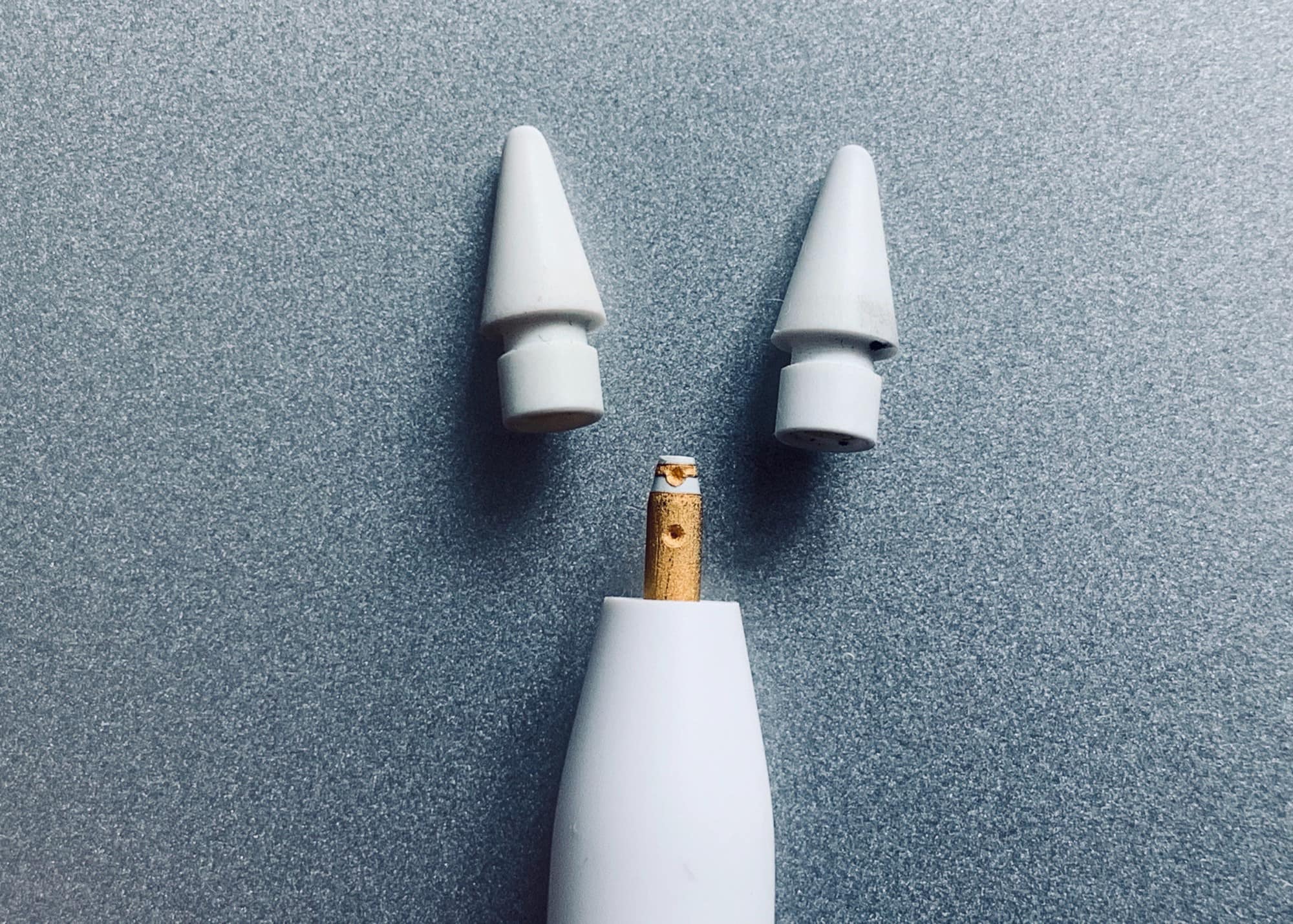
Apple Pencil tips are as easy to swap as they are to lose. Photo: Charlie Sorrel/Cult of Mac
Ounce for ounce, Apple’s replacement Apple Pencil tips are probably more expensive than gold1. It will cost you $20 for four of the tiny things, all of which are ridiculously easy to lose.
But if you use your Pencil for anything more than the odd casual stroke, sketch or swoosh, you’ll eventually need to replace a worn tip. The good news is that it’s easy. The bad news? That price.
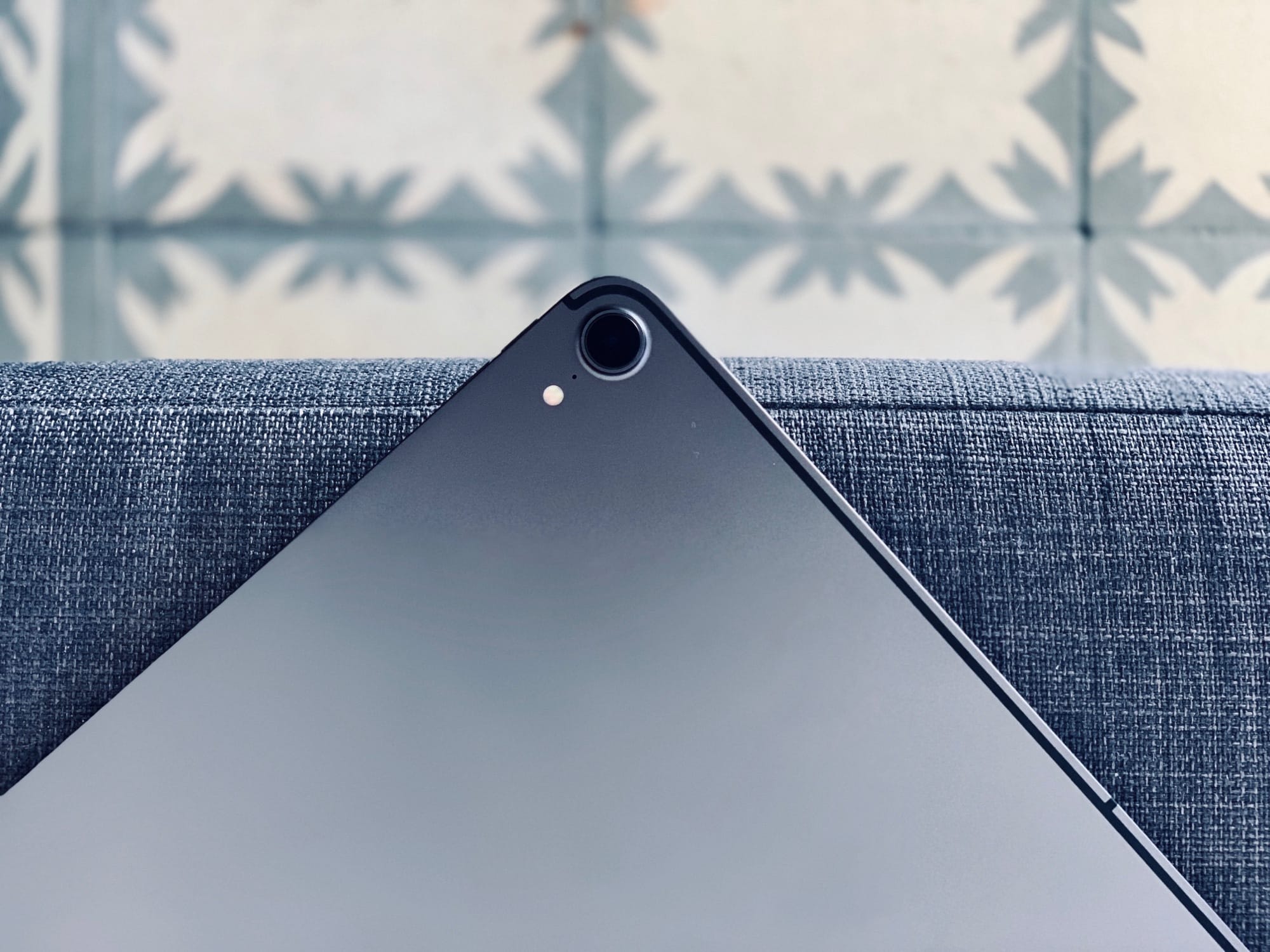
Your new iPad pro has some neat tricks up its sleeves. Photo: Charlie Sorrel/Cult of Mac
Are you thinking of switching from the Mac to the iPad? Maybe you’re sick of your MacBook’s glitchy keyboard, or you would prefer to be able to remove the keyboard altogether when you don’t want it, and use touch instead?
Or perhaps you’re tempted by the cheaper pro apps on iOS, or the portability, or you just can’t see the point of a 27-inch iMac on your desk when all you do is read and write.
Whatever your excuse, switching from macOS to iOS is easier than ever. Thanks to iCloud, and a host of great apps and accessories, switching can be almost seamless. Let’s see what you need.
Who doesn’t want to read all the most important news of the day? Photo: Charlie Sorrel/Cult of Mac
This post could more correctly be titled “How to get Apple News outside Australia, Canada, the U.K. and the U.S.” Those are still the only places that Apple News is available, almost four years after the service’s launch in September 2015.
Fortunately, it’s pretty easy to get the app even if you don’t live in one of those countries. Here’s how.