
iOS 27 and macOS Golden Gate add a handful of Notes features that will supercharge your note-taking. There are new options for formatting, working with Markdown and even drawing on a Mac for the first time.
It’s not a big year for the popular note-taking app, but the changes Apple added will please plenty of power users. Here’s what’s new.
Four features that supercharge Notes in iOS 27 and macOS Golden Gate
Notes began as an incredibly simple app that has steadily grown in features. Now, it can be a comprehensive knowledge base, a place to draft writing, a recipe book and so, so much more.
It’s cross-platform, so you can seamlessly switch between writing and editing on your iPhone, iPad, Mac and even Vision Pro or Apple Watch. Check out what’s new in Notes below.
Table of contents: Notes features in iOS 27
- Copy and paste Markdown-formatted text
- Draw from a Mac
- Add divider lines
- Link to a specific section
- More new features in iOS 27
Copy and paste Markdown-formatted text
Screenshot: D. Griffin Jones/Cult of Mac
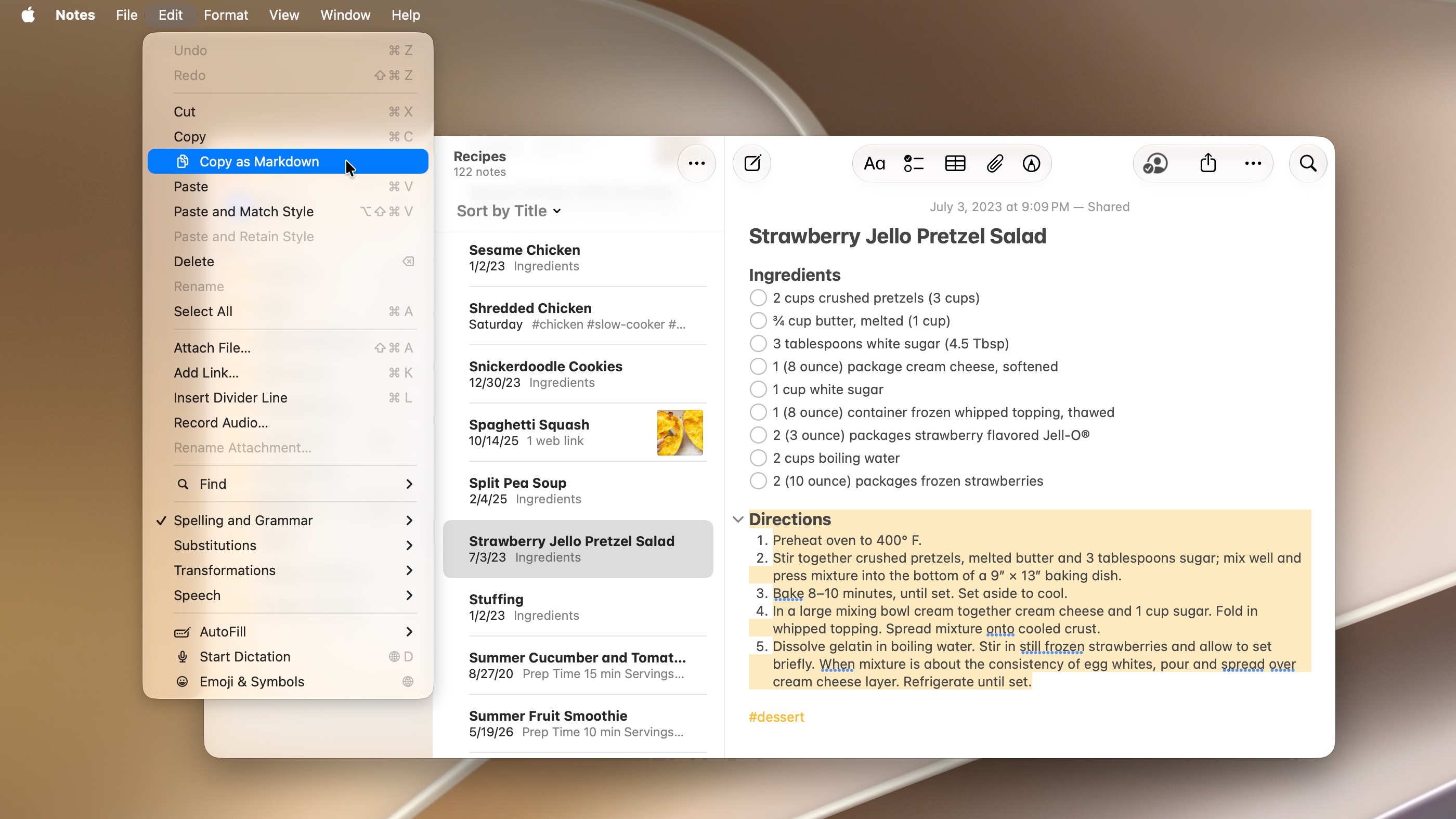
Markdown is a popular syntax for formatting plain text. Reddit, Discord and GitHub all use Markdown formatting. It’s only risen in popularity with LLMs — no doubt because they’re trained on lots of Reddit and GitHub content. Tons of blogging systems use Markdown as well.
If you want to copy the contents of a note and paste them as Markdown, there’s now a much easier way. You don’t have to add the formatting back in by hand.
On a Mac or iPad, select some text, then go to the Edit menu and select Copy as Markdown. It’ll surround your bold text with **asterisks**, add ## pound signs in front of your headers and [properly format your links](www.cultofmac.com). If you don’t see the Edit menu at the top of the screen on an iPad, tap Notes in the upper left first.
I took it one step further — I asked Siri to make a Shortcut that converts the contents of the clipboard from Markdown to HTML. Now, I can draft product reviews in Notes and paste them directly into WordPress, which powers Cult of Mac.
Draw on a Mac
Screenshot: D. Griffin Jones/Cult of Mac
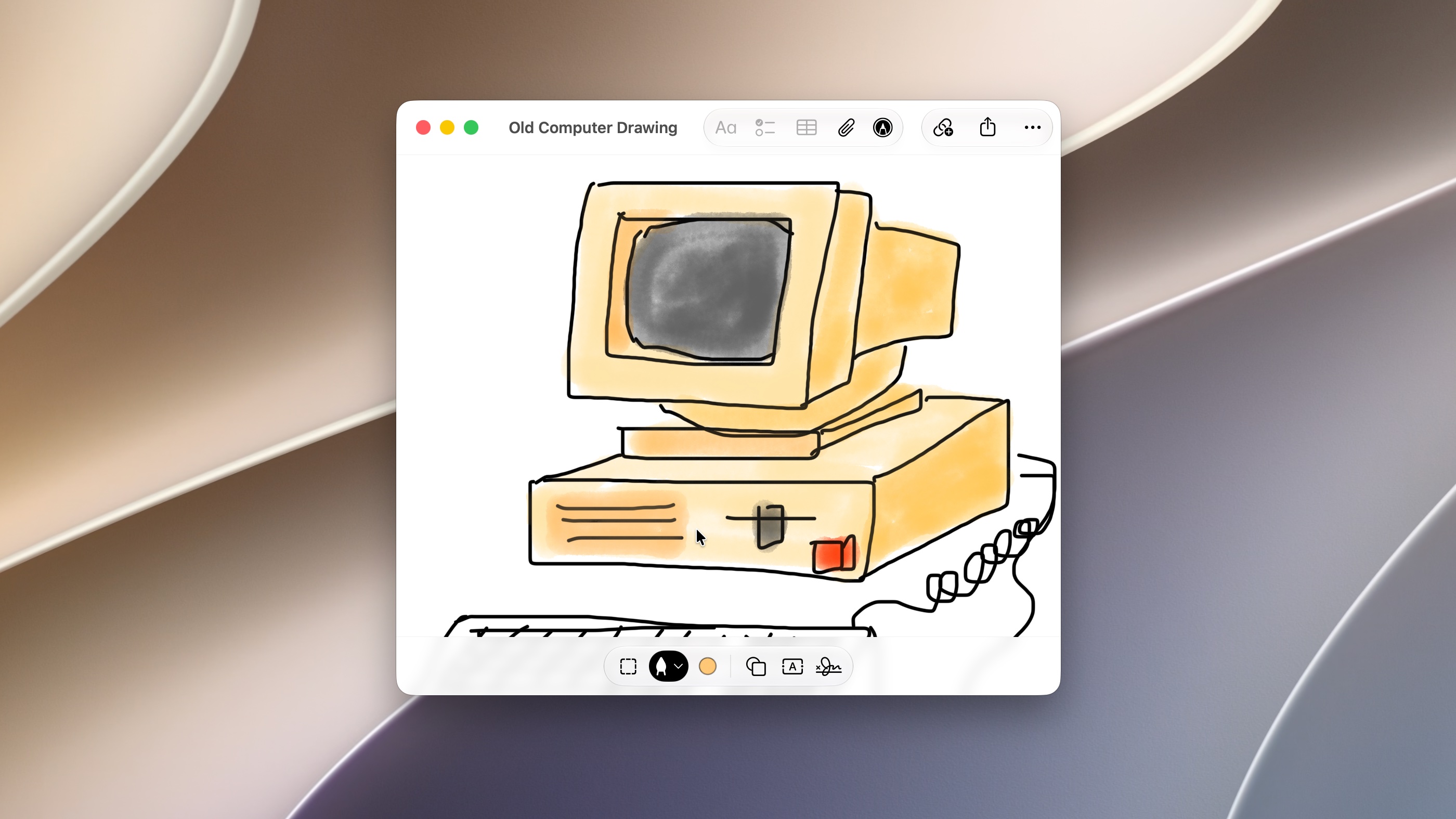
You can now create and edit drawings inside notes on a Mac — not just an iPhone or iPad. Click the Markup button (the pen icon) in the toolbar to add a drawing to the bottom of a note. (To insert one in the middle, right-click and select Attachments > Insert Drawing).
You have tons of tools — various pens, a marker, pencil, crayon, watercolor brush and eraser. You can adjust the thickness and color. There are even options to insert shapes, text or a signature.
Drawing works with a mouse or trackpad, but adding this feature now is a clear indicator that a touchscreen Mac is coming soon.
Add divider lines
Screenshot: D. Griffin Jones/Cult of Mac
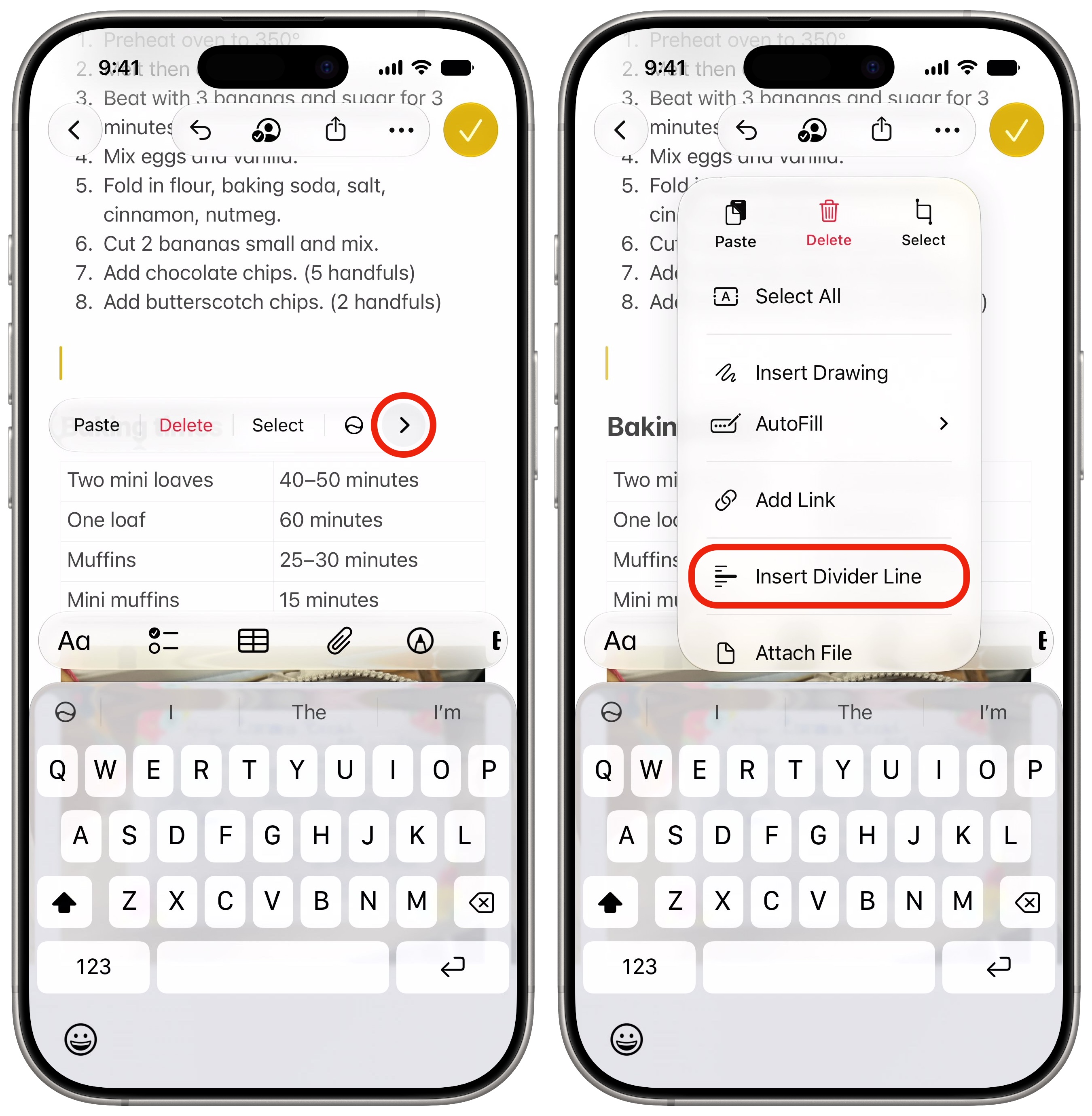
Dividing lines are big visual markers that can divide sections of a document. And now, they come to Notes.
On a Mac, or go to the Edit menu and choose Insert Divider Line, or use the keyboard shortcut ⌘L. You can also right-click and go to Attachments > Insert Divider Line.
On an iPhone or iPad, tap the cursor, then tap the arrow button on the right and tap Insert Divider Line.
Link to a specific section

Screenshot: D. Griffin Jones/Cult of Mac
Apple added links between notes in iOS 17. It’s incredibly convenient for connecting similar topics, like a recipe that includes another recipe or a related concept from another lecture. But if you’re linking to a long and thorough note, you may want to be more precise and link to a specific section.
That’s finally possible. On a Mac, go to Edit > Add Link or hit ⌘K. On an iPhone or iPad, tap the Link button in the editing toolbar. When you type in a note title, you’ll see a new item below that says Link to Section. Pick a section from the note to link to.
More new features in iOS 27
- How to download the iOS 27 developer beta and get Siri AI
- How you might be able to skip the waitlist and get the new Siri AI early
- I tested the new Siri AI against Apple’s claims. Here’s how it went.
- iOS 27 adds two painfully missing features to RCS messaging
- 8 new features in Safari in iOS 27 that make browsing better
- Apple Music gets compelling upgrades in iOS 27
- 6 key ways iOS 27 upgrades Apple Wallet
- Apple will fix CarPlay’s most annoying shortcomings in iOS 27
- 10 hidden iOS 27 features Apple barely mentioned at WWDC26

D. Griffin Jones was a writer, podcaster and video producer for Cult of Mac. Griffin has been a passionate computer enthusiast since 2002, when he got his first PC — but since getting a Mac in 2008, he hasn’t turned back. His skills in graphic and web design, along with video and podcast editing, are self-taught over 20+ years. Griffin has a bachelor’s degree in computer science and has written several (unpublished) apps for Mac and iOS. His collection of old computers is made up of 40+ desktops, laptops, PDAs and devices, dating back to the early ’80s.
Griffin writes for his personal blog, Extra Ordinary, and is currently looking for work.


One response to “4 features that supercharge Notes in iOS 27 and macOS Golden Gate”
Notes is a great product because it offers just enough to get the job done and no more. Its lack of features is actually a strength. Free of the bells, buttons, gauges, and knobs that clutter typical word-processor interfaces, it refocuses the mind on reaching a zen-like writing state. New features, especially Markdown, expand its utility to other kinds of writing without diminishing its minimalism or cluttering the interface.
Notes seems to serve the same role as Microsoft’s short-lived Live Writer, a stripped-down word processing app for the desktop. It quickly became popular among developers and content writers for its lag-free typing, and its concise HTML export for the web. Unfortunately, despite its large user base, Microsoft unceremoniously pulled the plug on it. Hopefully Apple took notes (pardon the pun) and is positioning Notes to fill its vacancy.