D. Griffin Jones is a writer, podcaster and video producer for Cult of Mac. Griffin has been a passionate computer enthusiast since 2002, when he got his first PC — but since getting a Mac in 2008, he hasn’t turned back. His skills in graphic and web design, along with video and podcast editing, are self-taught over 20+ years. Griffin has a bachelor’s degree in computer science and has written several (unpublished) apps for Mac and iOS. His collection of old computers is made up of 40+ desktops, laptops, PDAs and devices, dating back to the early ’80s. He brings all of these creative and technical skills, along with a deep knowledge of Apple history, into his work for Cult of Mac.
Many filters will brighten your photos, but sorry, nothing will make you look like you’re in your 20s. Image: Levi Clancy/Wikimedia Commons/D. Griffin Jones/Cult of Mac
Viral clips on TikTok show how to edit selfies for a more stunning, popping image on your iPhone. I live in a part of Ohio that’s perpetually overcast, but you would think I’m on my way to the beach, given the warm hues this method imparts upon your pictures.
Read on for detailed instructions on how to use TikTok’s winning selfie formula and how to apply the same filters in bulk on all the pictures from a photo shoot. Plus, I’ll tell you about my recommended selfie stick for taking great group shots and landscapes.
Apple Intelligence is a powerful LLM that runs both in the cloud and on-device. Image: Apple
Contrary to popular opinion, Apple appears to be ahead in AI — and in some cases seems far in front of the competition. The revelation comes from an Apple white paper that hasn’t gotten much attention, but should.
A white paper on Apple’s Foundation Model, the company’s homegrown LLM (large-language model) that powers Apple Intelligence, reveals two important facts: it’s the safest in design and highly competitive with both Meta’s Llama and OpenAI’s GPT-4. This seems to debunk a big myth about Apple’s AI efforts: that the company’s privacy-first philosophy would hold it back.
The Apple Foundation Model is just as capable in tests of writing and summarization compared to the top LLMs by OpenAI, Meta, Mistral AI and others. And thanks to Apple’s strict guidelines for expunging harmful content, human-evaluated tests repeatedly rank its foundation model as the safest above all the rest — by a wide margin.
It looks like Apple Intelligence could be off to a good start.
Cult of Mac is not legally responsible if you are still late after turning on this feature. Image: Crew/Wikimedia Commons/D. Griffin Jones/Cult of Mac
Set your Apple Watch time a few minutes ahead of the actual time and you might trick yourself out of running late every day. This is an officially supported feature, not a hack that will produce cascading, annoying side effects. And it doesn’t require you to set your smartwatch out of sync with internet time.
What will you gain? By running your Apple Watch a few minutes fast, you might nudge yourself to rush out the door a little earlier. And that might be enough to get you somewhere on time rather than late. If tardiness is a frequent problem for you, this little change could save your skin.
★★★★★
It makes the weirdest-looking Apple product look even weirder. Photo: D. Griffin Jones/Cult of Mac
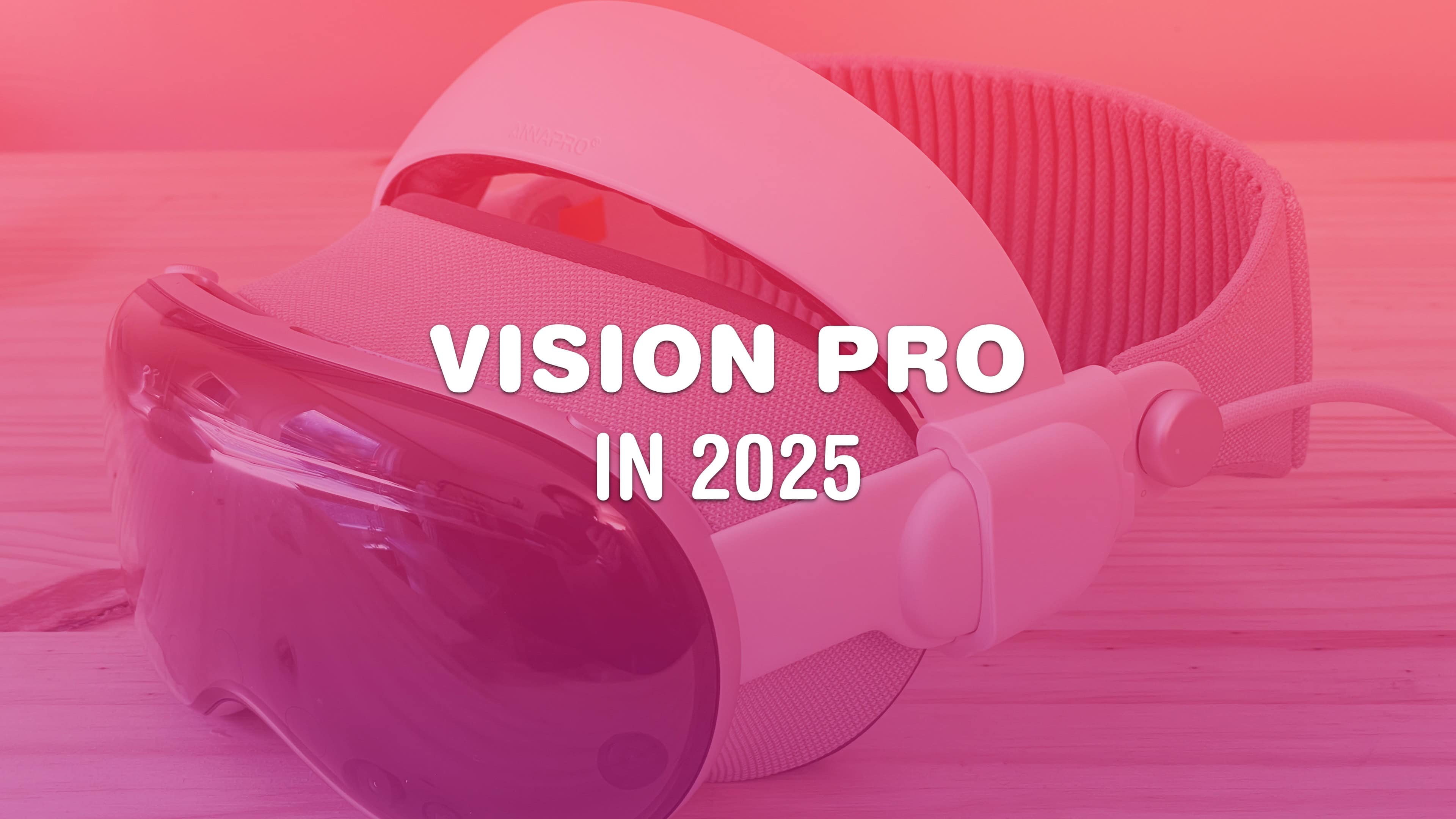
The Pressure-Reducing Comfort Head Strap for Apple Vision Pro by Annapro is an absolute must-have game-changing accessory. It makes using the headset in its default mixed-reality mode far more engaging and comfortable, as it lets you use the device without Apple’s peripheral-blinding Light Seal. It also enables more people to use the more comfortable Solo Knit band, so it’s incredibly easy to put on and take off.
Annapro’s head strap makes the Vision Pro less like putting on ski goggles and more like putting on big glasses. It’s a small change that has radically impacted how I think about the device. And at a highly affordable $39.99, it’s a no-brainer accessory that every Vision Pro owner should pick up … all 200 of them.
Your Apple devices can work together in more ways than you may expect. Image: D. Griffin Jones/Cult of Mac
Nothing illustrates the power of Apple’s ecosystem like the Continuity features that help your Mac, iPhone, iPad and Apple Watch work seamlessly together. Thanks to Continuity, your iPhone can serve as your Mac’s webcam. You can start an email on one device and instantly pick it up on another. You can use the same keyboard and mouse with a Mac and iPad, copy and paste across devices and more.
These features flex the power of Apple’s hardware and software — and they would never be possible on a PC. Unfortunately, that means a lot of people don’t learn about these features because they don’t expect so much from their computers.
In this post (and the accompanying video), I will show you some of the time-saving, annoyance-busting Continuity features you can enjoy when you go all-in on the Apple ecosystem.
Master your AirPods with these six tricks you’d have to really dig to find. Photo: D. Griffin Jones/Cult of Mac
AirPods are the wireless earbuds that ordinary Bluetooth headphones want to be when they grow up. They’re seamlessly integrated with your iPhone, Apple Watch, iPad and Mac. They’re deceptively simple — but if you want to get more out of them, you need to dig through Settings. These AirPods tips will show you where to look to unlock maximum functionality.
I did some spelunking and found six super-handy hidden features you might not know about.
Game Mode comes on automatically anytime you play a game. Sometimes you don't want that to happen! Image: D. Griffin Jones/Cult of Mac
The iPhone’s new Game Mode in iOS 18 will enhance graphics and reduce controller latency. It comes on automatically when you first launch a game.
Game Mode also reduces the background activities and services running on your phone. Luckily, if you don’t want that to happen, you can turn off Game Mode from your iPhone’s Control Center.
Here’s everything you need to know about how Game Mode works.
Create custom walking paths ahead of your next outdoor excursion. Image: D. Griffin Jones/Cult of Mac
You can get rich topographical hiking maps of local trails and U.S. national parks on your iPhone, right in Apple Maps. New in iOS 18, you can build custom routes connecting walking paths and save them to your device for offline access.
You can use this feature to plan a hike as a day trip. Planning your route in advance could save you the hassle of getting lost without a signal — or keep you from starting an overly ambitious hike.
According to Apple, the update comes with data for “all 63 U.S. national parks.” In my testing, Apple Maps showed a thorough knowledge of the trails in northeastern and Appalachian Ohio, too. It could contain detailed trail data about your local park as well.
Here’s how to make the most out of the new hiking maps in iOS 18.
Nothing to download or install — you’ve already got ’em. Image: D. Griffin Jones/Cult of Mac
If you work on a Mac, these six useful apps can help you get that work done faster. And you don’t need to take time to download them or figure out if they’re worth the price — you already have these apps on your computer.
These come with every Mac, and you can locate them in the Applications and Utilities folders. If you’re in the Finder, just hit Shift-Command-A (⇧⌘A) or Shift-Command-U (⇧⌘U) to find them.
I’ll walk you through a few of the more useful Mac apps hiding there that you probably haven’t heard of.
The side button does much more than you think. Who needs an action button? Image: D. Griffin Jones/Cult of Mac
The iPhone 15 Pro’s customizable Action button lets you pick from several presets, including Accessibility — which lets you choose from 25 different accessibility features that you can toggle on or off. These features aren’t limited to the iPhone 15 Pro’s Action button, either. On any older iPhone, you can simply triple-click the side button to access those same 25 accessibility features.
Here are all 25 of the accessibility features you can assign to a button on your iPhone — and what they do.
The Action button opens a world of possibilities. Image: Apple/D. Griffin Jones/Cult of Mac
You can go beyond the basics if you customize the iPhone’s Action button with shortcuts. You can make a fart sound, or get ChatGPT to help you write an email, or just about anything else you dream up.
Apple lets you assign the iPhone’s Action button to one of eight preassigned things — but if you choose Shortcut, you can do much more. Shortcuts offer a way to reach inside an app and automatically run a feature without opening it. With the iPhone 16’s Action button, you have a physical button you can press no matter what you’re doing on your phone, adding quick access to custom actions.
Some power users use the Action button to do incredibly useful (or frivolous) things. I’ll show you how to do the same — and also how you can trick your phone into assigning two or more shortcuts to the single Action button.
New music — what a concept! Image: Pedro Ribeiro Simões/Wikimedia Commons/D. Griffin Jones/Cult of Mac
You can find new music on the Apple Music Discovery Station, which gives you a tailored playlist to suggest new artists and jams you’ve never heard before but should like based on your personal musical tastes.
Personalized recommendations have long been a reason people cite for sticking with Spotify over Apple Music. But you can add the Discovery Station to my list of eight reasons you should make the switch. Apple Music offers personalized music picks, too, and the system works great.
I’ll show you where to find Apple Music’s Discovery Station and how to make the most of it.
Apple’s mental health tracking feature makes it easy to log your feelings and see what’s bothering you most. Image: Duke kgomotso/Wikimedia Commons/D. Griffin Jones/Cult of Mac
Here’s how to keep track of your mental health using the new mood-tracking feature in iOS 17. Logging how you feel throughout the day with your iPhone should help you identify what’s causing you trouble or what works for you, whether it’s work, family, exercise, sleep or other things.
In order to make any kind of meaningful change, you need to understand fully what helps, what doesn’t, and what you can do. And that means effectively tracking your mental health. Luckily, starting your log is easy. Set it up once, and your phone will ask you every day so you don’t forget.
Let me show you how to start a log of your mental wellness in iOS 17.
Turn your iPhone into a smart display on your desk. Image: D. Griffin Jones/Cult of Mac
StandBy mode is a headline iOS 17 feature that turns your iPhone into a smart display on your nightstand, at your desk or in the kitchen. It’s an attractive way to put your phone to work as a small information board or digital clock when you’re not using it.
Of course, it works best if you have a phone with an always-on display like the iPhone 14 or 15 Pro. However, it works on any iPhone with MagSafe running iOS 17. Best of all, StandBy remembers different preferences for different rooms, so you can set it up as a bedside clock in the bedroom, a digital photo frame in the living room, or a music controller in the kitchen. Here’s everything you can do with StandBy on your iPhone.
Siri always interrupts at the wrong time. Image: D. Griffin Jones/Cult of Mac
As if Siri’s unhelpful answers were not irritating enough when you actually want them, Siri often interrupts a conversation, meeting or TV show when you haven’t asked for anything at all. The good news is you make it stop — if you know how to deactivate Siri on your Apple devices.
Speed up this universal gesture on your iPhone. Image: D. Griffin Jones/Cult of Mac
A hidden setting will speed up Haptic Touch, the fantastic feature that lets you preview links and bring up menus on your iPhone. If you use Haptic Touch all the time like I do, changing this setting will make your iPhone feel turbocharged. It brings up handy shortcuts — hidden actions, content previews and contextual menus — in a flash. And that saves you precious time as you tap around your screen.
Alternatively, if you find Haptic Touch annoying and trigger it accidentally all the time, you can slow down the time needed to activate the gesture. That way, a tap won’t be mistaken for a tap-and-hold.
Selecting text from a PDF can be easy. Imagine that! Image: D. Griffin Jones/Cult of Mac
Although the Mac offers fantastic support for opening and editing PDFs in the built-in Preview app, the simple act of copying and pasting text from a PDF can still be a nightmare. For instance, selecting text on a two- or three-column document often selects across the whole width of the page, which is totally useless. Luckily, there’s a better way to copy text from a PDF on a Mac using Apple’s Live Text feature.
Taking a quick screenshot and using Live Text often yields better results when you need to copy text from a PDF or an image. (It also works with photos and old document scans as well as PDFs. Here’s how to do it.)
AltStore, the original alternative app marketplace, just opened its doors further. Photo: D. Griffin Jones/Cult of Mac
AltStore PAL, the first third-party app marketplace for iOS, now lets users install apps created by independent developers. The change, which arrived Wednesday in AltStore PAL version 2.1, makes previously restricted apps available to iPhone owners in the European Union.
“This means apps that have been rejected by the App Store — such as torrenting apps and virtual machines — have another path forward for the first time ever,” Riley Testut, developer of AltStore, told Cult of Mac.
The update is launching with a few third-party apps available now — iTorrent, qBitControl and PeopleDrop — “apps that are only possible with AltStore PAL,” according to Testut.
★★★★☆
It has a fun, playful color scheme. Photo: D. Griffin Jones/Cult of Mac
The Willow Wombat Pro is a great keyboard without much compromise. It’s mechanical, with comfortable key switches to type on all day, but it’s not loud. It’s narrow, but it still has all 102 keys, with an unusual key layout. It’s thin, but it’s not flimsy: It’s sturdy and well-made.
The whimsical yellow color scheme will also add a flash of color and flair to your Mac setup. Buy it now on Amazon or keep reading below.
Turn your many, many cat photos into a few great videos. Image: D. Griffin Jones/Cult of Mac
You can turn multiple Live Photos shot on your iPhone into a video. Simply select a group of Live Photos taken in a burst, and you can create a single, stitched-together video that you can save to your library and share on social media. It’s a much more accessible way to enjoy those little snippets of video.
Now, the iPad is a real computer. Image: D. Griffin Jones/Cult of Mac
With the recently-released PC emulator UTM SE, you can now emulate Windows on iPad directly. You can revisit old PC games, just like how you can use Delta to play old Nintendo games. You can also install Mac OS 9 or Linux. With Ubuntu, Debian or other versions of Linux, you can run all kinds of open-source software for getting real work or programming projects done.
But bad news: You can’t use it to run macOS Sonoma on your iPad. There’s some confusion about this, but unfortunately the long-held dream of turning your iPad into a Mac will have to wait for another day.
Setting it up is a little finicky — but the reward of seeing that classic Windows XP desktop on your iPad can make it all worth it. Keep reading to see how it works.
These secret gestures will speed up your iPhone. Image: D. Griffin Jones/Cult of Mac
Here are a few secret tricks and gestures that will help you get around your iPhone faster. These hidden gestures help you text pictures to your friends faster, scroll through big pages and screens, type special characters and use your phone one-handed.
The new Photos app is divisive. Image: Apple/D. Griffin Jones/Cult of Mac
With the major Photos app redesign coming in iOS 18, Apple aims for simplicity. However, the version of the Photos app in iOS 18 developer beta 3 is a hodge-podge of design that will confuse users. I think that if Apple doesn’t revise its approach, the company will face significant backlash when it releases the updated app to the public this fall.
Yes, iOS 18 is still in beta. And Apple very well could change the Photos app before its anticipated release in September. I certainly hope Apple tweaks things — I’m writing this as more of a wish list than a design critique. In fact, I already filed my suggestions through the official channel of Apple’s Feedback system (submitted as FB14289280).
As of iOS 18 developer beta 3, Apple has already made a few little tweaks to the Photos app redesign. But unfortunately, there’s been no movement on any of my major criticisms from beta 1. For that reason, I feel obligated to outline the goals of the new Photos app, applaud what it gets right, point out where the design fails, and explain what aspects prove confusing.
I don’t think Photos needs to be reverted entirely to the way it worked before. But these key features need changing ASAP. Keep reading or watch my video.
Final Cut Camera goes above and beyond the regular Camera app. Image: Apple/D. Griffin Jones/Cult of Mac
Final Cut Camera is a new Apple app that offers incredible manual control over your iPhone’s camera system. If you use your phone for professional videography — or even for a hobby project — you should use this free app to take videos rather than sticking with the stock Camera app.
Final Cut Camera comes absolutely packed with professional features the Camera app can’t match. The new app gives you finer control over exposure, white balance, color temperature and more. You can enable image overlays to see which parts of the frame are in focus or overexposed. In short, it’s a highly versatile camera. You can even pair it with Final Cut Pro for iPad to capture footage from multiple iPhones simultaneously.
Final Cut Camera is totally free on the App Store. Keep reading to learn how to use it.
If you don’t know where to start, here’s a taste of what’s possible. Image: D. Griffin Jones/Cult of Mac
If you’ve never tried making your own Siri Shortcuts, I’ve compiled a short list of the best shortcuts for iPhone to introduce you. Shortcuts can quickly run automated actions on your phone (and on your iPad or Mac). They’re made using Apple’s Shortcuts app, where you can visually piece together actions offered by the apps installed on your device.
You can run a shortcut by asking Siri or by putting a widget on your iPhone’s Home Screen. Not a lot of people know this powerful feature exists — or what it can do for them. For eight examples of what you can do with shortcuts, keep reading or watch our video.