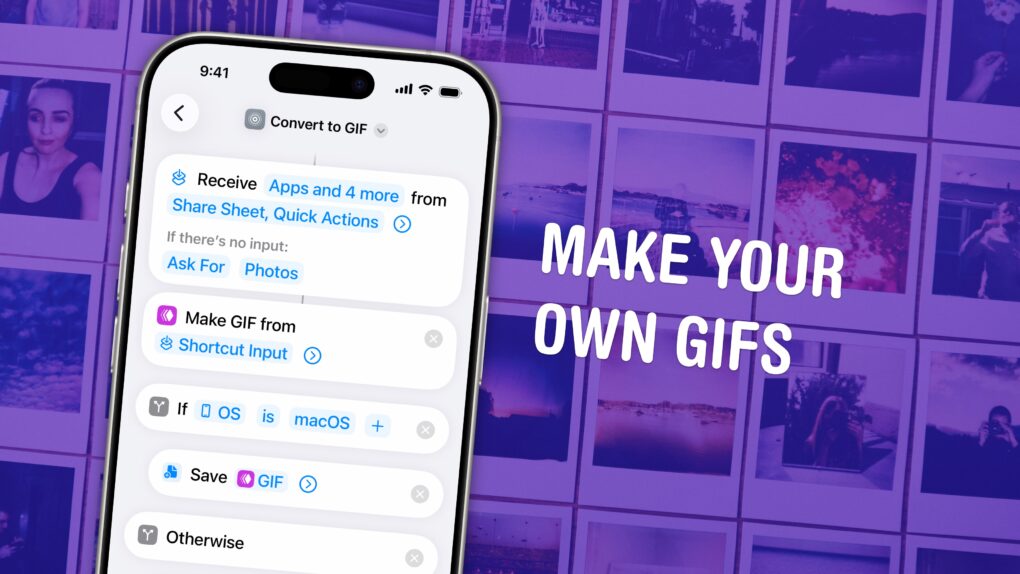
You can make an animated GIF on your iPhone or Mac out of any Live Photo or video in your photo library or saved on your computer. You don’t need to download any apps — simply add a shortcut, and you can make a GIF directly from the share sheet.
If you need an actual GIF file, there’s still a pretty easy way to make them on your phone or Mac. I’ll show you how.
How to make a GIF on iPhone, iPad or Mac
The GIF is the cockroach of image formats. It was invented in 1987 and hasn’t changed since 1989. Since it comes from a time when many computers didn’t have full color or high-resolution screens, its 256-color limit seems quaint by modern standards. And since the file format lacks advanced data compression, GIFs are much larger than a higher-quality video is.
There have been many attempts at replacing the GIF over the years. Personally, I’m still rooting for JPG-XL. But as much as the GIF’s age holds it back, it’s also why it’s so ubiquitous — it’s supported by everything. You can’t be sure that using a video or Live Photo will work as well as a GIF.
So, if you want to put an animated image in your presentation, website or social media post, you should know how to make a GIF on your iPhone, iPad or Mac. And all you need is a simple shortcut.
Table of contents: How to make a GIF on iPhone, iPad or Mac
- Make a GIF on iPhone and iPad
- Make a GIF on Mac
- Make an animated image from a Live Photo
- More Photos pro tips
Make a GIF on iPhone and iPad
Screenshot: D. Griffin Jones/Cult of Mac
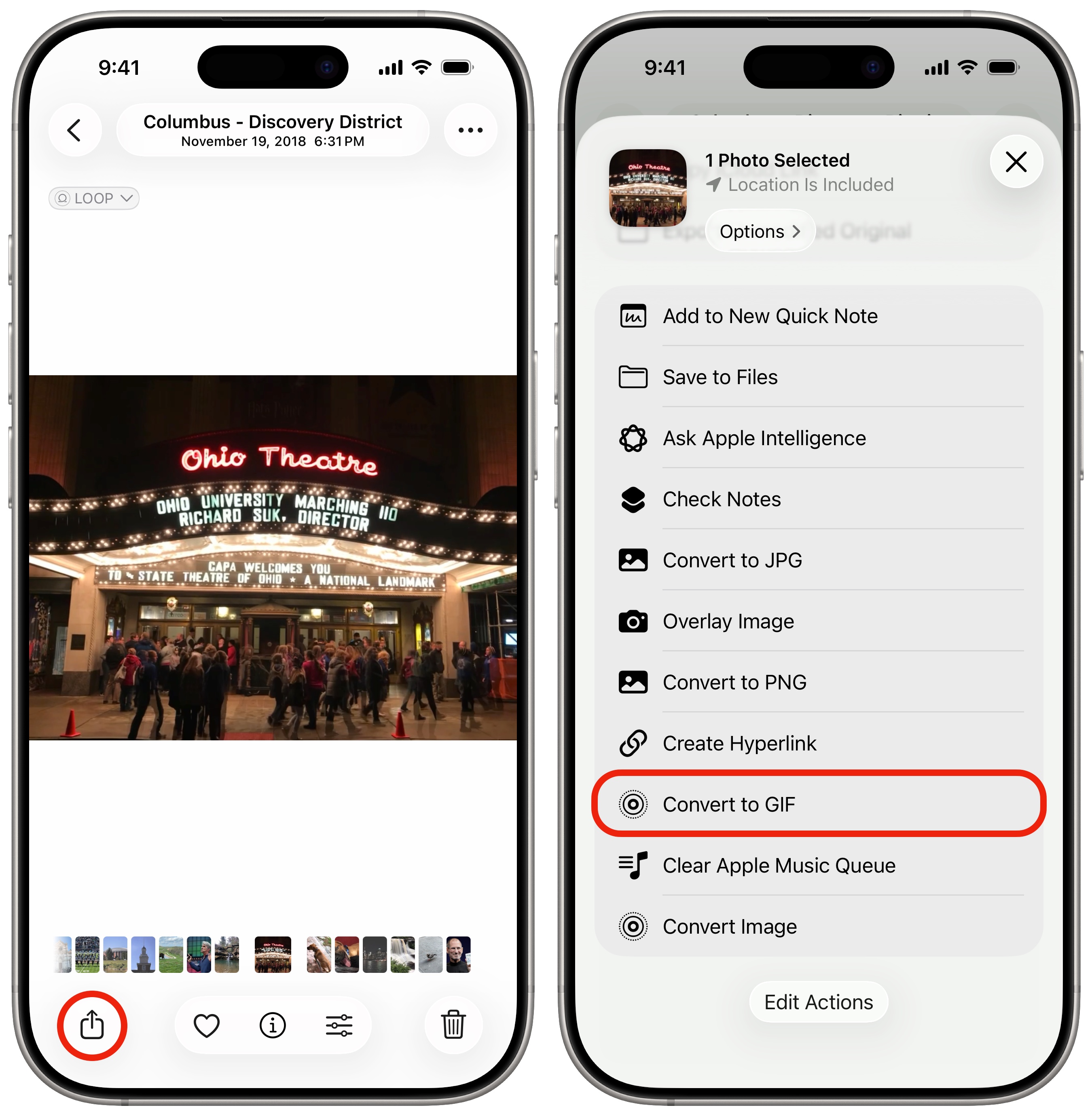
On your iPhone or iPad, you can convert a Live Photo or video into a GIF using a really simple Convert to GIF shortcut. Download it here and tap Add Shortcut on the pop-up screen.
Next, you need a short video or Live Photo on your device that you can turn into a GIF. The shortcut works best when you pull an image from the Photos app. When looking at the image, ust hit the share button (  ), then tap Convert to GIF. A GIF of the image will be added as the most recent item in your photo library.
Adjust the settings for better results
Screenshot: D. Griffin Jones/Cult of Mac
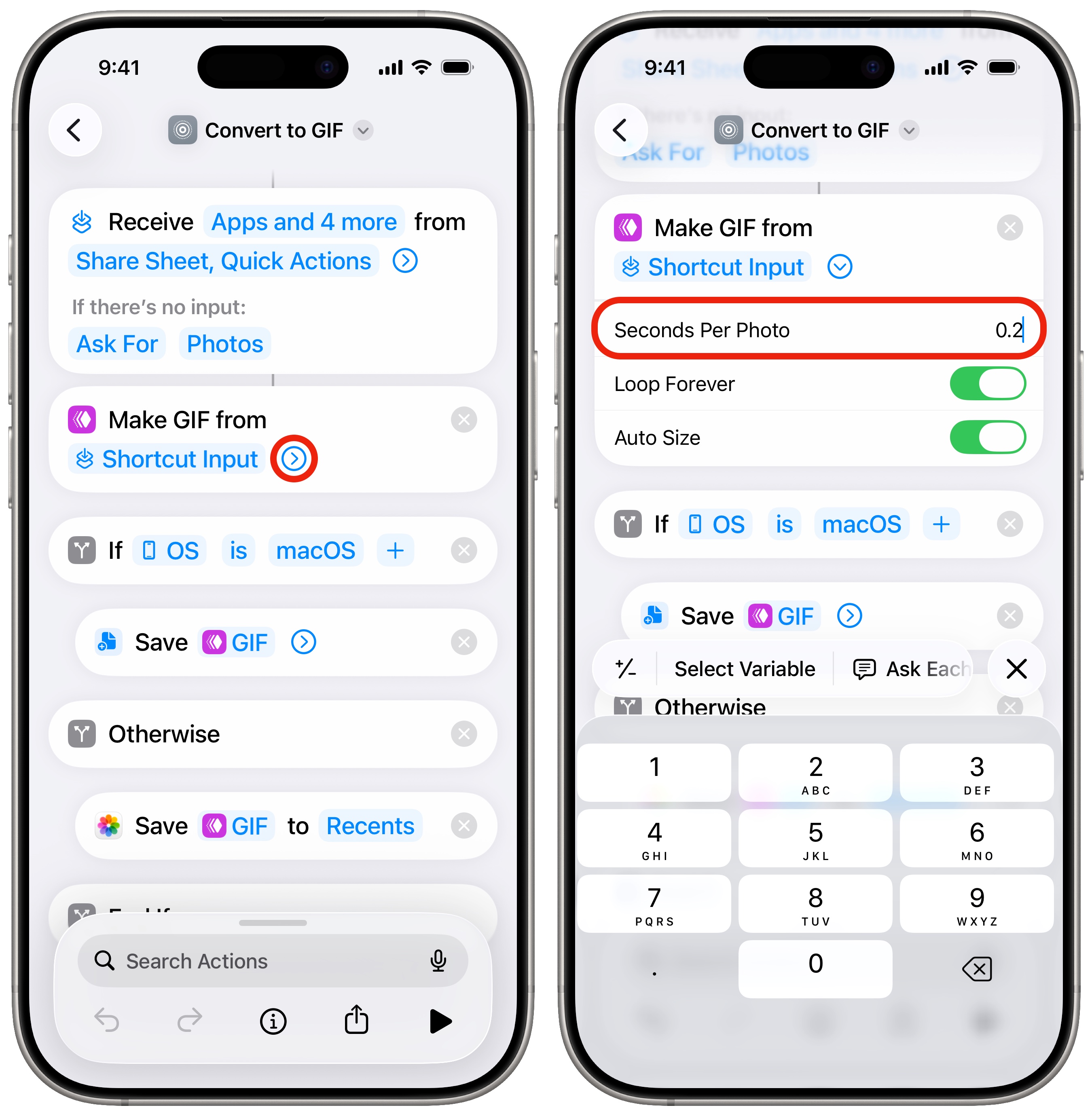
If you need to adjust any settings, like the GIF’s speed or image resolution, you can do so by editing the shortcut. Open the Shortcuts app and tap the ⋯ button in the corner of the Convert to GIF shortcut. Inside the Make GIF from Shortcut Input block, tap the arrow to expand the options.
- You can adjust Seconds Per Photo to change the speed of the animation. For instance, choose 0.2 to make it slower or 0.05 to make it faster.
- Uncheck Auto Size and type in your desired width and height to specify an image resolution. Larger resolutions will result in much larger files; try not to exceed 1,200 pixels in either dimension if you want to use this GIF on the web. You can always check the image’s file size inside the Photos app; swipe up on the image to see.
If the video you want to turn into a GIF is too long, you can always trim it. Tap Edit in the upper right, then drag the beginning and end points using the timeline on the bottom. Tap Done, then tap Save Video as New Clip.
Make a GIF on a Mac
Screenshot: D. Griffin Jones/Cult of Mac
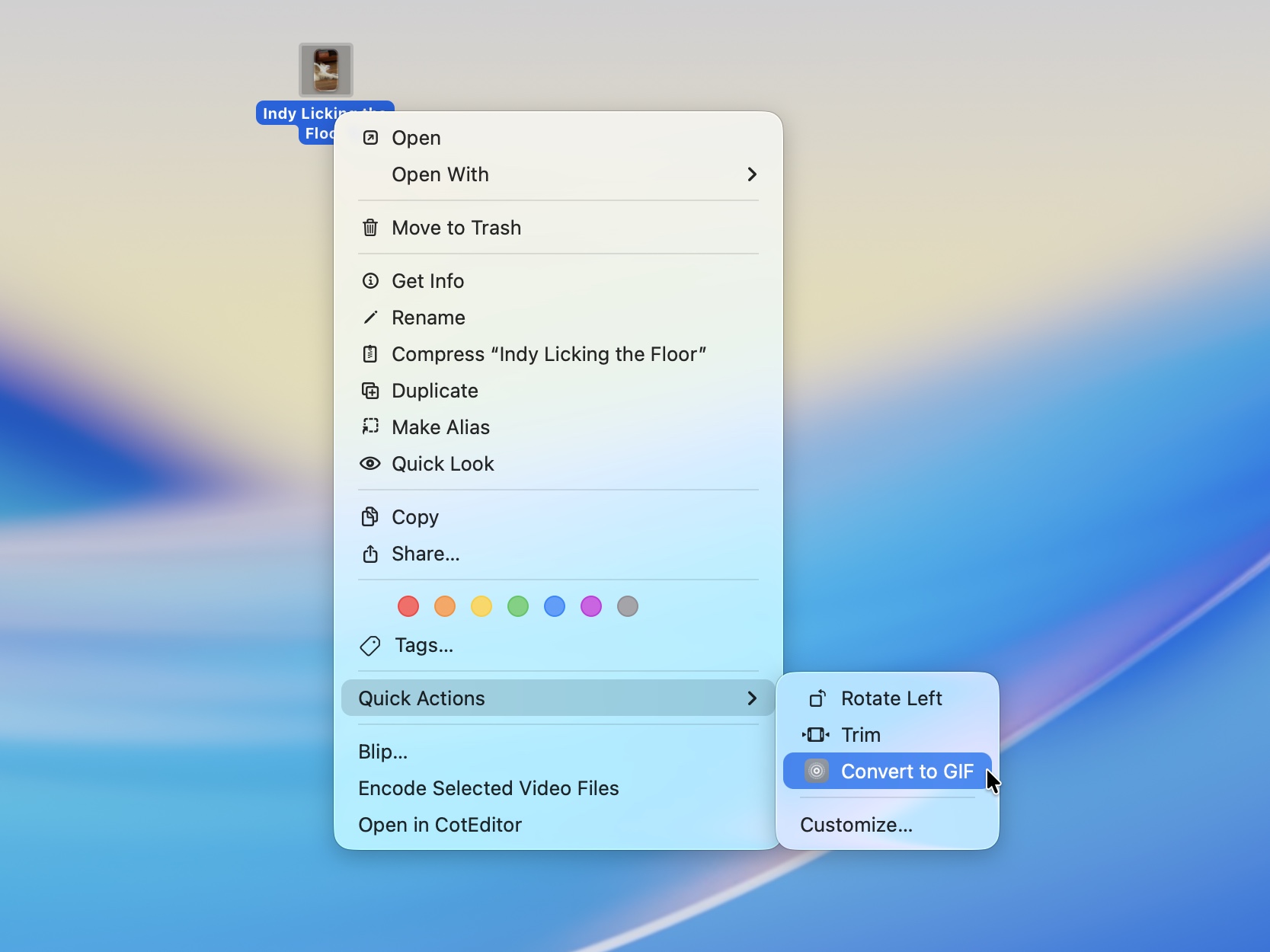
If you want to make a GIF on your Mac instead of your iPhone, you can use the same Convert to GIF shortcut described above. Download it to your Mac and click Add Shortcut to install it.
On the Mac, the Shortcut works inside the Finder. Right-click on a video and click Quick Actions > Convert to GIF. You’ll be asked where to save the result. Select a folder and click Open (or hit Enter).
You can run the shortcut from inside the Photos app on the Mac, too. First, select a photo or video. In the menu bar, click Photos > Services > Convert to GIF (or right-click on the item, hit Share, select Shortcuts, then select Convert to GIF).
If you’re making a GIF out of a video, you can quickly trim it down to the part you need on your Mac, too. Hit the Space bar to preview the video, then click the Trim icon on top of the window. Edit by dragging the start and end points on the timeline at the bottom, then click Done in the upper right.
Make an animated image from a Live Photo

GIF: D. Griffin Jones/Cult of Mac
Of course, not all looping animated images are GIFs. A faster way to animate your Live Photos is with the iPhone’s built-in Loop effect. In the Photos app, just tap on the “Live” tag in the upper left and select “Loop.”
You can also select “Bounce” or “Long Exposure” for different results. Use the effect that works best with a particular photo.
This will produce higher-quality results than making a GIF. However, the resulting file might not be compatible with third-party apps like Snapchat or Discord.
More Photos pro tips:
- Hide photos from your library to keep secret and/or illicit images out of your main camera roll. Find them in the Hidden album.
- Tag your photos with the names of your friends, family members and pets so you can easily find pictures of them later on. The Photos app will detect pictures of people automatically — you just need to give them a name.
- Find duplicate photos to delete unwanted copies cluttering up your library.
- Make custom stickers from photos on your iPhone and send them in iMessage, Snapchat and WhatsApp.
- Crop, skew and rotate a photo to fix the perspective or angle a picture was taken from, correct some fisheye distortion on an ultra-wide photo, and more.
- Save Live Photos as a video you can play back with full sound or share to social media.
This article on how to make a GIF on iPhone, iPad and Mac was originally published on July 5, 2024. We updated it with the latest information on December 9, 2025.

D. Griffin Jones was a writer, podcaster and video producer for Cult of Mac. Griffin has been a passionate computer enthusiast since 2002, when he got his first PC — but since getting a Mac in 2008, he hasn’t turned back. His skills in graphic and web design, along with video and podcast editing, are self-taught over 20+ years. Griffin has a bachelor’s degree in computer science and has written several (unpublished) apps for Mac and iOS. His collection of old computers is made up of 40+ desktops, laptops, PDAs and devices, dating back to the early ’80s.
Griffin writes for his personal blog, Extra Ordinary, and is currently looking for work.

