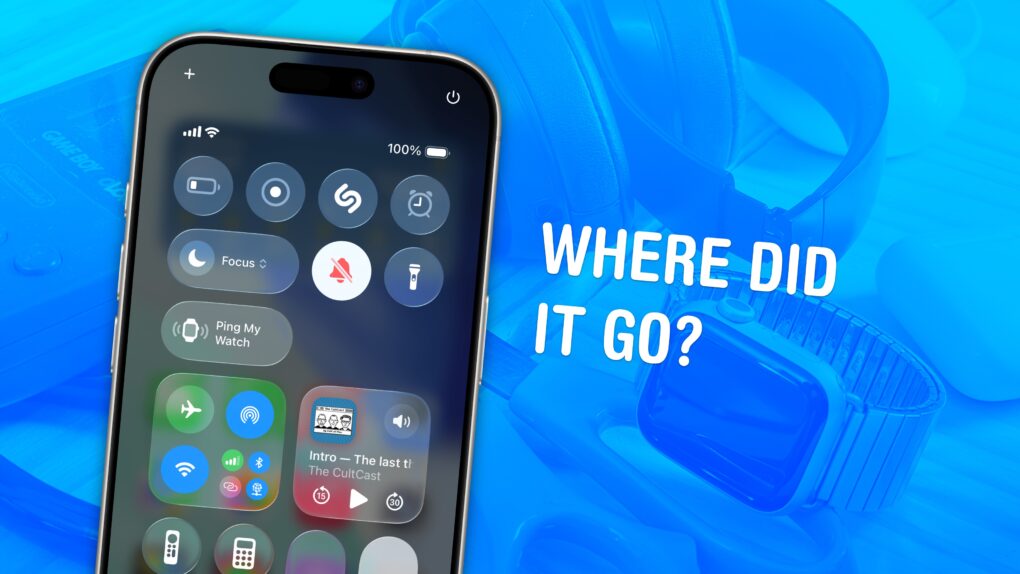
You can ping a lost Apple Watch from your iPhone, giving you an easy way to find your misplaced wearable.
If you take your Apple Watch off at the end of the day, forgetting to throw it on the charger, you might not remember where you left it the following morning. Luckily, you can find a lost Apple Watch from your iPhone. Here’s how it works.
How to ping a lost Apple Watch using an iPhone
No Apple Watch fanatic enjoys a bare wrist. Whether your watch slid between the couch cushions, your dog dragged it off your charging station, or you abandoned the device somewhere else in the house, this guide walks you through adding a handy shortcut that will help you find your missing Apple Watch.
You can trigger a chime from your iPhone — whether your Apple Watch is in Silent Mode or not. And that can save you time, stress and the fear you might leave your wrist naked for the day. (The reverse has always been a cool feature of the Apple Watch. Read our post: How to find your lost iPhone with Apple Watch.)
Sure, you could always use Apple’s Find My app to locate your lost Apple Watch. But this handy trick is faster and easier.
I typically employ the rule that my watch is only ever (a) on its charger or (b) on my wrist, but that just makes it harder for me to find when I happen to leave it elsewhere. This handy method makes it far easier to quickly find a missing Apple Watch.
Table of contents: How to ping a lost Apple Watch using an iPhone
- Add “Ping My Watch” button in Settings > Control Center
- Open Control Center and hit the Apple Watch button
1. Add the button to your iPhone’s Control Center
Screenshot: D. Griffin Jones/Cult of Mac
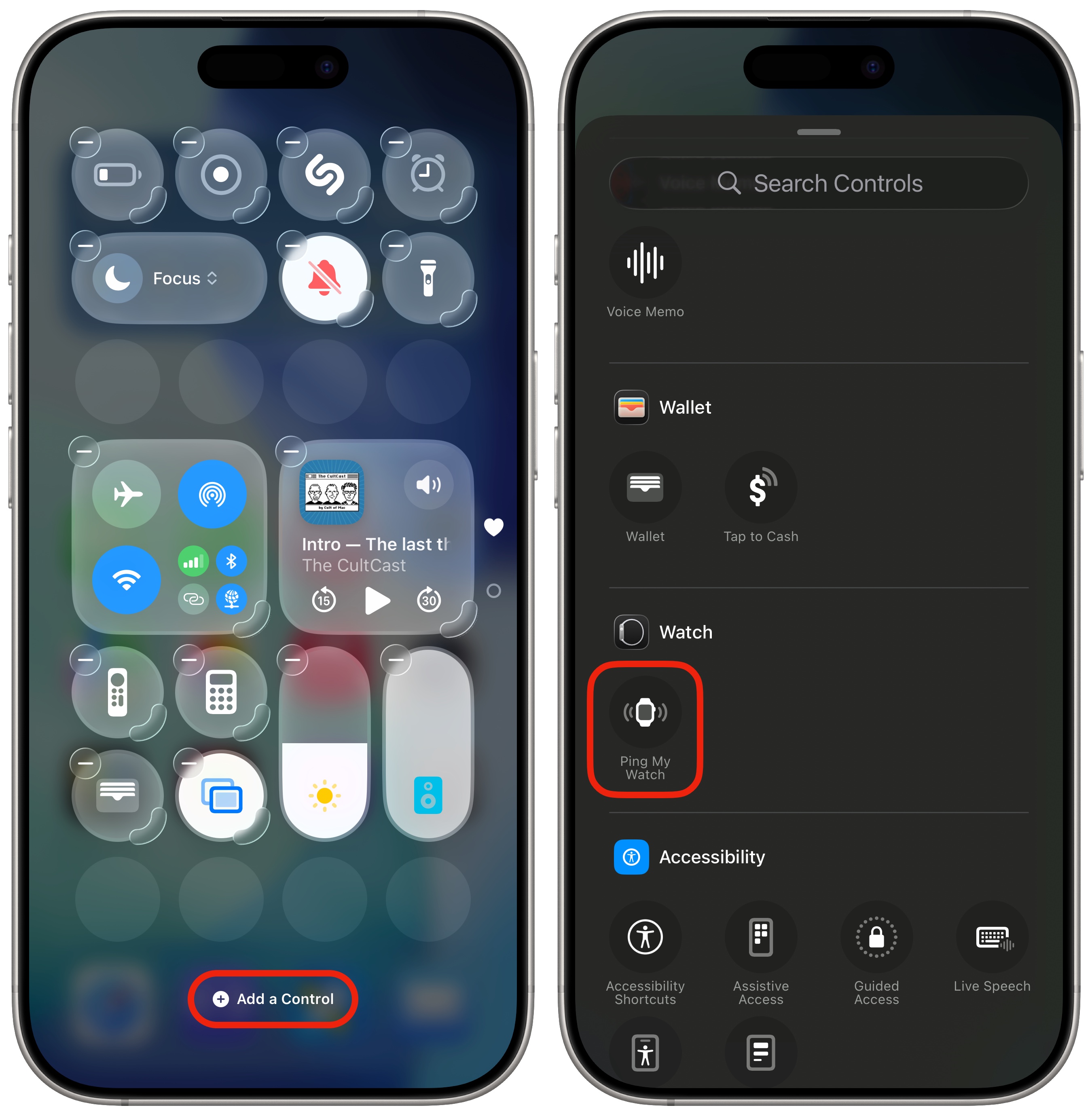
To quickly find your Apple Watch with your iPhone, you need to add the Ping My Watch button to your phone’s Control Center. First, open the Control Center by swiping down from the top right of your iPhone’s screen. For older models with a Home button, swipe up from the bottom edge.) Then tap the + button in the top left of the screen (or tap and hold an empty part of the screen) to begin editing.
Next, tap Add a Control at the bottom of the screen. You’ll see a panel slide up from the bottom that shows a palette full of buttons and toggles. Scroll down to the “Watch” section, toward the bottom, then tap Ping My Watch. You can drag the control to a convenient location and/or drag the grabber at the bottom to make it bigger.
2. Ping your Apple Watch from iPhone’s Control Center
Now you’re ready to ping your Apple Watch from your iPhone for the fastest find possible. To do so, simply swipe down from the top-right corner of your iPhone screen to bring up Control Center. Then, tap the Ping My Watch button.
Your watch will play the same fun, rhythmic chime out of its speaker that you’re used to hearing when using it to find your iPhone. And yes, this works even if you leave your watch in Silent Mode — as most people do (and honestly, everyone should).
The Apple Watch’s speaker isn’t as loud as the iPhone’s, but the audible alert still should help you find your missing watch in a room. If you can’t hear anything after pinging it for a while, it’s likely too far away for you to hear the alert. In that case, you might want to open Find My, tap the Devices tab, and then tap on your Apple Watch to confirm it’s not truly missing.
More Find My features
- Find your lost devices from an iPhone, iPad, Apple Watch or Mac from the Find My app. Or, sign into an Android device or PC from the web.
- Share an AirTag temporarily with airport staff to find lost luggage or to get help from someone else.
- Share an AirTag with a family member or friend to share its location with them.
This article on how to ping an Apple Watch from an iPhone was originally published on November 8, 2023. We updated it with the latest information on December 8, 2025.

D. Griffin Jones was a writer, podcaster and video producer for Cult of Mac. Griffin has been a passionate computer enthusiast since 2002, when he got his first PC — but since getting a Mac in 2008, he hasn’t turned back. His skills in graphic and web design, along with video and podcast editing, are self-taught over 20+ years. Griffin has a bachelor’s degree in computer science and has written several (unpublished) apps for Mac and iOS. His collection of old computers is made up of 40+ desktops, laptops, PDAs and devices, dating back to the early ’80s.
Griffin writes for his personal blog, Extra Ordinary, and is currently looking for work.

