Check In is an iPhone feature that tracks your travels and lets contacts know when you’ve safely reached your destination or finished a workout. It’s great for traveling, for kids trudging to and from school, for going on a date, and for biking on a dangerous road.
With this feature enabled, you no longer need to remember to text someone when you make it home safely — your iPhone will let them know for you.
Check In is like sharing your ETA in Apple Maps, but tweaked for personal safety. Friends, family and loved ones will be automatically notified if you’re stopped for any reason before reaching your destination.
The safety feature also offers timer-based check-ins, which come in handy for situations like meeting a stranger from Craigslist. If you don’t check in after a set time, your iPhone will alert your contacts.
Here’s how to use it — frankly, everyone should know how this works (especially parents).
How to use the iPhone’s Check In feature
Similar to sharing your ETA in Apple Maps, Check In will notify chosen recipients if you get lost, kidnapped or simply experience a car breakdown. If you deviate or stop making progress on a trip, you have 15 minutes to respond to a notification to confirm you’re all right. If you don’t respond, your iPhone will notify recipients of your current location, the route you went on, and, in case they want to contact you, your iPhone’s battery level and cell connectivity.
Check In can be critical for keeping peace of mind during your travels. With people often traveling during the holidays — as the weather rapidly gets worse — you can stay in the know while your loved ones make their migrations to and from family.
Table of contents: How to use the iPhone’s Check In feature
- Start Check In from the Messages app on iPhone
- Check in by location, time or workout
- Send the message to start your Check In
- Choose what details to share
- More Messages features
Start Check In from the Messages app on iPhone
Screenshot: D. Griffin Jones/Cult of Mac
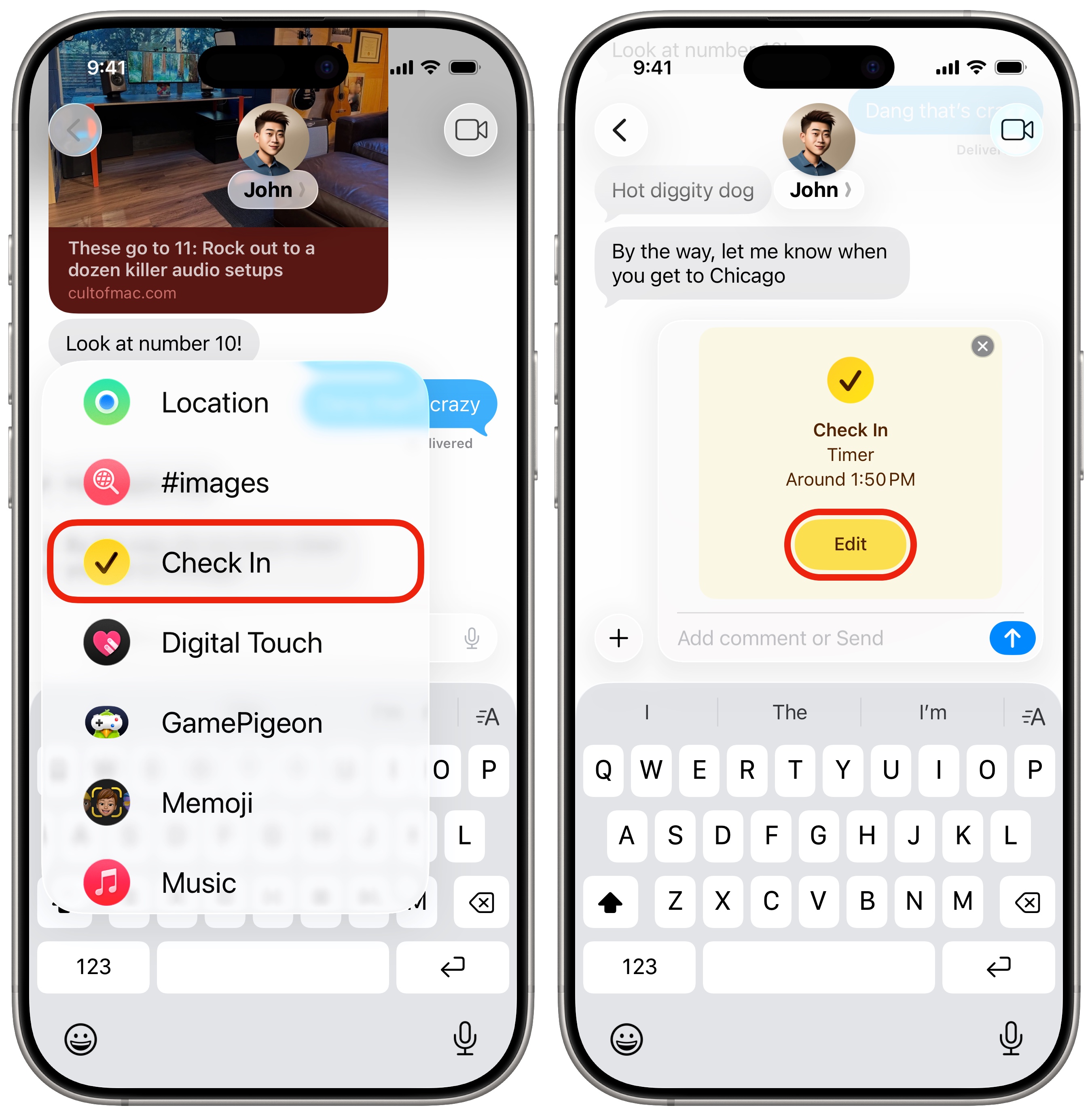
To use this vital safety feature, open the Messages app and start a new message with the person you want to check in with. Then tap the + menu to the left of the text field to open the app list.
Swipe down and tap Check In. If you have directions running in Apple Maps, or are in the middle of a workout, it’ll automatically create a check-in based on your destination or when the workout ends. Otherwise, it’ll set a one-hour timer by default. (More on these options below.)
Tap Edit to make changes — for instance, if you want a destination-based workout, but you prefer using Google Maps.
Check in by location, time or workout
Screenshot: D. Griffin Jones/Cult of Mac
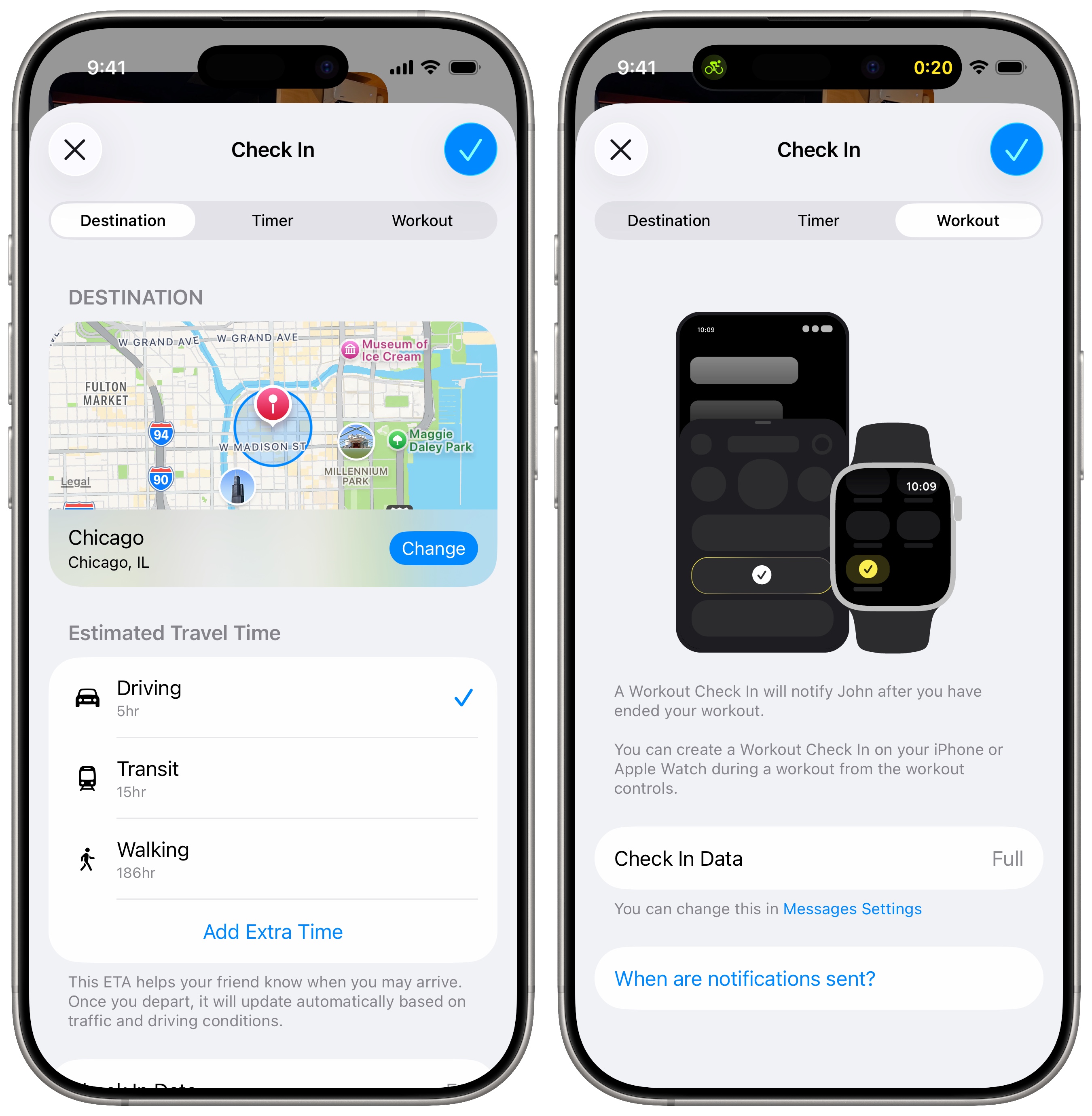
As mentioned, you can create one of three types of check-ins. Your iPhone might automatically select one of these types, but you can change things up if desired. Here are three types offered by iPhone Check In — pick one at the top of your screen:
- Destination: A destination-based check-in is ideal if you’re traveling — driving, walking, taking a bus or whatever. It uses your location to track your progress on your trip. It sends an alert if you get stopped along the way, and lets your designated contact know when you safely arrive. Set your destination using the map.
- Timer: A timer-based check-in proves handy if you’re doing something potentially risky, like going to a seedy bar or meeting a stranger to sell something on Facebook Marketplace. This type of check-in sends an alert if the time expires and you haven’t marked yourself as safe. You can customize the length of time.
- Workout: Use this type of check-in if you’re going for a bike ride on a busy road, taking a walk through the city at night, climbing a rock face, white-water rafting or engaging in some other risky activity. It sends an alert if your workout is interrupted and you don’t respond. It also lets your contact know if your workout ends safely. You have to start a workout before you can send the check-in.
After you pick the Check In type, tap Done (the blue checkmark button) to save your changes.
Send the message to start your Check In
Before you send the message with your Check In from your iPhone, you’ll see a preview in the message composition window. You can tap Edit to make more changes to the information shared with your contact. You can add a custom message below if you want to explain what’s going on. Then tap Send to start sharing your location using the Check In feature.
Choose what details to share
Screenshot: D. Griffin Jones/Cult of Mac
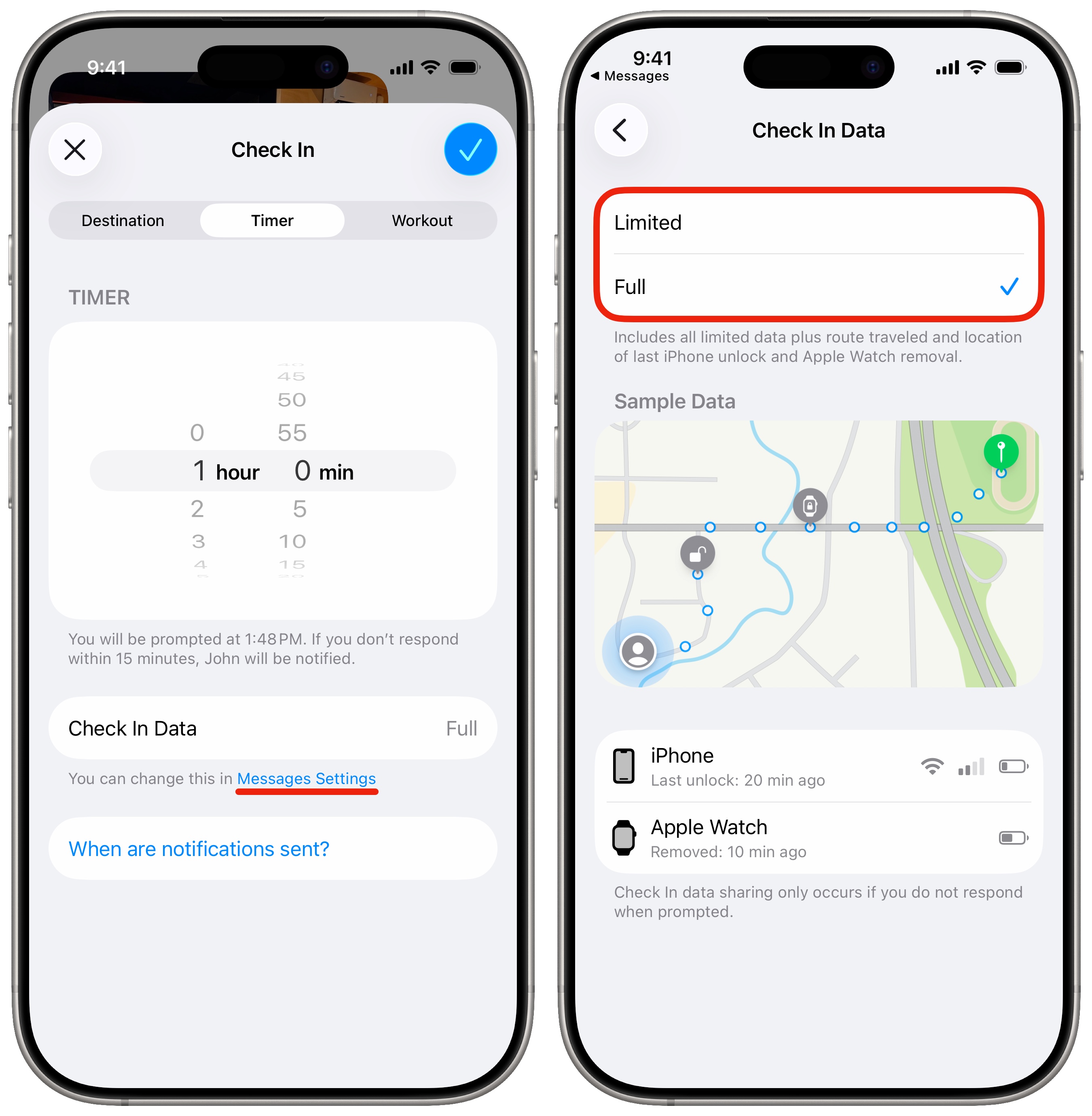
If you don’t respond on time to an iPhone Check In notification, the recipient will be notified that you failed to check in. You can choose whether to send them your current location only (Limited) or the entire path you took (Full). The limited option will preserve your privacy better, but if you enter a potentially dangerous situation, it should be easier to find you if you share the full data.
You can adjust this setting while setting up a check-in by tapping Messages Settings, or at any time from Settings > Apps > Messages > Check In Data. Choose either Limited or Full, and look below to see example data.
More Messages features
Now that you know how to use the iPhone’s Check In feature, dive into these other useful Messages features:
- Edit or unsend messages, soon after sending them, if you make a mistake.
- Schedule texts to send later on iPhone to make sure you never forget to send a reminder, birthday greeting or early morning message for someone in a different time zone. You can schedule a whole slew of texts up to a week in advance, with links, photos, attachments and more.
- iMessage effects can add much more meaning, emotion and fun to your texting. You can add bold, italics, underline and
strikethroughtext, just like a formatted document. For even greater impact, you can choose from a bunch of cool, animated effects. - Schedule automatic Apple Cash payments to send money to friends or family on a regular basis.
- Send messages via satellite if you have an iPhone 14 or newer and you’re out of range of cell service.
We originally published this article on Check In on iPhone on October 24, 2023. We updated it with the latest information on July 8, 2024, and December 16, 2025.

D. Griffin Jones was a writer, podcaster and video producer for Cult of Mac. Griffin has been a passionate computer enthusiast since 2002, when he got his first PC — but since getting a Mac in 2008, he hasn’t turned back. His skills in graphic and web design, along with video and podcast editing, are self-taught over 20+ years. Griffin has a bachelor’s degree in computer science and has written several (unpublished) apps for Mac and iOS. His collection of old computers is made up of 40+ desktops, laptops, PDAs and devices, dating back to the early ’80s.
Griffin writes for his personal blog, Extra Ordinary, and is currently looking for work.

