The more you use it, the more you realize just how great drag-and-drop is on the iPad. Photo: Cult of Mac
Drag and drop is the headline feature of iOS 11 on the iPad, and rightly so — it changes the whole iOS paradigm, integrating a decades-old desktop feature in a way that makes it feel like drag and drop was just waiting for touchscreens to come along.
It seems like all of Apple’s own apps have gotten a dose of drag and drop in iOS 11, including Maps. Let’s take a look at it.
Both of these were caused by tap-and-hold, which sounds confusing but isn't. Photo: Cult of Mac
When the iPhone launched 10 years ago, there were two kinds of tap. A regular tap for everything, and a special press-and-hold to get the Home screen icons jiggling and ready to rearrange. That was it. Now, with iOS 11, I have counted at least five different types of tap and press, and that’s just on the iPad. If you count the iPhone, then you also have 3D-Touch to deal with.
Partly this comes down to the new systemwide drag-and-drop capability baked into in iOS 11, and partly it has to do with Apple trying to mimic 3D Touch’s pressure sensitivity on the iPad.
The biggest surprise, though, is that Apple managed to pull it off, even in the early iOS 11 beta I’m running now. Not only are these gestures all intuitive, but the overall feel of interaction has gotten way better.
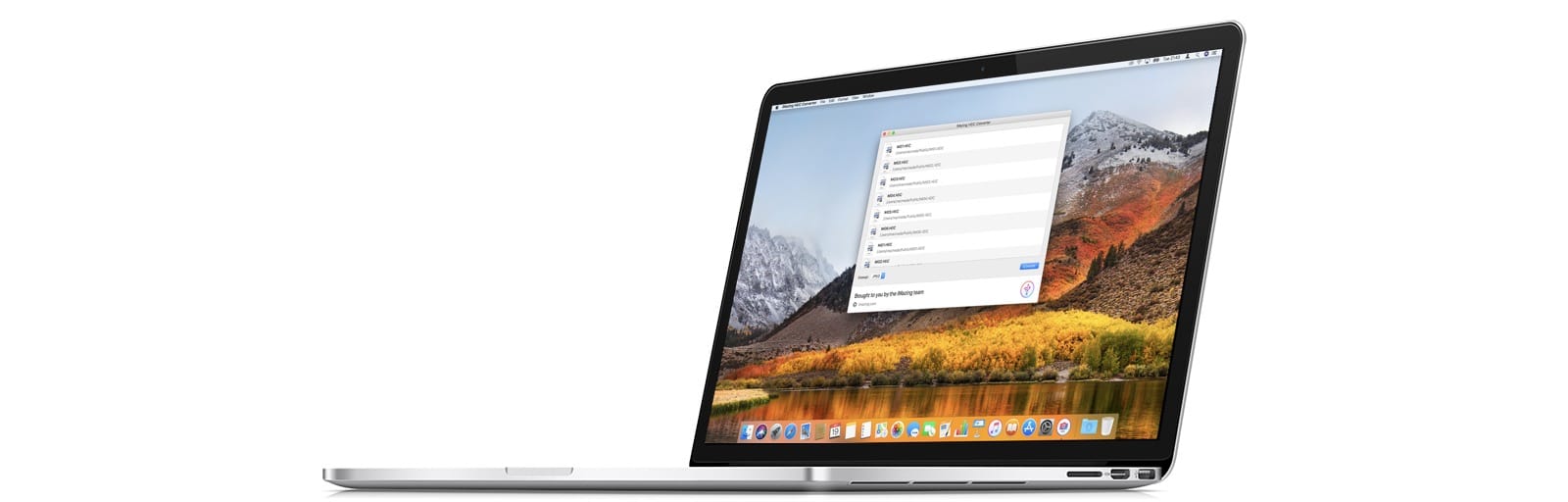
You can use a free app, or you can just change a setting on your iPhone. Photo: iMazing
iMazing, the folks behind the iMazing iPhone management app for the Mac, has come up with a new tool to convert HEIC images to JPGs. Most people will not need this, but in case you do, iMazing HEIC Converter is both free, and handy to have around.
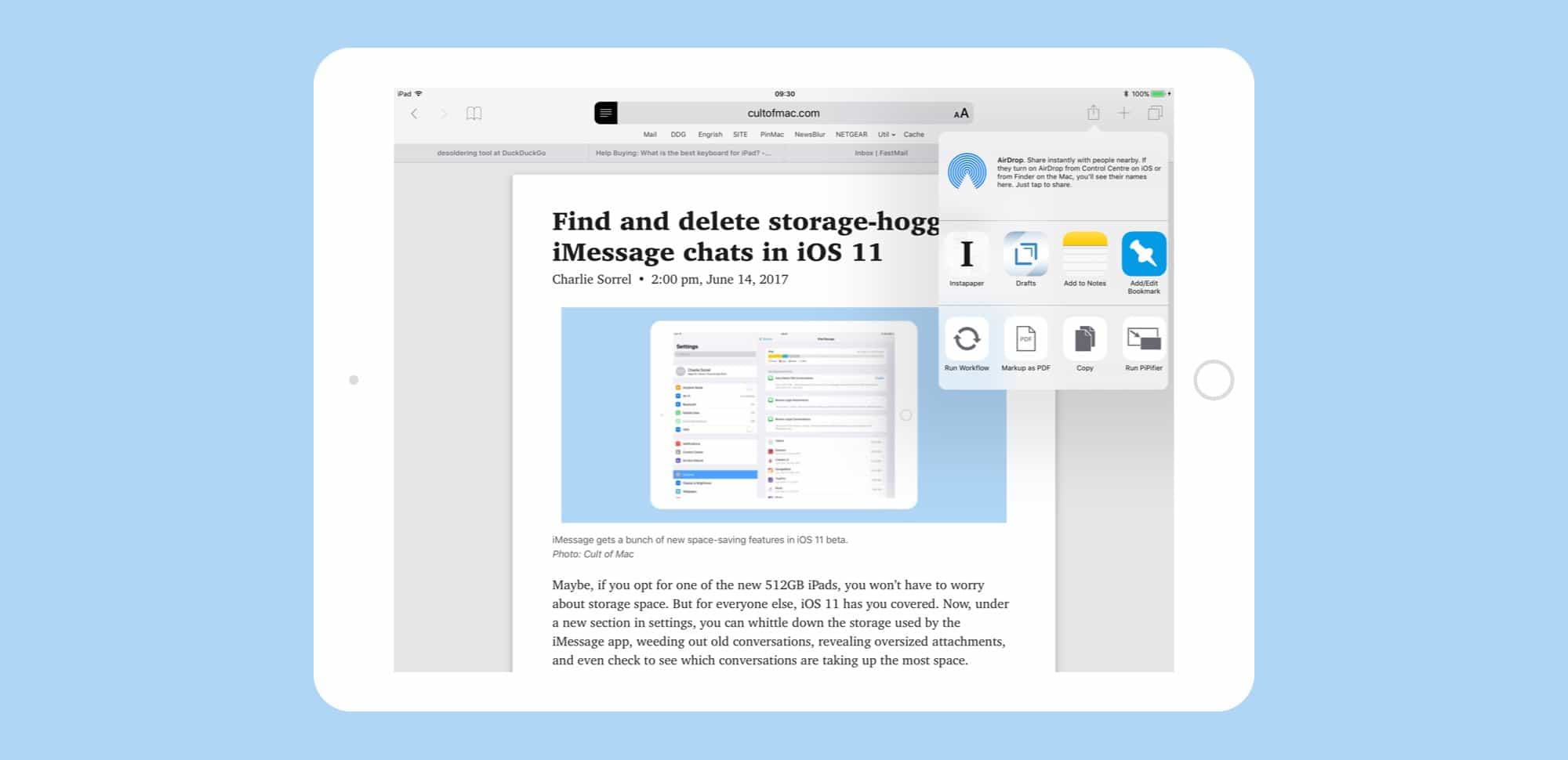
iOS 11 lets you narrow down your target notes by search whenever you save a new snippet. Photo: Cult of Mac
Apple’s Notes app got a few headline updates in the iOS 11 section of the 2017 WWDC Keynote — in-line sketches and handwriting recognition for example — but there’s another tiny tweak that might be an even bigger deal than those two. Now, when you use the Share arrow to send a URL, snippet of text, or anything else, to the Notes app, you can search your existing notes, and choose which one you want to add it to.
This is huge, and takes Notes from being a higgledy-piggledy junk drawer to being a real replacement for things like Evernote and Microsoft’s One Note. Now you can keep a note for, say, planning an upcoming vacation, and easily add new places and plans to it as you find them, or quickly add links to a book reading list.
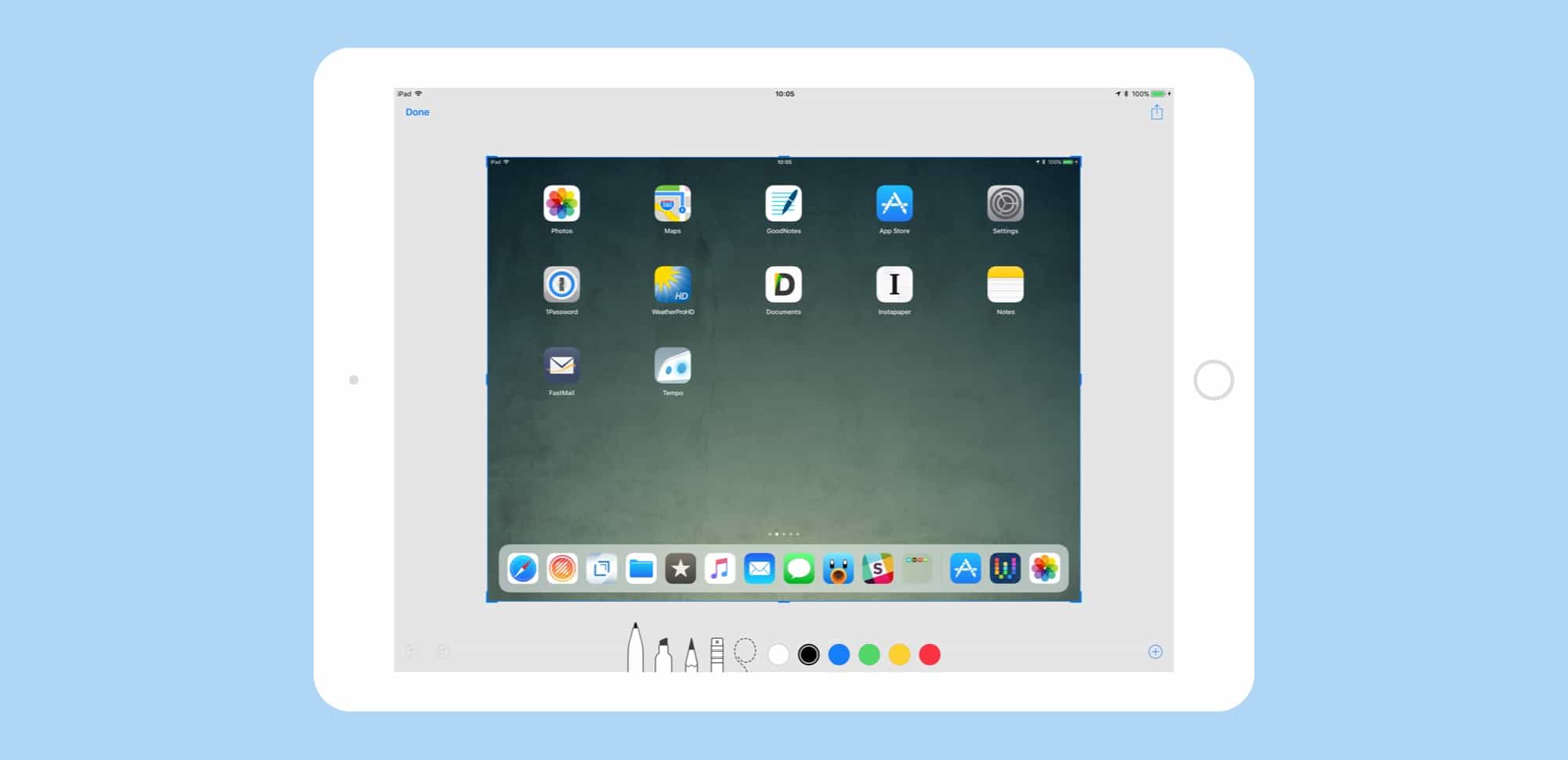
Screenshots have moved from a semi-secret, mostly-hidden feature to a proper tool. Photo: Cult of Mac
iOS 11 has added some great new features to the humble screenshot tool. You can quickly view a new screenshot without a trip to the Photos app first, and you can edit and mark it up before saving it. By adding some powerful pro-level features to screenshot markup, Apple has –somewhat ironically — made them way more useful and accessible for everyone.
These Bluetooth earbuds are designed to withstand even the toughest workouts. Photo: Cult of Mac Deals
Getting to the gym is tough enough. Once you get there, it’s a whole new struggle just to keep yourself focused and pushing through your limits. Music can be a big help, but that means it can be a big bummer when your earbuds go out.
Travel photographer Austin Mann is currently in India shooting with an iPhone 8 Plus. Photo: Austin Mann
Travel photographer Austin Mann calls the iPhone 8 Plus a marshmallow.
More on that later, but as he travels through India shooting with the Apple handset, he is finding the camera and software upgrades to be pretty sweet.
iWork adds Files integration, and drag-and-drop support. Photo: Apple
Apple has pushed updates for Pages, Numbers, and Keynote on iPad and iPhone, updating its iWork apps to work with iOS 11. The apps now have full support for drag-and-drop, as well as giving us a glimpse of how the new iOS 11 file manager — named Files — works inside other apps. Let’s look at the new features in the iWork suite for iOS 11.
Instant Markup and Instant Notes are designed with a touchscreen in mind. Photo: Cult of Mac
The Apple Pencil is way more useful in iOS 11 than it ever was before. That’s down to three new features. One is inline drawing in the Notes app, which lets you just start drawing anywhere in the middle of a text note. The other two, which we’ll cover today, are Instant Notes and Instant Markup, only one of which is actually instant.
Instant Notes lets you tap the lock screen of your iPad Pro, and have the iPad launch into a note, ready to draw or jot. It makes the iPad almost as convenient as a piece of paper in terms of just writing. Instant Markup, which is the least “instant” of the two, is a persistent, system-wide way to turn the screen into a PDF and mark it up.
Files is like the Finder for iOS 11. Photo: Cult of Mac
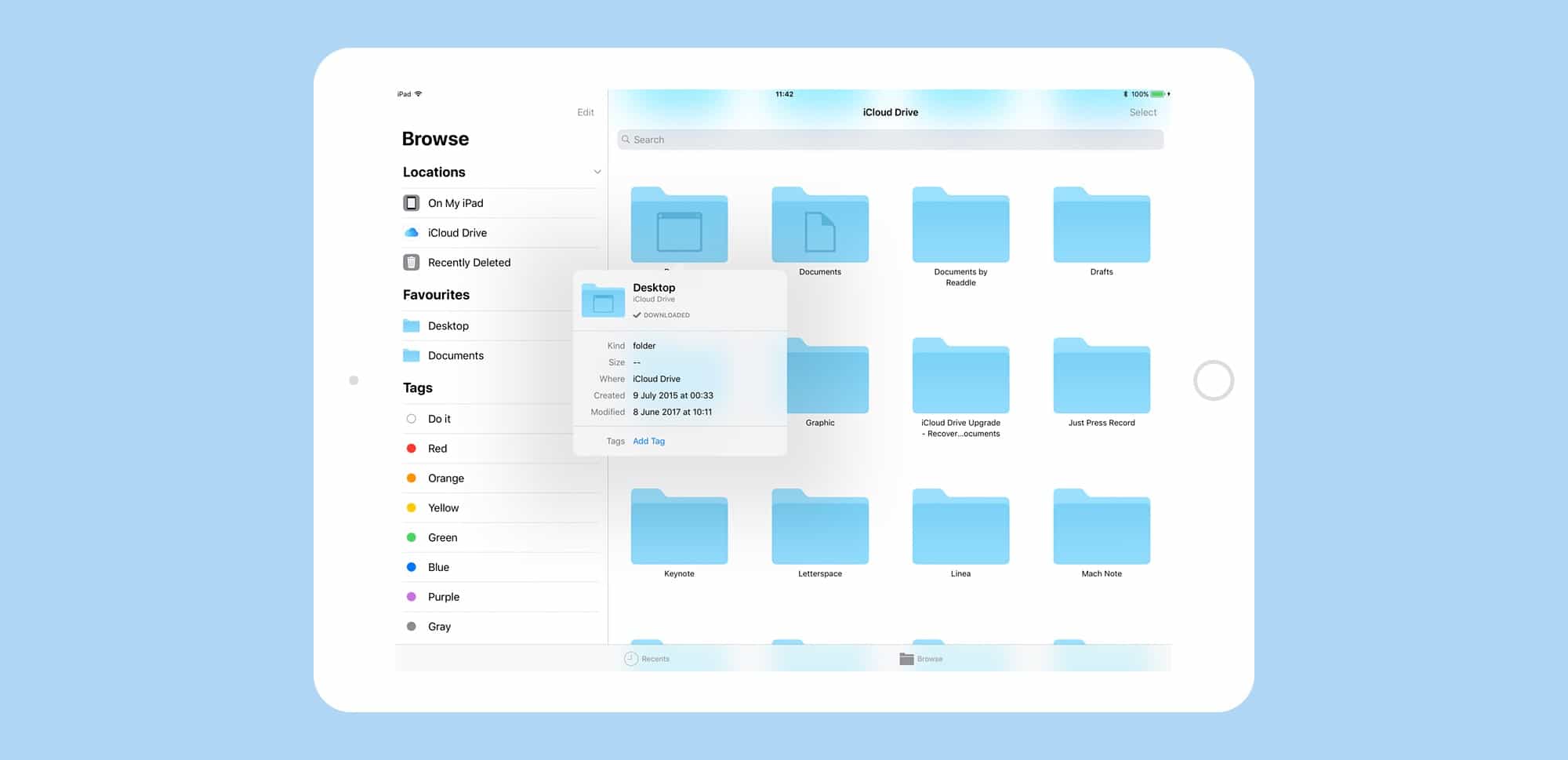
Files is the new Finder app for iOS 11, and it’s already about a million times better than the basic file-picker it replaces — iCloud Drive. Files is a central place from which to access all the files on your iDevice, and in iCloud. You can find, organize, open, and delete all the files on your device, in iCloud, and on 3rd-party storage services like Dropbox. And because this is iOS 11, Files supports all the fancy new multitasking features like drag-and-drop.
HEIF may finally end JPEG's 25-year reign. Images: Cult of Mac/Apple
HEIF is the new photo format that Apple is using to replace JPEG. And it probably will replace JPEGs, because the iPhone is the most popular, most-used camera in the world, and as of iOS 11, most iPhones will be switching from JPEG to HEIF.
But what is HEIF? What makes it better than JPEG? And what difference will it make to you, really?
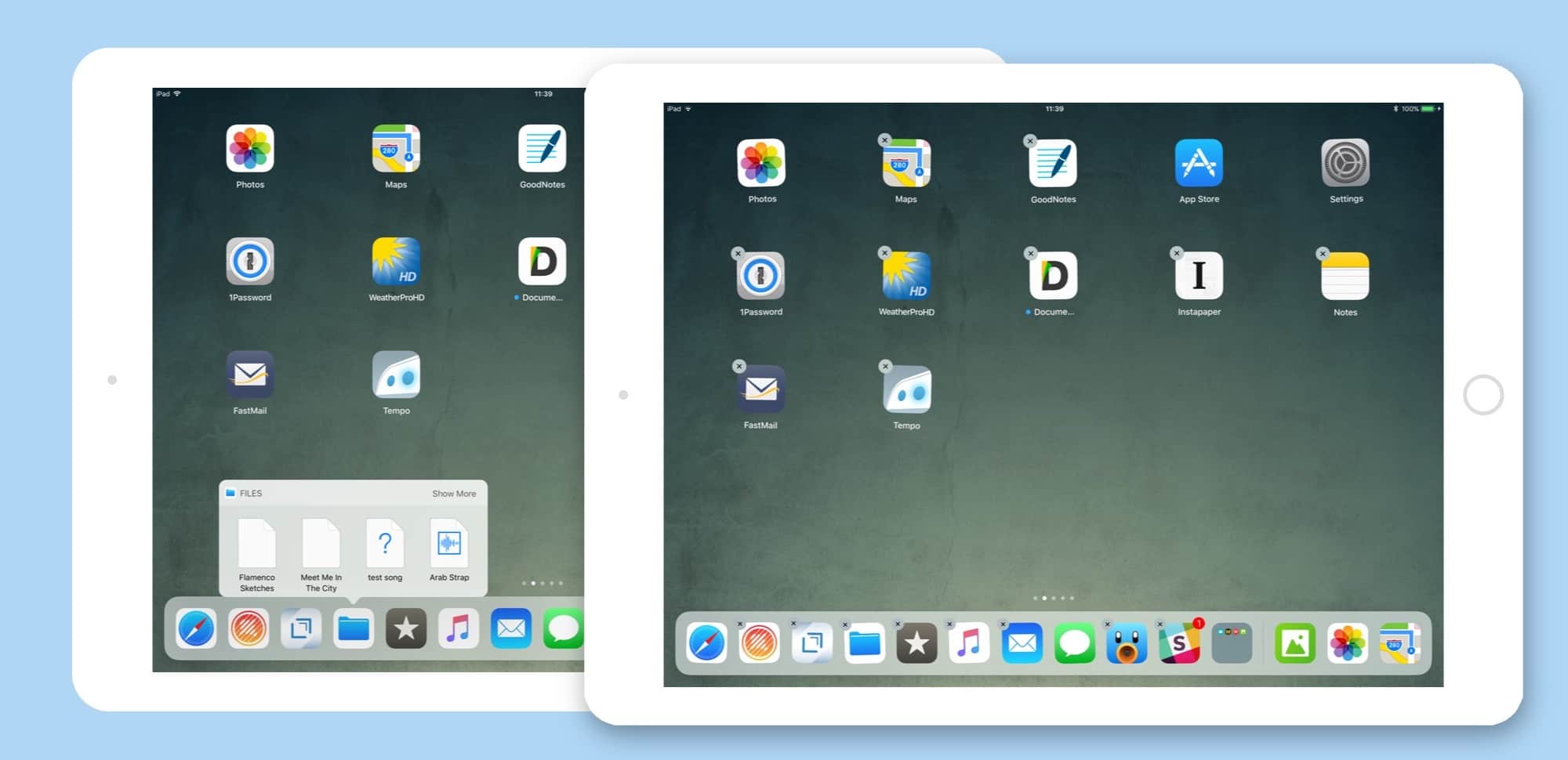
The new Dock is essential to iOS 11's drag-and-drop, but there's a lot more packed there. Photo: Cult of Mac
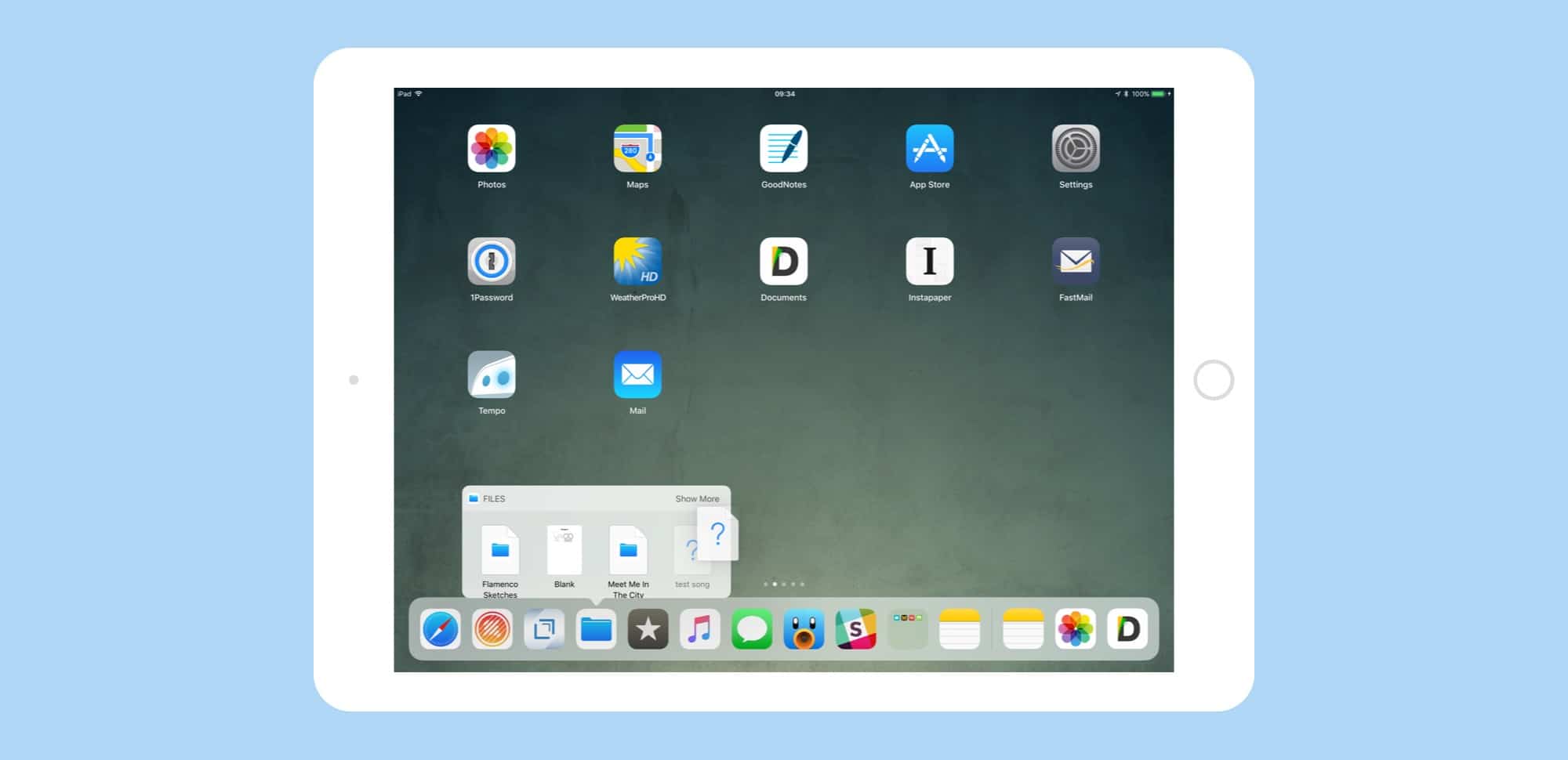
iOS 11 introduces a new Dock. It is conceptually related to the Mac Dock introduced in OS X, and is surprisingly similar. In fact, the biggest difference may be that so far people seem to love the new iOS 11 Dock, whereas there are still beardos who hate the Mac Dock.
Like its Mac counterpart, the iOS 11 Dock packs in a surprising number of features. Lets take a look at them.
Snap your Live Photos on your iPhone, edit on your iPad. Photo: Cult of Mac
iOS 11 brings some neat new editing features to Live Photos, but the good news is that you can edit those same Live Photos, with the same new filters and effect, on an iPad. Let’s take a look.
Apple probably won't admit to it, but iOS 11 now has windows, and lots of them. Photo: Cult of Mac
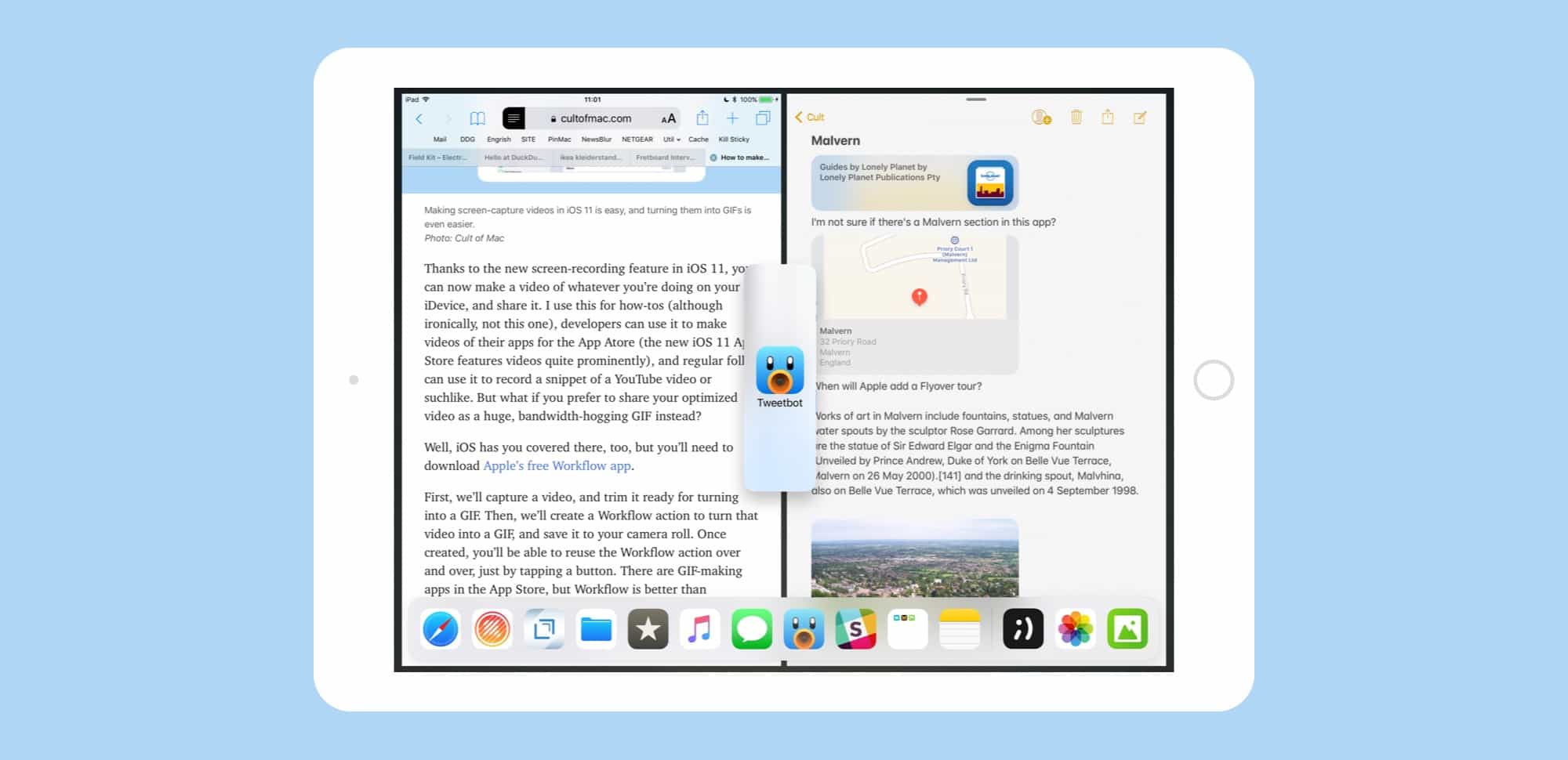
Slide Over and Split View have been overhauled in iOS 11, making them more powerful but also more complex. Both have been available since iOS 9, but — without drag-and-drop — they were little more than a convenient way to view two apps at once. Now, Slide Over and Split View are essential, allowing you to drag pictures, documents, text, and URLs between apps, as well as work with up to three apps on screen at once, along with a video playing picture-in-picture.
Get your iPhone or iPad ready for the new iOS 11 update. Photo: Cult of Mac
iOS 11 is available on Tuesday September 19th, and if your device is compatible, you can go ahead and update, by just tapping the button in Settings>General>Software Update. If all goes well (and it should), then you will wait for a while as the update downloads and installs, then your iPhone or iPad will restart into the new version of iOS, with all the cool goodies it brings.
But things sometimes can go wrong, so it pays to take a few precautions. You might also like to take the opportunity to clean up your device a little. Here’s how to prepare your iDevice for iOS 11.
New features in iOS 11 make the iPad a multitasking beast. Photo: Ste Smith/Cult of Mac
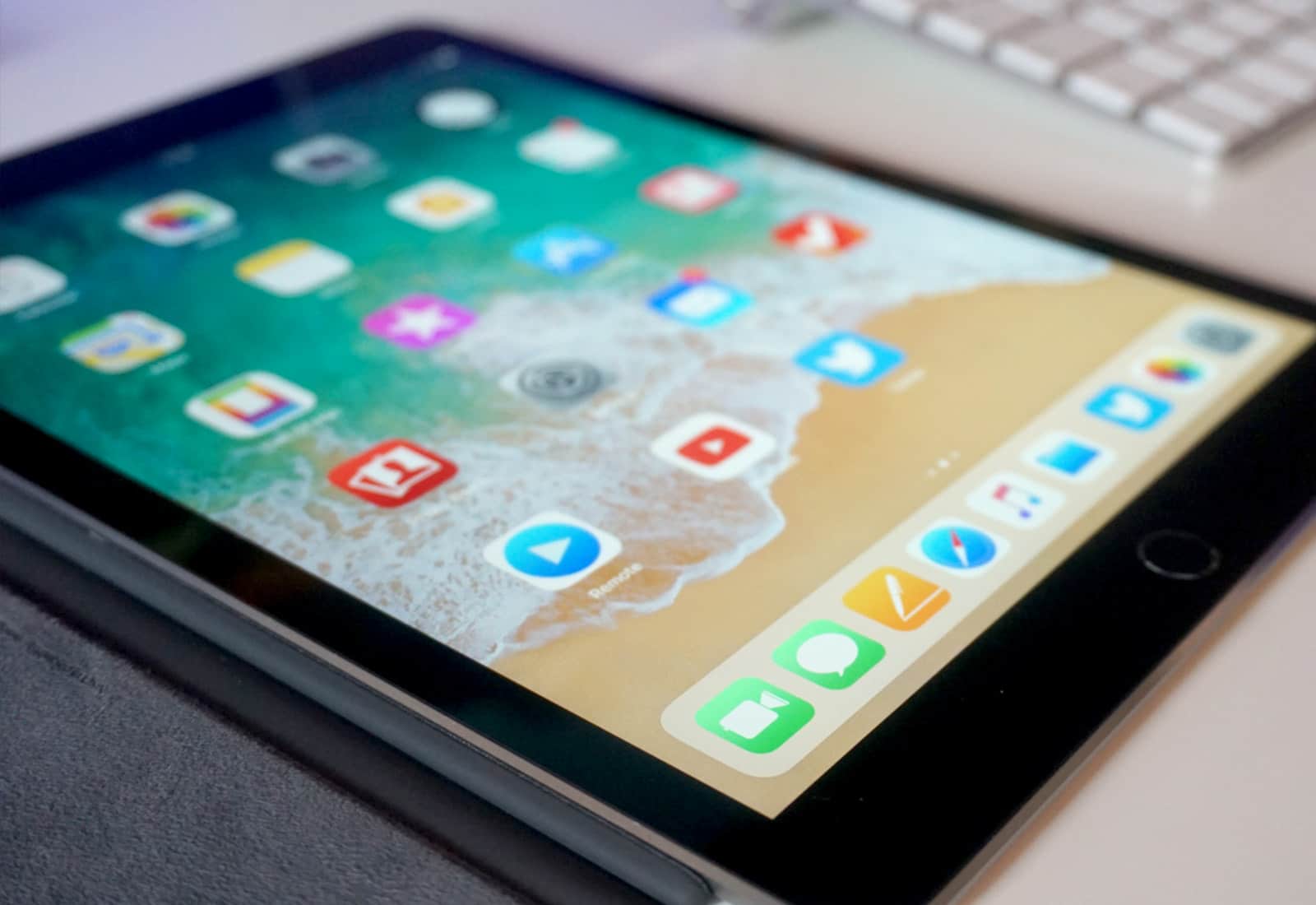
IOS 11 is a huge update to Apple’s mobile operating system, but only if you’re using an iPad. While the iPhone gets its fair share of tweaks and polish, the iPad is transformed into a different machine. When you install iOS 11, your iPad will be transformed from a big iPhone, into a slick mobile computer. It has completely changed how I use my iPad, to the extent that I probably never need to buy another Mac again.
The headline features are drag-and-drop between apps, a new Mac-like Dock, a Finder-like app named Files, and a radically re-thought Control Center that echoes the one found in — you guessed it — the Mac. IOS 11, then, brings many of the Mac’s best features to the iPad, but redesigned to suit the touch screen.
What does this mean for daily use? It means that Mac and PC users can switch to the iPad without having to relearn how to do everything, and existing users will no longer feel like they have their hands tied while trying to do the simplest tasks.
Get ahead of the iOS 11 coding curve with this comprehensive lesson bundle. Photo: Cult of Mac Deals
iOS 11 is upon us. So coders are scrambling to get caught up with all the new tweaks and features. If you don’t know where to start, we’ve got a bundle of comprehensive courses that’ll catch you up.
GoodNotes gets an amazing drag-and-drop update for iOS 11 Photo: Cult of Mac
With the iOS 11 launch imminent, developers are releasing updates that take advantage of all its new features. Some, like Dropbox, will support the new Files app, making Dropbox appear like just another folder like it does on the Mac. Other apps, like 1Writer and GoodNotes, now support drag-and-drop. And one of these apps in particular — GoodNotes — makes a spectacular and unexpected use of dragging and dropping.
Is your iPad or iPhone compatible with the latest version of iOS? Photo: Ste Smith/Cult of Mac
iOS 11 launches in Tuesday September 19th, 2017, and will be an amazing update for both iPhone and iPad. It brings Do Not Disturb While Driving, a much-improved Siri, a brand-new space-saving photo format, a whole new interface and multitasking system on the iPad, and a zillion little tweaks that improve almost everything. But is your iDevice compatible?
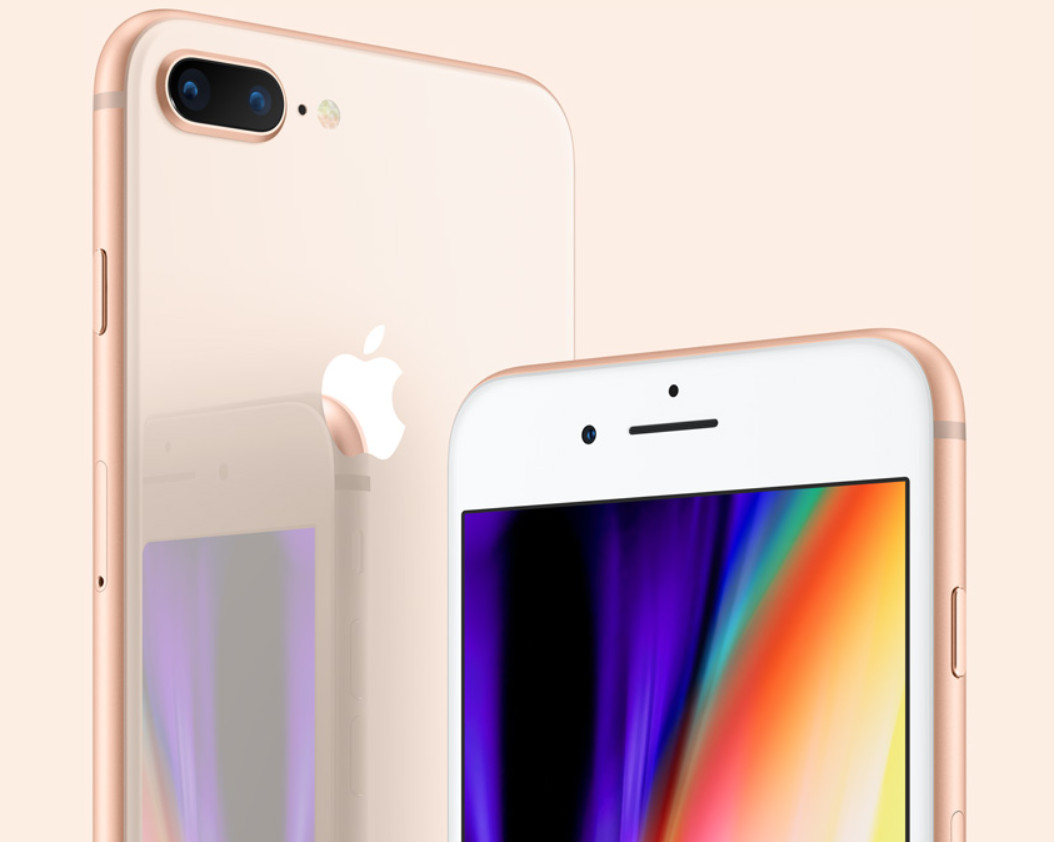
If you’re lusting after an iPhone 8 upgrade but don’t want to pay more for your smartphone, Sprint might have the perfect deal for you. It is currently offering one of Apple’s latest handsets for $0 a month — but only if you trade in certain phones.
Sticky Password is an award-winning password management and form filler for Mac, Windows, iOS, and Android. Photo: Cult of Mac Deals
Because we all have too many passwords to remember, losing track is a common and super inconvenient problem. So it’s well worth having a plan in place.
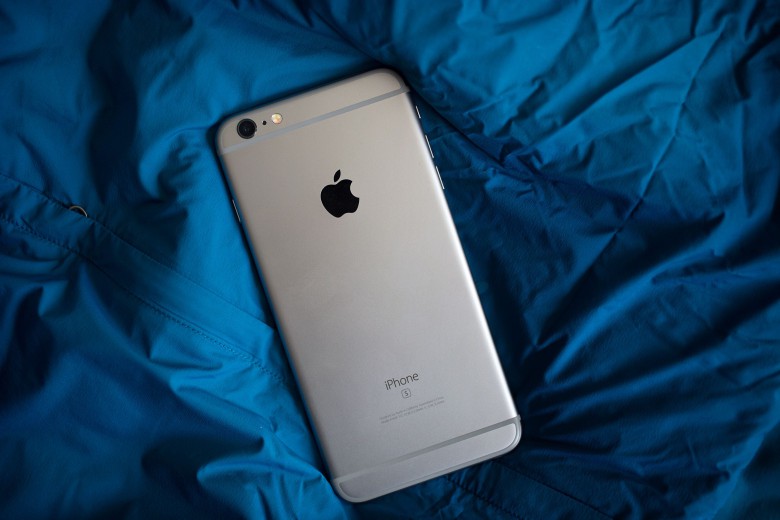
iPhone 6s is sticking around for now. Photo: Jim Merithew/Cult of Mac
The iPhone 6s, which made its debut in 2015, lives on following the launch of iPhone 8 and iPhone X. It’s now one of the most affordable smartphones you can buy from the Apple store, and unlike iPhone SE, it offers a larger Retina HD display and 3D Touch.
Apple has begun shipping early orders for the iPhone 8, Apple Watch Series 3, and Apple TV 4K. All three devices were made available to pre-order on Friday, September 15, and they’re scheduled to reach customers on September 22.
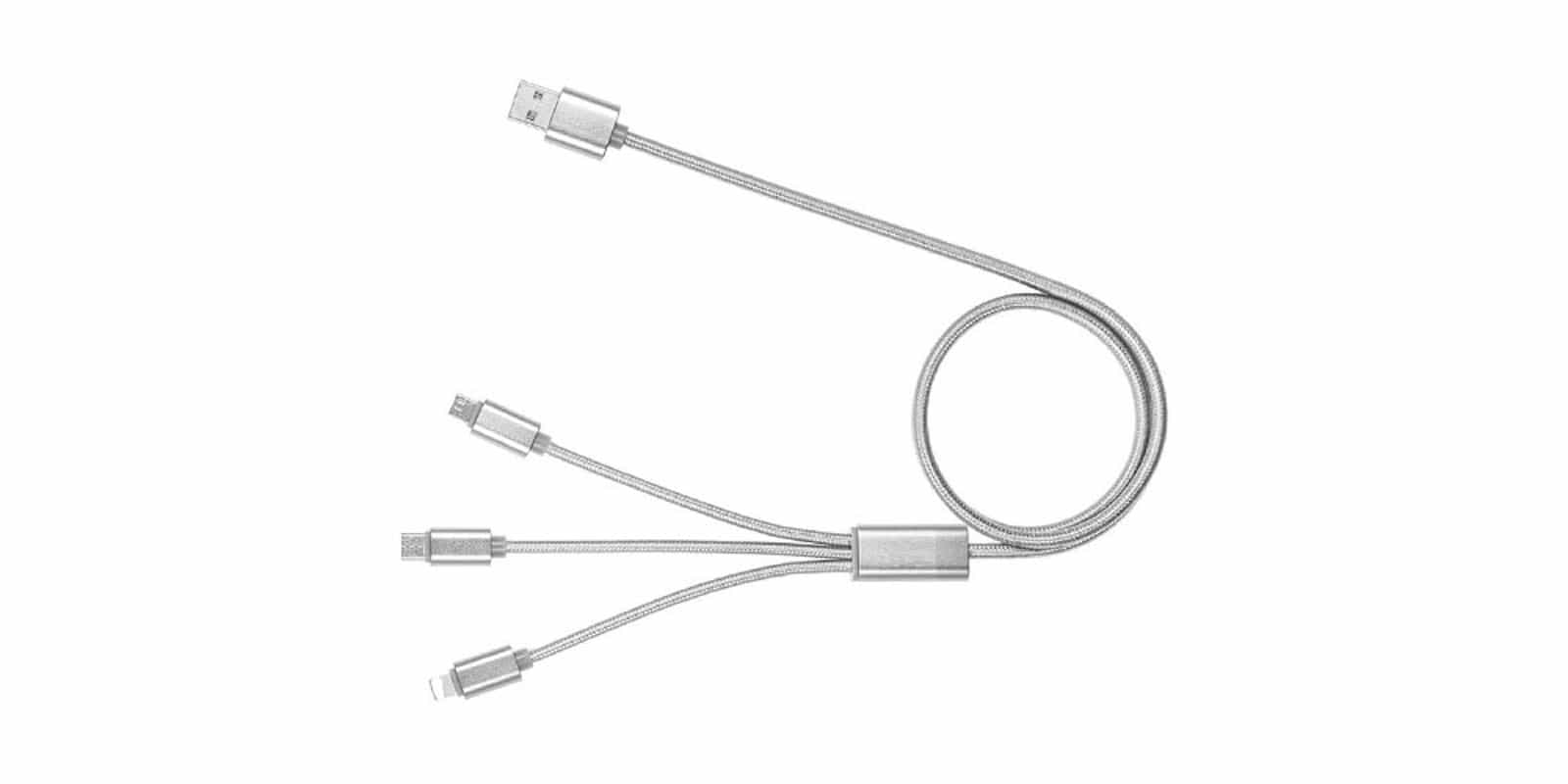
This single cable contains plugs for USB-C, MicroUSB, and Lightning connected devices. Photo: Cult of Mac Deals
If you’ve owned more than one mobile device, you’ve had to deal with juggling different chargers. USB, USB-C, Lightning, MicroUSB. It can be tough to keep up with all the cables you need to keep our devices running.
There was a lot to unpack in Apple’s two-hour long keynote, so we’ve broken down the highlights on all the new products. Photo: Ste Smith/Cult of Mac
Apple’s first ever keynote at the Steve Jobs Theater last Tuesday was one for the ages as the company took the wraps off some of its most innovative products ever. There was a lot to unpack in Apple’s two-hour long keynote, so we’ve broken down the highlights on all the new products.
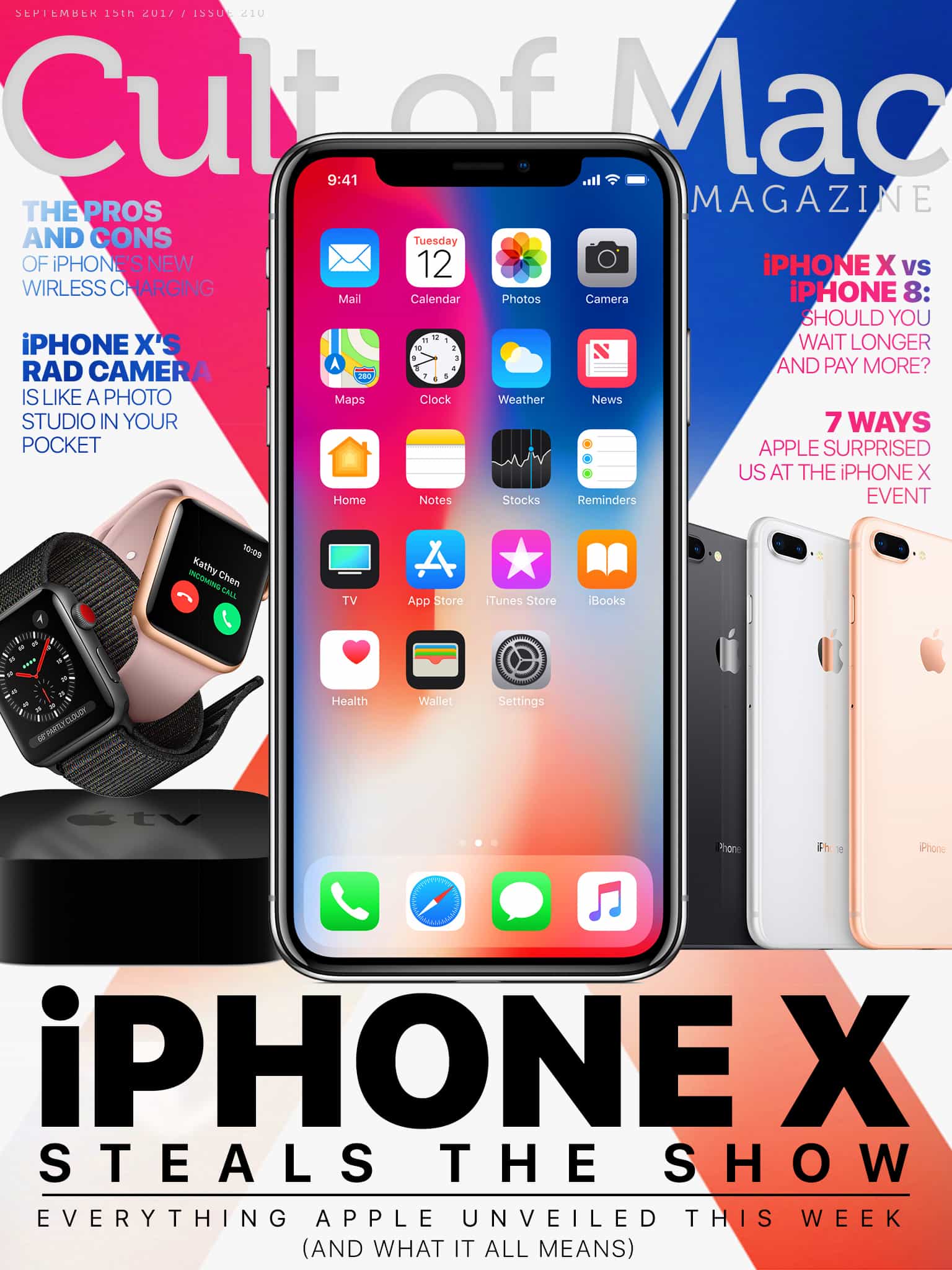
In this week’s issue of Cult of Mac Magazine, you’ll find those stories and more. Get the latest on the new iPhone X, iPhone 8 and Apple Watch Series 3. And discover how to buy iPhone X without breaking the bank. Get your free subscription to Cult of Mac Magazine from iTunes. Or read on for this week’s top stories.