Mobile menu toggle

How-To - page 9

How to use Siri to multitask more efficiently in macOS Sierra

By

macOS Siri Multitasking
Siri on macOS takes multitasking to the next level.
Photo: Ste Smith/Cult of Mac

Through innovations like “Hey Siri” on iOS, and the ability to pin Siri search results to your Mac’s Notification Center, Apple has been working to make its virtual assistant more useful than ever. One more such application is the ability to use Siri to multitask on macOS Sierra.

Here’s how to take advantage of this feature when running the latest Mac operating system, which is currently in public beta and will be released this fall.

How to use iCloud Drive to share your Desktop & Documents folder in macOS Sierra

By

iCloud
Sharing is caring. And easier than ever.
Photo: Ste Smith/Cult of Mac

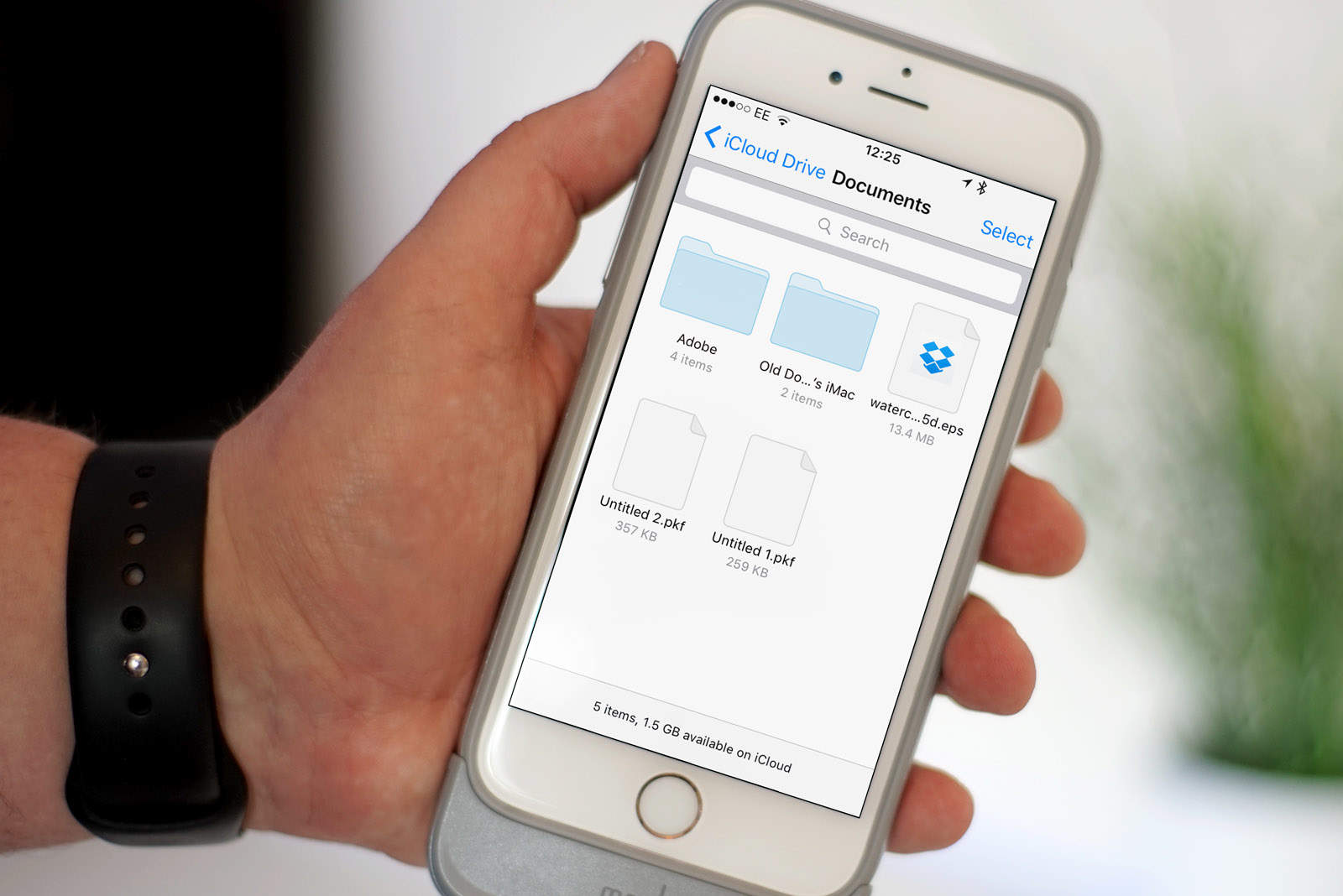
iCloud Drive previously worked a bit like Dropbox, asking users to drag and drop files into a special folder in order to access them across multiple devices. That changes in macOS Sierra, which allows you to enjoy the benefits of iCloud with the added bonus that your files can stay exactly where they are.

Here’s how to use this useful new feature in Apple’s new Mac operating system, which is currently in public beta and will be released this fall.

Keep Siri results where you can find them in macOS Sierra

By

macOS Siri search pin
Siri just got more useful!
Photo: Ste Smith/Cult of Mac

Siri’s arrival on macOS Sierra opens up some great new features and possibilities. One of our favorites? The ability to “pin” Siri results inside Notification Center — making it easier to keep track of whatever game times, trending topics or important documents Apple’s virtual assistant helps you to find.

Here’s how to use the feature when running Apple’s next-gen macOS, which is currently in public beta and will be released this fall.
How to customize and swap Apple Watch faces

By

cult of mac
Switching to a new watch face is almost too easy.
Photo: Ste Smith/Cult of Mac

Apple is making it a lot easier and faster to switch up the look of your Apple Watch thanks to some new features in watchOS 3.

 Starting this fall, Apple is adding a bunch of new faces that can be customized like never before. All the faces can be added via the Watch app for iPhone, and there are so many great options you’ll be swapping all the time. If you’re an Ultra user, check out the best Apple Watch Ultra 2 faces to maximize your experience.

Here’s how to do it:

How to use Universal Clipboard to copy on one device, paste on another

By

macOS
Your iPhone and Mac now talk to each other even more closely.
Photo: Ste Smith/Cult of Mac

The ability to seamlessly hand off web pages or emails from your Mac to your iPhone (or vice versa) has been around for a couple of years now. However, in macOS Sierra and iOS 10 it’s taken to the next level — courtesy of a Universal Clipboard feature which lets you easily copy and paste content between your Mac and iOS devices.

Here’s how to use the feature when running Apple’s next-gen iOS and macOS, which are currently in public beta and will be released this fall.

How to add, delete and rearrange apps in the new Apple Watch dock

By

apple watch
The new Dock is one of watchOS 3's best features.
Photo: Ste Smith/Cult of Mac

Apple Watch is getting a UI makeover with watchOS 3 which completely changes how you interact with apps, making them faster and easier to access thanks to the all new Dock feature.

Now when wearers press the side button on Apple Watch, instead of bringing up your favorite contacts, the watch brings up the dock providing a quick view of your favorite apps that are now updated immediately, so you spend less time staring at the spinning wheel.

Here’s how to make the most of the new Apple Watch dock:

How to set up multilingual typing in iOS 10

By

QuickType
Apple's QuickType keyboard is even better in iOS 10.
Photo: Apple

Apple has made a bunch of improvements to its QuickType keyboard for iOS 10, and one of those is support for multilingual typing. This lets you type in multiple languages simultaneously, and it’s super simple to set up. Here’s how.

How to send stickers in Messages in iOS 10

By

Messages iOS 10
Messages is getting stickers in iOS 10.
Photo: Apple

Messages is getting much more creative in iOS 10, and for the first time, users will be able to download and send all kinds of awesome stickers. Apple is already offering four sticker packs, and many more iMessage stickers will become available from third parties later.

Here’s how to download and send iMessage stickers to your friends.

How to use Apple Music inside iTunes with macOS Sierra

By

Cult of Mac
Get the most out of your music with macOS Sierra.
Photo: Ste Smith/Cult of Mac

Apple Music has had a nice clean refresh in macOS Sierra — making it far easier to search for and discover the best Apple’s streaming music service has to offer.

Here’s what tune-lovers need to know when running the new operating system, which is currently in public beta and will be released this fall.
How to get macOS Sierra to display your photos on a world map

By

Sierra Maps
A new way to scan through your photos!
Photo: Ste Smith/Cult of Mac

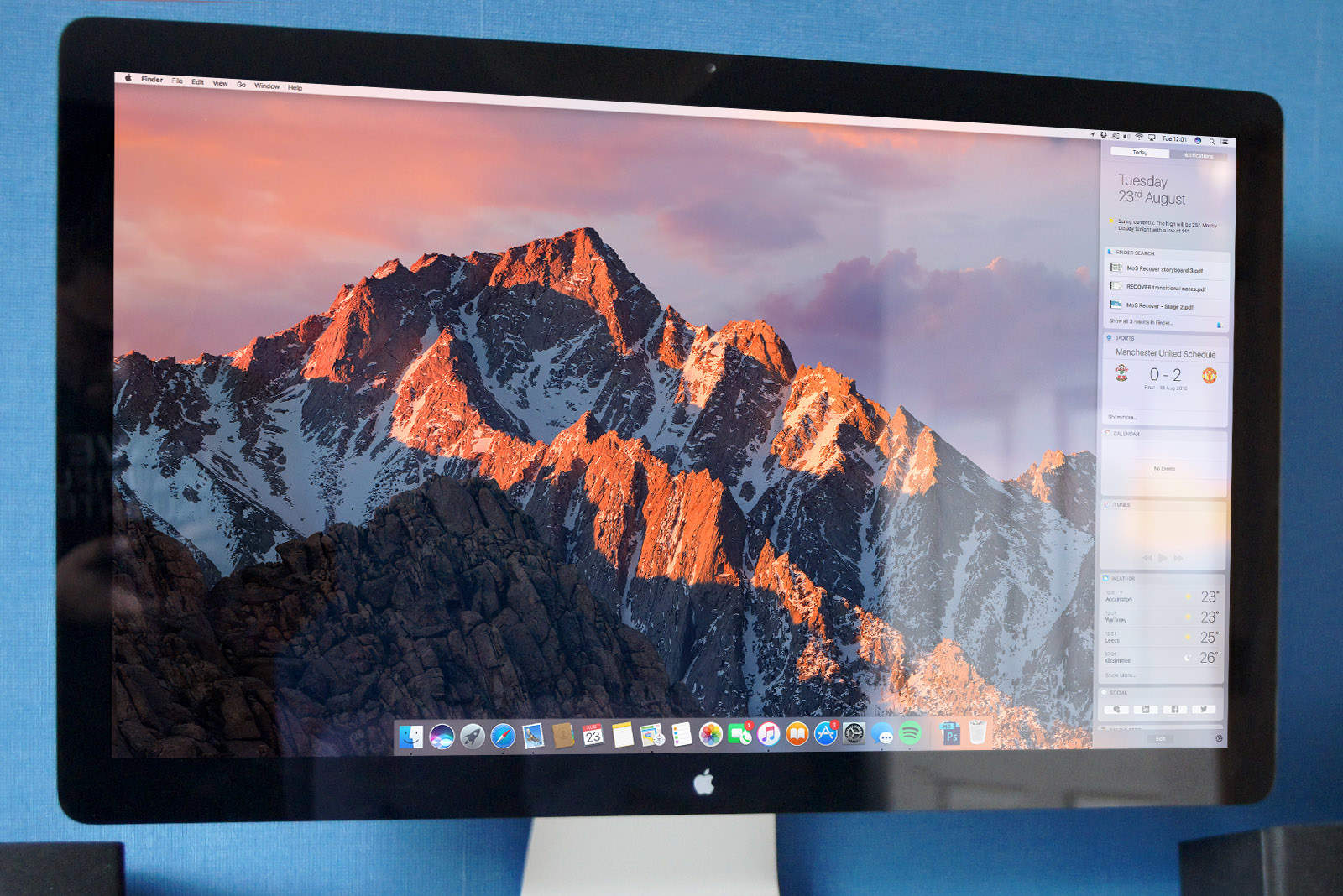
One of the neatest new additions to macOS Sierra is the increased focus on photos. Using the in-built Photos app, it’s now easier than ever to relive your most cherished memories with nifty features like the ability to display all your photos on a world map — presenting a different way to access your pics.

Here’s how to do it using the new operating system, which is currently in public beta and will be released this fall.

How to swap words for emoji in iOS 10

By

iOS-10-QuickType-keyboard
iOS 10's improved QuickType keyboard is big on emoji.
Photo: Killian Bell/Cult of Mac

We hope you like emoji, because you’re going to be seeing a whole lot more of them when iOS 10 makes its public debut this fall.

Apple is introducing a new feature for its built-in QuickType keyboard that makes it easy to swap words for relevant emoji characters as you type. Here’s how to use it.

How to use Tabs in macOS Sierra to get your docs in a row

By

macos_sierra_tabs
Tabs will help keep your desktop clutter free!
Ste Smith/Cult of Mac

Imagine if every time you opened a new tab in your web browser it instead opened an entirely new window on your desktop. It would basically mean living like an animal, right?

However, while we have long since gotten used to being able to easily switch between tabs while browsing the internet, things aren’t always so straightforward if you’re using other apps — be it Maps, Keynote, Pages, or some other third-party app.

Fortunately that’s all changing thanks to the new tabs feature on macOS Sierra. Here’s what you need to know if you’re running the new operating system, which is currently in public beta and will be released this fall.

How to use Messages to play videos and preview links in macOS Sierra

By

iMessage Messages on Mac
Sharing videos and webpages just got a bit easier.
Photo: Ste Smith/Cult of Mac

macOS Sierra has a ton of neat features that’ll change the way you work using your Mac. The ability to play videos inside Messages probably isn’t one of them, but it’s certainly a nice touch that makes chatting to your friends and sharing content that much better.

Here’s what you need to know if you’re running the new operating system, which is currently in public beta and will be released this fall.

How to share, compare and compete with watchOS 3’s Activity rings

By

Get set to test yourself to the limit with your Apple Watch.
Photo: Graham Bower/Cult of Mac

Apple Watch is getting a ton of new features this fall for fitness freaks, giving wearers the ability to not only track their own fitness better than ever, but also go head-to-head with other Apple Watch-loving friends.

With iOS 10 and watchOS 3, Apple Watch owners can share their Activity rings to view each other’s progress and compete to be fittest person in the clique. Here’s how to get started:

How to use macOS Sierra’s ‘Picture in Picture’ feature

By

Picture in Picture macOS Sierra
One of macOS Sierra's most longed-for features, surely?
Photo: Ste Smith/Cult of Mac

While I’m watching a YouTube instructional video or keeping half an eye on a TED Talk while answering emails, the ability to keep a small video window open on my screen while I switch between apps is something I’ve wanted for ages.

That’s exactly the purpose of the new Picture in Picture (PiP) feature found on macOS Sierra. So long as it’s been implemented by web developers, the feature works with video sites such as YouTube and Vimeo — and more are sure to be added over time.

Here’s how to use it when running the new operating system, which is currently in public beta and will be released this fall.

How to use Optimized Storage in macOS Sierra to make more space

By

Optimize Storage macOS
macOS Sierra wants to stop you running out of space. Here's how to let it help you.
Photo: Ste Smith/Cult of Mac

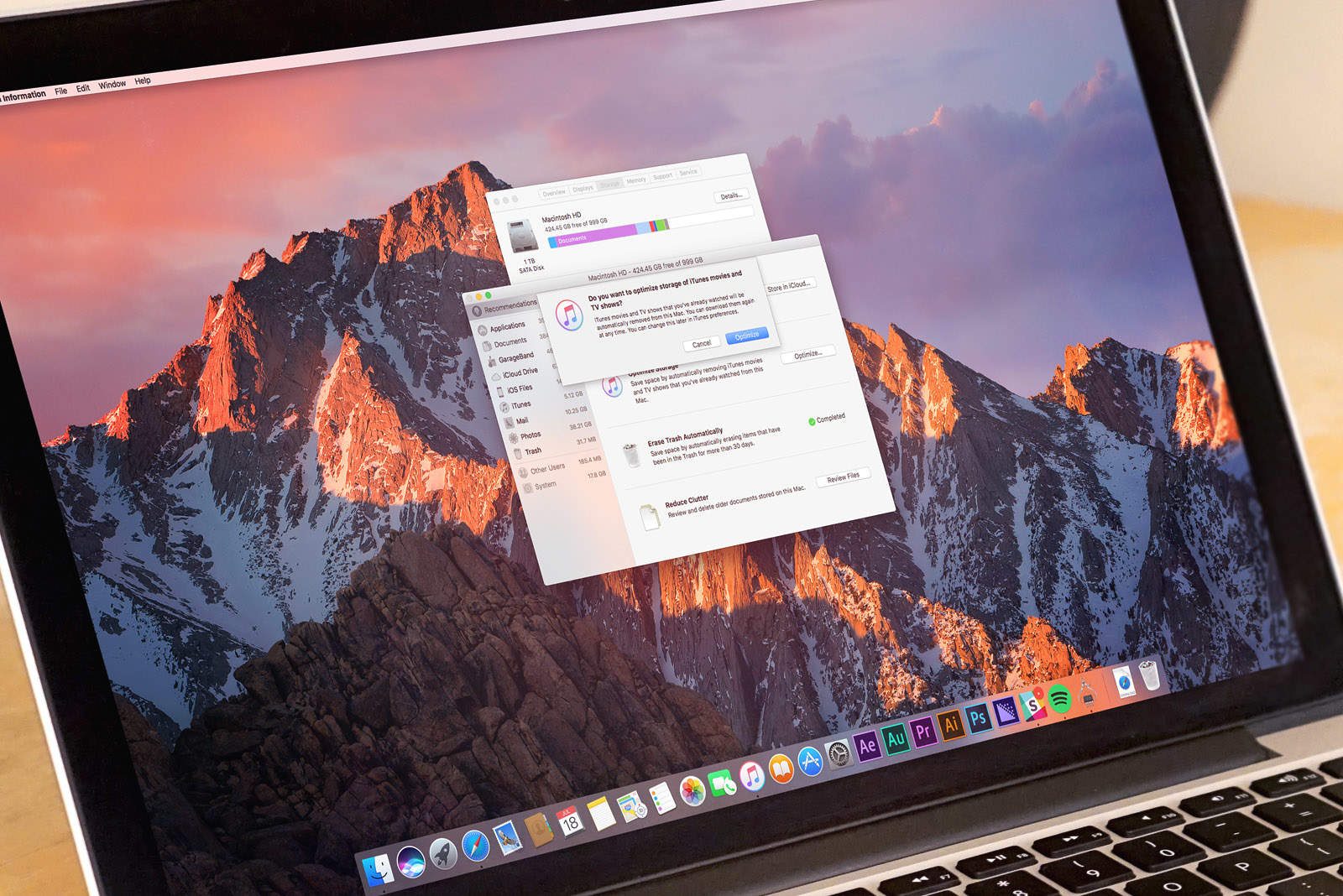
With macOS Sierra, Apple makes it easier to free up space on our computers without having to undergo the time-wasting indignity of trawling through files and deleting them manually.

The new “Optimized Storage” feature helps you deal with junk like duplicates, old email attachments and downloads — and automatically sifts through them to delete the files or move them to the cloud. It’s one of macOS Sierra’s best features.

Here’s how you can use it to your advantage if you’re running the new operating system, which is currently in public beta and will be released this fall.

How to get more news in your Facebook feed

By

the Facebook logo on an iPhone 6 Plus
You Facebook feed doesn't have to be all about family and friends.
Photo: Jim Merithew/Cult of Mac

If you’ve noticed a serious lack of actual news in your Facebook News Feed since the beginning of July, you’re not alone.

The social network recently made big changes to its News Feed algorithm to emphasize posts from friends and family, and fewer posts from the sites and pages you’ve liked. The end result has transformed many users’ feeds into an endlessly scrollable collection of baby pics, birthday posts and political drama no one wants to touch.

Thankfully, there’s a way to take back some control of your page so that important posts from news sites show up more frequently.

How to install iOS 10 public beta the right way

By

PublicBeta
Try out Apple's latest OS before anyone else.
Photo: Ste Smith/Cult of Mac

The iOS 10 public beta is finally here! It’s never a great idea to install beta releases on a primary device, but many of us just can’t wait to get our hands on the latest features. Fortunately, if you update properly, there’s an easy route back if you decide it’s just not stable enough for you.

Our helpful step-by-step tutorial video that will walk you through the whole process!

How to install the macOS Sierra public beta the right way

By

macOS Sierra
Install macOS safely with this handy how-to video.
Photo: Ste Smith/Cult of Mac

If you’ve been thinking about downloading and installing the latest macOS Sierra public beta, but you’re worried it might be too difficult, Cult of Mac is here to help.

Although using beta releases on your primary computer isn’t recommended, a lot of people (including myself) just can’t wait until the public release later this fall to try out the latest features Apple has to offer.

We’ve gone ahead and installed the public beta to bring you this handy step-by-step tutorial video. Check it out below.

How to play Pokémon Go no matter where you live

By

Pokemon GO
Don't wait for Pokémon Go to reach you!
Photo: Niantic Labs

Pokémon Go is still available in just a small number of countries right now, but that doesn’t necessarily mean you have to miss out on all the hype. You can download the hit game today, wherever you live, by creating a U.S. iTunes account. Here’s how!

WWDC 2016 preview, Ken Segall talks to Kahney’s Korner podcast, best iPhone 6/6s cases out there, and more

By

The Worldwide Developers Conference 2016 promises to be huge.
Photo: Ste Smith/Cult of Mac

Get ready for next week’s Worldwide Developers Conference 2016! We give you a sneak peek of what to expect in Apple’s keynote on Monday in San Francisco. Plus, teenager earns scholarship to WWDC by creating his own news app.

Listen to former Apple ad man Ken Segall — who put the “i” in iMac — discuss what he learned in 12 years working with Steve Jobs on Cult of Mac’s brand-new podcast Kahney’s Korner.

All this, and much much more, in Cult of Mac Magazine, free for you right now.

Here are this week’s top stories.

Union Square Apple Store, Steve Jobs ‘word’ painting, and more

By

Cover

Photo: Ste Smith/Cult of Mac

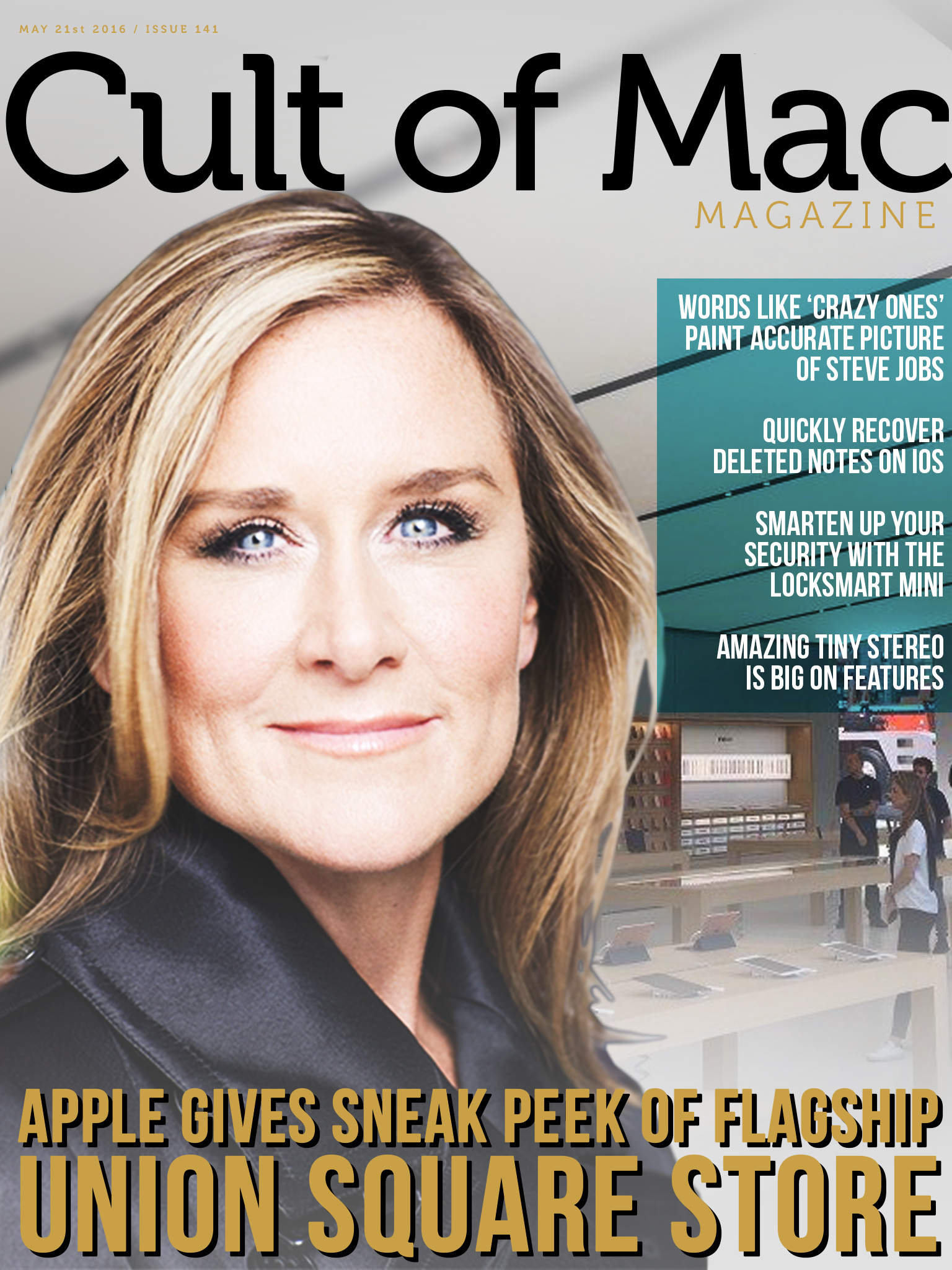
Take a peek at Apple’s most amazing store on the West Coast. The Union Square store promises to be every bit as iconic as Apple’s cube on Fifth Avenue, thanks to its incredible glass and metal design and a new prominent location in San Francisco’s popular luxury shopping district.

All this, and much much more in this week’s Cult of Mac Magazine.

Here are this week’s top stories.