Mobile menu toggle

How-To - page 11

Apple TV update brings these awesome new tricks

By

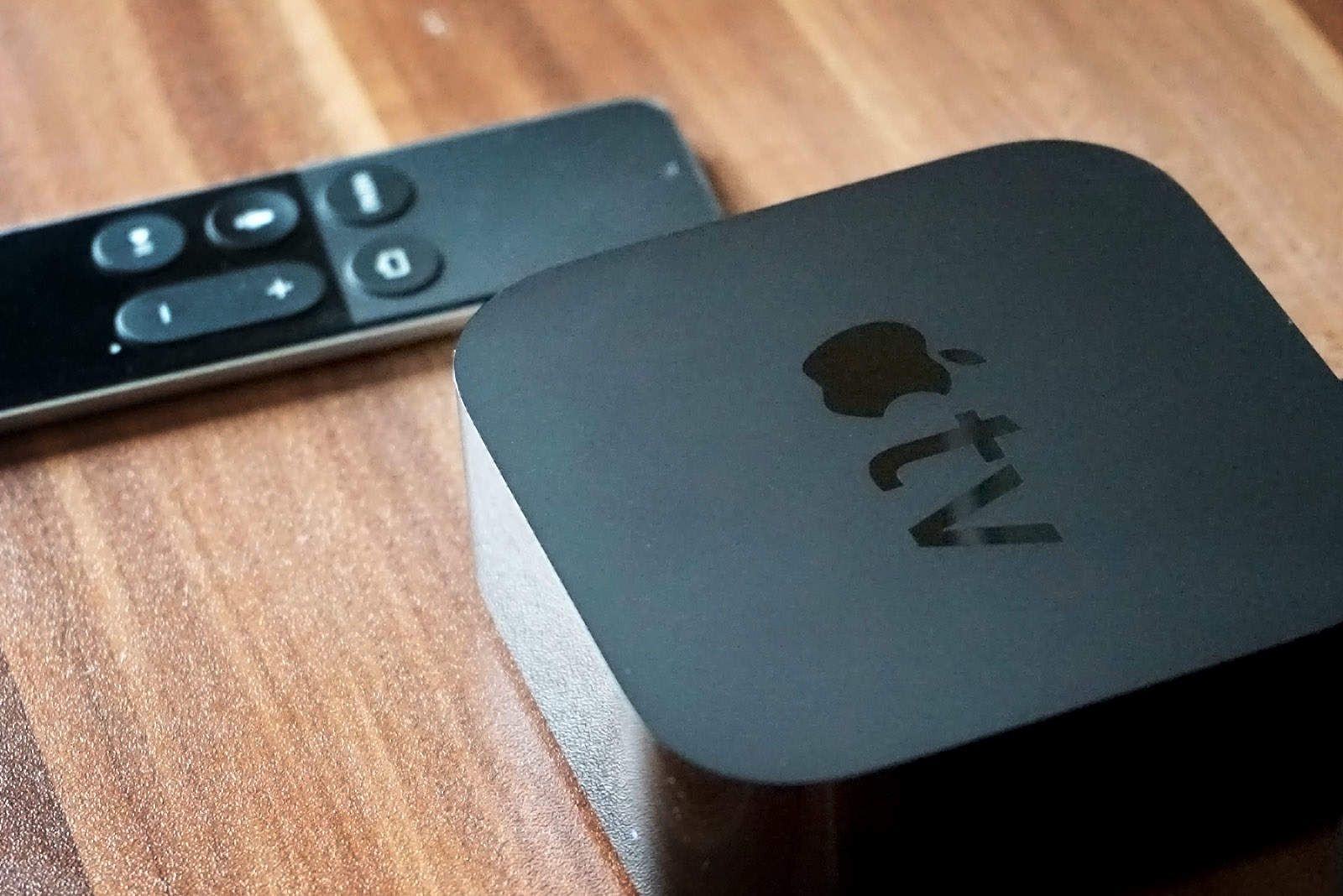
apple tv and siri remote
Grab the latest tvOS 11 update now.
Photo: Ste Smith/Cult of Mac

What’s new on your Apple TV? Quite a bit, if you’ve got the latest fourth-generation device and have updated it to tvOS 9.2.

There’s a new folders system for total organization, new support for Bluetooth keyboards, a podcasts app, a multitasking visual upgrade and a new default video-scrubbing behavior.

Check out all of the awesome new tricks you can do with the latest Apple TV update.

iPhone and iPad Pro go small, Apple Watch pivots and iOS 9.3 is a must-try

By

Size does matter, in fact.
Photo: Ste Smith/Cult of Mac

Once again, Apple has refreshed its iPhone and iPad line with some better (albeit smaller) iOS devices, the iPhone SE and the 9.7-inch iPad Pro.

If you’re looking for all the details on these two new gadgets, or just want to know which is the right iPad or iPhone for you, be sure to grab this week’s Cult of Mac Magazine, which also includes all the cool things you can do with iOS 9.3, a look at Cupertino’s new Apple Watch pivot, and a deeper dive on the keynote itself.

Here are this week’s top stories.

How to decide which iPad is best for you

By

Which one is best for you?
Which iPad model is best for you?
Photo: Rob LeFebvre/Cult of Mac

With the iPad lineup now verging on unwieldy, it’s harder than ever to decide which Apple tablet to buy. Which iPad is best for you? That’s going to depend on your needs, desires and budget — but your iPad buyer’s guide can help!

Do you go for the massive appeal of the 12.9-inch iPad Pro or opt for the smaller-but-newer (and slightly gimped) 9.7-inch iPad Pro? Will a tiny iPad mini suit you, or should you opt for an iPad Air 2, which is still a very capable, thin tablet?

All good questions! We’re here to help you answer them with this handy iPad comparison, just in time for when the new iPad Pro goes on sale Thursday, March 24 (most likely at 12:01 a.m. Pacific, according to Apple Support).

How to update your iPhone or iPad to iOS 9.3

By

Get your iOS device up to date fast and easy.
Photo: Rob LeFebvre/Cult of Mac

iOS 9.3 is perhaps the biggest “dot” upgrade Apple has created for its mobile platform. Apple usually doesn’t show off incremental iOS upgrades at its carefully staged keynotes, but iOS 9.3 clocked some time at Monday’s iPhone SE event, and you should update right now.

If nothing else, you’ll get some great new features like Night Shift to make your mobile digital life just a bit better. Here’s how to get iOS 9.3 on your iPhone or iPad.

How to clock in for the Night Shift in iOS 9.3

By

iOS 9.3 Night Shift
Here's how to turn the lights down and settle in for the Night Shift.
Photo: Killian Bell/Cult of Mac

Yesterday, the launch of iOS 9.3 added Night Shift to Apple’s mobile devices. It’s a really cool feature that might help make you healthier. Jailbreakers have enjoyed an app with the same functionality for years, but now it’s legitimate and poses less of a risk of completely jacking up your iPhone or iPad.

Night Shift gives you the option of warming up the light your display emits so that you get less harsh, blue rays before bed. The idea is that your screen’s usual output tricks your body into thinking that it’s still daytime, and that can make it harder to fall and stay asleep. So if you’re used to checking some e-mails or reading some news before you conk out, it might help you rest easier.

Here’s how to activate Night Shift’s soothing beams.

How to update the software on your Apple TV

By

appletv
Apple TV's new app could give us the interface we've dreamed of.
Photo: Jim Merithew/Cult of Mac

The fourth-generation Apple TV is ready for a new update to tvOS (9.2), bringing Siri dictation to the whole system, including search, user names and passwords. It’s also got a new Folder system like iOS does, which will let you organize your Home screen to your heart’s content, and it will support Apple wireless keyboards and your iCloud Photo Library on the big screen.

If you want to update your Apple TV right now and get all these great new features, just follow the directions below.

How to find your lost iPhone with Tile

By

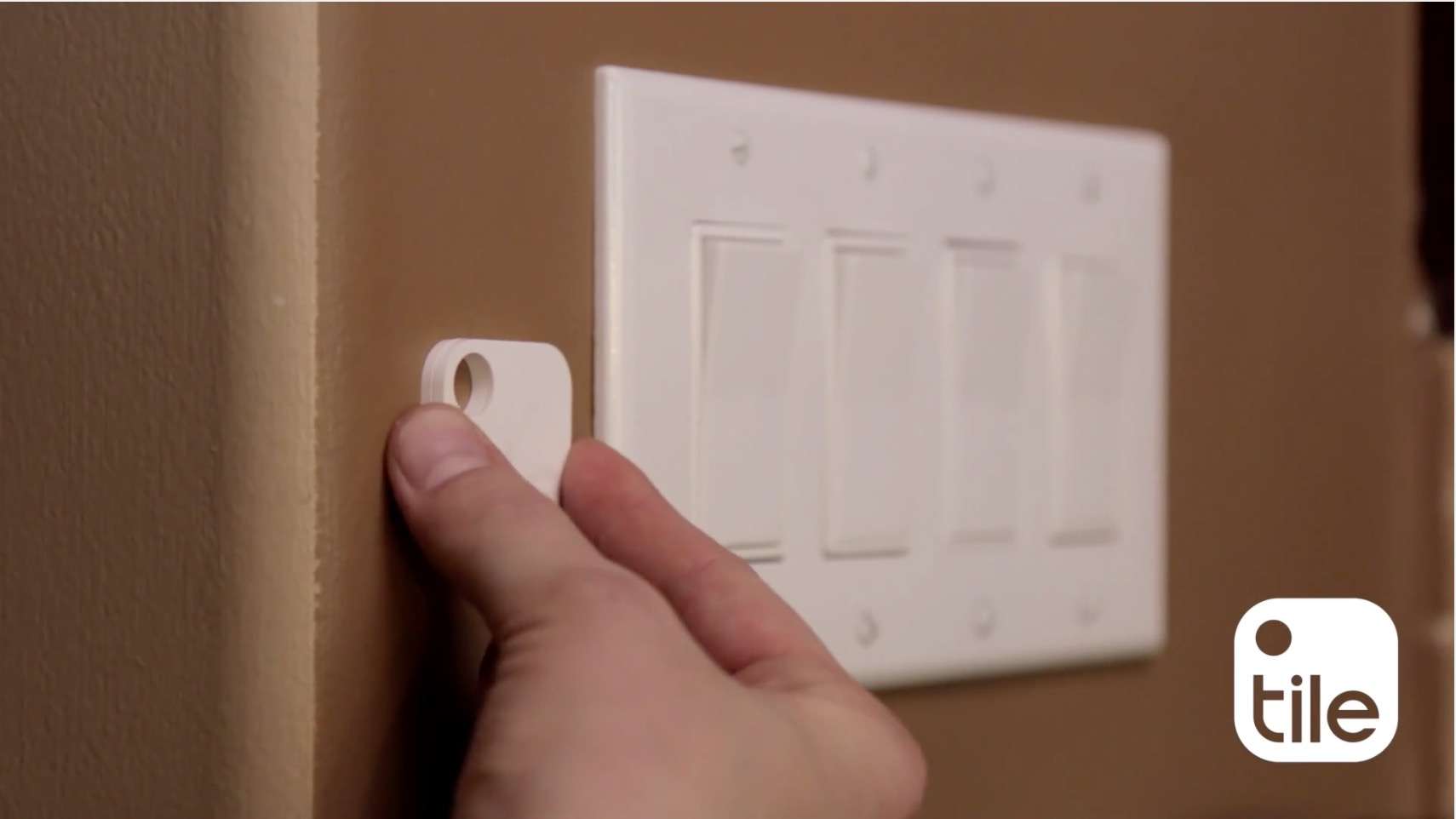
Stick your Tile somewhere like a wall, where you won't lose it.
Photo: Tile

Chances are, you’ve lost your iPhone a time or two, even in your own home. I’ve found myself stalking around the living room, kitchen, and even bathroom trying to remember just where I left that darn iOS device.

Tile, the popular “find your stuff” tracker, has a trick you can use to find your lost iPhone, even if you’ve put the iPhone on silent.

Here’s how.

How to save only your most treasured iMessages in OS X

By

Keep only what you want, get rid of the rest.
Photo: Rob LeFebvre/Cult of Mac (Original image by Patryk Sobczak/Unsplash)

When it comes to the Messages app, saving all your iMessages can be a good thing, letting you go back in time and see the delightful conversations you’ve had with your loved ones or even just checking to see where you’re supposed to meet up on Friday.

Of course, there might be a few of them, however, that you’re not super keen on saving. You may not want to get rid of an entire iMessage conversation thread, but there might be bits of it you’d rather forget.

Here’s how to get rid of parts of your iMessages while saving only your most treasured iMessages in OS X.

How to record your iPhone or iPad screen with QuickTime

By

iPhone Screen Capture
Start capturing your iOS gaming with this handy trick!
Photo: Ste Smith/Cult of Mac

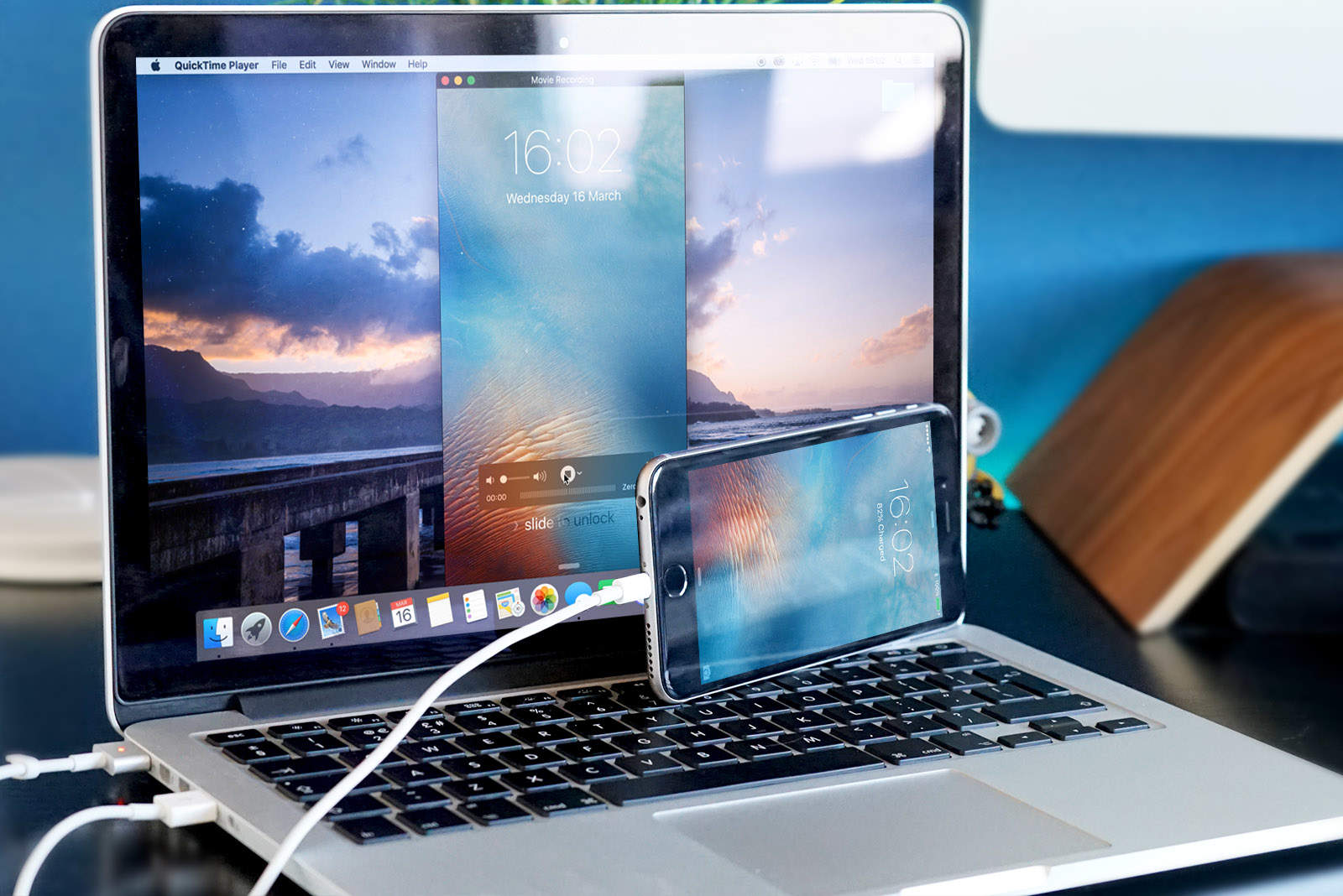
There are many reasons you may want to record your iPhone screen: demonstrations, tutorials, gaming and much more.

Sure, there are apps out there that can do this for you, but the only downside is that they use up valuable storage space on your iPhone or iPad. In this week’s Quick Tips video, I’m going to show you how to record your iOS device to your Mac in under a minute.

4 quick ways to speed up a slow iPhone

By

If your iPhone feels a little sluggish, here are 4 easy tips to help speed it up again!
Photo: Ally Kazmucha/The App Factor

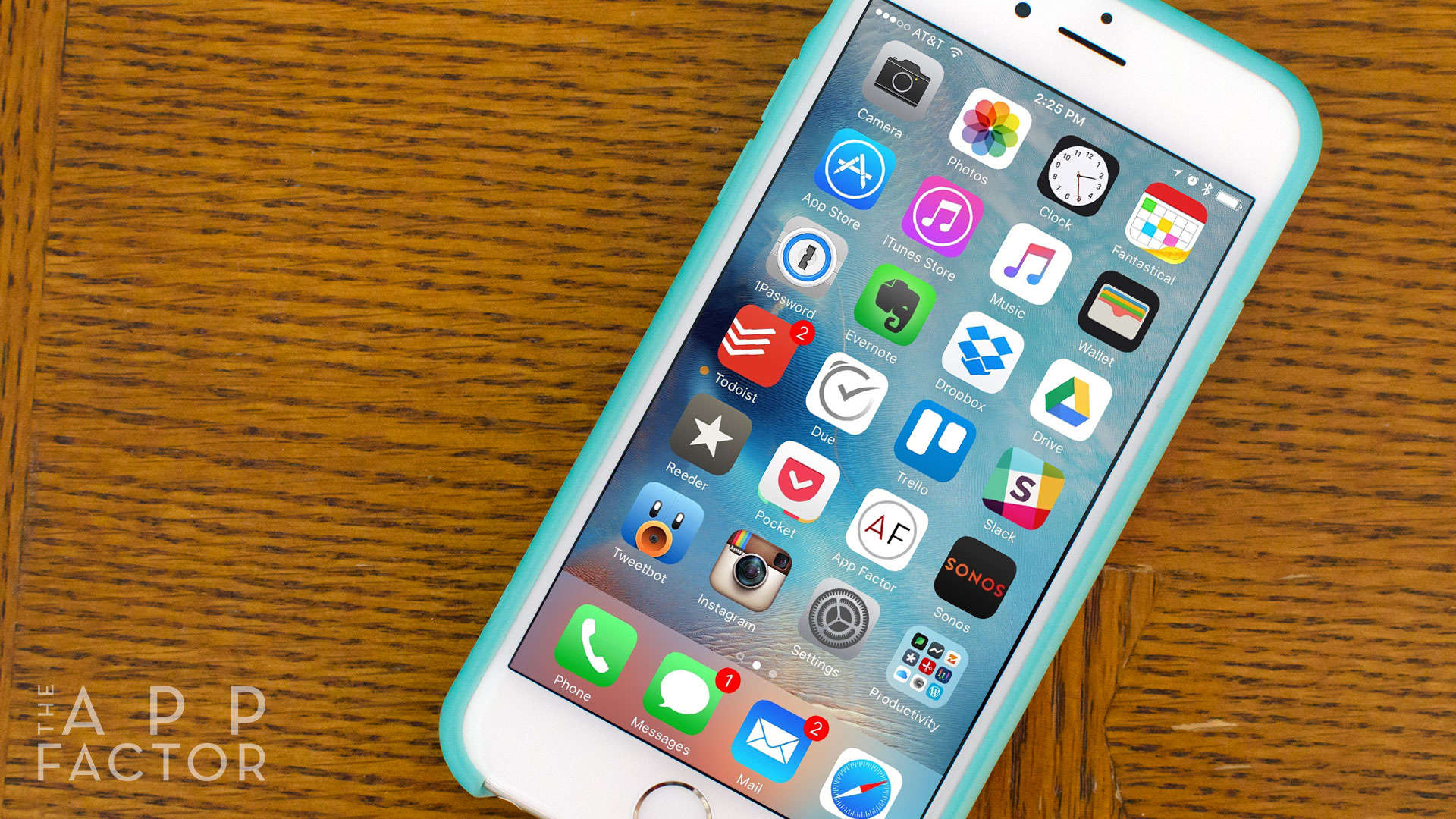
app-factor-logo-thumbnailIs your iPhone slow? Whether you’ve just updated iOS or you’ve been experiencing performance issues for a while, there are several things you can do to get things humming again. Regardless why your iPhone is slow, here are my top four tips to help you speed it up again.

How to keep creepers off your WhatsApp profile

By

WhatsApp on iPhone
Don’t ignore the latest WhatsApp releases.
Photo: Rob LeFebvre/Cult of Mac

WhatsApp is a messaging app popular with people all over the globe, but you probably don’t want it to turn into a tracking app for your stalker.

Plus, it probably has private information in it that you’d rather not have other people know about, right?

Here’s how to lock it all down so you can keep creepers off your WhatsApp profile.

How to make EarPods play nicely with Xbox One

By

Xbox One controller Apple EarPods
Controller support is better than ever.
Photo: Evan Killham/Cult of Mac

You’re probably used to using your EarPods to listen to music or make hands-free phone calls, but we’ve recently discovered another cool trick they can do. If you have a headphone-compatible Xbox One controller, you can also use Apple’s standard earbuds to pump your game and chat audio directly into your head.

You’ll have to adjust a setting or two first, though. And that’s only fair considering you’re asking Apple and Microsoft products to work together. Here’s what you need to do.

How to find hidden gems streaming on Netflix

By

Netflix has a plan to win over new subscribers in an age of Apple TV+
Photo: Netflix

Bruce Springsteen once lamented that there were “57 Channels (And Nothin’ On),” and it’s only gotten worse. How do you find something good to watch in an era where Amazon, iTunes, HBO/Showtime, and a ton of network-specific apps and online sites threaten to overwhelm your screens, big and small?

It’s not as easy as you’d think, either, especially if you have more than one person controlling the remote.

I’ve gotten less happy to let Netflix choose what I watch these days and have tried to found new ways to see hidden treasures that might not end up on the main home screen.

Here are our suggestions on how to find the buried treasure on Netflix.

4 Snapchat tips that will make you a pro

By

Here's more snap for your chat.
Photo: Rob LeFebvre/Cult of Mac

Snapchat is one of those essential social networking apps that makes a ton of sense to early adopters (read: young folks) and not much sense at all to those who arrive later to the party.

As obfuscated as most of Snapchat’s features are, it takes a bit of guidance if you want to go beyond simply snapping a shot and sending it to a buddy. These four easy Snapchat tips will turn you into a master.

Apple’s new 4-inch iPhone, killer Netflix tips, the FBI fight, and more

By

What's next? We've got some ideas.
Photo: Ste Smith/Cult of Mac

If the rumor mill is correct, Apple’s releasing a new 4-inch iPhone, possibly dubbed the iPhone SE, at its upcoming keynote in March. What the heck will it look like, what are the specs, and how much will it cost?

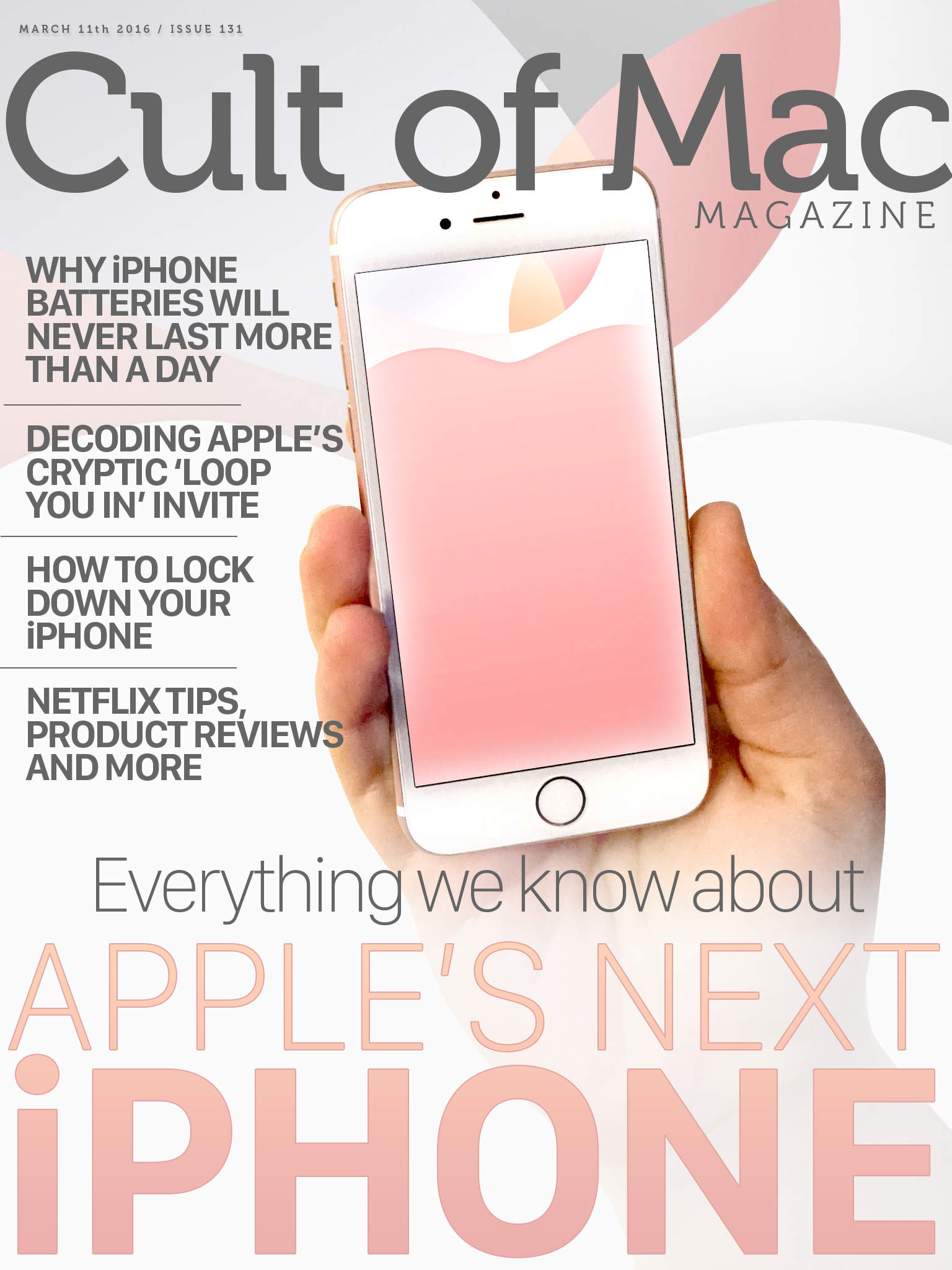
We’ve got a look at all the possibilities in this week’s Cult of Mac Magazine, plus a look at why your iPhone battery will never last more than a day, Apple’s cryptic “loop you in” invite, a way to lock down your iPhone, and a ton of killer tips and product reviews to keep you informed.

All that, plus a bunch more, in this week’s issue. Here are the top stories for the week:

How to supercharge your Netflix watch list

By

Watch it your way.
Watch it your way.
Photo: Rob LeFebvre/Cult of Mac (original image Volkan Olmez/Unsplash CC

It was a good day when Netflix added My List to the list of awesome features it has to allow us to watch anything we want on our TV, computer, or game console. It lets us all keep track of what we want to watch while helping corral the overwhelming amount of distracting movies and TV shows on offer.

However, Netflix still wants to manage what you watch; My List is ordered by some magic Netflix algorithm that makes sure it puts movies it wants you to see up front.

Switch your Netflix My List queue to Manual sorting, then move some stuff around, and you’ll supercharge your Netflix watch list in no time.

Here’s how.

5 Netflix keyboard shortcuts that put you in charge

By

Netflix on a MacBook
You now have to pay more for the best Netflix package.
Photo: Stephen Smith/Cult of Mac

When you’re binge-watching a show like Walking Dead or Person of Interest on Netflix, you may at times need to get up for a snack or bathroom break (or both).

Fumbling around for the mouse to bring up the playback overlay is fine, but using the keyboard to pause your streaming media is much faster. Here are five hidden keyboard shortcuts that will put you in charge of your Netflix experience.

Netflix’s hidden streaming menu will solve your buffering woes

By

Netflix
Expect Netflix to stay in the no. 1 spot for the foreseeable future.
Photo: Global X / Flickr CC

It’s happened to all of us: We get to the thrilling conclusion of the latest Daredevil or Jessica Jones episode, and suddenly Netflix’s “buffering” logo appears, bringing our TV binge to an abrupt and unwelcome end.

Luckily, you can use Netflix’s hidden streaming menu to set your streaming speed to a lower tier, which should bypass the buffering foolishness. Here’s how to find it.

10 iOS Safari tips you need to know (but don’t)

By

Safari iOS 11
Get up to speed with these awesome Safari tips
Photo: Ste Smith/Cult of Mac

The mobile web browser of choice for most iPhone and iPad users is still Safari. As the stock browser for iOS, it has been a staple of the iPhone since its release in 2007, but Safari has a few subtle features you’ve probably never heard of.

With Safari going through so many changes with each new iOS version, some tricks may have sneaked past your attention. In today’s video, we’ll show you 10 killer Safari tricks every iPhone and iPad users needs to know.

How many of these Safari tips have you seen?

How to eliminate the adware that’s plaguing your Mac

By

Mac malware
Don't get caught like this.
Photo: Stephen Smith/Cult of Mac

In addition to various viruses that can harm your Mac, there’s a different kind of annoyance you might have stumbled upon: adware.

This might manifest itself as a web page that tells you you’ve been infected, with an accompanying phone number to call or malicious website to visit, or it might even show up as an ostensibly helpful Mac app you don’t remember installing.

If you’re experiencing the pain of malicious adware, we’re here to help. Here’s how to eliminate the adware that’s plaguing your Mac.

How to find Instagram photos of beautiful, nearby locations

By

Check out other beautiful photos taken near you.
Photo: Rob LeFebvre/Cult of Mac

Instagram’s location data can be a privacy nightmare but it also allows you to check out what other folks are taking photos of nearby.

If you’re on vacation and want to see some stunning photography in the same place as you, it’s just a click away.

Here’s how to find Instagram photos of nearby beautiful locations, to inspire you on your own journey.

How to keep stalkers from tracking you on Instagram

By

Who's tracking your Instagram movements?
Photo: Rob LeFebvre/Cult of Mac

Anyone can tap your profile in Instagram and see where you were when you took your snapshots. Creeped out, yet?

Every time you take a picture for Instagram, the photo-sharing app keeps track of where you are by default. Here’s how to remove the location data automatically added to your snaps and keep stalkers from tracking you on Instagram.

How to keep embarrassing Instagram pics off your profile

By

Some photos are meant to be hidden.
Photo: Rob LeFebvre/Cult of Mac

There’s a big difference between photos you put up on Instagram and those that your buddies upload and then tag you in.

Chances are, the ones you’re tagged in aren’t as flattering as the ones you put up yourself.

If you want to keep embarrassing Instagram pics off your profile, here’s what you can do.

This simple command will keep your Mac apps bleeding-edge

By

You're a Terminal command away from keeping your Mac updated more frequently.
Photo: Lifehacker

Here’s a surprising fact: By default, OS X only checks for software updates once a week. That’s shockingly infrequent, considering the fact that iOS and Windows both check for critical updates every day.

If you’d like your Mac to keep more on top of things, there’s an easy way to tell it to check for software updates more frequently.