Mobile menu toggle

How-To - page 8

How to use Music Memos like a cut-down GarageBand

By

music memos in action

Photo: Charlie Sorrel/Cult of Mac

Apple’s Music Memos app is just about about the best way to record musical ideas before they evaporate into the ether. For years, musicians used the built-in Voice Memos app to record snippets, but Music Memos, as you’d expect, is much better suited to the task. It can listen to you and record only when you start playing, it can detect the chords you play, and it can even add drum and bass tracks to your recording automatically.

This last feature is what we’ll look at today. We’re going to record a simple guitar track, add drums and bass, and send the whole lot to GarageBand on iOS for further work. That sounds like a lot, but once you lay down your recorded track, all it takes is a few taps of the screen. And remember, I use a guitar, but you can use any instrument.


Activate iOS Mail’s hidden folders

By

secret mailboxes
Apple's mail app has some handy superpowers hidden in plain view.
Photo: Cult of Mac

iOS 10’s Mail app may look just like its previous pedestrian iterations, but it packs a whole lot of hidden superpowers under the hood. While you still can’t export a message to, say, a to-do list app, you can do pretty much everything those fancy third-party mail apps do, and then some.

Let’s take a look at quickly setting up your iOS Mail app so you can slice and dice incoming messages easily using its hidden folders.

How to plug your guitar into your iPhone and rock out

By

guitar iPhone setup
Recording guitar into iPad is sometimes painful.
Photo: Charlie Sorrel/Cult of Mac

Short of learning air guitar, hooking a guitar up to your iPhone is just about the easiest way to get started playing music. But it’s not just for practice, or goofing around at home. You can record and edit serious music with an iOS device, and even produce whole records.

But we’re already getting ahead of ourselves. Today, we’re just going to hook things up and rock out.

How to enable YouTube’s secret dark mode

By

How to enable YouTube Dark Mode
YouTube's hidden Dark Mode is perfect for late-night video consumption.
Screenshot: Ste Smith/Cult of Mac

YouTube is testing a Dark Mode design, which can be toggled on and off once you activate it.

If you’re watching videos late at night, Dark Mode is super-useful to help avoid straining your eyes — plus, it just looks cool. Find out how to enable YouTube Dark Mode it in the video below.

How to shoot iPhone video like a pro

By

iPhone video tips
Learn all you need to know to get the most out of your iPhone's camera.
Photo: Ste Smith/Cult of Mac

While iPhones have pretty much replaced standalone video cameras, they don’t offer the same level of polish that a dedicated video camera or DSLR produces. It’s true that “the best camera is the camera you have with you,” but you can almost always spot a video shot on a phone.

The quality gap isn’t purely due to the lenses and tech within our phones, though. Bad habits make plenty of iPhone videos look lackluster. To show just how good an iPhone video can be, I put all my filmmaking knowledge to use for the montage below.

Instead of using my $3,000 video camera, I picked up my iPhone. With a minimum of accessories, I managed to produce what I think is a pretty cinematic video. You can see the results below — and then I’ll give you some useful tips and tricks for shooting iPhone videos like a pro.

How to pick the perfect frame on iPhone Live Photos

By

Live Photos are magical.
Photo: Apple

The iPhone’s Live Photos feature is one of the funnest innovations Apple’s brought to photography. There’s just one annoying problem with the moving pictures: you can’t choose which frame it uses for the final image.

Thanks to a third-party app there’s finally a way to do just that, making Live Photos more versatile than ever.

How to disable word predictions on the MacBook Pro’s Touch Bar

By

MacBook
Word predictions are barred from bar exams.
Photo: Ste Smith/Cult of Mac

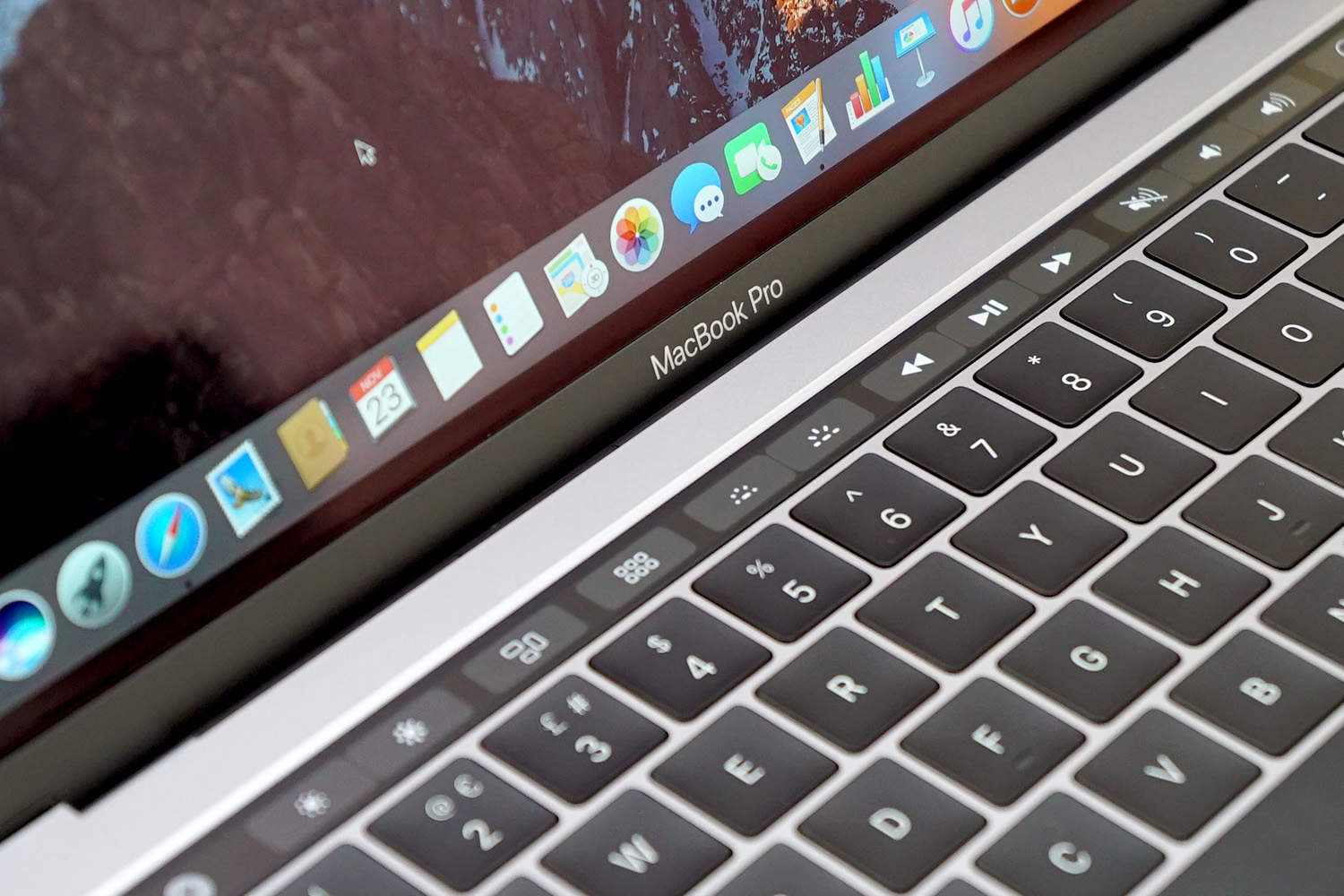
A number of U.S. states have banned the new MacBook Pro with Touch Bar from law exams due to the predictive text feature that suggests words as you type. However, others will still allow it so long as predictive text is disabled.

Here’s how to turn off the feature on your machine.

How to reset your AirPods to fix battery drain

By

AirPods in case
AirPods should offer around 5 hours of use between charges.
Photo: Ste Smith/Cult of Mac

AirPods offer some of the best battery life you can get from wireless earphones, but many users have been unable to enjoy it. An apparent glitch is causing some units to drain power when they’re not in use, but a simple reset could fix it.

Here’s what you need to do.

How to use Portrait Mode like a pro

By

The iPhone 7 Plus will completely change your photos.
Photo: Apple

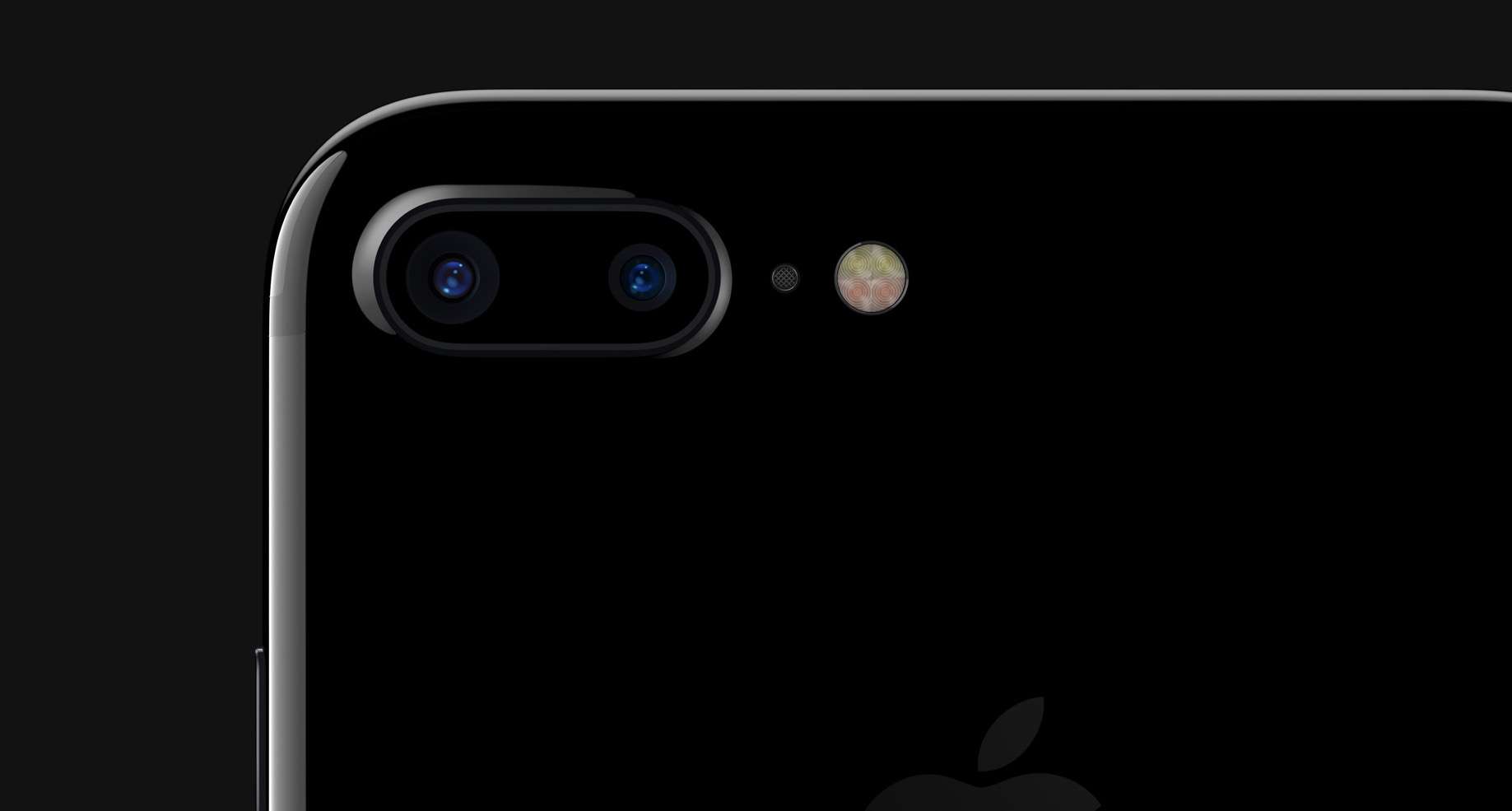
Portrait Mode has quickly become the standout feature on the iPhone 7 Plus. When you get the new dual-lens camera in the hands of pro photographers, it’s not hard to see why.

Apple published a new guide today that reveals how photographers are using the new Portrait Mode. Most of the tips are pretty simple and can be mastered quickly.

Here’s how to get the most out of Portrait Mode with iPhone 7 Plus.

How to find out if your iPhone 6s battery is eligible for replacement

By

The iPhone 6s has more junk in the trunk.
Photo: Apple

Apple is offering iPhone 6s customers a free battery replacement for devices that unexpectedly shut down. The problem mostly affects iPhone 6s units made between September 2015 and October 2015.

If you’re not sure when your iPhone 6s was made, you can use a new tool created by Apple to find out if your device has a faulty battery.

Here’s how to check:

How to delete Safari extensions on macOS Sierra

By

Extensions featured-2
Get rid of certain extensions for good!
Photo: Ste Smith/Cult of Mac

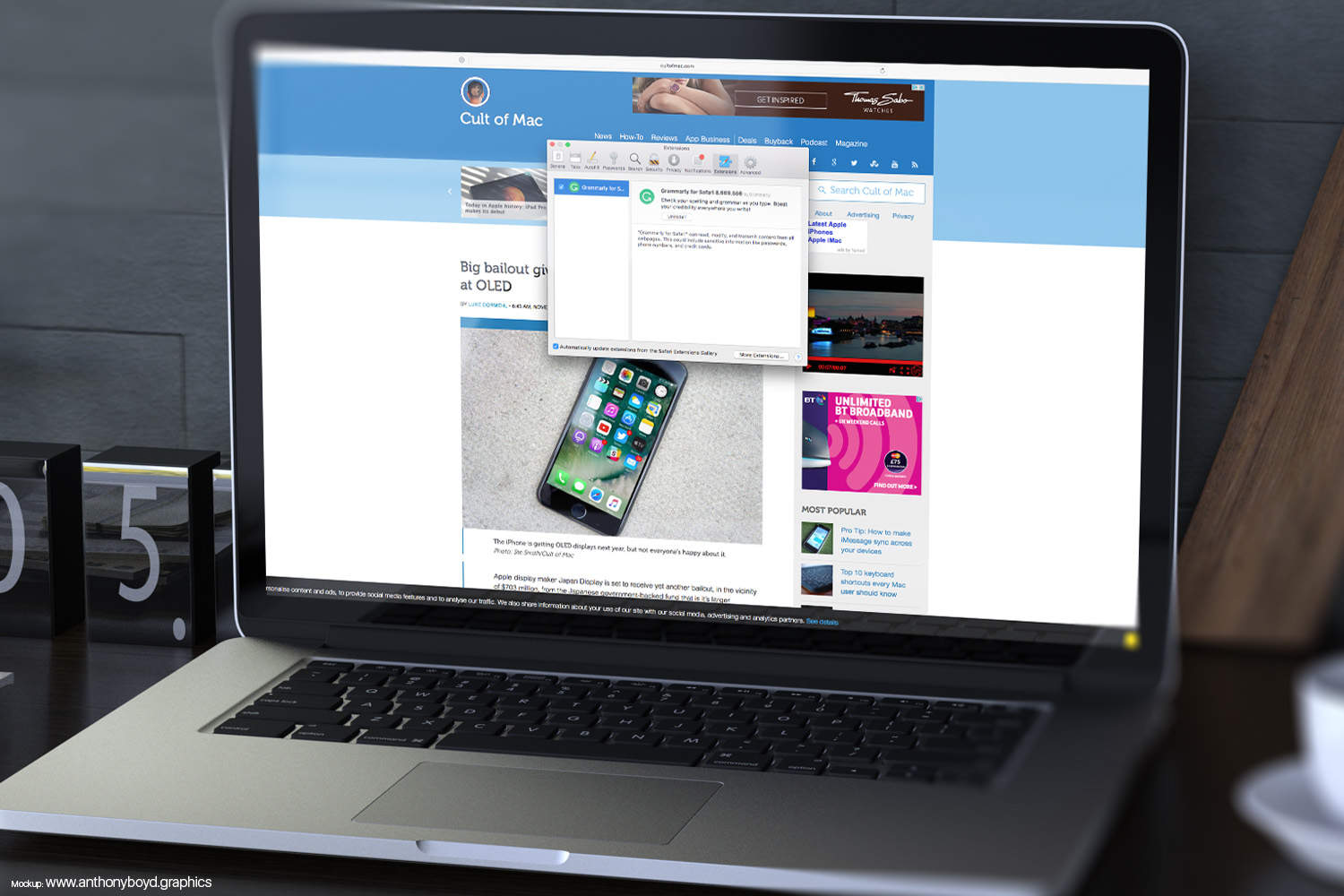
Extensions can be very useful on Safari for Mac, adding functionality, and — in Apple’s words — letting users, “explore the web the way you want.” But how do you get rid of them once they’re installed?

If you have issues with extensions causing crashes, glitches, or you just don’t plain want them anymore, here’s our easy guide to removing them.

How to find and change Apple’s default wallpaper on macOS Sierra

By

macos_wallpapers
macOS Sierra comes with some stunning wallpapers.
Photo: Ste Smith/Cult of Mac

Sure, macOS Sierra has some great new features that will fundamentally change the way you work but — particularly if you’ve got one of Apple’s gorgeous 5K iMacs — it’s hard to undersell the value of some beautiful photography.

With that in mind, Apple’s latest operating system comes with some truly stunning new desktop wallpaper that users can choose to add some eye candy to their Macs. Here’s how you access the default wallpapers macOS Sierra comes with.

How to fix iPhone 7 Bluetooth problems

By

iPhone 7
It can be easy to solve Bluetooth issues on your iPhone.
Photo: Ste Smith/Cult of Mac

There are few things to complain about with iPhone 7 and iPhone 7 Plus, but Bluetooth connectivity could be one of them.

Lots of customers have reported Bluetooth problems since upgrading to one of Apple’s latest handsets. Recent iOS 10 updates were supposed to bring a fix, but they don’t appear to have eliminated the issues for everyone. Here are three ways you can try to fix Bluetooth yourself.

How to solve 3 big macOS Sierra problems

By

MacProblem01
Here are three problems we've run into so far.
Photo: Ste Smith/Cult of Mac

By now, most of you are probably upgraded to macOS Sierra, which is proving be a massive home run for Apple. However, while the new Mac OS packs some great new features, it’s also got a handful of problems — ranging from strange error messages to Wi-Fi issues.

Check out our video below for three macOS Sierra problems we’ve run into so far — and how we were able to solve them.

How to book a reservation through Apple Maps on iOS 10

By

Apple Maps reservation OpenTable
Apple Maps makes it easy to get your grub on.
Photo: Ste Smith/Cult of Mac

Finding an awesome spot to eat has always been easy on the iPhone. But iOS 10 makes it super-simple to book a restaurant reservation in Apple Maps.

With the new third-party app extensions in Maps, users can now reserve a table without ever leaving the Maps app. Just find the spot you want to dine at, and with a few extra taps you’ll be on your way to a fine dining experience.

Book a reservation in seconds with these steps.

How to change the feedback strength of iPhone 7’s Home button

By

iPhone 7 Home button
iPhone 7's new home button is awesome.
Photo: Ste Smith/Cult of Mac

iPhone 7 and iPhone 7 Plus deliver an all-new Home button that uses the Taptic Engine inside your device to simulate clicks. It doesn’t actually move in and out like a traditional iPhone Home button, but that’s not a bad thing.

Not only does it make your iPhone more reliable (without a moving button there’s no need to worry about it failing), but it also makes it more water-resistant. It’s also customizable; you can adjust the strength of the haptic feedback to make your clicks more noticeable.

Here’s how.

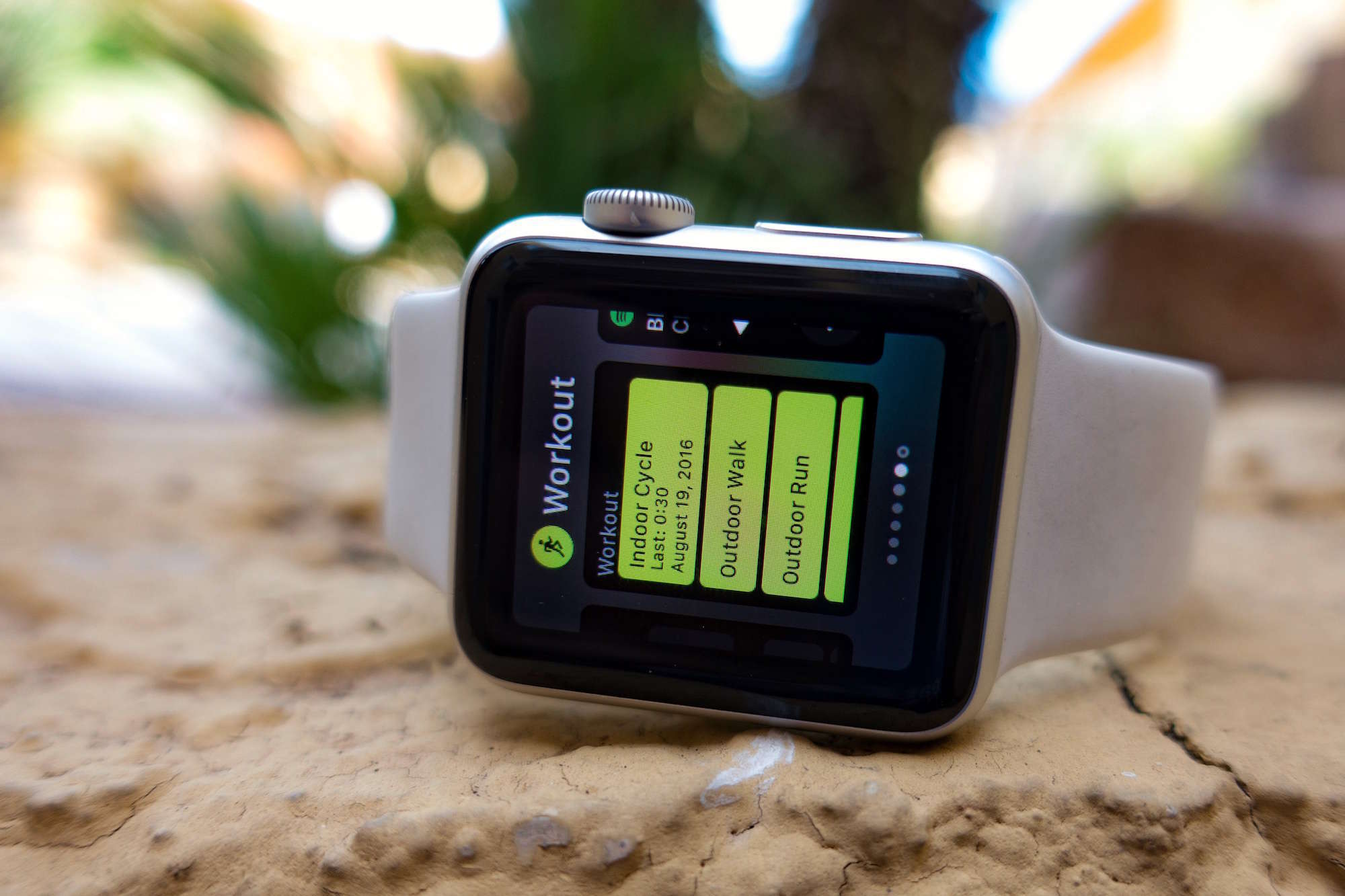
How to force quit apps on watchOS 3

By

apple watch workout app
Force quitting apps is different in watchOS 3.
Photo: Buster Hein/Cult of Mac

Apple Watch apps are faster than ever thanks to watchOS 3, but if you ever run into the rotating dial of death, sometimes quickly force quitting the app can help.

With watchOS 3, Apple has made the force quitting process a bit different. Wearers used to be able to double click the side button to force quit an app. Now the process also involves the Digital Crown.

5 hidden macOS Sierra features you may not know exist

By

macOS Sierra
There's plenty of hidden macOS Sierra features, here's our top 5.
Photo: Ste Smith/Cult of Mac

Apple’s latest Mac operating system has a host of big new features including Siri, Apple Pay on the web and Universal Clipboard.

But with so many marquee features, you may be missing some of the more hidden capabilities and tips. Check out our video below of the top five hidden macOS Sierra features you may not know exist.

How to get ready for an iOS 10 upgrade the right way

By

iOS 10
iOS 10 is coming. Are you ready?
Photo: Ste Smith/Cult of Mac

iOS 10 will finally roll out to all compatible devices on Tuesday, September 13, bringing awesome new features to Messages, revamped Music and Apple News apps, a redesigned lock screen interface, and more.

Before you upgrade your iPhone, iPad, and iPod touch, there are some steps you should take to ensure everything goes smoothly. Here’s how to prepare for an iOS 10 upgrade the right way.

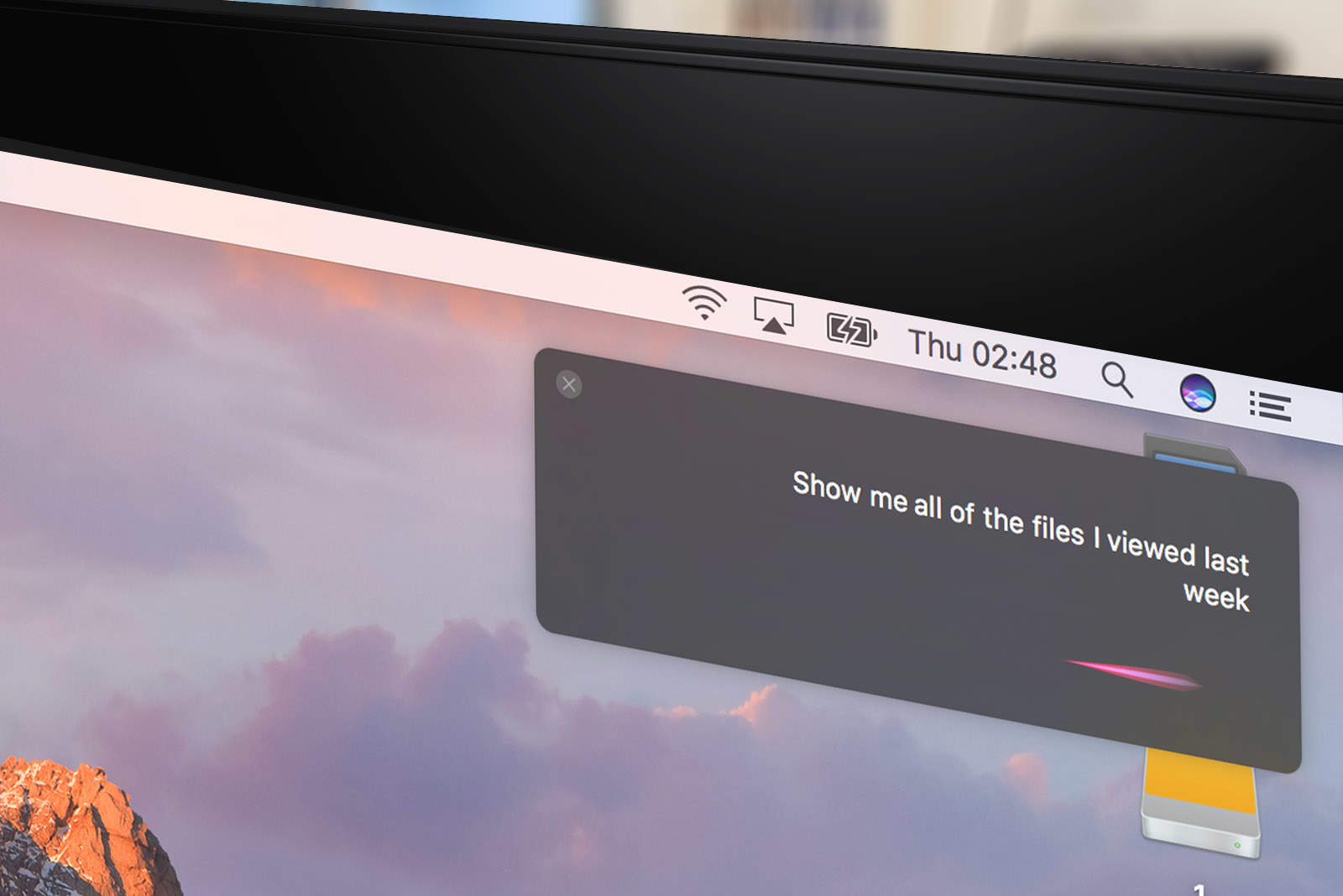
How to locate your files with Siri on macOS Sierra

By

Siri
Siri wants to help you find your files.
Photo: Ste Smith/Cult of Mac

Up until now, Siri’s remained a tool for accessing services rather than helping us navigate our Apple devices. That changes with macOS Sierra, which lets us use Apple’s helpful AI assistant to locate files using spoken commands.

Here’s how you can use the feature to your advantage if you’re running the new operating system, which is currently in public beta and will be released on September 20.

How to find your moment of zen with Apple’s Breathe app

By

Breathe app in watchOS 3
The new Breathe app in watchOS 3 turns Apple Watch into a meditation machine.
Photo: Apple

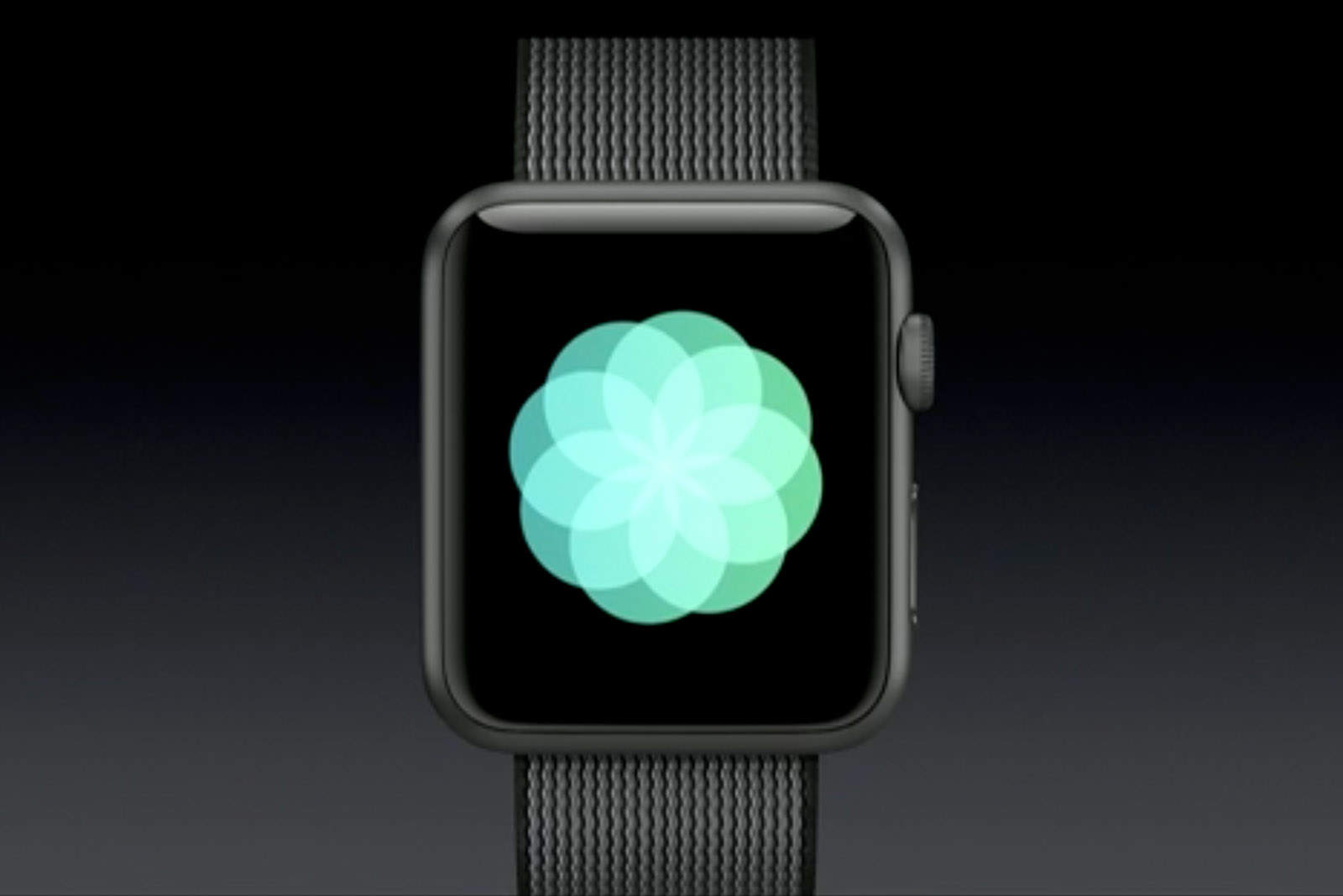
Apple Watch wearers will soon find it easier to reach relaxation, thanks to the new Breathe app included in watchOS 3.

Every week, the Breathe app provides Apple Watch wearers with a summary of how well they performed the most essential human task for staying alive. If you suck at breathing, don’t worry. Breathe will turn you into a zen master in no time.

To start a breathing exercise follow these steps.

How to open the app switcher using 3D Touch on iPhone

By

3D Touch app switching
3D Touch does more than home screen shortcuts.
Photo: Killian Bell/Cult of Mac

3D Touch lets us do a lot of things on the iPhone 6s and iPhone 6s Plus, but not everyone is familiar with all of its capabilities. One of the functions that often goes unnoticed is the ability to open the app switcher with a simple 3D Touch gesture.

Here’s how to use it.

How to use Memories to create stunning slideshows in macOS Sierra

By

macOS Memories slideshow
Memories aren't painful in macOS Sierra.
Photo: Ste Smith/Cult of Mac

Photos are personal, and no one knows this better than Apple, the company behind the acclaimed “Shot on iPhone” ad campaign. With that in mind, macOS Sierra boasts a new “Memories” feature, letting you rediscover favorite and forgotten moments from your library by automatically creating gorgeous slideshows and curated photo collections.

Here’s how to take advantage of this feature when running the latest Mac operating system, which is currently in public beta and will be released this fall.