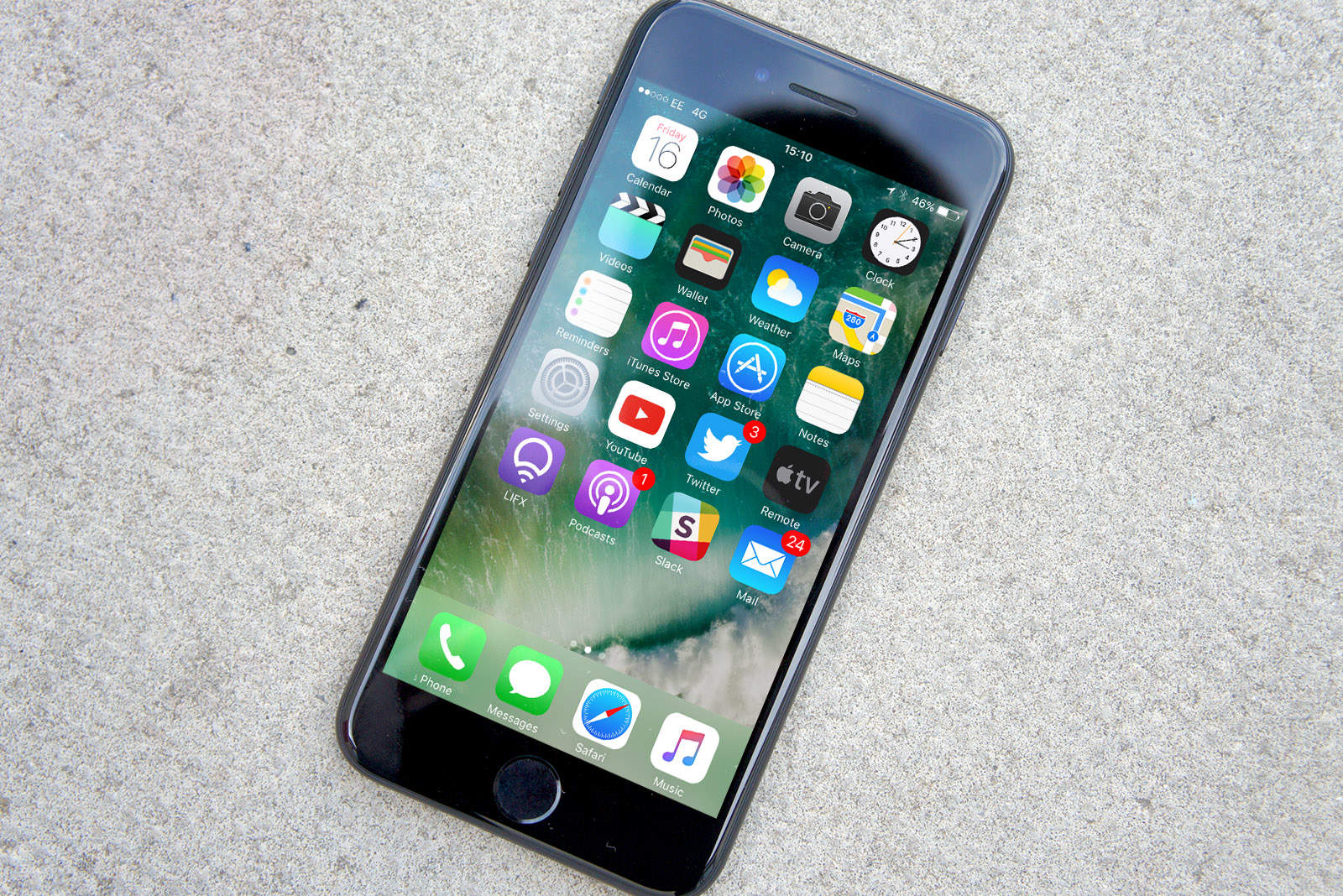
There are few things to complain about with iPhone 7 and iPhone 7 Plus, but Bluetooth connectivity could be one of them.
Lots of customers have reported Bluetooth problems since upgrading to one of Apple’s latest handsets. Recent iOS 10 updates were supposed to bring a fix, but they don’t appear to have eliminated the issues for everyone. Here are three ways you can try to fix Bluetooth yourself.
Fix iPhone 7 Bluetooth problems
Restart your iPhone
“Have you tried turning it off and back on again?” It’s a cliche fix, but it’s one that works surprisingly well for a lot of problems with our gadgets. It’s also the simplest thing you can try to fix connectivity problems on your iPhone, so it’s the one you should attempt first.
Re-pair Bluetooth devices with iPhone
If the restart didn’t work, try re-pairing the Bluetooth devices you want to use with your iPhone. To do this, follow the steps below:
- Open the Settings app and tap Bluetooth.
- Tap the i icon alongside one of the devices connected, then choose Forget This Device.
- Confirm you want to forget it by tapping OK.
- Put the Bluetooth device in pairing mode. Search for the Bluetooth device again, then re-pair it.
Reset iPhone network settings
Resetting your iPhone’s network settings should be a last resort. Doing so will wipe any Wi-Fi networks your iPhone has saved, so you’ll need to set up those again after this is done. That means you’ll need the passwords handy.
[contextly_auto_sidebar]
Once you’re ready, here are the steps you need to follow:
- Open the Settings app and tap General.
- Tap Reset.
- Tap Reset Network Settings.
- Enter your passcode and confirm you want to reset by tapping OK.
If all else fails
If none of these solutions work and Bluetooth connectivity is still spotty on your iPhone 7, it might be worth visiting your local Genius Bar.
Recent iOS 10 updates were supposed to make Bluetooth more reliable. If yours isn’t, there could be a hardware issue.
It’s worth remembering, however, that it may not be your iPhone’s fault.
If you experience problems with just one Bluetooth device — and others work perfectly normally — it’s likely that the issue lies with that specific device rather than your phone.

Killian Bell is a freelance writer based in the U.K. He has an interest in all things tech and also covers Android over at CultofAndroid.com. You can follow him on Twitter via @killianbell.


2 responses to “How to fix iPhone 7 Bluetooth problems”
Also, don’t forget to test buying a new one.
One year have passed since I left my last job and it was a best decision i made in my life… I started doing work online, for this company I found on-line, few hrs each day, and I profit now much more than i did on my old job… Pay-check i got for last month was for $9000… Awesome thing about it is that now i have more time for my loved ones… CHILP.IT/8d93f4b