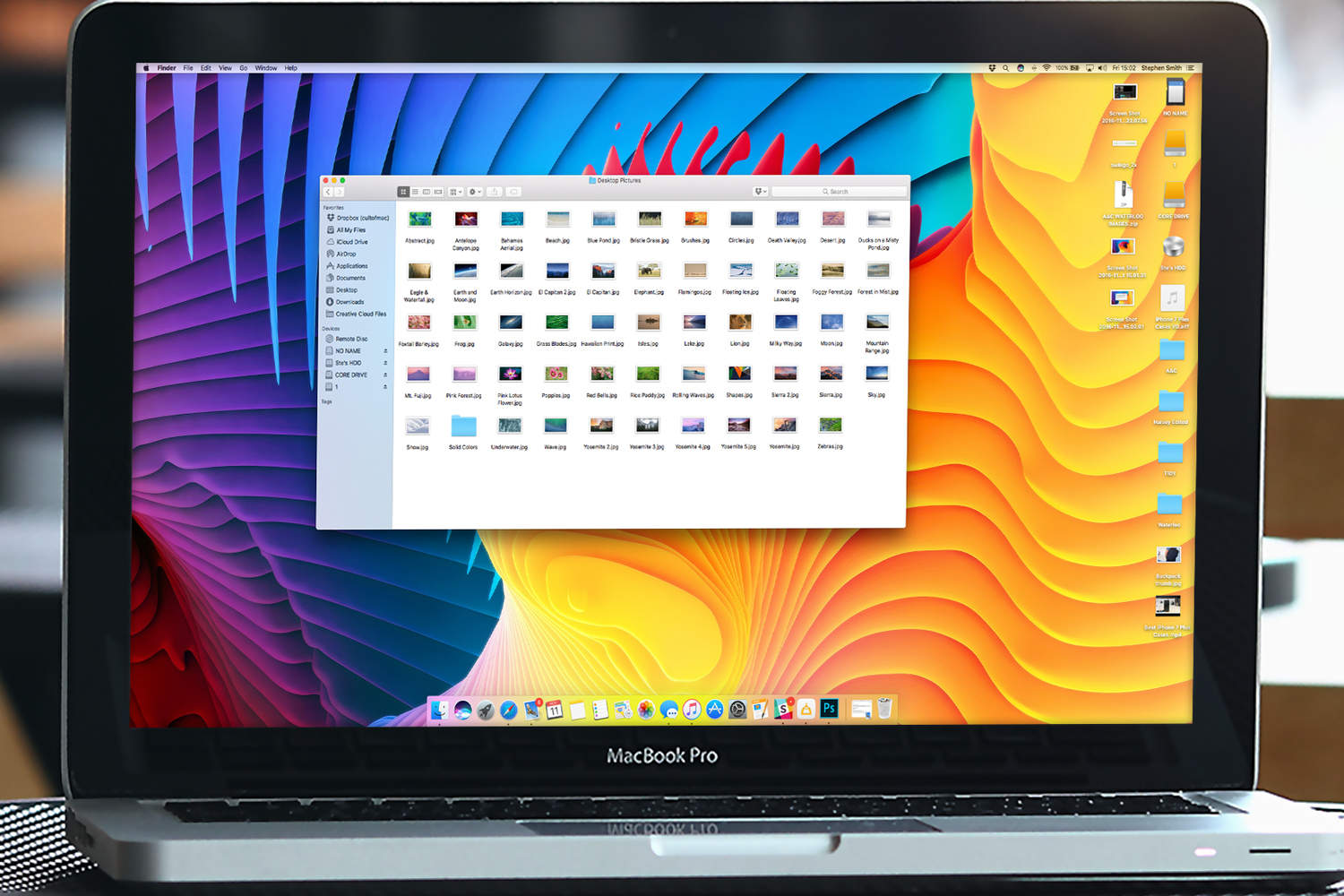
Sure, macOS Sierra has some great new features that will fundamentally change the way you work but — particularly if you’ve got one of Apple’s gorgeous 5K iMacs — it’s hard to undersell the value of some beautiful photography.
With that in mind, Apple’s latest operating system comes with some truly stunning new desktop wallpaper that users can choose to add some eye candy to their Macs. Here’s how you access the default wallpapers macOS Sierra comes with.
Repaper your Mac
To start with, open Finder. Next, hold down Command, Shift and G to open the “Go to folder” prompt. Into this type: /Library/Desktop Pictures and hit Go.
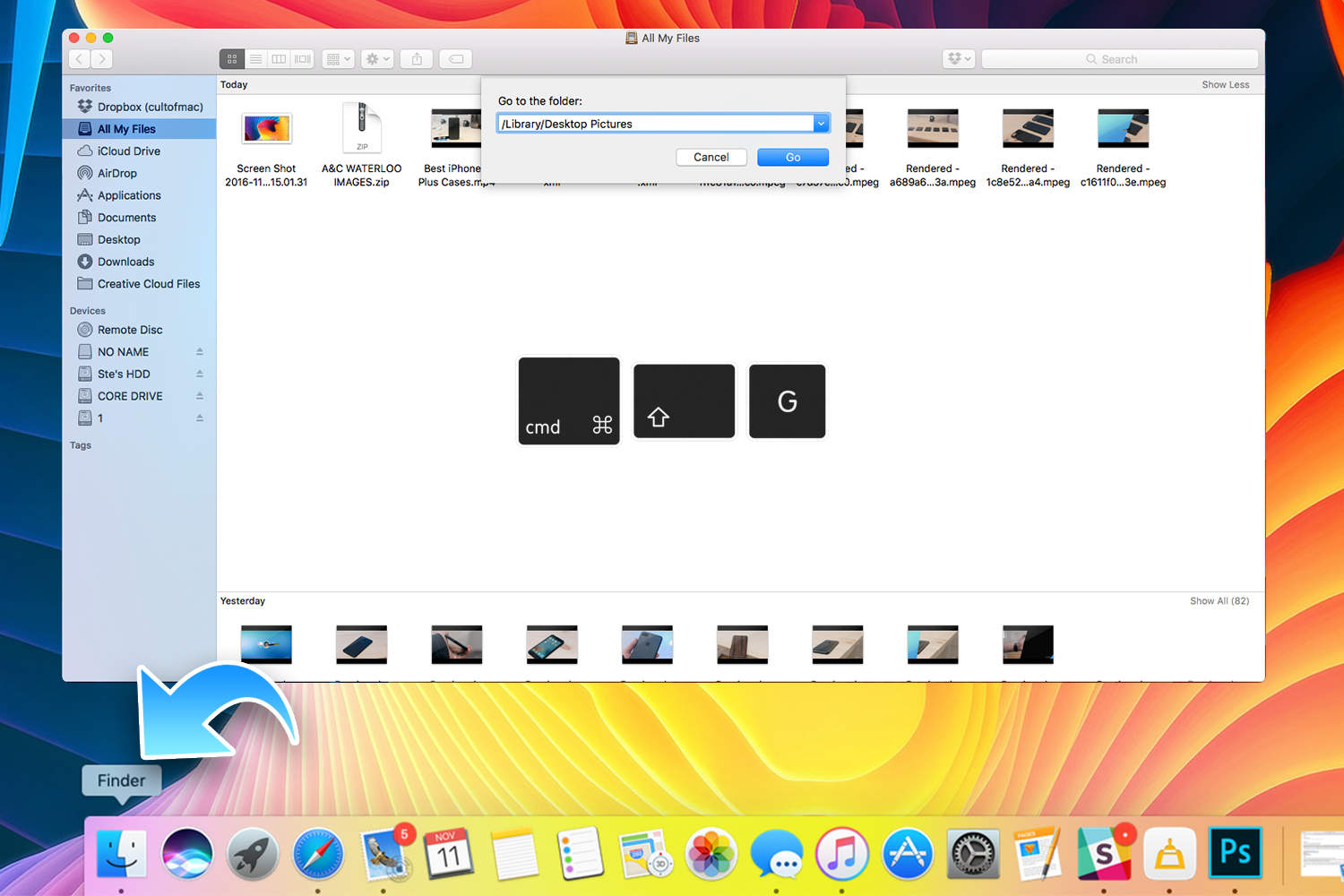
Photo: Ste Smith/Cult of Mac
In this folder, you’ll find all of the stunning default wallpapers that Apple ships as part of macOS Sierra. As per Apple tradition, there’s a plethora of stunning images — all of which will showcase the stunning display of your iMac or MacBook.
Just be sure to remember that, if you do want to make changes to any of the images, it’s best to copy the photo to another folder so that you retain the original copy — should you want to return to it at a later date.
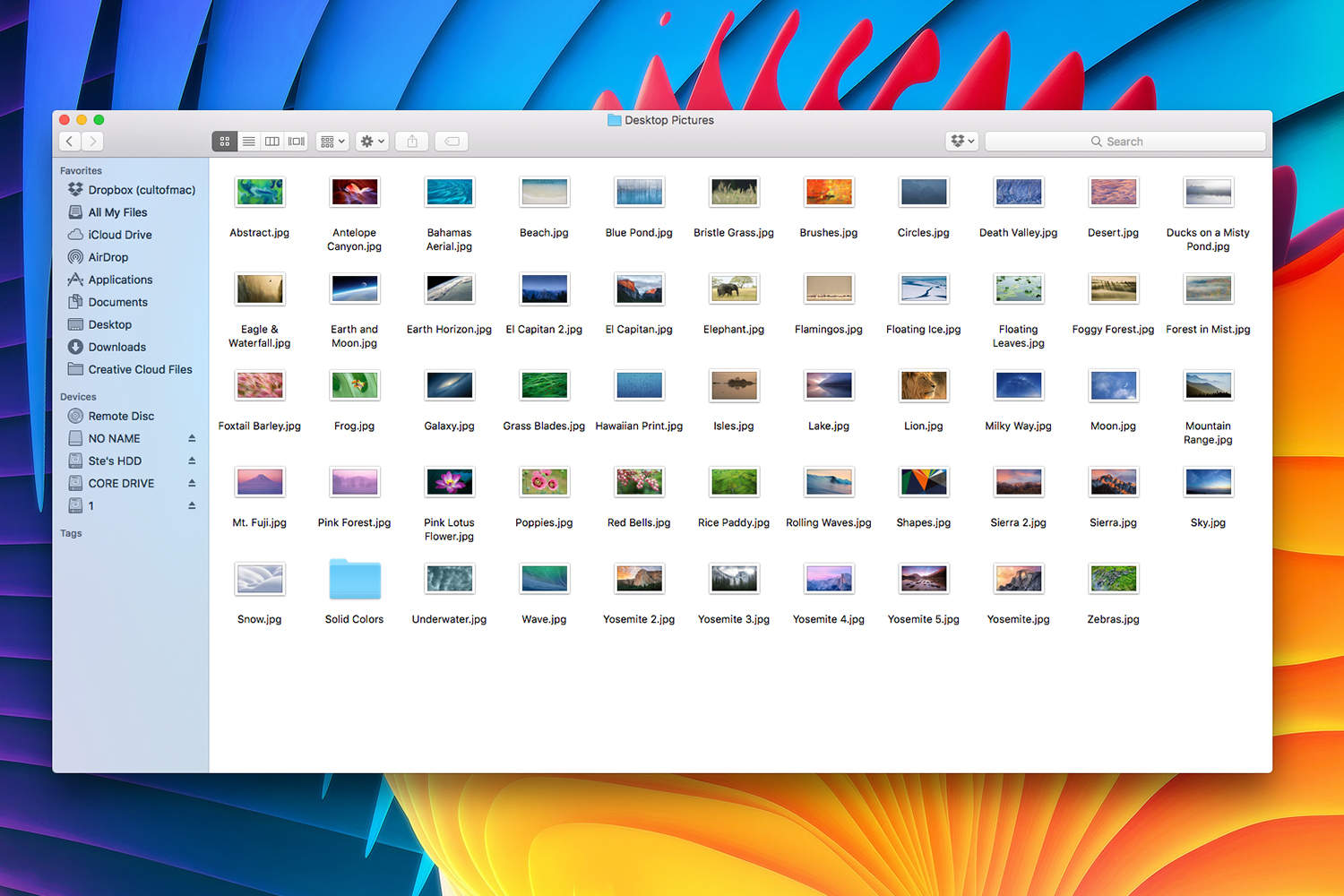
Photo: Ste Smith/Cult of Mac
Finally, it’s just a matter of right clicking on the folder and selecting Set Desktop Picture and — hey presto! — you’ve got a stunning new background to savor.

Photo: Ste Smith/Cult of Mac
Do you have a favorite macOS Sierra wallpaper? Leave your comments below.

Luke Dormehl is a U.K.-based journalist and author, with a background working in documentary film for Channel 4 and the BBC. He is the author of The Apple Revolution and The Formula: How Algorithms Solve All Our Problems … and Create More, both published by Penguin/Random House. His tech writing has also appeared in Wired, Fast Company, Techmeme and other publications.


9 responses to “How to find and change Apple’s default wallpaper on macOS Sierra”
Why wouldn’t you just use System Preferences to do this? This really is just over complicating the process that has been in place for years.
One yr ago I resigned from my previous job and I never felt so good in my life… I started doing a job from comfort of my house, for a company I stumbled upon online, for a few hrs daily, and I earn much more than i did on my old job… Paycheck i got for last month was for 9 thousand bucks… Great thing about this gig is that i have more free time with my family… KORTA.NU/MDe
1 yr ago I quit my previous work and it was a best decision i made in my life… I started freelancing on-line, for a company I discovered over internet, few hrs daily, and I make much more than i did on my previous job… My payment for last month was for 9k… Amazing thing about this gig is that i have more time with my family… CHILP.IT/8d93f4b
Why would you not just use system preferences: desktop & screensaver like a normal person
Why would you not just use system preferences: desktop & screensaver like a normal person?
This really is just over complicating the process that has been in place for years.
If you rename a wallpaper Sierra can you change the default boot up wallpaper for the log in screen?
You need to go into, I think, ~/Library/Caches/ and rename your wallpaper to the name of the blurred Sierra one in that folder.
Doesn’t work on MacBook Pro Retina 2015
What is the wallpaper in the background? Love it!