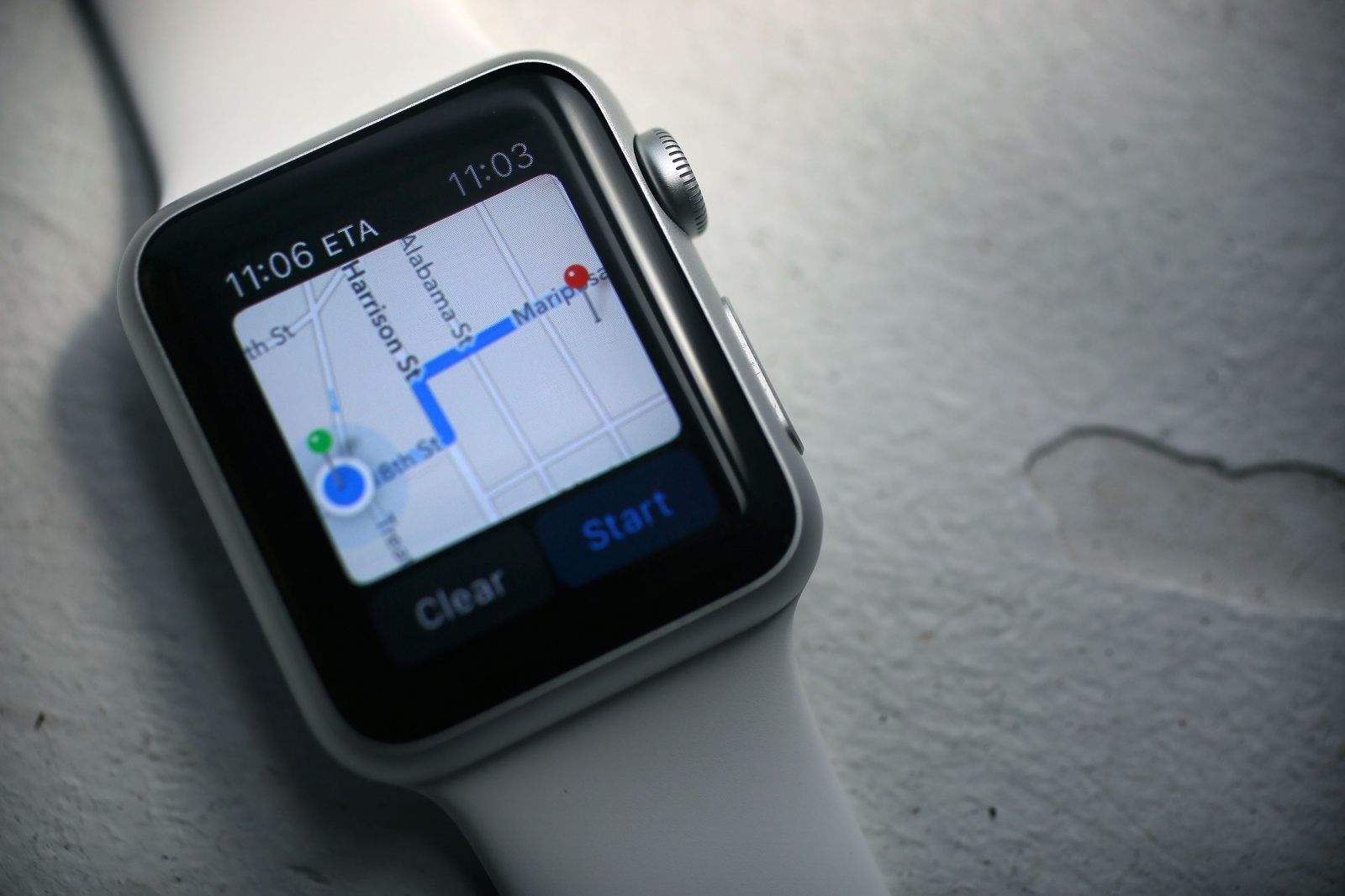
Tap your way to wherever you want. Photo: Jim Merithew/Cult of Mac Photo:
As a sufferer from dysmappia (not a real word), I still get lost in a town I’ve lived in for 15 years. The iPhone and GPS accessibility has allowed me to find my way around pretty much any urban center I’ve been in, and even some rural ones as well.
Now that Maps is on Apple Watch, I’m going to be navigating around even more easily, lifting my wrist to see which way to go instead of burying my head in an iPhone. It’s sure to at least be a ton safer.
Here’s how to get from point A to point Z using just your Apple Watch.
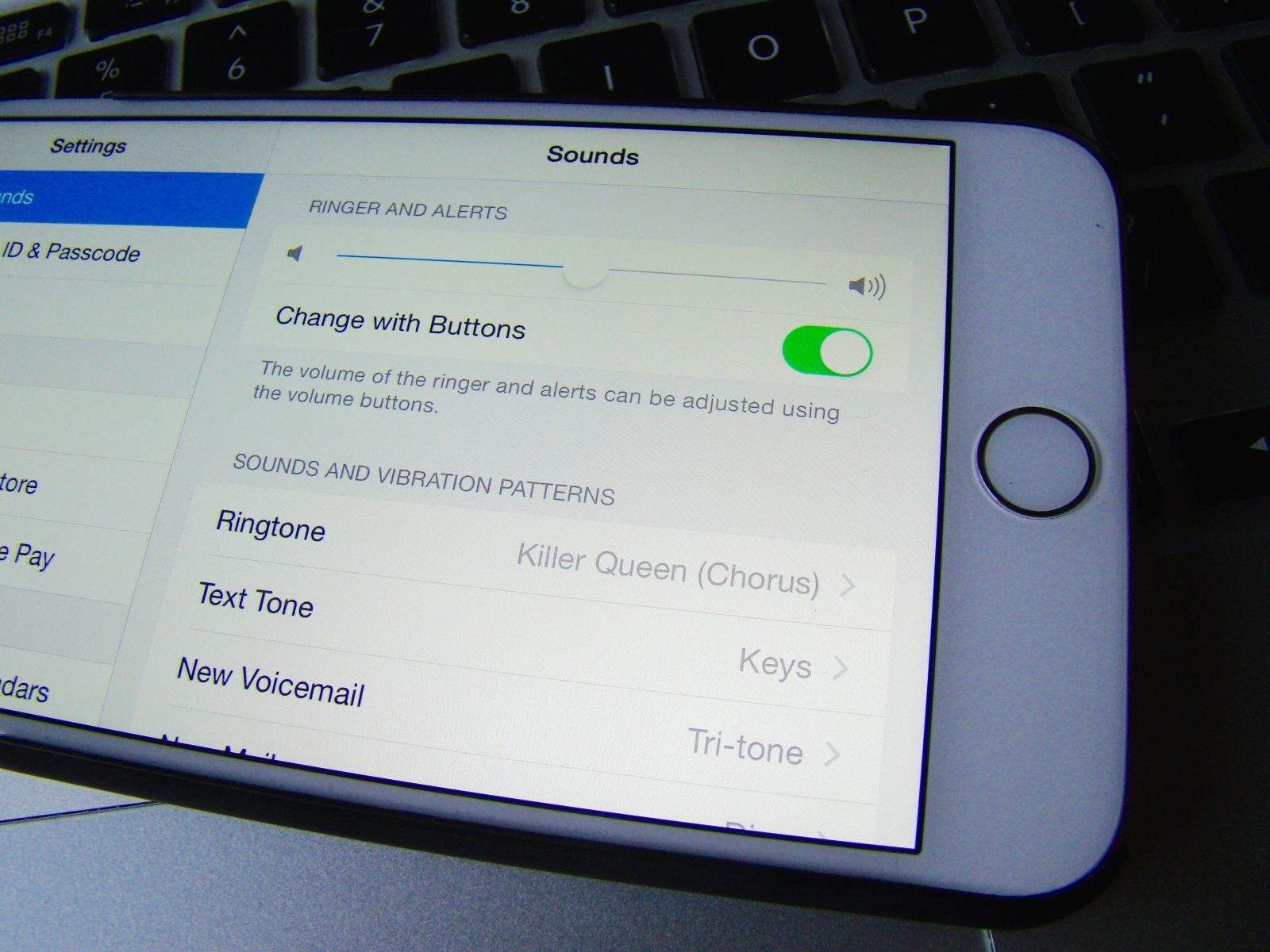
Keep your ringtone volume and media volume separate. Photo: Rob LeFebvre/Cult of Mac
There are two different channels for audio on your iOS device: there are ringers and alert sounds and there are media sounds, like from the Music app or various games on your iPhone.
The hardware volume buttons on the side of your iPhone are set to control both by default, but you can separate it out, making the hardware buttons only turn down the media sounds instead of both media and ringer sound.
Here’s our recipe on how to make sure you never miss a call because someone “accidentally” turned your volume all the way down.
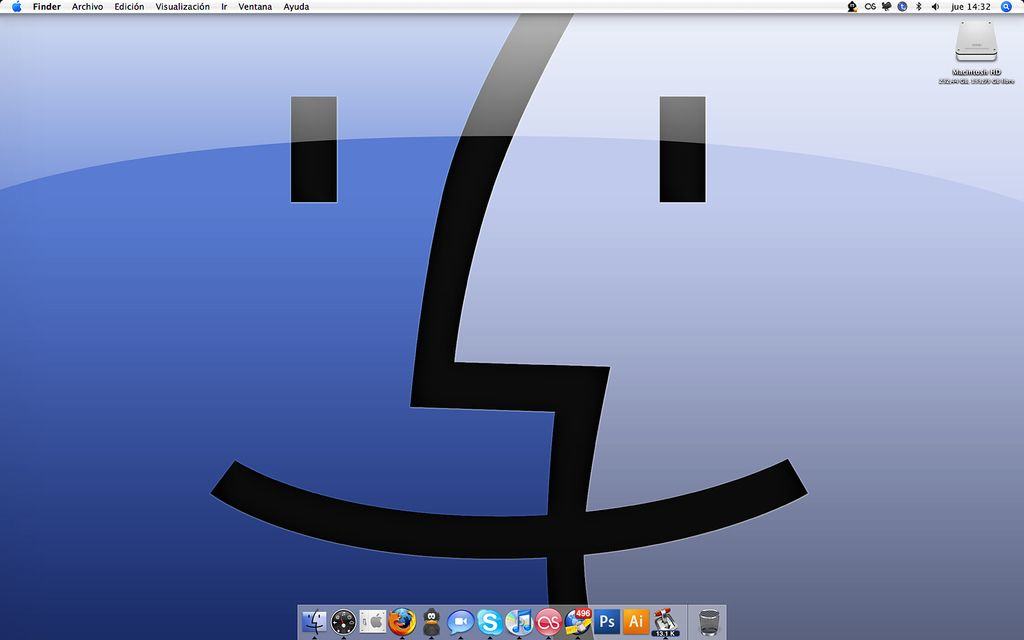
Master your Mac with these 10 Finder tips. Photo: Yeray Hdez Guerra/Flickr CC
In Mac OS X, you’ll spend much of your time in the Finder, the part of your operating system that manages files and such. While you might think you know all there is to know about it, the Finder is a complex and wonderful app — with its own special tricks to master.
Here are 10 essential Finder tips that will help you get the most out of your time working or playing on your Mac.
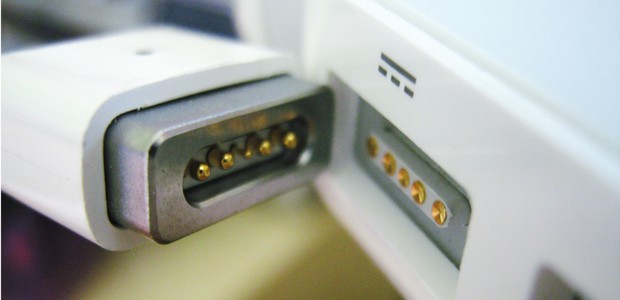
Here's how to hack the new MacBook's power chime onto the Air and Pro. Photo: Cult of Mac Photo: Apple
You know how the iPhone and iPad plays a little chime when you plug it in? The new MacBook also does that. But sadly, the MacBook Air and MacBook Pro remain completely silent when they connect to juice — which can make it hard to tell when you’ve accidentally knocked the MagSafe loose.
If you’ve got a MacBook Pro or MacBook Air, though, it’s easy to hack in the new MacBook’s power-charging sound. Here’s how.
It’s not totally gone now in iOS 8.3, but there is a new way to access it along with a new layout. There are also some funky ways to move around your Calendar app that may not be as intuitive as they should. These aren’t necessarily new to iOS 8.3, but it’s handy to know them, as well.
Here’s the recipe you’ll need to view your iOS Calendar the way you want on your iPhone and iPad.
Stop getting interrupted when you're gaming. Photo: Rob LeFebvre
I’ve been playing Vainglory quite a bit lately, and the one thing that really distracts me and actually impacts my gameplay (when on my iPad 3) is notifications. They can make the game stutter, which wreaks havok on my ability to gank an enemy Joule from the bushes with my Krul.
Seriously, it’s annoying.
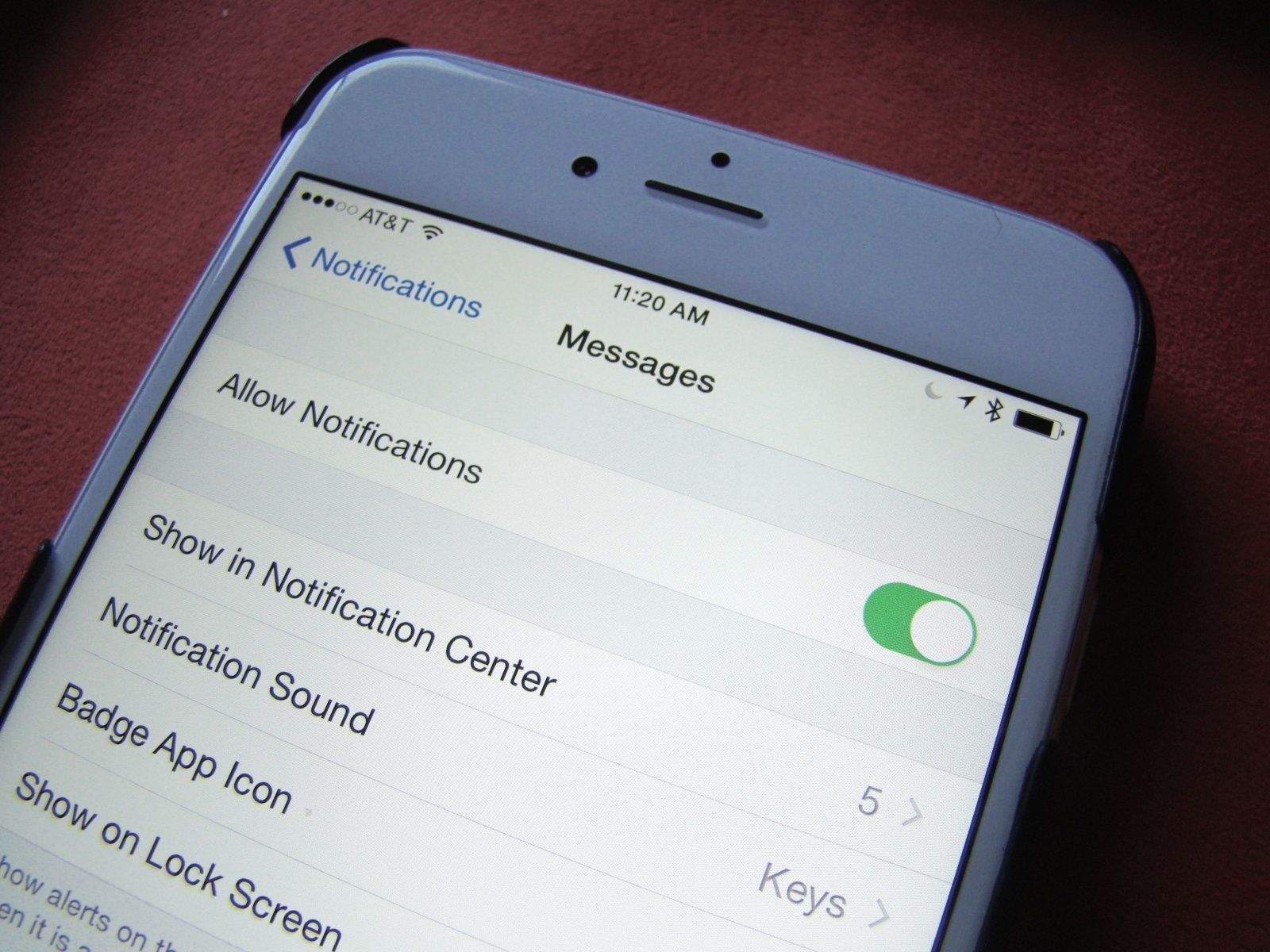
I turned on Do Not Disturb last week to try and get rid of these badges that annoy, but it never worked: I still got notifications from Facebook, Messages and other appss. I did some digging to find out why.
Save yourself some desk space with this closed MacBook mode. Photo: Rob LeFebvre/Cult of Mac
I was setting up my MacBook Pro with Retina display to work with a new external monitor today, thinking that when I connected to the monitor via HDMI and closed the lid, I’d see the display up on the new monitor.
I was disappointed when I saw absolutely nothing up on my new monitor, so I went searching to find out how to make it work. Is it a special setting in the System Preferences? I haven’t had an external monitor for a while, now; maybe things are more complex.
Luckily for me (and you!), it turned out to be much simpler to make happen. Here’s the recipe.
So many shortcuts, save a little time. Photo: DeclanTM/Flickr CC
There are a ton of Mac keyboard shortcuts to make your digital life easier and more productive. Last week, we showed you 10 of the best shortcuts to keep in mind when using your Mac, and you responded with even more.
Here are Cult of Mac readers’ suggestions for even more fantastic Mac keyboard shortcuts.
Searching within Safari pages is pretty easy, but well-hidden. Photo: Rob LeFebvre
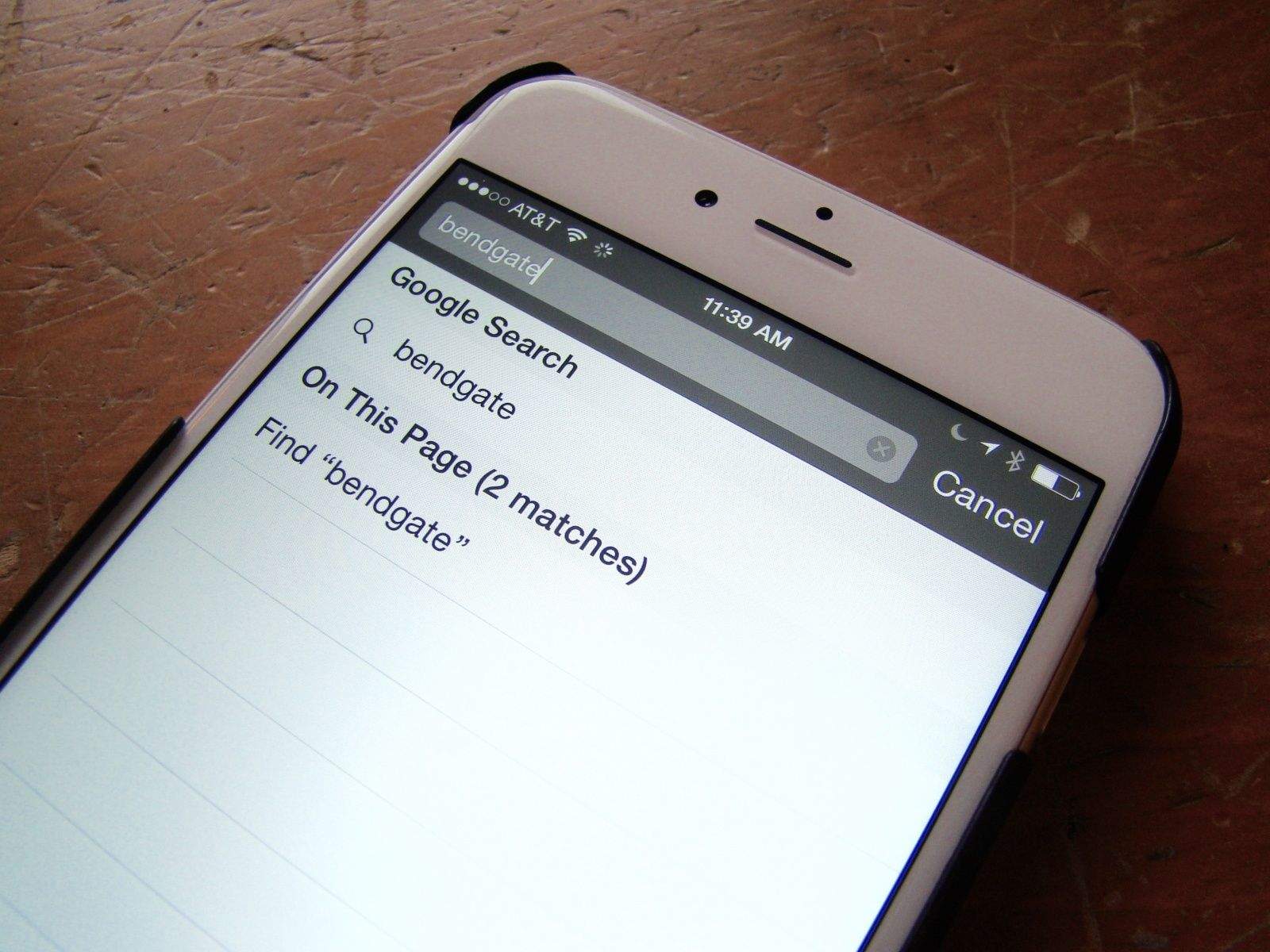
On the Mac, it’s super-easy to search for a word or phrase within the currently loaded page. You simply hit Command-F on your keyboard and Safari, Chrome or any other web browser will open up a little field to type your search terms into.
But what about when you’re using mobile Safari on your iPhone or iPad? How do you find a specific word or phrase there?
It’s pretty simple, but not super-intuitive. Here’s our recipe for finding search terms on your iPhone’s version of Safari.
You're no longer a slave to this full screen window behavior. Photo: Rob LeFebvre/Cult of Mac
As of OS X Yosemite, the little green button in the upper left-hand corner of all your apps and windows has recently undergone a change in function. Instead of maximizing or re-sizing the windows, as in all previous versions of OS X, now the green button will take your window or app full screen.
If you’re tired of going full screen every time you click the green button, here’s how to avoid the screen take over.
Passwords can lock you out, too. Photo: Rob LeFebvre/Cult of Mac
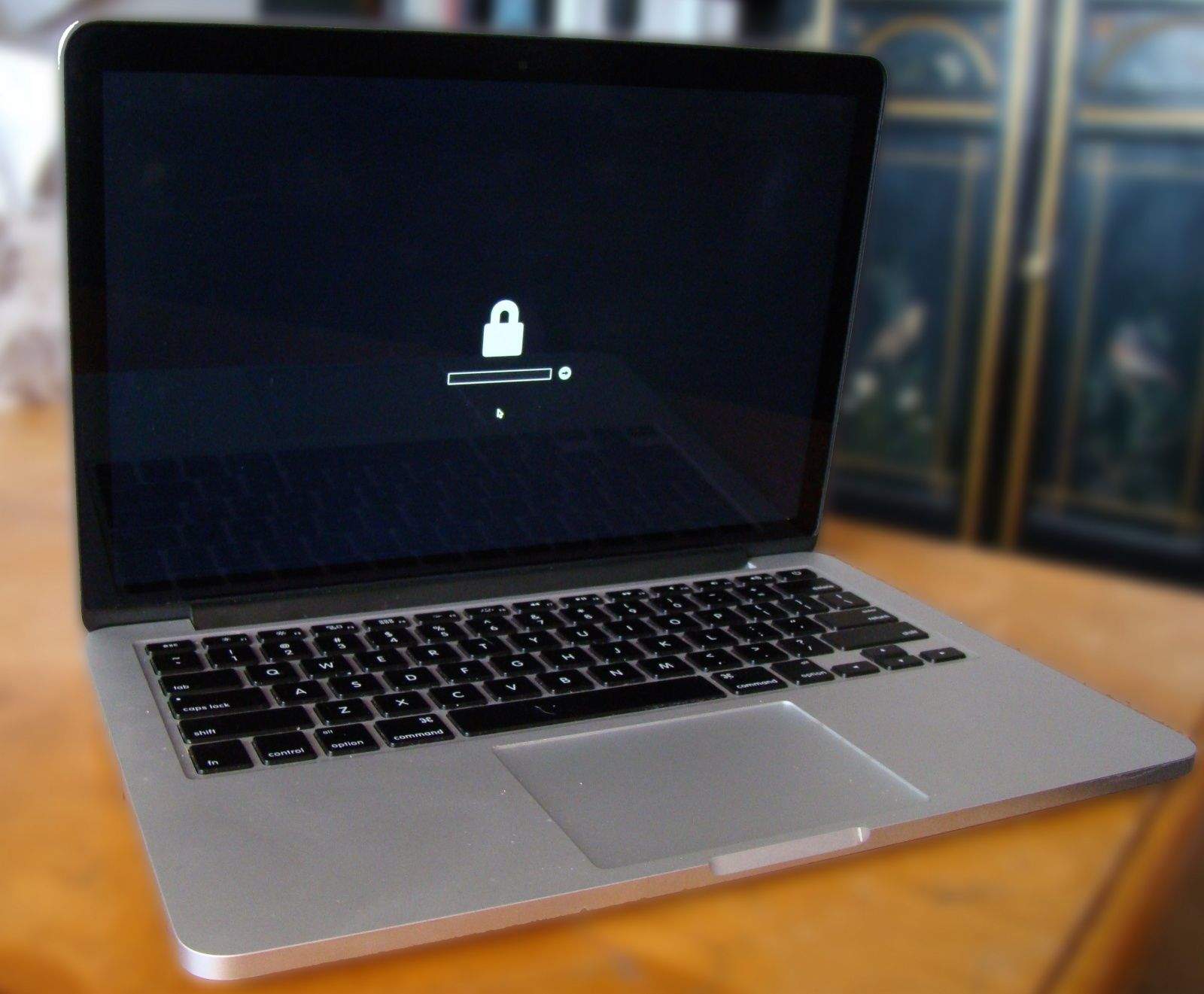
Let me save you a huge headache — don’t set an EFI password on your Mac unless you have the original receipt for that machine.
If you buy your Mac off Craigslist, like I did, and your daughter writes half a novel for her high school class but never backs it up elsewhere (note – always back up your stuff!), and then her MacBook Air suddenly won’t boot up, the EFI password the previous owner put on the laptop will prevent you or Apple from accessing the hard drive or ever using the computer again.
Hypothetically, of course.
If you don’t want to have to tell your daughter she loses her computer and will need to wait a week while you find a way to connect her SSD to another Mac and find her files, disable that EFI password now.
It's time to go paperless. Photo: Jim Merithew/Cult of Mac Photo:
Sick of the mountains of paper stacking up in your inbox? You’ve probably heard about the joys of having a paperless office, maybe even thought about setting one up, but didn’t know how.
Well, here’s how. Not only is it easy to set to do, it can totally change your life.
Here’s how to use your Mac and iPhone to effortlessly set up your own idiot-proof paperless office … the right way.
Make your iPhone even more secure with special characters. Photo: Jim Merithew/Cult of Mac Photo: Jim Merithew/Cult of Mac
Sure, you’ve got Touch ID set up on your iPhone 6, but you’ll still need a passcode to keep your iPhone secure. If you have an older iPhone without Touch ID, or your fingerprint isn’t recognized for any reason, you’ll need to fall back on a passcode.
If you want to make your passcode even more secure, try using our recipe for a code with special characters instead of a simple number-based solution.
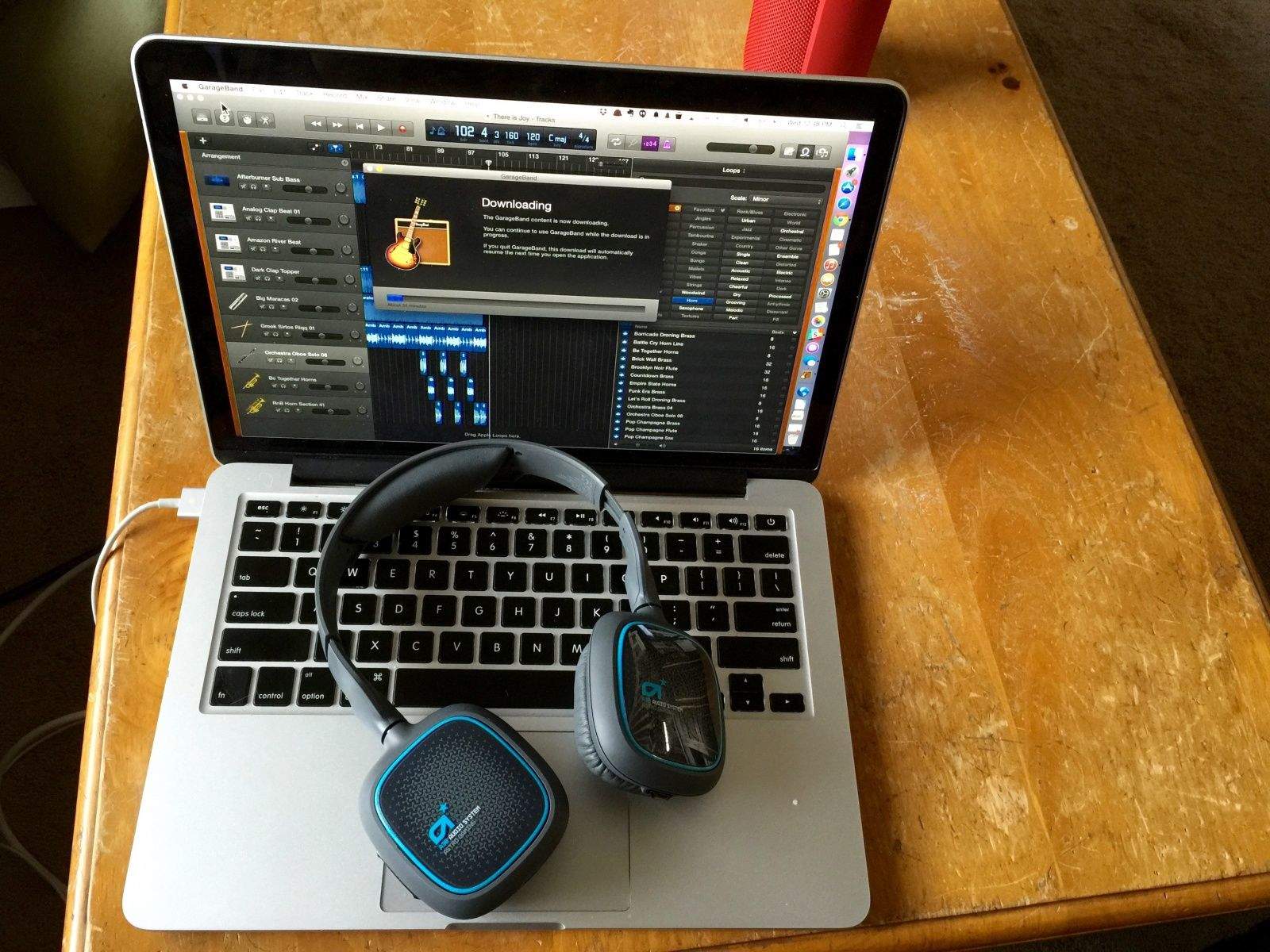
All you need to make some sick beats. Photo: Rob LeFebvre/Cult of Mac
If you dig creating fresh beats and smooth grooves on your Mac, you’ll likely love GarageBand. It’s a fantastic bit of musical creation kit for anyone, regardless of native ability or experience. You can use loops to make new songs, play your own music with MIDI keyboards–even make your own ringtones for your iPhone. It’s quite versatile.
When you download GarageBand from the Mac App Store, you’ll immediately get 50 sounds, 500 loops, 1 drummer, and 2 basic lessons for guitar and piano. Likely, though, you want the full package, which is available as a free download that expands the content to 200 sounds, 2,000 loops, 15 drummers, and 40 basic lessons for guitar and piano.
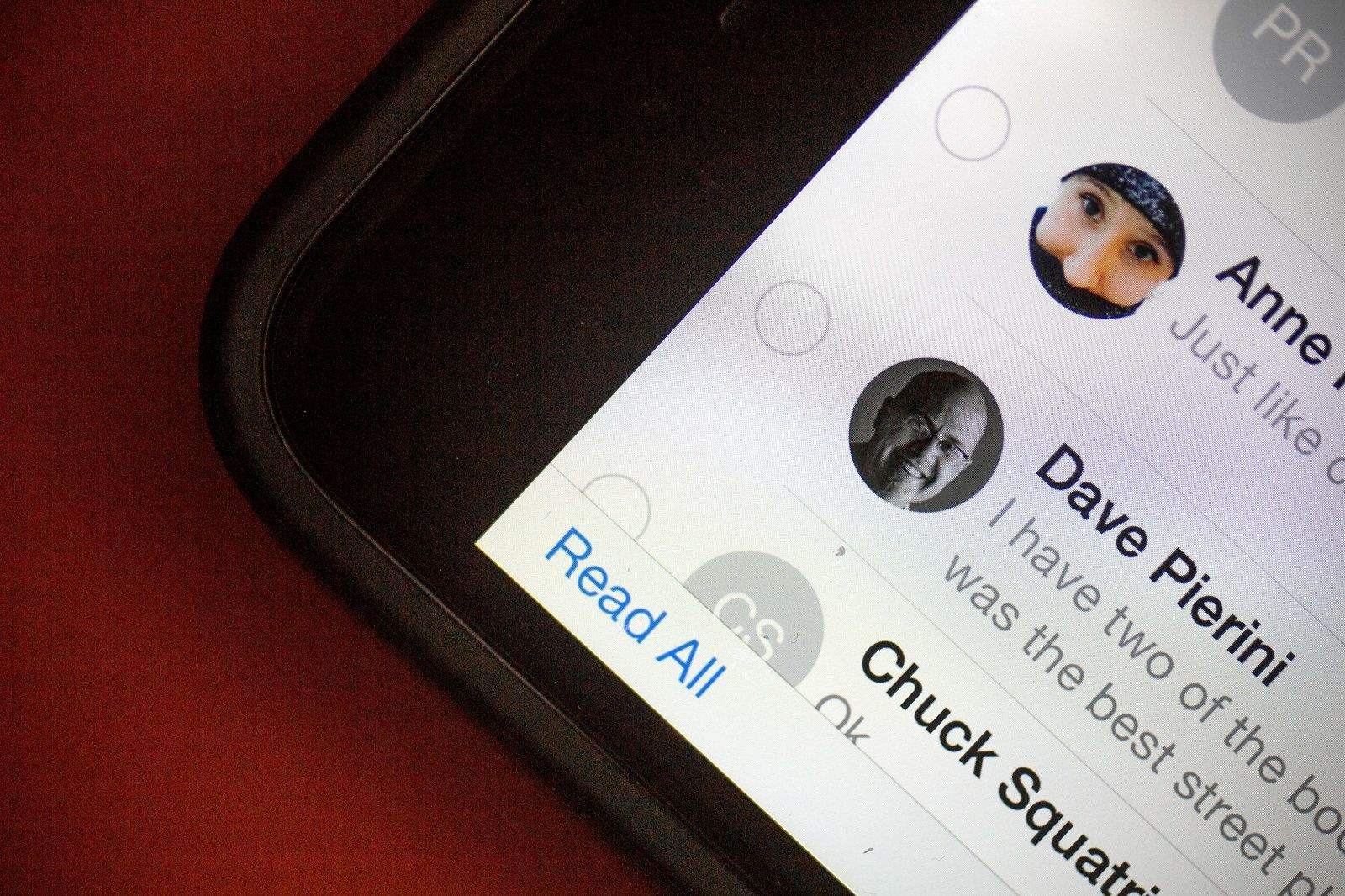
Too many unread iMessages? Try this simple trick. Photo: Jim Merithew/Cult of Mac Photo: Photo: Jim Merithew/Cult of Mac
If you’re like me, you’ve got a ton of unread iMessages on your iPhone and tapping through them all just to get rid of your app badge anxiety seems like a bit too much effort.
Apple has your back, though, with a nicely designed way to mark all your iMessages as read. It might not be apparent at first glance where to find this magic trick. Here’s how.
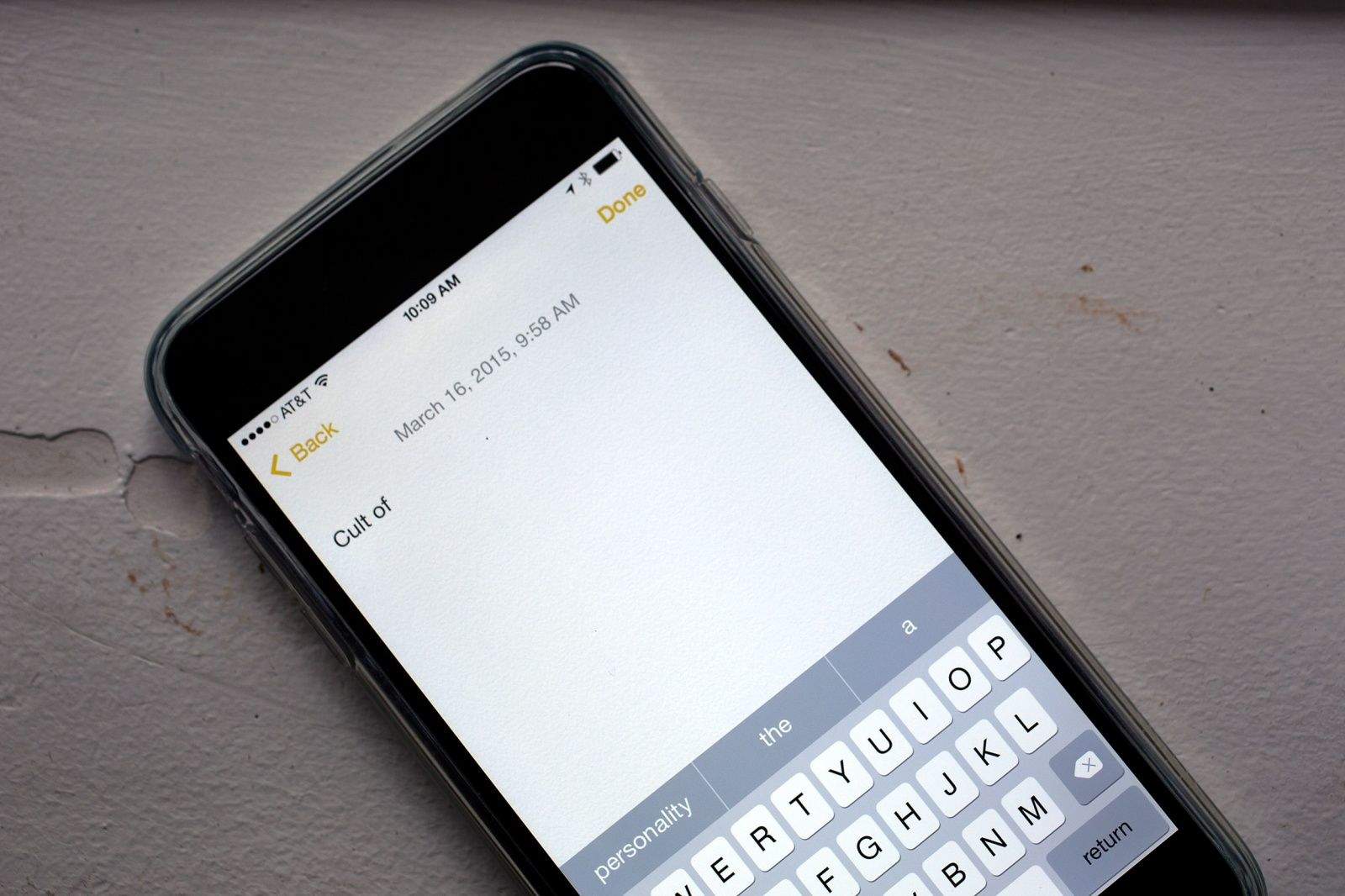
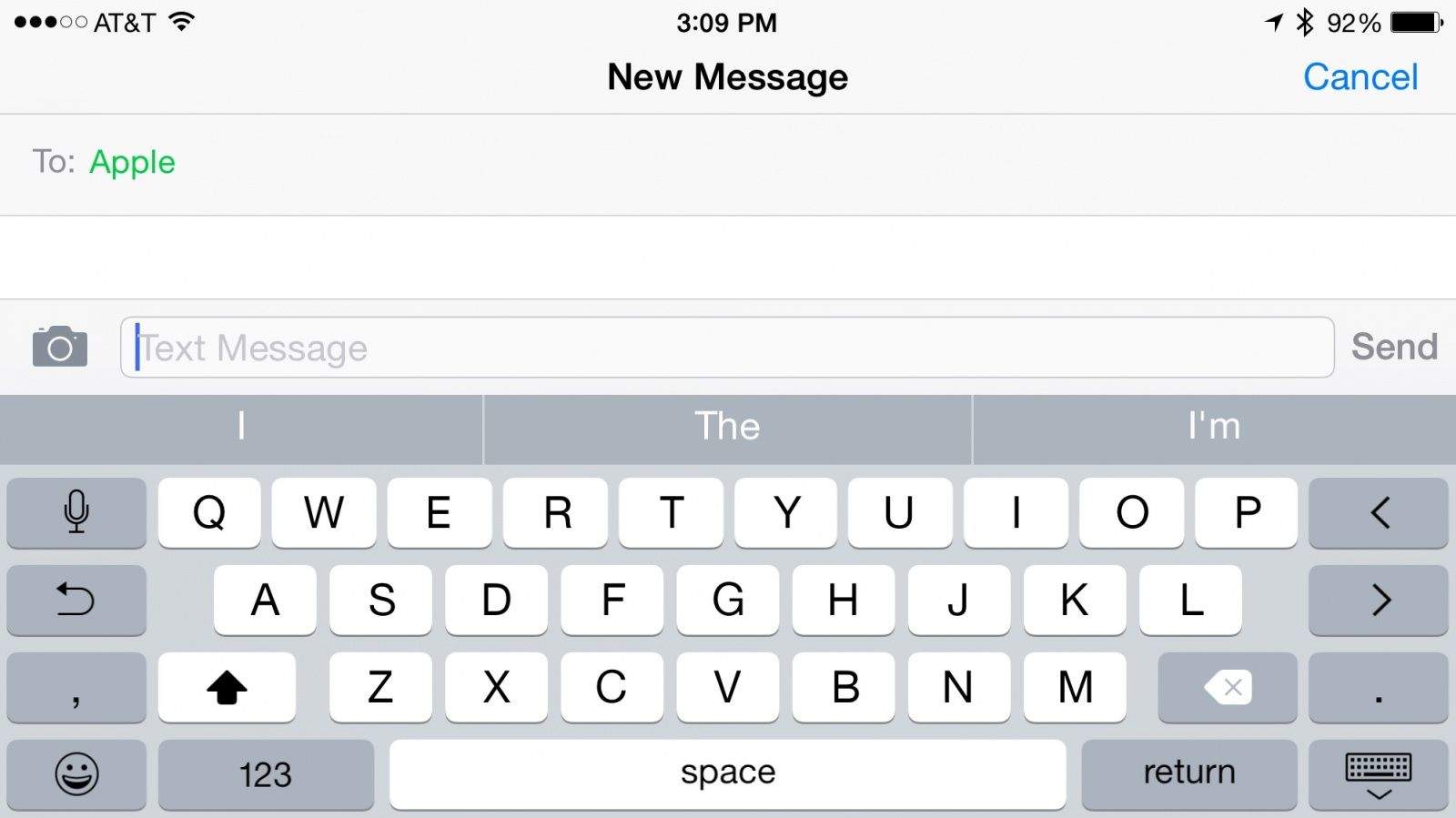
QuickType just might be cramping your style. Photo: Jim Merithew/Cult of Mac Photo:
Got an iPhone 6 or smaller? You might be feeling a little cramped for space on your screen due to iOS 8’s new word-prediction system.
That little gray bar that sits just above your iOS keyboard is called the QuickType bar, and it’s where all the auto-correct and typing suggestions appear when you’re sending an email, typing a note or iMessaging with someone. The suggestions are based on your past conversations, which lets QuickType take your writing style into account. It even keeps track of who you’re writing to, since your word choice is typically tied to your conversation partner.
If you want to hide it because you need more space on your screen, you can do so in any of three ways. You can also bring it back if you’ve inadvertently hidden it and don’t know where it went.
Fantastical 2 uses iOS calendar settings to sync with Google. Screengrab: Flexibits
As many of us use Google calendar to manage our daily lives, it’s an important thing to get this wondrous scheduling solution on our iPhones and iPads to better able to access it on the go.
Several third-party calendars, like the ever-useful and visually stunning Fantastical 2, use the iOS system for connecting to and synchronizing your calendars from Google to your mobile device.
Usually this works without a hitch, especially with newer iOS versions; you simply add an account and the calendar events you input on the web will show up on your iPhone, and vice versa.
When that doesn’t work, however, the settings you need to tweak can be a bit unintuitive. Here’s what they should look like for the best two-way Google to iOS sync.
With predictive text enabled. Photo: Rob LeFebvre/Cult of Mac
iOS 8 brought with it a couple of keyboard changes — adding support for predictive text suggestions when you’re using the built-in iOS keyboard.
This is pretty great stuff, unless it bugs you to have three words or phrases at the top of your keyboard. If that’s you, then here’s a simple way to disable the “feature.”
Smart Folders are my jam. Photo: Rob LeFebvre/Cult of Mac
A longtime Cult of Mac reader wrote in with a question about some odd-looking folders she sees on her Mac.
“The ‘All Pictures’ folder has a sprocket looking icon,” she writes. “Same with All PDF documents and Recently Changed documents.
Are these files located elsewhere and if I deleted a file from one of the above folders does it remove it from all my files? Don’t understand the purpose of these.”
Excellent question, for sure. Let’s take a look at what these folders are, and how to use them to their full potential.
Your Mac's calculator has some tricks up its sleeve. Photo: Rob LeFebvre
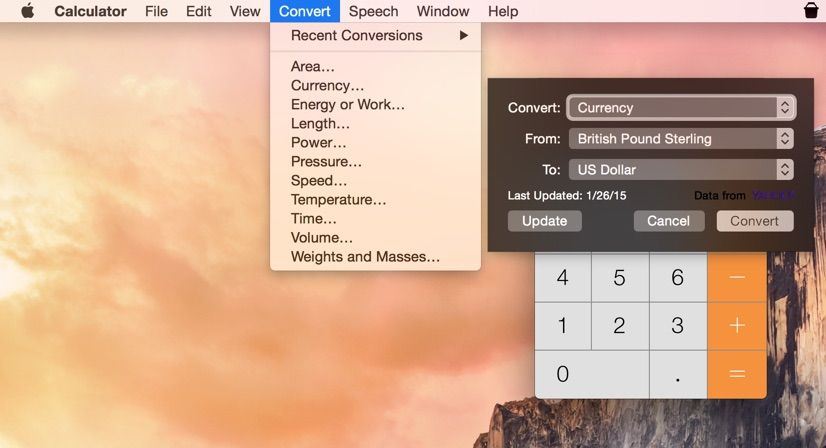
As the world gets smaller and smaller thanks to the global marketplace called the internet, you may sometimes need to know exactly how much your dollar will get you in the wider world. Is that £15 widget really worth it? You’ll only know if you convert it to some form of currency that you understand better.
Your Mac has at least three ways to do this sort of calculation: with a Dashboard widget, the built-in Calculator app, and even with Spotlight. Here’s how to convert currencies into something that makes more sense, right from your handy Mac computer.
"You were in Vegas without me!?" Photo: Rob LeFebvre/Cult of Mac
These days, any photo you shoot with your iPhone or other smartphone will typically contain location data (unless you have that feature turned off) to allow apps like iPhoto to place your images on a map.
Even photo-sharing services use this data, with some — like Flickr — posting it prominently on your photo pages (along with all the other EXIF data, like shutter speed and f-stop).
If you don’t want the location of your photos to be known, the Yosemite version of OS X’s Preview can take care of it for you. Let’s strip that location data before we post that photo to the Web, OK?
Still plenty of life in the old thing. Photo: Rob LeFebvre, Cult of Mac Photo: Rob LeFebvre/Cult of Mac
If you’re like me, you’ve got a junk bin full of old technology. It’s just the way we’re made; there’s nothing better than sifting through the detritus of technology that you loved.
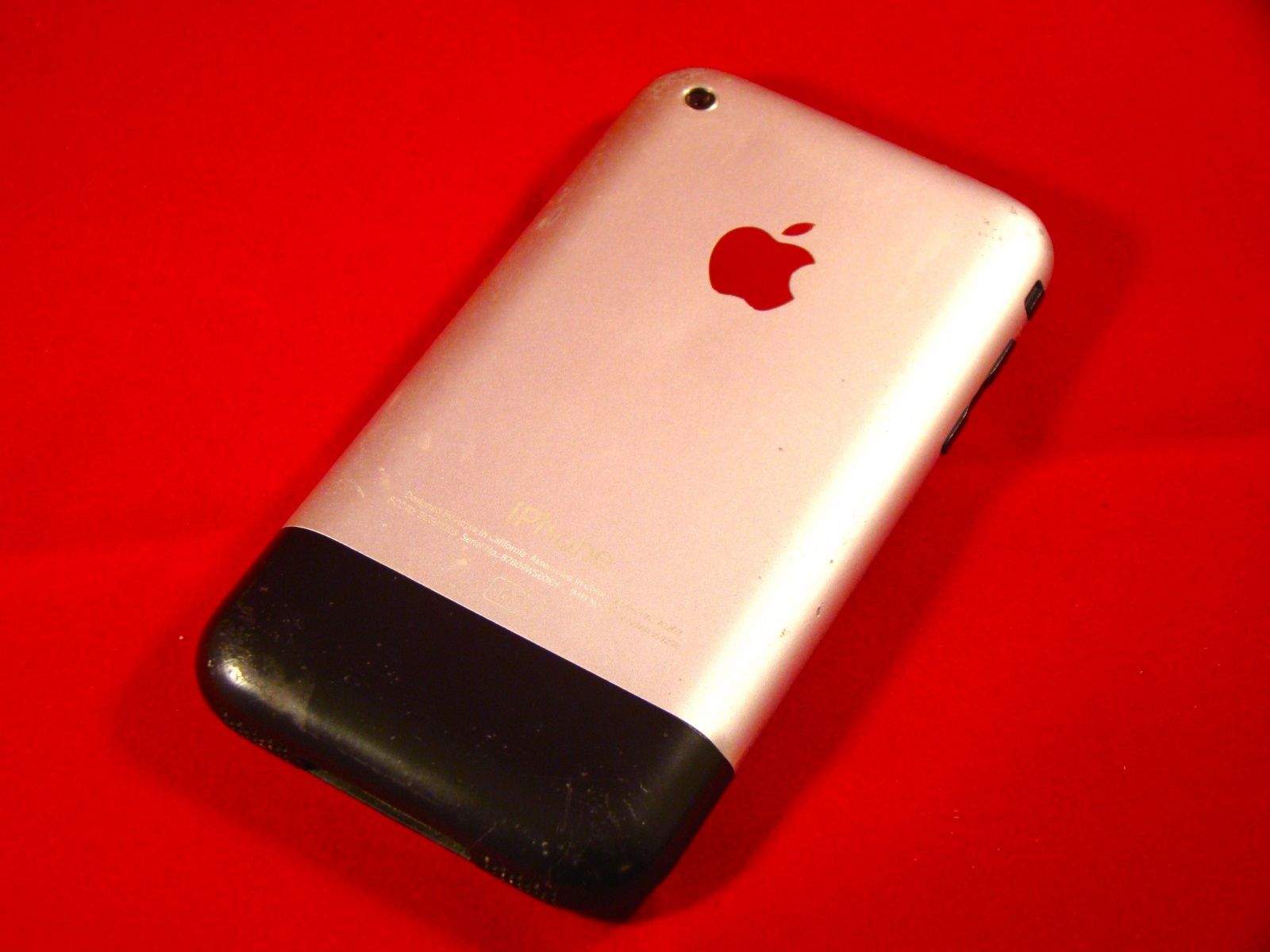
I’ve traded in my iPhone for the last five generations, from the iPhone 3G to the iPhone 5, or passed them along to my kids or significant others. The first generation iPhone, however, was something special, so I kept it.
As I was looking for ways to let my daughter listen to music at night without the temptation (or networked connection) of her more modern mobile phone, I chanced upon this lovely little rounded gadget from 2007 in the plastic bin I lovingly refer to as my Dead Technology Museum.
I figured I’d add some music to the thing, and that would be that. But the more time I spent messing around with it, I realized that I could make it into a pretty great little device; even though it pales in comparison with the iPhone 6, there’s still plenty of use in this baby.
Here are seven things, then, that you can do with your own old iPhone to make it just a bit more useful, whether it’s an original iPhone or an even more modern model. If you’re looking for inspiration, check out these old iPhone uses.
There’s a ton of reasons why a disc may get stuck in your Mac. Not only is it frustrating, but it can also bring you into a cold sweat — panicking about how to remove it when there’s no easy access.
But don’t worry: in today’s video we go over a few simple tricks to force eject your favorite album or movie without ripping apart your beautiful Mac.
One of the selling points of a Mac these days is the ability to run Windows software on it, via virtualization or Apple’s own Boot Camp. Running Windows lets you play PC games that haven’t been ported to the Mac, or stay completely compatible with your documents from a PC-centric workplace.
Virtualization software like Parallels or VMWare Fusion (two of the best apps to run Windows software on your Mac without partitioning your hard drive for Boot Camp) isn’t free, though these applications do allow you to try before you buy. Windows 8.1, the current version of Microsoft’s operating system, will run you about $120 for a plain-jane version.
You can run the next-gen OS from Microsoft (Windows 10) on your Mac using virtualization for free, however. We took a quick run at doing just that, as originally sussed out by the fantastic folks over at iMore.
Seriously, I don't want to have to ignore your call on three devices. Photo: Alex Heath/Cult of Mac
I love the idea of being able to answer a phone call on my Mac, or even on my iPad. The convergence of this communication technology seems like it has great potential.
In reality, though, I end up getting three rings for every call, each slightly time-shifted from the rest, as I sit in my office/living room with my iPhone, iPad and Mac. You’d think that such an intelligent system would know that I had all three devices in one room, and only ring through to one specified device. Until Apple figures that out, maybe in an iOS update or OS X 10.11, there’s only one thing you can do: Disable the heck out of it.