Mobile menu toggle

How-To - page 14

How to keep Facebook from dredging up your worst memories

By

facebook-logo-file
It won’t happen until 2020 at the earliest.
Photo: Jim Merithew/Cult of Mac

Facebook’s algorithmic nostalgia is all well and good — until it starts pulling up the worst memories you’ve shared. Not everyone wants to be reminded of these awful memories.

Introduced this past March, “On This Day” is a Facebook feature that lets you re-share important digital memories from one year ago. Now you can keep specific people and/or dates from appearing in your feed, thanks to a pair of filters introduced on the social network.

Here’s how to make sure your worst memories aren’t surfaced by Facebook.

How to turn off El Capitan’s ‘shake to find’ mouse cursor feature

By

This feature might bother you - might as well disable it.
Photo: Apple

When I lose track of my mouse cursor, I’ve always just wiggled it a bit to find it on the screen. It’s a natural gesture, and Apple’s capitalized on it with its new “shake to find” feature in El Capitan.

If you’re constantly shaking your mouse or swiping quickly on your mousepad, maybe while gaming or editing, the new feature might bug you.

Here’s how to turn it off (and turn it back on again if you want to).

How to get past Philips Hue’s ‘iCloud Sync’ roadblock

By

Philips hue lighting
Sure, the lights are all pretty now. But at what cost, Philips?
Photo: Philips

Pro Tip Cult of Mac bugYou should be excited to get Siri up and running with your new Philips Hue bridge and control your lights with the power of your voice, but one annoying error might stop you. It definitely had me scouring the Internet for answers when I was setting up my smartbulb system this afternoon, and I’d love to save you that time.

Because if you’ve spent $200 on fancy lightbulbs, you probably want to start using them right away, damn it.

Every time you whitelist Cult of Mac, a kitten is born

By

And you want more adorable kittens in the world, don't you?
Photo: Ben Scherjon/Pixabay CC

Seriously, people, we have families to feed. Kittens to adopt. We need your ad impressions.

The new iOS content blockers, as well as traditional ad-blocking browser plugins, threaten the wallets of every ad-supported website, including Cult of Mac. Luckily, it’s easy to whitelist us (and any other sites you want to support). It’s incredibly easy to restore order to the online universe, whether you’re using an iPhone or a Mac.

How to pin Safari tabs in El Capitan

By

Keep your important tabs active in the background for easy access.
Screen: Rob LeFebvre/Cult of Mac

Let’s be honest: there are a handful of sites that you visit a lot, open in tabs in Safari.

If you want to keep these tabs ready to go in every Safari window you open, even after you’ve quit Safari and re-launched it, you can use El Capitan’s new tab pinning feature to keep pages “open, up to date, and easily accessible.”

The sites you pin will stay active in the background, pinned to the left side of your tab bar. Here’s how to create (and get rid of) pinned tabs in Safari.

How to auto-hide the menu bar in OS X El Capitan

By

Look, ma, no menubar!
Screen: Rob LeFebvre/Cult of Mac

Sometimes you need to use your entire screen at once, like when you’re working on a serious photo-retouching project or need more screen real estate for an epic GarageBand session and you don’t want to maximize the app you’re using.

If you’ve ever wanted to regain a little bit of space on your Mac’s screen, the time is right to make sure you’re running the latest version of OS X, El Capitan. It will let you hide the menu bar up top to give you more space to work with.

Here’s how to have your menu bar hide itself when you’re not using it.

How to beam YouTube to the big screen using El Capitan

By

Get YouTube up on the big screen.
Photo: Rego Korosi/Flickr

Ever wish you could watch all those great Key & Peele or Inside Amy Schumer clips from YouTube on the big television in the living room?

Sometimes the small screen on your MacBook just isn’t large enough to contain all that hilarity. It’s times like these that you’ll want to send video to that massive HDTV, and El Capitan makes it even easier with a new AirPlay feature.

Here’s how to beam your favorite clips to your favorite screen.

Pro Tip: Avoid data overage charges with this hidden iOS 9 setting

By

This little toggle will help you manage any paltry data plan you have.
Photo: Rob LeFebvre/Cult of Mac

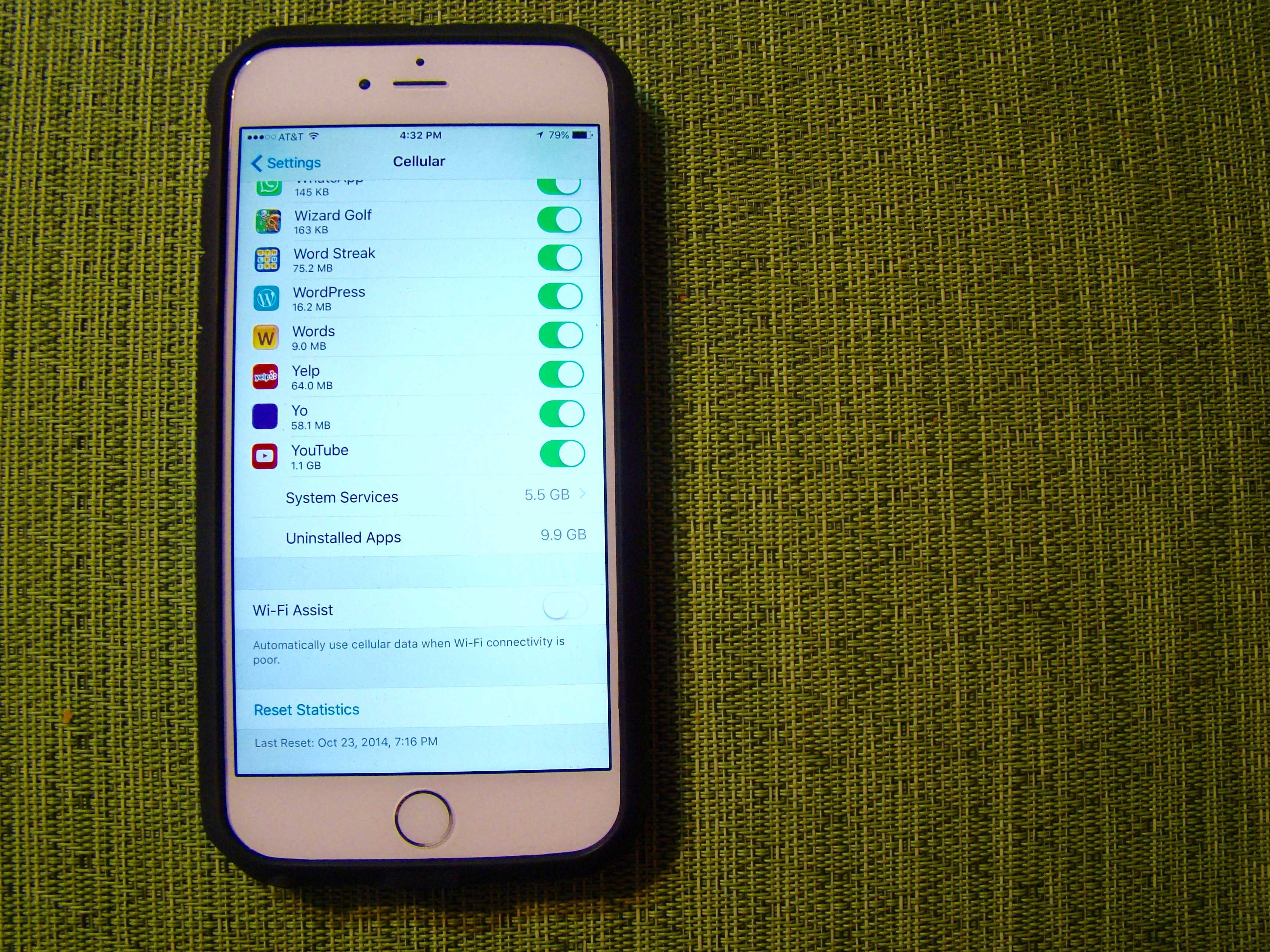
iOS 9’s Wi-Fi Assist feature helps when you’re connected to a slow Wi-Fi connection by kicking in your cellular data network to help things seem a bit snappier.

The problem is that it can also rack up some data charges if you end up going over your data cap. If you’ve got a limited data plan with your wireless carrier, you’ll want to find this iOS 9 setting, which is on by default, and kind of buried in the Settings.

Pro Tip: Get Facebook Messenger to stop buzzing you during chats

By

And you thought all those Facebook messages were private. Sucker!
Thanks, Facebook.
Photo: Rob LeFebvre/Cult of Mac

Facebook Messenger keeps buzzing at me while I’m in the app itself. It’s annoying.

It seems like I’m getting messaged more and more via Facebook Messenger these days as my buddies and family take to the mobile messaging platform to connect in real time.

But the incessant buzzing, when I’m right there staring at the conversation, has got to stop. Here’s how I did it.

Prep photos perfectly for your custom Apple Watch face

By

Apple Watch Update
Get ready to make custom Apple Watch faces like a champ.
Photo: Jim Merithew/Cult of Mac

With watchOS 2, you can now use any photo in your library to make a custom Apple Watch face. And that gives you a lot of freedom to make the wearable your own, but sometimes, you and the watch might have different ideas for how to treat your pictures.

Here’s a quick and easy way to make sure that your Apple Watch looks exactly how you want it to.

Pro Tip: Make iOS 9 keyboard all caps again

By

Do we really need lowercase? No.
Photo: Rob LeFebvre/Cult of Mac

Pro Tip Cult of Mac bugI can’t stand the new lowercase keyboard in iOS 9. It’s a fairly useless change to begin with, as it doesn’t make anything easier.

Sure, it shows whether you’ve pressed the Shift key or not, but the new Shift key is also improved, making the lower-case option aesthetic rather than functional.

So, if you’re like me, here’s how to put that keyboard back to the way it “should” be.

How to get ready for your iOS 9 upgrade the right way

By

This action plan  will ensure your iOS 9 upgrade is buttery smooth.
This action plan will ensure your iOS 9 upgrade is buttery smooth.
Photo: Jim Merithew/Cult of Mac

Whether you’re getting a new iPhone 6s or not, you’re going to want to upgrade to iOS 9 to take advantage of everything Apple’s new mobile operating system has to offer.

iOS 9 is ready to revolutionize your mobile life, but there are a few things you should do before making the leap. Here’s how to get your iPhone (or iPad) ready for its iOS 9 upgrade — the right way.

Save your ears from Apple Music’s endless loops

By

Even Belle & Sebastian can get old with too much repetition.
Screen: Rob LeFebvre/Cult of Mac

Sometime in the last few weeks, I’ve had a big problem with Apple Music.

Whenever I’d start an album or playlist, I’d only hear the first song I chose, over and over and over.

I’d hit the Up Next list button and see the same song, endlessly repeated.

The fix is an easy one, but man did it frustrate me for weeks. Here’s how you can make sure you’re not stuck on repeat.

How to find the exact setting you need in iOS 9

By

Settings Search iOS 9

Photo: Rob LeFebvre/Cult of Mac

iOS has so many settings in one app, it’s kind of ridiculous.

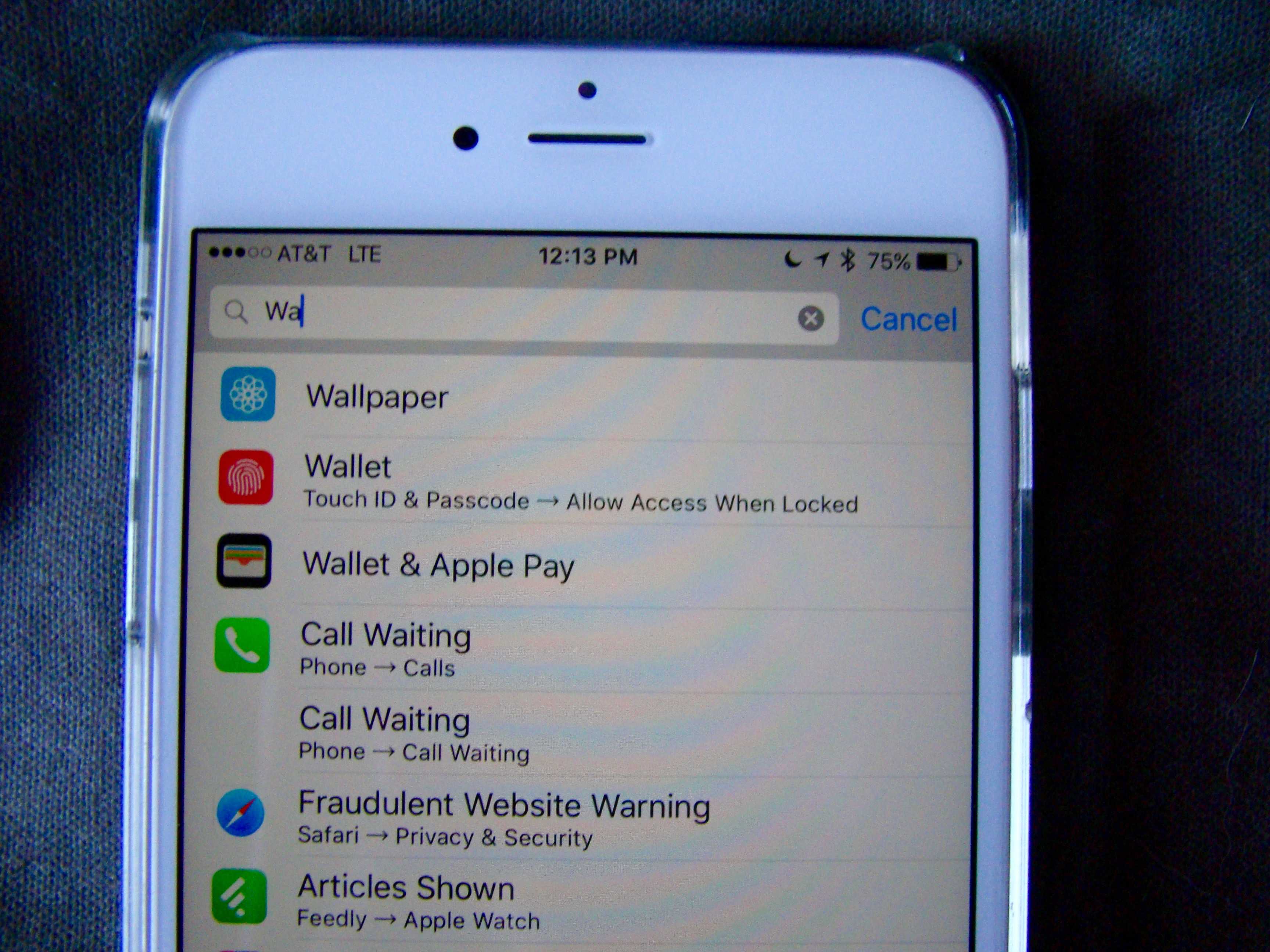
Whether you want to change preferences for an app or the operating system itself, a trip to the crowded Settings app can often be a frustrating experience.

iOS 9 — still in beta — has a solution for that information overload though: Search.

Here’s how to access it.

Cult of Mac Magazine: Apple’s next big thing(s), hot tips for iOS, Mac and Apple Watch and more

By

What's headed our way, Apple fans?
Cover: Stephen Smith/Cult of Mac

It’s another week ending, which means its time for us to round up all the great content from Cult of Mac into one delightful Cult of Mac Magazine.

We’ve got all the info we could find out about the upcoming Apple event at the Bill Graham Civic Auditorium in SF, a ton of useful and hidden tips for iOS, Apple Watch (and even OS X), and some fantastic gaming new that you don’t want to miss.

Check it all out (and more) in this week’s Cult of Mac Magazine, and don’t forget to look at this sneak peek at the upcoming revamp of the entire digital experience.

How to fix weird ‘talagent’ keychain issue

By

Get rid of the annoying Keychain messages about talagent with this easy fix.
Screen: Rob LeFebvre/Cult of Mac

Are you getting something like following message on your Mac every time you log in?

talagent wants to use the "local items" keychain. please log in with password.

If so, you’re in luck, because we have a fix. Here’s how to get this utterly annoying pop-up out of your face.

The quickest way to find images with iOS 9

By

ios 9 photos scrubber

Photo: Rob LeFebvre/Cult of Mac

In previous versions of iOS, finding your photos was a bit tricky, especially as you started to amass them in the thousands, what with having a high-quality camera in your pocket at all times.

In iOS 9, currently in public beta, the Photos app has gotten a new way to find the photo you’re looking for amidst the haystack of your Photo Roll. Here’s how to use this new feature.

How to skip those skimpy mobile versions of websites

By

New Safari feature will come in handy.
Screen: Rob LeFebvre/Cult of Mac

Using the mobile web is an uneven affair in terms of what you’ll see once your little blue progress bar slides across the page to let you know your page has loaded.

Some sites give you a crippled version of the original, making sure you can’t find any information on them at all. Looking for a tiny link to load the desktop site can be an exercise in frustration.

iOS 9, currently in public beta, has an answer to this issue baked right into Safari. Here’s how to make it happen.

How to fix battery life issues in iOS 8.4.1

By

iPhone
Battery got you down? Try these tips.
Photo: Apple

iOS 8.4.1 might have fine-tuned Apple Music, but some users are complaining about about battery issues after updating to Apple’s latest mobile operating system.

If you’re afflicted, the good news is that iOS 9 is right around the corner. The bad news? That doesn’t help you now, and iOS 9 will likely have its own host of bugs that Apple needs to address. Here are some tips to help you eke out as much battery life in iOS 8.4.1 as possible.

How to enable subtitles on Apple TV

By

Closed captions make it easier to understand what's going on.
Photo: Apple

Closed captioning is useful to those with a hearing impairment to make the audio of videos accessible. Subtitles help those who speak a different language understand what’s going on in a film not in their original language.

You can enable these features on your Apple TV, but it’s not super-intuitive — there’s no single button to make it happen.

However, that doesn’t mean it isn’t easy. Here’s how to turn on Apple TV subtitles, even if you just want to watch a scary movie at night and have the sound turned down.

How to cure WhatsApp’s picture hoarding

By

WhatsApp

Photo: Killian Bell/Cult of Android

WhatsApp is a pretty popular messaging app that went from 200 million daily active users in April of 2013 to 800 million of them as of April 2015.

Unlike competitor SnapChat, however, WhatsApp will save every photo and video file sent to you to your Camera Roll. This could make for some embarrassing moments when you’re swiping through your photos to show mom your latest cat pictures.

It could also start to clog up your iPhone, really, with all that racy video your friends keep sending you.

To avoid these situations, you can disable the “feature.” Here’s how.

How to make Siri fetch your photos in iOS 9

By

20150814_siri-music_0024

Photo: Jim Merithew/Cult of Mac

I wanted to find photos from my vacation a couple of weeks ago, so I figured I’d try out Siri’s new iOS 9 functionality.

“Siri,” I said, “show me photos from Hawaii.”

Dutifully, Apple’s updated digital assistant pulled up photos from my trip to Oahu a couple of years ago. They’re lovely, but I wanted more recent pictures.

“Siri, show me photos from Hawaii last week,” I said, reasonably.

As soon as I finished speaking, there they were. Siri had launched my Photos app on my iPhone and brought up the photos I’d taken while in Kona. Great stuff.

Here are some other ways you can get Siri to find the photos you want in the huge pile you have sitting on your iPhone.

Whip out iOS 9’s Wallet app from your lock screen

By

Apple Pay iPhone
Yet another reason to use Apple Pay.
Photo: Jim Merithew/Cult of Mac

Apple’s new Wallet app replaces Passbook in iOS 9, currently in public beta. Just like Passbook, when you wave your iPhone at an Apple Pay kiosk, it will only let you choose your default credit card and pay for the goods or services you bought.

In iOS 9 beta, you’ll also be able to choose any of your other provisioned credit cards from your Apple Pay account without even unlocking your iPhone or accessing the Wallet app.

Here’s how.

Save your battery with iOS 9’s Low Power Mode

By

Keep your iPhone humming for up to three hours until your next charge.
Photo: Rob LeFebvre/Cult of Mac

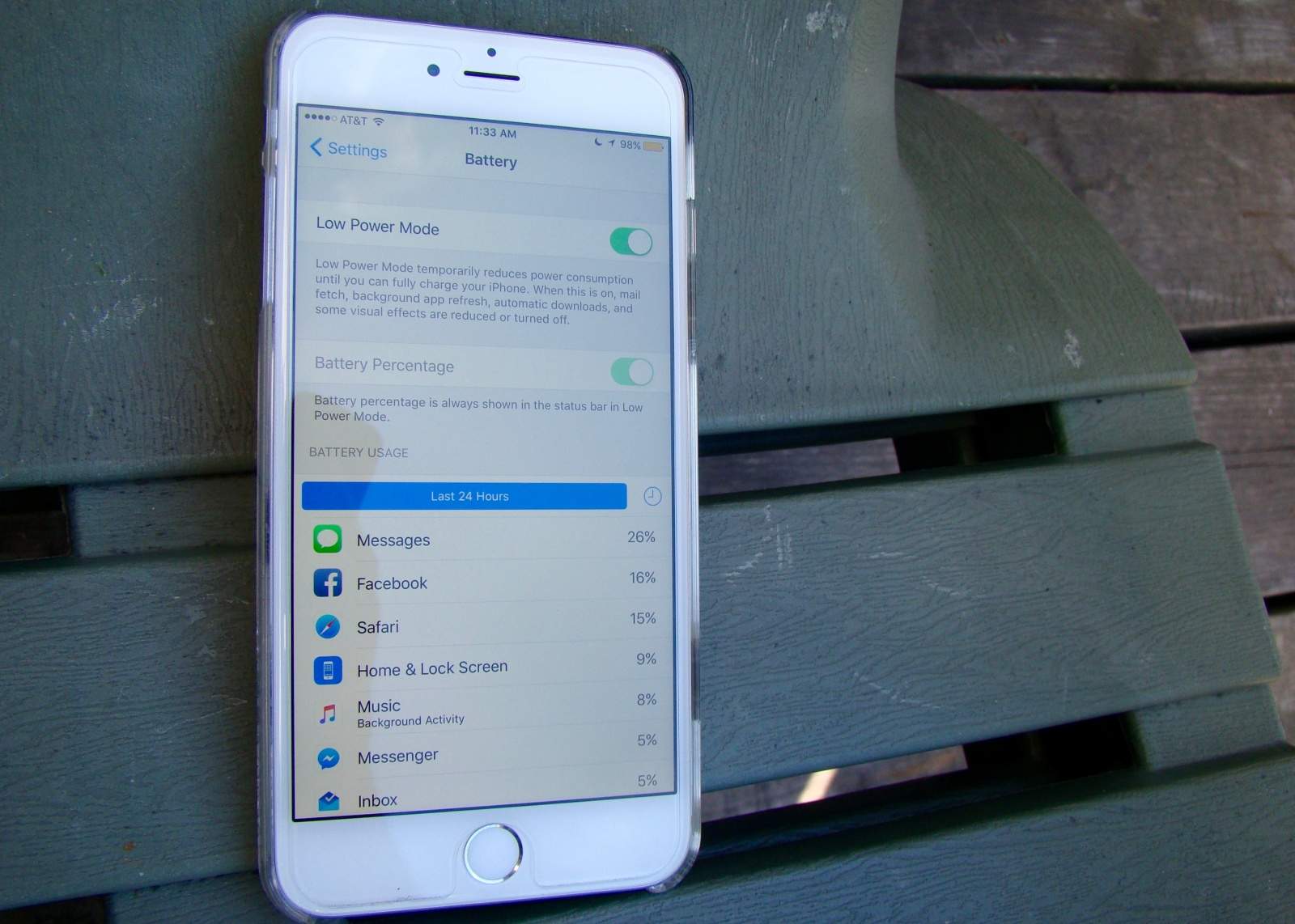
iOS 9 brings a bunch of battery-boosting features, most of which work right out of the box. But there’s one battery-saving feature you’ll have to enable yourself.

Called Low Power Mode, this new feature should prove super-useful when you need to eke out just a bit more time with your device — provided you’re not doing anything intense.

How to enable iCloud Drive in iOS 9

By

DSC07210

Photo: Rob LeFebvre/Cult of Mac

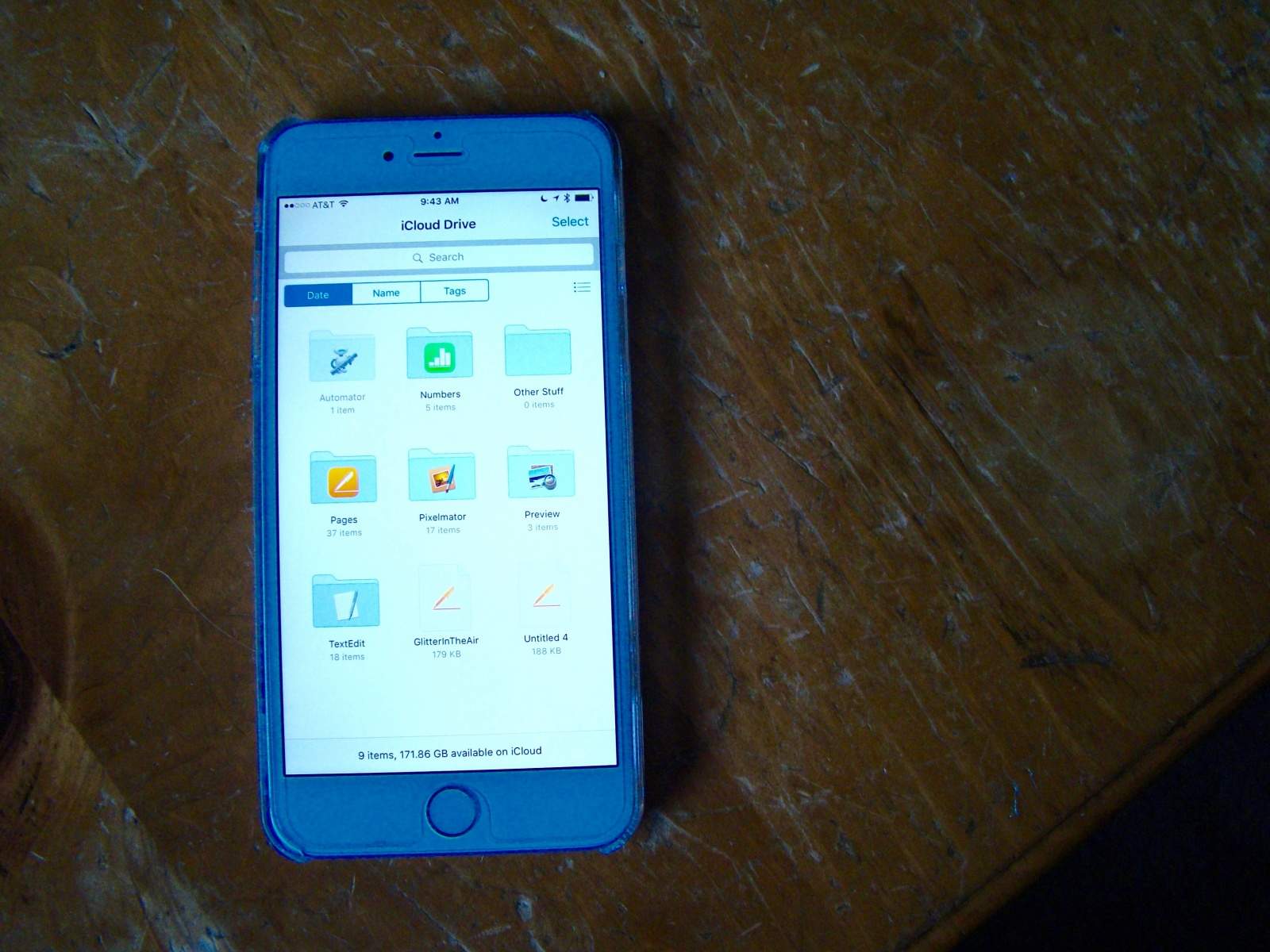
iCloud Drive is a Dropbox and Google Drive-type service from Apple that lets you store documents in the cloud, making it super easy to synchronize them between your iOS and OS X devices.

You can access it on your Mac with an icon that shows all the documents you’ve stored in iCloud in a folder-like structure.

Prior to iOS 9, in order to access these documents on your iPhone or iPad, you’d need to open an app that supported iCloud Drive on your device.

Not anymore. iOS 9 comes with its own iCloud Drive app, and here’s how to enable it.