What sorcery is this? It’s just a smarter, more accurate way to select text on your Mac, is all.
This crazy tip will change the way you highlight text on your Mac forever

Photo: Cult of Mac

What sorcery is this? It’s just a smarter, more accurate way to select text on your Mac, is all.

Instagram power users are all about the filters, typically choosing a few favorites that they use more often than others.
Instead of swiping back and forth along the filters row, why not reorder them to put the ones you use most often up front? Better yet, how about deleting the ones you don’t use ever to streamline your entire filter experience?
Here’s how.

Instagram is a veritable playground of fascinating photography. The trick is to find accounts to follow that won’t waste your time with snaps of low-quality food or wacky pets. Unless you’re into that kind of thing.
So how do you find folks worth following? By checking out what the people you follow on Instagram are looking at, of course. You can also check out the photos you’ve liked, and add them to your feed if you haven’t already.
Here’s how to follow your friends’ hearts to fuel your Instagram addiction.

If you want people to read–and hopefully respond–to your emails, you should really pay attention to the data.
Email service Boomerang, which lets you schedule emails into the future as well as find out who’s read them, did a little research into its own customers to find out what, exactly, will get recipients to read your missives.
Turns out, if you write like an emotional 3rd grader, you’ll get better results.

Doodling on a Snapchat is fun; it lets you customize just about any snap with the power of your own artistry, or lack thereof.
If you’ve noticed, though, when you choose the color for said doodle, there’s no white or black options. And what if you want something in between red and white, like, say, pink?
Here’s how to make your images truly your own with custom Snapchat colors.

Emoji has sort of taken over my iMessage conversations on the iPhone lately, and I’m willing to bet you use a lot of the cute little pictures too.
What if I told you there was a hidden treasure trove of text-based emoticons that you can access in addition to your favorite emoji?
Even better — it’s easy to enable these iPhone secret emoticons. Here’s how.

If you’re looking to show a little local pride in Snapchat, the company made it pretty easy to make and upload your own so that you (and anyone else who’s in that location) can swipe right and show off a custom geofilter.
All you need is a graphics program like Illustrator, Photoshop, or (my favorite) Pixelmator, a little bit of time, and you can represent your town with a custom Snapchat geofilter.
Here’s how.

Ringtones are passé; why not wake up to the sound of a music video in the morning?
You’ll be the envy of everyone who hears your alarm go off with this neat iOS 9 feature. Here’s how to enable it.

It used to be that if you wanted to zoom any window on your Mac to see as much of the content inside it as possible, you’d hit OS X’s green button in the upper left of the window.
As of OS X Yosemite, the green button turned into a “full screen” trigger, zooming any window out to completely fill your Mac’s monitor.
If you hate that behavior, here’s an easy way to get the original zoom feature without the full screen.

As our digital lives converge across mobile and desktop devices like our iPhones and Macbooks, we rely on them knowing where we are at any given time. Safari suggestions, for example, count on knowing your location, as do any Maps searches or such.
You might want to know when your Location data is being used, however, for privacy reason. If you enable the Location Services menu bar, you’ll be able to see when any app is accessing your private location data, making it more possible to lock down any sources you don’t want using it.
Here’s how to get that menu bar notice working.

If you’ve got a quick bit of math to figure out on the go, why bother tapping into the Calculator app, which you’ve probably got stuffed in some sort of folder on your third page or so?
Even though we’ve been using Spotlight on the Mac for years now to figure out quick mathematical facts, it’s also included in the iOS version of Spotlight, making doing quick bits of math super easy.
Here’s how to use it.
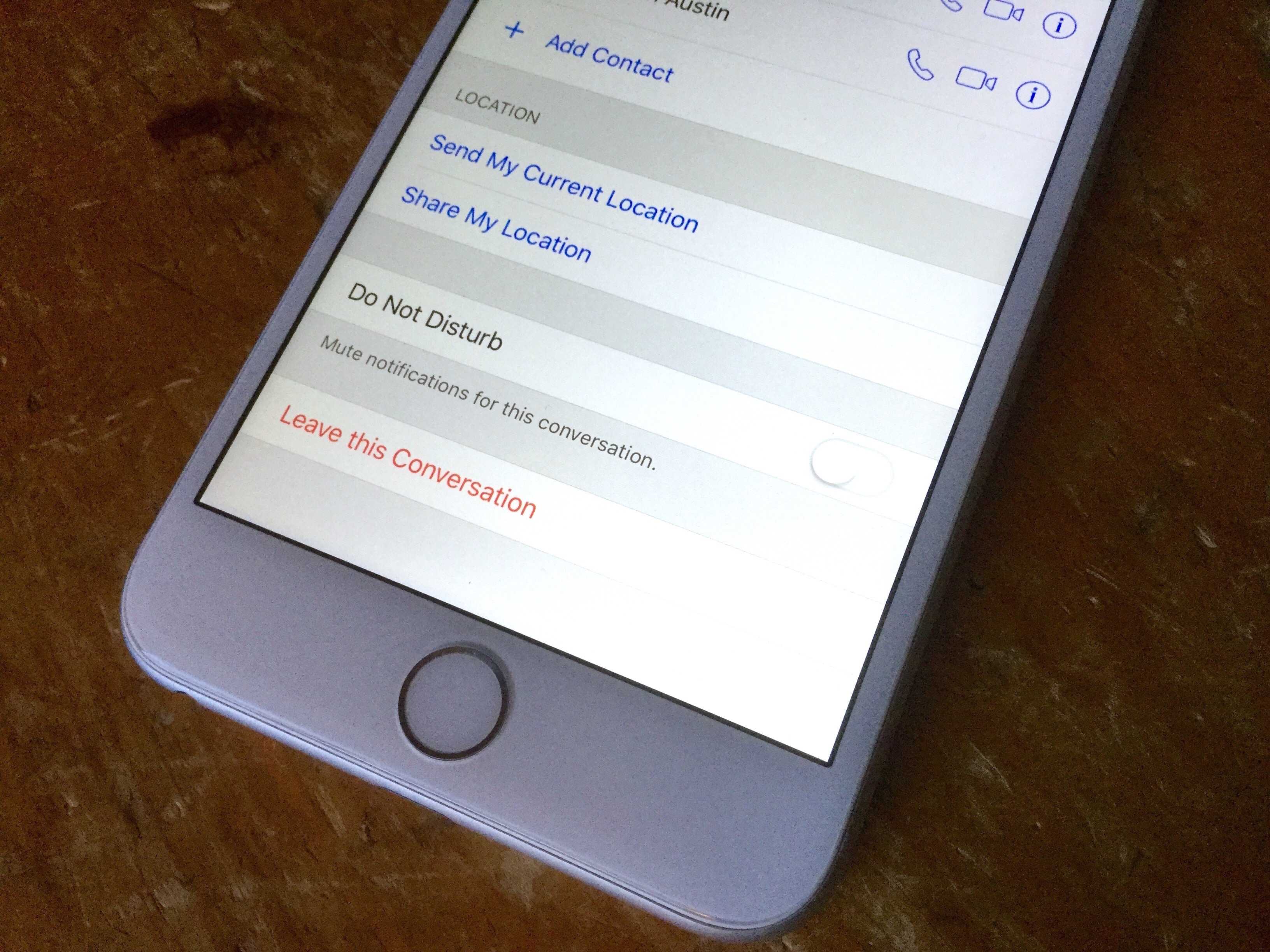
You know how it is — you get invited to a multi-person chat via iMessage with people you sort of know and it gets all kinds of awkward and annoying as the group blows up your iPhone with a ton of messages you really don’t want to pay attention to.
What’s a popular girl or guy like you to do? There are a couple of ways to get out of those iMessage group conversations so you can finally relax.

Will Apple’s wireless EarPods change the way we hear? Why should you upgrade to the latest iOS version? How can you create a musical masterpiece with just a guitar and your iPhone?
You’ll find answers to these and other burning questions in this week’s edition of Cult of Mac Magazine. Grab the latest issue today and get the week’s best Apple news, all wrapped up in a shiny package that’s perfect for your iPad or iPhone.
Here are this week’s top stories.

Your iPhone’s slo-mo function is a ton of fun to use when you’re taking action video of yourself or your buddies as you ski down mountains and base-jump off cliffs. If you’ve got an iPhone 5s or later, you know the joy of capturing all the action in a much slower timeframe and then using it to make fun of the faces your friends make when doing extreme sports.
But what if you want to un-slow all that down, maybe to focus less on the funny faces and more on the fast action?
It’s pretty simple to do, though you might not notice how at first. Here’s how to speed up the slo-mo videos you’ve taken with your iPhone.

I’ve been suffering with this strange issue for about a week: my Apple TV’s Siri Remote’s Menu button stopped working.
All the other buttons–Home, Siri, Volume and Play–worked, so it didn’t seem like a huge deal at first. But then I was digging around in the Settings app and realized that the Menu button is indispensible for one thing: moving backward in an app. Without it, I was stuck in the Settings pane that I had clicked through to; there was no getting back to the main Settings page.
Here’s what I did to get the Siri Remote’s Menu button working again.

The Apple Watch is designed with the Digital Crown in the same place as where traditional watches have their own crown to set the time. It’s a design choice that helps us think of this new tiny computer on our wrist as something comfortable and familiar.
But there’s no reason the Digital Crown should remain on the right, as it defaults to if you’re wearing your Apple Watch on your left wrist.
In fact, flipping it around can make things on your Apple Watch even better. Check it out.

Want to play your Mega Man 2 ROM on your new fourth-generation Apple TV? How about Super Mario Bros. 3?
It’s a ton of fun to play classic console arcade games, especially if you have a few ROMs lying around on your hard drive and would like to play them on the big screen.
Here’s how to get your new Apple TV all set up to rock some retro games.

If you’re looking for some amazing new Retina-display-quality images to wallpaper your Mac, iPhone or iPad, you might want to head over to Apple’s “Start Something New” campaign web page.
The sub-site — part of an ongoing advertising campaign highlighting how creative you can get with Apple products — has a bunch of amazing images that zoom around when you mouse a cursor across them.
Here’s how to get them to spruce up your device.

Twitter user and developer Peter Steinberger shouted out to the Twitterverse when his App Store app kept showing an app that needed an update, but would never actually update, even with an iPhone restart.
He got a reply from Zachary Drayer, a mobile developer himself, on how to get the App Store to force refresh.
It’s totally nonintuitive, but utterly cool, and you can do it on your Apple Watch and iTunes app as well. Here’s what to do if you’re in the same situation.
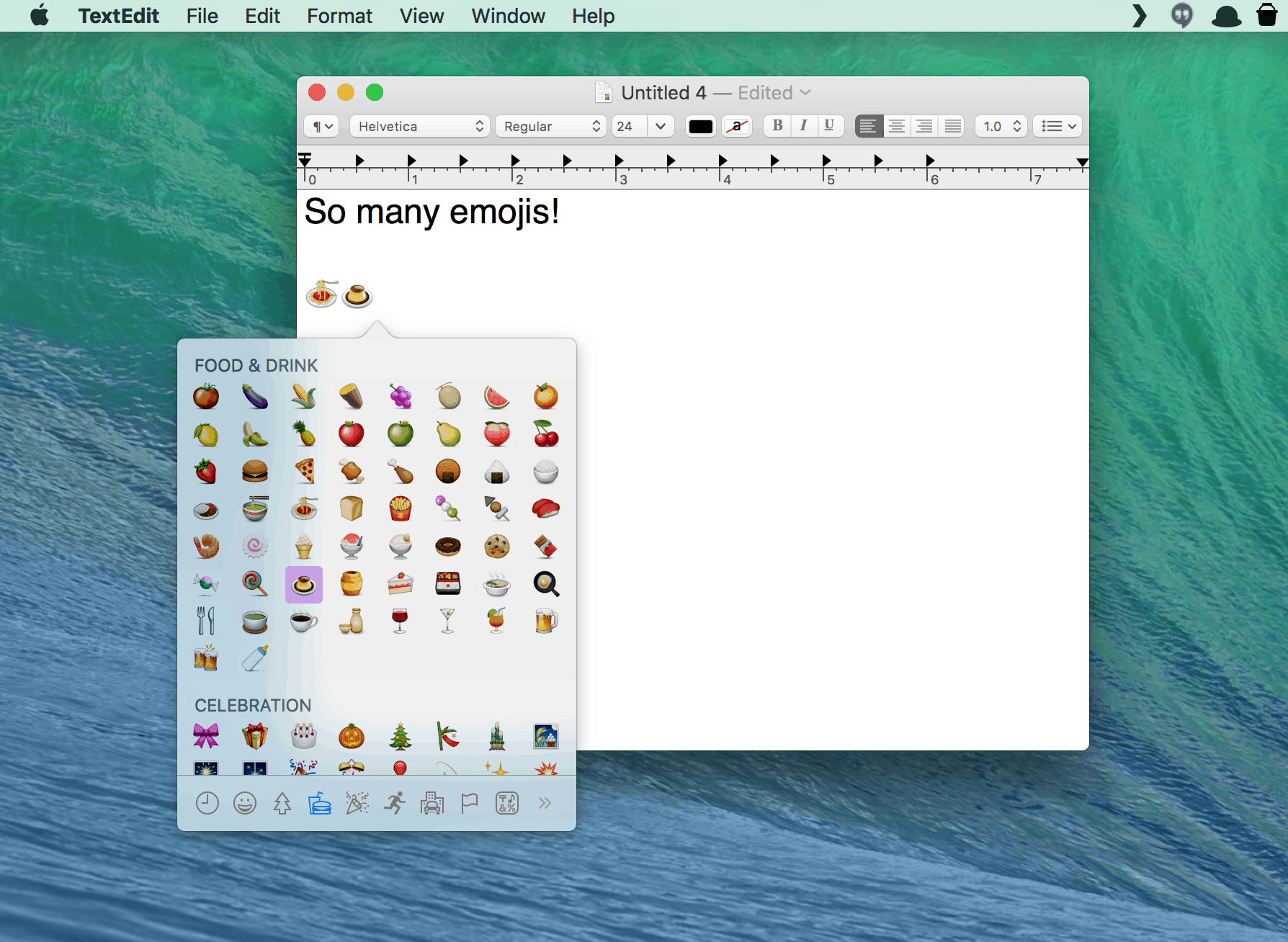
In Apple’s Messages app, you can easily add emojis with a quick click on the little happy face icon in the iMessage text field. If you use a chat app like Slack, you can do the same.
But what if you want to add an emoji to an email, a letter, or any other text field? Turns out there’s an often-overlooked menu item (with a corresponding keyboard shortcut) that lets you do just that.
Check it out.

If you’ve ever tried to set a square photo as your lock screen or homes screen wallpaper, you know that iOS will zoom into the photo, resizing it to fit the entire iPhone screen.
This is fine with some images, but square ones, like the ones you save on Instagram or take with your iPhone’s square photo feature, just zoom in too far, obscuring much of the photo.
Here’s a quick and easy work around that will let you see the whole square photo when you use it as wallpaper.

Trying to play a song in iTunes and getting the same error over and over can be frustrating. If your computer isn’t authorized with your Apple ID via iTunes, it won’t let you play any songs you’ve downloaded from the iTunes Store until it is. Sometimes iTunes will seem to get “stuck” prompting you again and again with the need to authorize.
If you’re having trouble playing your purchased iTunes on your Mac due to the repeated prompts to authorize your computer, there are a few things you can do.
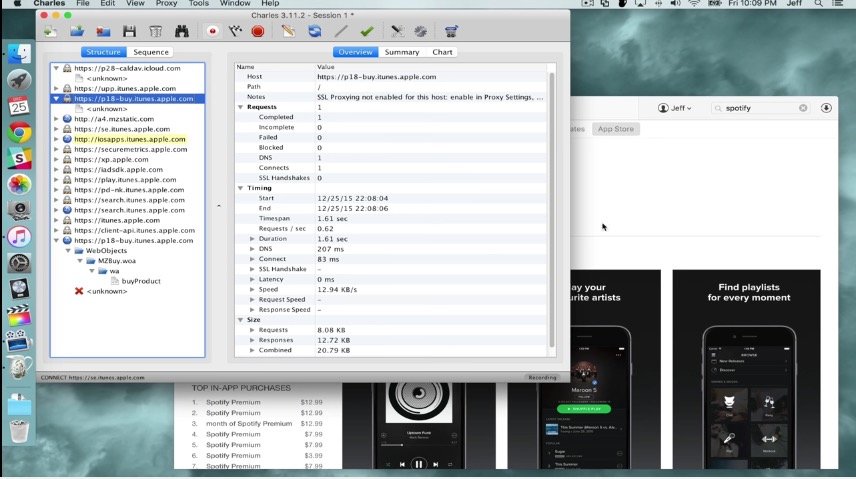
Usually, an app update is a good thing. But sometimes, things go wrong: An update does the opposite of what you expect it to do. In that scenario, you want to roll your apps back, but unfortunately, at least on the iOS and Mac App Stores, Apple makes that seemingly impossible.
But it isn’t impossible — just a little tricky. Here’s how to roll your iOS apps back to an older version when things go wrong.

This time of the year typically means gifts, both giving and receiving them. Surely some of you have gotten a brand new Macbook, iMac, iPhone or iPad (Pro, anyone?).
If so, you might be looking at a lovely morning playing with your shiny new toys. But where to start? What essential tweaks, software tricks and necessary little tips do you need to make sure they’re set up the right way?
Well, we’ve got your back, with roundups to help you easily set up your iPhone 6s or 6s Plus, iPad (Pro, Air 2 or mini), Apple Watch or new Apple TV the right way. Here’s the list of setup guides to get you up and running with your brand new Apple gear.

Sometimes I’m browsing a site like Cult of Mac on my iPhone and I’m looking for something specific, like a story about encryption, for example. Instead of swiping down the page and hoping I see the story I’m looking for, I want to just search for it.
When you’re on your Mac, it’s super easy to find something like this: simply hit Command-F, type in the text string you’re looking for, and Safari (or any other web browser on the Mac, really) will find them all in the web page you’re on, highlighting them for you.
But what about finding stuff when browsing the web on your iPhone? There’s no Command-key on the built-in keyboard, so how do you search your favorite web page to find keywords?
Turns out, there are two ways to do it, which is kind of odd.