Mobile menu toggle

How-To - page 57

Everything you need to know about your iPhone camera’s aperture

By

Here I could have blurred the netting by using a wider aperture.
Photo: Charlie Sorrel/Cult of Mac

A few days ago, we learned about the iPhone’s shutter, the part of the camera that “opens and closes” to let light onto the sensor. Today, we’re taking an in-depth look at the aperture, aka hole. The aperture is an opening in the lens that can be made bigger or smaller. Like shutter speed, its primary purpose is to control how much light reacts with camera the sensor (or film).

Also like shutter speed, aperture has some extra effects on how the image looks. Specifically, it can control how much of the image, front to back, looks sharp.

Use Siri Shortcuts to quickly send photos to your family

By

siri shortcut share photos
Workflow Vs. Siri Shortcuts.
Photo: Cult of Mac

How do you send a photo to several of your family members? Do you compose a group message, adding all their various addresses and phone numbers manually? Do you have several existing threads, each with a different combo of family members?

Today, we’re going to see a much easier way to send a photo to multiple recipients using Siri Shortcuts (or Apple’s Workflow app). It’s so simple that it should be built in to the iPhone.

How to block any website on iPhone and iPad

By

Block websites on iPhone and iPad
Stay OUT!
Photo: Charlie Sorrel/Cult of Mac

There are probably good reasons to block a website on your own iPhone or iPad, but really, why not just avoid typing its URL? It’s far more likely that you’ll want to block a website on somebody else’s device, probably a child’s. Or perhaps you don’t want your kids to accidentally hit all your bookmarks to porn and gambling sites when they use your iPhone.

Whatever your reasons, here’s how to block any website on your iPhone or iPad.

Everything you need to know about your iPhone camera’s shutter speed

By

iPhone shutter speed
Camera blur can be your friend.
Photo: Charlie Sorrel/Cult of Mac

Your iPhone camera is pretty good at taking photos automatically. You just point it, shoot, and the camera works out all the tricky stuff. But what is actually going on in there? How does it take the light that you see and render it as an image on the screen?

In this short series, we’ll look at the physical parts of a camera — the aperture, the shutter, the magnification of the lens, and so on — and see how they affect the final image. Today’s topic: shutter speed.

How to rip and save audio from YouTube videos with your iPhone

By

rip youtube audio
This screen represents YouTube, and the telephone represents audio. Or something.
Photo: Charlie Sorrel/Cult of Mac

Editor’s note: As of Feb. 10, 2010, the tip outlined below no longer works. However, we published a new post about an iOS shortcut that currently does work: “Finally — a YouTube download shortcut for iOS that actually works.” Enjoy.

YouTube isn’t just for video. Lots of folks use it to post audio files, only they gum up the songs with slideshows so they can upload them to the video-publishing service. There are all kinds of apps that let you convert a YouTube video back into an MP3, but today we’re going to see how to convert a video to an MP3 right in Safari, using Apple’a own Workflow/Shortcuts app.

This Siri Shortcut will automatically text your commute time to your spouse

By

Siri shortcuts knows how long your bus will take to get you home.
Siri knows how long your bus will take to get you home.
Photo: Charlie Sorrel/Cult of Mac

This Siri Shortcut will send an iMessage to a friend, spouse or other contact telling them how long it will be until you get to their location. Once set up, all you need to do is say something simple (and easy to remember) like “Home soon.”

This shortcut uses a brand-new feature in Shortcuts beta 2.0 that allows the sending of messages in the background, without having to confirm them first. It’s a small but powerful addition. Once Apple irons out the kinks, this feature could make a huge difference in how useful Siri Shortcuts will be day to day.

How to enable iPhone Photos extensions

By

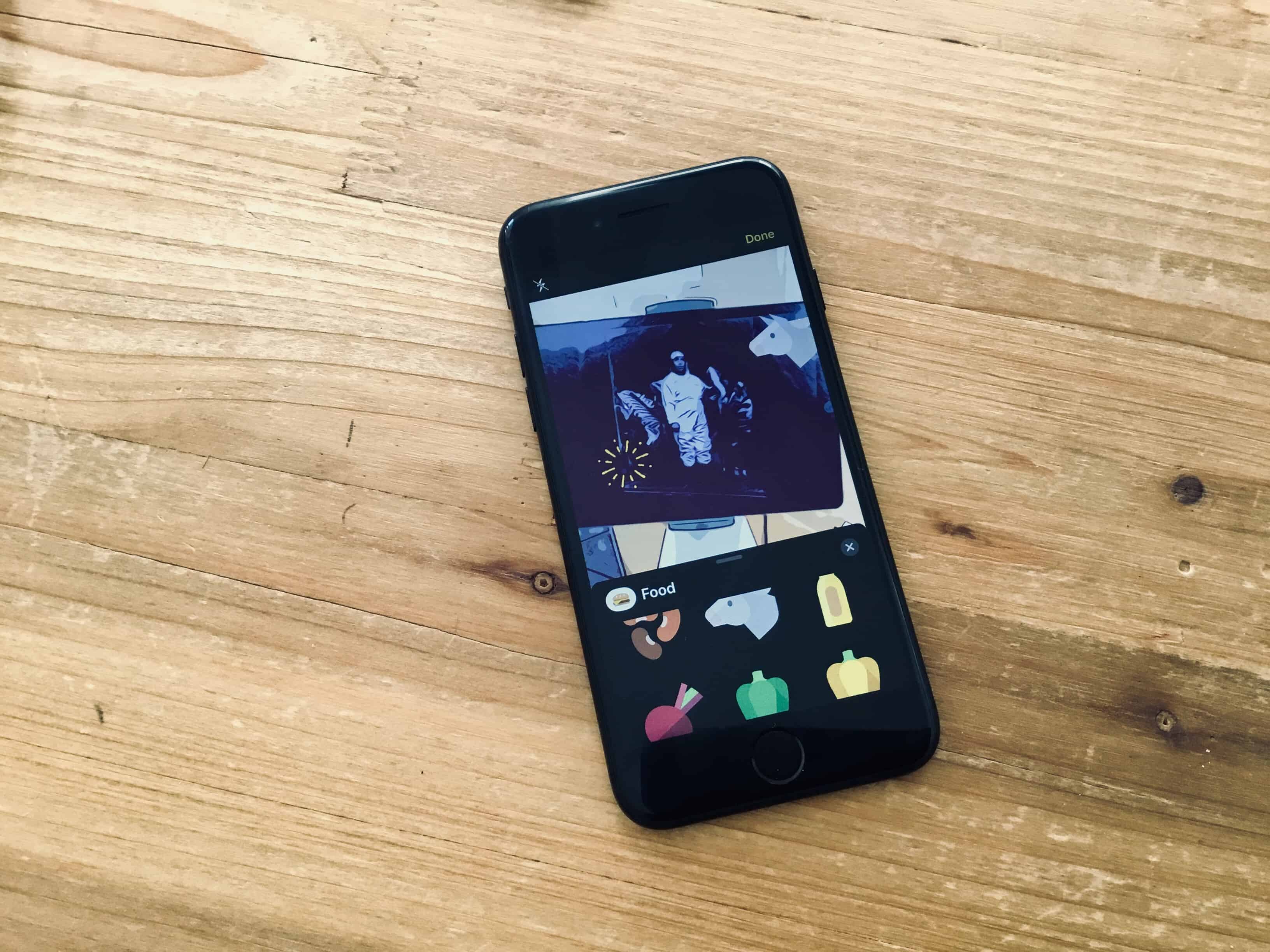
Photo filters can be subtle or … not.
Photo: Charlie Sorrel/Cult of Mac

The Apple’s Photos app offers a very good set of editing tools. On both Mac and iOS, you can pick filters or perform a quick fix with the auto feature. You can also really dig in with some tools that are easily as comprehensive as anything on iOS.

These tools rival many desktop photo apps, but sometimes you want to do something extra-fancy. Maybe you have a favorite filters app. Or you want to combine two photos side by side in one frame or overlay one picture on another. Or use an app that lets you remove distractions in the frame, like power lines, cars or trash. Then you need to turn to Photos extensions.

How to delete all your tweets

By

Even this little birdy is deleting his tweets.
Photo: Charlie Sorrel/Cult of Mac

Twitter is like that part of town where City Hall just lets anyone open up a bar or a restaurant. It’s lively, and it’s where everyone hangs out, but you certainly don’t want to take the wrong side street late at night. Maybe you’re ready to leave Twitter, thanks to its continued censorship of unknown individuals and simultaneous encouragement of hate speech and lies by more famous people and organizations.

If you’re serious about ditching Twitter, then you probably want to delete your tweets. Twitter feeds off “engagement.” If you delete your tweets, you leave nothing to engage with (although their “content” has probably been mined clean already). If you delete your tweets, and change your Twitter bio to say you’ve quit, this sends a stronger message than just slipping out the side door. It also helps stop someone else from pretending to be you.

Fortnite challenge guide for season 5, week 5

By

Fortnite Fly Explosives game mode
It’s your turn to make the rules.
Photo: Epic Games

Just days after rolling out its latest Fortnite update, Epic Games has issued its complete list of challenges for season five, week five.

There are seven to complete altogether for a total of 50 Battle Stars. Three of them are available to all, while the other four require a Battle Pass.

Here’s our guide to finishing each one!

Use an Apple Pencil with your iPhone with this dumb hack

By

Apple Pencil Hack
Wrap this paper napkin around an Apple Pencil, and add water. What could possibly go wrong?
Photo: Charlie Sorrel/Cult of Mac

The Apple Pencil is easily the best stylus for any tablet computer, but thanks to the deep hardware ties that make it work so well with the iPad, it won’t work with anything else. Or will it? With this messy hack, you can make your Apple Pencil work with your iPhone. Or with any smartphone or tablet.

dotEPUB is the best way to save and annotate websites in iBooks

By

dotEPUB turns web pages into fantastic-looking ebooks.
Photo: Charlie Sorrel/Cult of Mac

In my constant search for a way to save and annotate webpages like I used to do with Instapaper before it cut off access to Europe instead of complying with GDPR laws, I came across a great service called dotEPUB.

This quick-and-easy service lets you save and convert any webpage into an EPUB document. Then you can open the file in Apple’s Books app and mark it up just like any other ebook. Let’s take a look at how dotEPUB works.

This keyboard shortcut will revolutionize copy and paste on your Mac

By

Is the Mac's default pasting behavior driving you nuts?
Photo: Charlie Sorrel/Cult of Mac

Did you ever copy some text from a Word document, or from the web, and paste it into an email, only to have the pasted text keep its stupid 24-point Comic Sans formatting? Maybe you had to select everything, then start futzing with the Mac’s font panel to get the new text to match.

The way to fix this annoying problem, as you may already know, is the Mac’s Paste and Match Style command. But what you probably never thought of is that you can make this the default option. That way, you can reap its benefits whenever and wherever you paste text.

How to get Low Power Mode on your Mac right now

By

This rare photo shows the moment that Michael came up with the idea for K.I.T.T's Turbo Boost.
Photo: Charlie Sorrel/Cult of Mac

The iOS Low Power Mode is fantastic, letting you squeeze the most possible uptime from your iPhone or iPad. But what about the Mac? Why isn’t there a Low Power Mode for MacBooks? After all, they’re just as likely to be used away from power as an iPad.

Well, here’s some good news. Using third-party software, it’s easy to put your Mac into Low Power Mode whenever you like. You can get around a third more battery life using an app called Turbo Boost Switcher.

Fortnite challenge guide for season 5, week 4

By

Fortnite
Team Rumble just got a lot better.
Photo: Epic Games

Fortnite’s latest list of challenges is live in Battle Royale.

As usual, there are seven to complete — four easy and three hard — that will earn you a total of 50 Battle Stars. Three are available to all for free, but you will need to purchase the season five Battle Pass to access the other four.

Here’s our guide to completing each one.

Pro Tip: How to take fancy, single-window screenshots on Mac

By

Make your windows look as good as this one.
Photo: Charlie Sorrel/Cult of Mac

Pro Tip Cult of Mac bug You already know how to take a screenshot on the Mac: You hit either ⌘⇧3 (to capture the entire Mac screen) or ⌘⇧4 (to bring up a crosshairs to select a part of the screen). But did you know that there’s a third option that will snap a fancy picture of a single app window, complete with a classy drop shadow and a clean white background?

Prepare yourself for screenshot glory!

How to use the iPhone camera’s built-in manual controls

By

Manual control can be dangerous in the wrong hands.
Photo: Charlie Sorrel/Cult of Mac

For most photos, the iPhone camera proves perfectly adequate. You just hold up your phone, point it, and shoot. The exposure and focus are almost always correct, or at least correct enough. But on occasion, you need to take control.

For instance, maybe that beautiful dark blue sky keeps getting washed out because the iPhone insists on correctly exposing the face of the human in the foreground, when you’d prefer to see the person in silhouette. (Or vice versa.) Or perhaps the iPhone insists on focusing on that tree in the foreground, instead of the person half-hidden behind it?

Both of these can be fixed using the manual controls built right into the iPhone’s own Camera app. They’re pretty well-hidden, so you might never have even noticed them. But rest assured, they are there — and they are very easy to use!

How to use Do Not Disturb While Driving

By

This car hasn't been disturbed while driving for quite some time.
Photo: Charlie Sorrel/Cult of Mac

Apple’s Do Not Disturb While Driving feature has the potential to make you less of a menace on the road. Introduced in iOS 11, Do Not Disturb While Driving automatically switches your iPhone into Do Not Disturb mode when you hop in your car and drive off. While in this mode, iOS suppresses all notifications so you can pay attention to keeping that ton of metal, glass and cupholders from permanently ruining — or ending — the life of a pedestrian or cyclist.

But don’t worry! If you do receive one of those text messages that you previously thought were more important than the lives of your fellow commuters, the sender will get a reply telling them that you’re driving, and that you are now a better person.

All of this is customizable, of course, so let’s see how to set up Do Not Disturb While Driving.

How to make your iPhone videos look like Hollywood movies

By

This guy could do with a few video tips.
Photo: Charlie Sorrel/Cult of Mac

Your iPhone is capable of shooting incredible videos. Its camera can capture 4K video, which is good enough for the cinema, and the video camera’s auto-stabilization turns your wobbly pans into cinematic sweeps.

And yet it’s still all too easy to shoot a terrible iPhone video. So today we’ll look at some simple tips, and a few gadgets, that will turn your clips into movie masterpieces.

How to get YouTube’s incognito mode on iOS right now

By

Youtube’s Incognito mode
YouTube’s incognito mode is already built into Safari.
Photo: freestocks.org/Pexels CC

Android has, or is soon to get, an incognito mode for the YouTube app, which will stop watched videos from showing up in your YouTube history. Google will still know exactly what you watch, of course. It’s just a way of keeping embarrassing movies out of your watched videos list.

iOS may or may not be getting the same feature, but that doesn’t matter. By using iOS’ (and the Mac’s) built-in tools, you can already watch YouTube videos without them showing up in your YouTube history. It even stops YouTube from tracking your history via cookies.

Fortnite challenge guide for season 5, week 3

By

Fortnite Hardboiled set
Get ready to earn those Battle Stars!
Photo: Epic Games

The week is almost over, but Fortnite’s week three challenges for season five have only just begun.

As usual, there are seven to complete — four easy and three hard —  that will earn you a total of 50 Battle Stars. You should find most of them relatively easy, but we have some tips if you find yourself struggling.

Here’s our guide to smashing week three’s Battle Royale challenges.

How to close all Safari tabs at once on iPhone and iPad

By

Does your Safari tab view looked like an overstuffed Rolodex? We can totally help.
Photo: Sarah Gerke/Flickr CC

You probably know the trick for closing lots of tabs in Safari on your iPhone. You enter the tab overview aka Rolodex view, and then swipe those tabs off the screen one by one. It’s even kind of fun, but if you have lots and lots of tabs open, then the fun wears off pretty fast. So you’ll be happy to hear that there is a better way. A much better way, in fact, that lets you close all your open tabs with one tap.

How to run Siri Shortcuts from Reminder alerts

By

Get a reminder to log your run every day.
Photo: Charlie Sorrel/Cult of Mac

Today we’ll see how to put a Shortcut into a reminder, so you can just tap the reminder alert to run it.

For this, we’ll use the new iOS 12 Shortcuts app, or Apple’s existing Workflow app. For instance, you could have a reminder that pops up every morning at 9AM, telling you to log your run. In the pop-up alert, right there on the lock screen, will be a button to execute a Shortcut/Workflow to do just that. Tap it, and you’ll be able to log your run via a pop up.

And of course this isn’t limited to fitness, nor even to time-based reminders.

How to make YouTube load up to 5x faster in Safari

By

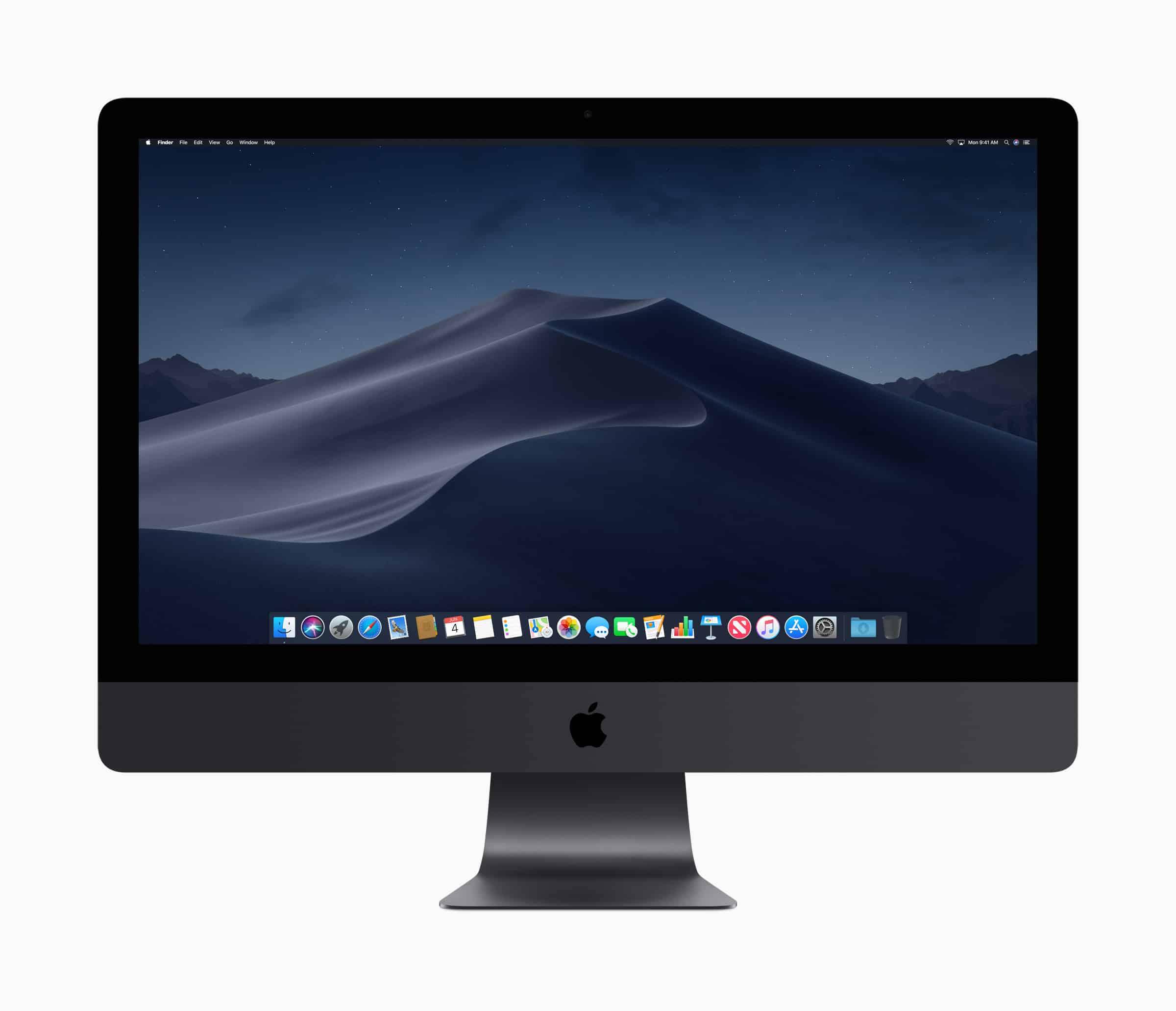
YouTube in Safari on iMac Pro
It’s easy to give YouTube a kick up the backside.
Photo: Apple/Cult of Mac

Have you ever wondered why YouTube is so much slower than all the other websites you visit in Safari? Did you know that you could make it up to five times faster with very little effort?

YouTube’s new design doesn’t play nicely with browsers that aren’t Google Chrome, but with some simple tweaks, you can switch back to its previous design and enjoy much faster speeds.

Here’s how.