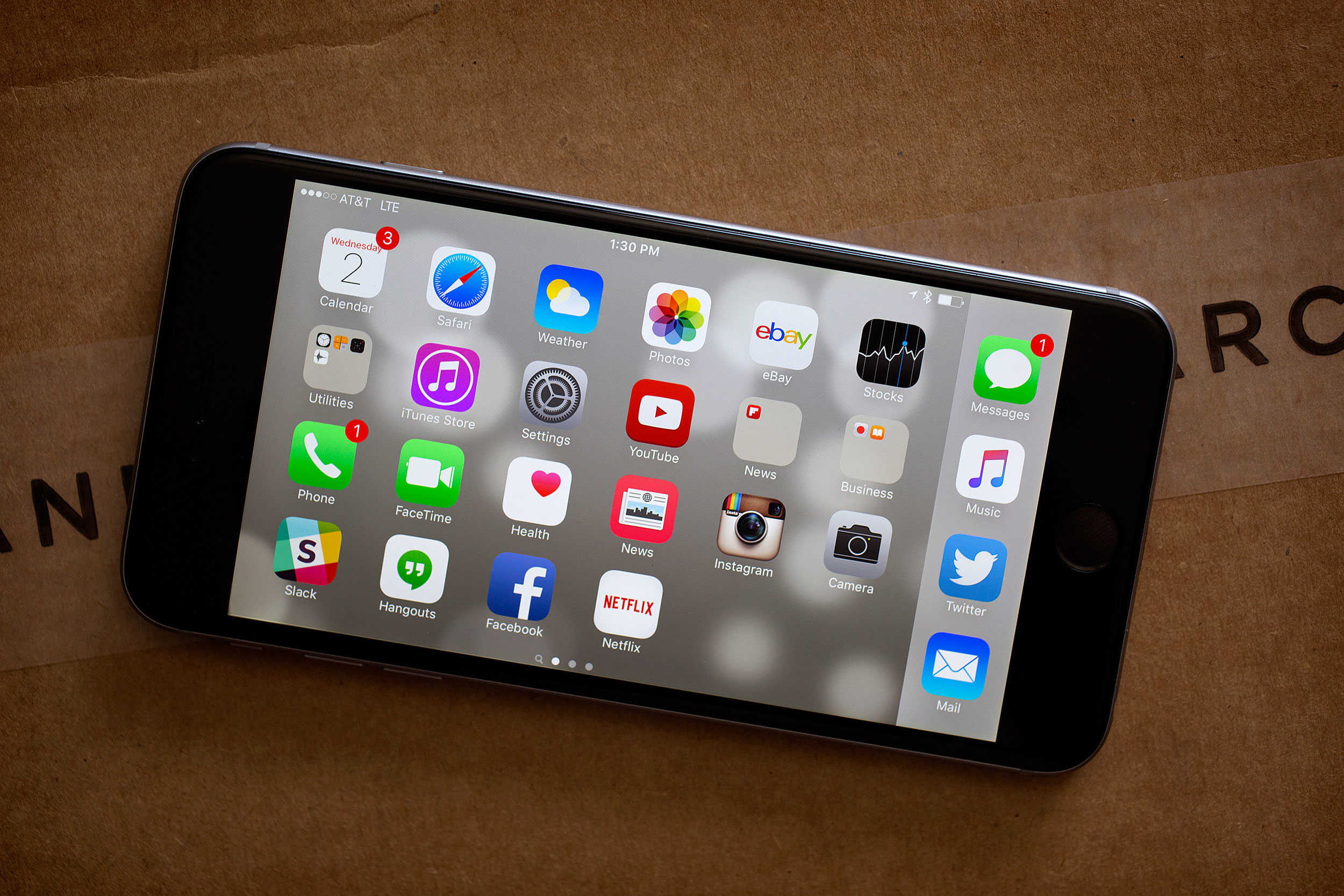
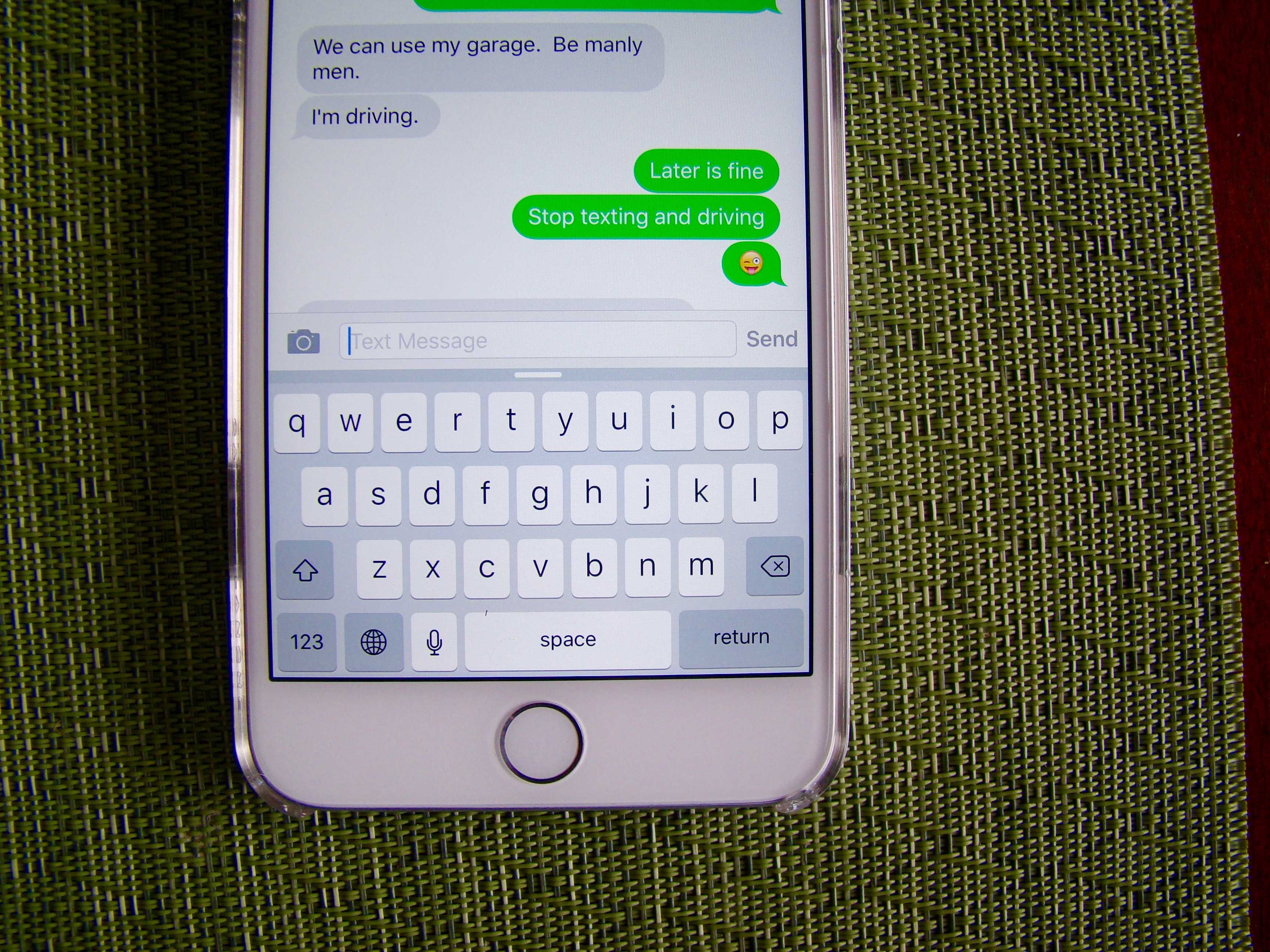
Do we really need lowercase? No. Photo: Rob LeFebvre/Cult of Mac
I can’t stand the new lowercase keyboard in iOS 9. It’s a fairly useless change to begin with, as it doesn’t make anything easier.
Sure, it shows whether you’ve pressed the Shift key or not, but the new Shift key is also improved, making the lower-case option aesthetic rather than functional.
So, if you’re like me, here’s how to put that keyboard back to the way it “should” be.
You did back everything up, right? Photo: Jim Merithew/Cult of Mac
Some users trying to upgrade to iOS 9 this week have run into a serious problem: After the download happens, they find themselves stuck on the “Slide to Upgrade” screen upon restart. This bug renders their iPhones unusable, which is about the least useful state for an iPhone to be in.
But Apple has noticed, and it’s offering a fix. Here’s what you do to fix the annoying Slide to Upgrade bug.
Keep your dirty words out of the Notes app. Photo: Jim Merithew/Cult of Mac
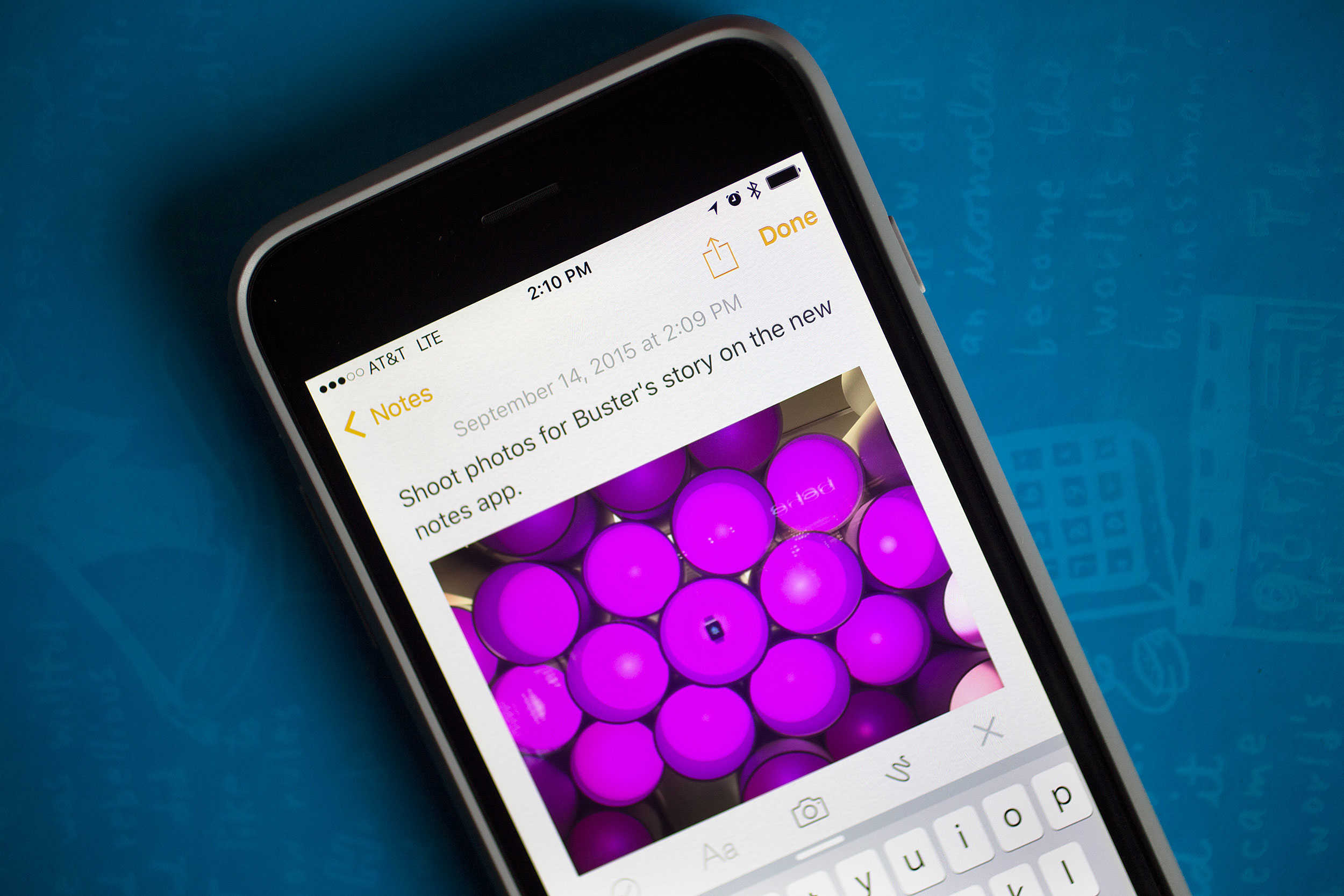
The busier my life gets, the more disorganized I become. I fumble for a notepad when I’m out and want to get someone’s phone number. I think of get short story ideas when I’m in the shower, and I have tons of books and movies I want to get (usually when I’m broke). Don’t get me started on shopping lists. Who has time to write those out?
My digital life is just as disorganized. There are web links to save, photos of stuff I want to share with friends, and notes I need to refer to while writing articles on the web. They’re each in their own separate apps or websites, making pulling everything together a pain.
Notes in iOS 9 solves this dilemma by allowing us all to keep all our photos, notes, shopping lists in the one place we’re most likely to find it: on our iPhones.
Better yet, you can dictate an idea for your next screenplay right out of the shower, then pick up your iPad when you get to work and resume it right there.
Here’s how to get the most out of your new Notes app, and never be disorganized again.
Best Buy is preparing for shoppers wanting iPads. Photo: Apple
If you want to use the new gee-whiz features of iOS 9, like Picture in Picture to FaceTime with your significant other while you write a paper in Pages, or you want to Slide Over a Twitter app to keep track of all the goings on while you surf the web, you’re going to need a newer device.
However, all is not lost if you have an older device. Most of the power of iOS 9 is under the hood, making even older devices just a little more battery efficient, just a bit more useful.
How will we express this emotion?! Photo: Evan Killham/Cult of Mac
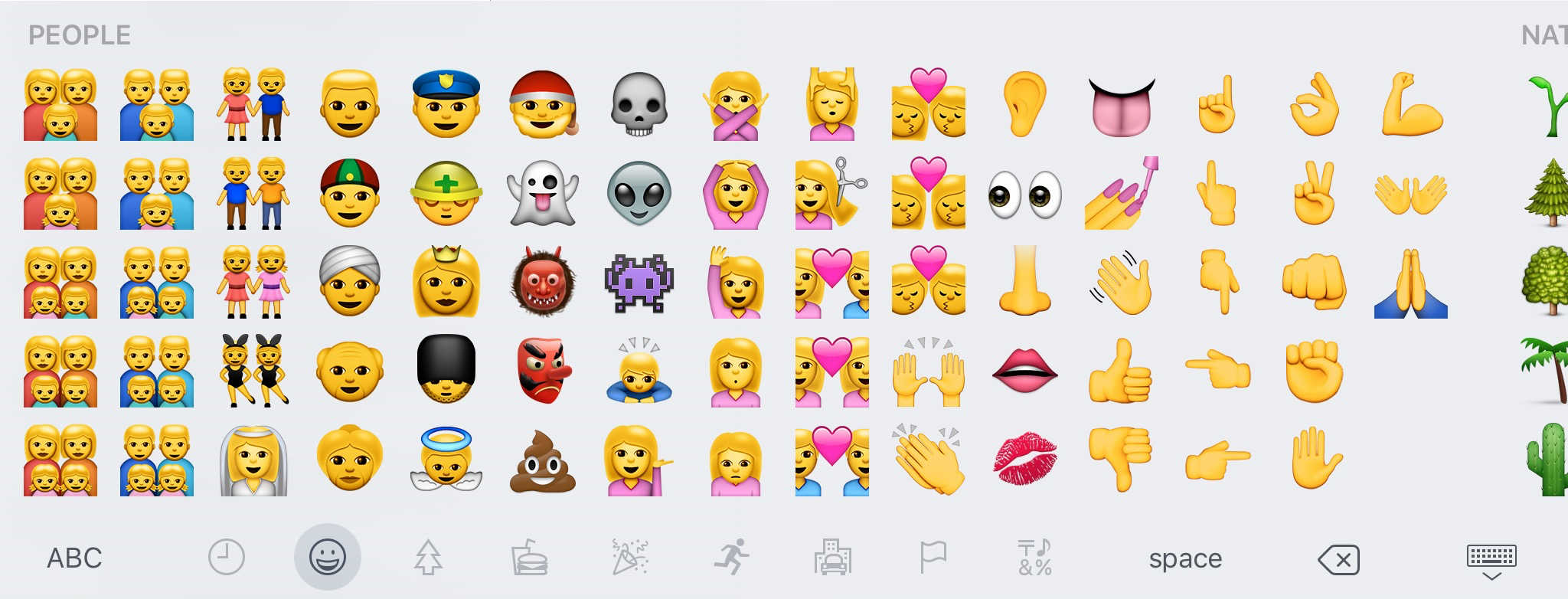
Some iPhone and iPad users upgrading to iOS 9 today have been looking forward to expressing their love of tacos, burritos, and unicorns — and their disdain for everything else — using the much-touted new emojis, which include the coveted and versatile “middle finger” icon.
But unfortunately for those folks, we’re going to have to wait a little longer to start flipping things the bird.
Silentium (left) and Purify, two great content blockers for iOS 9. Photo: Rob LeFebvre/Cult of Mac
iOS 9 includes a new feature that desktop users have had for a while: content blocking. More conventionally known as ad blockers, this software cuts out all the advertisements and other cruft from web pages, allowing faster load times and a more streamlined experience.
Of course, most websites you read these days (including Cult of Mac!) rely on advertising to keep the lights on.
Luckily for all of us, most new content blockers let you whitelist specific sites so you can continue to help them pay their bills.
iOS 9 is loaded with new features. Here's how to use them. Photo: Jim Merithew/Cult of Mac
We’re all going to be diving into the deep end with iOS 9. While many of the changes are subtle, there are a fair number of differences in both the visual style and the under-the-hood workings of Apple’s new mobile OS.
That means this a perfect time to take a deeper look at all the killer stuff you don’t want to miss. These iOS 9 tips will help you make the most of all the great new features.
Back up everything you can before you try to upgrade to iOS 9, OK? Photo: Jim Merithew/Cult of Mac
When you back up your iPhone before upgrading to iOS 9, you have a couple of choices. You can use iCloud or iTunes.
For your best, most comprehensive backup, connect your iPhone (or iPad) to iTunes. Seriously, iTunes backs up almost everything — and it’s your best bet for downloading iOS 9 when the upgrade becomes available today.
Can't wait for all the new Watch stuff? Here's how to install watchOS 2. Photo: Jim Merithew/Cult of Mac
Update: Apple has delayed deployment of watchOS 2, possibly for a day or more, after discovering a bug that’s taking longer to fix than expected.
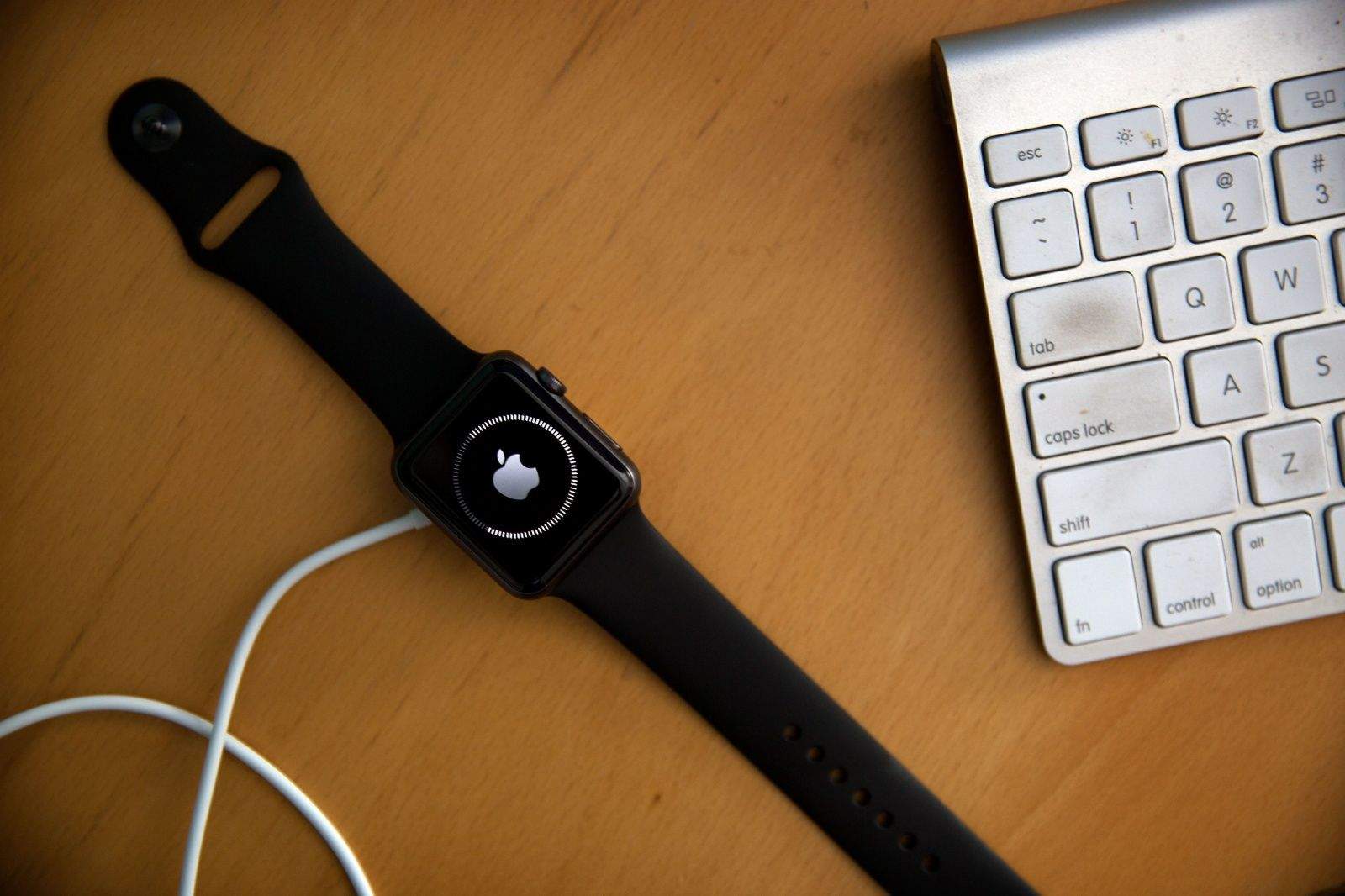
Are you ready? It’s finally time to update your Apple Watch to watchOS 2. The software upgrade will let you run third-party apps right on the Watch without your iPhone, add nightstand mode and new watch faces (including your own photos), and much more.
If you’re ready to make it so, read on and get all these new features on your wrist today.
This action plan will ensure your iOS 9 upgrade is buttery smooth. Photo: Jim Merithew/Cult of Mac
Whether you’re getting a new iPhone 6s or not, you’re going to want to upgrade to iOS 9 to take advantage of everything Apple’s new mobile operating system has to offer.
iOS 9 is ready to revolutionize your mobile life, but there are a few things you should do before making the leap. Here’s how to get your iPhone (or iPad) ready for its iOS 9 upgrade — the right way.
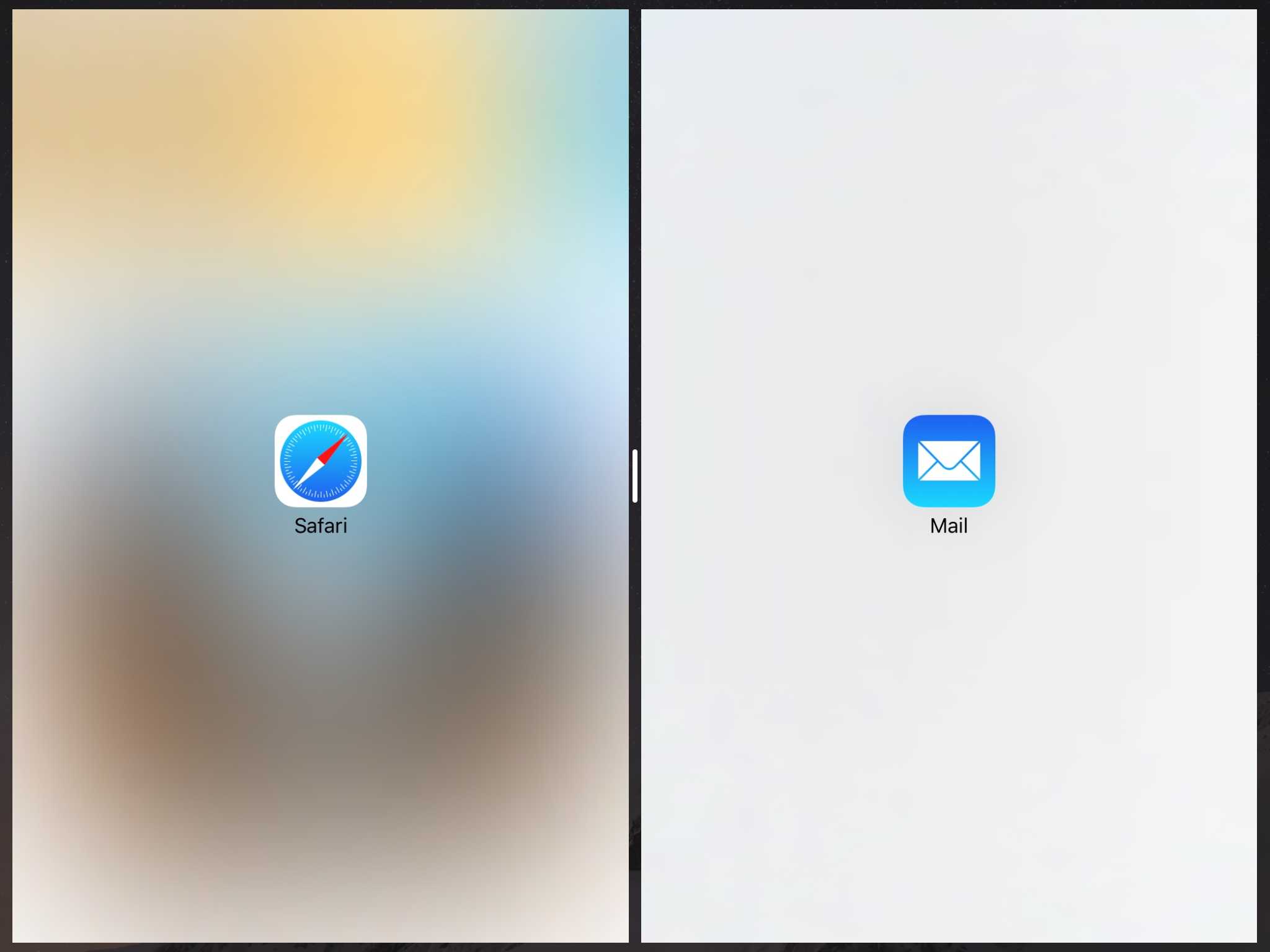
Imagine working on a sketch with a reference photo right next to it, or writing a paper while copying citations from an iBook. Or, heck, running YouTube in Safari while writing a post about Split View on the iPad (hypothetically).
iOS 9 brings this multitasking joy to your iPad, provided you have the latest and greatest iPad Air 2, since it’s the only device that can currently manage the power needed to run such a double screen.
So the next time you need to FaceTime with your boss in San Francisco but still take Notes on your iPad, you can easily make it happen.
Checking out Maps while browsing the web. Screen: Leander Kahney/Cult of Mac
Our digital lives are busy. We send iMessages while we’re browsing the web, type in phone numbers and addresses while FaceTiming, and bounce between apps on our Macs constantly.
Now, with iOS 9 and a modern iPad, you can quickly browse the web, respond to a text message, or jot something down in a note, then slide that app away so you can focus on your original app.
This feature, called Slide Over, is going to make using your iPad a lot more fun and useful.
Here’s how to make it happen, assuming you have an iPad Air, iPad Air 2, iPad mini 2, or iPad mini 3.
Your old iPhone is far from worthless. Photo: Rob LeFebvre/Cult of Mac
If the rumor mill has it right, new iPhones are right around the corner. But that doesn’t mean you should relegate your current model to the junk drawer once you trade up: You can turn your old iPhone into money in one of several ways.
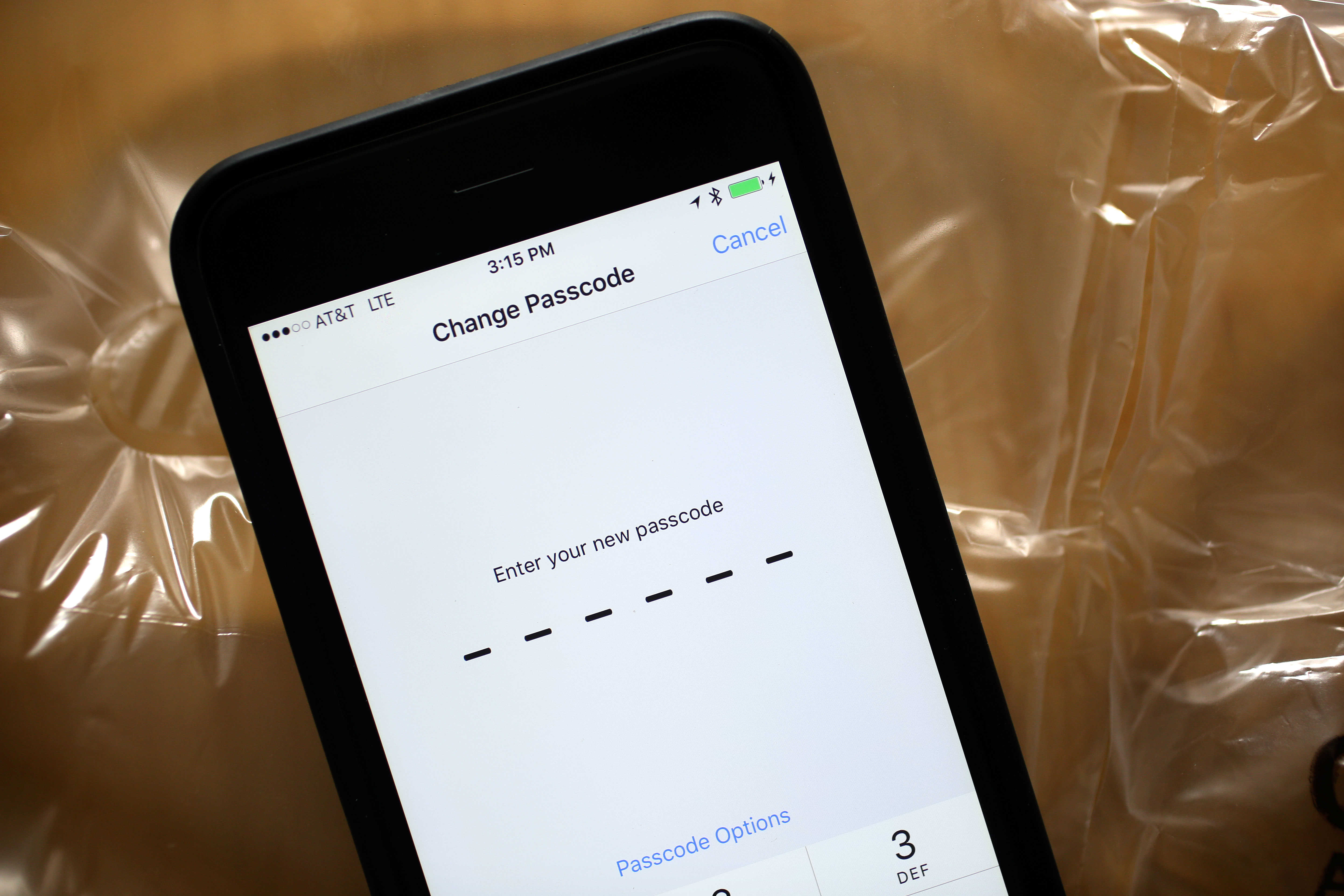
We’ve all been using a passcode to secure our iPhones and iPads since forever, right? You’ve had the option to use an alphanumeric passcode since iOS 7, but if you chose to use a simple numeric code, you were limited to four digits.
Not anymore! Apple added the ability to use a six-digit passcode in iOS 9, and this quick settings tweak will make your iPhone or iPad far more secure.
You can save yourself from headaches with this subtle new iOS 9 feature. Photo: Rob LeFebvre/Cult of Mac
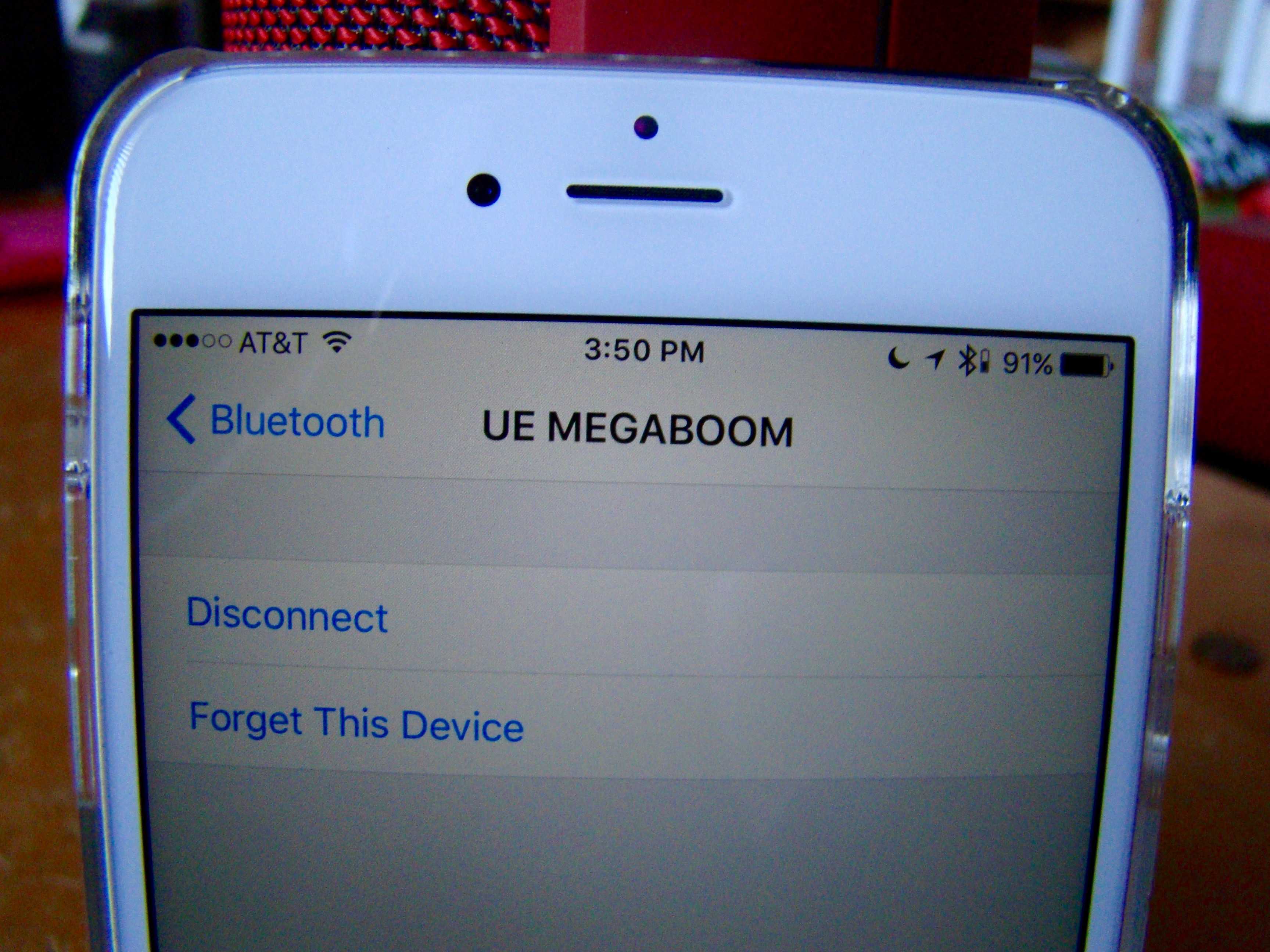
Finally! Apple has added a small yet incredibly useful feature to the way iOS 9 handles Bluetooth devices.
In the past, you’d have to drop into the Bluetooth settings, tap on an offending Bluetooth device, and tell your iPhone or iPad to Forget the device, just to re-pair it or use the built in speakers. I can’t tell you how much time I’ve spent doing that, especially when I get a call while connected to a speakerphone-capable audio device; I have a lot of Bluetooth speakers.
Now however, Apple’s added a little extra so you can disconnect from a Bluetooth device instead of Forget it entirely, making it much easier to, say, stop using a specific speaker and return to your iPhone’s built-in speaker.
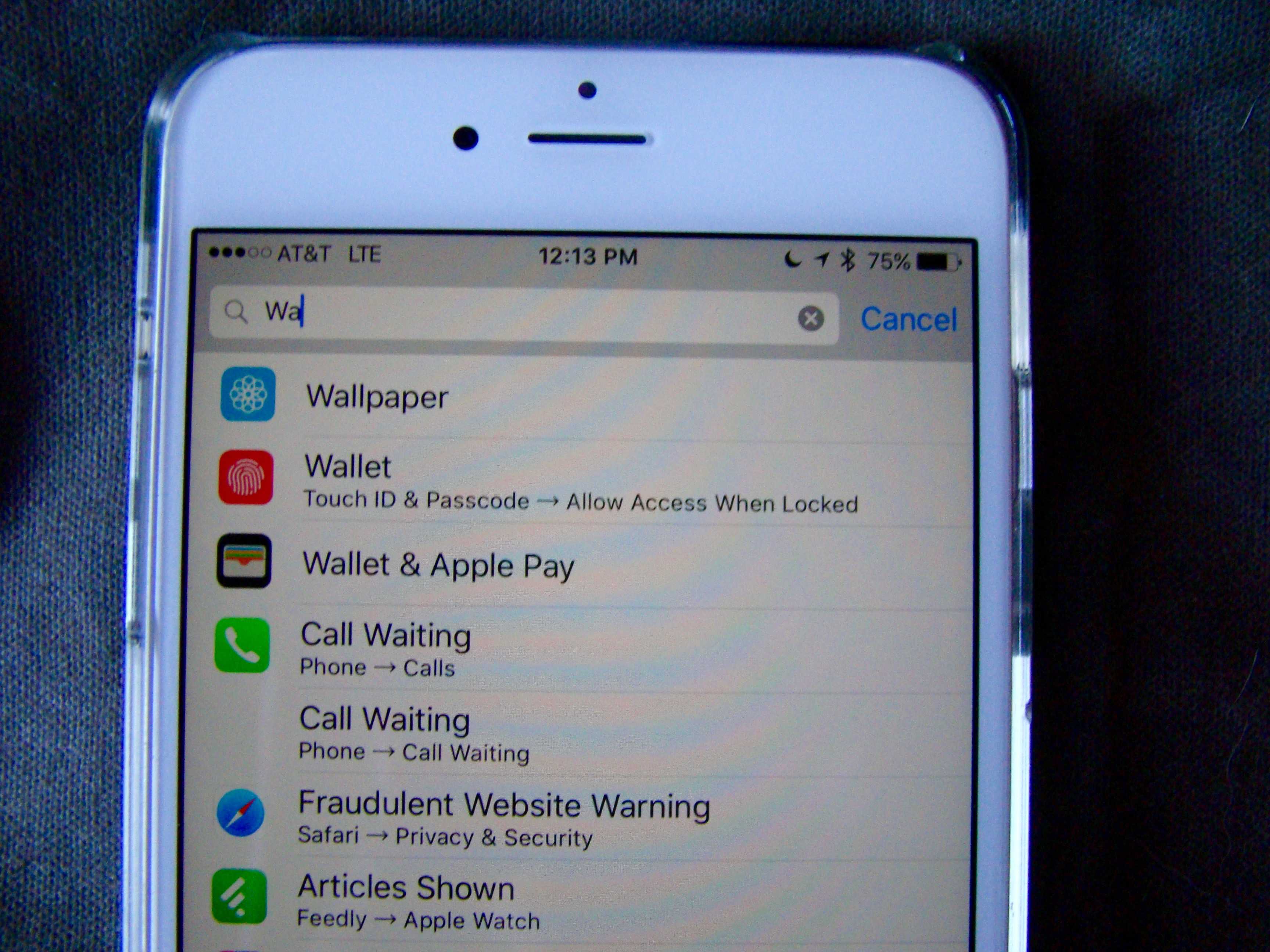
iOS has so many settings in one app, it’s kind of ridiculous.
Whether you want to change preferences for an app or the operating system itself, a trip to the crowded Settings app can often be a frustrating experience.
iOS 9 — still in beta — has a solution for that information overload though: Search.
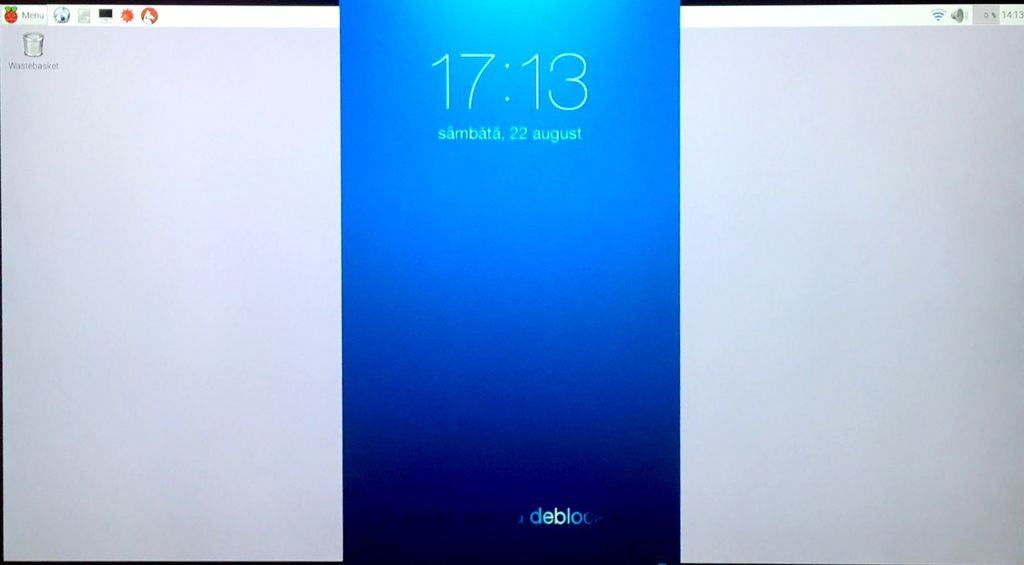
Any Raspberry Pi can run AirPlay. Here's how. Photo: Instructables
Although it looks like Apple is about to turn the Apple TV into a PlayStation-killing video game console, it’s not the indisputable king of the hill of streaming media boxes right now. Roku, Fire TV, Chromecast … all have their advantages over the Apple TV except for one killer feature: AirPlay Mirroring, which allows the Apple TV to stream anything running on your iPhone, iPad or Mac.
If you don’t have an Apple TV, you can’t use AirPlay Mirroring, right? Actually, you can — as long you have a Raspberry Pi.
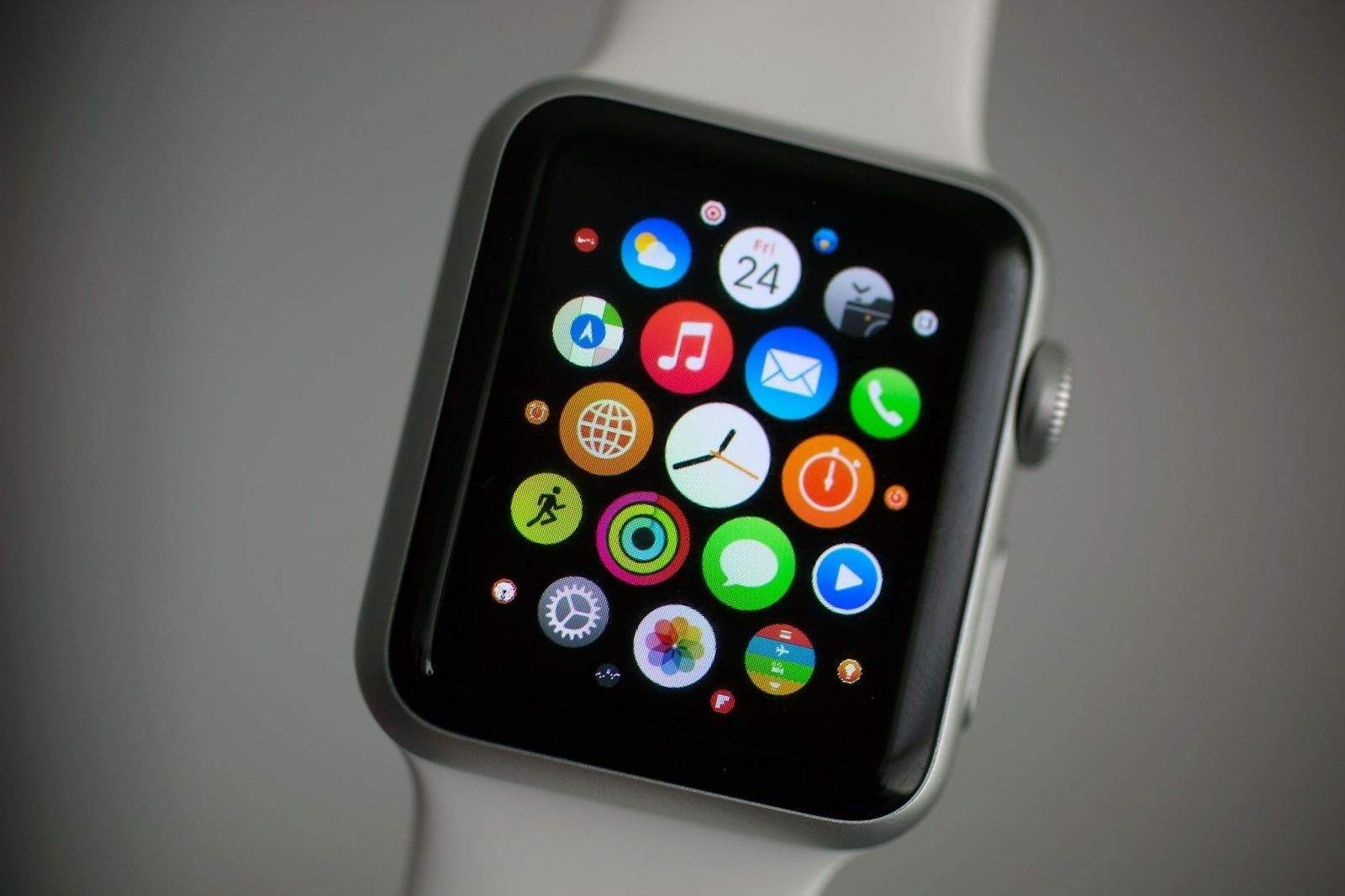
The Alarm Clock app is in there somewhere ... Photo: Jim Merithew/Cult of Mac
We love how easy it is to set up an alarm from the Apple Watch. All you have to do is say, “Hey Siri, wake me up at 7 a.m.,” and the digital assistant will put that order in for you.
But this comes a slight inconvenience: What happens to alarms after you’re done using them? Well, if you’re like me, you just turn them off to stop the horrendous buzzing on your wrist and then forget about them. But it doesn’t have to be that way.
Here’s how to clear off all of those old, unused alarms with a quickness.
There they are! Hello, contacts! Screen: Rob LeFebvre/Cult of Mac
iOS 8 introduced the idea of showing your most-contacted contacts in the multitasking screen. You’d simply double click on the Home button to see the list of the most recent apps as well as a row of the folks you contacted the most across the top.
If you’re looking for that feature in iOS 9, you might have noticed that the contacts are no longer in the multitasking screen. Never fear, though, they’ve just moved.
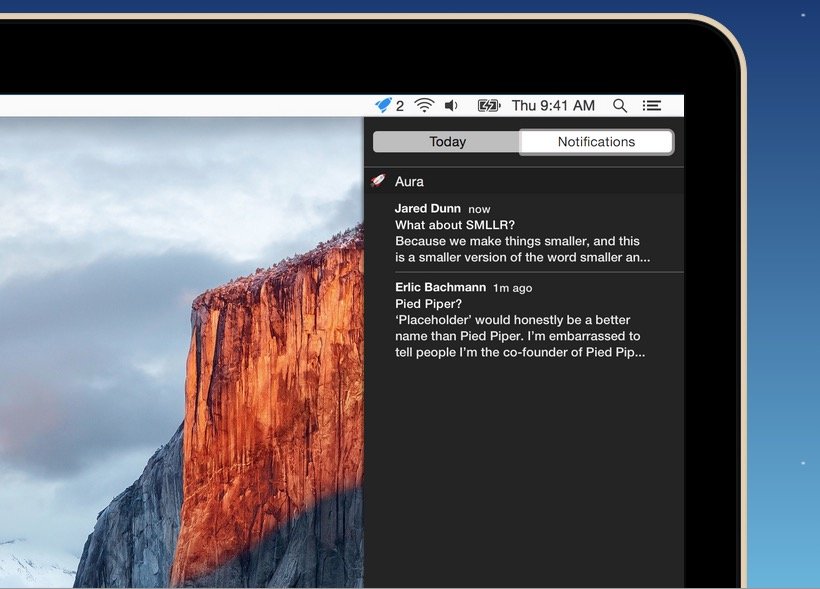
You can use Gmail's web app and get Notifications in OS X with Aura. Photo: Cross Coded
If you use Gmail – and let’s face it, most of us do – one of the biggest draws of using an external app, like OS X Mail, is being able to get Notifications when new emails arrive. Unfortunately, many email apps don’t support Gmail’s best features natively, like labeling, search or automatically filtered inboxes.
If you’d like to get Notifications when a new Gmail comes in, but continue to use the Gmail web app instead of a dedicated client, here’s how.
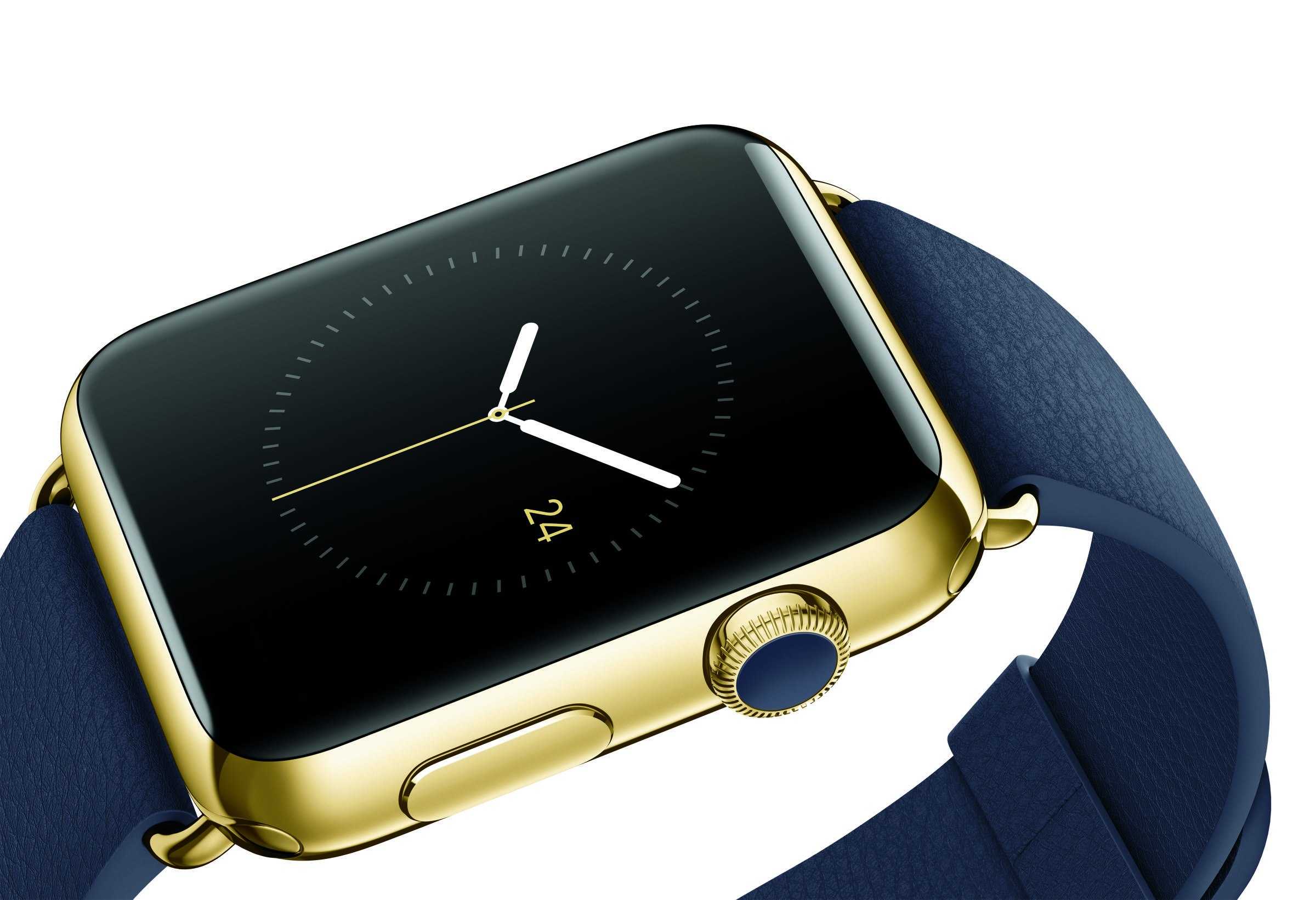
Here's how to put the tap back into "taptic." Photo: Apple
Taptic feedback on the Apple Watch felt a little weird at first, but we’ve come to love its gentle nudges to let us know something is going on. But some Cult of Mac staffers have noticed that after time, the taptic feedback has started to feel not so … tappy anymore.
If you’re having this problem, here are a couple quick and easy ways you can try to put the pep back on your wrist.
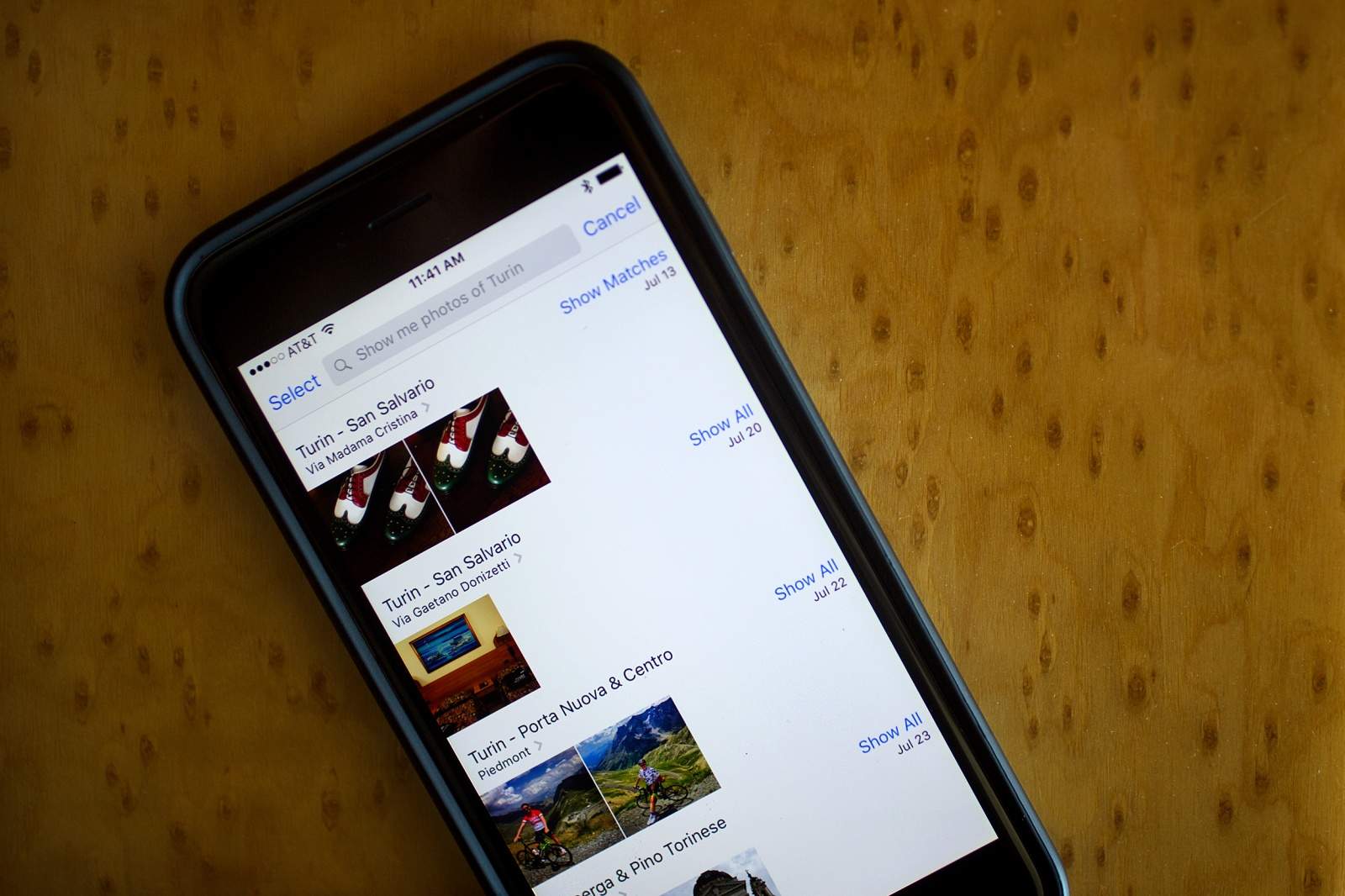
In previous versions of iOS, finding your photos was a bit tricky, especially as you started to amass them in the thousands, what with having a high-quality camera in your pocket at all times.
In iOS 9, currently in public beta, the Photos app has gotten a new way to find the photo you’re looking for amidst the haystack of your Photo Roll. Here’s how to use this new feature.
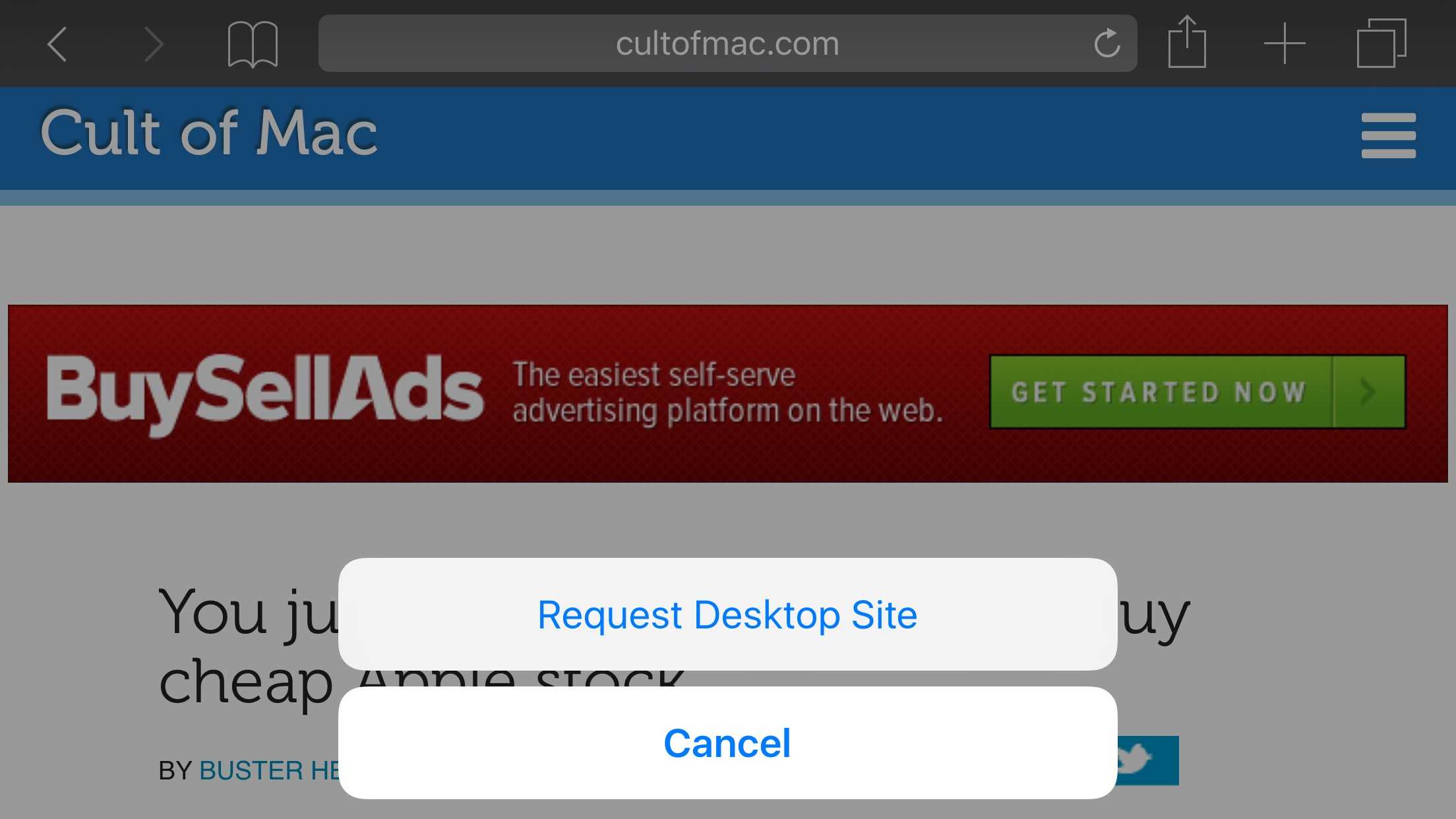
New Safari feature will come in handy. Screen: Rob LeFebvre/Cult of Mac
Using the mobile web is an uneven affair in terms of what you’ll see once your little blue progress bar slides across the page to let you know your page has loaded.
Some sites give you a crippled version of the original, making sure you can’t find any information on them at all. Looking for a tiny link to load the desktop site can be an exercise in frustration.
iOS 9, currently in public beta, has an answer to this issue baked right into Safari. Here’s how to make it happen.
 I can’t stand the new lowercase keyboard in iOS 9. It’s a fairly useless change to begin with, as it doesn’t make anything easier.