For designs that can't be missed. Image: Killian Bell/Cult of Mac
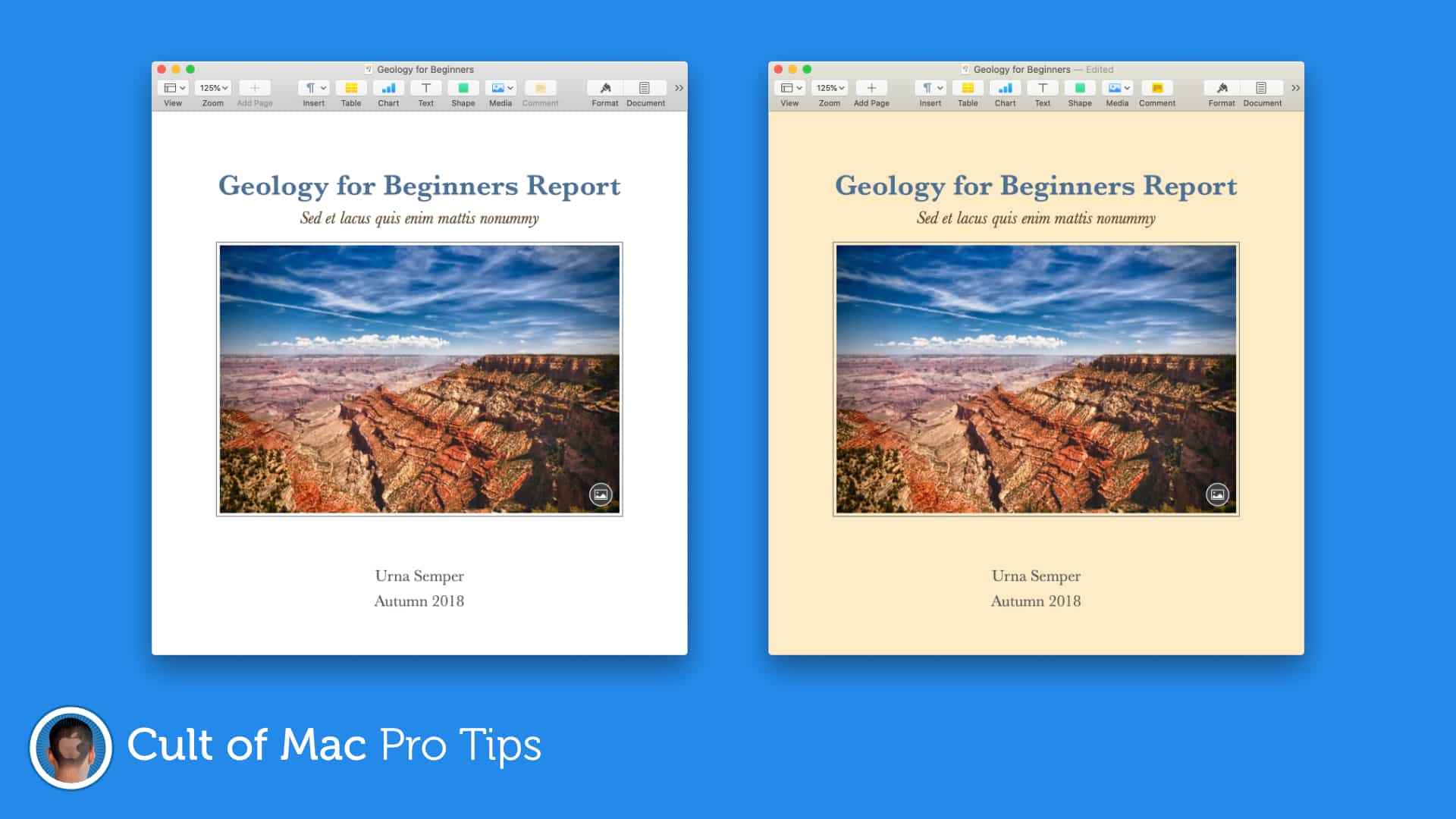
Make posters and invitations with more eye-catching designs by setting color, gradients, or images as your document background in Pages. It’s a super-simple trick that can make a big difference. Find out how in this pro tip.
Don't settle for subpar noise cancellation. Image: Killian Bell/Cult of Mac
Active noise cancellation is one of the big selling points of AirPods Pro, so you probably expect it to actually work after you’ve splashed out $249. But if you’re running into noise cancellation problems, there are ways to fix them.
No more sending documents back and forth. Image: Killian Bell/Cult of Mac
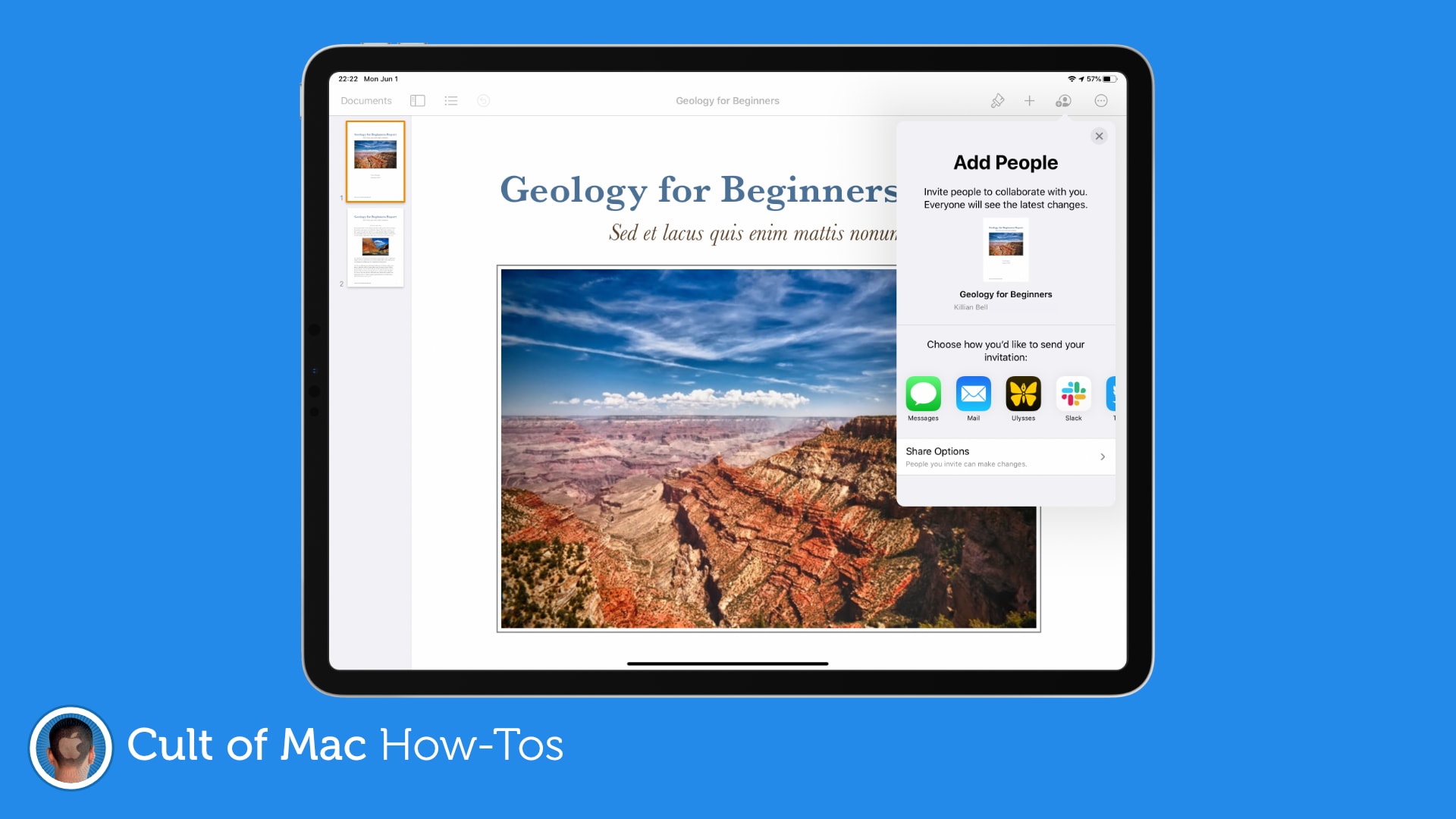
Working from home can make collaboration a little more difficult, but not if you’re using Pages on a Mac or iOS device. The ability to collaborate with others online is now built-in, and it’s surprisingly easy to take advantage of.
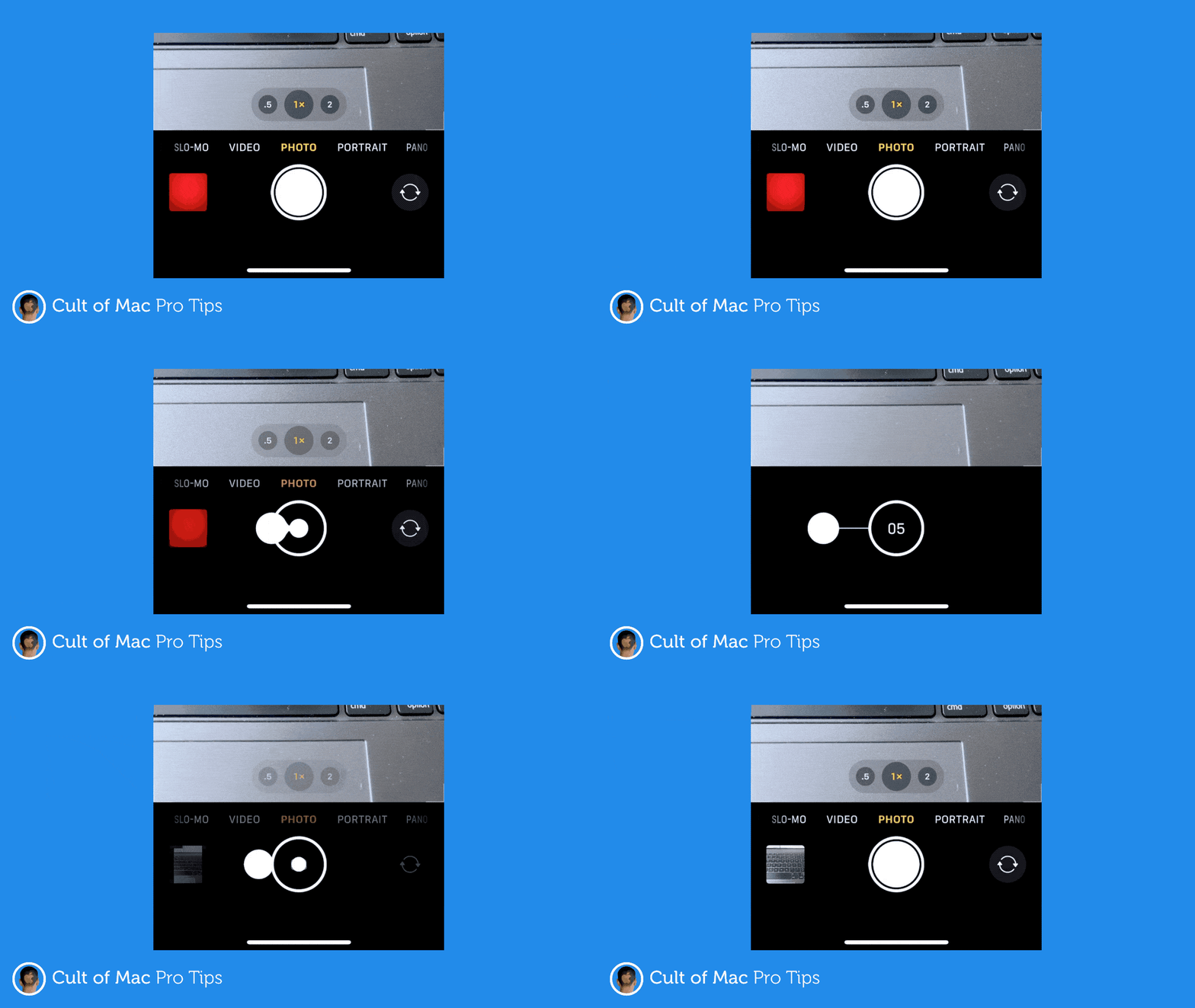
Apple took away the ability to hold down the Camera app’s shutter button to capture burst photos in iOS 13, but the functionality is still alive and well. You just need to know this sweet trick to use it.
No need to change any settings. GIF: Killian Bell/Cult of Mac
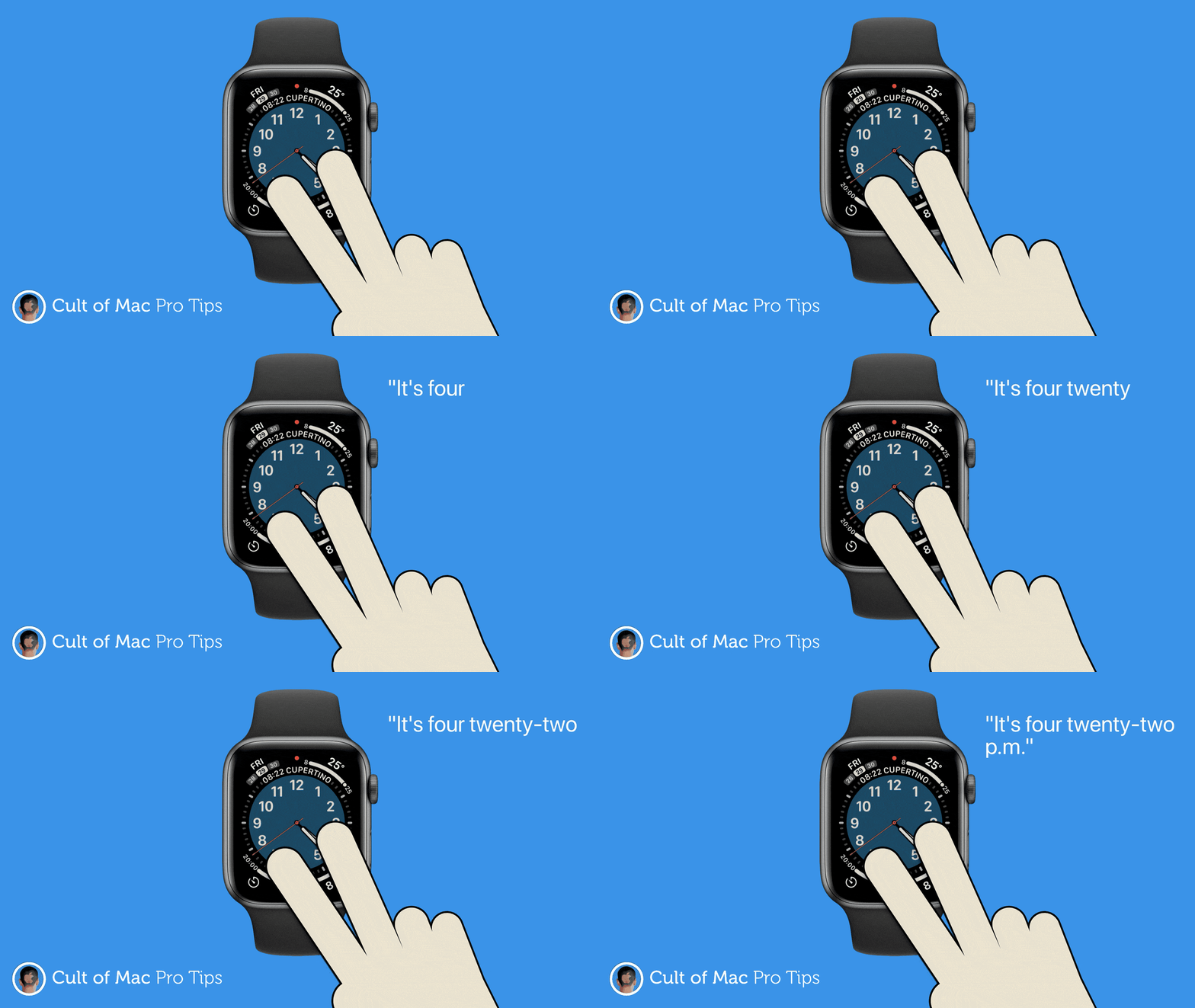
You don’t need to be using a Disney face to get your Apple Watch to tell you the time. Using a simple tap gesture, you can have the time read to you while using any watch face. Find out how in this Apple Watch pro tip.
Fall detection on Apple Watch can be a real life-saver for those who are unsteady on their feet, but it isn’t enabled by default (unless you’re 55 or over). Here’s how to activate it on Apple Watch Series 4 or later.
A new wallpaper is like a new phone ... kind of. Photo: Youssef Sarhan
Tired of seeing the same old Home screen on iPhone and iPad? You don’t really want to move around all your apps because then you’ll have to get used to finding them again. Instead, treat yourself to a fancy new wallpaper.
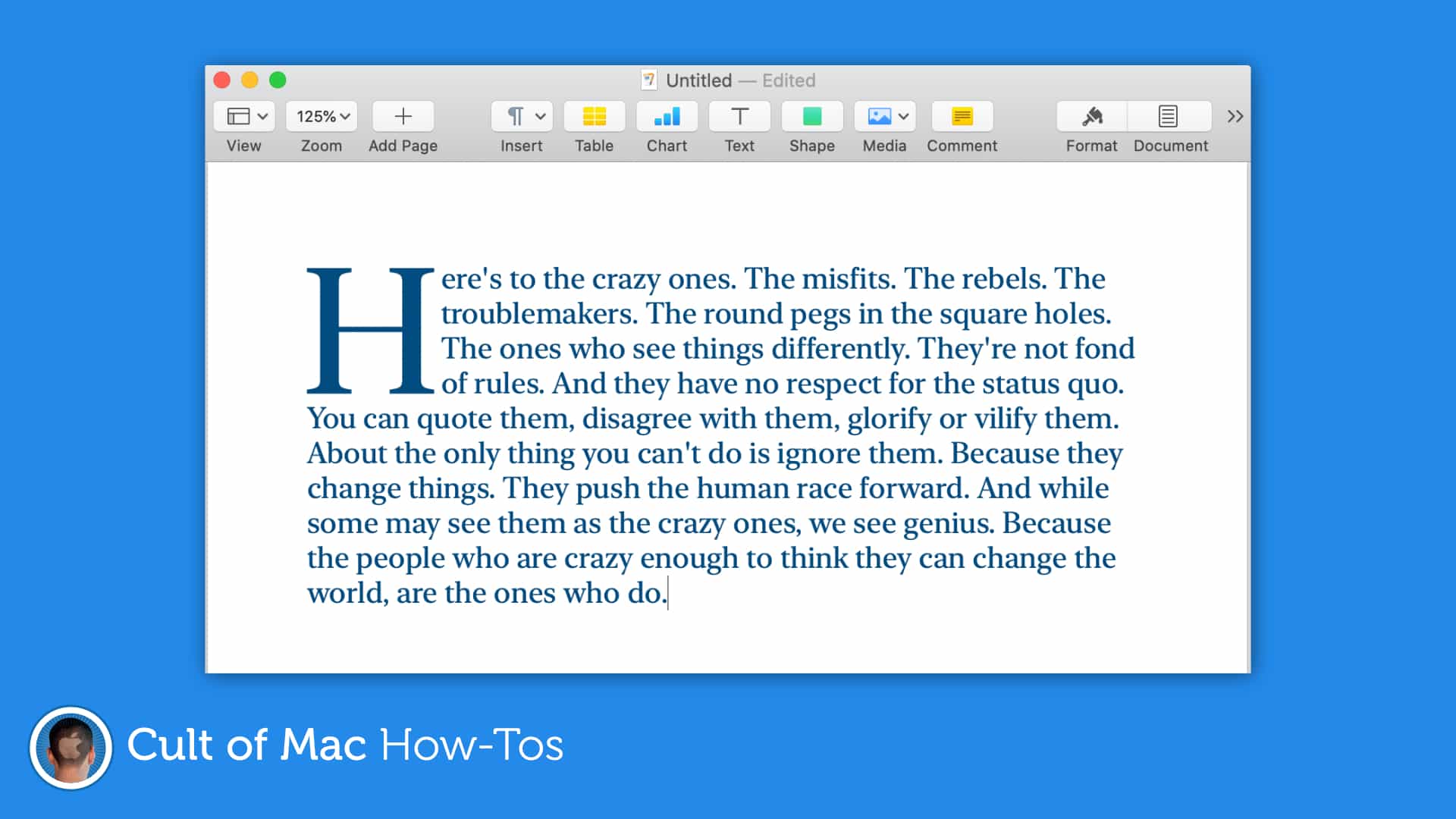
Drop caps can make almost any document look better. Image: Killian Bell/Cult of Mac
Create documents that grab a reader’s attention by taking advantage of the newly-added drop cap tool in Pages for Mac and iOS. It’s easy to use and offers a whole bunch of customizations options.
Apple’s newest macOS update makes it easier than ever to check MacBook battery health, and to prolong its lifespan. In this pro tip, we’ll show you where to find the new battery health features, and how to check the status of yours.
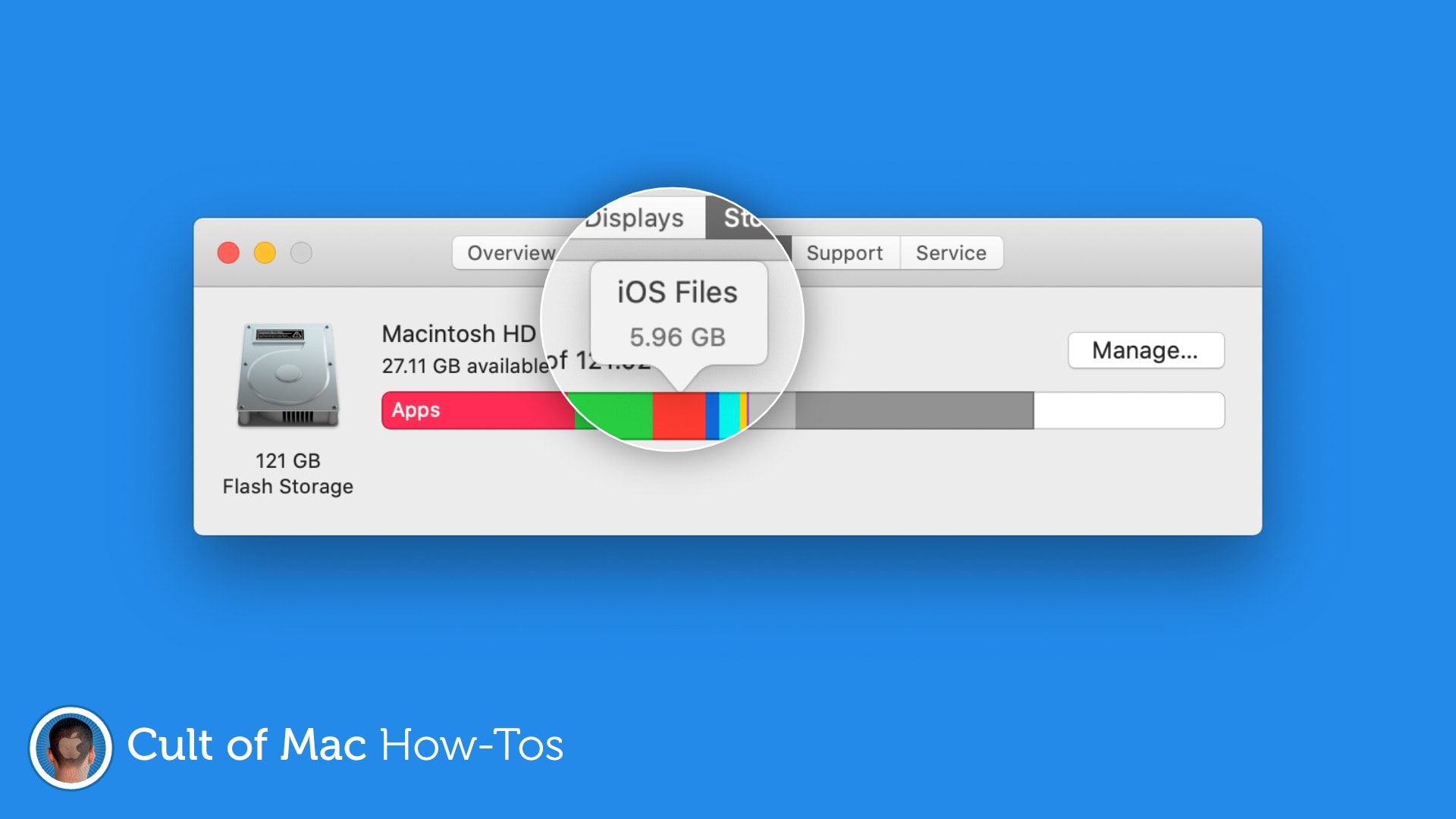
Free up gigabytes of storage space. Image: Killian Bell/Cult of Mac
Are mysterious “iOS Files” taking up gigabytes of precious storage space on your Mac? You may not need them anymore, so we’ve put together a handy how-to guide on removing them with ease.
Here’s how to free up a lot of storage in no time at all.
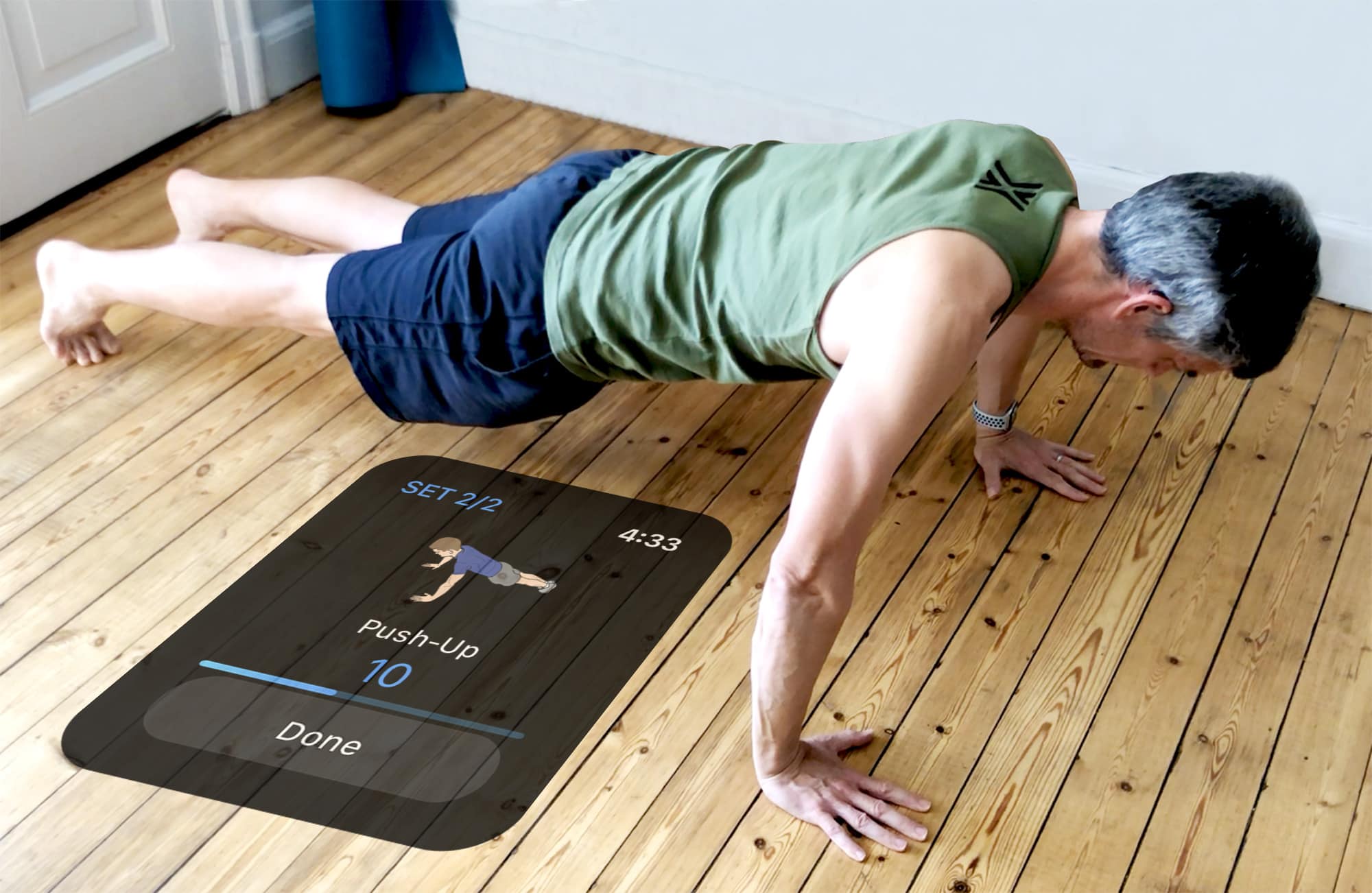
Log push-ups effortlessly with iPhone and Apple Watch Photo: Graham Bower/Cult of Mac
The push-up is one of the world’s most hated exercises. In the movies, Marine Corps drill instructors shout: “Drop down and give me 40” as a punishment.
But the push-up doesn’t deserve its bad reputation. It’s actually a versatile, effective and enjoyable exercise. Better still, you can do it anywhere, anytime, without any special equipment. Which makes it an indispensable part of any quarantine home workout routine.
Here’s how your iPhone and Apple Watch can help you give your push-ups a push in the right direction.
Remember: Always check with your doctor before starting any new exercise activity. Don’t exercise if you feel any discomfort, nausea, dizziness or shortness of breath.
Don't settle for the default CarPlay layout. Photo: Sony
CarPlay makes it safe to use some of your favorite iPhone apps on the road, and by default, anything with CarPlay support will automatically appear in your car. But it doesn’t have to be that way.
Simplify your experience and make CarPlay even easier to use by customizing your layout and ditching apps you don’t need.
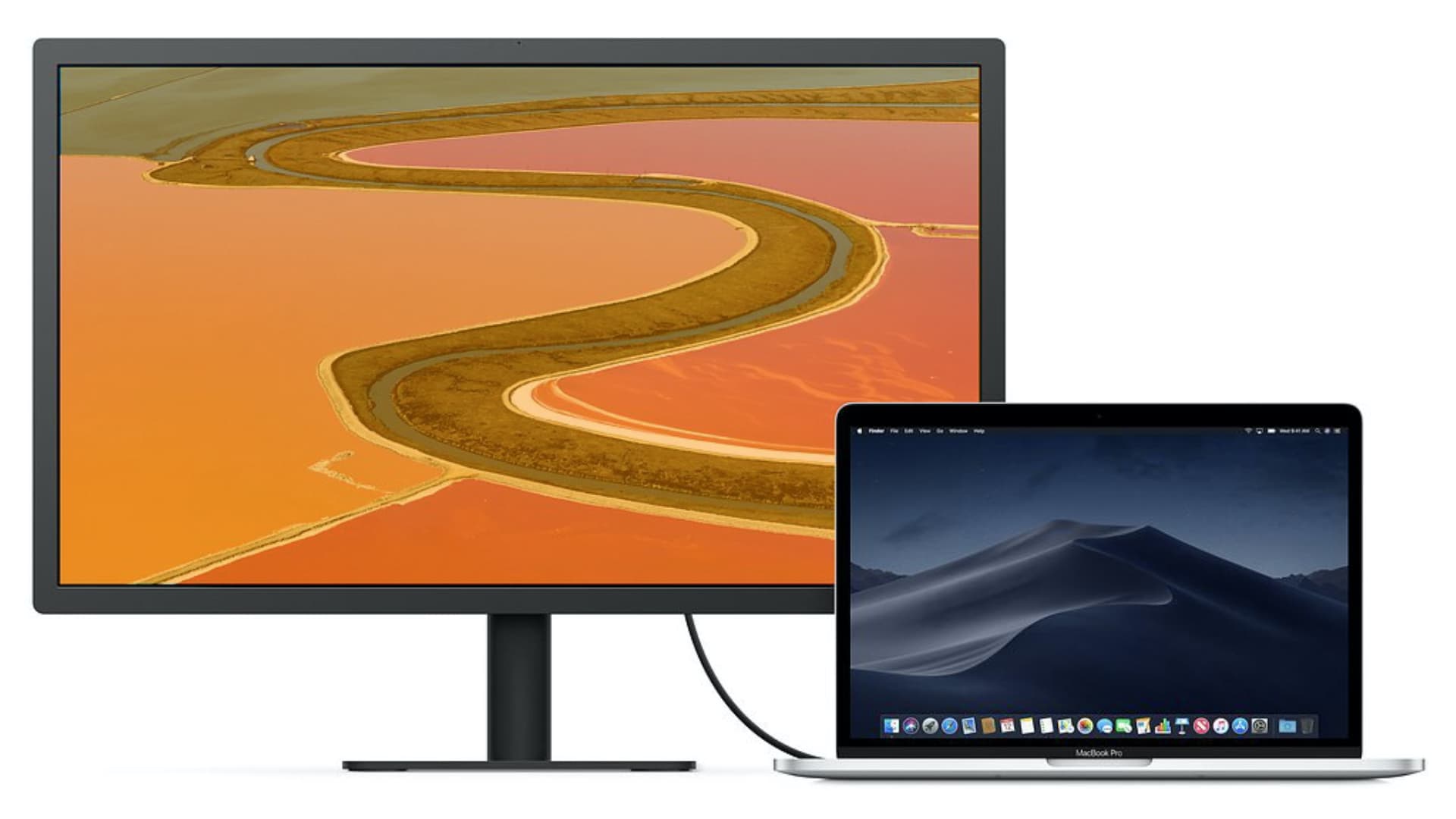
Have you noticed that your external display doesn’t look right when using it with a MacBook Air or MacBook Pro? Is it far too warm, like everything is coated in orange? It’s a common problem, but there’s an easy way to fix it.
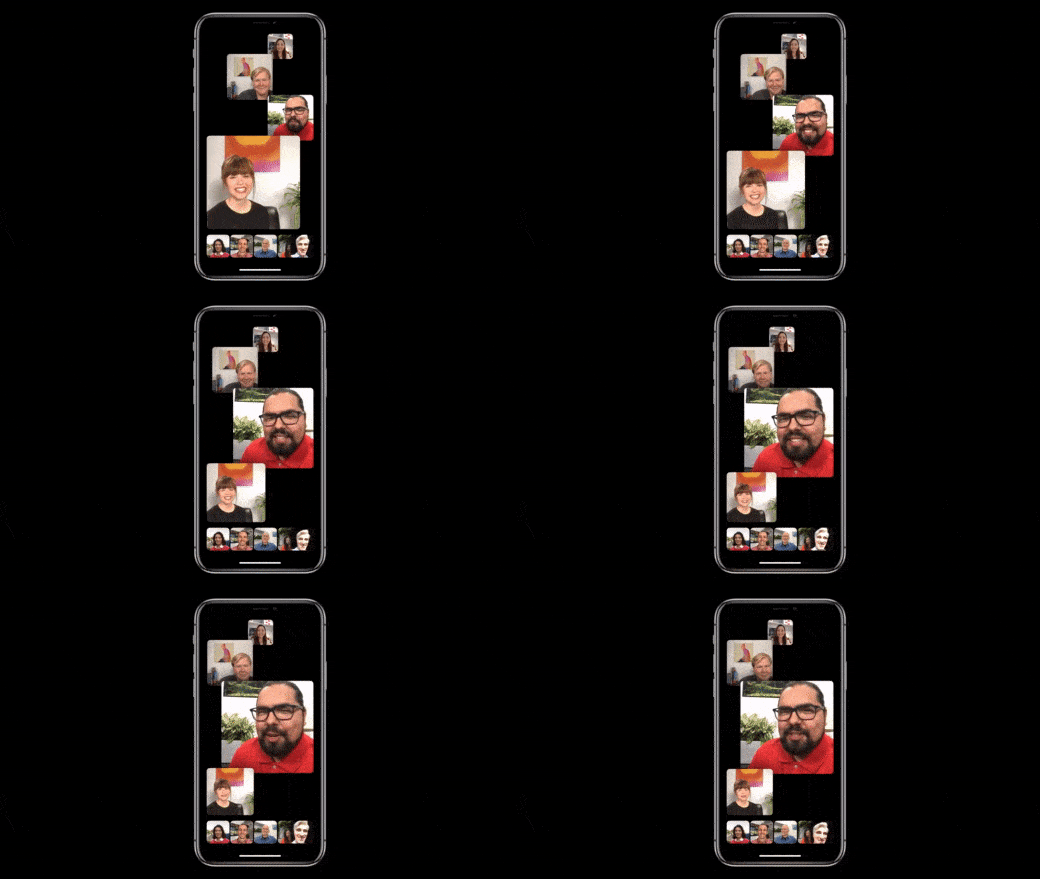
One of the improvements you’ll find inside Apple’s new iOS 13.5 update, rolled out earlier on Wednesday, is the ability to stop people from getting larger or moving around the screen during Group FaceTime calls.
Until Apple steps in with a patch, this should help. Photo: Apple
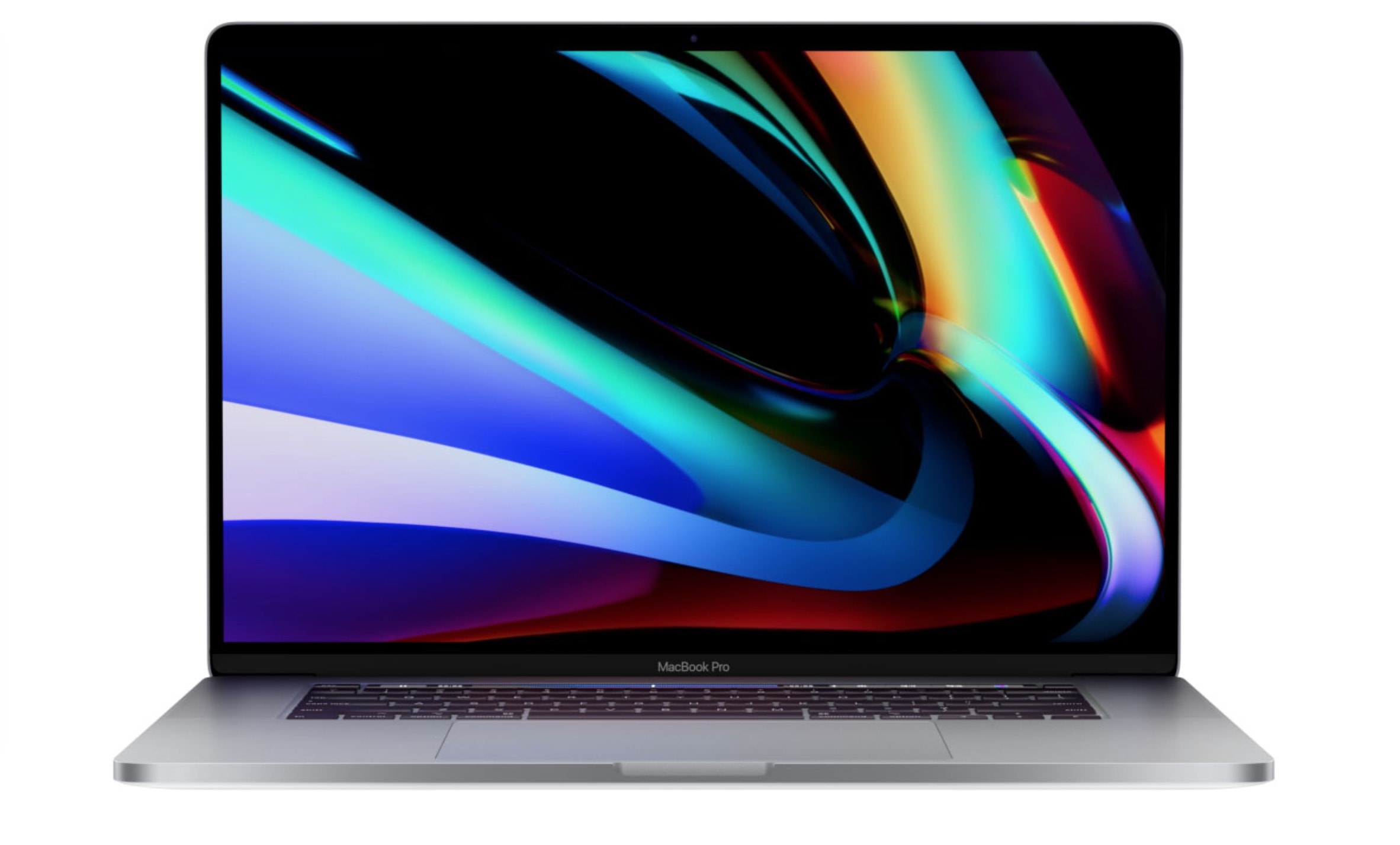
A new bug introduced with Apple’s recent macOS 10.15.4 seems to be causing random restarts for some 16-inch MacBook Pro owners. Apple hasn’t rolled out an official fix yet, but there is a workaround you can use for now.
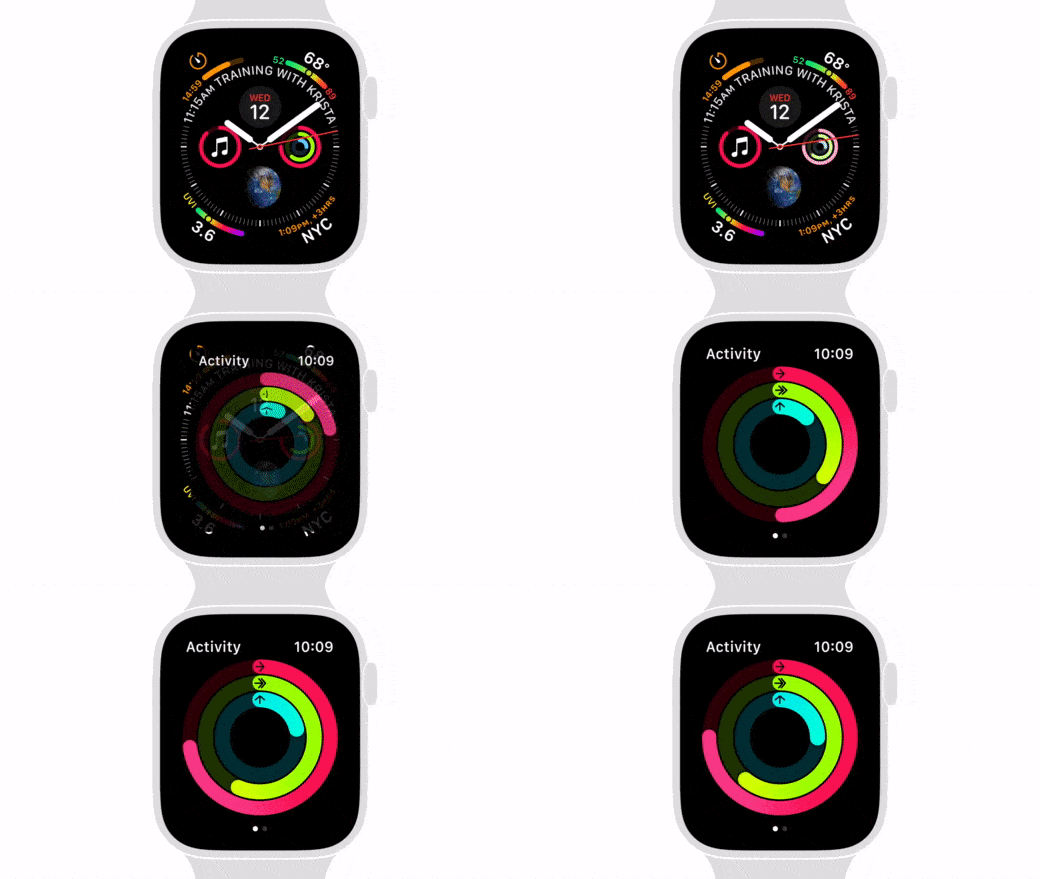
Increasing your Move goal can help you be even more active. Photo: Apple
You might need to exercise a little more if you hope to stay fit while stuck at home for most of the day during a global pandemic. Give yourself a little push by increasing your Move goal on Apple Watch.
It’s easy to do, and if you’re one of the many Apple Watch owners who likes to complete their Move goal every day, it will help you burn a few additional calories to make up for spending most of the day on the couch.
Get an edge in Battle Royale matches. Photo: Killian Bell/Cult of Mac
Did you know that Apple’s latest iPad Pro models can play Fortnite even better than dedicated game consoles? Get an edge in your Battle Royale matches by upgrading to a super-speedy 120 frames-per-second.
A simple change that makes using a mouse or trackpad even better. Photo: Apple
Apple’s brilliant new pointer for iPhone and iPad was built from the ground up to be perfect for touch devices, but there is a way to make it even better. Disable pointer animations and you’ll enjoy an even smoother tracking experience. Here’s how.
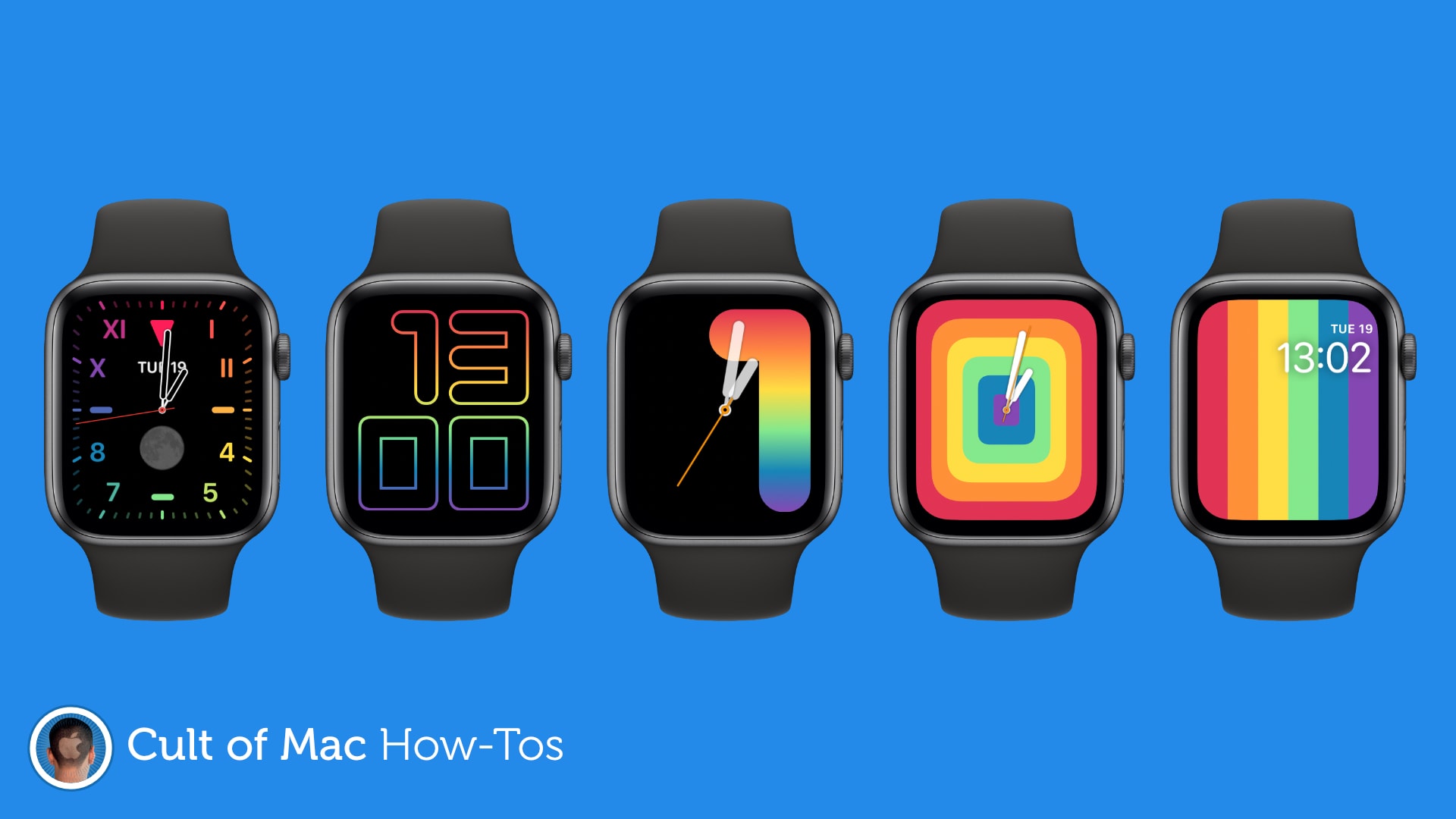
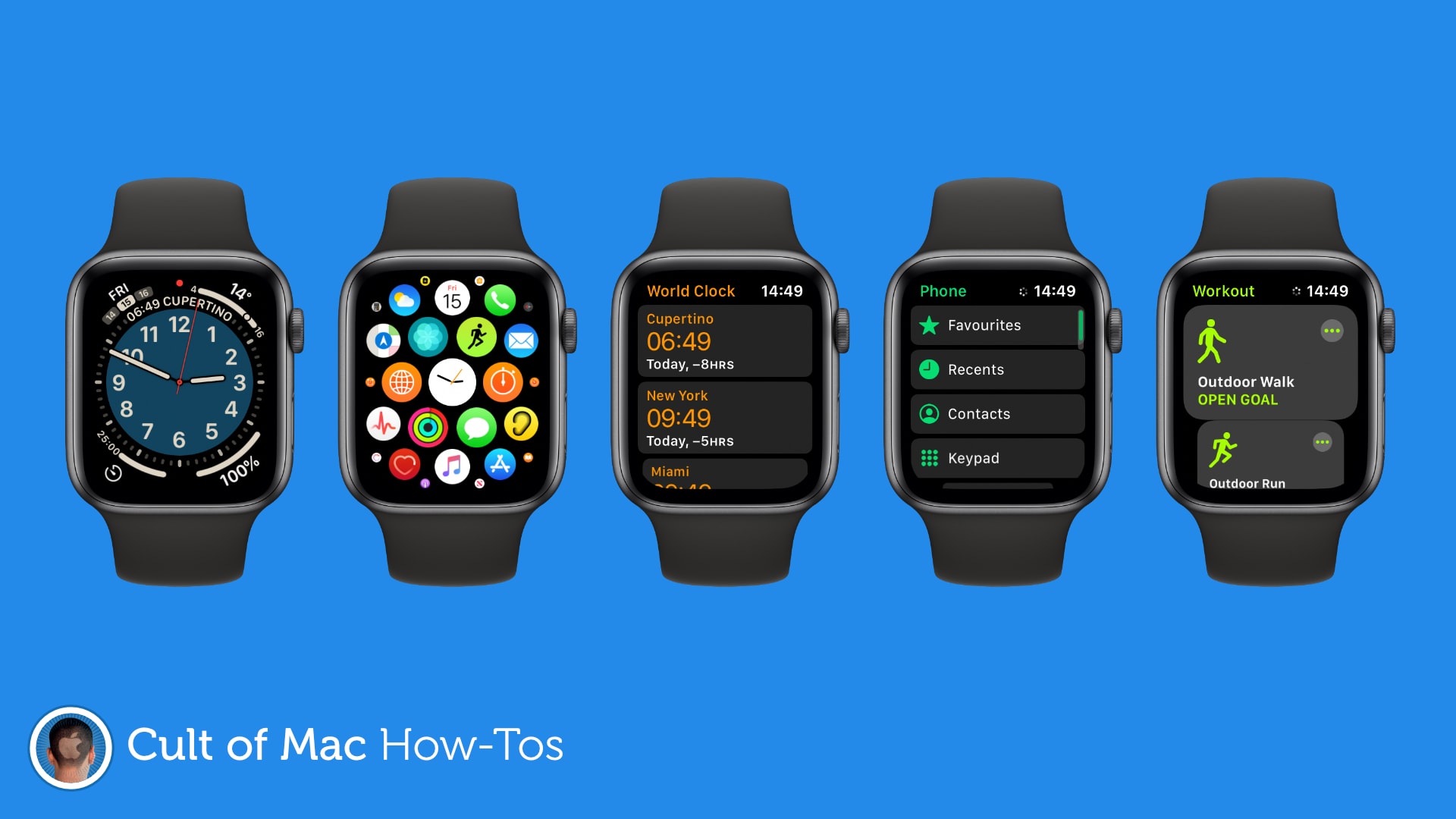
Show off your Apple Watch setup. Image: Killian Bell/Cult of Mac
Did you know that it’s possible to capture Apple Watch screenshots after a simple settings change? Find out how in today’s pro tip and it’ll be easier than ever to share snaps of your favorite Apple Watch apps and watch face setups.
It's easier than you think. GIF: Killian Bell/Cult of Mac
It’s now easier than ever to enjoy classic Game Boy, SNES, and Nintendo 64 games on iPhone and iPad. You no longer need a jailbreak — just an iOS device, a Mac or PC, and some classic Nintendo game ROMs.
Don't let little ones have unlimited access to your devices. Photo: Kelly Sikkema
Worried your kids will get up to no good while using your iOS devices? Learn how to disable the touchscreen on iPhone or iPad so that your little ones can watch their favorite videos without accessing other apps and features.
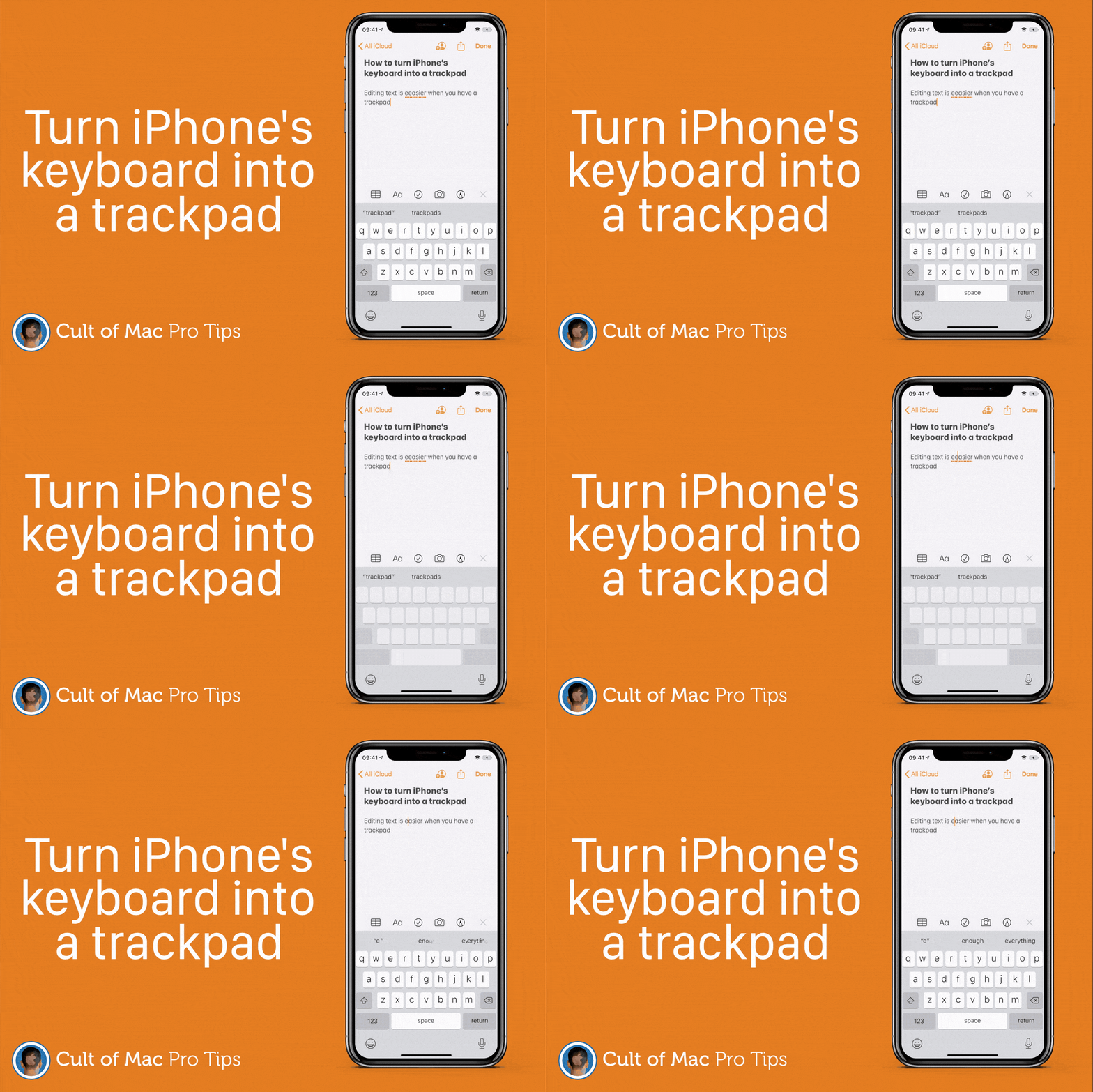
Ready to go whenever you need it. GIF: Killian Bell/Cult of Mac
Fixing typos and other errors while typing on iPhone can be frustrating if you’re still stabbing away at the screen with your fingertips. Instead, turn iPhone’s keyboard into a trackpad for more precise cursor placement.
Now that Apple Watch is powered by super-speedy chips, you’re less likely to run into issues that might cause it to freeze up and become unresponsive. But it can happen, and when it does, this how-to can help you fix it.
Touch ID is a wonderful addition to the Mac that makes logging in, downloading apps, and authorizing purchases easier than ever. Make it even more useful by adding an additional fingerprint and customizing your preferences.
 Make posters and invitations with more eye-catching designs by setting color, gradients, or images as your document background in Pages. It’s a super-simple trick that can make a big difference. Find out how in this pro tip.