iPad can now show applications in resizable floating windows. Here's how to use the new multitasking system. Image: Ed Hardy/Cult of Mac
Stage Manager in iPadOS 16 makes Apple’s tablets act much more like a Mac. The optional multitasking system puts applications into floating, resizable, overlapping windows.
Even better, the system can also be used on external displays, greatly increasing the available space to work in.
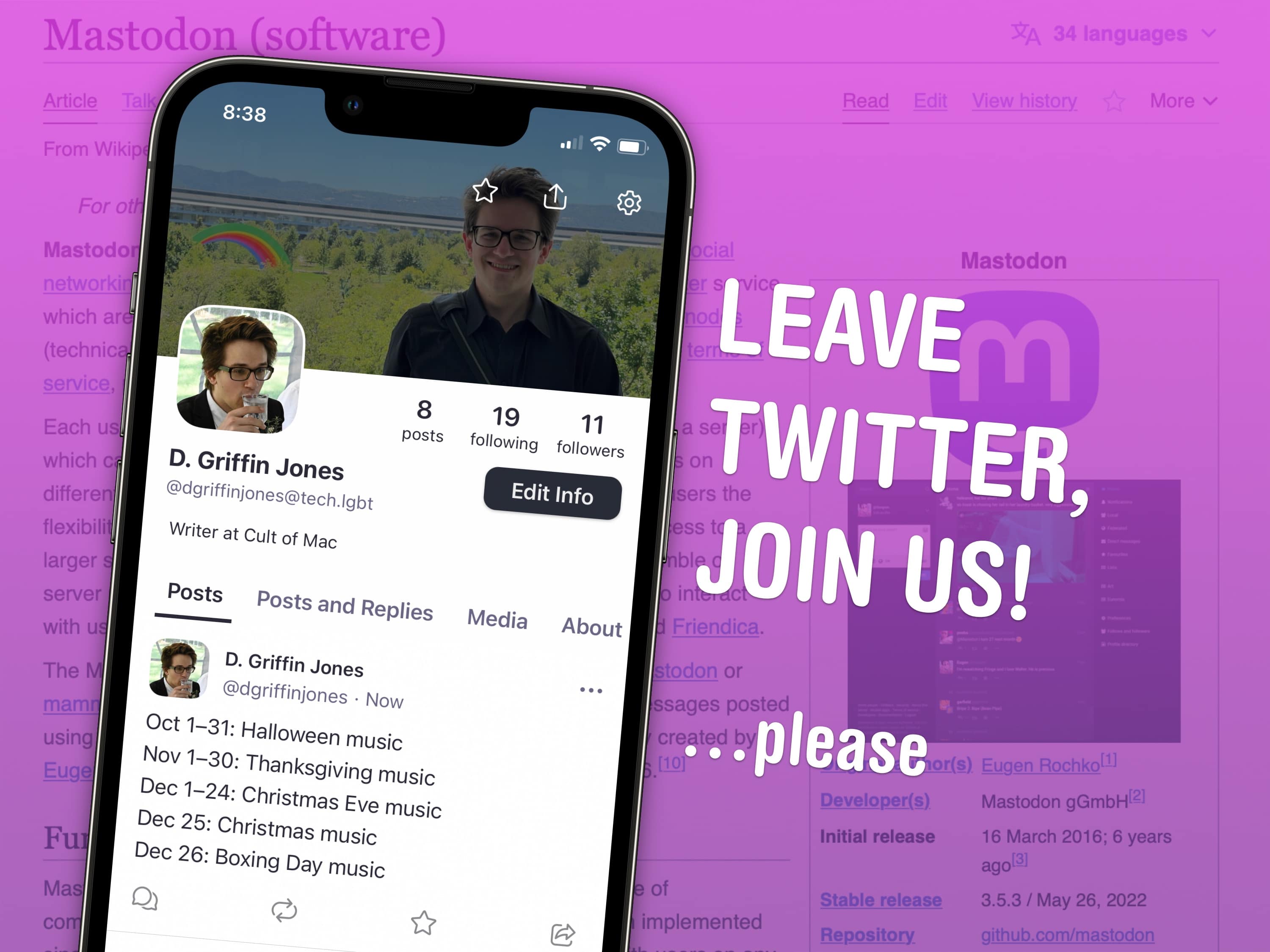
Mastodon is a good Twitter clone, but it needs some more active users like you. Image: D. Griffin Jones/Cult of Mac
Perhaps you, like many others, would like to move away from Twitter. If you read news, webcomics or blogs, you can follow all the same stuff with an RSS reader. But if you want to follow people in your community and talk to others online with the same interests, there’s a Twitter alternative you may have heard about: Mastodon. It’s a full-blown Twitter clone that a lot of people you may know are moving to.
Recent changes at Twitter did not instill confidence in the platform’s future. That’s about the shortest and most diplomatic way I can summarize the cavalcade of poor decision-making that has trickled down from their new CEO, he-who-shall-not-be-named, Rocket Car Tunnel Guy. It’s the last straw for a lot of people.
Despite the memes you may have seen, signing up for Mastodon isn’t that hard. There are just a few things you need to consider. Let me show you how to use Mastodon.
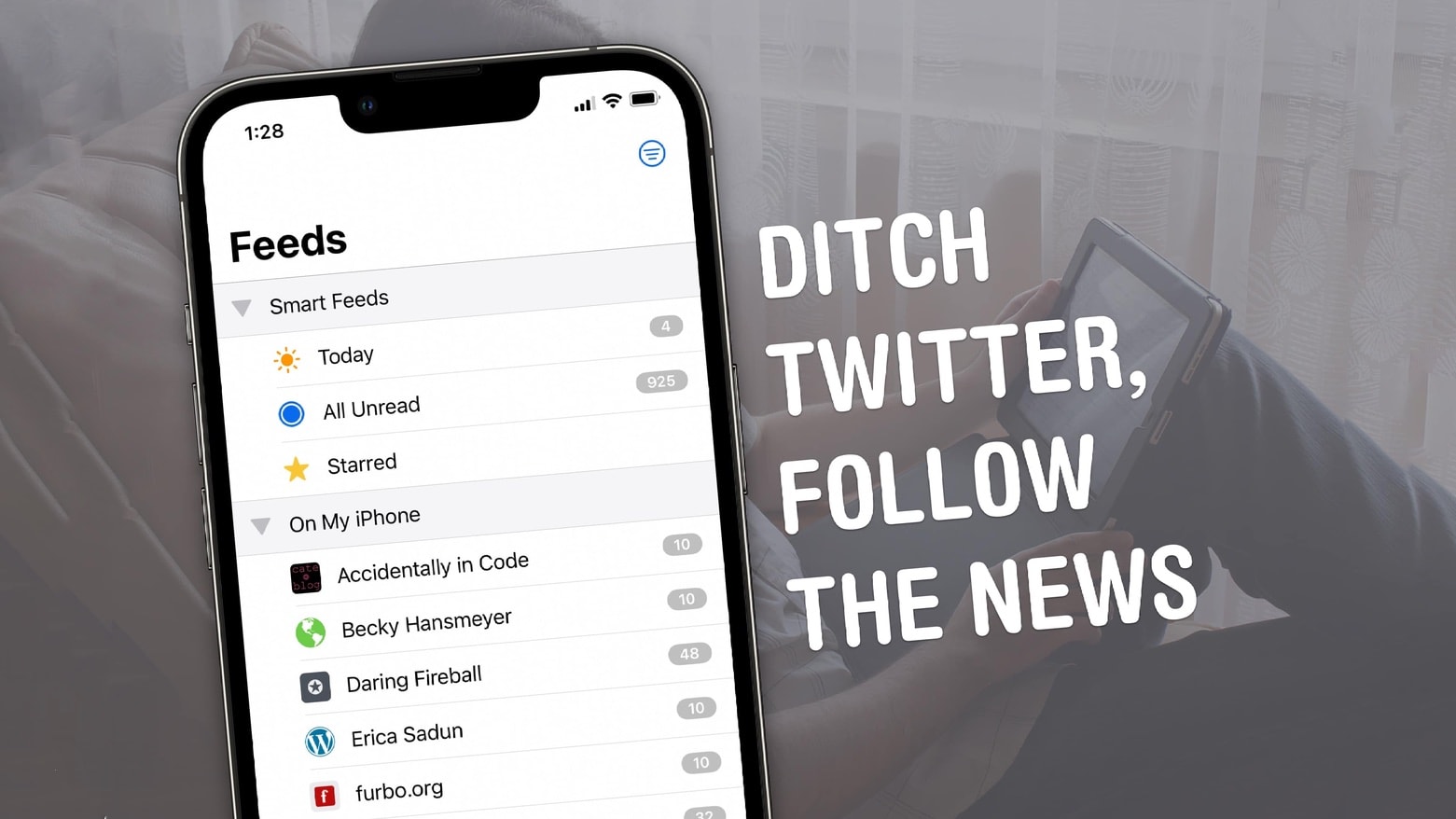
Ditch Twitter, follow the news. Image: Mori aka ICE/Wikimedia Commons, D. Griffin Jones/Cult of Mac
We all have our favorite news sites, independent blogs or webcomics. A lot of people keep up with new posts on Twitter — it’s where a lot of Cult of Mac traffic comes from. With a mass exodus of Twitter users after you-know-what happened, there’s a way you can still keep up with your favorite sites. It’s a technology that has powered the web for over twenty years called RSS; let me show you can follow the news without Twitter.
Pretend you're watching Apple's "Take Note" event with a video touting the M2 in the new iPad Pro. Screenshot: Apple
The much-anticipated Apple October event never happened. Apple took the rare step of unveiling the latest iPads and Apple TV via underwhelming press releases. But the company apparently did preliminary work to hold an event that would have been called “Take Note,” and some of this is still available.
Most notably, there’s a glitzy 9-minute video preview for the 2022 iPad Pro and iPad 10, just like the ones for other products at previous such events.
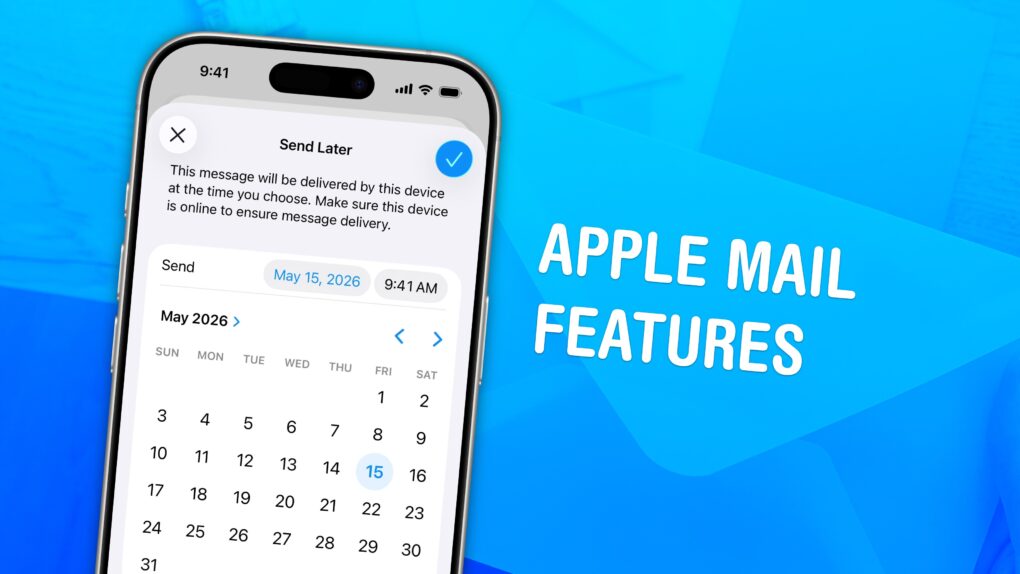
Undo sending emails and schedule emails in advance. Image: D. Griffin Jones/Cult of Mac
Sending an email still works basically the same as it has since the ’90s. But these days, people want modern features — like scheduling emails and undo send. Apple Mail may not be the most radical email client, but it has a lot of smart features hidden around every corner.
You can quickly take back an email if you forget to include an attachment, or schedule an important email way in advance. You also can get smart reminders to read email later, and alerts to send a follow-up. If you catch a typo just as you hit send, you can take it back and make your edit before it’s too late.
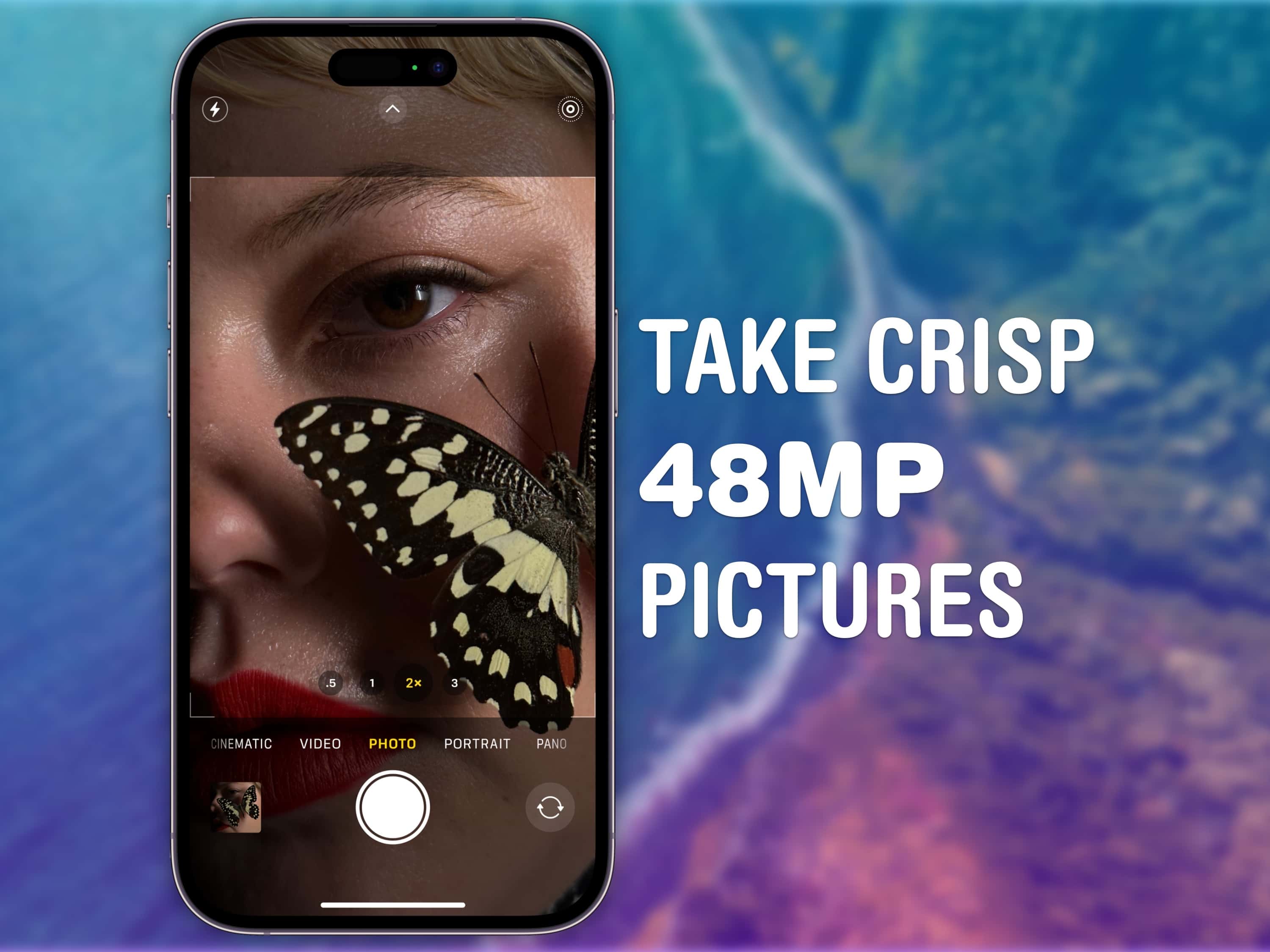
Learn how to make the most of the 48MP sensor in your iPhone 14 Pro. Image: D. Griffin Jones/Cult of Mac
The iPhone 14 Pro can take incredible 48-megapixel photos that capture eagle-eye details at incredibly high resolution. To take 48MP pictures, you need to shoot in Apple’s ProRAW format, which pairs the lossless RAW format preferred by professional photographers with the iPhone’s computational photography data.
This means that your iPhone 14 Pro is capturing all of the sensor data, and the results can be stunning — better than anything possible with any previous iPhone. (The iPhone 13 Pro captured ProRAW images, but only sported a 12MP camera.)
ProRAW captures images at 8064 × 6048 resolution. That means you can crop in really far on your pictures and keep everything pixel-perfect. You can print your images on a huge 26-inch by 20-inch poster, even at a professional-quality 300 DPI. The high-resolution images also give you more control during the editing process, so you can tweak your most important images to your heart’s content.
There are some caveats, though. Images with ProRAW enabled take up three times the storage space, for one. And shooting pictures like this takes a little longer. (The image capture isn’t as instantaneous as we’re used to.) And for everyday snapshots, ProRAW results might even be less satisfying than simply letting the iPhone perform its computational photography magic.
Read on to see how it all works so you can start taking 48MP photos with your iPhone 14 Pro, then edit them effectively.
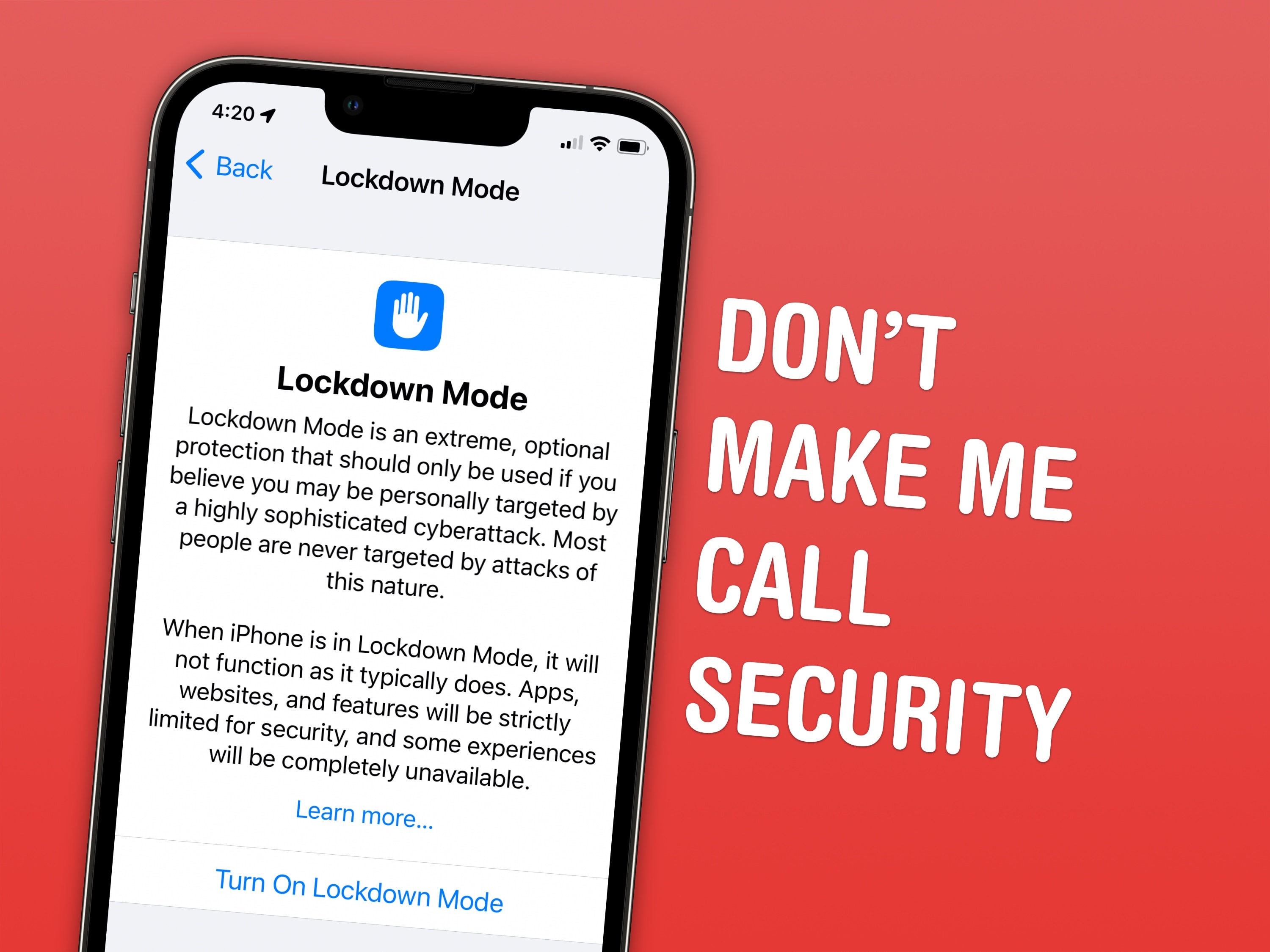
Lockdown Mode is extremely useful for the select few who actually need it and frivolous for ordinary people like me. Screenshot: D. Griffin Jones/Cult of Mac
Lockdown Mode is a new option in iOS 16 that limits system features for maximum security. Apple designed it to protect its products from sophisticated spyware, like NSO Group’s Pegasus spyware, which has been used to target journalists, politicians, dissidents and activists around the world.
Spyware like Pegasus may seem like an unlikely threat. But for some, Lockdown Mode could be life or death. U.S. citizens need not worry at the moment, but it doesn’t take a wild imagination to picture how such spyware might be embraced by slightly more fascist administrations.
Right now, Lockdown Mode is meant for high-profile activists and journalists. And I mean real journalists — the kind who expose state secrets — not bloggers like me. Read on to find out how to enable Lockdown Mode and how it affects your device’s functionality.
Find the iPhone 14 Pro's Always-On display annoying? Time to turn it off! Photo: Apple
Always-On display is a key new feature of the iPhone 14 Pro series. To ensure the feature does not consume a lot of battery power, Apple even added a dedicated co-processor to the A16 Bionic chip that powers the smartphone.
The Always-On display comes enabled by default on iPhone 14 Pro and iPhone 14 Pro Max, which many users might find annoying. It apparently looks a bit too bright for some folks. It makes your iPhone battery drain more quickly. And some folks just don’t like the new functionality because it makes them think they’ve got a new notification, even when they don’t.
If you find yourself in the same boat, here’s how you can disable Always-On display on your new iPhone 14 Pro.
Follow teams to get scores, schedules and news, all in Apple News. Image: D. Griffin Jones/Cult of Mac
New in iOS 16 is the ability to follow your favorite sporting pastime with My Sports. It allows you to get the latest scores, read coverage from newspapers and magazines, see scheduled games and watch highlights.
It works across multiple apps, including Apple News, Apple TV and others. You can follow teams from the NFL, NBA, MLB, NHL, NWSL, WNBA and MLS. It also includes college football and basketball. Here’s how to set it up.
Clean up your Home Screen and turn off the Search button. Image: D. Griffin Jones/Cult of Mac
iOS 16 brings a lot of exciting changes, but no one seems to like the new Search button on the Home Screen.
It can clutter your aesthetic theme, it’s easy to press accidentally, and it’s not any faster than using the swipe-down gesture for search. Luckily, it’s possible to turn it off — read on to see how.
You might want to avoid the iOS 16.1 beta for a bit. Photo: Ed Hardy/Cult of Mac
Apple seeded iOS 16.1 to developers on Wednesday and could give the general public access on Thursday. But you should think twice about installing it if you intend to get an iPhone 14 as soon as it’s released.
It’s likely the new handset will launch running an earlier version of iOS, which might cause you difficulties.
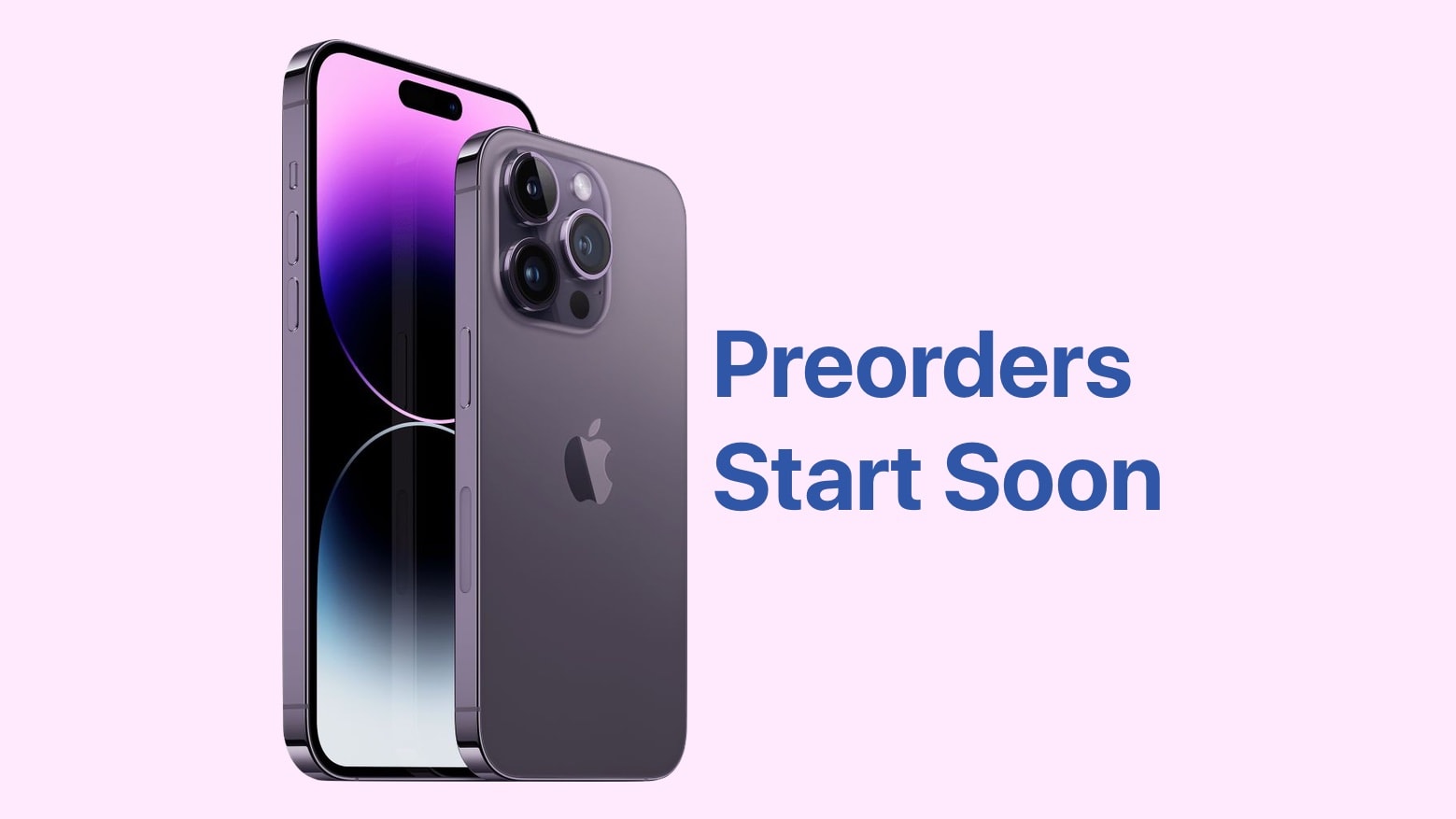
You can start preordering the iPhone 14 on Friday, September 9. Here's how to do it right. Image: Apple/Cult of Mac
The iPhone 14 series goes up for preorder on Friday, and Apple’s latest and greatest handsets are likely to sell out quickly. You need do some early prep work if you want to get your hands on the iPhone 14 Plus or the new Pro models as soon as possible.
AirPods Pro 2 also up for early orders at the same time.
Here’s how to be completely ready to put in a preorder for either or both items.
It's a big day for iPhone and Apple Watch aficionados. Here's how to tune into today's Apple event. Photo: Apple/Cult of Mac
Today is the day! Apple’s “Far Out” product launch event kicks off in just a few hours. The iPhone 14 series, three new Apple Watch models and more are all expected.
Just like past such events, this year’s will be streaming online, so you’ll be able to watch it in its entirety as it all unfolds. Here’s how.
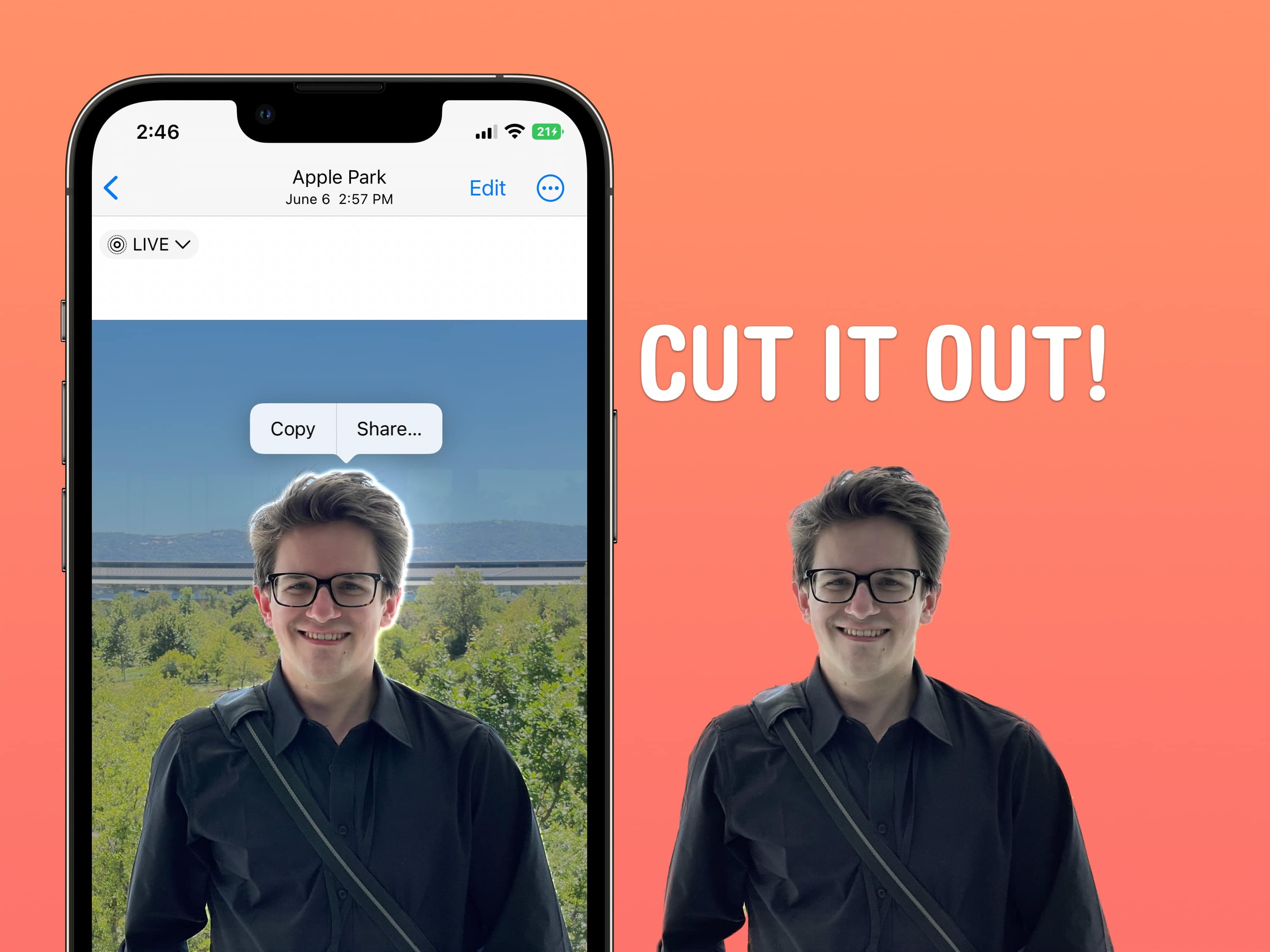
In iOS 16, you can instantly copy the subject out of your pictures. Image: D. Griffin Jones/Cult of Mac
One of the more surprising features in iOS 16 is the ability to cut out people from a picture (or a dog, a car, whatever’s in focus) and copy it into another app. You can send it in iMessage, paste it in a photo editing app, or use Universal Clipboard to paste it on a nearby iPad or Mac.
What’s it for? Well, it’s great for making stickers for WhatsApp and Snapchat, plus it’s a hell of a lot of fun. If you’re putting together a YouTube thumbnail or making memes, it can significantly cut down the time you spend precisely cutting out edges, but it’s by no means precise enough to use professionally.
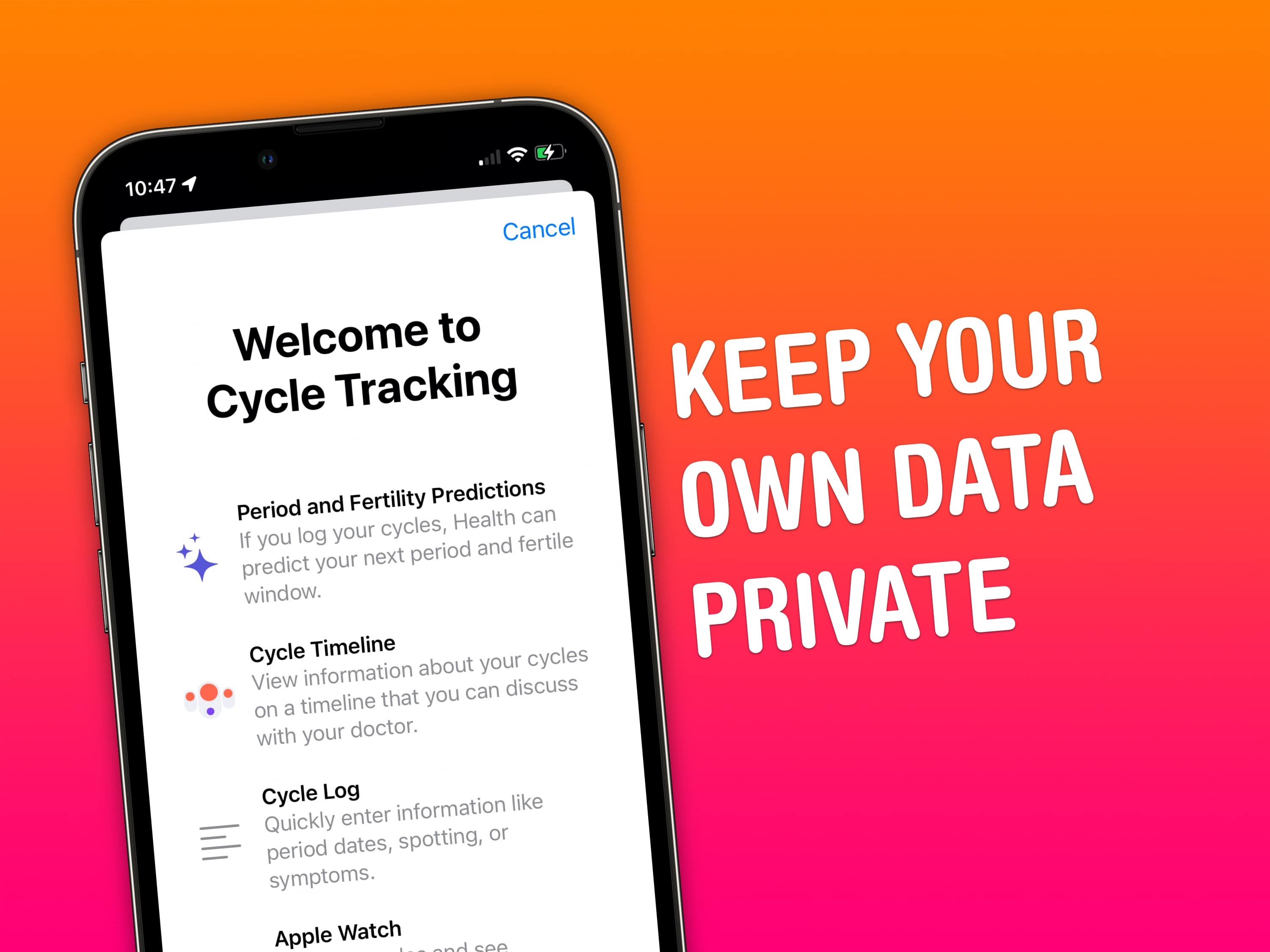
Your iPhone and Apple Watch, and third-party apps you use on them, efficiently capture data that could be used against you at a later date by law enforcement. We’re talking things like location data, ovulation records, text messages and your web-browsing history.
Keeping all your data private after Roe v. Wade to avoid prosecution could prove highly important. Luckily, Apple gives you powerful controls over how and where your data is stored. You just might need to adjust certain settings for maximum privacy.
Read on to dive deep into data security recommendations for iPhone, Apple Watch, and Mac.
Rebooting your iPhone is as easy as asking Siri to do it. And you don't even have to say "please." Graphic: Ed Hardy/Cult of Mac
If your iPhone or iPad locks up, iOS 16/iPadOS 16 will let get out of the jam by rebooting the device with a simple Siri command. It’s the easiest method I’ve found to get the handset or tablet going again when there’s a problem with the touchscreen, or the device is just misbehaving.
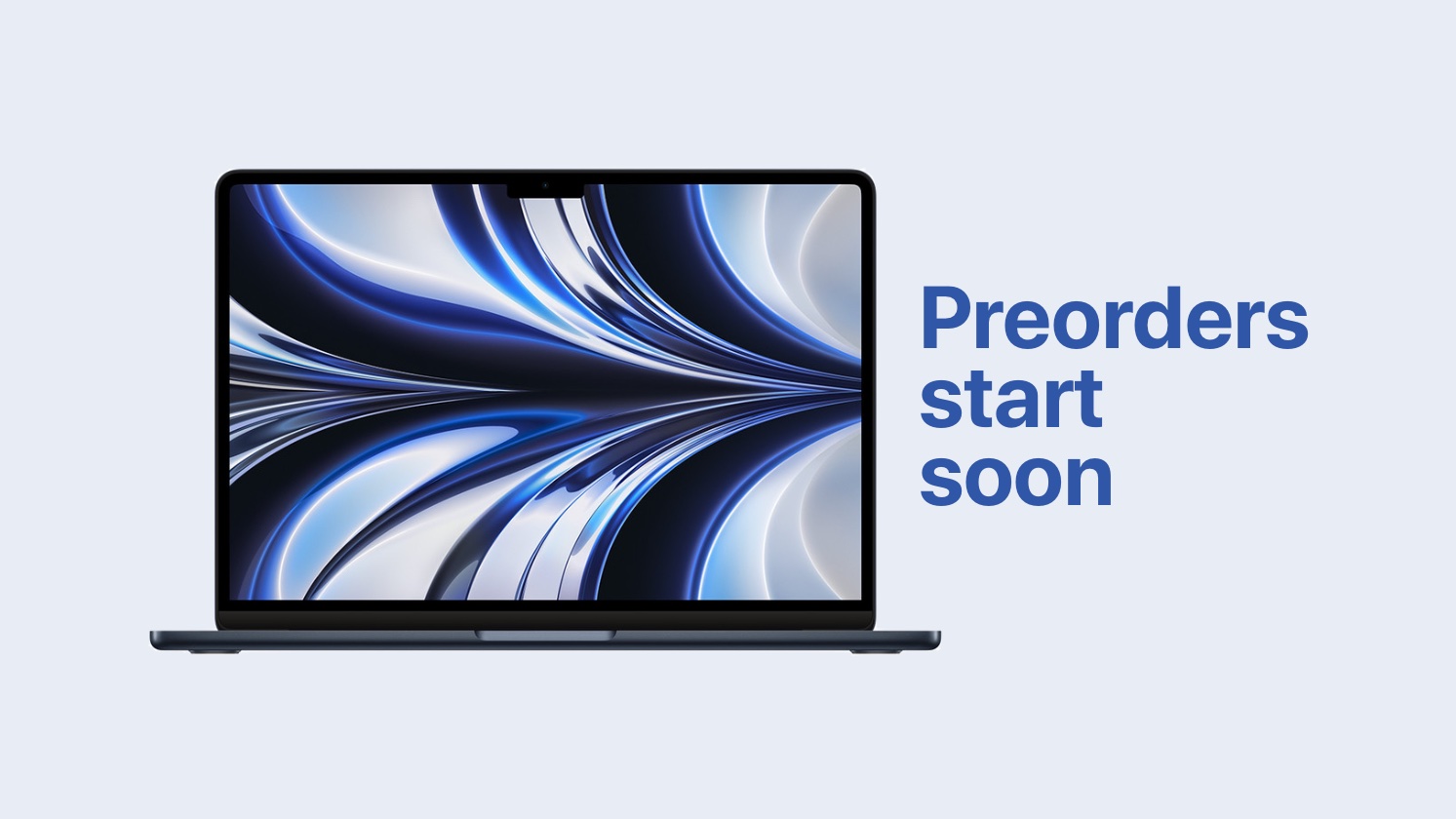
Here's how to be ready to order the amazing M2 MacBook Air so you get one on launch day. Image: Ed Hardy/Cult of Mac
The most exciting MacBook of 2022 goes up for preorder on Friday, and the M2 MacBook Air is likely to sell out quickly. You need do some early prep work if you want to get your hands on this beautifully redesigned notebook as soon as possible.
Here’s how to be completely ready to put in a preorder.
Is your cycle-tracking data secure? Photo: Graham Bower/Cult of Mac
The iPhone Health app’s Cycle Tracking feature provides a simple solution for logging menstrual cycles. If you menstruate, it’s an effective way to monitor your overall health and estimate when you’re most likely to get pregnant.
Given the personal nature of Cycle Tracking data, you need to be sure that it’s stored securely, away from prying eyes. The good news is, Apple’s security for health and fitness data is very robust. There are just a few things you need to know to ensure your data is safe.
The emoji in this picture are accurate representations of every picture of me until I was about 8. I didn't know how to smile for pictures and I did not care to learn. Image: D. Griffin Jones/Cult of Mac
There are lots of times when you might want to cover up faces before posting pictures: Teachers often want to censor the faces of their students. Boudoir photographers (Google it) can censor explicit portions of their photography for social media. Foster parents who are legally prohibited from posting identifying pictures of children in their home can quickly cover them up. Forget trying to blur faces — there’s an app that makes covering up faces dead easy: MaskerAid.
If you’ve ever wanted to hide a face before posting a picture, MaskerAid (a pun on “masquerade”) will quickly censor faces with emoji. Unlike apps like Snapchat, MaskerAid will preserve the full quality and resolution of your pictures.
MaskerAid is the latest app by independent podcaster and developer Casey Liss. You can download MaskerAid here on the App Store for iPhone (there is no Android version). The app is free to try out with your own pictures, but to use the full set of emoji, you must pay a one-time purchase of $2.99.
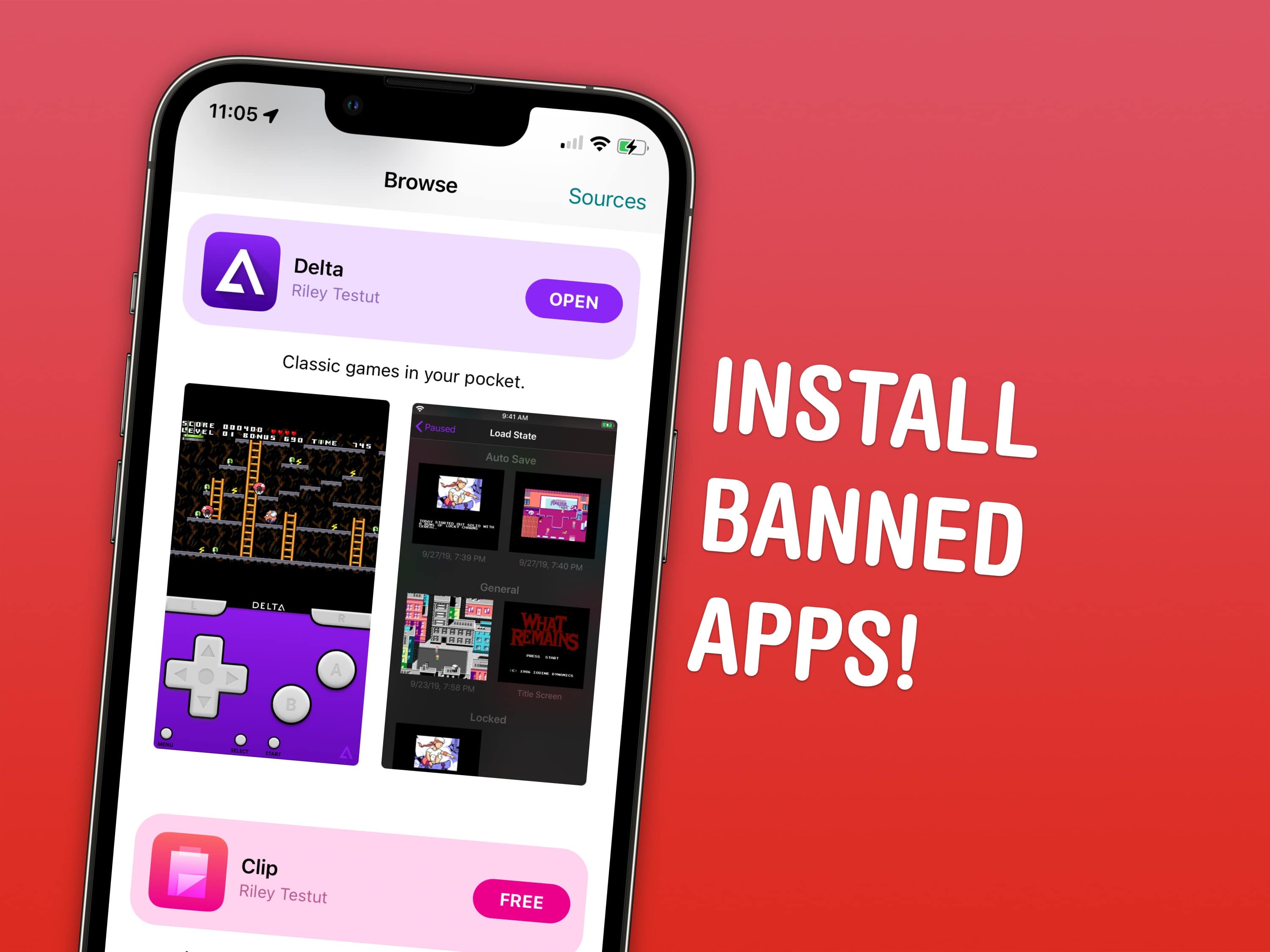
Install the apps Apple doesn’t want on the App Store with AltStore. Image: D. Griffin Jones/Cult of Mac
Apple bans apps like emulators and clipboard history on your iPhone, but there’s a clever way to sideload these apps without jailbreaking.
The official App Store is the only way Apple wants you to get apps on the iPhone. If there’s an app that doesn’t fit Apple’s strict rules, it doesn’t get on the App Store at all.
Apple strictly forbids a few categories of apps. Emulators — apps that play games from old consoles like the Nintendo Entertainment System and GameBoy — are prohibited. Porn is not allowed either. System-wide features like clipboard managers — which are very popular and even downloadable on the Mac App Store — are not allowed on the iPhone. (My favorite is Maccy.)
That doesn’t mean it’s impossible to get these types of apps, though. You can install an alternative App Store for iPhone called AltStore right now with the help of a Mac or PC. With AltStore, you can install verboten apps like emulators and clipboard history without jailbreaking your iPhone.
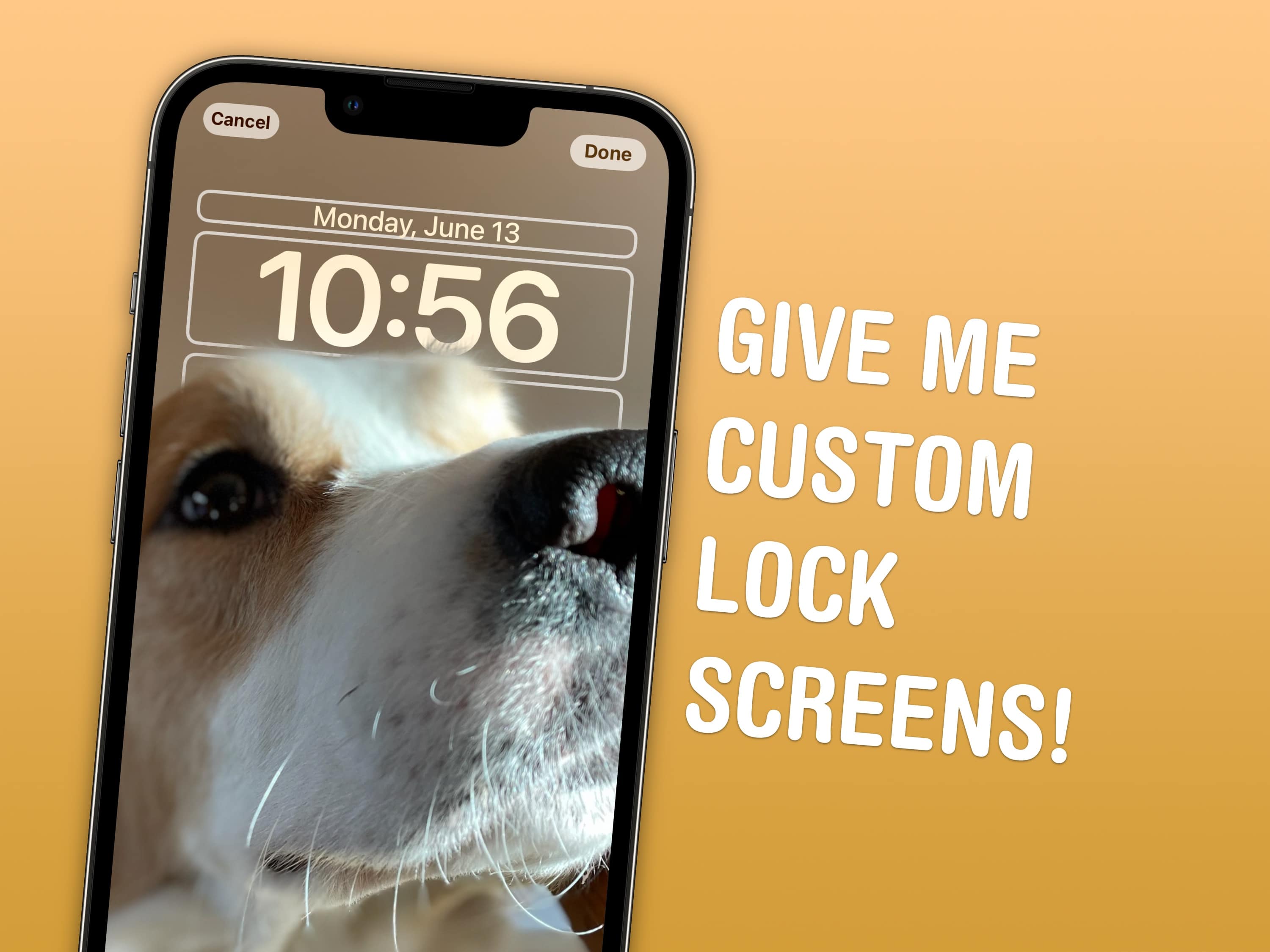
Get access to the new features and APIs in iOS 16 with the Developer Beta today. Featuring my dog, Indy Anna Jones. Image: D. Griffin Jones/Cult of Mac
iOS 16 was announced with some awesome, radical new features: a completely redesigned Lock Screen, a shared Photo Library for families, editing and un-sending iMessages, advanced new features in Maps and more. It’s especially hard this year to wait until September to get your hands on it.
Developers have a busy summer ahead of them, too. I spoke with some developers while at WWDC (no, I’m not done flexing that yet) and afterwards on Twitter. Developers are especially excited about creating Lock Screen widgets for their apps, using the new advanced features of SwiftUI and experimenting with the Live Text API.
But you don’t have to wait to get your hands on the beta. Registered developers can install the iOS 16 developer beta today. According to Apple, the Public Beta will be coming sometime in July. If you pay $99 for a developer account, installing the beta on your device is fast and easy. Here’s how.
Does the Siri Remote have you going around in circles? Photo: Graham Bower/Cult of Mac
When Apple TV 4K launched last year, it had fans salivating. But not for the sharper picture or faster processor. It was the new Siri Remote that caught everyone’s eye. Had Cupertino finally made a TV remote control that didn’t suck?
With its iPod-style scroll wheel, the second-generation Siri Remote promised to make scrolling through content effortless. In reality, the scroll wheel turned out to be hard to use, and lacked support from third-party apps like YouTube.
But don’t throw your remote at the TV just yet. When you get the hang of its quirks, the Siri Remote scroll wheel works surprisingly well. And you can use it with loads of essential apps, including Netflix, HBO Max and, of course, Apple TV+.
Don't miss a thing from WWDC22. Photo: Cult of Mac
One of Apple’s biggest events is right around the corner. This year’s Worldwide Developers Conference keynote promises to deliver our first look at the company’s next-generation software updates for iPhone, iPad, Mac and more. And it’s all happening on June 6.
Just like past WWDC keynotes, this year’s will be streaming online, so you’ll be able to watch it in its entirety as it all unfolds. Here’s how.
Twitter can be ... fun? Preliminary research suggests it can. Image: D. Griffin Jones/Cult of Mac
Twitter: the cause of, and solution to, all of life’s problems. People have been talking quite a bit about Twitter lately.
When friends of mine complain about how they don’t enjoy using Twitter, I used to be confused. Twitter is what you make it. If you don’t like Twitter, you can simply follow different accounts and get a completely different experience.
It’s important to note that none of my friends have tens of thousands of followers and/or are regularly harassed on Twitter. That can be a very different experience outside of one’s power to control, to put it lightly.
Twitter has changed, and now, the people you follow might have very little bearing on what you actually see on Twitter at all. Here are my tips on how to take back control of your timeline and make Twitter enjoyable.