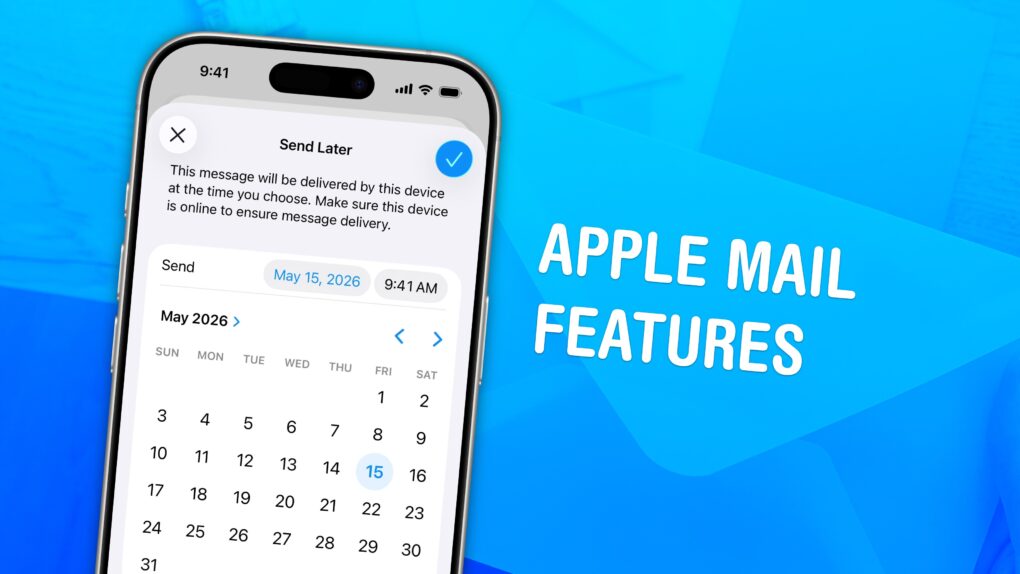
Sending an email still works basically the same as it has since the ’90s. But these days, people want modern features — like scheduling emails and undo send. Apple Mail may not be the most radical email client, but it has a lot of smart features hidden around every corner.
You can quickly take back an email if you forget to include an attachment, or schedule an important email way in advance. You also can get smart reminders to read email later, and alerts to send a follow-up. If you catch a typo just as you hit send, you can take it back and make your edit before it’s too late.
Read to see how it all works.
8 great features hidden in Apple Mail
Three things are certain in life: death, taxes and people complaining that Apple Mail doesn’t have this popular new feature from some radical new email app. Most people only receive a handful of emails that are actually important in a day, so most people do just fine with Apple’s Mail app. Myself included.
Apple has baked in some pretty advanced features in the last few years. A great app will reward its users for digging deep and stumbling across features they didn’t know were there; I think these hidden gems in Mail will prove highly useful to those who want them.
Personally, I make great use out of scheduling emails, rich links, and if I’m being honest with myself, probably missing attachment reminders.
Table of Contents: Features in Apple Mail
- Undo Send an Email
- Schedule an Email
- Add more smart folders
- Remind Me
- Rich Links
- Missing Attachment Reminders
- Smart Search
- Follow-Up
How to Undo Send an Email
Screenshot: D. Griffin Jones/Cult of Mac
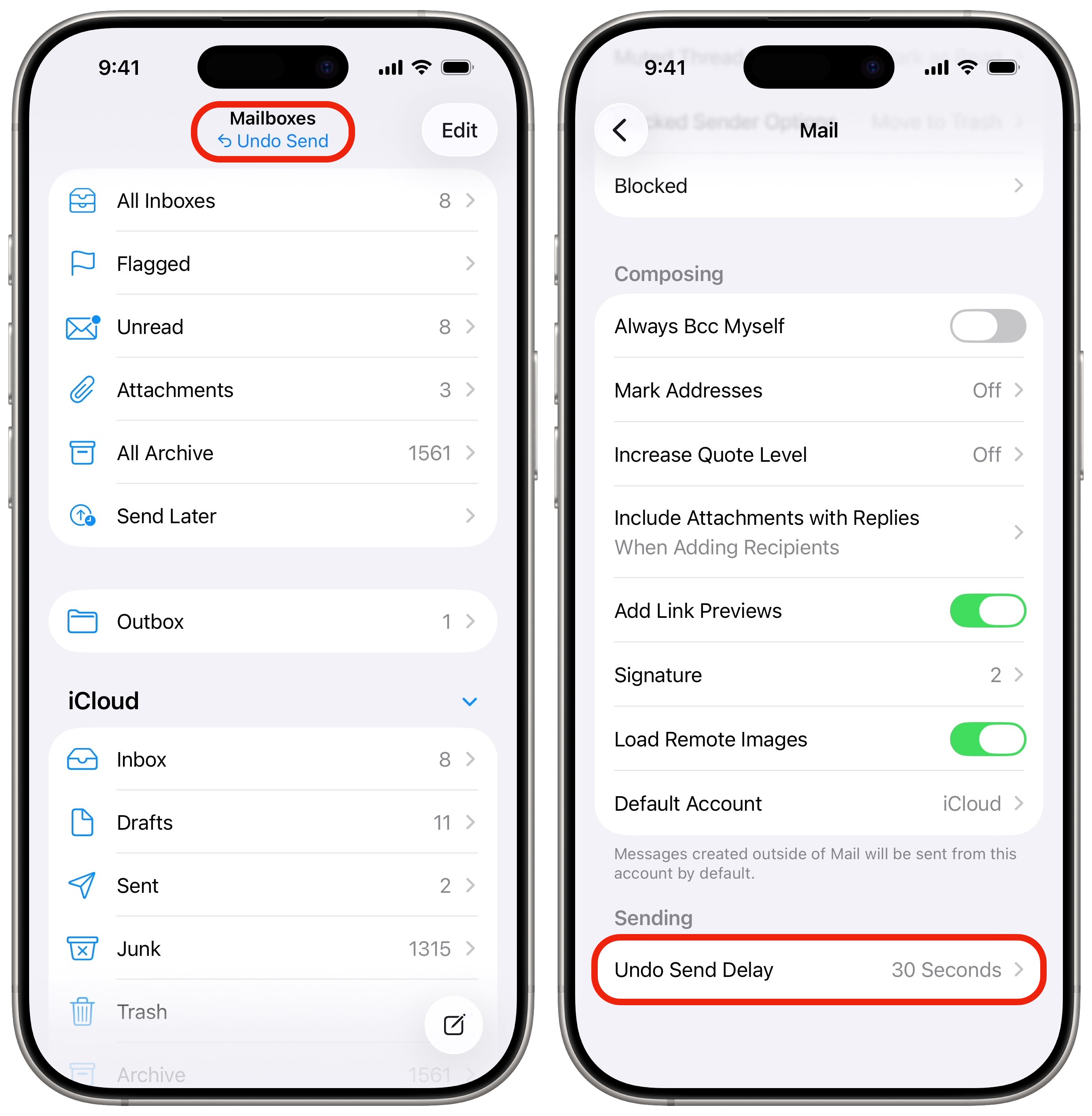
Undo Send is pretty straightforward. Right after sending an email, you’ll have up to 10 seconds to tap Undo Send.
On iOS, the Undo Send button is in the top toolbar. It stays there even after you switch to another app and come back. On macOS, it’s at the bottom of the sidebar.
Tapping Undo Send will instantly bring the message back up to edit. Undo Send doesn’t actually take the email out of someone’s inbox — it just waits 30 seconds before it actually sends the email. Nonetheless, it’s a lifesaver.
Change the Undo Send Delay
If you never maek any typos, like me, you might prefer to send your emails instantly. On the other hand, if you want more time, you can give yourself up to 30 seconds (up from the default of 10).
Go to Settings > Apps > Mail > Undo Send Delay (at the very bottom). You can pick between Off, 10 Seconds, 20 Seconds and 30 Seconds. There’s no way to set a different delay for different email accounts.
How to schedule an email to send at a specific time or date
Screenshot: D. Griffin Jones/Cult of Mac
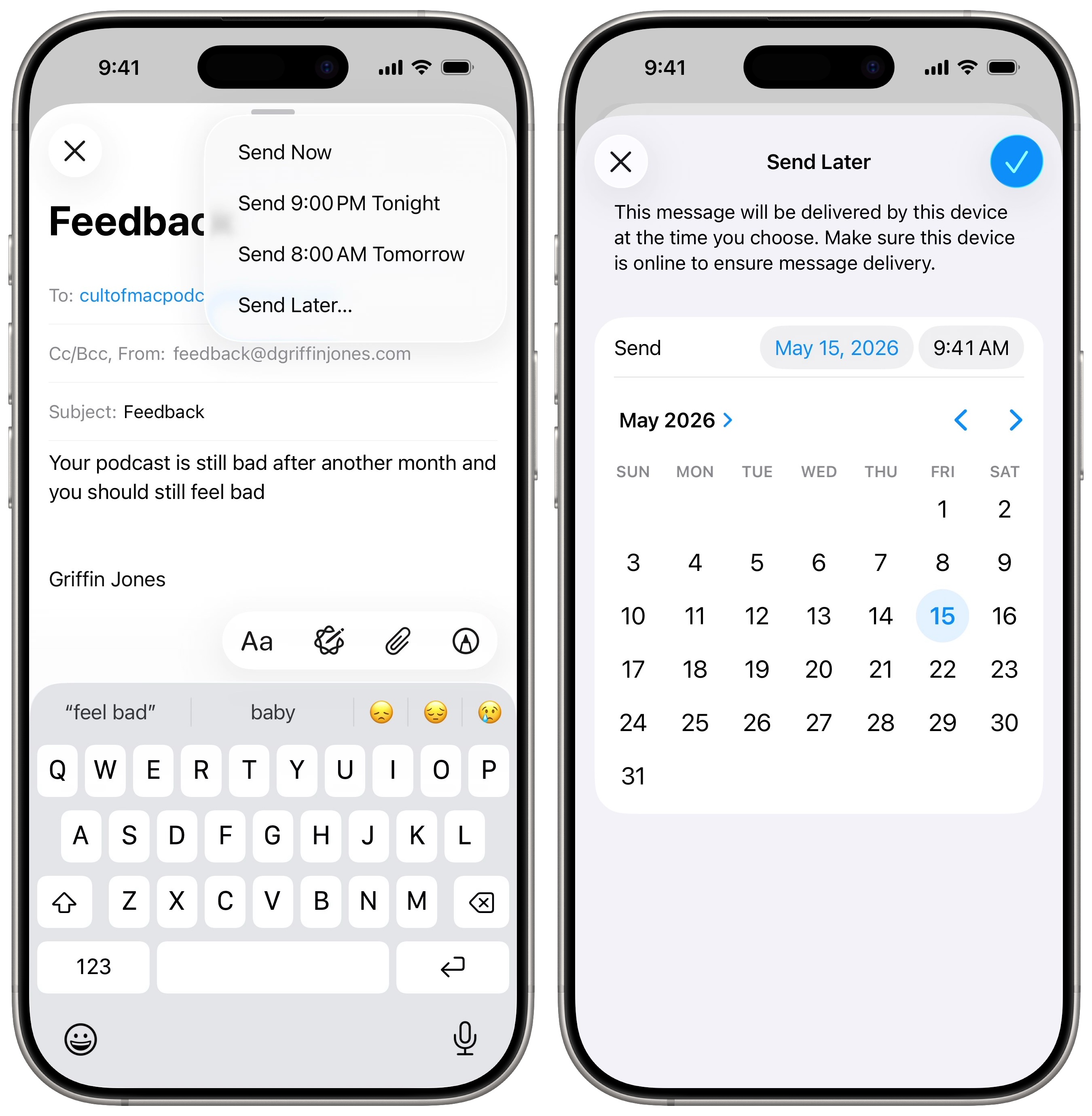
Scheduling an email is easy. Tap and hold on the blue Send button. Default options are to send now, send it at 9:00 p.m. tonight or 8:00 a.m. in the morning of the next work day (Monday – Friday).
To specify your own time, tap Send Later…. This brings up a mini calendar and you can choose the exact time and date to send the email.
After you tap Done, you can see your scheduled email by going to Mailboxes > Send Later.
How to change a previously scheduled email
Screenshot: D. Griffin Jones/Cult of Mac
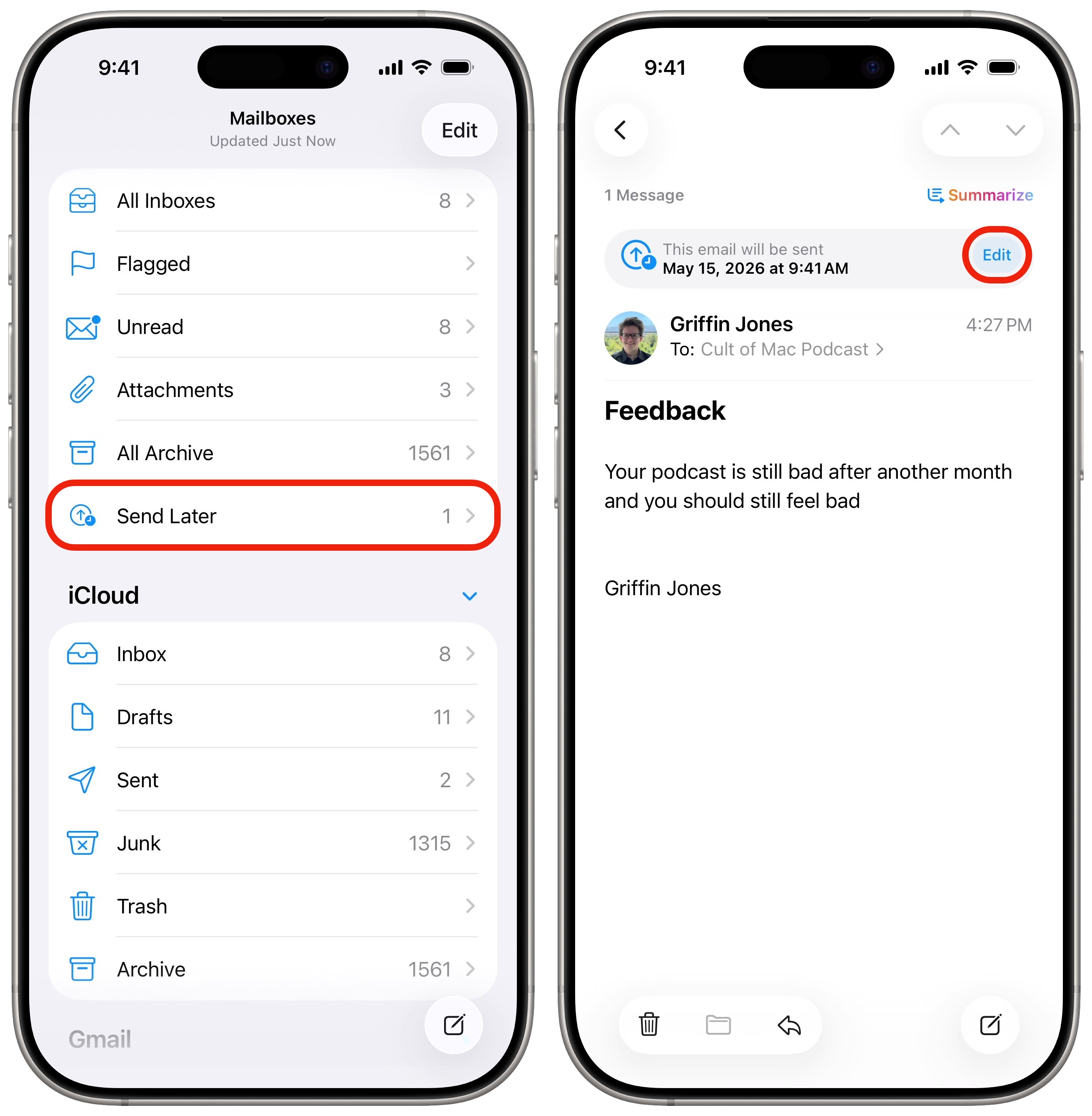
If you scheduled an email but want to edit the time or delete it, go to Mailboxes > Send Later and tap on the email from the list. Then tap Edit to change when the email will be sent.
Unfortunately, I don’t think there’s a way to edit the contents of the email after it has been scheduled. You have to tap Edit and Cancel Send Later to delete the email and compose it again.
Add more smart folders
Screenshot: D. Griffin Jones/Cult of Mac
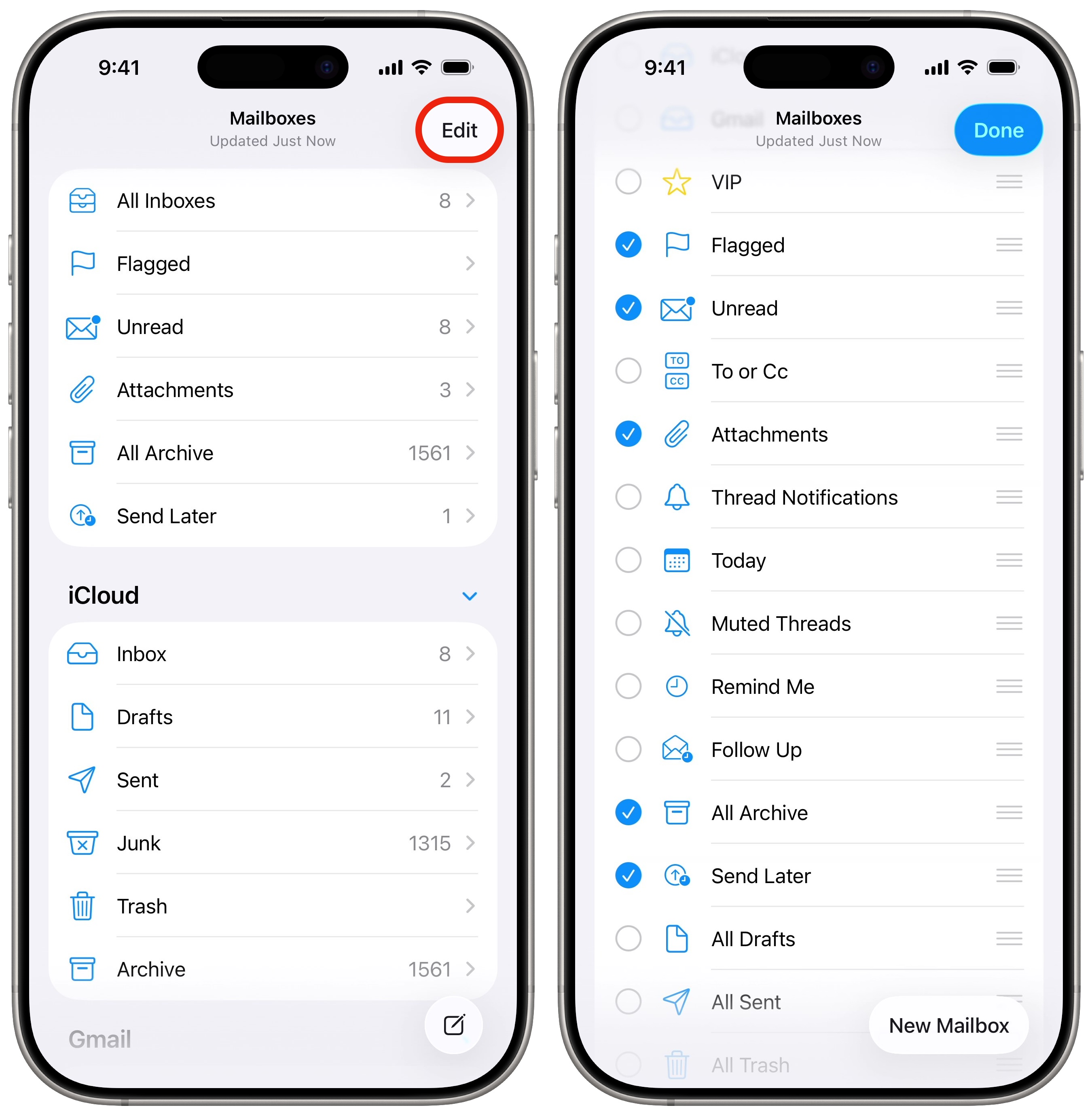
Go back to the Mailboxes view and tap Edit in the top. You’ll see a bunch of additional smart folders you can use to stay organized: emails from VIPs, emails from today, emails with attachments, email threads you muted, emails you need to follow up on.
Tap on a smart inbox to add it to your list of mailboxes. Reorder them by dragging the grabbers on the right. You can also turn off mailboxes you don’t use to reduce clutter. Tap Done when you’re finished making changes.
How to set a reminder to reply to an email
Screenshot: D. Griffin Jones/Cult of Mac
If you get an email you can’t respond to right away, you could just mark it as unread, but a better way is to use the Remind Me feature.
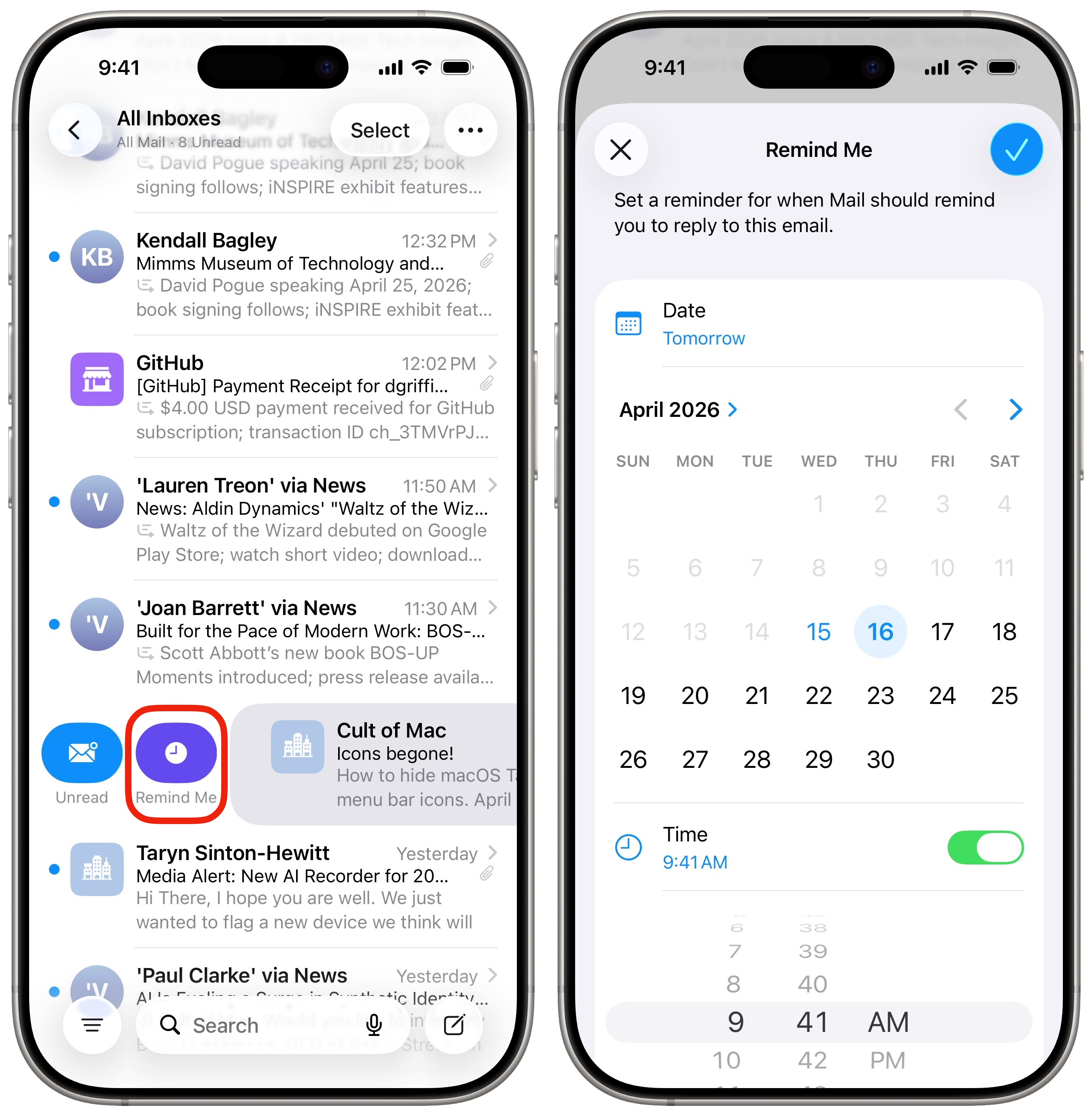
To get a reminder, swipe right on an email in your inbox and tap the purple Remind Me button with a clock icon. You can pick a default time — one hour, tonight or tomorrow — or you can select a specific date and time.
You will get a notification at the time you set. When you open Mail, the message jumps straight to the top of your inbox.
How to add rich links to an email
Screenshot: D. Griffin Jones/Cult of Mac
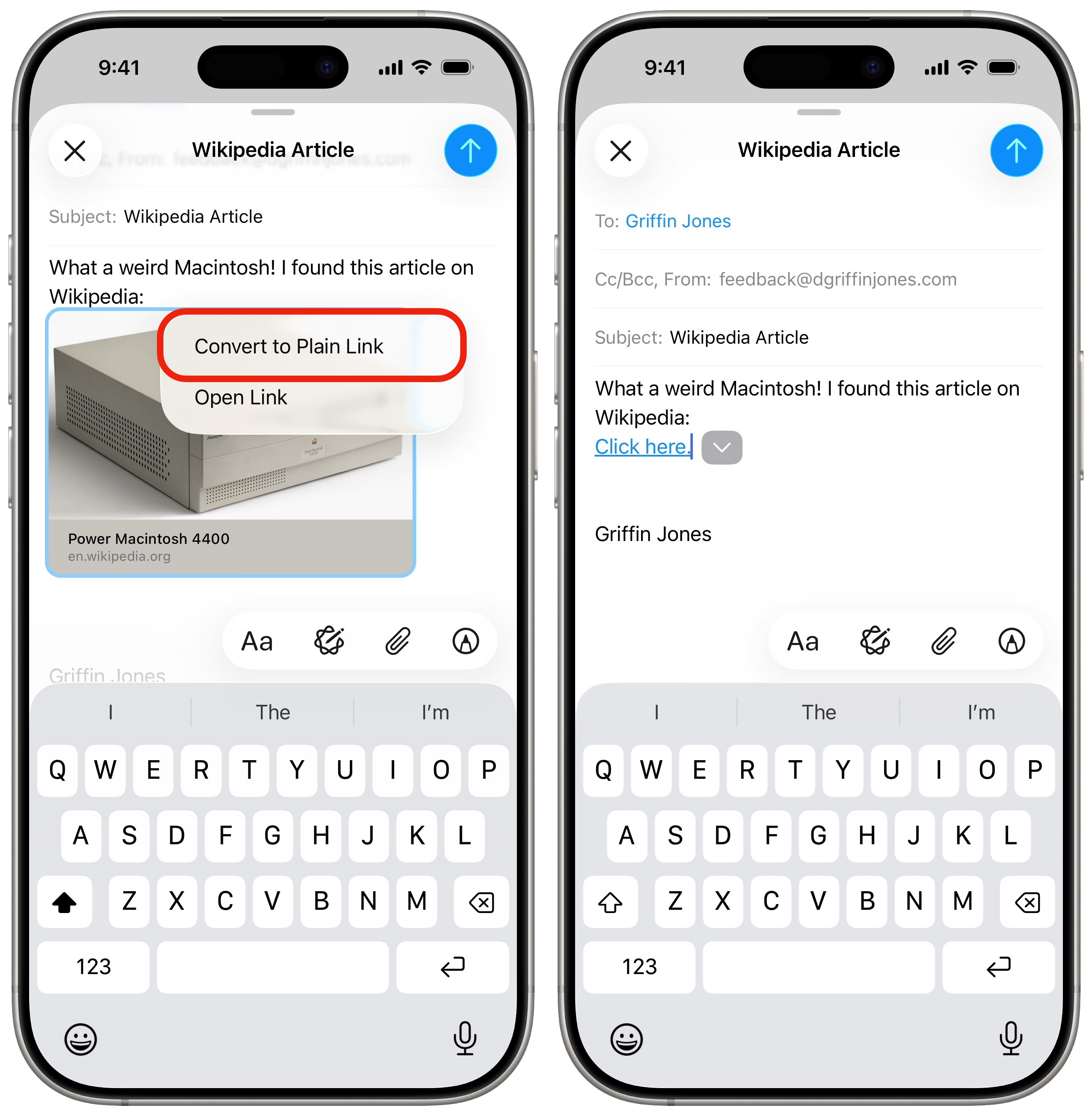
Rich links are automatically generated when you paste a link into an email. It uses an image from the website to make a nice big thumbnail. It can help draw attention to a link you’re sending. You may recognize rich links from Messages.
But sometimes, you just want a string of blue text and nothing fancy. To convert it to a plain link, tap on the link, then tap on the arrow to the right. Tap Convert to Plain Link to get a text link. You can edit the text shown — in the example above, you can see I changed the link to say “Click here,” and the link still works.
If you change your mind and decide the rich link looks nicer, tap on the arrow again and hit Convert to Rich Link.
How to get reminders about missing attachments
Screenshot: D. Griffin Jones/Cult of Mac
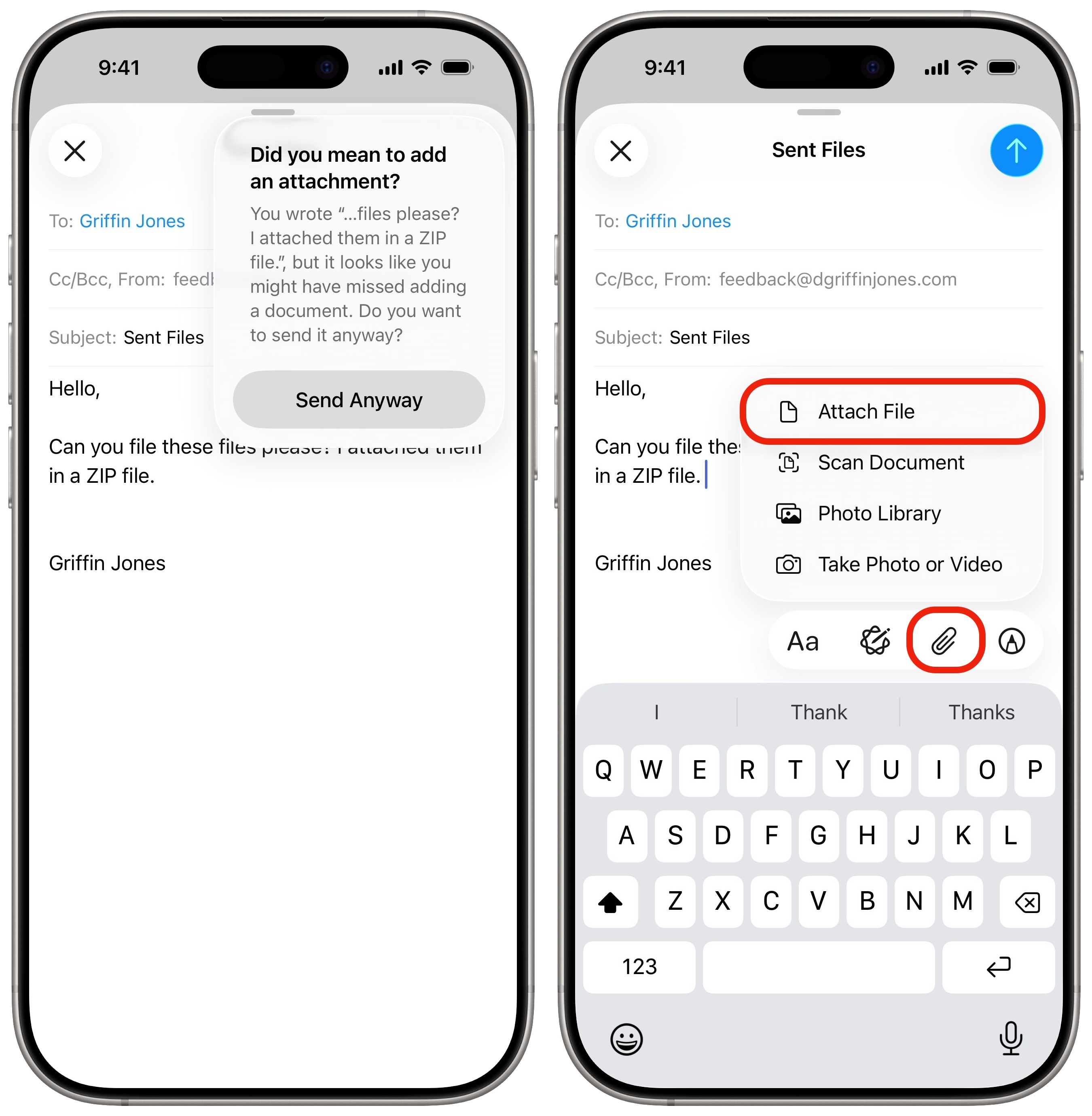
If you compose an email that looks like it should have files attached, Mail will ask you if you’re sure you want to send it if you don’t add any attachments — a long-time favorite feature of Gmail. Tap Send Anyway if you’re sure, or tap Cancel to continue editing.
Tap the Attachments button above the keyboard (with the icon of a paperclip) then tap Attach File.
How to use smart search in Mail
Screenshot: D. Griffin Jones/Cult of Mac
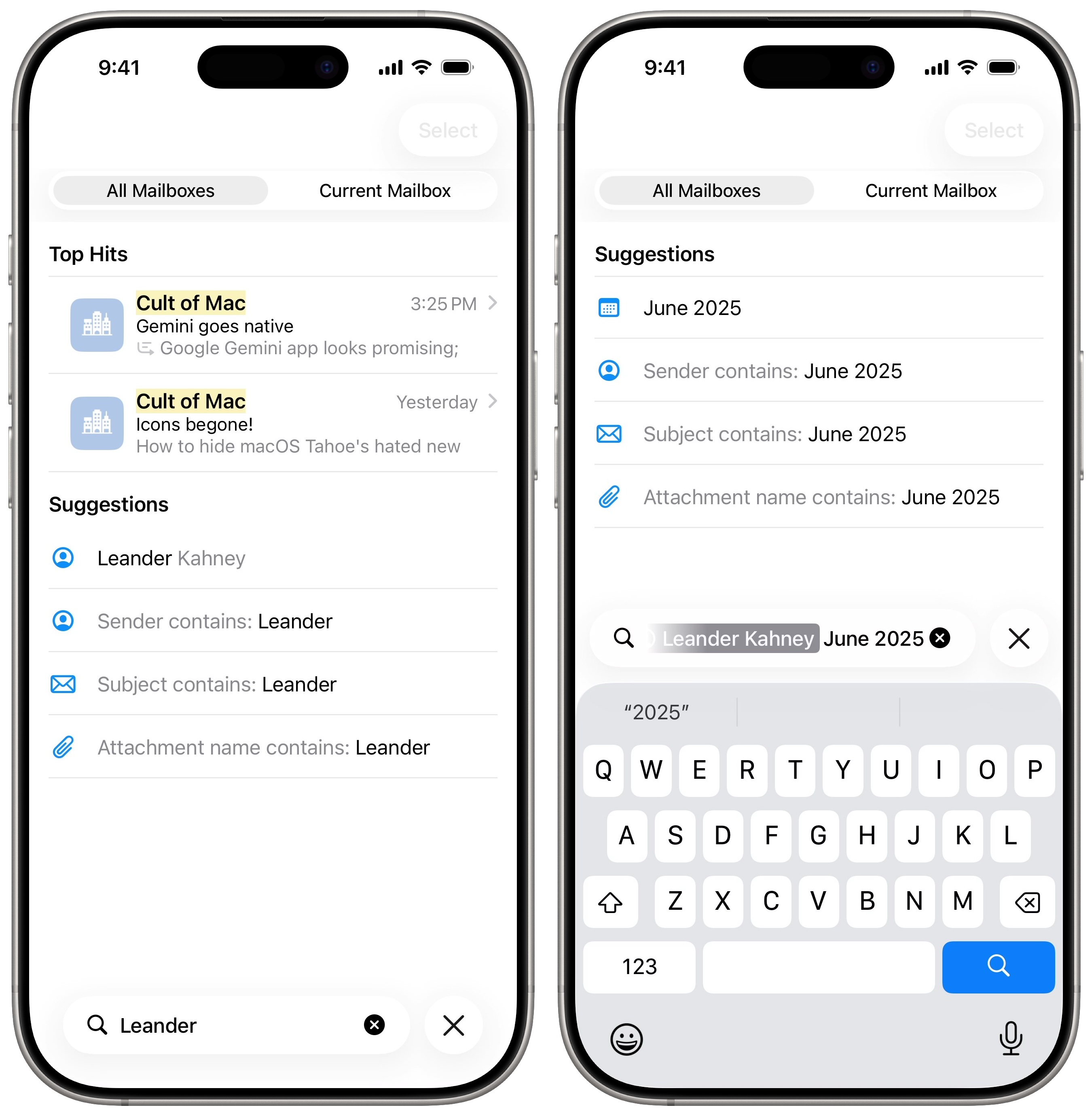
Apple is slowly but surely improving mail search. If you make an obvious typo of an English word, like “kebyoard,” iOS will search for the correct term, “keyboard.” You will also notice that when you tap on the search bar, you will instantly see recently shared files and links along with recent search terms. (Swipe left on these to clear them out.)
There are a bunch of smart filters you can use to help your search. Start typing a name, and you’ll see a suggestion to filter by emails sent from that contact. Type in a date to narrow down a time frame. You can even search through file attachments or by email subject.
Instead of digging through page after page of years-old email, use these smart search features to do most of the work for you.
Follow-up reminders
When you send an email and you don’t get a response for a few weeks, the email will reappear at the top of your inbox and ask if you want to send a follow-up. This is a pretty nifty feature that reminds you of emails that fall through the cracks.
It’s very useful if you work in sales or marketing, to make sure you don’t let your leads fall out of touch.
Unfortunately, I don’t have a screenshot of this because everyone I work with is really awesome and replies to every email I send.
More Apple Mail features
Read more about these features, and others, in these how-tos on the Mail app:
- Schedule an email for the future so you never forget to send it, and you can send emails at times more convenient for others.
- Automatic inbox organization intelligently sorts the newsletters and junk out of your email, letting you see the personal messages that matter. (You can also turn it off for one big traditional inbox.)
- Screenshot an entire email and save it to your camera roll or save it as a PDF.
- Automatically unsubscribe from mailing lists you don’t want to be bothered with anymore.
- Manage your Sign In with Apple and forwarding email addresses.
We originally published this article on Apple Mail features on August 5 2022. We updated it with the latest information on October 11, 2022 and April 15, 2026.

D. Griffin Jones was a writer, podcaster and video producer for Cult of Mac. Griffin has been a passionate computer enthusiast since 2002, when he got his first PC — but since getting a Mac in 2008, he hasn’t turned back. His skills in graphic and web design, along with video and podcast editing, are self-taught over 20+ years. Griffin has a bachelor’s degree in computer science and has written several (unpublished) apps for Mac and iOS. His collection of old computers is made up of 40+ desktops, laptops, PDAs and devices, dating back to the early ’80s.
Griffin writes for his personal blog, Extra Ordinary, and is currently looking for work.

