Using the mobile web is an uneven affair in terms of what you’ll see once your little blue progress bar slides across the page to let you know your page has loaded.
Some sites give you a crippled version of the original, making sure you can’t find any information on them at all. Looking for a tiny link to load the desktop site can be an exercise in frustration.
iOS 9, currently in public beta, has an answer to this issue baked right into Safari. Here’s how to make it happen.
When you’re on a site that doesn’t have gorgeous responsive design like Cult of Mac’s new site, you can use this new iOS 9 feature to your advantage and request the full desktop-style website you so richly deserve.
First, load up any web site that has both a mobile and a desktop version. You can request the desktop version on any site, but if the destination you’re at doesn’t have one, the point is rather moot.
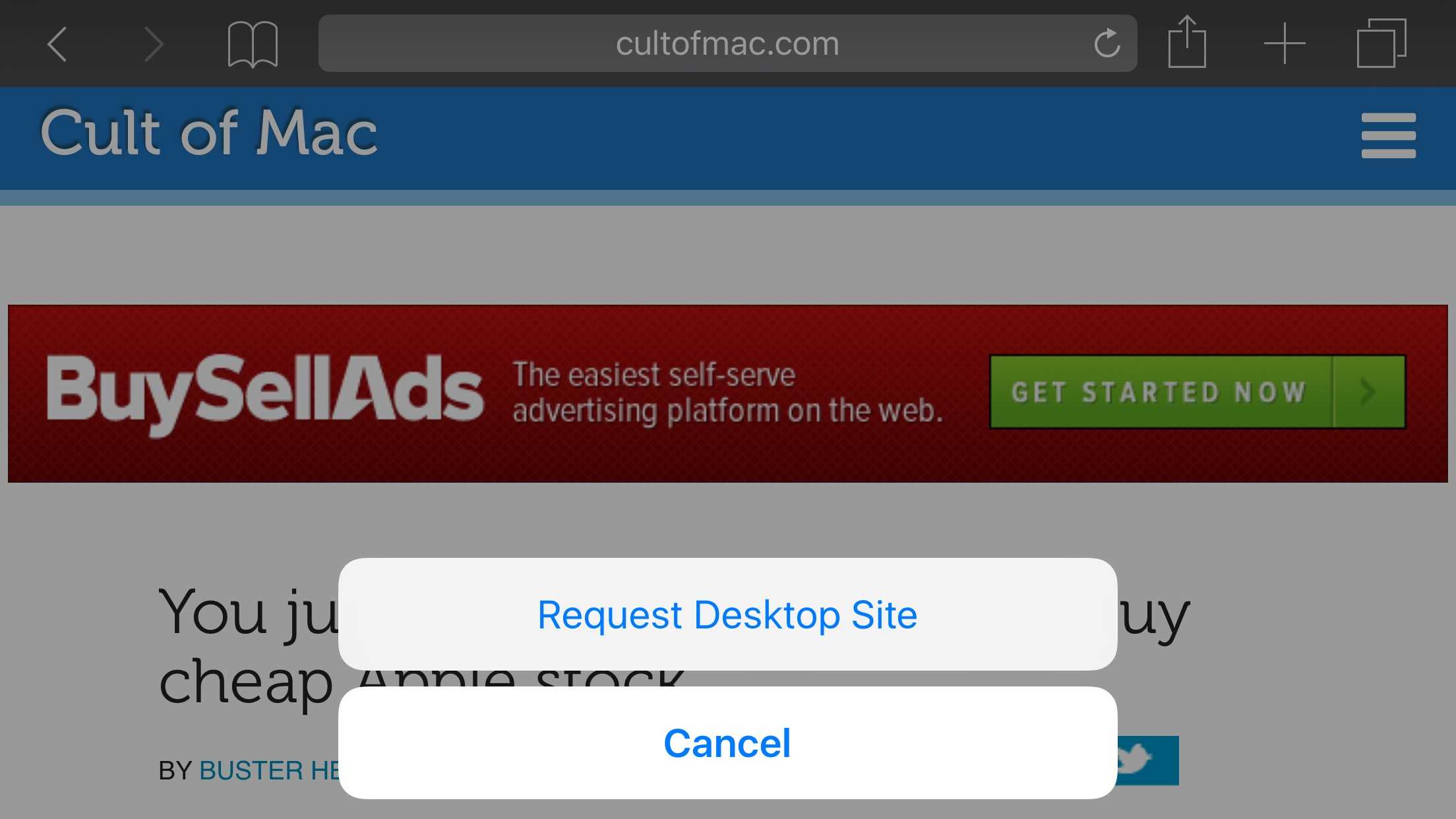
Once you’ve loaded up the mobile version of the site, tap and hold on the refresh button. This is the little circle/arrow icon in the right side of the address bar.
You’ll get a little pop-up slider from the bottom of your screen that gives you two options: Request Desktop Site and Cancel.
To see the full, non-mobile version of your loaded web site, tap on Request Desktop Site. You’ll be able to navigate as per usual. Just note that some desktop sites are really bad on an iPhone screen. You might be better off with the mobile site. If, however, you’ve decided to skip loading the less mobile-friendly version of your favorite web site, just hit Cancel. No one will judge.
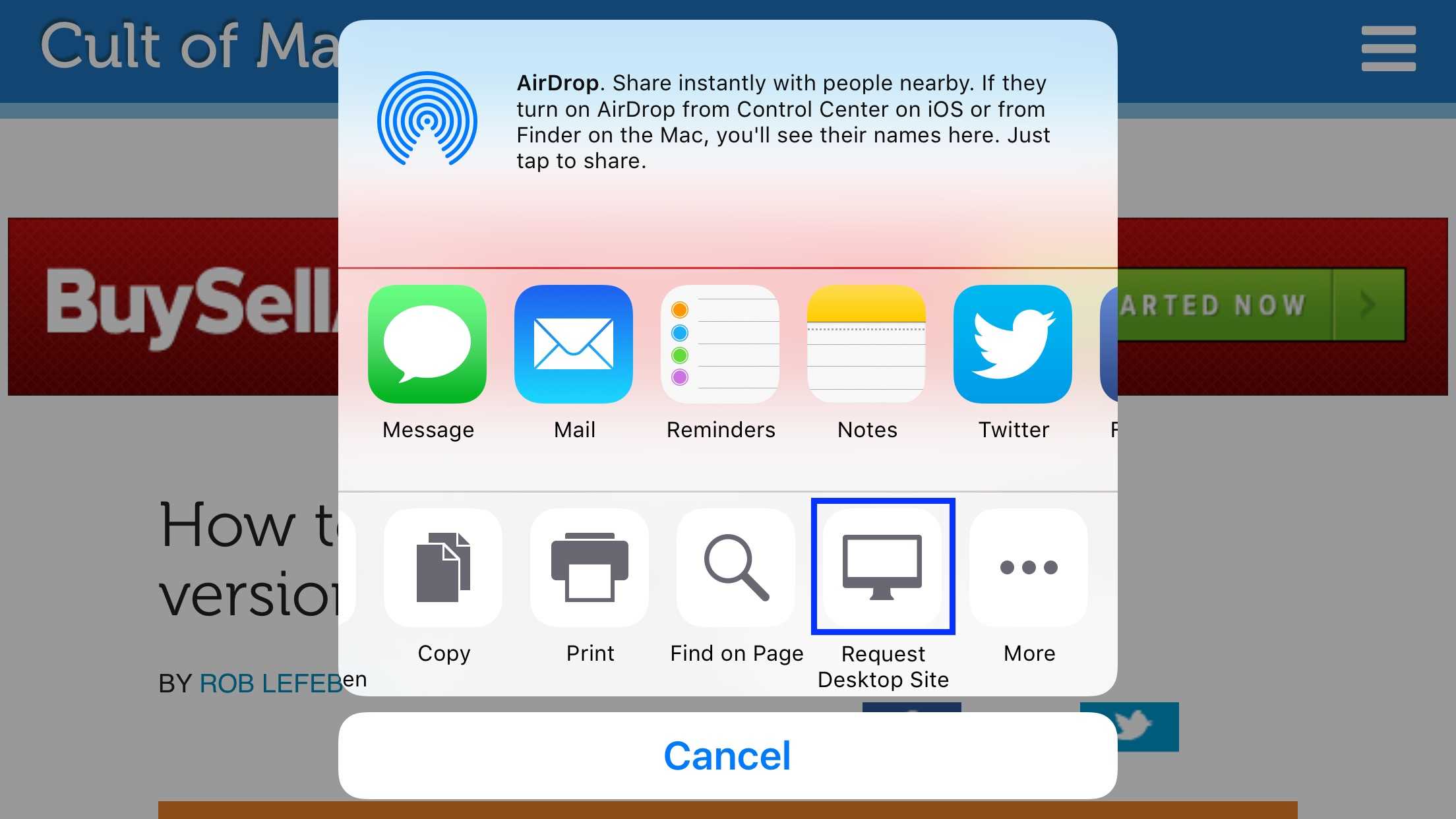
Update: You can also get the desktop version of any site by tapping on the Share button at the bottom of your Safari screen, then swipe left on the bottom row of options (the one that starts with Add to Favorites and includes Add Bookmark) to the Request Desktop Site button. Tap that, and proceed as above. (Thanks @winmaciek)
Now you’ve got a couple of simple ways to get to the desktop version of web sites you love to browse, provided you’re running iOS 9. Have at it!
Via: Apple Insider

Rob LeFebvre is an Anchorage, Alaska-based writer and editor who has contributed to various tech, gaming and iOS sites, including 148Apps, Creative Screenwriting, Shelf-Awareness, VentureBeat, and Paste Magazine. Feel free to find Rob on Twitter @roblef, and send him a cookie once in a while; he’ll really appreciate it.


7 responses to “How to skip those skimpy mobile versions of websites”
There’s actually another way to get full website. To do this:
1. Open website.
2. Tap „share” button.
3. Scroll the bottom list (the one with „Add to reading list”, „1password” etc.) and find an appropriate button („Request full website ”).
Still thanks for the tip. It’s probably quicker than method I mentioned.
Great find – I’ll add to the post.
This feature already exists in iOS 8. Tap the address bar in Safari and swipe down to reveal a “Request Desktop Site” button.
This is already a thing in iOS 8. They talked about it briefly at WWDC 2014.
Tried with this site and it still serves the mobile site.
While I think your mobile site it good, I’d prefer the option
It’s been in Safari, just buried. Hopefully it works, a lot of times, it just gives me the mobile version still.
It only works sometimes, though. I’ve seen sites pop right back into mobile mode. And if you’re dealing with a site that switches to a mobile enhanced site you may still not be switched to a desktop site.