Mobile menu toggle

How-To

Cult of Mac publishes Apple how-tos every day that will help you make the most of your iPhone, Mac, iPad, Apple Watch and other Apple gear.

Read Cult of Mac’s latest posts on How-To:

Secret trick will stop your iPhone from updating to iOS 26 — forever!

By

Image of an iPhone with the words
Wary of Liquid Glass? You can stay on iOS 18 forever.
Image: D. Griffin Jones/Cult of Mac

Not ready to take a gamble on iOS 26? You can stop an iOS update in its tracks if you don’t want to be pushed into the latest version.

There are all kinds of reasons you might not want to upgrade. Maybe you like the speed and stability of iOS 18. Perhaps you don’t want Apple’s divisive new Liquid Glass user interface slowing down your aging iPhone.

While Apple is finally starting to push people to update to iOS 26, you don’t need to go along with the crowd. Obviously, you can disable automatic updates to put on the brakes, but it won’t be long before Apple starts sending push notifications and red badges, encouraging you to update.

Luckily, there’s a secret trick to hide those and make sure your phone stays on iOS 18 for as long as you like.  Here’s how.

iPadOS 26.2 delivers major Split View improvement — here’s how to use it

By

iPadOS 26.2 delivers major Split View improvement — here’s how to use it
Rejoice, iPad fans! Apple restored the best feature of Split View in iPadOS 26.2.
Screenshot: Apple

iPad users once again gain access to classic Split View multitasking in iPadOS 26.2. It’s back to being the best way to use two applications side-by-side on your iPad.

Apple nerfed Split View in iPadOS 26, but the latest OS update walks that mistake back — it’s as good as it’s ever been. Here’s how to use the revised version.

Apple pushes new AirPods Pro firmware update with bug fixes and improvements

By

How to update AirPods
There’s new firmware for multiple AirPods Pro models. Get it today.
Image: Apple/Cult of Mac

Apple released new firmware for AirPods Pro 2 and AirPods Pro 3 on Thursday that offers bug fixes for a major recent firmware upgrade. Version 8B28 and 8B30 merely tweak the wireless earbuds, but every AirPods update is worth installing.

Apple recently explained exactly how to update your AirPods firmware. The process can happen automatically, in the background, but there is a way to speed things up. It’s a good idea to manually check that you’re running the latest version, which brings bug fixes and sometimes great new features.

Read on for more details, and find all current AirPods firmware versions, along with instructions for getting the AirPods update as quickly as possible.

The fastest way to make a GIF on your iPhone (or Mac)

By

Make Your Own GIFs
Turn any Live Photo or video on your phone into a short GIF.
Image: D. Griffin Jones/Cult of Mac

You can make an animated GIF on your iPhone or Mac out of any Live Photo or video in your photo library or saved on your computer. You don’t need to download any apps — simply add a shortcut, and you can make a GIF directly from the share sheet.

If you need an actual GIF file, there’s still a pretty easy way to make them on your phone or Mac. I’ll show you how.

How to ping your lost Apple Watch from your iPhone

By

Ping Apple Watch from iPhone: “Where Did It Go?”
It's not easy to find in a pile of miscellaneous clutter.
Image: D. Griffin Jones/Cult of Mac

You can ping a lost Apple Watch from your iPhone, giving you an easy way to find your misplaced wearable.

If you take your Apple Watch off at the end of the day, forgetting to throw it on the charger, you might not remember where you left it the following morning. (The reverse has always been a cool feature of the Apple Watch. Read our post: How to find your lost iPhone with Apple Watch.)

Now, you can find a lost Apple Watch from your iPhone. Here’s how it works.

How to stop your AirPods from switching between devices

By

Stop Switching Around On Me
Apple’s “intelligent” AirPods switching can get annoying.
Image: D. Griffin Jones/Cult of Mac

If you’re trying to listen to podcasts or music on your iPhone, it can be annoying when your AirPods keep switching to other devices, like your Mac or iPad.

Personally, I don’t mind this behavior. If I’m sitting at my Mac, I want to use the Music and the Podcasts apps on the Mac. But a lot of people consider their iPhone their primary device — and always want to play audio from their phone, no matter which other device they’re using.

If you want your iPhone to retain supreme control over your ears, here’s how to disable AirPods auto-switching.

Make calls more personal: Your guide to creating custom iPhone Contact Posters

By

Create A Great Contact Poster on iPhone
How to make a killer contact poster.
Image: D. Griffin Jones/Cult of Mac

Contact Posters let you customize how your Apple contact card looks to other people when you call them. If they have your contact info in their address book, your customized Contact Poster will appear on their iPhone’s screen. 

Done right, Contact Posters look great — way better than the old thumbnail images that preceded them. Plus, it’s really easy to turn an ordinary picture into a gorgeous-looking Contact Poster that makes a real impact.

And once you set one up, everyone with your matching phone number and/or Apple Account will see your chosen contact picture and personalized Contact Poster.

I’ll show you how to set one up; the process might look familiar if you’ve set up a custom Lock Screen.

How to find your music stats with Apple Music Replay 2025

By

Apple Music Replay graphic
Find your top songs of the year.
Image: D. Griffin Jones/Cult of Mac

Apple Music Replay is a great way to find your music stats for the past year: the most played songs, artists and albums in the last 12 months. Similar to Spotify Wrapped and the like, your annual Apple Music Replay is a fun way to see what tracks you listened to most.

Fun fact: Apple usually publicizes Apple Music Replay in December, but it’s actually updated weekly and available throughout the whole year! You can check in whenever you want to see how your year is shaping up.

We’ll show you how to find it and how to share your top music of the year to your friends and social media.

How to watch A Charlie Brown Christmas for free

By

How to watch ‘A Charlie Brown Christmas’ for free
A Charlie Brown Christmas is free to watch on Apple TV later this month.
Photo: Apple TV

The Christmas season is starting, and there’s good news for fans of the Peanuts holiday specials. Apple will make the holiday classic A Charlie Brown Christmas available for everyone to stream free later this month, whether they’re an Apple TV subscriber or not.

That gives everyone the opportunity to watch Linus teach his friends what Christmas is all about.

Master AirDrop: Your ultimate guide to seamless file sharing on iPhone, iPad and Mac

By

How to AirDrop: Drop It My Way
AirDrop is right up there with iMessage as a great Apple-exclusive feature. Learn how to use it.
Image: D. Griffin Jones/Cult of Mac

If you want to know the fastest and easiest way to send someone photos, videos, files and so, so much more, you should know how to AirDrop. There’s no need to send an iMessage — Apple’s slick AirDrop feature will immediately send and open the content on someone else’s iPhone (or other Apple device). There’s no middle step.

AirDrop works iPhone-to-iPhone, iPhone-to-Mac, iPhone-to-iPad, Vision Pro-to-Mac — any combination and permutation of two Apple devices. And, if your friend has a Google Pixel 10, you can AirDrop with them, too!

Keep reading to find out everything you need to know about how to take advantage of AirDrop.

Restore your sanity by blocking jerks from calling, texting and emailing

By

Block A Number on iPhone
Here are all the details on how to block a number on iPhone.
Image: D. Griffin Jones/Cult of Mac

Spam calls and text messages seem absolutely relentless these days — you’ll want to know how to block a number on your iPhone to keep your sanity. Luckily, it’s easy. There are a variety of ways you can stop unwanted calls. You can block an incoming phone call or text message. And you can send unknown callers directly to Live Voicemail.

If you’re blocking a person in your contacts list, it doesn’t matter which app you block them from — Messages, Phone, Contacts, Mail, Settings — they will be blocked everywhere.

Here’s how to block calls from unknown numbers on iPhone and keep spammers at bay.

3 reasons you shouldn’t close your open iPhone apps

By

How do you close iPhone apps?
How do you close iPhone apps? It's easy, but you really shouldn't.
Image: D. Griffin Jones/Cult of Mac

It’s good to know how to close apps on iPhone for those times when an app is acting buggy or becomes unresponsive. It’s really easy — just swipe up to see your running apps and swipe up again to close them.

But does this mean you should always quit your open apps? No, not at all.

Despite what you may have heard, quitting apps on iOS usually makes things worse, not better. It’s a myth that quitting apps will save battery life, make your iPhone run faster or free up memory. Overall, it negatively impacts your iPhone’s performance.

Here’s how to close iPhone apps — plus three reasons why you shouldn’t rush to do it.

How to restart any model of iPhone, even if the buttons don’t work

By

Image of an iPhone screen on a pink background with the words,
Turning your iPhone off and on again is the closest thing there is to a magical, just-fix-it solution.
Image: D. Griffin Jones/Cult of Mac

If your iPhone ever experiences odd technical problems, the first thing you should try is a good, old-fashioned restart. You’ll be surprised how many problems you can fix by simply rebooting your phone.

Restarting your iPhone is just like restarting a computer. All of the apps and software will be reset, and you shouldn’t lose any saved data.

If a particular app you’re using is acting up, you can always force-quit it and open it again to reset it. But if there’s a deeper underlying problem with your phone’s software, like if Bluetooth accessories aren’t working or phone calls suddenly won’t connect, you should restart your iPhone.

Here’s how to do it with any model of iPhone.

Use Nano Banana Pro to create amazing AI images on your iPhone

By

How to use Nano Banana Pro on iPhone
Use Google's latest image editing AI model to create amazing images on your iPhone.
AI Image: Google Gemini

From wild concept art to polished edits, Google Gemini’s Nano Banana Pro image creation and editing tool can spin up impressive visuals from a single prompt on your iPhone.

The featured image of this article itself serves as an amazing example of Nano Banana Pro’s capabilities. And it also showcases just how far behind Apple is in the AI race. (Sorry, Image Playground.)

If you’re itching to use Google’s Nano Banana Pro on your iPhone, this guide will show you how.

Give your Mac a makeover with custom icons

By

Custom Mac Icons
You can change any icon on your Mac to suit your taste.
Screenshot: D. Griffin Jones/Cult of Mac

A great way to personalize your computer is to change your Mac icons. New in macOS Tahoe, you can give each folder a custom color or symbol.

In fact, you can change any icon on your Mac to customize it to your taste. That includes any app, folder, disk or file icon. For instance, I didn’t like the yellow icon of my external hard drive — so I changed it to blue. I’ve also edited a few app icons for better consistency in my Dock.

I’ll show you how to do it yourself.

10 tricks to kick your iPhone addiction

By

Make Your Phone Boring
Here are my tips for spending less time on your phone.
Image: D. Griffin Jones/Cult of Mac

Phone addiction is real. Constant iPhone use can literally change the makeup of your brain. Sure, people waved similar panic flags about the television, the radio and even the novel, but those were easily left at home. You carry the internet with you, and it’s constantly blasting a firehose of content, everywhere you go.

Luckily, you can make your iPhone less addictive.

If you feel the impulse to unlock your iPhone at every empty moment, or scroll through an app when you feel like you should be getting to bed, here are my tips for making your iPhone a bit more boring. And that, in turn, will help you curb your phone addiction.

Stop texting passwords! There’s a safe, easy way to share them on iPhone.

By

Share Your Passwords
This is an easier way to share passwords with your friends and family.
Screenshot: D. Griffin Jones/Cult of Mac

You can share passwords on iPhone automatically with your entire family, so you don’t have to reuse the same password everywhere or let everyone in your family know when a shared password is changed.

Setting up this feature is easy and saves the hassle of being texted “hey I can’t get into Amazon, what’s that password again?” and “I need you to send me the code.” When you set up shared passwords, two-factor authentication and passkeys are shared, too.

It’s a huge time-saver, and highly recommended. You can keep reading below or watch our quick video.
How to add your ID to Apple Wallet

By

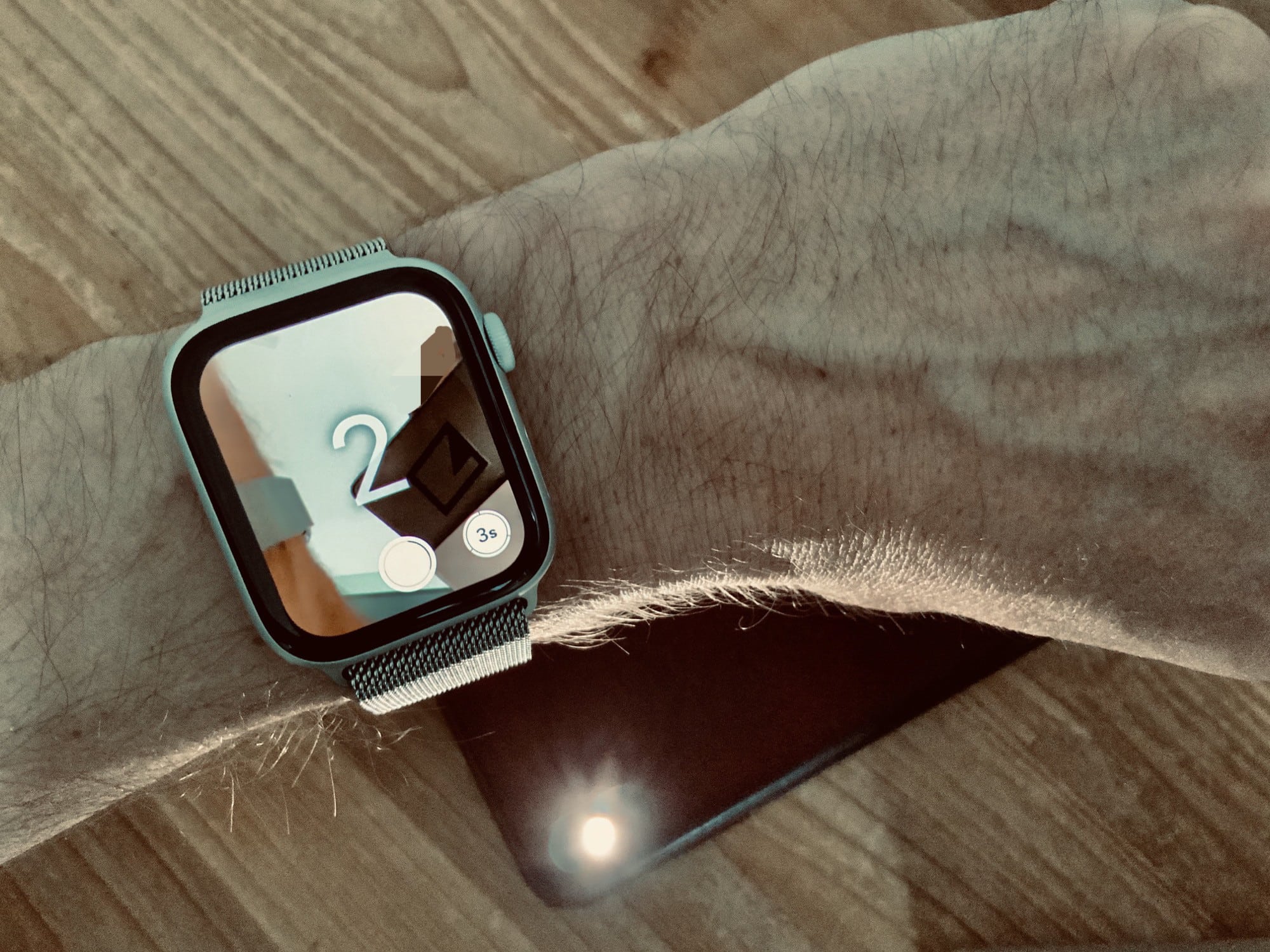
Get a gorgeous ID in Apple Wallet.
Image:

In several states, Apple’s state ID initiative enables iPhones and Apple Watches to hold a digital copy of the user’s driver’s license, in the same way these devices store credit cards and airline tickets. And across the United States, you can create an Apple Digital ID based on your passport that can get you through some airport security checks. 

The day when an iPhone can completely take the place of an old-fashioned wallet remains years away, but it’s a goal Apple is working toward. Apple Pay is making progress on replacing credit cards, you can put airline tickets in the Wallet app, and the same goes for loyalty cards.

But no wallet is complete unless it can hold an ID. And that’s where Apple’s digital ID initiative comes in. Here’s what you need to know to add your driver’s license, state ID or federal passport to your Apple Wallet.

How to quickly queue songs on Apple Music (and clear the queue)

By

Play This One Next
Your phone can DJ for you.
Image: D. Griffin Jones/Cult of Mac

You can queue songs in Apple Music so the tracks you want to hear play automatically, one after another. You don’t need to wait for the song to end and manually play the next one. And if you want to start over, you can quickly clear the queue as well. 

Plus, you can let friends add songs to the queue from their own phones — even if they don’t have an Apple Music subscription. Watch our video or keep reading below.

How to watch A Charlie Brown Thanksgiving for free

By

Don’t miss ‘A Charlie Brown Thanksgiving‘ on Apple TV
A Charlie Brown Thanksgiving is available for free later this month. Here’s how to watch it.
Photo: Apple TV

With Thanksgiving coming in a few weeks, it’s time to watch the beloved Peanuts special that celebrates this holiday, A Charlie Brown Thanksgiving. While Apple TV subscribers can watch it anytime, Apple will also make the special free for anyone to stream one weekend this month.

You do not need an Apple device to enjoy either. It’s easy on Windows and Android.

How to use the all-new Spotlight in macOS 26 Tahoe

By

Try The All-New Spotlight
Great news for people who like finding things.
Image: Apple/D. Griffin Jones/Cult of Mac

Spotlight on the Mac is a universal search bar, available everywhere, ready to quickly launch an app or find a file. And in macOS 26 Tahoe, Apple supercharged Spotlight by adding many advanced features.

Spotlight has a new visual interface for browsing apps on your Mac. It’s also a powerful tool for running Shortcuts and actions inside the apps you use. And, finally, it’s a clipboard manager, too.

Here are the ins and outs of Spotlight on the Mac.

Size matters: How to get the perfect fit for your AirPods Pro 3 ear tips

By

Closeup of the AirPods Pro 3, and their tips, on a pine table
The ear tips are a distinctive design of the AirPods Pro.
Photo: D. Griffin Jones/Cult of Mac

AirPods Pro 3’s redesigned ear tips are an unexpected hit-or-miss change. The new foam-infused tips radically change how the earbuds feel when worn.

Apple knows the ear tips are not one-size-fits-all, so the company includes five sizes of ear tips in the AirPods Pro 3 box. You can easily switch them out to find the best size for your ears.

Using the wrong size can cause problems. The earbuds can slip out if they’re too small or irritate your ears if they’re too big. They might even cause high-pitched feedback if you engage active noise cancellation with the wrong size ear tips (especially when flying).

If you don’t like how your new AirPods Pro 3 feel in the ear, don’t be hasty and return them. You should try out different ear tips first. Here are some tips to make sure you achieve the best results.

How to record spatial video on your iPhone for mind-blowing 3D memories

By

Record 3D Video
You may or may not be able to watch videos in 3D now, but you'll be glad you have it in the future.
Image: D. Griffin Jones/Cult of Mac

Your iPhone can record 3D spatial video and photos, effectively future-proofing the images you capture. And the results are stunning.

The stereoscopic 3D video and photos captured with the iPhone can be viewed on an Apple Vision Pro headset as an immersive way to relive memories.

Here’s how it works.

AirPods and Bluetooth speaker fighting? iOS 26.1 makes peace.

By

AirPods and Bluetooth speaker fighting? iOS 26.1 makes peace.
Your AirPods and Bluetooth speaker compete for audio coming from your iPhone. You can settle the fight.
Graphic: ChatGPT

You’re happily listening to music on your AirPods when the audio suddenly gets yanked away by a Bluetooth speaker. Don’t get frustrated. Make a quick tweak to the settings on your iPhone running iOS 26.1, and it’ll never happen again.

Here’s what to do.

Update your HomePod smart speaker with the latest software

By

Image of HomePod and HomePod mini
Here’s how to be sure you have the latest HomePod software update. Or stop your smart speaker from updating automatically.
Photo: Apple

The HomePod operating system occasionally needs updating, because the device is a lot more than a simple speaker — it’s a computer. Here’s how to make sure your Apple smart speaker has the software version released Monday. The new HomePod Software version 26.1 is a simple bug-fix update, but it’s still worth installing. Who wants bugs? 

If you depend on automatic updates, it’s possible your smart speaker hasn’t yet installed the update. Here’s how to do so manually.