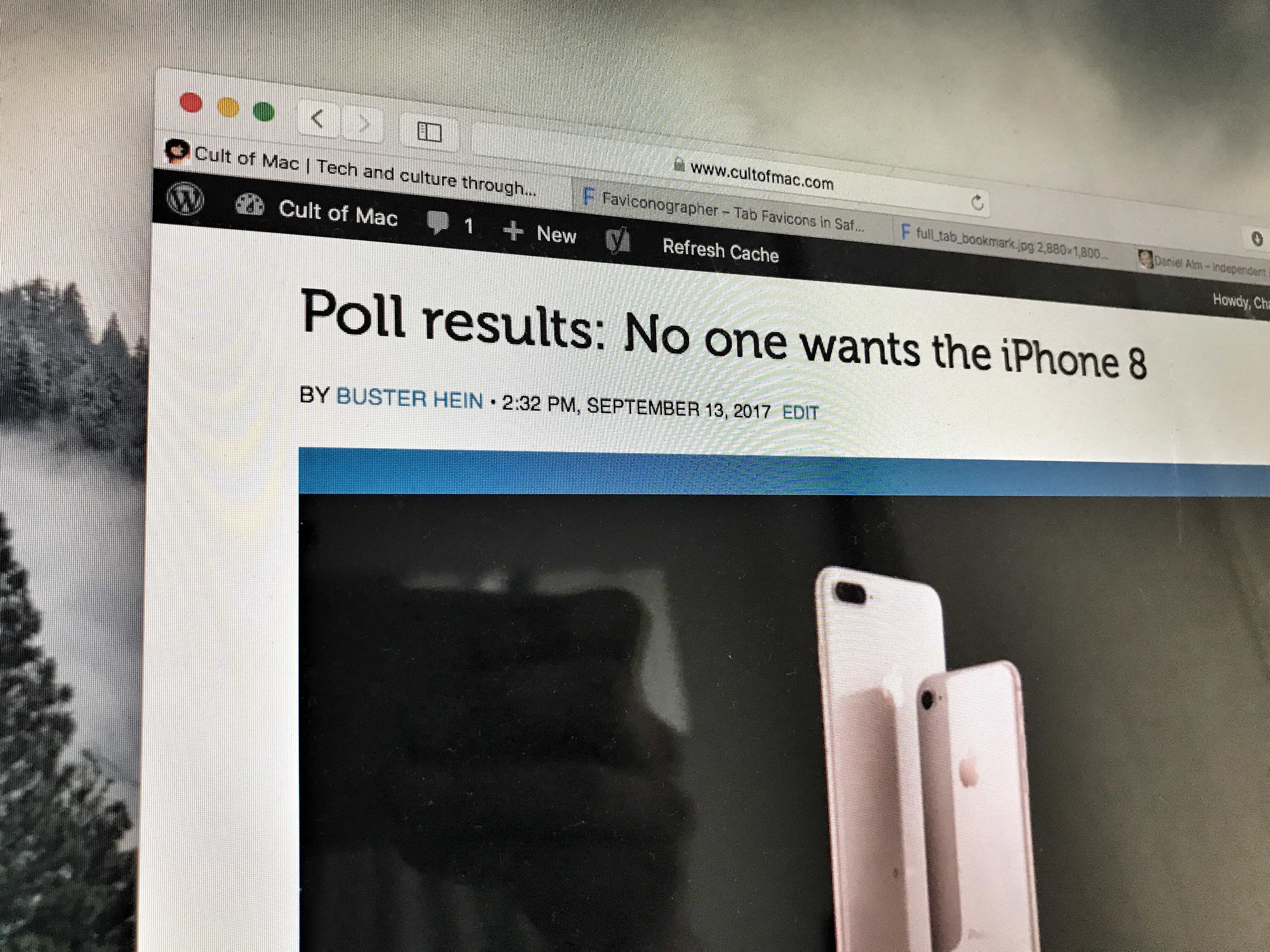
Favicons make your tabs easier to spot. Photo: Cult of Mac
One of Google Chrome’s best features is its use of favicons in tabs. Take a look at a crowded Chrome window and you’ll see each tiny tab has a colorful, easy-to-identify icon in it. Look at the same window in Safari and you get a mess of tabs with a few letters of the page title peeking out at you. It’s almost impossible to tell one site from another. That’s where Daniel Alm’s Faviconographer comes in. It’s an app with one purpose: to draw favicon onto Safari tabs.
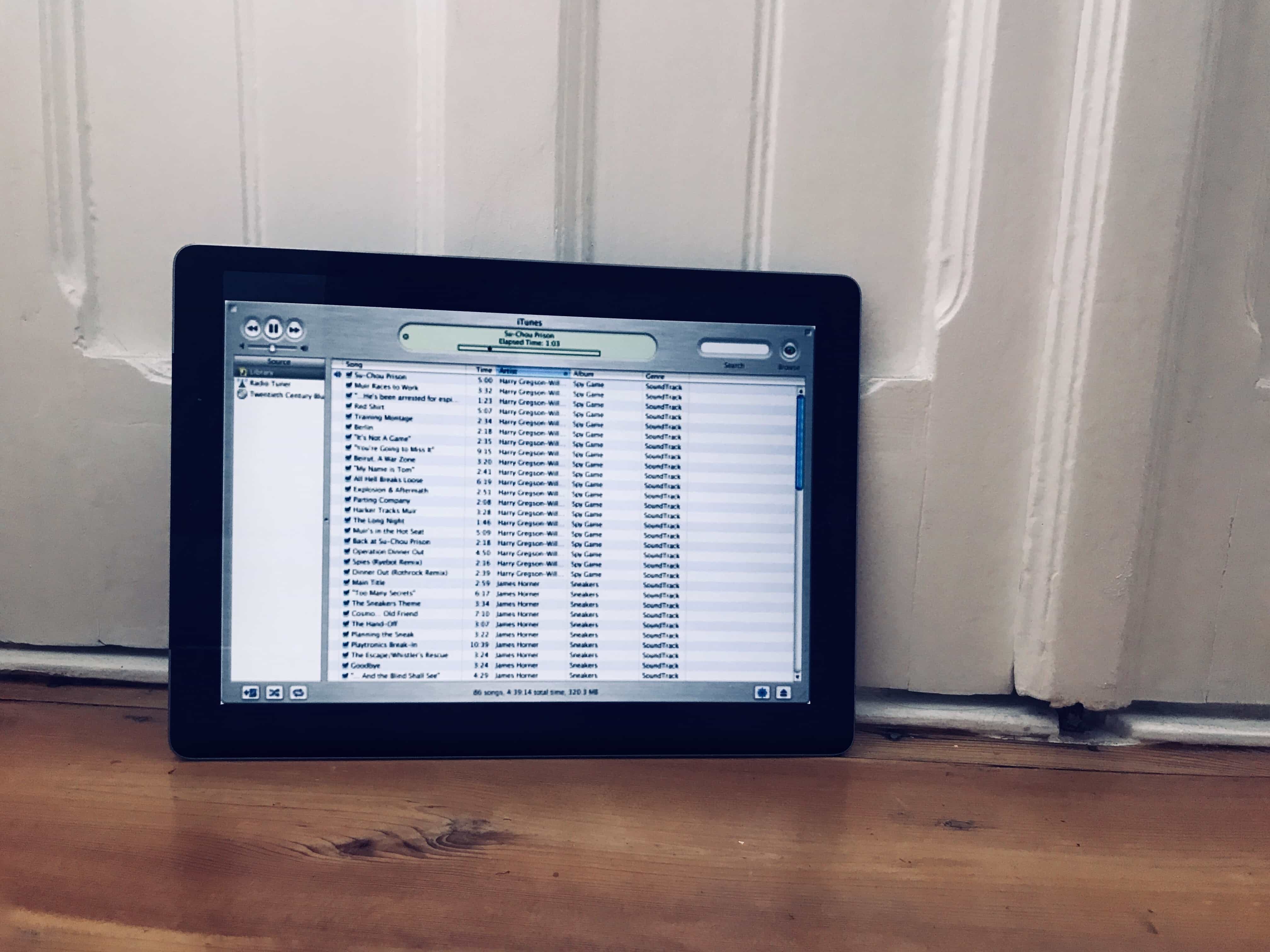
This is a screenshot of the original iTunes, on an iPad. Photo: Cult of Mac
The latest version of iTunes — 12.7 — removes the App Store. That’s bad news for folks who like to keep backups of old iOS apps around, but good news for people who have bloat and clutter. But the update also removes all your custom ringtones, so you can’t manage them from your Mac.
Don’t despair. You can still download purchased ringtones, and copy your own tones across from the Mac. It’s just not obvious how to do it any more.
In 2017, you still have to copy-and-paste Javascript to save a bookmarklet on iOS. Photo: Cult of Mac
Bookmarklets are those little bookmarks you click to run mini “apps” in your web browser. You might have one that saves the current page to your Instapaper account, or one that launches a Google search focused only on the current site. Bookmarklets can translate highlighted text on a page, send something to your to-do list, or pretty much anything. On the Mac, installing a bookmarklet is easy. You just drag it to the bookmarks bar in Safari and you’re done. On iOS, though, it’s still a real pain.
So, bookmark this how-to (in the usual way), and have it handy for those times you need to install a bookmarklet on an iPhone or iPad.
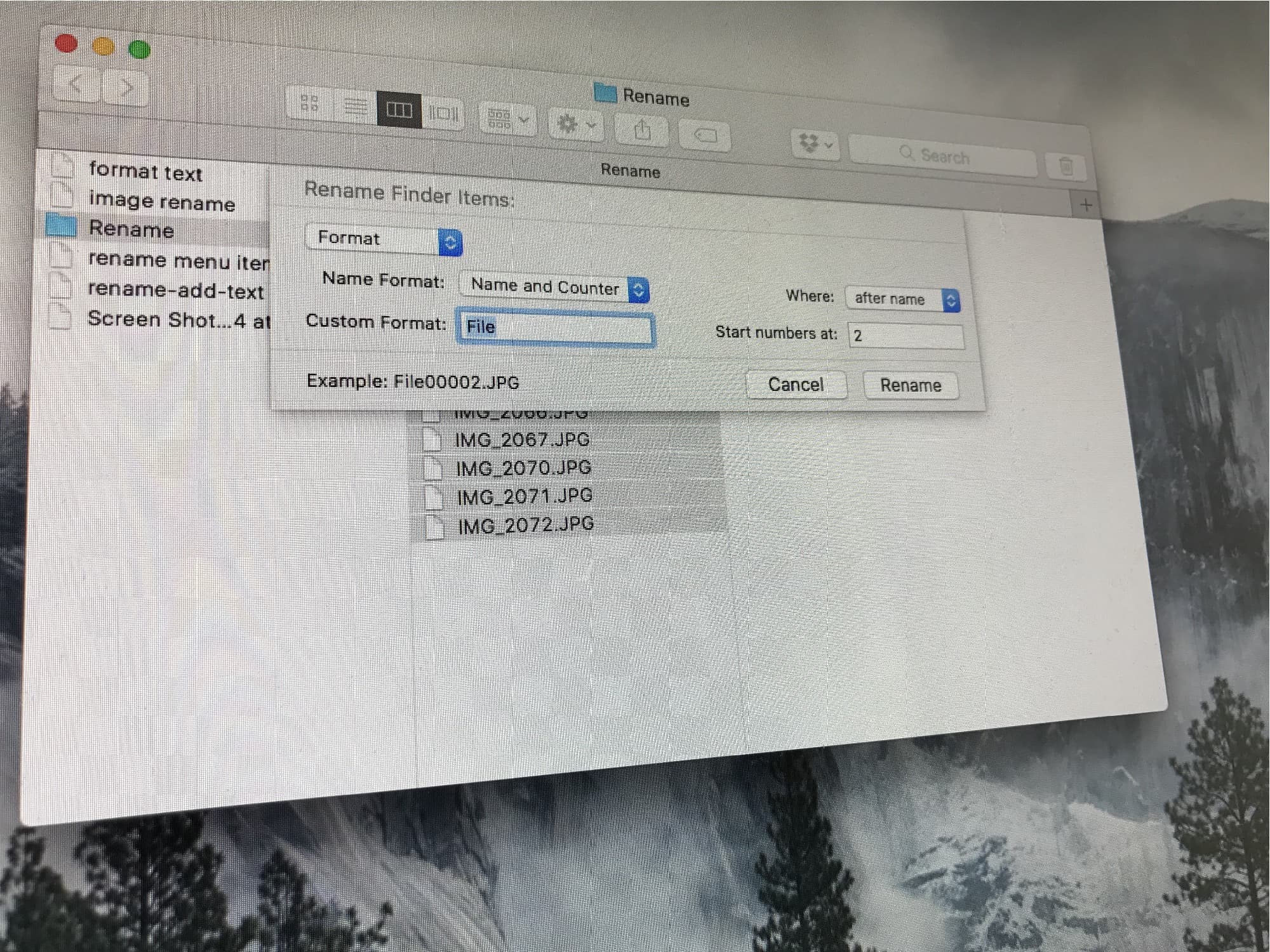
You might be surprised by how much the macOS Finder's renaming tools can do. Photo: Cult of Mac
Renaming a single file in the Finder isn’t too bad. You can click on its name and type in a new one. But what if you want to rename a whole bunch of files at once? Maybe you want to add the same text to the beginning of every file, or add a number to the end of a folder full of MP3 recording to keep them in the right order. Do you have a folder full of photos named IMG_00xx.JPG that need to be called dads_wedding_00x.jpg instead? Or perhaps that intern spelled the company name wrong on every single one of a hundred files, and you need to correct that word on every file?
In the olden days, you would have to either a) research, download, buy, and learn to use a new bulk-renaming app or b), punish your intern by making them correct everything by hand, before finally resorting to a) anyway because the intern screwed it up again. Now, the Finder has powerful bulk-renaming tools built in, so you can just take care of it all in a couple of minutes, and have your intern make you a coffee instead. If they can be trusted to do it, that is.
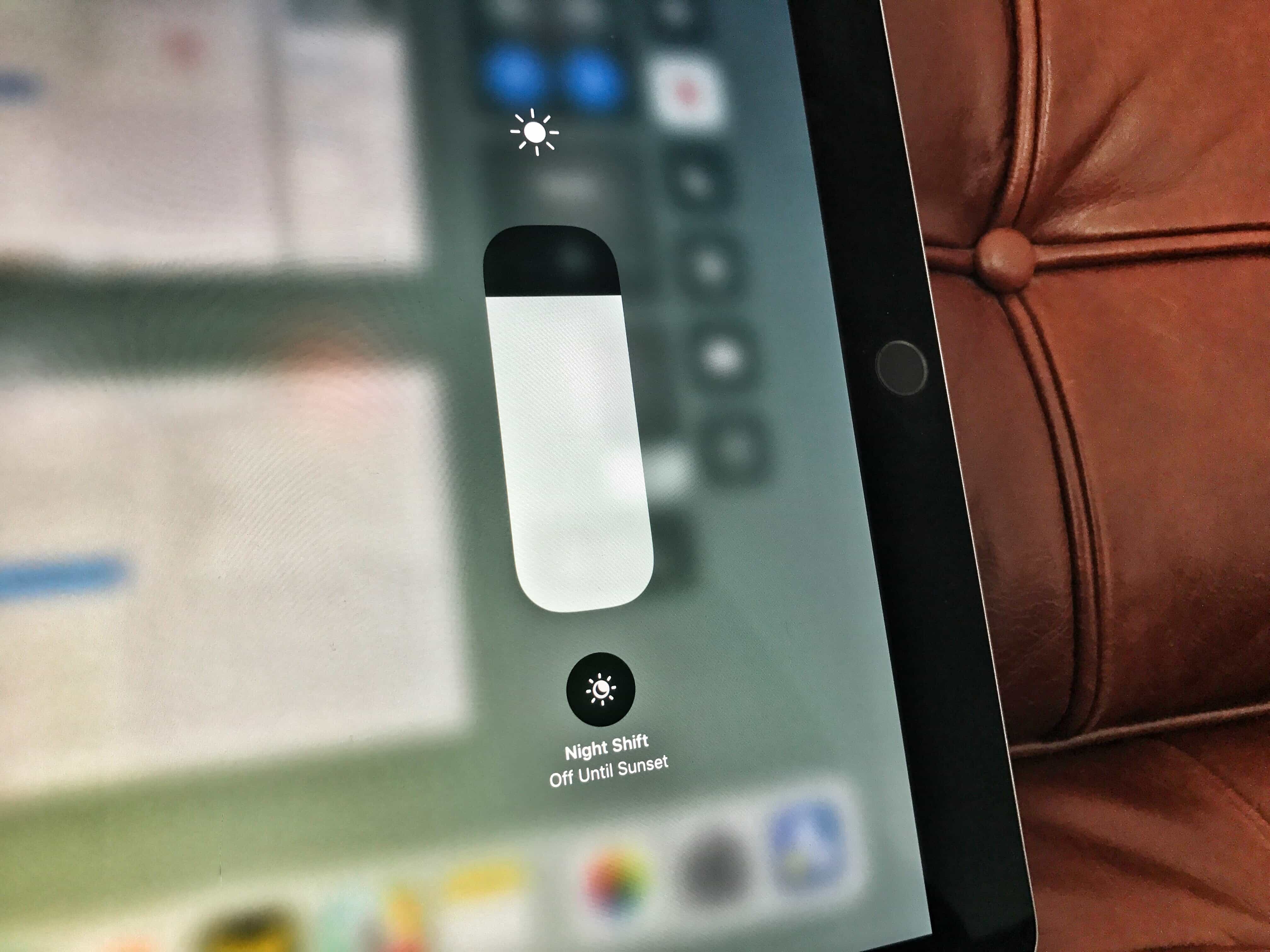
Auto Brightness has been hidden in iOS 11, but it can still be found. Photo: Charlie Sorrel/Cult of Mac
You’ve all been there. You’re sitting near a window or a lamp, reading an excellent article on your iPad — perhaps a well-written How-To from Cult of Mac — and your iPad’s screen Auto Brightness is going haywire. You slide open Control Center, and set it back where you want it, and continue reading. Then, you turn the iPad a little too far towards the light, and the screen brightness creeps up again.
In iOS 10 and prior, you’d just open the Settings app, tap Display & Brightness, and hit the switch for Auto Brightness. In iOS 11, that option has disappeared. The good news is that it hasn’t gone — the Auto Brightness switch has just moved.
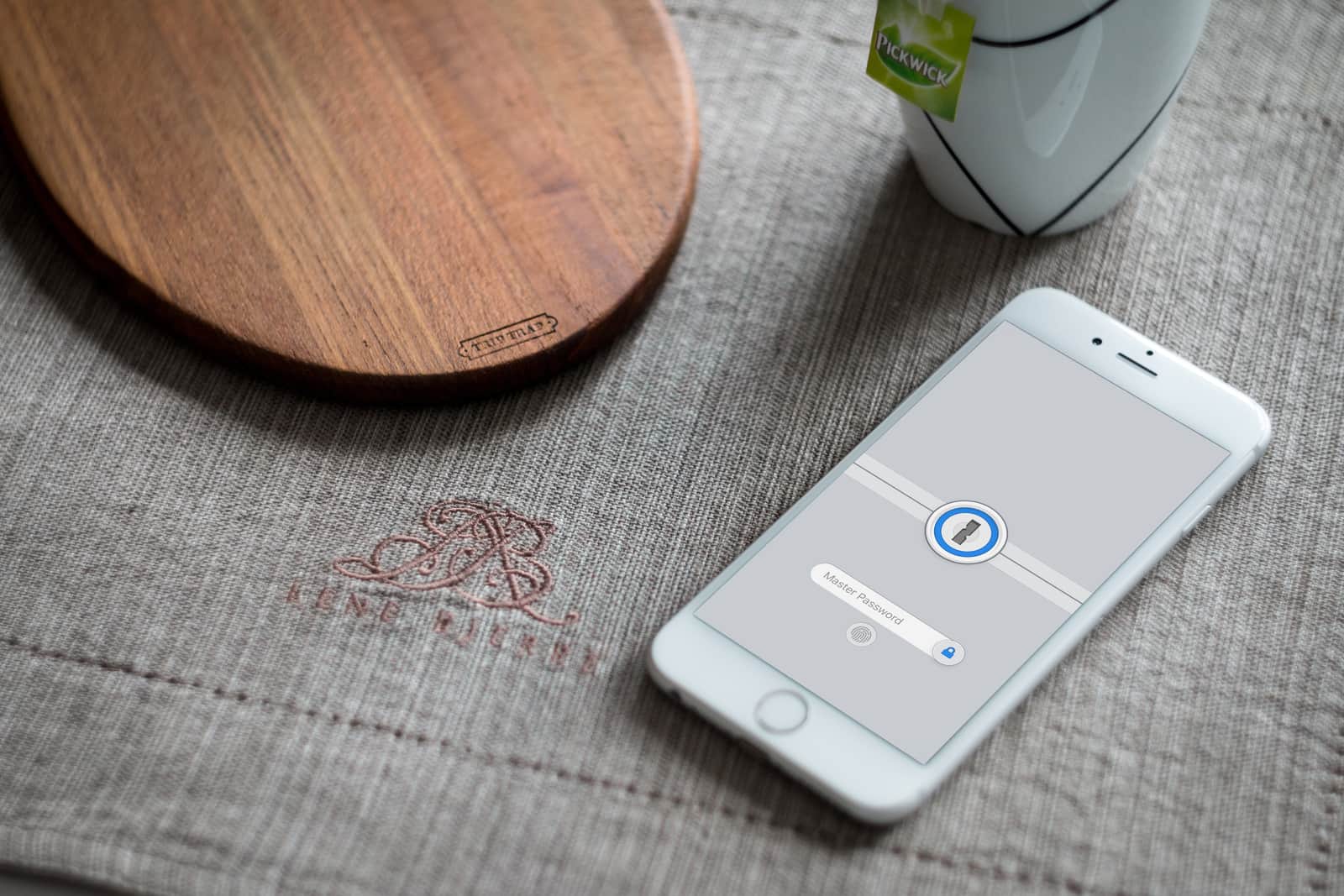
A good password is just the start of good security. Photo: 1Password
If you have a lame password, then your iCloud account will eventually get hacked. You might not think a hacker is interested in you, but you’re wrong. The good news is that there are several easy steps you can take to lock your Apple ID down and make it safe.
If you don’t think it’s important, consider this: Your photos, your email, all your browsing history, your credit card information, all of the files you have in iCloud, your contacts, notes, calendars, and all your personal messages will all be open to anyone that hacks your account. Not only that, but you can then be impersonated on social media, so that all your other accounts can be hacked too.
Google AMP is bad for the web, and Apple is fixing it so you don't have to. Photo: Charlie Sorrel/Cult of Mac
Google’s web-hostile AMP scheme makes copies of web pages, shrinks them, and serves them instead of the original when you click on a Google search result. It renders your content in non-standard HTML, and removes the original link to the article’s source. Whenever you share the page you’re reading, it forces you to share a the Google AMP URL instead of the original.
Unless you’re using an iPhone, that is. In iOS 11, Mobile Safari strips AMP from any links you share. And iPhones running iOS 10 will load the non-AMP version (i.e. the original version) of a page if you press a link with 3D Touch.
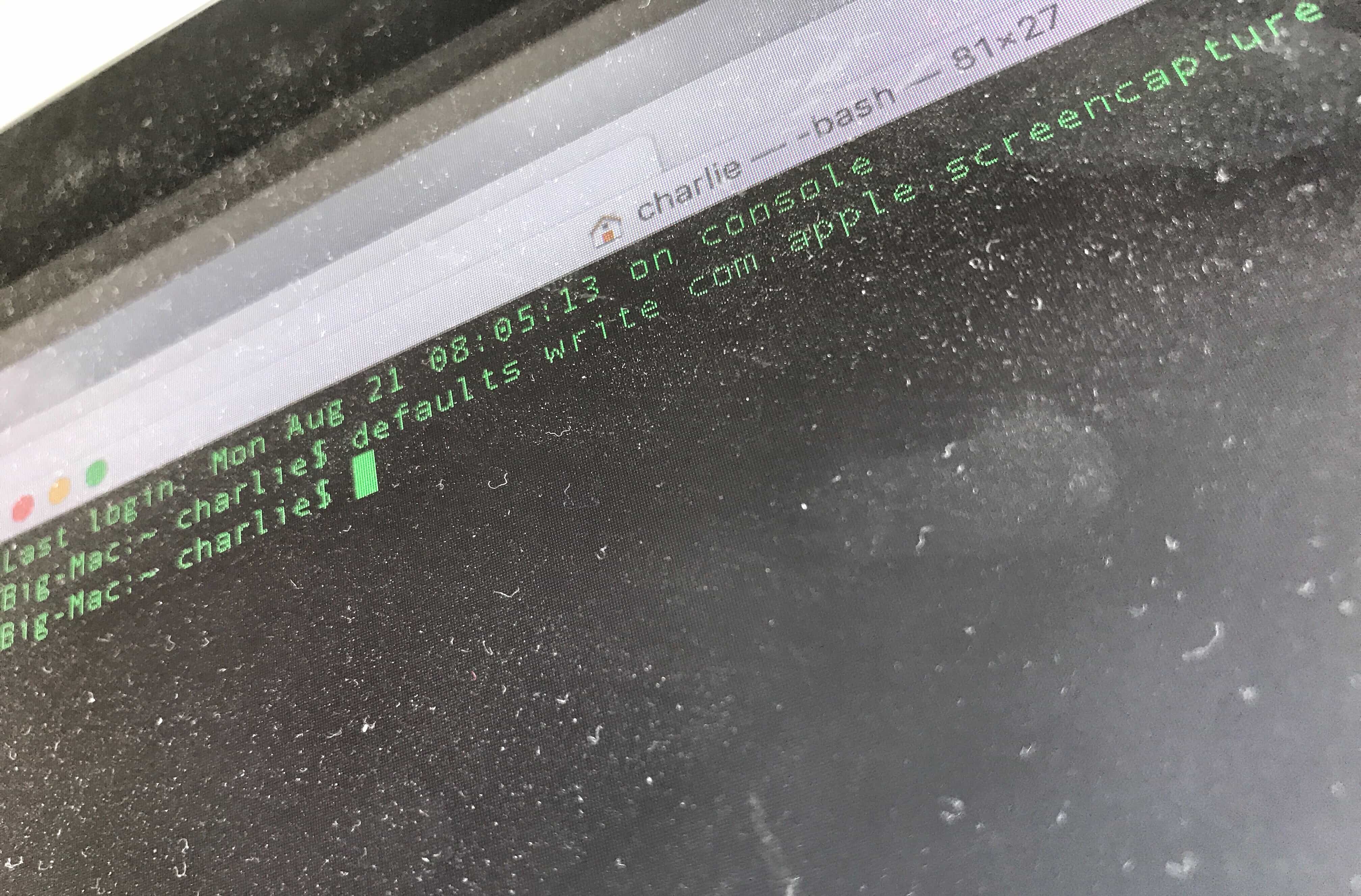
You'll have to dust off the Terminal for this tip. Seriously, though, kids, don't let your computer get this filthy. Photo: Charlie Sorrel/Cult of Mac
By default, any screenshots you take on your Mac, iPad or iPhone get saved as PNG files. That’s great, because PNG files are pixel-perfect, and they support transparency (for those neat floating-window shadows).
But they’re not JPEGs, which means they’re not universally supported. Luckily, you can easily make JPEG screenshots the default, at least on the Mac.
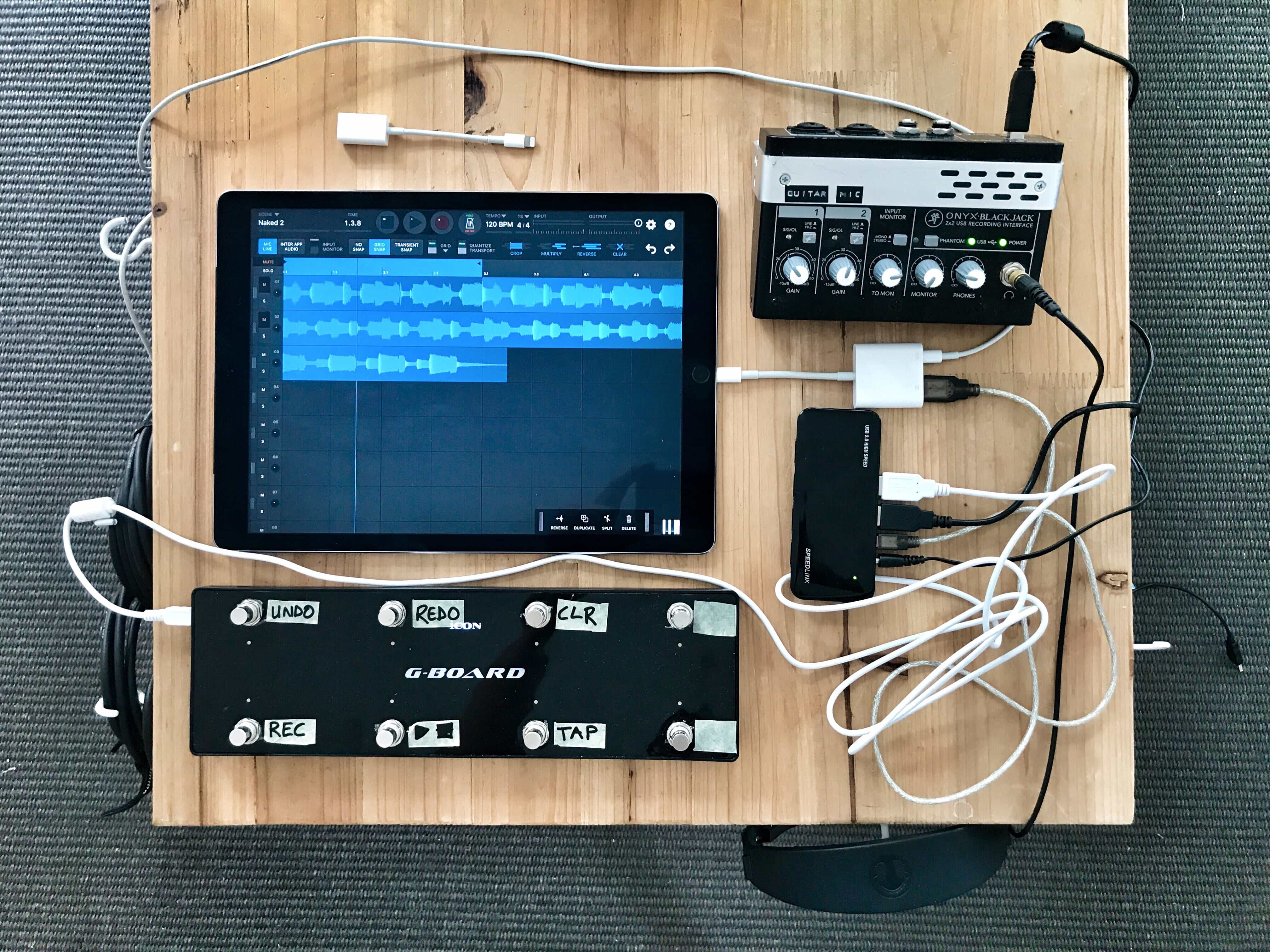
It's a mess, but it all works perfectly. Photo: Charlie Sorrel/Cult of Mac
You know how the Lightning cable that plugs into your iDevice has a USB plug on the other end? That’s because the Lightning port is a kind of fancy USB port itself. You already know that you can in plug a keyboard, or an audio interface, or a camera, using Apple’s Lightning to USB Camera Adapter. But did you know that you can plug in all of those at once? That’s right — by using a powered USB hub, you can hook up as many accessories as you like to your iPad at once. If you ever use your iPad to work at your desk, with a keyboard, then you can use this tip to build your own iPad docking station.
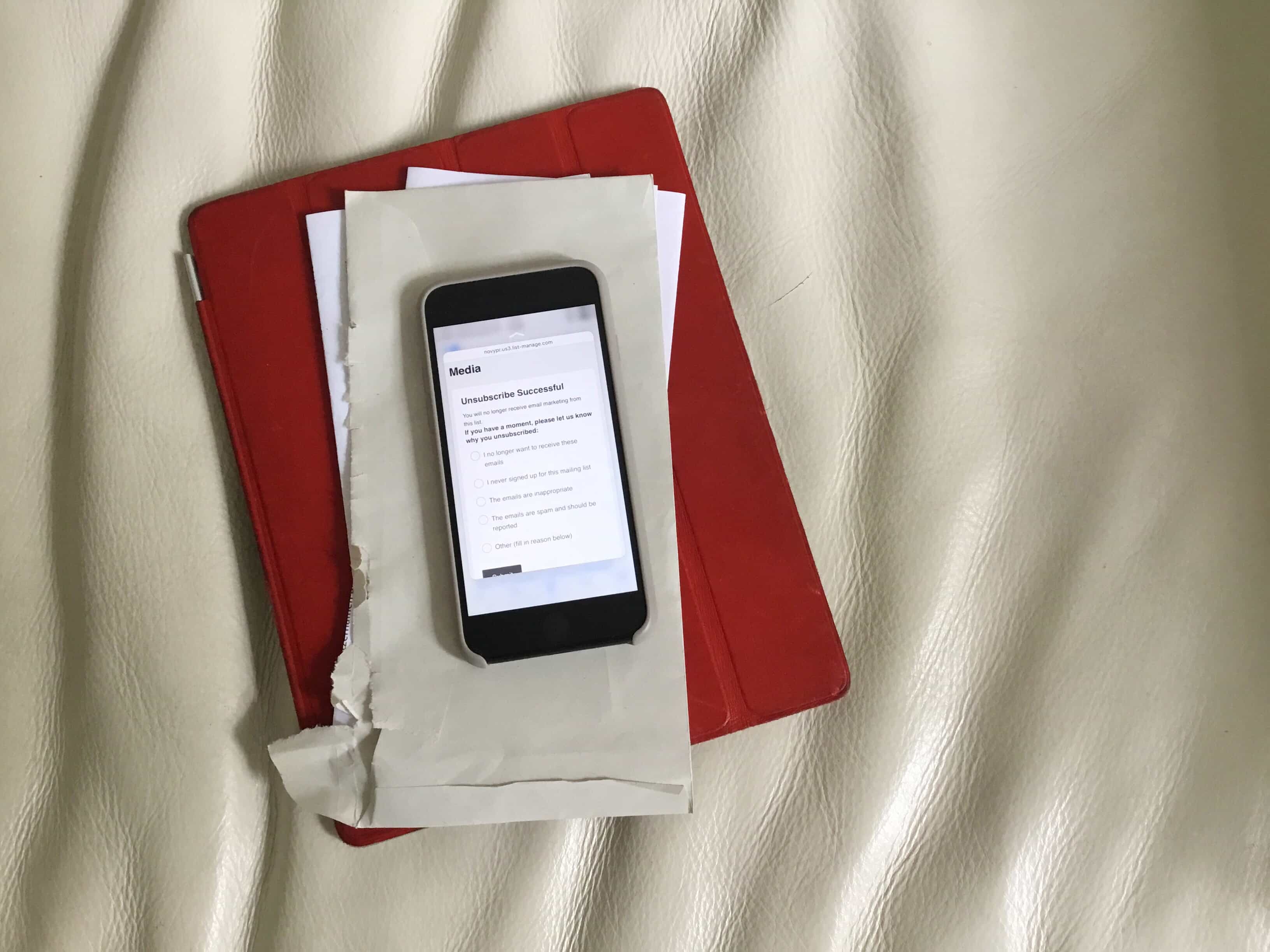
This method for canceling mail subscriptions doesn't even take one click. Photo: Charlie Sorrel/Cult of Mac
Mail app on iOS has a built-in unsubscribe feature that works great. Just a couple of clicks and Mail will attempt to remove you from unwanted future correspondence. But even that method is slow compared to the no-click unsubscribe method that we’ll share with you today.
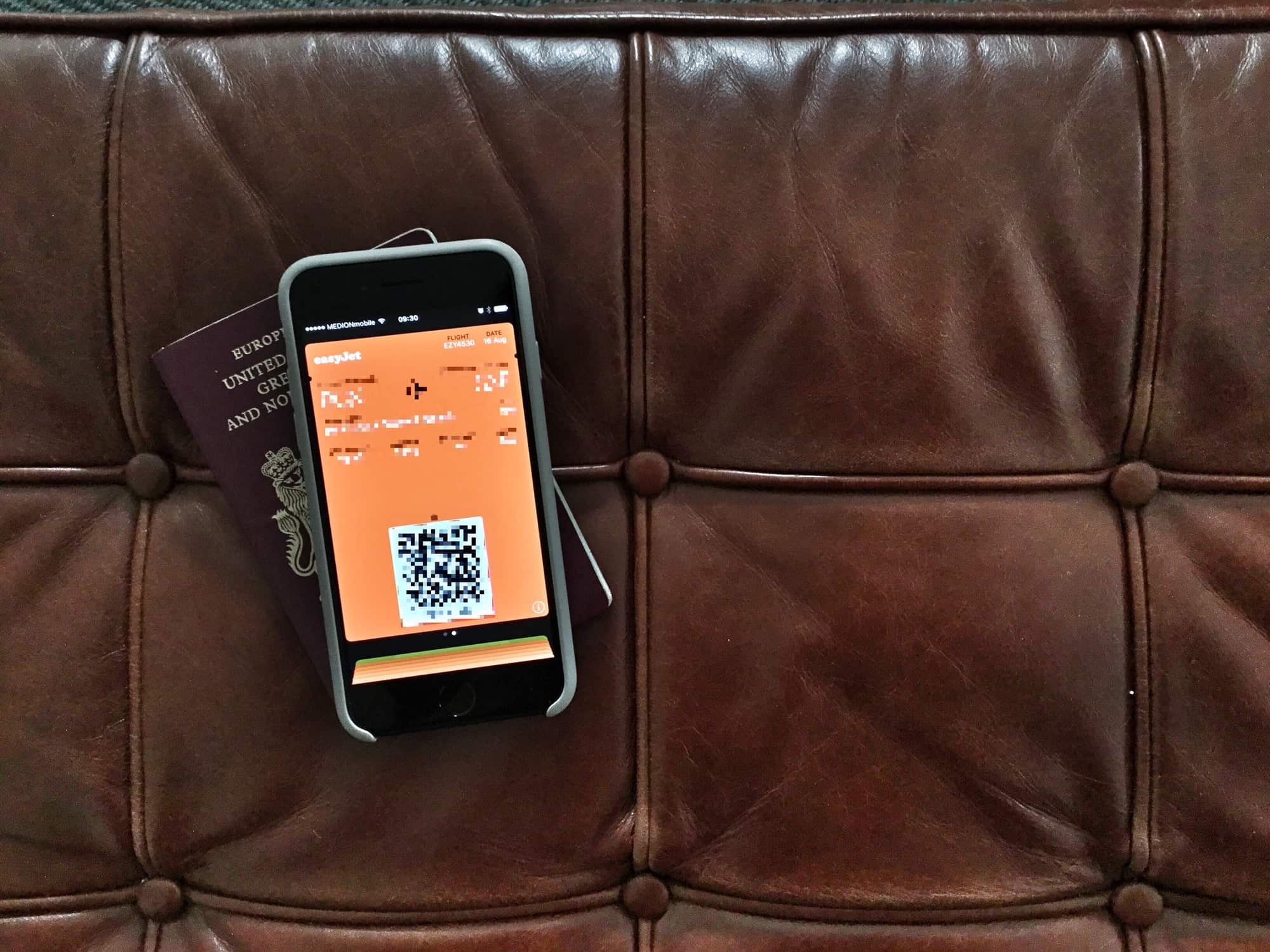
If you know where to look, getting the boarding pass off your lock screen is easy. Photo: Charlie Sorrel/Cult of Mac
Picture the scene: You’re on a plane, and your iPhone is your entertainment hub. You may be listening to podcasts, or music, or audiobooks. You may be playing a game, or reading Instapaper, or just checking and editing your vacation photos. Whatever you’re trying to do, it will be interrupted every time you unlock your iPhone, because your stupid boarding pass is right there on the lock screen. Even hours into a transatlantic fight, the boarding pass you already used hangs around, blocking things like the now-playing feature, and lock-screen controls for any music or audio apps.
Thankfully, it’s easy to get rid of — if you know where to look.
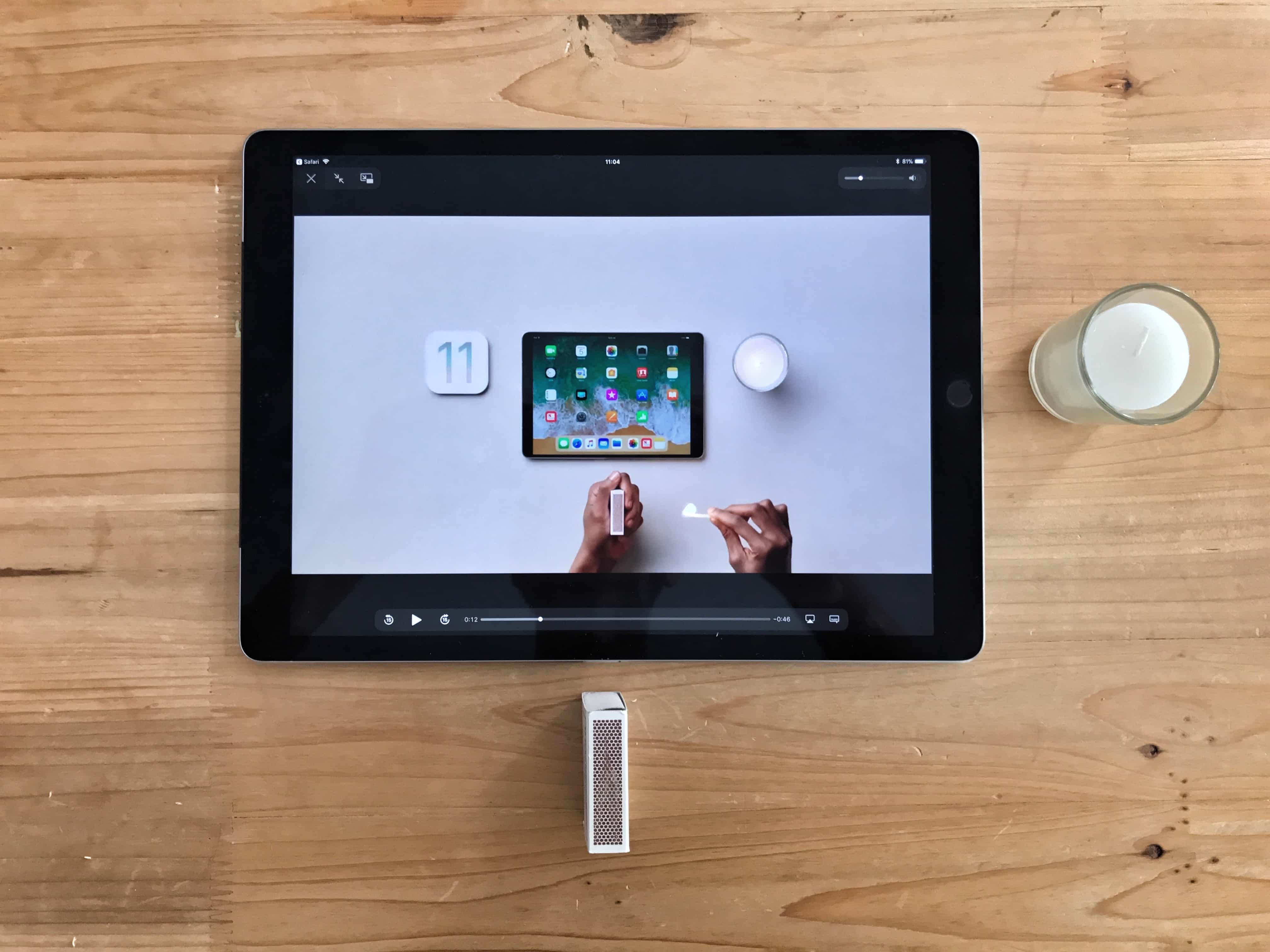
Apple's new how-to videos showcase the best new iPad features in iOS 11. Photo: Charlie Sorrel/Cult of Mac
Six new how-to videos from Apple show how to do things with your iPad running iOS 11. The minute-long episodes are engaging, informational and make iOS 11 look super-exciting, which it totally is.
If you want to get an idea of the neatest new features in iOS 11, these videos make a great place to start. Even better, you might want to send them to somebody else to show them what they will be able to do with their own iPad when Apple releases the final version of iOS 11 in a few weeks time.
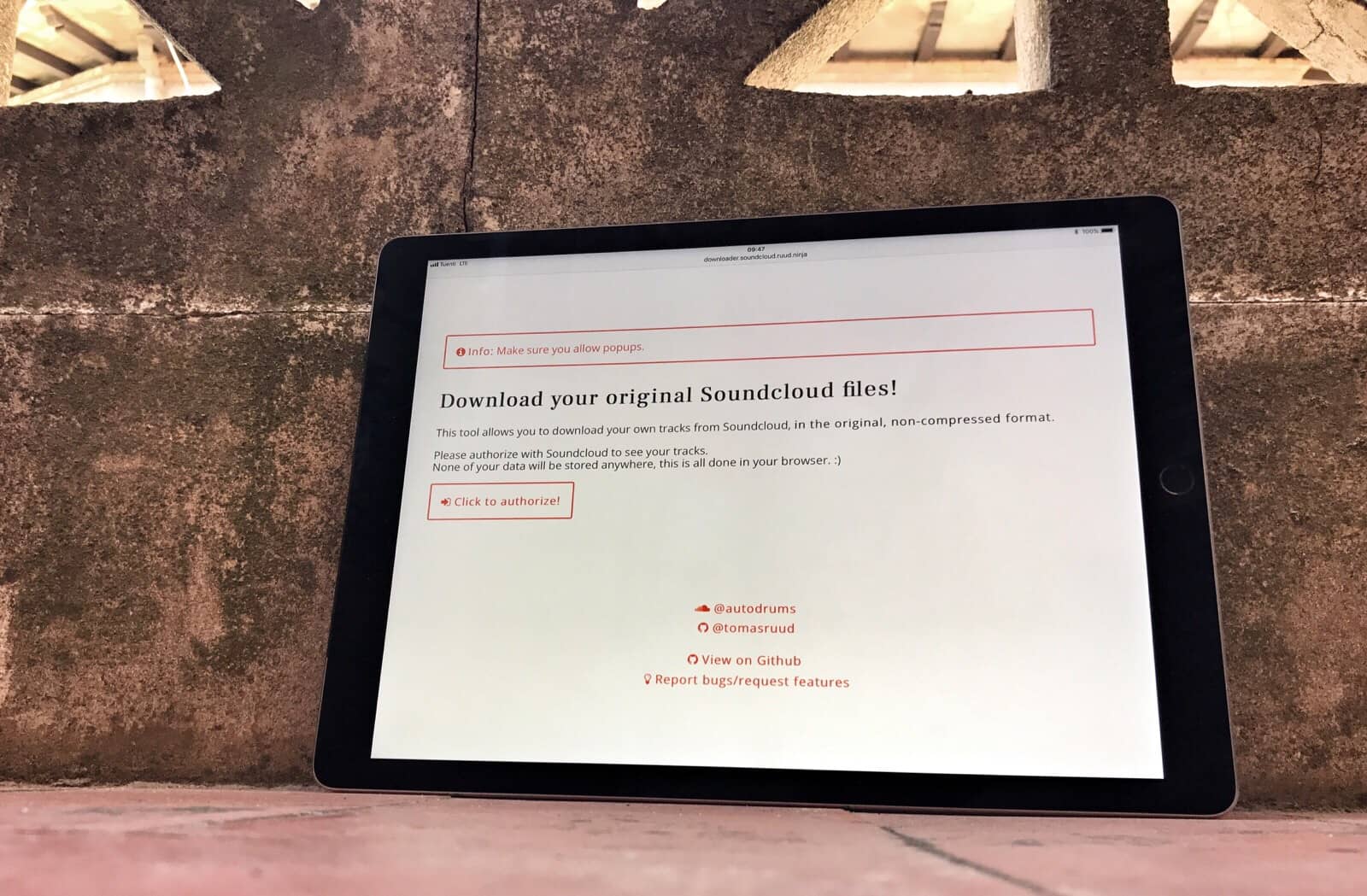
Grabbing your own SoundCloud music is easy with this free tool. Photo: Charlie Sorrel/Cult of Mac
SoundCloud faces a do-or-die vote Friday. If you uploaded a bunch of your own music to the service, and have no idea where your original copies are, you should probably download your SoundCloud music now, just to be safe.
Incredibly, there’s no built-in way to quickly grab your own files from SoundCloud. Thankfully, though, somebody built an easy-to-use tool to get the job done. Today we’re going to see how to use it.
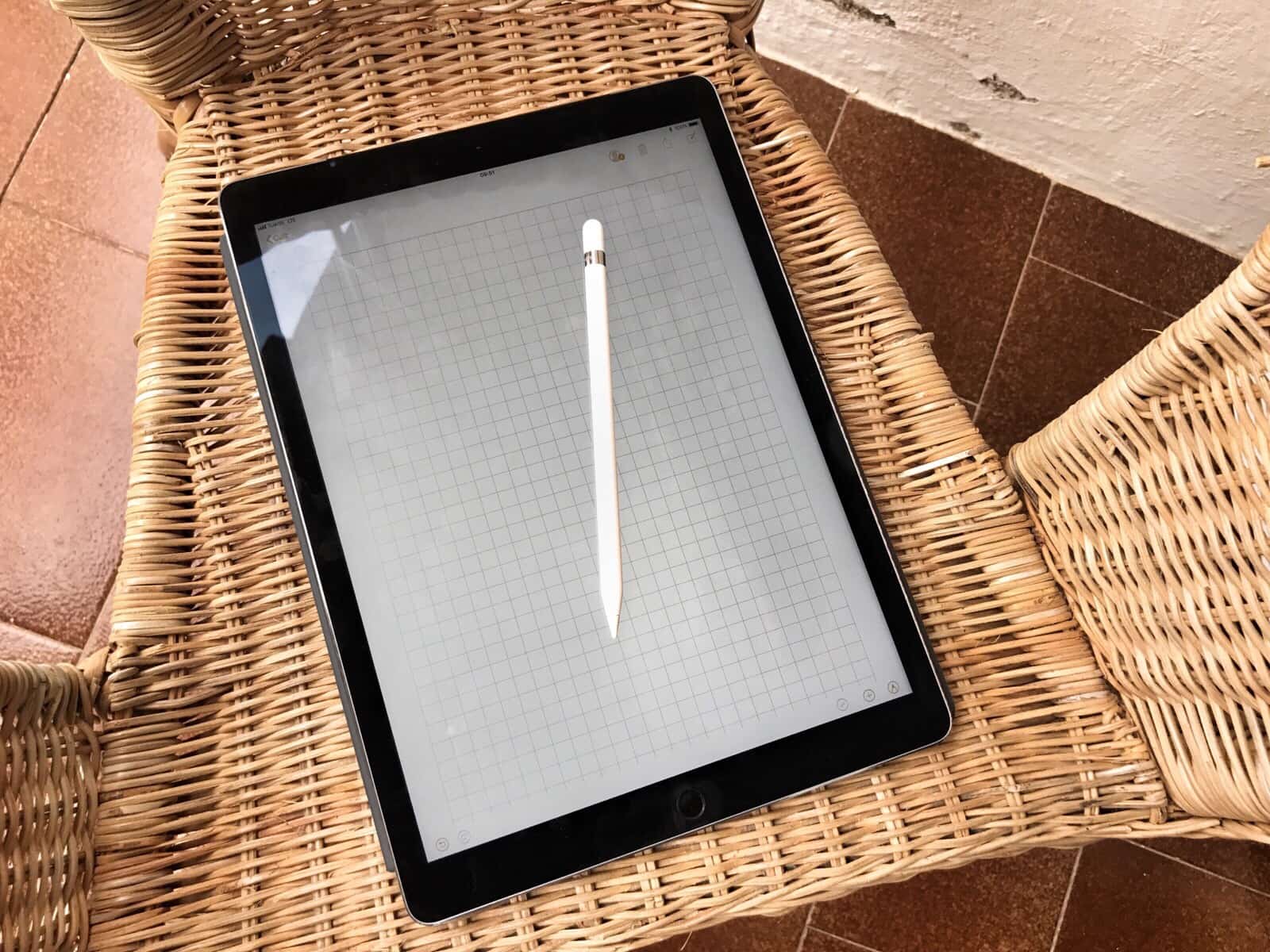
The iOS Notes app is now even more powerful than the Mac version. Photo: Charlie Sorrel/Cult of Mac
iOS 11’s Notes app is fantastic, and can probably replace apps like OneNote or Evernote for many people. In iOS 11, it mostly catches up with the Mac version — and adds a bunch more neat features only possible on the iPad, like sketching with the Apple Pencil.
Today, we’re going to see how to pin notes to the top of the list; how to swipe to delete, password-protect or move a note to a folder; and how to pick a stationery background for a new note.
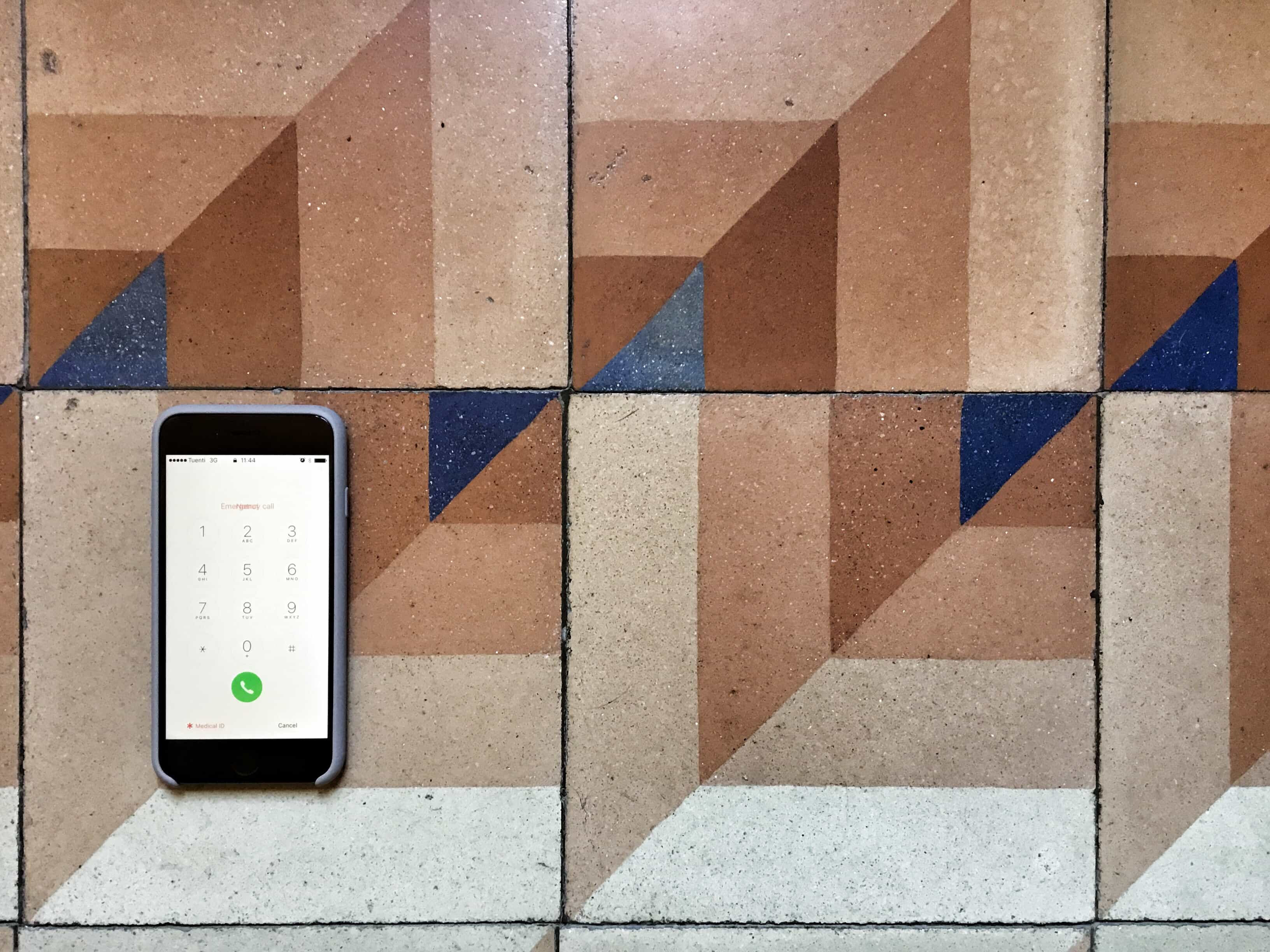
Adding your Medical ID means that anyone can check your details without unlocking your iPhone. Photo: Charlie Sorrel/Cult of Mac
Inside the iPhone’s Health App, the app that counts your steps and hooks up with other apps to monitor your activity and health, lives your Medical ID. This is a page containing everything important that you might want a doctor or first responder to know in an emergency, and is accessible from your iPhone’s lock screen without a password.
By default, the app only contains your name, and a few details automatically culled from your address book, but fleshing it out is quick and easy. Here’s how to set up your Medical ID with any and all the information you want to make available.
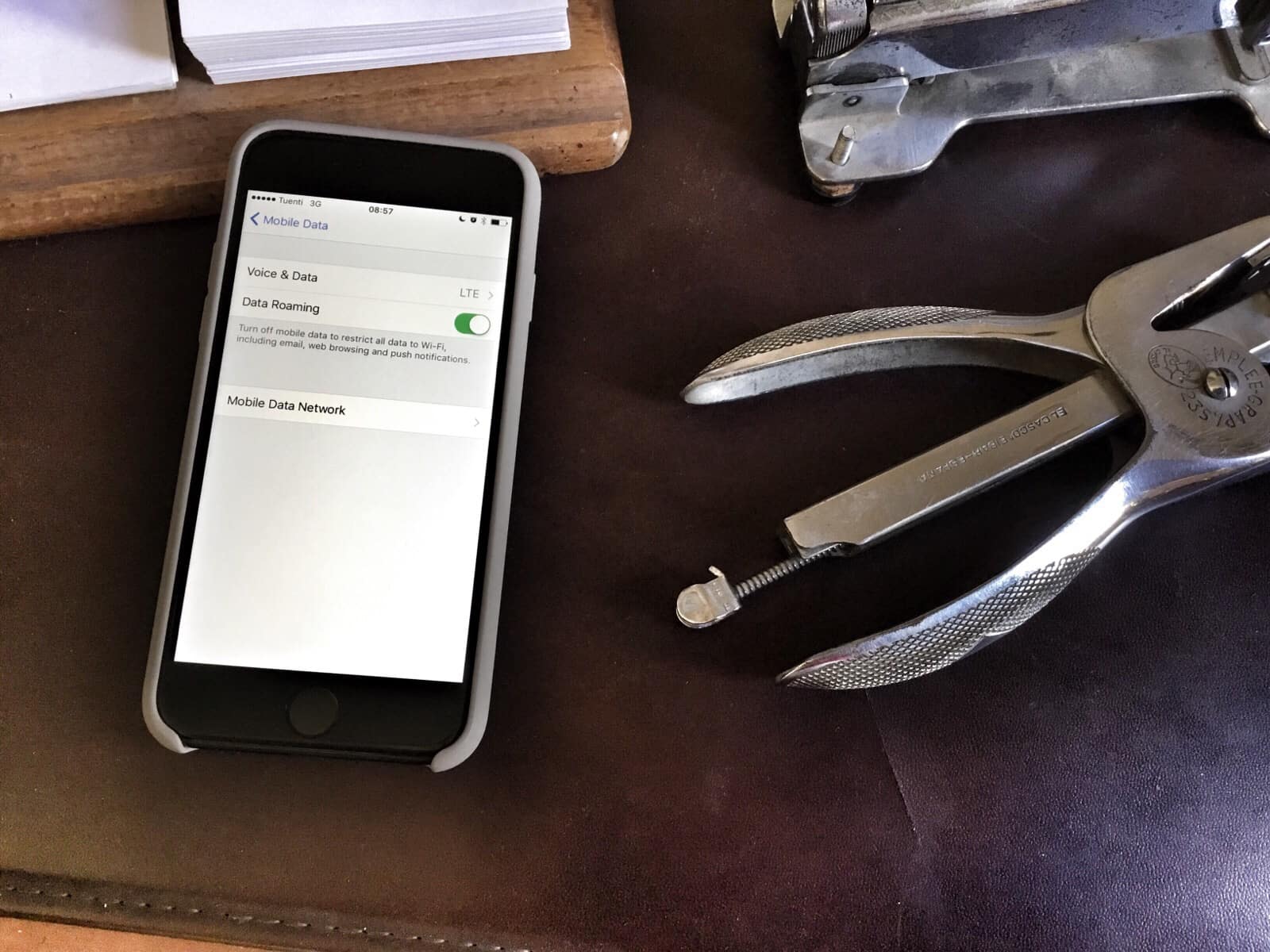
Just switch this setting to fix the iPhone No Service error. Photo: Charlie Sorrel/Cult of Mac
If you’ve ever traveled to a foreign country with your iPhone or iPad, you may have come across the dreaded No Service error. This happens when you get off the plane and switch on your iPhone. But instead of connecting to a cellular network, your iPhone just spins its wheels and refuses to connect.
Apple offers a support page to help out, and a zillion forum pages serve up advice, but none seem to cover this particular tip, which I discovered after hours of painful futzing with settings.
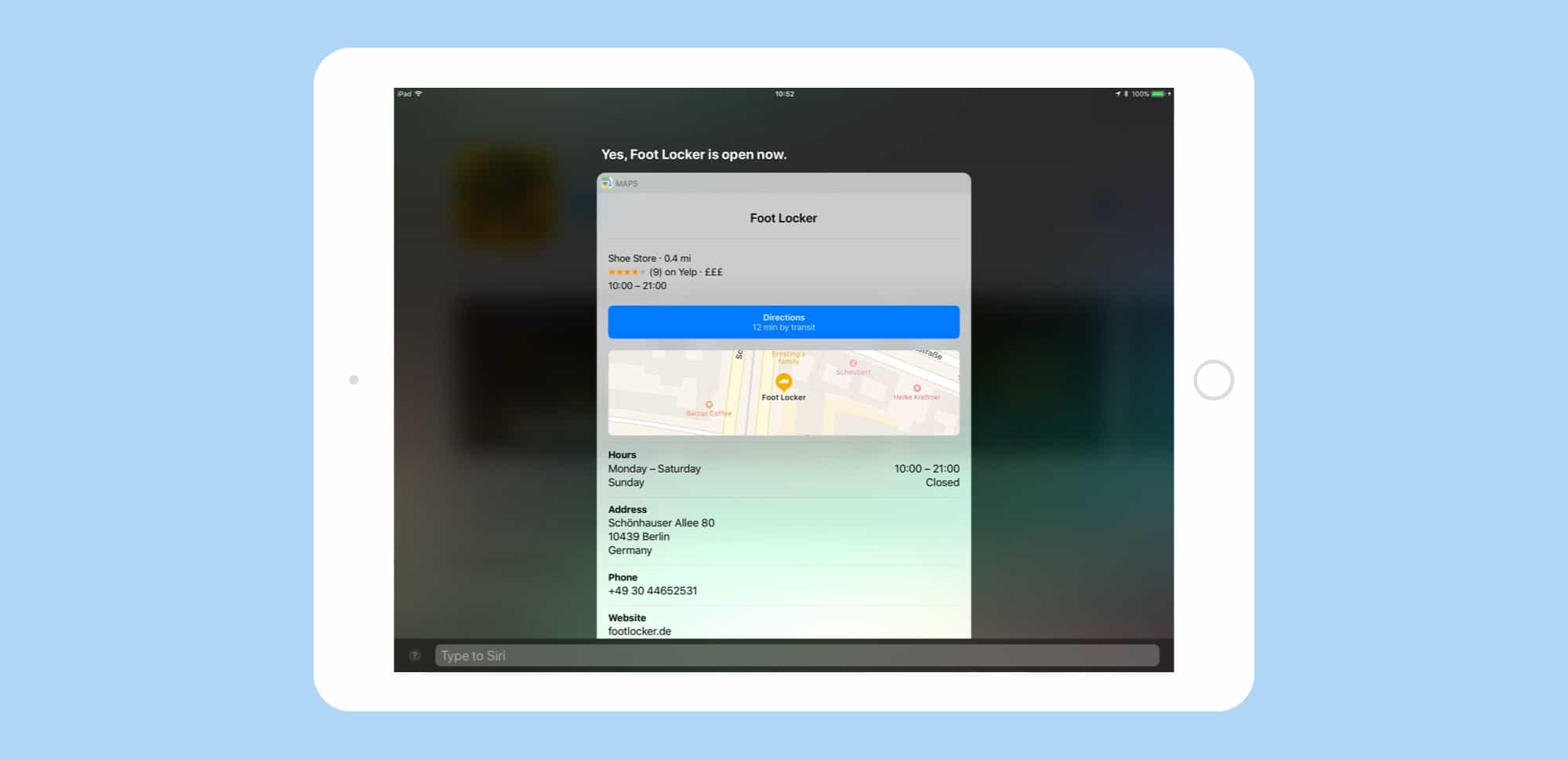
Siri knows all about the opening times of local businesses. Photo: Cult of Mac
Is it too late on a Saturday night to hit the hardware store for that essential dingus you need for Sunday’s DIY project? Has the local supermarket closed already, or do you still have time to buy some more beer? Does the Kanaan restaurant (“Best Humos in Berlin”) even open today? Just ask Siri.
You may be used to firing up Google Maps, searching for the store or restaurant you’re interested in, then tapping around in the app to get to the opening times. But did you know that Siri can also tell you if a local business is open, or when it will be?
Travel isn't all about visiting amazing places. Sometimes it's about using apps on your phone, too. Photo: Charlie Sorrel/Cult of Mac
You already have all the travel gadgets you need for a successful and relaxed trip. Today we’re going to look at travel apps. Specifically, apps that make your trip better and easier, like great city guides.
We’ll also showcase apps that work around limitations you face while traveling, like a lack of bandwidth. Let’s get started!
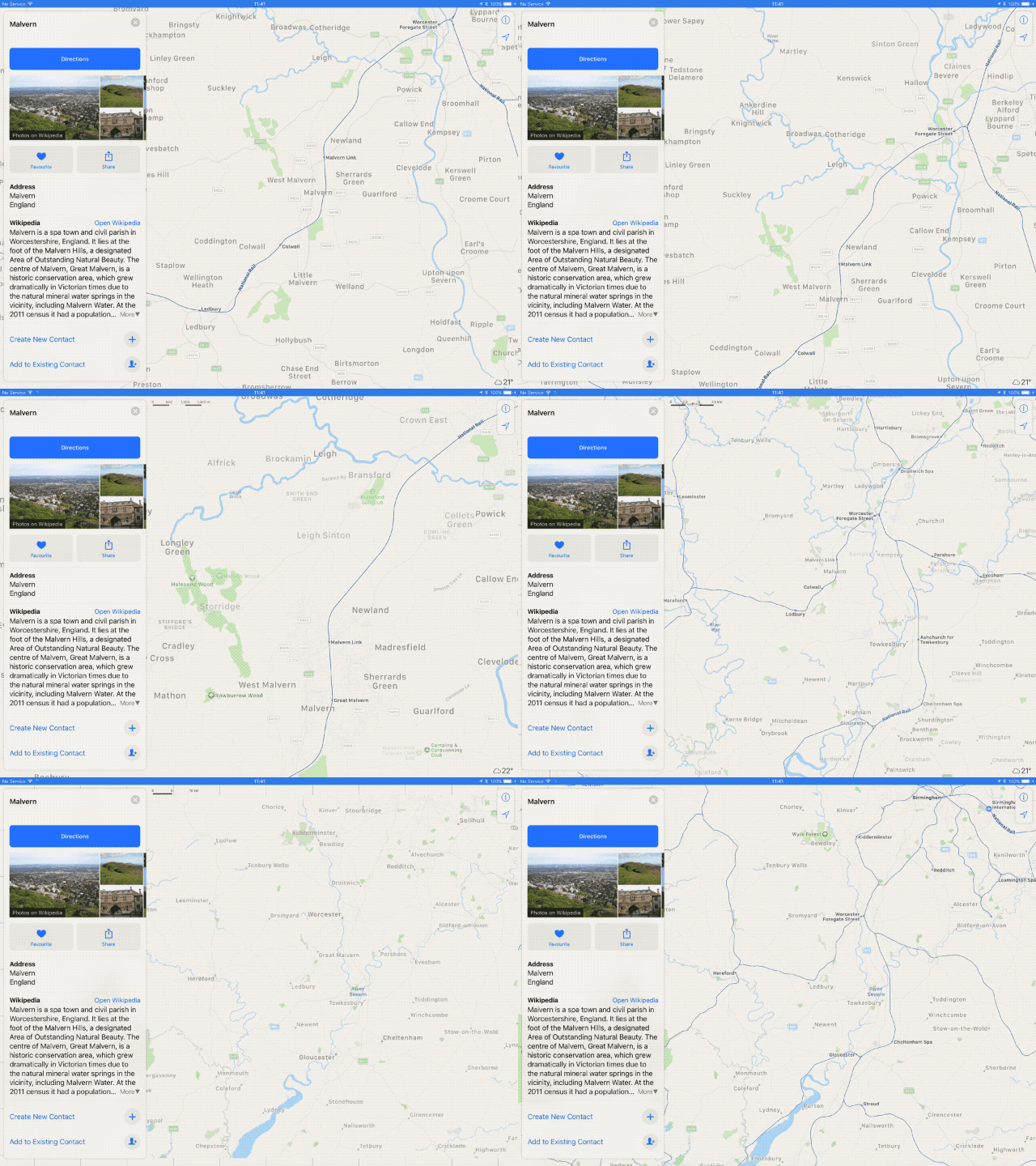
This is all happening with one finger. Photo: Cult of Mac
Using one-handed maps is currently suboptimal, because you need two fingers to zoom the map. But in iOS 11, the familiar pinch-to-zoom gesture is joined by a new tap-to-zoom, which lets you navigate the entire interface with a single thumb. This means that you can easily check the map while walking, or even — if you are an irresponsible psychopath — while riding a bike.
Downloading music is just one way to save a lot of data when you travel. Photo: Cult of Mac
Your mobile data plan takes a hammering when you travel. All the stuff you usually do while sitting in bed using your home Wi-Fi — like reading Cult of Mac and viewing cute capybara GIFs — will eat through your monthly allowance. And that’s before you get to the extra use of maps and Google to find your way around.
Today on Tech Travel Tips, we’ll look at ways to stop your iPhone and iPad from using up all your data in the first few days of your vacation.
Apps can make your trip safer and easier. Photo: TripMode
At home, you can pretty much trust your own Wi-Fi network, and you kind of have to trust your cellular provider. But as soon as you fetch up at a hotel, airport, Airbnb rental or coffee shop, you risk everything.
Short of leaving your MacBook or iPhone out on the table while you visit the bathroom at a hacker conference, using public Wi-Fi is just about the worst thing you can do with your devices when you travel. Fortunately, there are ways to protect yourself — and they’re cheap and easy.
Travel is a time to leave things behind, but some gadgets will make your trips a lot easier. Photo: Roost
Welcome to Tech Travel Tips, a week of travel tips for vacationers. This week we’ll show you how to keep your devices safe while traveling, what apps to download before you go, what settings you should change before leaving the house and — kicking off the week — the best travel gadgets to take with you. Let’s get started!
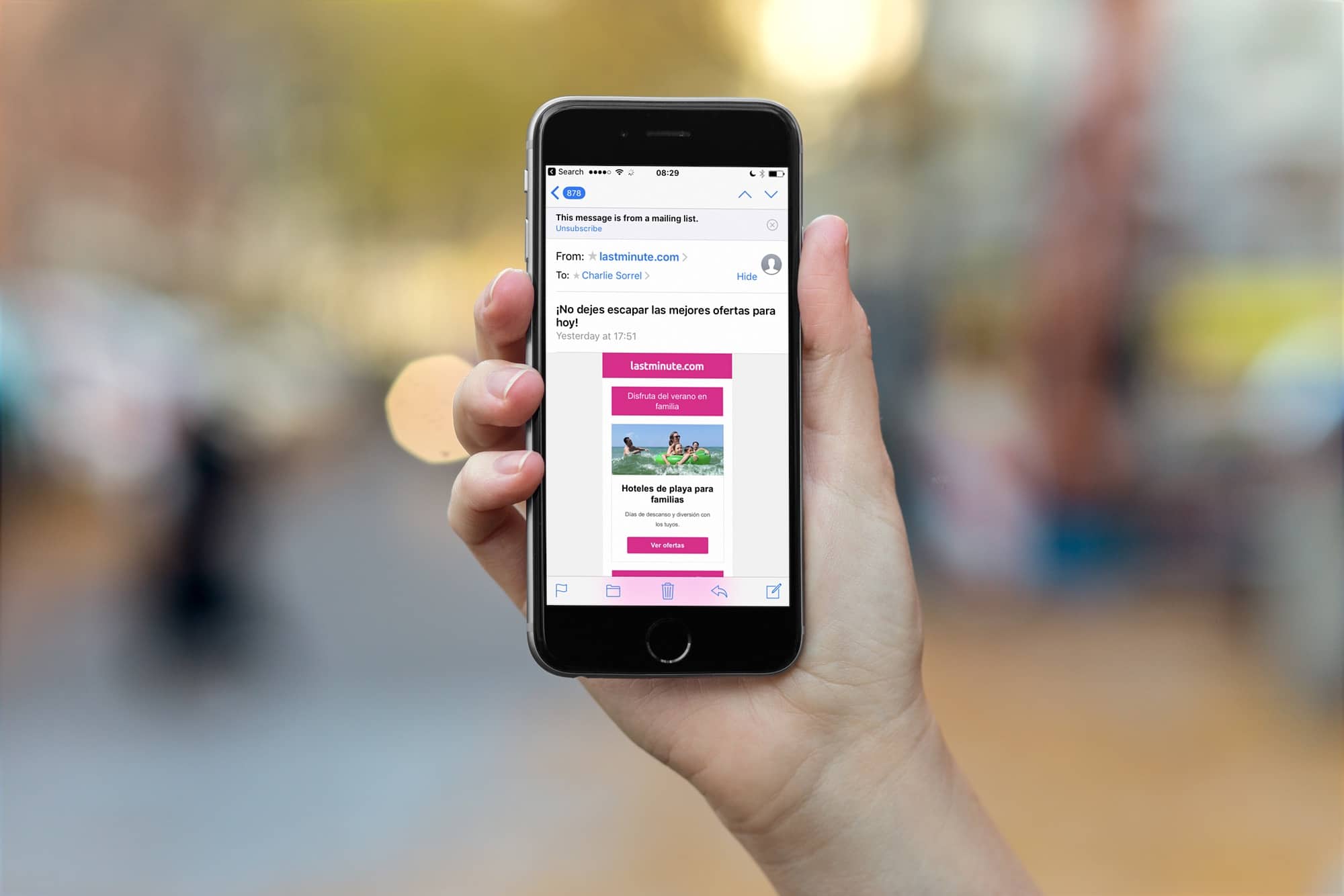
Unsubscribe from mailing lists with just two taps. Photo: Cult of Mac
If you find yourself on a mailing list that you either never signed up for, or just got sick of, then iOS Mail has you covered. The app has a built-in feature that detects emails from mailing lists, and offers to unsubscribe from them right there, without you having to visit the sender’s site and hunt for the unsubscribe option yourself, like some kind of spam-lackey.
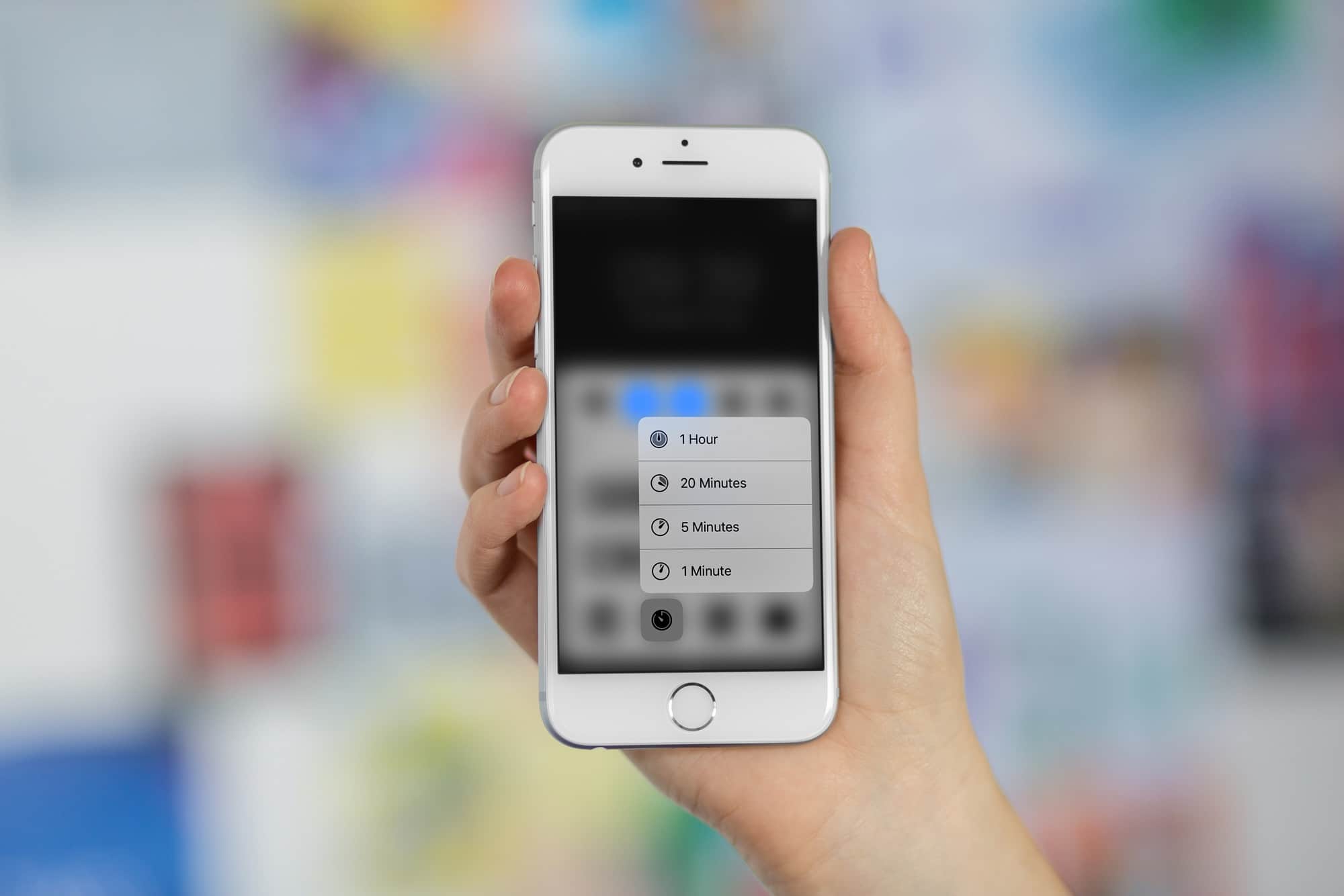
The old timer is lame compared to the new one in iOS 11. Photo: Cult of Mac
betaIf you’re using iOS 10 in an iPhone with 3D Touch, you can press on the timer widget in Control Center and pick from one of the preset timer shortcuts. In iOS 11, on the other hand, you get a full-featured, interactive timer widget that you can adjust, pause, and resume, all without ever launching the actual clock app. Let’s see it in action.
Beaming video from a 13-inch iPad to a 10-inch MacBook mightn't be smart, but it is possible. Photo: Madebyvadim
You have a big 27-inch iMac sitting on the desk in the corner of your living room office, and yet you’re over there on the couch watching a movies on your iPhone or iPad. Wouldn’t it be great if you could beam one to the other, like sending video from an iPhone to an Apple TV? The good news is that you totally can, just by installing an app on your Mac. There are several available, but today we’ll use my favorite, Reflector.