Mobile menu toggle

Search results for: shortcuts

Everything new in iOS 18

By

iOS 18 bento box
All these features and more in iOS 18.
Image: Apple

iOS 18 is a surprisingly rich software update with major new customization features and big changes in Photos, Messages, Notes, and more. Although Apple Intelligence features are going to continue grabbing headlines for the next year, it’ll only be available on the latest iPhones later in the fall. Among the smaller but interesting updates, a nodding head emoji is set to arrive, adding more expressive ways to communicate.

The iOS 18 update is packed with features — and it’s out right now. Find it in Settings > General > Software Update. It’s compatible with all the same devices as iOS 17.

After you update, here’s the big list of things you should check out. You should definitely start with editing your Home Screen, reading how the new Photos app works and checking out the new iMessage features.

Pro Tip: Hot Corners make it easy to mouse around your Mac

By

Who needs multitouch?
If you don’t have a trackpad or Magic Mouse, you can set up Hot Corners to get some of the features back.
Image: D. Griffin Jones/Cult of Mac

Pro tip bug Mac Hot Corners are shortcuts for your mouse. Just throw your mouse cursor to the corner of the screen (the easiest place to hit) to perform quick actions. You can instantly lock the screen, start a screensaver, show the desktop, show all windows and more.

If you use your Mac with a standard two-button PC mouse instead of Apple’s Magic Trackpad or Magic Mouse, Hot Corners can replace the multitouch gestures that you miss out on. The Mac’s built-in Hot Corners feature gives you a really quick and easy way to navigate your computer, and I recommend you turn them on and use them.

iPhone 16 brings refined design, snazzy new colors and A18 chip

By

iPhone 16 from the rear
iPhone 16 features an iPhone X-like design.
Photo: Apple

Apple It's Glowtime Event: Apple unveiled the iPhone 16 and iPhone 16 Plus on Monday. The new iPhones feature an iPhone X-like rear camera design and upgraded internals for Apple Intelligence support.

“iPhone 16 celebrates color in an unparalleled way. We evolved the process of developing our unique and durable color back glass to create new rich colors,” said Kaiann Drance, Apple’s VP of iPhone marketing, during the “It’s Glowtime” event.

6 secret features in Apple Mail to help you achieve Inbox Zero

By

Get a grip on your email
Take better care of your email inbox with these hidden features.
Image: D. Griffin Jones/Cult of Mac

Some people achieve and maintain zero unread emails; some let that red badge climb into the thousands. It’s never too late — you can become one of those clean inbox people like me. What can help you along the way to Inbox Zero are these six tips in Apple’s own Mail app for iPhone and Mac that you might not have known about.

Well, beyond the obvious Tip Number 0: You should always hit the Unsubscribe button at the bottom of every unsolicited promotional email as soon as you get the first one. After you kill all those unwanted subscriptions, these six lesser-known features of the Apple Mail app will make you a true pro at managing your email.

18 hidden features in iOS 18 that Apple didn’t tell you about

By

Hidden iOS 18 features
There are so many hidden features in iOS 18 to try out!
Photo: Rajesh Pandey/Cult of Mac

iOS 18 is packed full of great features Cult of Mac has covered at length — but the upcoming iPhone software update packs many more tiny features and small improvements that Apple did not mention or talk about. If you know to look out for these features, they’ll make the everyday interactions with your phone faster and easier.

Here’s a roundup of 18 little changes and useful features in iOS 18. Keep reading or watch our video.

6 features I want to see in iPhone 16

By

iPhone 16 wish list: Features I want to see
Honorable mention: I also hope the rumor of a bronze color proves true.
Photo: Apple/D. Griffin Jones/Cult of Mac

Despite Apple’s reputation for innovation, the company does not always adopt the latest cutting-edge smartphone technology. This year, I hope the company adds these six features in iPhone 16 — all of which you can find in Android phones.

Here’s my iPhone 16 wish list.

6 useful apps hiding in your Mac

By

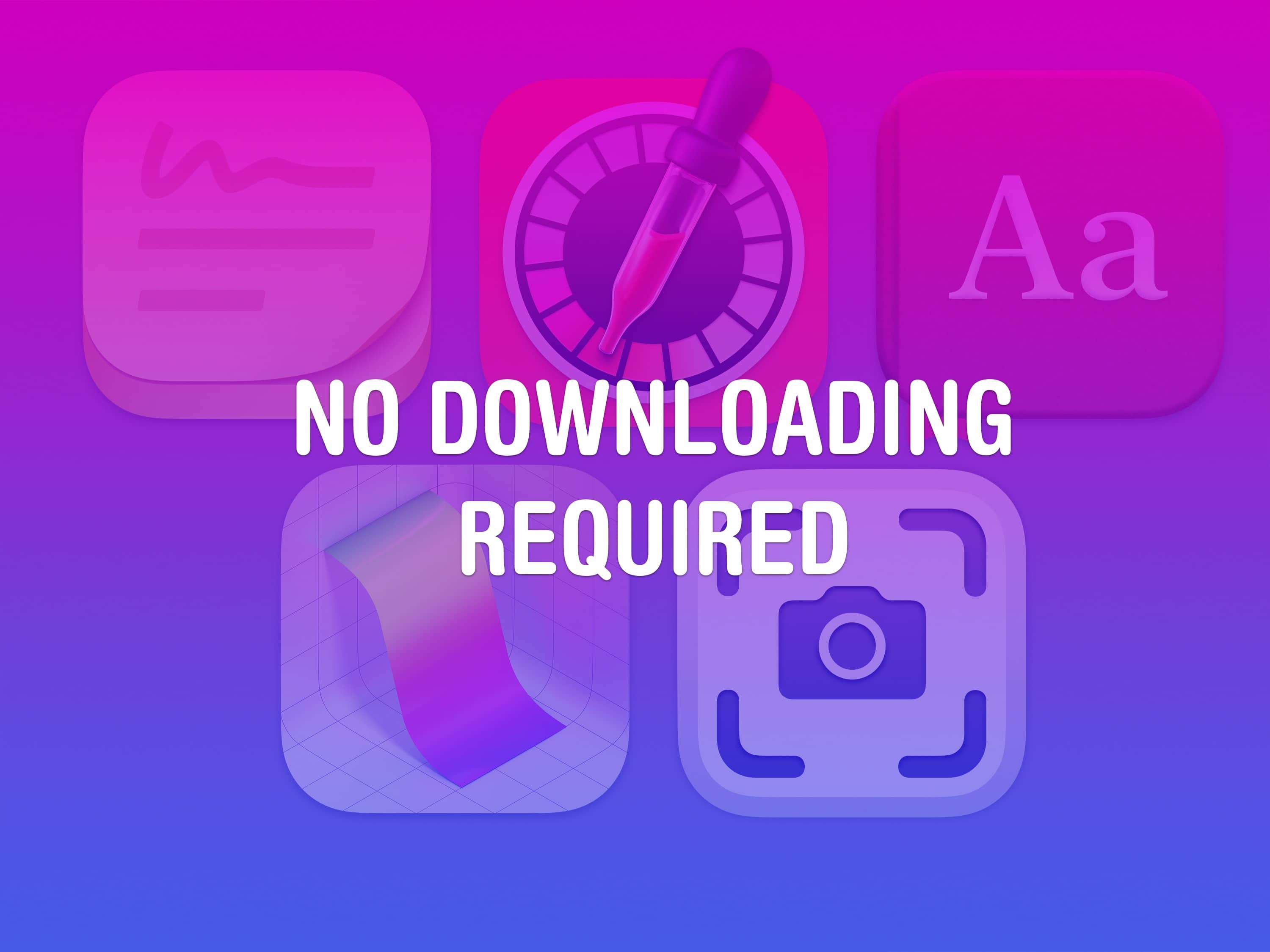
No Downloading Required
Nothing to download or install — you’ve already got ’em.
Image: D. Griffin Jones/Cult of Mac

If you work on a Mac, these six useful apps can help you get that work done faster. And you don’t need to take time to download them or figure out if they’re worth the price — you already have these apps on your computer.

These come with every Mac, and you can locate them in the Applications and Utilities folders. If you’re in the Finder, just hit Shift-Command-A (⇧⌘A) or Shift-Command-U (⇧⌘U) to find them.

I’ll walk you through a few of the more useful Mac apps hiding there that you probably haven’t heard of.

All 25 iPhone Action and side button accessibility features, ranked

By

All 25 Side Button Features
The side button does much more than you think. Who needs an action button?
Image: D. Griffin Jones/Cult of Mac

The iPhone 15 Pro’s customizable Action button lets you pick from several presets, including Accessibility — which lets you choose from 25 different accessibility features that you can toggle on or off. These features aren’t limited to the iPhone 15 Pro’s Action button, either. On any older iPhone, you can simply triple-click the side button to access those same 25 accessibility features.

Here are all 25 of the accessibility features you can assign to a button on your iPhone — and what they do.

Master Excel and the rest of Microsoft Office with this discount training bundle

By

Promo for The Ultimate Microsoft Office 2021/365 Training Bundle, which contains courses on Excel, Word and more.
Supercharge your workday with this affordable Microsoft Office training bundle
Photo: Cult of Mac Deals

If your resume says “proficient in Microsoft Office,” you better be able to back up that claim. Whether you’re in the job market or already landed a promising gig, make sure you know how to use the world’s most popular software suite. The Ultimate Microsoft Office 2021/365 Training Bundle consists of training in Excel, Word and more.

After all, there’s a lot more to Excel than just making simple spreadsheets, and there’s more to Word than blank documents and impossible-to-format images. This collection of seven courses brims with useful tips and tools for Word, Excel, PowerPoint, Outlook and Access. And for a limited time, you can grab it for the low price of just $39.99 (regularly $449).

How to turn your iPhone into a smart display with StandBy

By

The Smart Display You Already Own
Turn your iPhone into a smart display on your desk.
Image: D. Griffin Jones/Cult of Mac

StandBy mode is a headline iOS 17 feature that turns your iPhone into a smart display on your nightstand, at your desk or in the kitchen. It’s an attractive way to put your phone to work as a small information board or digital clock when you’re not using it.

Of course, it works best if you have a phone with an always-on display like the iPhone 14 or 15 Pro. However, it works on any iPhone with MagSafe running iOS 17. Best of all, StandBy remembers different preferences for different rooms, so you can set it up as a bedside clock in the bedroom, a digital photo frame in the living room, or a music controller in the kitchen. Here’s everything you can do with StandBy on your iPhone.

1 20 21 22 23 24 121