Mobile menu toggle

Search results for: shortcuts

Find out if Apple Music deleted one of your favorite songs

By

Do you have banned music?
Find out of music in your library has been taken down by Apple.
Image: Public Domain/D. Griffin Jones/Cult of Mac

Songs disappear from Apple Music all the time due to licensing problems or artists doing controversial things. Spotify found itself caught up in similar situation in 2022, losing Neil Young’s discography in a protest of the streaming service’s association with podcaster Joe Rogan. Luckily, there’s a way you can find out if any songs in your library have been removed from Apple Music behind your back.

If you own a Mac, you can quickly find out by building a special Smart Playlist. I’ll show you how.

Stop iPhone from autocorrecting swear words to ‘ducking’ and ‘shot’ once and for all

By

Ducking Auto Correct
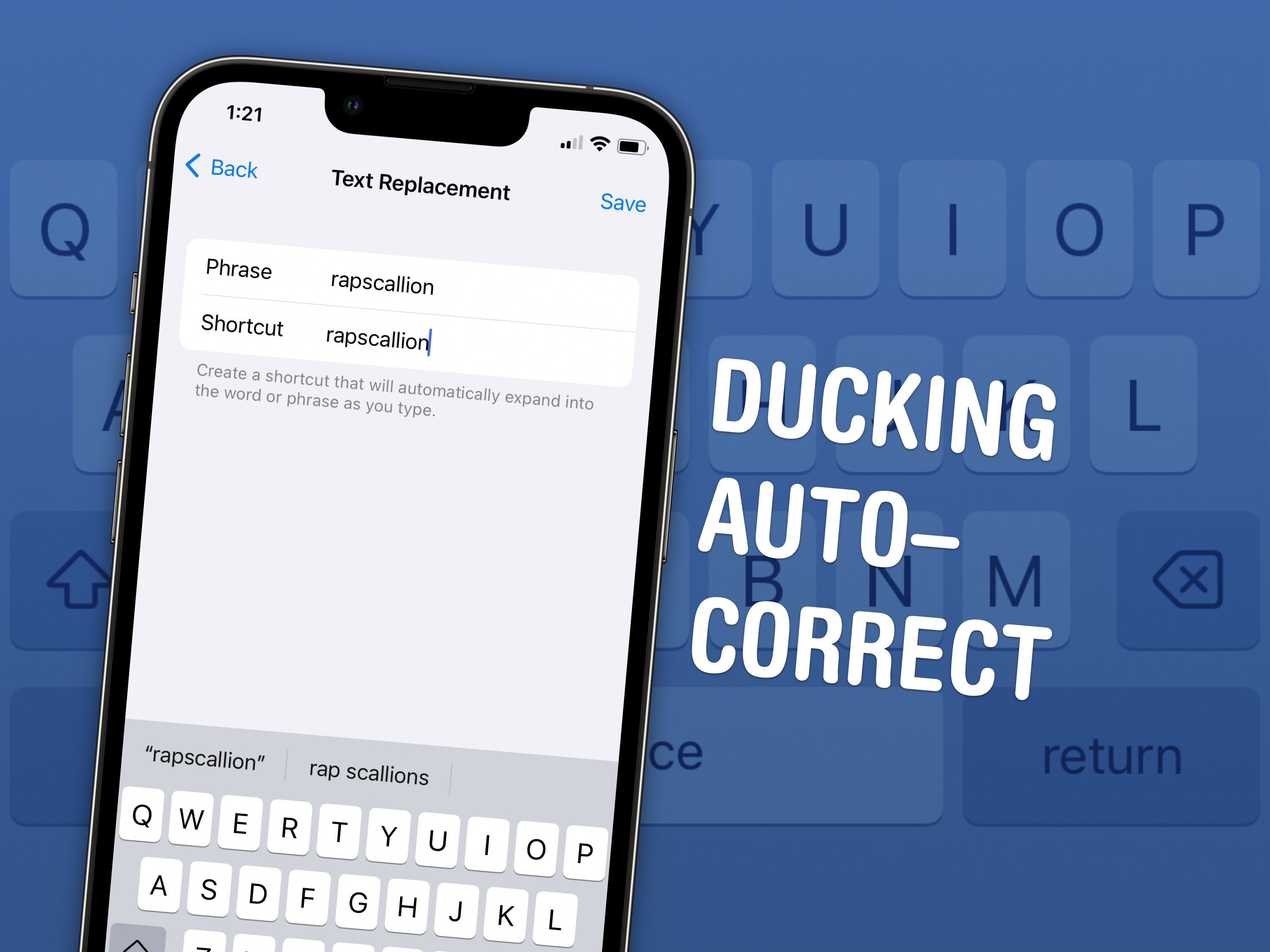
Ducking autocorrect. What a shot piece of software. It’s such an overcorrecting dock. 
Image: D. Griffin Jones/Cult of Mac

Here is how to stop your iPhone from autocorrecting swear words. It’s not a simple toggle switch in Settings, unfortunately — but it’ll only take you a few minutes to fix it once and for all.

Apple presents an annoyingly family-friendly image. It doesn’t want the iPhone to autocorrect a swear word to protect the innocence of children. It doesn’t want porn on the App Store (even if it’s a tap away in Safari).

Luckily, for the adults in the room, it’s all surface-level means of protection. Here’s how you can get your iPhone to let you swear again.

5 stealth iOS 18 features you don’t want to miss

By

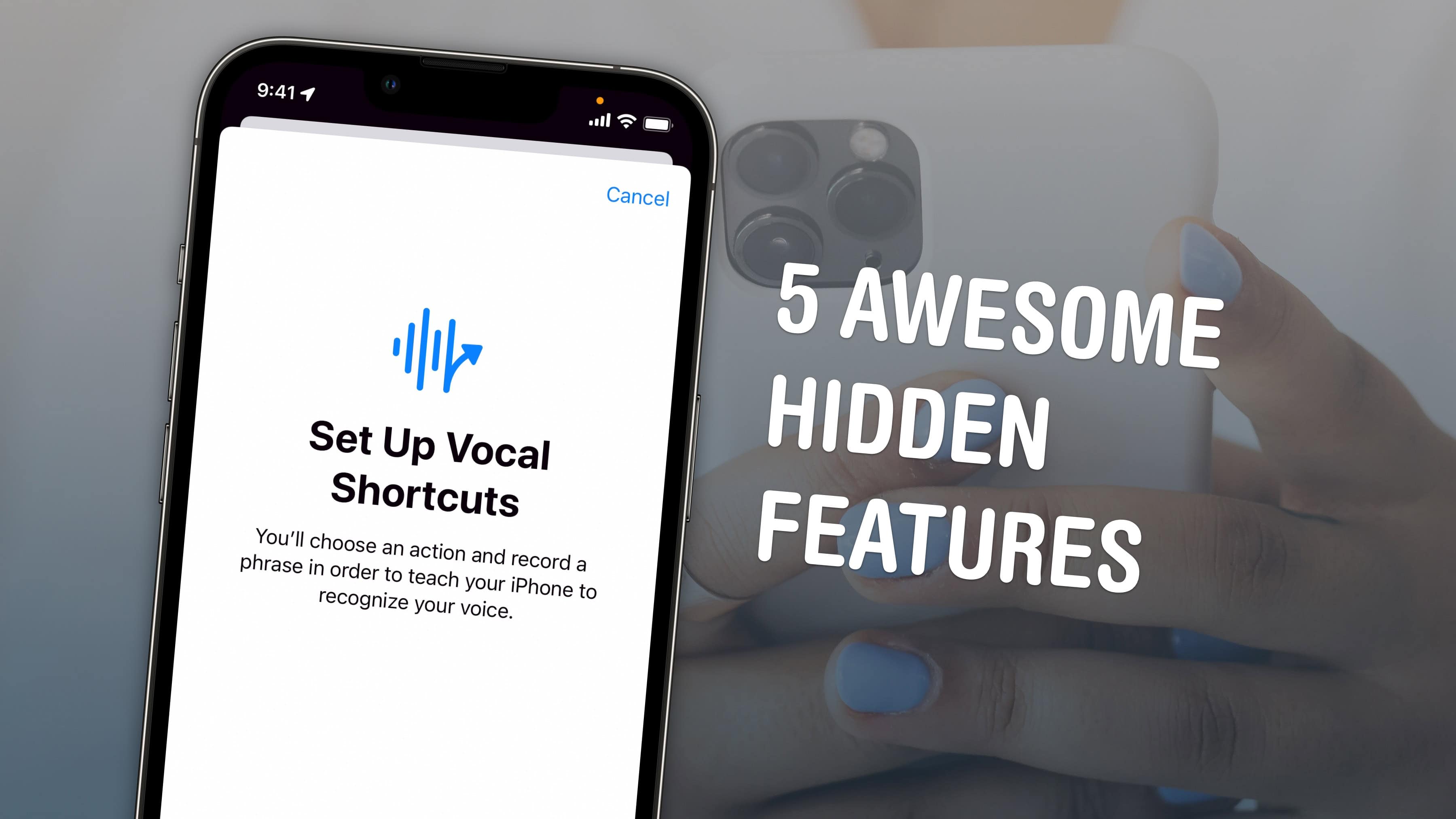
Five Awesome Hidden Features
Apple buried these great features in iOS 18's accessibility settings.
Image: D. Griffin Jones/Cult of Mac

iOS 18 is getting a bunch of cool new accessibility features this year, including bringing eye tracking to the iPhone for the first time. You also can feel haptic music, control your phone with custom voice commands, use your phone in the car without suffering from motion sickness, and improve the accuracy of Siri and dictation.

Check out our video to see it in action or keep reading below.

New Oura Ring 4 enhances comfort and dynamic health sensing

By

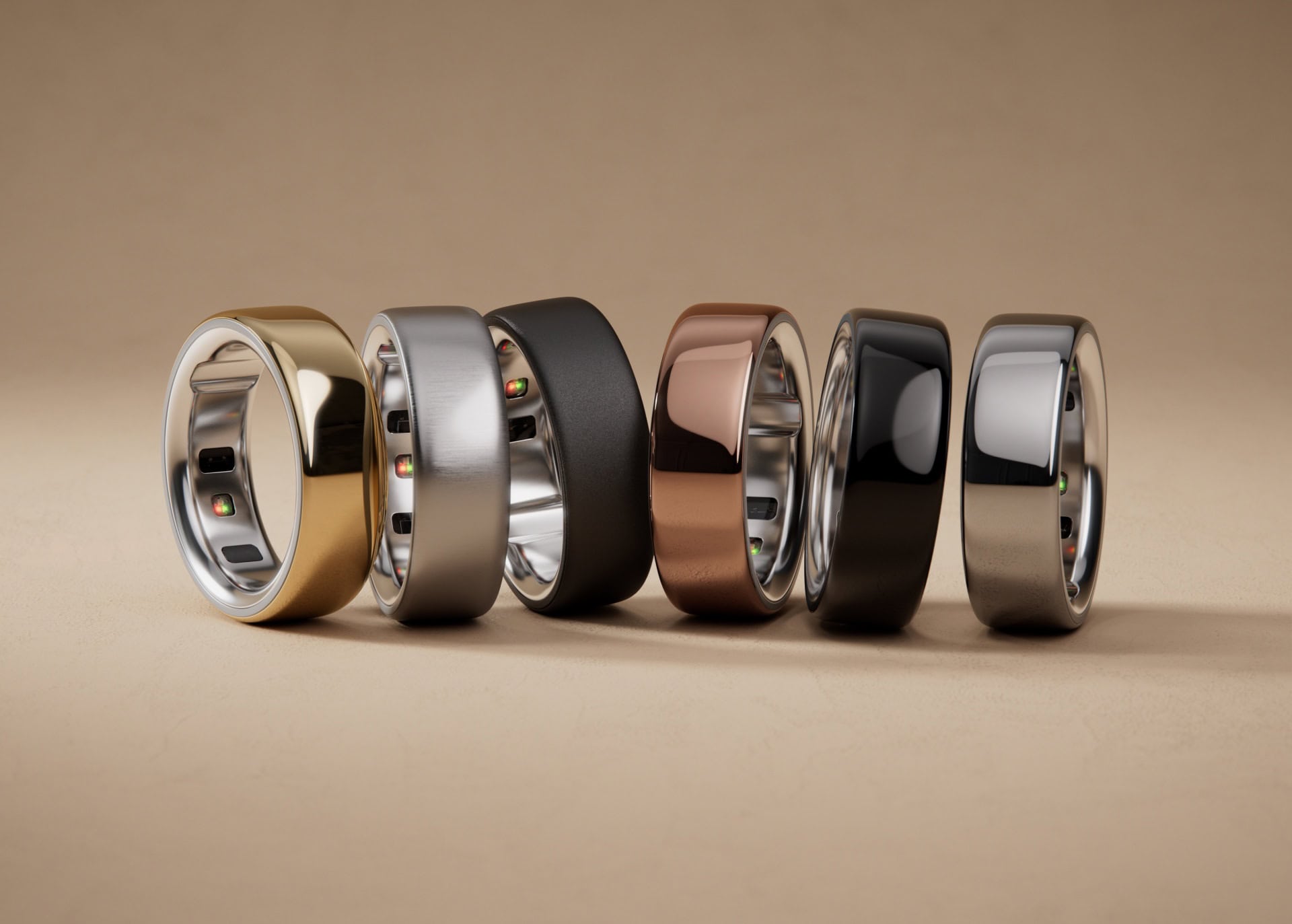
Oura Ring 4
Oura Ring 4 enhances comfort and health sensing over Oura Ring 3. But where is Apple's smart ring?
Photo: Oura

The new Oura Ring 4, with a sleek and subtle design and improved health sensing, is now available for preorders, ŌURA said Thursday. Shipping of the new smart ring — which is sure to spark a new round of speculation on when Apple will launch its own — begins October 15.

“The next-generation Oura Ring 4, reimagined Oura App, and the development of the Smart Sensing platform represent significant steps forward for wearables across accuracy, comfort, personalization and design,” said ŌURA CEO Tom Hale.

How to use and customize the iPhone’s Action button

By

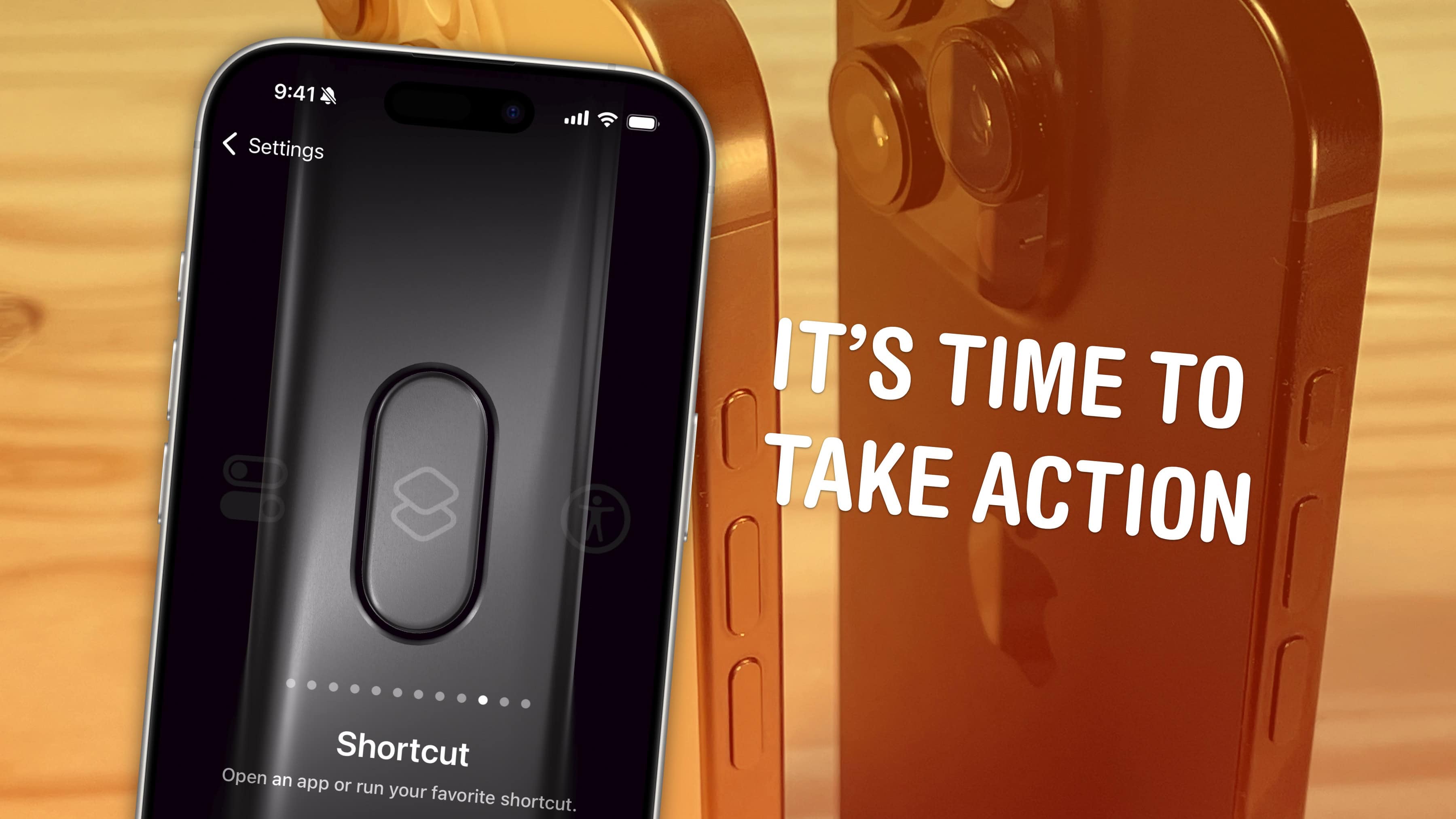
It’s Time To Take Action
It’s not just ring/mute — it can do whatever you want.
Image: D. Griffin Jones/Cult of Mac

The iPhone’s Action button replaces the former ring/mute switch, and while it can fulfill the same purpose, there’s much more you can do with it. Apple gives you a bunch of options out of the box if you want instant access to your flashlight, camera, Shazam and more.

You pick the function, and it’s just a button push away. You can even turbo-charge the Action button by running a shortcut.

Setting up the Action button to do your bidding is easy. And once you do, you’ll undoubtedly enjoy quick access to your favorite feature.

iPhone 16 vs. iPhone 15 comparison: Upgrade another year

By

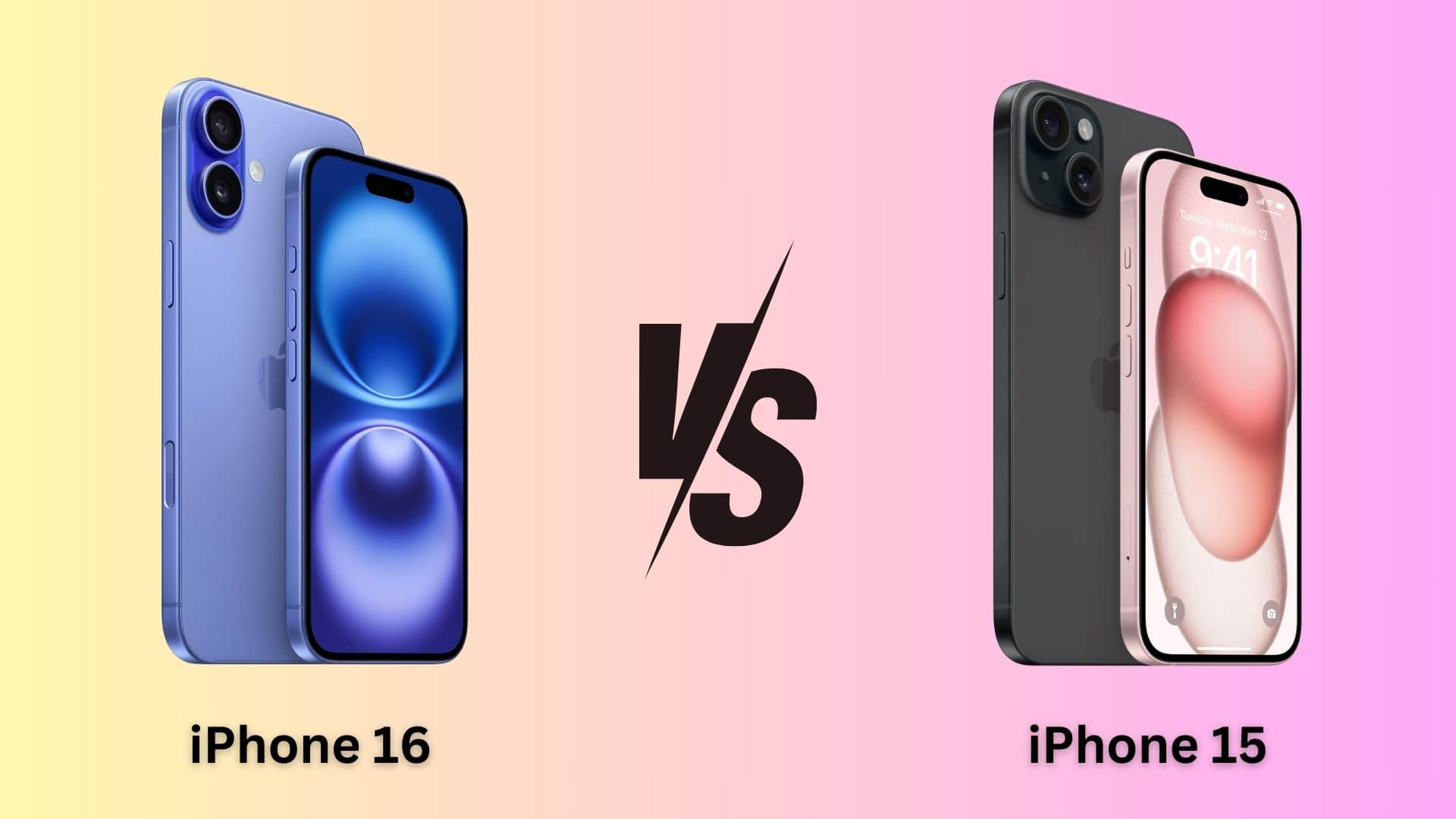
iPhone 16 vs. iPhone 15 comparison
Time to ditch your iPhone 15 for iPhone 16?
Photo/Graphics: Apple/Rajesh Pandey

The iPhone 16 sports a new design, a faster A-series chip, a longer battery life and comes in snazzy new colors. It’s possibly the biggest upgrade to the non-Pro iPhone lineup in the last few years. But are these improvements enough for you to ditch your iPhone 15 and upgrade to iPhone 16? Find out in this iPhone 15 versus iPhone 16 comparison.

What do the Apple Watch buttons do? Click, double-click and hold.

By

What do the buttons do?
The buttons on the Apple Watch switch apps, activate Apple Pay, open Siri and more.
Image: Apple/D. Griffin Jones/Cult of Mac

What do the buttons on the Apple Watch do? The Apple Watch borrows a lot from the iPhone, but the biggest difference between the two devices comes down to the way their buttons work. They do different things whether you click, double-click or hold them down.

In watchOS 10, Apple changed a lot of these features. The software update added a new Widgets view, assigned Control Center to the side button, and changed what double-clicking the Digital Crown does. (For older devices, consult our article about what Apple Watch buttons do in watchOS 9.)

Here’s a guide to the buttons on the Apple Watch.

Become a Touch Bar convert when you get this MacBook Pro for $400

By

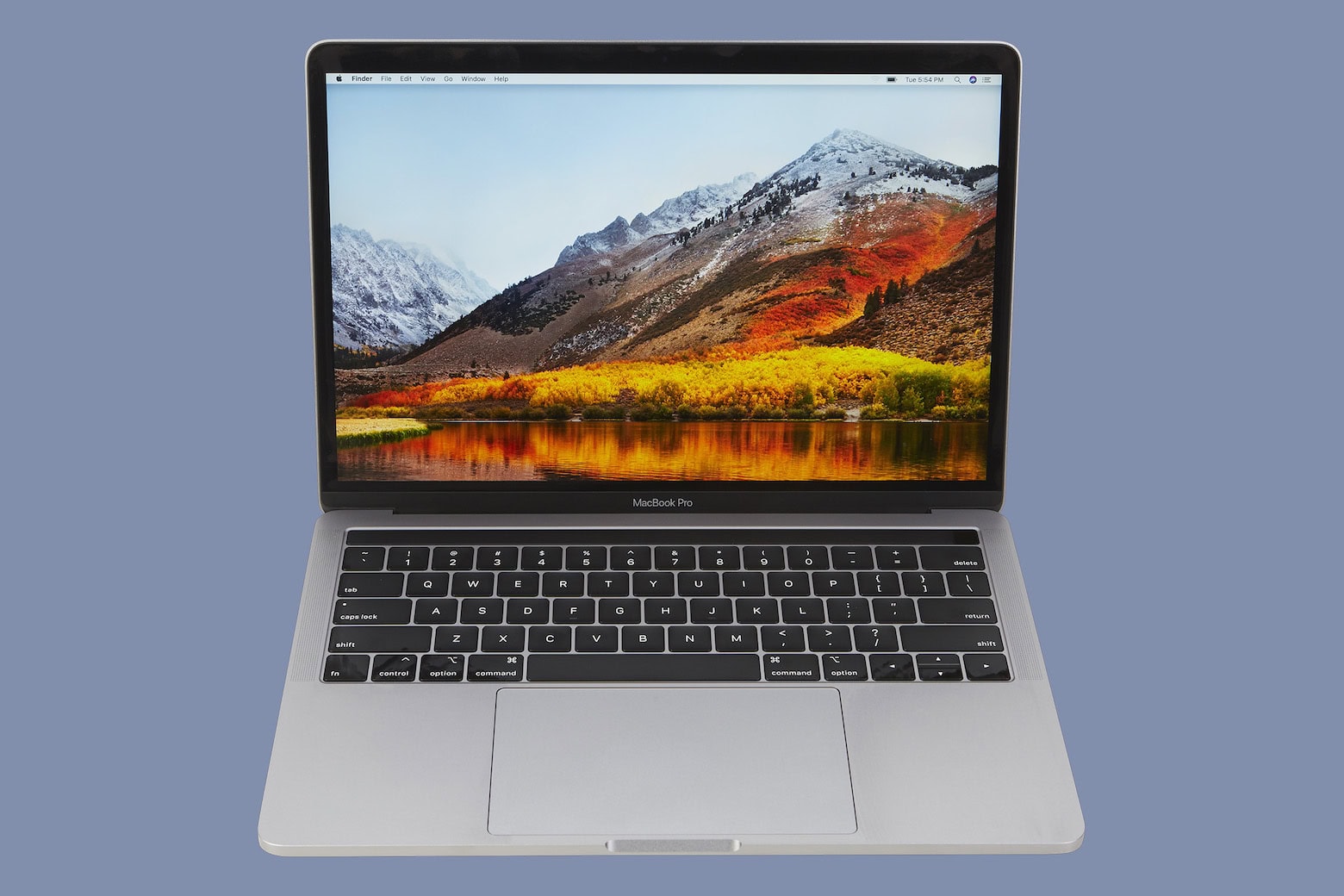
Photo of a 13-inch refurbished 2018 Macbook Pro
Take the Touch Bar for a whirl.
Photo: Cult of Mac Deals

This refurbished 13.3-inch MacBook Pro from 2018 boasts a Touch Bar, and the laptop’s on sale for just $399.99. Whether you love or hate the Touch Bar, there’s no denying its potential to speed up your workflow with quick access to tools, shortcuts and app-specific controls.

Plus, it’s cool and fun … and discontinued!

How to make a good-looking custom Home Screen in iOS 18

By

iOS Home Screen customization
You'll be able to customize your iPhone's Home Screen in fun new ways.
Photo: Apple

You’ve probably seen some of the beautiful custom iPhone Home Screens on social media after the iOS 18 launch. Some people go to great lengths to creatively customize their iOS 18 Home Screen layout, icons and widgets.

It makes sense. After all, you open your phone and look at your Home Screen dozens (or even hundreds) of times every single day. A custom Home Screen that matches your style can bring a little spark of joy to your daily life every time you whip out your iPhone. And iOS 18 makes Home Screen customization easier than ever.

Keep reading (or watch our video) for a quick introduction into the world of custom Home Screens. You’ll find out about new features coming in iOS 18, how to go above and beyond using Shortcuts, and how you can top off your iPhone aesthetic with widgets. I’ve scoured the internet (Reddit, mostly) to find the finest examples.

Everything new in macOS Sequoia

By

macOS Sequoia features
macOS Sequoia brings your iPhone and Mac closer.
Photo: Apple

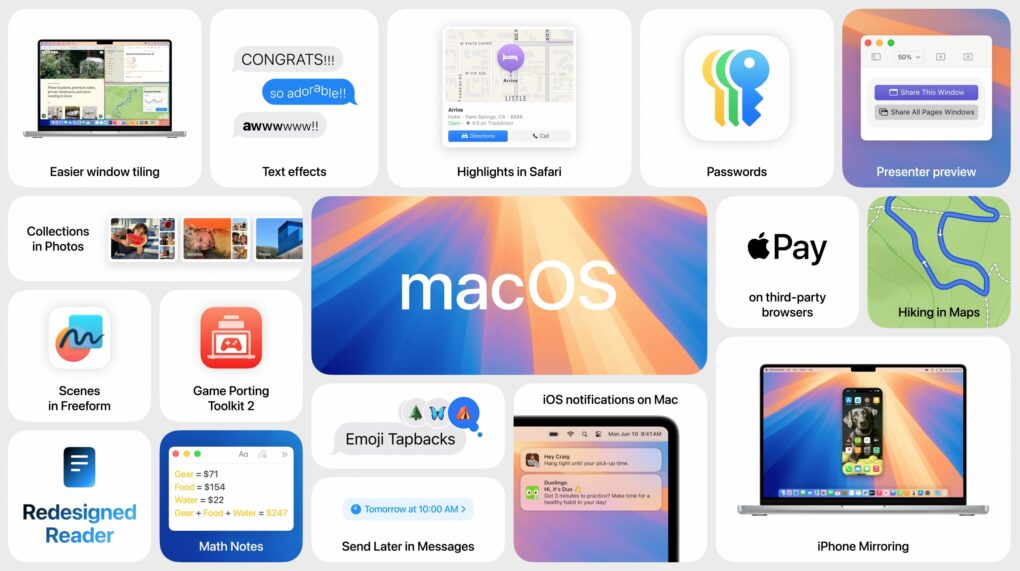
macOS Sequoia is a pretty comprehensive update with some fantastic new features, like iPhone mirroring, window tiling, and text message formatting. Although Apple Intelligence — the AI features coming to Mac, iPhone, and iPad — will continue grabbing headlines for the next year, it won’t arrive until later in the fall. Plus, only Macs with Apple silicon will support Apple Intelligence. Additionally, users can look forward to a new shaking head emoji, expanding the ways people can express disagreement or disapproval in messages.

Still, macOS Sequoia brings some game-changing new features — and it’s out right now. Find it in System Settings > General > Software Update. It’s compatible with most of the same Macs as macOS Sonoma, dropping support for the 2018 and 2019 MacBook Air.

After you update, here’s the big list of things you can check out.

1 19 20 21 22 23 121