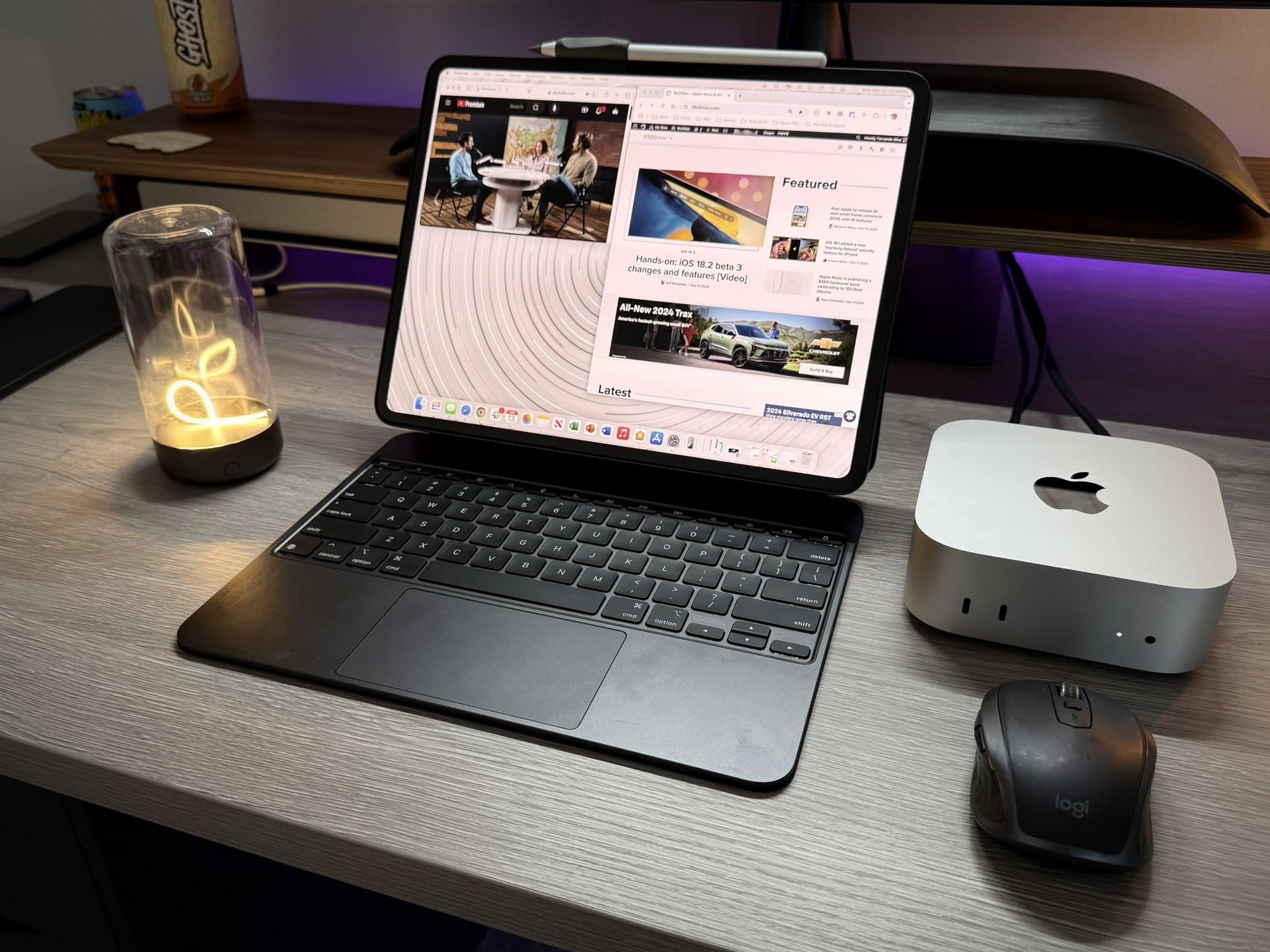
Let's get that nice new Mac set up, shall we? Photo: Apple
It’s a great season to get a new Mac. Every Mac today is a great buy. If you’re one of the lucky people to get one this year, here’s how to set up your Mac like a pro.
So rip open that box, tear off that plastic and get to the good stuff.
Here is Cult of Mac’s guide to setting up your new Mac the right way.
We can get your new iPhone set up easily — no need to phone it in. Photo: Apple
The new iPhone setup process gets easier every year. Apple continuously improves the steps needed to set up an iPhone. These days, you only need to do a few things to transfer all your old iPhone data to a new one. Still, certain tips and tricks can smooth the way.
The hot new tip this year is that you can directly transfer data from your old iPhone to your new one using a cable. Plus, other time-honored iPhone setup tricks will help things run smoothly. Here’s how to set up your new iPhone the right way.
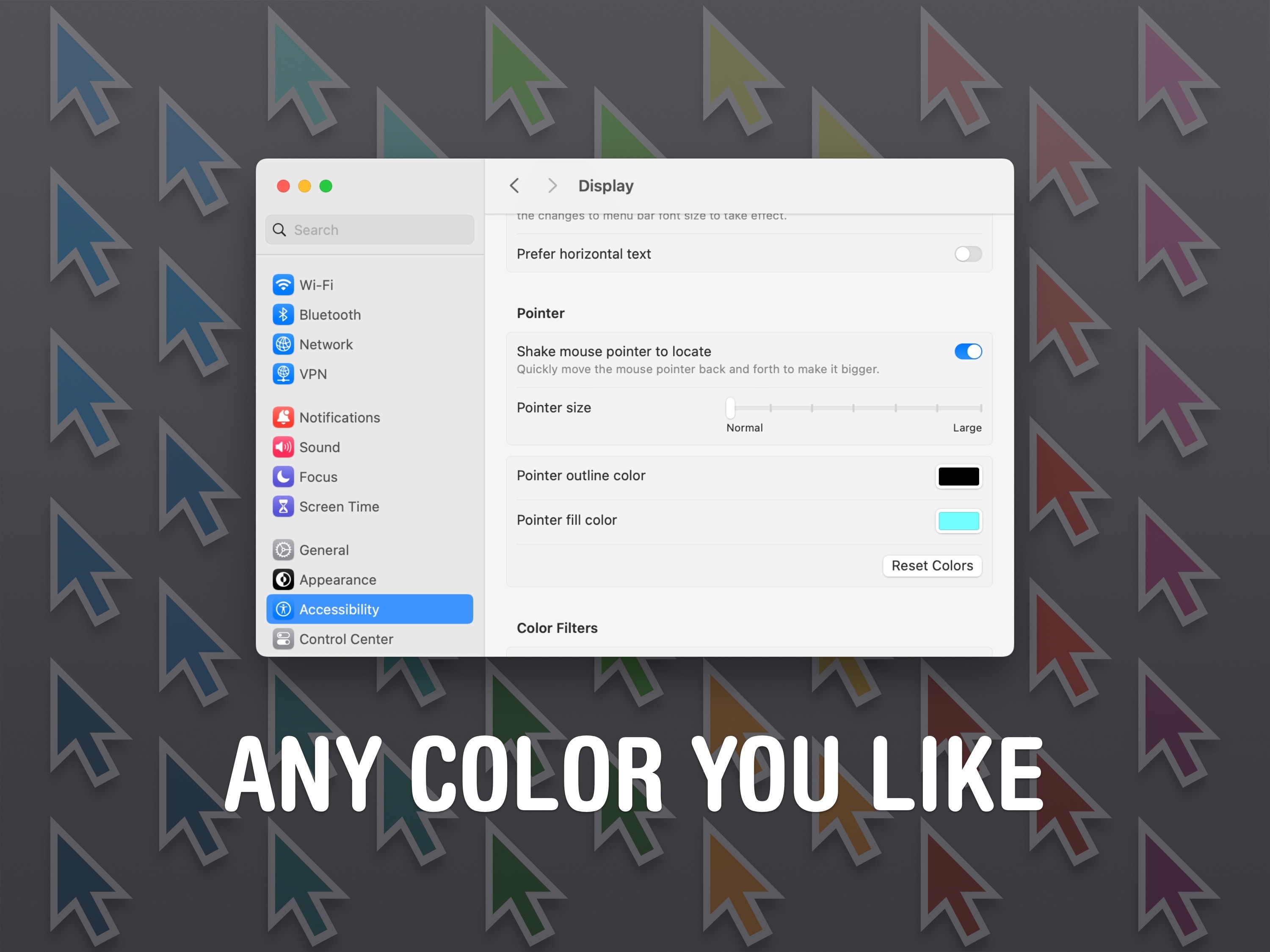
The Mac cursor doesn't have to be boring black-and-white. Image: D. Griffin Jones/Cult of Mac
The Mac pointer (also called the cursor) is black with a white outline by default, but you can change the pointer color if you want to make it more prominent. Plus, you can even change the Mac pointer size.
You might lose track of the small cursor if you have low vision — or just a really big monitor. Making the pointer larger can make it easier to see.
Changing the pointer color to, for instance, bright red can make it easier to see, too. You can choose any color, like light purple or green, to fit the aesthetic of your setup. (This is especially cool if you have a matching colorful iMac.)
Here’s how to change your Mac pointer size and color.
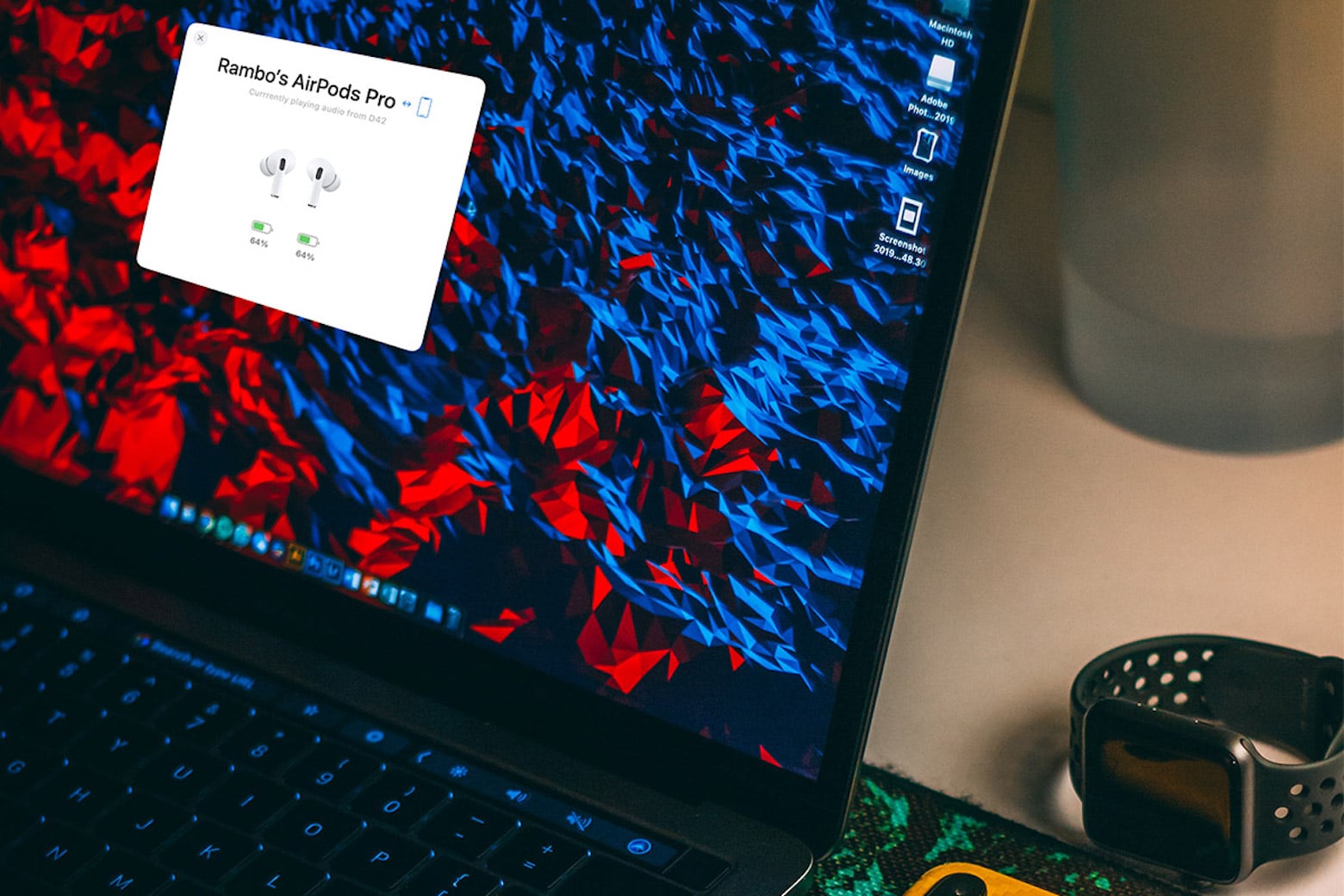
Enjoy enhanced AirPods functionality on Mac with AirBuddy, on sale now for only $8. Photo: Cult of Mac Deals
Love the way AirPods work with an iPhone but a little meh about how they work with a Mac? The AirBuddy Mac app will connect AirPods to Mac, with enhancements that provide the same advanced features you enjoy when using Apple’s earbuds with an iPhone.
Switch out the buttons on the Lock Screen. Screenshot: D. Griffin Jones/Cult of Mac
In iOS 18, users can finally change out their iPhone Lock Screen buttons from the standard Flashlight and Camera to whatever they want. There’s a giant selection of buttons you can swap in their place.
In fact, any button you can put in iOS 18’s new customizable Control Center is a button you can put on your iPhone’s Lock Screen. Plus, you can add different shortcut buttons to different Lock Screens, making them context-dependent (and tied to a Focus Mode if you like).
Here’s how to swap out the iPhone Lock Screen buttons to put whatever you want at your beck and call.
A bunch of Apple Intelligence features — and, more excitingly, sudoku. Image: D. Griffin Jones/Cult of Mac
iOS 18.2 drops a huge number of new features onto the iPhone. The second major iOS 18 update, available now, expands the capabilities of Apple Intelligence — and adds plenty of goodies for everyone else, too.
Keep reading or watch our video on the new features awaiting iPhone owners in iOS 18.2.
★★★★☆
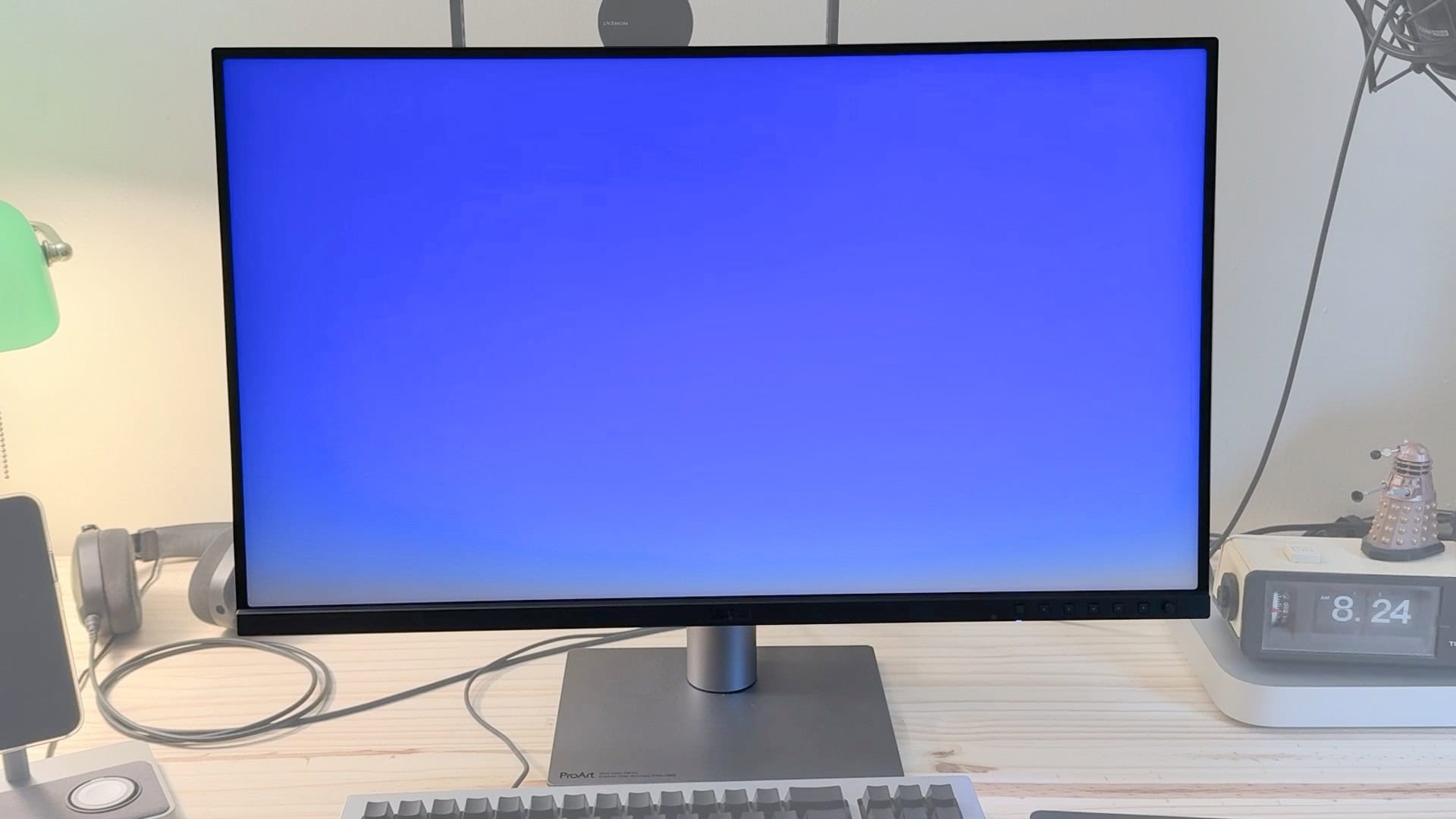
This display can be the new centerpiece of your Mac setup. Image: D. Griffin Jones/Cult of Mac
Asus’ new ProArt 5K desktop monitor costs just half of what you’ll pay for Apple’s Studio Display but offers many of the same features. The Asus ProArt 5K PA27JCV boasts the same 27-inch screen, Retina resolution, standard framerate and P3 wide color gamut as Apple’s midrange monitor. It also comes with a built-in USB hub and KVM, which proves great if you still use a few USB-A accessories or flash drives.
Admittedly, Asus’ 5K desktop monitor misses some of the Studio Display’s premium features. The stand wobbles and the body is made of creaky plastic. Plus, the panel isn’t quite as bright as Apple’s display, and it doesn’t come with a webcam.
Still, with very similar specs — and a budget-friendly $799 list price, compared to the Studio Display’s $1,599 (or $1,999 if you dare to desire an adjustable stand) — Asus is making an offer that’s hard to refuse. Keep reading or watch our video review.
Plenty of people are talking about M4 Mac mini as a mobile computer with iPad as a display. But to that, some others just reply, "get a MacBook." Image: Fernando Silva
Trend alert: Folks are talking on social media sites and YouTube about using iPad as an external display for the new M4 Mac mini. Why? Well, as today’s setup user notes, the combination creates a credible mobile solution. And as others point out, it’s economical. Mac mini is a sensational value. And for a few hundred bucks more you can add an iPad (or you may already have one) and a few other inexpensive elements to make it work. But still, plenty of people see this and just say, “get a MacBook.”
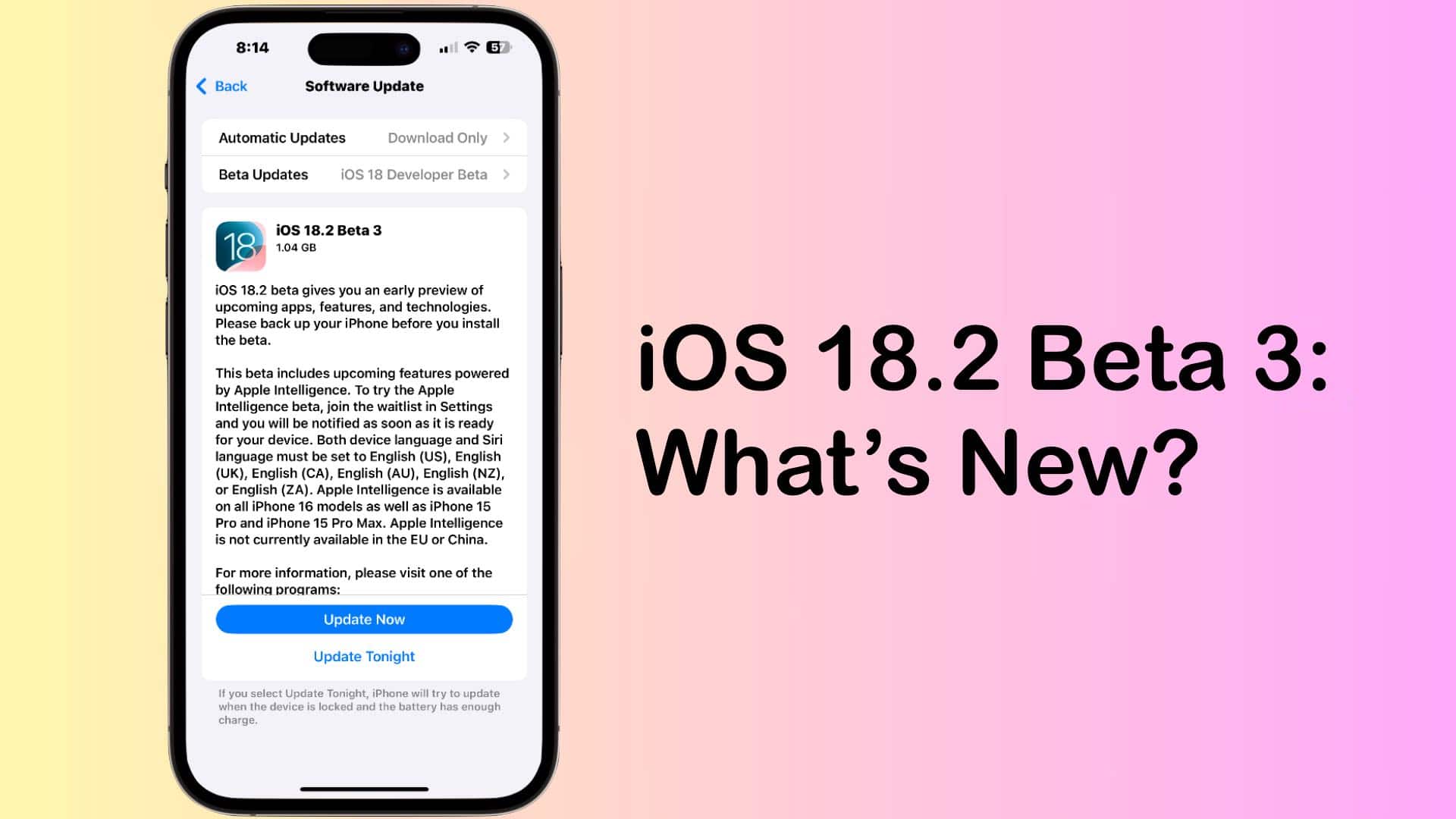
iOS 18.2 takes another step towards its public release. Photo: Cult of Mac
With iOS 18.3 due for release in early December, Apple continues beta testing the OS. The third beta build is now out for developers, bringing some small changes and enhancements.
Below is a roundup of all the new features and changes in iOS 18.2 beta 3.
UPDATE: These became available to all beta testers on Tuesday. Just be aware that this is the only second round of public beta testing and the updates are labeled as such. Nevertheless, public beta 2 is the same as developer beta 3.
Find out of music in your library has been taken down by Apple. Image: Public Domain/D. Griffin Jones/Cult of Mac
Songs disappear from Apple Music all the time due to licensing problems or artists doing controversial things. Spotify found itself caught up in similar situation in 2022, losing Neil Young’s discography in a protest of the streaming service’s association with podcaster Joe Rogan. Luckily, there’s a way you can find out if any songs in your library have been removed from Apple Music behind your back.
If you own a Mac, you can quickly find out by building a special Smart Playlist. I’ll show you how.