Mobile menu toggle

Search results for: shortcuts

Control your iPhone hands-free with Eye Tracking

By

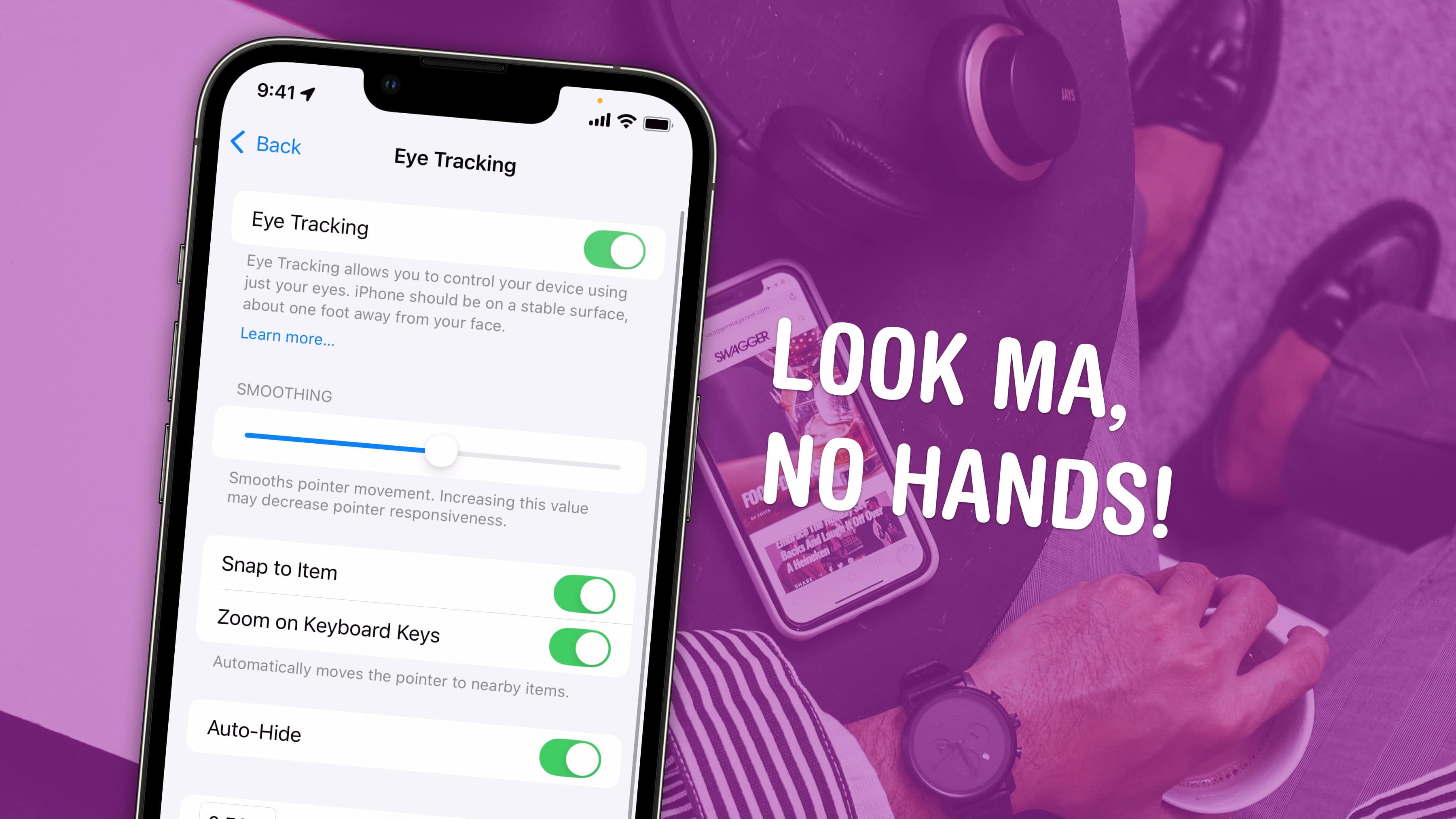
Image showing an iPhone setting up Eye Tracking, with the caption, “Look Ma, No Hands!”
Control your iPhone from afar.
Image: D. Griffin Jones/Cult of Mac

Eye Tracking is a pretty remarkable and ambitious accessibility feature that lets you control your iPhone entirely with your eyes. You can use this feature in a pinch if you need to use your phone with soapy hands while doing the dishes or with grimy hands while working on a car or doing other dirty work. Alternatively, if you’re losing your fine motor skills, this feature could be an essential one to learn.

Likely borrowing some of the software from the advanced Vision Pro headset, this feature lets you control your iPhone hands-free. And once you set up Eye Tracking, you can use the iPhone’s Sound Actions feature. It lets you perform certain functions, like toggling your flashlight or taking a screenshot, just by making various mouth noises.

Keep reading or watch our video.

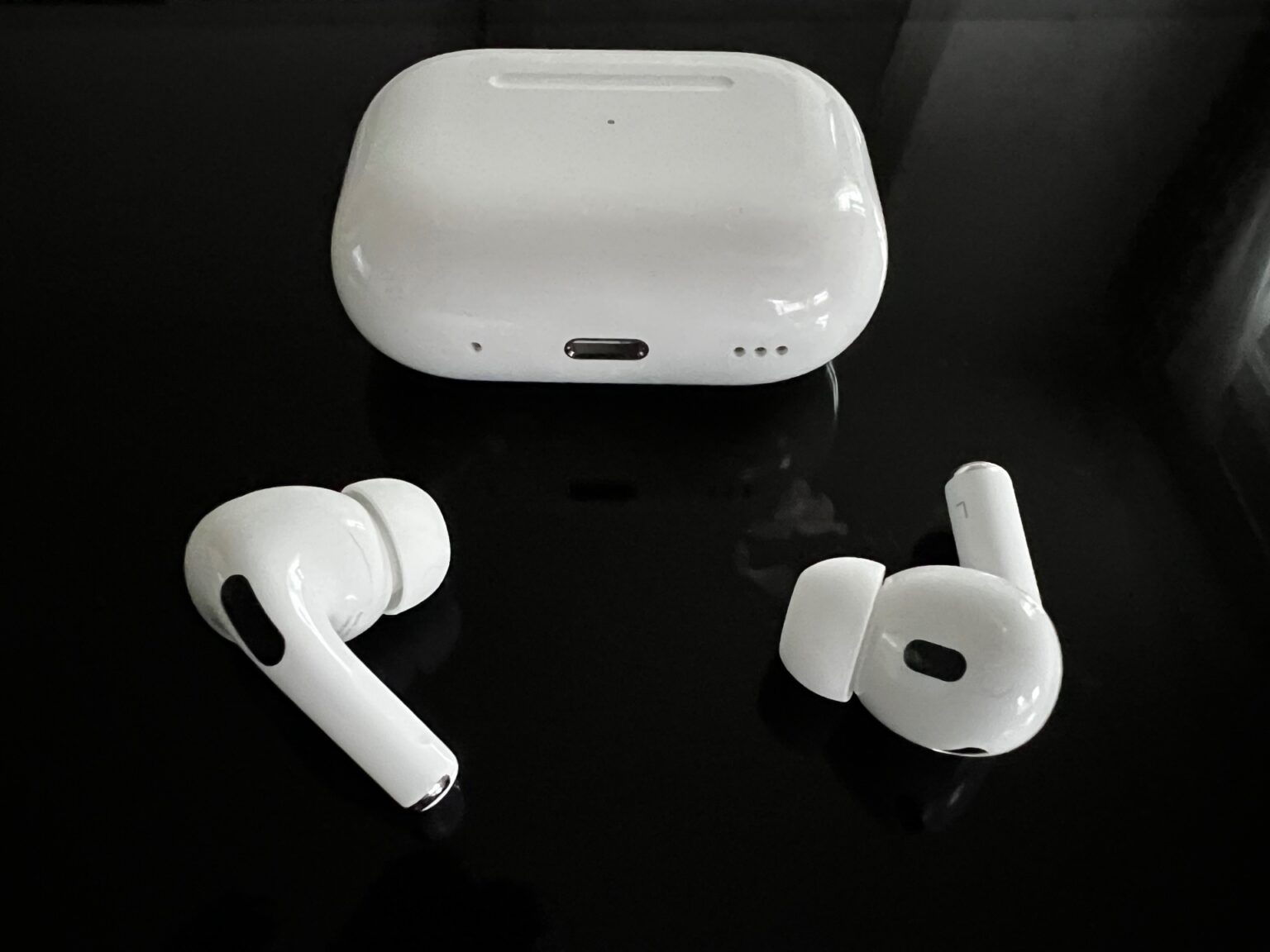
Why some audiophiles choose AirPods Pro 2 over wired headphones and earbuds [Setups]

By

wireless earbus vs. wired earbuds - AirPods Pro 2
Say what you want about high-quality wired headphones and earbuds. This user finds AirPods Pro 2 irresistibly convenient.
Photo: David Snow/Cult of Mac

In a face-off like wireless earbuds vs. wired earbuds and headphones, most self-described audiophiles will insist wired wins. But Bluetooth headphones and earbuds have come a long way in recent years in terms of solid audio quality and reliable connectivity. That’s a big part of the reason why today’s featured MacBook Pro setup user chooses AirPods Pro 2 almost all of the time, despite owning excellent wired headphones and in-ear monitors. It really just comes down to convenience.

Use Vehicle Motion Cues to eliminate iPhone motion sickness in cars, trains and planes

By

No Motion Sickness In The Car
As a passenger, of course.
Image: D. Griffin Jones/Cult of Mac

Apple’s Vehicle Motion Cues feature will help you use your iPhone in the car by reducing feelings of motion sickness. With the feature turned on, dots along the edge of your iPhone screen will animate in sync with the motion of the plane, train or automobile you’re riding in.

According to Apple, “Motion sickness is commonly caused by a sensory conflict between what a person sees and what they feel.” Apple says these animations “reduce sensory conflict.”

It may sound weird, but the feature evidently works really well. Here’s how you can enable it.

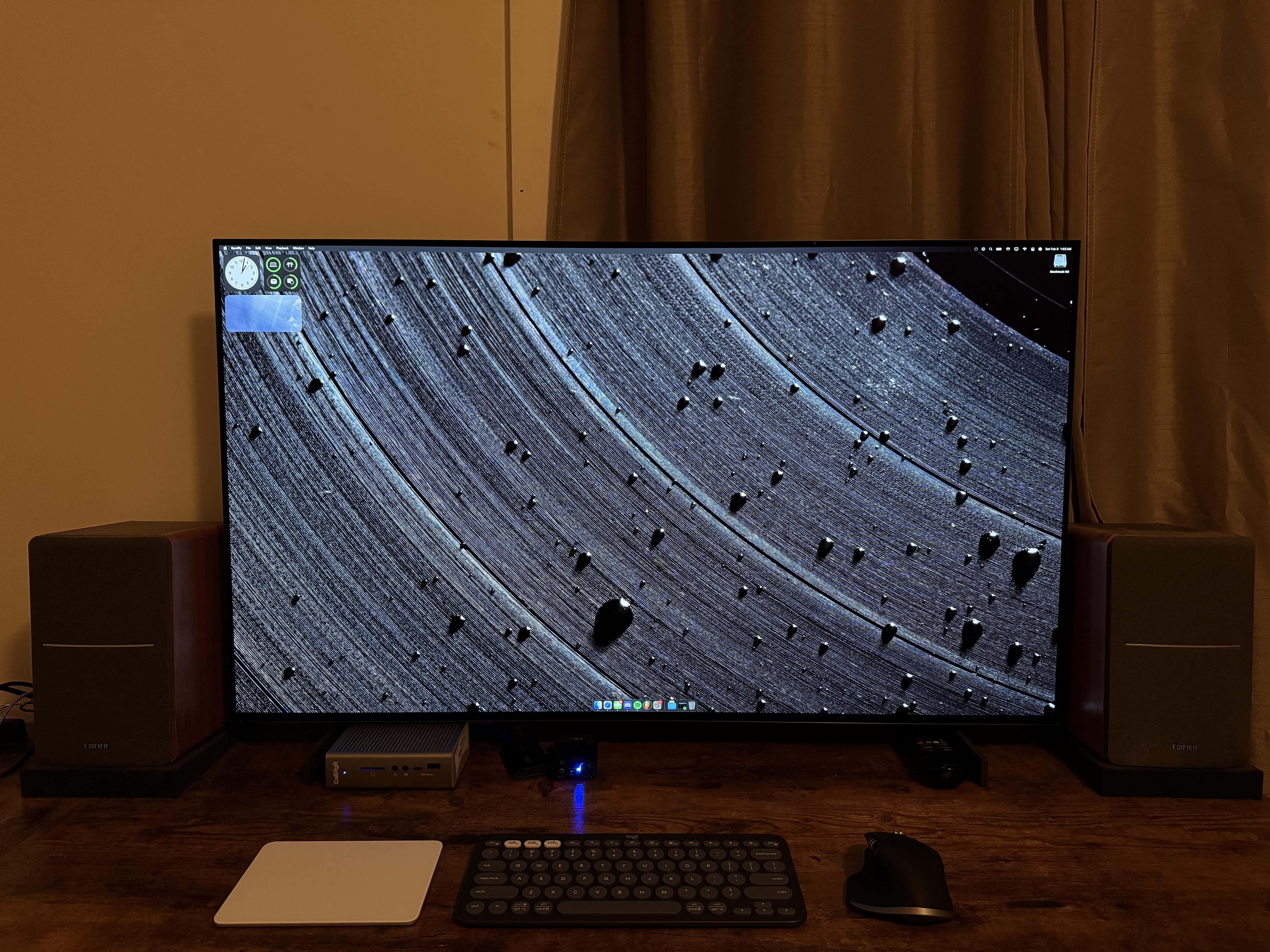
Can you use a big OLED TV as a MacBook monitor? Heck yes! [Setups]

By

OLED smart TV
Which do you want more, that OLED smart TV display or the wallpaper on it?
Photo: [email protected]

Everybody loves a big, beautiful external display in a computer setup — and this LG OLED TV monitor is a great way to go. Today’s setup is built around a 42-inch LG OLED TV plugged into a MacBook Pro.

Also: See if you can guess what the cool-looking desktop wallpaper showing on the display pictures. Answer below.

5 Mac apps that supercharge my productivity

By

Powerful Mac apps
You should give these powerful Mac apps a try today.
Graphics: Rajesh Pandey/CultofMac

As a longtime Mac power user, I’ve come to rely on a handful of essential apps that supercharge my workflow. These Mac productivity apps not only streamline my daily tasks but also simplify complex jobs, making my work faster and more efficient.

Check out my favorite Mac apps that I can’t recommend enough as a power user.

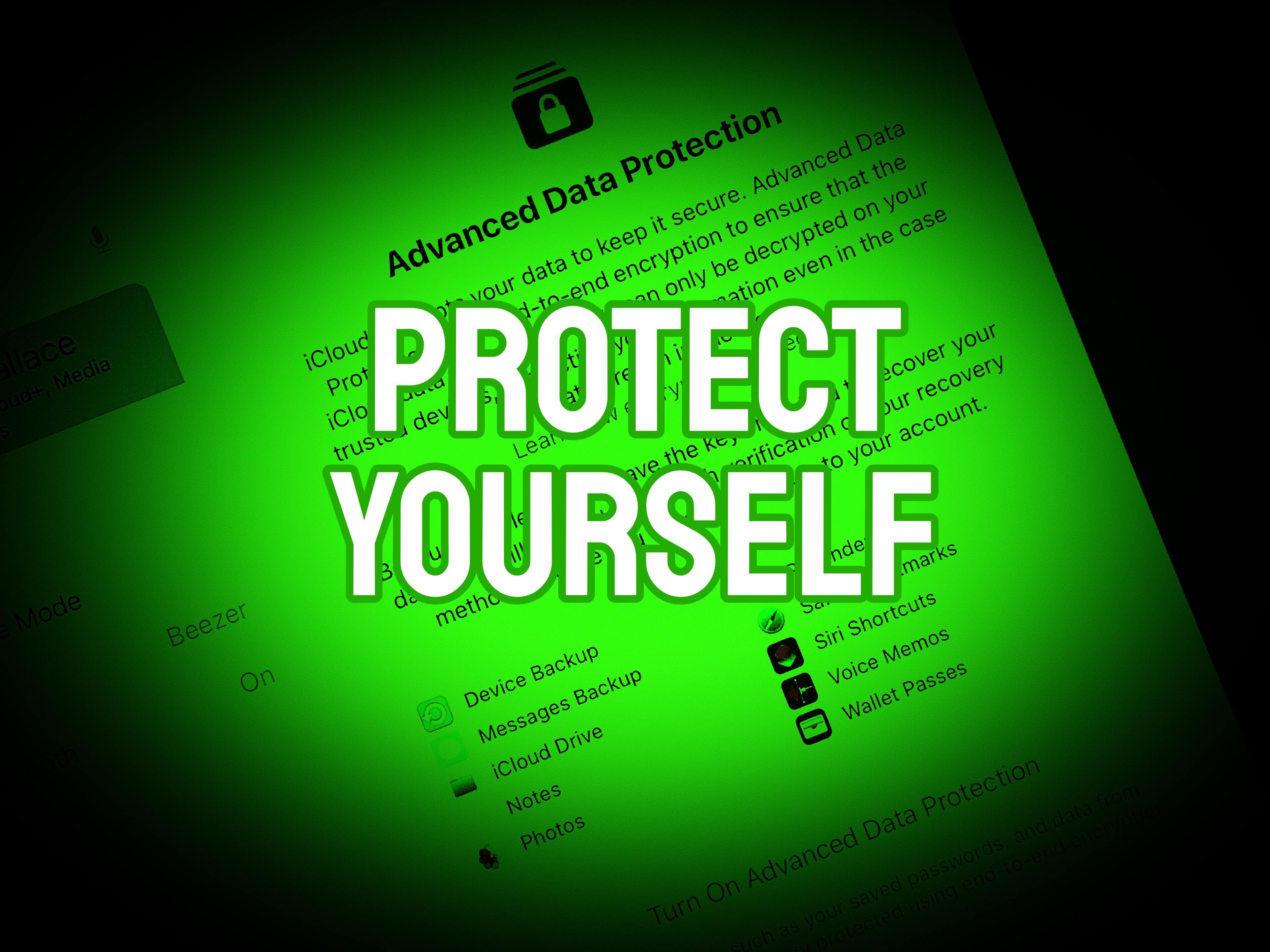
How to make iCloud more secure with Advanced Data Protection

By

You now have the option to have more of your iCloud files encrypted, including images. Here's how.
Apple's operating systems give you the option to encrypt much of the data stored on iCloud.
Photo: Cult of Mac

Apple offers end-to-end encryption for many more types of iCloud data than it once did. Advanced Data Protection encrypts iCloud Photos, Notes, iCloud Backup and more. But you have to activate the feature to take advantage of the data protection. It is easy … once you find the switch buried in Settings.

We can save you some time. Here’s how and why you should activate it.

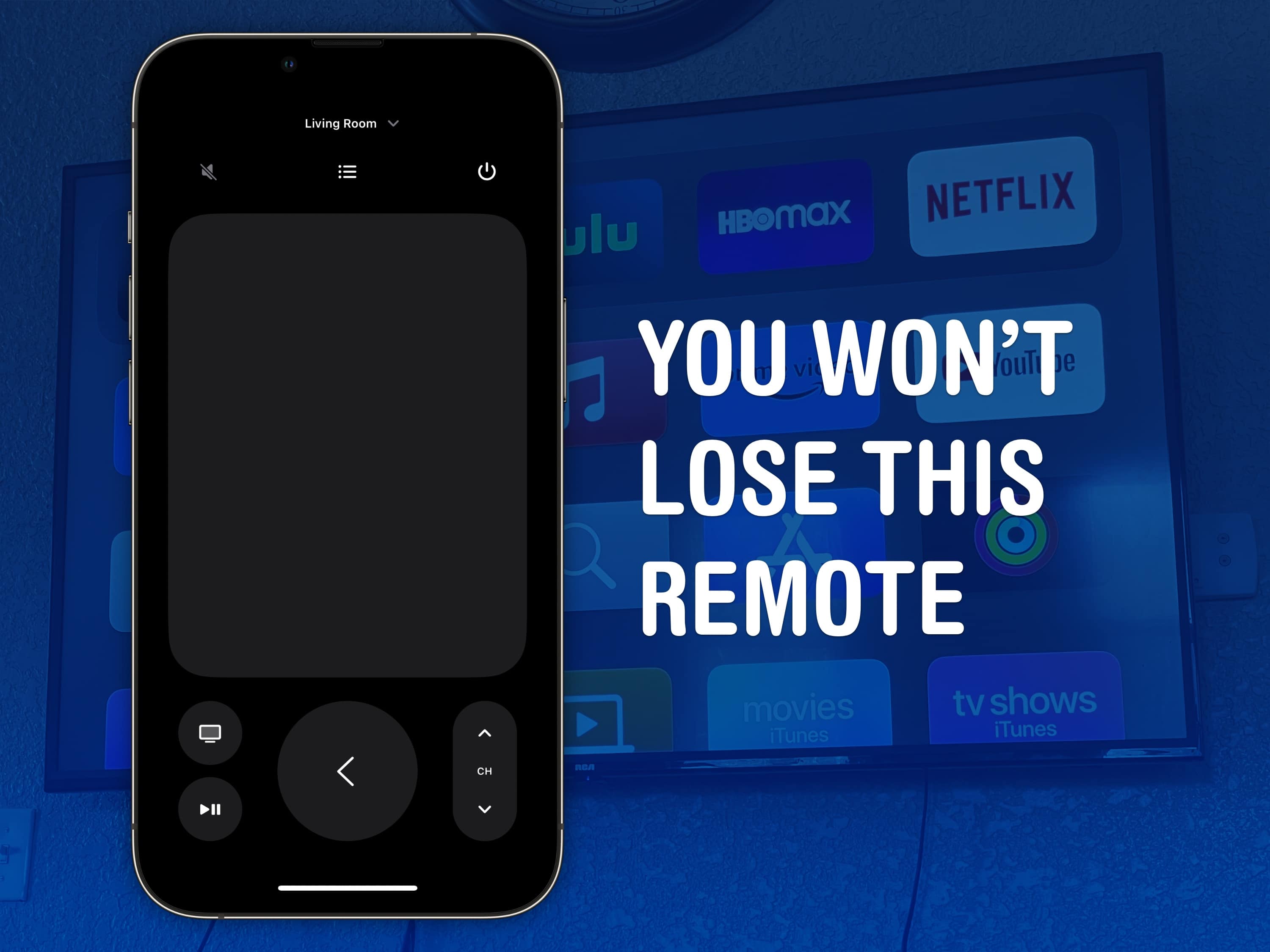
Control your Apple TV from your iPhone or Apple Watch

By

You won’t lose this remote
The Apple TV remote is easy to lose, but it’s harder to lose your phone — much less the Apple Watch strapped to your arm.
Image: D. Griffin Jones/Cult of Mac

You can use your iPhone (or even your Apple Watch!) as a remote for your Apple TV. It’s a convenient feature when you’ve lost the remote in the couch cushions. (You can use your iPhone to help find it as well.)

Even if your remote’s not gone missing, sometimes it’s sitting on the table way over there and you don’t want to interrupt a show by asking for someone to pass it to you. Or maybe, someone is intentionally hogging the remote and you want to pause the video yourself. Either way, it’s really easy to do from an iPhone or an Apple Watch.

Everything you need to know about iPhone Mirroring on the Mac

By

Control Your iPhone From Your MacBook
Save yourself the pain of getting your phone out of your pocket.
Image: Apple/D. Griffin Jones/Cult of Mac

iPhone Mirroring on the Mac lets you control your phone using your computer — a handy convenience when your iPhone is in your pocket, purse or backpack. All your iPhone notifications can be mirrored onto your Mac as well, letting you triage them and take care of business without touching your phone and interrupting your workflow.

This feature also could come in handy if you shatter your iPhone screen. You can mirror an otherwise unusable iPhone to your Mac to make sure it’s backed up. You could even factory-reset your broken phone before sending it in for repair or replacement.

Here’s how iPhone mirroring works. Keep reading or watch our video.
Quickly convert PDF to JPG from your iPhone with this shortcut

By

Screenshot of an iPhone with the words
No apps to download, just run a shortcut and get on with it.
Image: D. Griffin Jones/Cult of Mac

 You can convert a PDF to JPG on your iPhone instantly and for free — without downloading any sketchy apps or using any slow and confusing websites. This feature works using Shortcuts, a versatile automation system built into your iPhone. To learn more, check out this guide on making PDFs on iPhone and iPad.

After you download the shortcut, you can convert any PDF into a JPG straight from the share sheet on your iPhone. Watch the video or keep reading below to see how it works.

How to set up and use your brand-new AirPods

By

Woman smiling wearing AirPods
You’ll be one happy duck with your new AirPods.
Photo: Apple

If you’re a super lucky duck, then Santa may have left you a pair of AirPods. They are truly one of the best products Apple ever made, because they really do offer a huge upgrade on all previous headphones. Here’s how to set up your new AirPods.

1 17 18 19 20 21 121