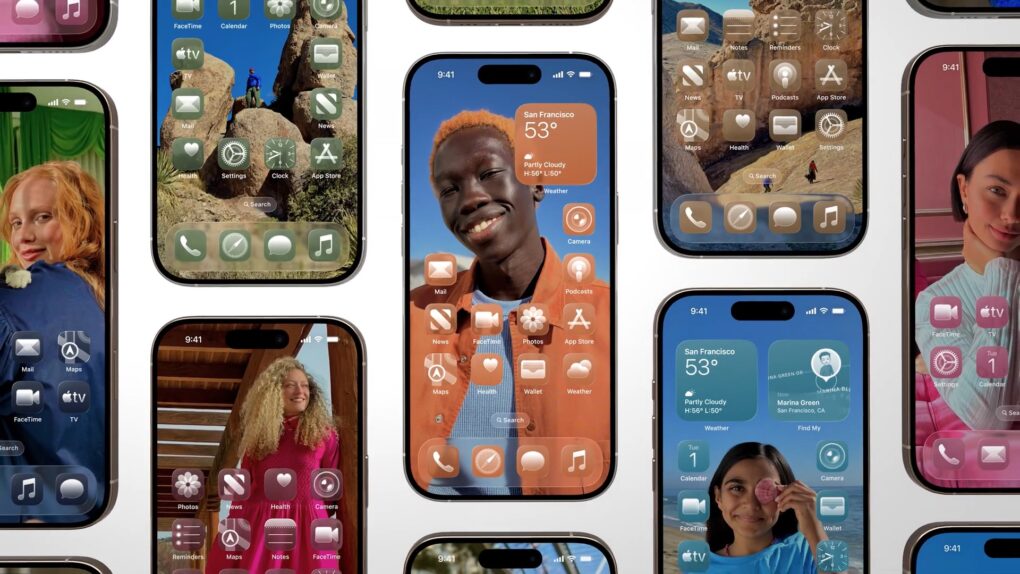
You’ve probably seen some beautiful custom iPhone Home Screens on social media. Some people go to great lengths to creatively customize their Home Screen. You can go for a specific theme and aesthetic using custom icon colors and widgets.
Why spend so much time and effort? For one thing, you likely look at your Home Screen dozens (or even hundreds) of times every single day. A custom Home Screen that matches your style can bring a little spark of joy to your daily life every time you whip out your iPhone. And iOS makes Home Screen customization easier than ever.
Keep reading (or watch our video) for a quick introduction into the world of custom iPhone Home Screens. You’ll find out about new features in iOS 26, how to go above and beyond using Shortcuts, and how you can top off your iPhone aesthetic with widgets. I’ve scoured the internet (Reddit, mostly) to find the finest examples.
Customize your iPhone Home Screen: Layout, theme, icons and widgets
Ever since computers first adopted visual user interfaces, people have been customizing them to their own personal taste. Classic Mac OS had a robust theme system built in, with thousands of creative styles made by users over the years. (I was once the sort of person who installed all kinds of crazy WindowBlinds themes on Windows XP.)
In the past, Apple kept iOS more locked-down than macOS and Windows. But in recent years, Cupertino loosened its grip on iPhone aesthetics. You can customize icon colors, go all-in on a custom icon theme, and complete the look with stylish widgets. Here’s how.
Table of contents: How to customize your iPhone’s Home Screen
- Change the icon color
- Go all-in on fully custom icons
- Customize your Home Screen with widgets
- More daily inspiration
- More ways to customize your iPhone
1. Change the icon color
Screenshot: D. Griffin Jones/Cult of Mac
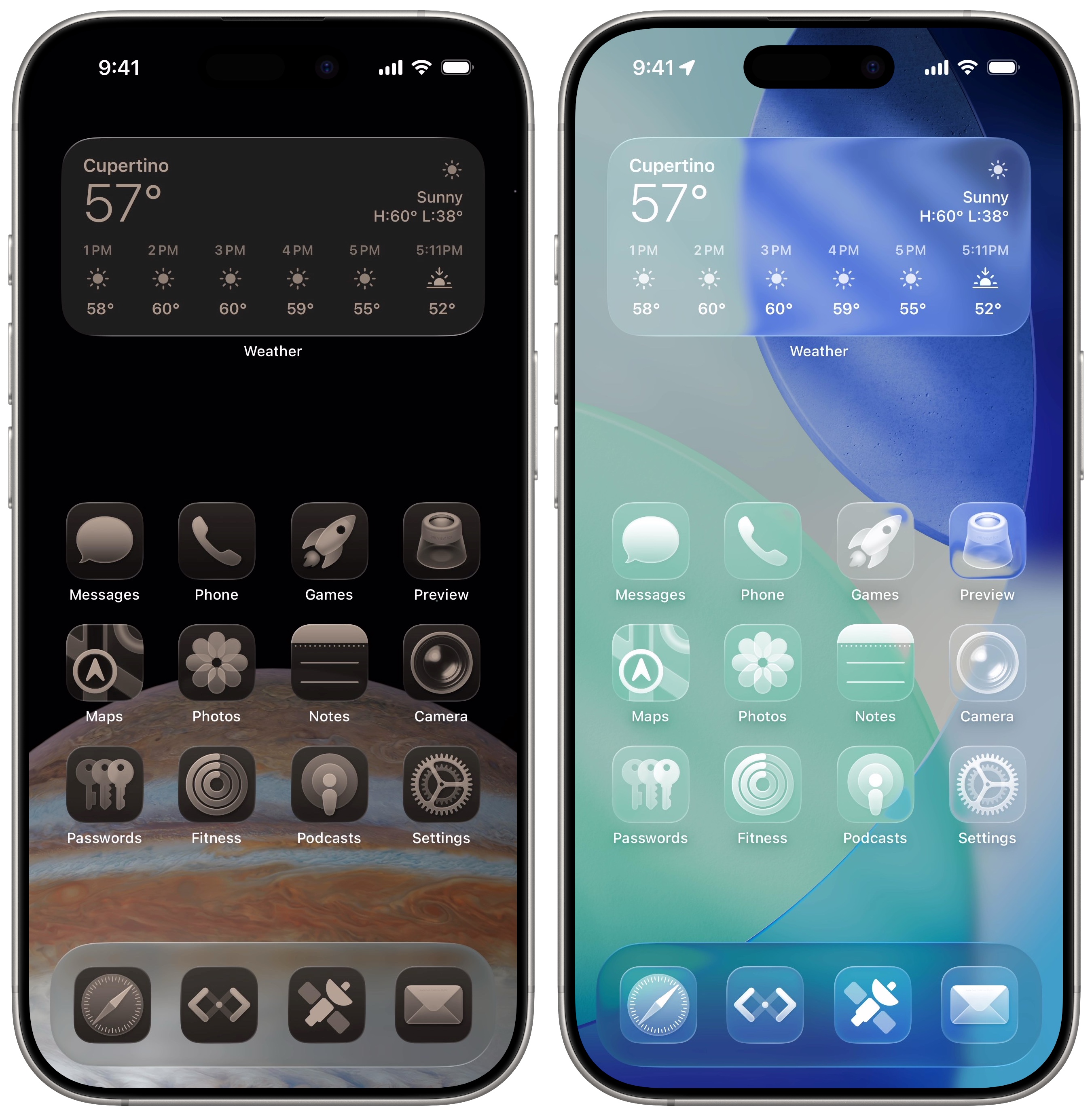
In iOS 26, you can set your iPhone’s Home Screen to use Dark icons or Tinted icons with any color you want. Just tap and hold on your Home Screen to enter “jiggle mode.” Then tap Edit in the upper left, then tap Customize.
- Default and Dark use full-color versions of each icon, in a light or dark color scheme.
- Clear is a new option added in iOS 26. It uses a translucent glass look as the icon background, with a single-color glyph on top. You can choose either a light or dark appearance.
- Tinted lets you make all the icons the same color of your choosing. You can pick a color using the sliders, or you can tap the eyedropper button to pull one from your wallpaper.
You also can tap the Dim Wallpaper button in the upper left of the panel (with the sun icon) to darken your wallpaper a bit. And if you don’t want the distracting text under each one, tap Large App Icons in the upper right. And, as of iOS 18, if you want a good, unobstructed view of your wallpaper, you can move app icons and folders to the bottom of your screen.
2. Go all-in on fully custom icons

Screenshot: MicrosuedeMouse/X/StorageRich3317/reddit
Apple’s options to customize your iPhone’s Home Screen are easy to set up, but somewhat limited. For one, all you can change is the icon color. If you want a totally different style, you need to add custom app icons.
Ever since custom Home Screens went viral in 2020, icon packs for iPhone have been easy to find. You can locate custom icon packs from websites like Icons8. Click on a collection, then search for an icon inside that collection (like YouTube, Instagram, Mail, etc.) and download the images. You should end up with a series of icons in your photo library.
Screenshot: Mark_JCW/trakkito/reddit
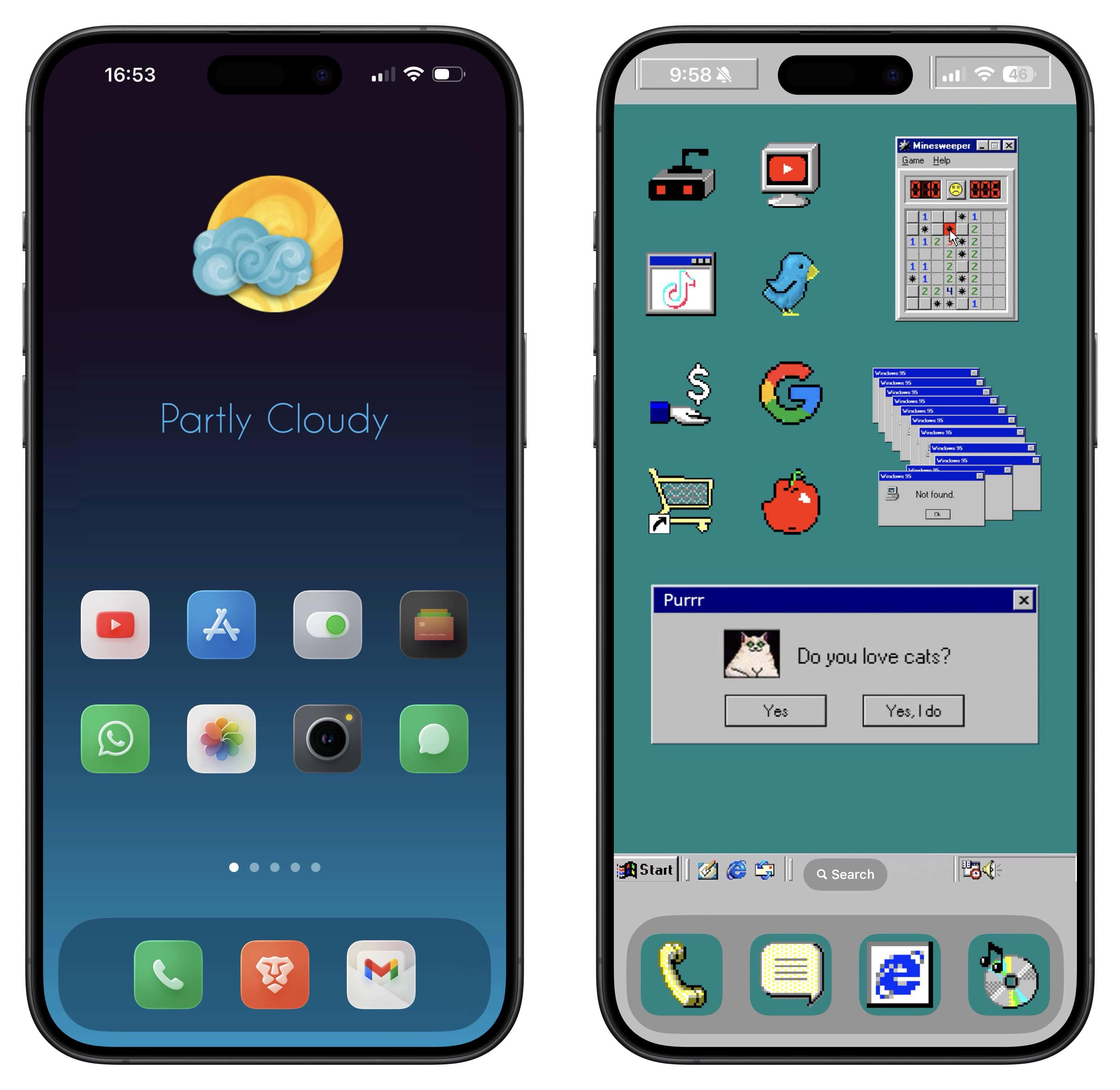
Custom icons don’t need to be all about changing your iPhone’s color scheme. The icon set above looks just as colorful as the stock icons, but it changes the aesthetic to gentle colors and soft shadows.
Create custom icons
Screenshot: D. Griffin Jones/Cult of Mac
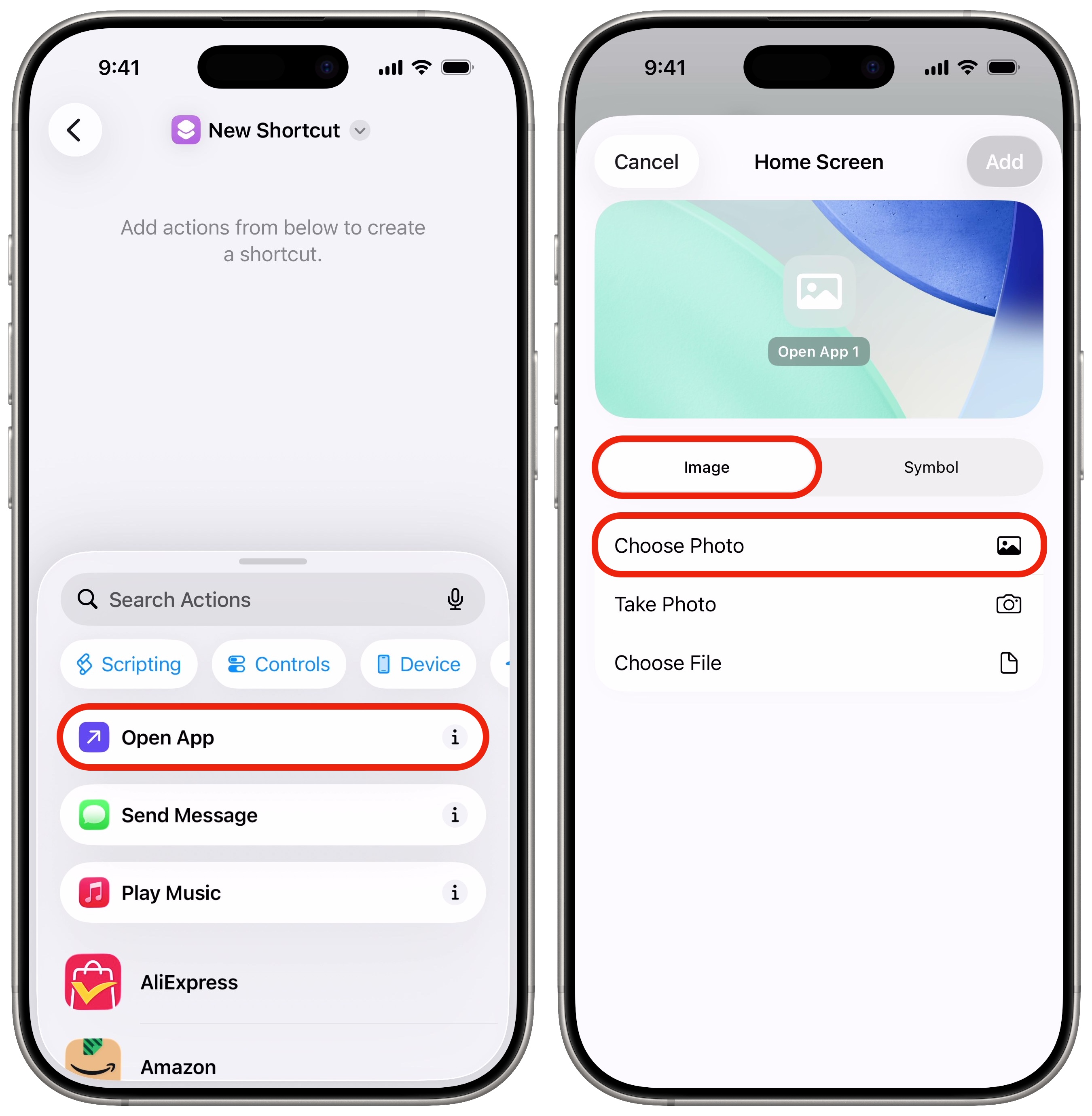
To swap out your apps’ old icons for the new ones, you’ll need to set up a bunch of shortcuts. Open the Shortcuts app, tap + in the upper-right corner, then tap Open App. Tap App, then select the app you want to add. That’s all the shortcut needs to do. Hit the Share button in the bottom toolbar and select Add to Home Screen.
Here’s the important part: Type in the name of the app, select the icon on the left, and tap Choose Photo. Then, select the custom icon you added to your photo library. Tap Add to put it on your Home Screen. (Remove the stock icon by tapping and holding on the app, tapping Remove App, then tapping Remove from Home Screen.) It can be a tedious process if you have a lot of icons, but the results speak for themselves.
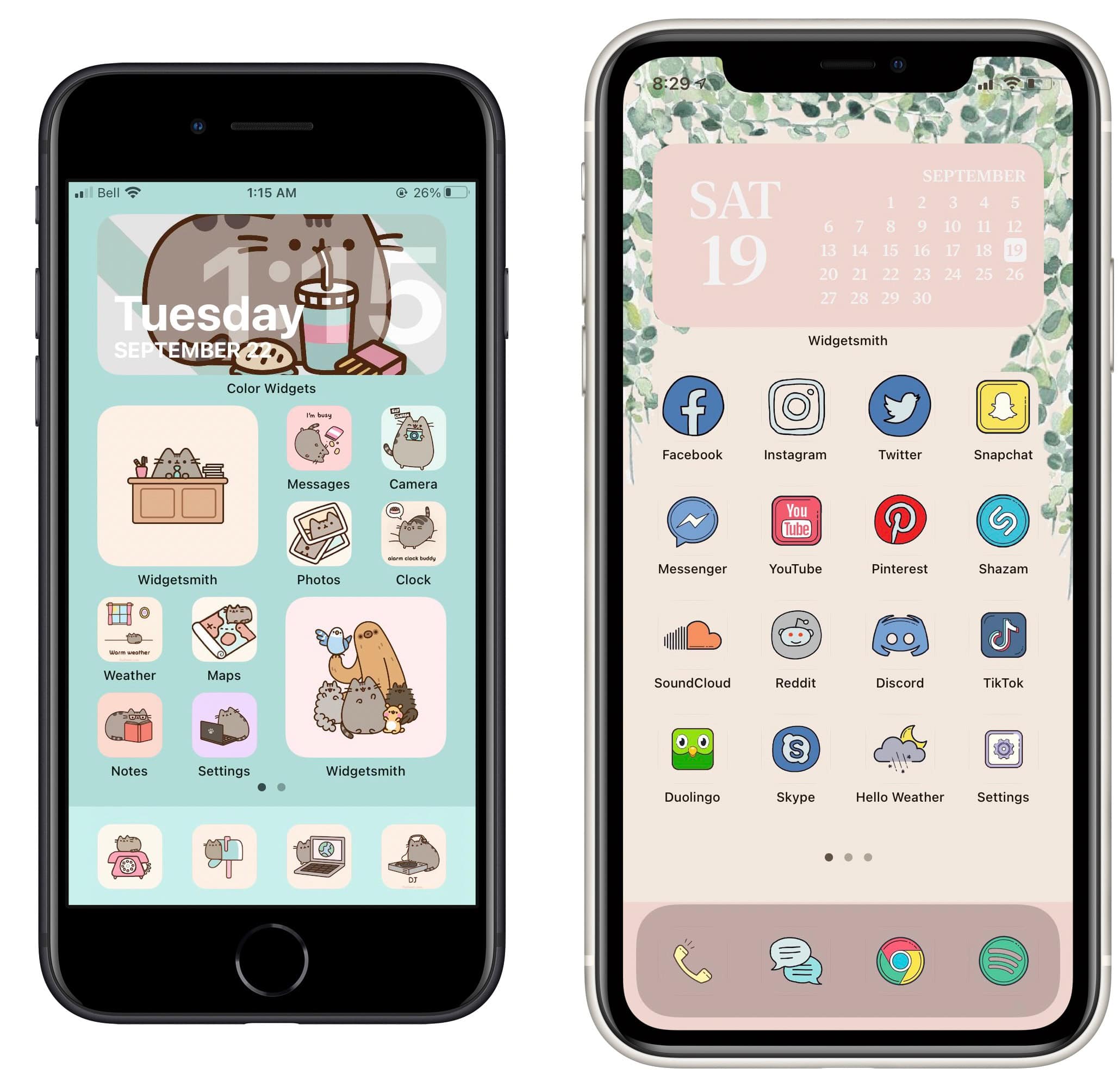
Screenshot: oddloop_lol/Carlanatorr64/X
There is one important thing to note about this kind of setup. Whereas Apple’s icon tinting feature affects icons everywhere on your iPhone, including the App Library, adding these shortcuts only affects icons on your Home Screen. That’s because you’re not really changing the icons themselves; you’re creating new ones to put on your Home Screen.
This iPhone customization hack also comes with two somewhat annoying side effects. First of all, the custom icon won’t show notification badges. Secondly, when you tap on the icon, you’ll see a banner at the top of the screen reminding you that you just ran a shortcut. This cannot be disabled, even in iOS 26.
Personally, I’m happy enough with the default look and feel of things. The time it takes to set this up and the downsides aren’t worth it for me. But I understand the desire — some of these styles look really cool.
3. Customize your Home Screen with widgets
Screenshot: heartoutchloe/ThereIsNoDog96/reddit
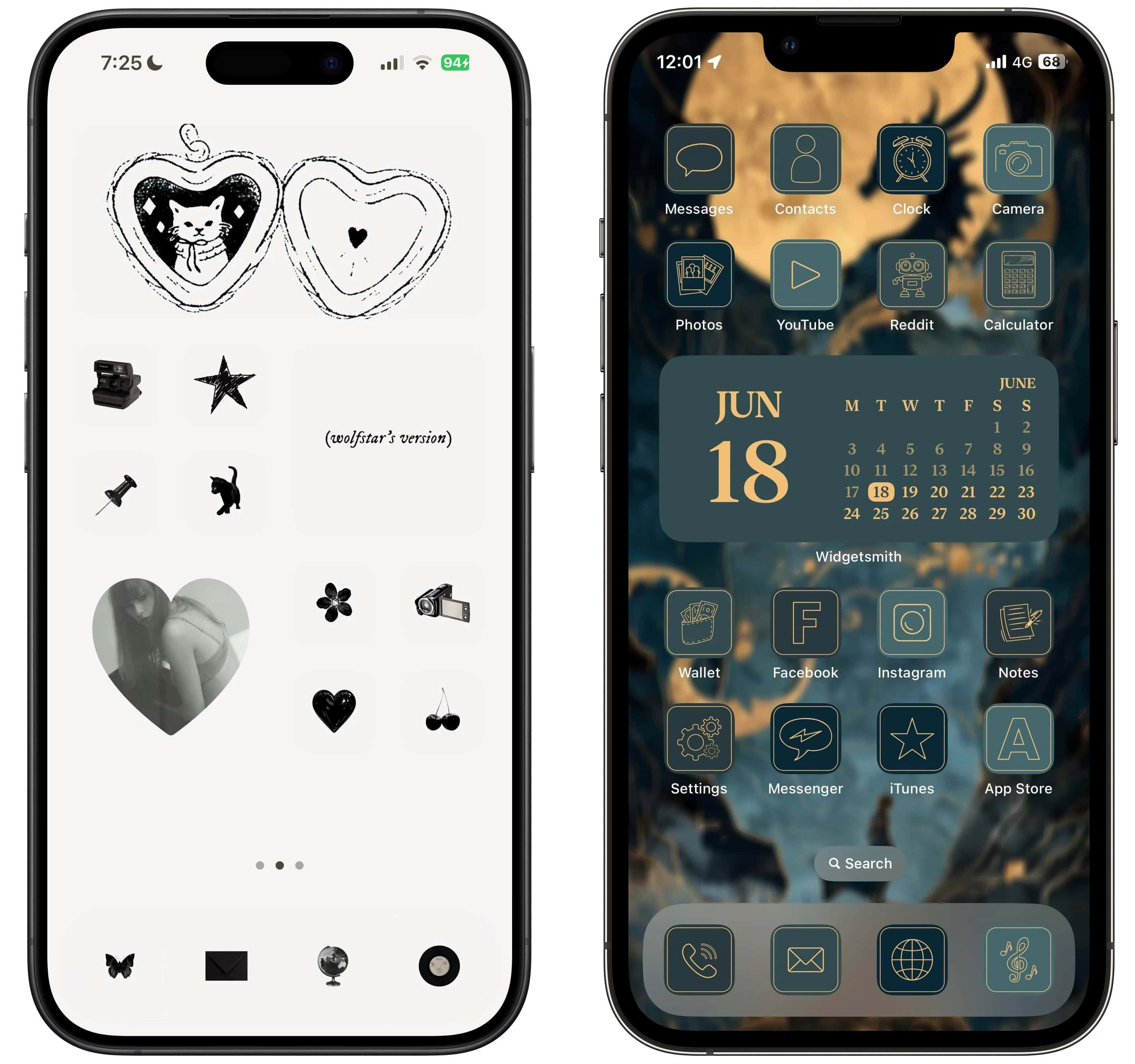
A lot of the widgets that come built into the iPhone are functional and utilitarian, but not necessarily beautiful. If you use the Tinted app icons, your widgets will adopt the same color scheme, but the results might not look ideal. Using an app like the viral sensation Widgetsmith, you can add beautiful widgets that enhance your aesthetic. In the image above (and video below), you can see all the options combined for a truly unique and personalized look. The sky is the limit.
With Widgetsmith, you can add calendar widgets, weather widgets, countdown widgets or simple photos that do nothing but look gorgeous. The options for custom colors and fonts are guaranteed to match your personal style.
Widgetsmith lets users “more easily create their own unique aesthetic,” said managing director Stephen Hackett in an email to Cult of Mac.
The people behind Widgetsmith update the app very regularly. The app adopts all the latest iOS features, like widget interactivity, with fresh styles every few months to inspire you.
Price: Free with basic features, $1.99 per month or $19.99 per year for premium features
Download from: App Store
More daily inspiration
If you want to see more of what’s possible when it comes to customizing your iPhone’s Home Screen, you should check out (and subscribe to!) the Cult of Mac Today newsletter. Every edition is delivered to your email inbox with a nifty new wallpaper, in addition to the day’s top Apple news, reviews, how-tos and deals. Sign up here for a daily dose of fun and inspiration in your inbox.
More ways to customize your iPhone
- Tweak your iPhone’s Control Center. You can add many more toggles and buttons, including those from third-party apps. You can resize some buttons to make them more prominent, and you can arrange your controls across multiple pages. In one fluid motion, you can swipe down to activate Control Center and continue swiping down to scroll through your pages.
- StandBy mode turns your phone into a smart display when it’s sitting on your desk, your nightstand or the kitchen counter.
- Customize your iPhone Lock Screen with a bunch of widgets, aesthetics and styles. You have loads of fonts, colors, styles and themes available.
- Change out the Lock Screen buttons from the standard Flashlight and Camera to whatever you want. There’s a giant selection of buttons you can swap in their place.
- Create Focus modes to customize notification settings for different times of day, like work, vacation, driving, personal time and more.
We originally published this post on how to customize the Home Screen on June 22, 2024. We updated it with the latest information on September 19, 2024, and January 12, 2025.

D. Griffin Jones was a writer, podcaster and video producer for Cult of Mac. Griffin has been a passionate computer enthusiast since 2002, when he got his first PC — but since getting a Mac in 2008, he hasn’t turned back. His skills in graphic and web design, along with video and podcast editing, are self-taught over 20+ years. Griffin has a bachelor’s degree in computer science and has written several (unpublished) apps for Mac and iOS. His collection of old computers is made up of 40+ desktops, laptops, PDAs and devices, dating back to the early ’80s.
Griffin writes for his personal blog, Extra Ordinary, and is currently looking for work.

