
Mobile menu toggle

How To Display The Battery Percentage On Your iPhone [iOS Tips]

By

ios-battery-percentage

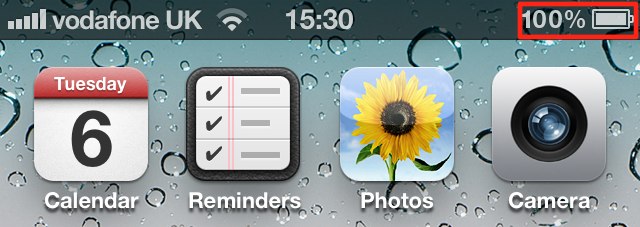
Today’s tip is a simply one, but it’s a question I get asked a lot when people see the battery percentage in my iPhone’s status bar. The iPhone ships with this feature disabled by default, and Apple hides the option away within the device’s general settings. So, here’s how to enable it!

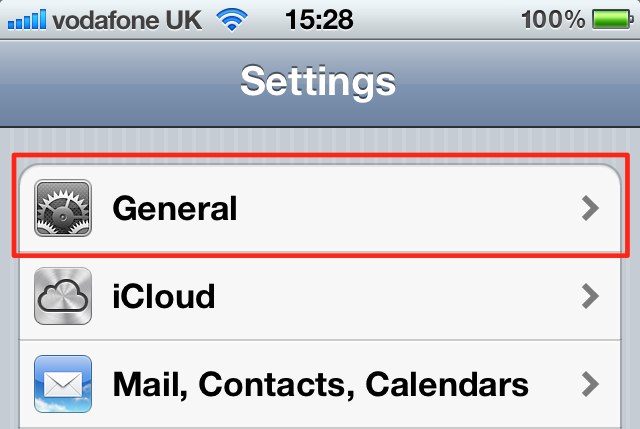
Open up the Settings app on your iPhone and tap on the ‘General’ tab.
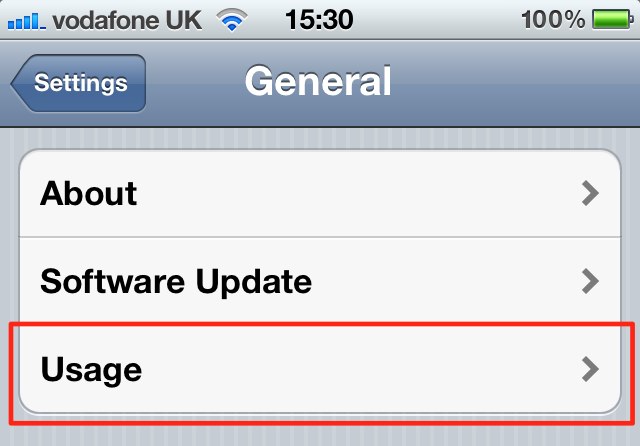
Now hit the ‘Usage’ tab towards the top, and scroll down to the bottom of the page.
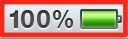
You’ll see an option for ‘Battery Percentage’ — simply turn this on and your iPhone will now display your remaining percentage next to the battery indicator in the status bar.
  • Subscribe to the Newsletter

    Our daily roundup of Apple news, reviews and how-tos. Plus the best Apple tweets, fun polls and inspiring Steve Jobs bons mots. Our readers say: "Love what you do" -- Christi Cardenas. "Absolutely love the content!" -- Harshita Arora. "Genuinely one of the highlights of my inbox" -- Lee Barnett.

6 responses to “How To Display The Battery Percentage On Your iPhone [iOS Tips]”

  1. Hondamaker says:

    ‘today’s tip is a simply one’? Who’s your editor? Lol

  2. Ryan Jerman says:

    I may be going crazy, but I’m using an iPod Touch 4th generation with iOS 5 and don’t see the battery indicator option. Under “Usage” it only shows “Storage” and “iCloud”. Not sure what the issue could be related to. 

  3. ZeeKazim says:

    wow! I figured this out since day one with my first iPhone!
    Good tip though.. I can’t stand having the battery indicator naked!

  4. ereins158 says:

    Same. I’ve searched every inch of the settings before and never heard of this option before now. Why would Apple only want to show percentage on iPhones.

  5. Anipz Raymond says:

    wow ! “i never knew this” !

  6. Jasmine2san says:

    Thats a cool tip. I found a whole bunch of similar iPhone Tips and Tricks here… http://iphonetipsandtricks.lookitupforme.com/

Leave a Reply

