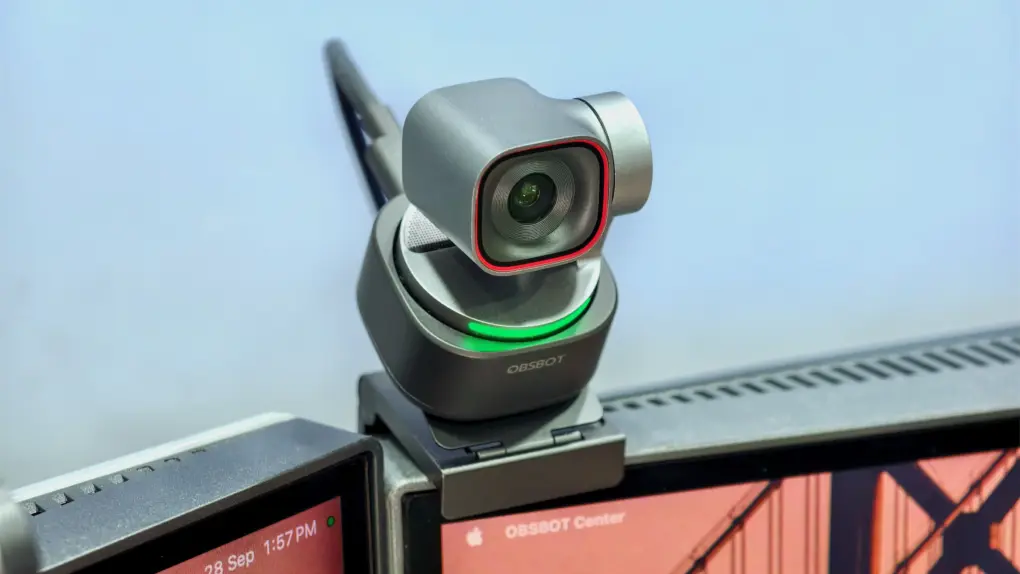
The Obsbot Tiny 3 is a small webcam with a sensor as large as the one in the iPhone 17 Pro’s main camera. And, frankly, it delivers a ridiculous leap in image quality over standard webcams.
I spend a lot of time in online meetings — a couple of hours every other day. While I never paid much attention to image quality, I knew that my Creative 4K webcam was not really up to the task. So I tried the Obsbot Tiny 3. It’s great, but at $349, it costs a lot more than a regular webcam. Is it really worth it?
Obsbot Tiny 3 review: A small camera with a big sensor
Your MacBook’s built-in webcam makes you look like you’re calling in from a witness protection program. The Obsbot Tiny 3 wants to change that with a camera that delivers stunning 4K video, natural background blur, and tracking that follows you around the room. It’s a remarkable leap for a device most people barely think about — until they see themselves on a video call.
Most webcams don’t use camera sensors as sophisticated as the ones you find in a smartphone, which makes the Tiny 3 a rarity. It uses a 50MP 1/1.28-inch CMOS sensor with an f/1.8 lens. Apple uses a similarly sized sensor for the iPhone 17 Pro’s main camera. And it shows in the image quality.
While the hardware’s great, this tiny camera comes with a big disappointment: clunky desktop software that diminishes the experience and makes the high price tag difficult to justify.
The OBSBOT Tiny 3 pairs a 1/1.28-inch sensor with 4K video and a gimbal that uses AI tracking to keep you in frame, while voice and gesture controls let you adjust framing hands-free. The three-microphone array pick-up your voice with crystal clarity.
- Excellent image quality
- Reliable gimbal and hand tracking
- Compact, well-built hardware with a carrying case
- Poorly designed Mac app
- Mount may not fit thicker monitors
- Can run hot if you plan long streaming sessions

Table of contents: Obsbot Tiny 3 review
- Compact design, unusual mount
- Image quality is the reason to buy
- Tracking that keeps up
- Obsbot Center lets the hardware down
- Is the Obsbot Tiny 3 worth your money?
- Pricing and availability
Compact design, unusual mount
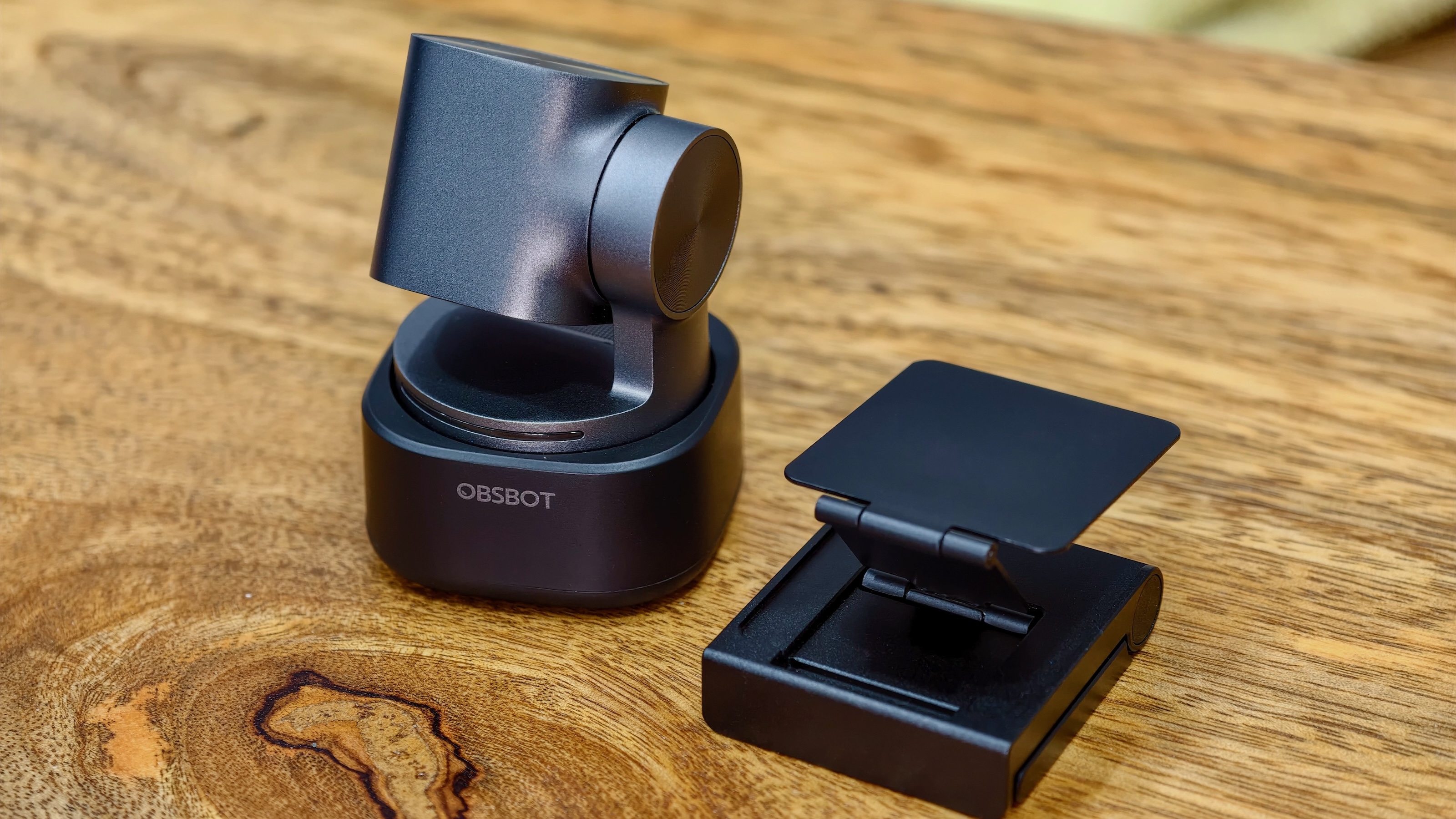
Photo: Rajesh Pandey/Cult of Mac
At just 63 grams, the Obsbot Tiny 3 webcam is small and light enough to carry around with your MacBook. The aluminum alloy body feels premium to the touch. (Not that you will be touching your webcam regularly.)
Obsbot bundles a carrying case in the box. That’s important because while the Tiny 3 feels built to last, the gimbal mount is not meant to take a beating. You can’t throw the webcam in a backpack with other gear and expect it to survive.
The mount is a bit unusual, though. An adjustable clamp sits on top of your monitor, and the webcam attaches to it magnetically.
The magnet is strong, and the whole thing works. But the two-piece design is not ideal if you plan to keep the Tiny 3 on your MacBook and move around with it. I dropped it once, but the webcam survived the fall.
I also ran into a problem with my BenQ MA320UG monitor. The clamp would not fit over its thicker middle section, so I had to place it near the left or right edge of the screen, where the chassis is thinner. If the clamp does not fit your monitor at all, there is a standard 1/4-inch thread for mounting the webcam on a tripod or arm. Not a deal-breaker, but something to keep in mind if you have a similar monitor.
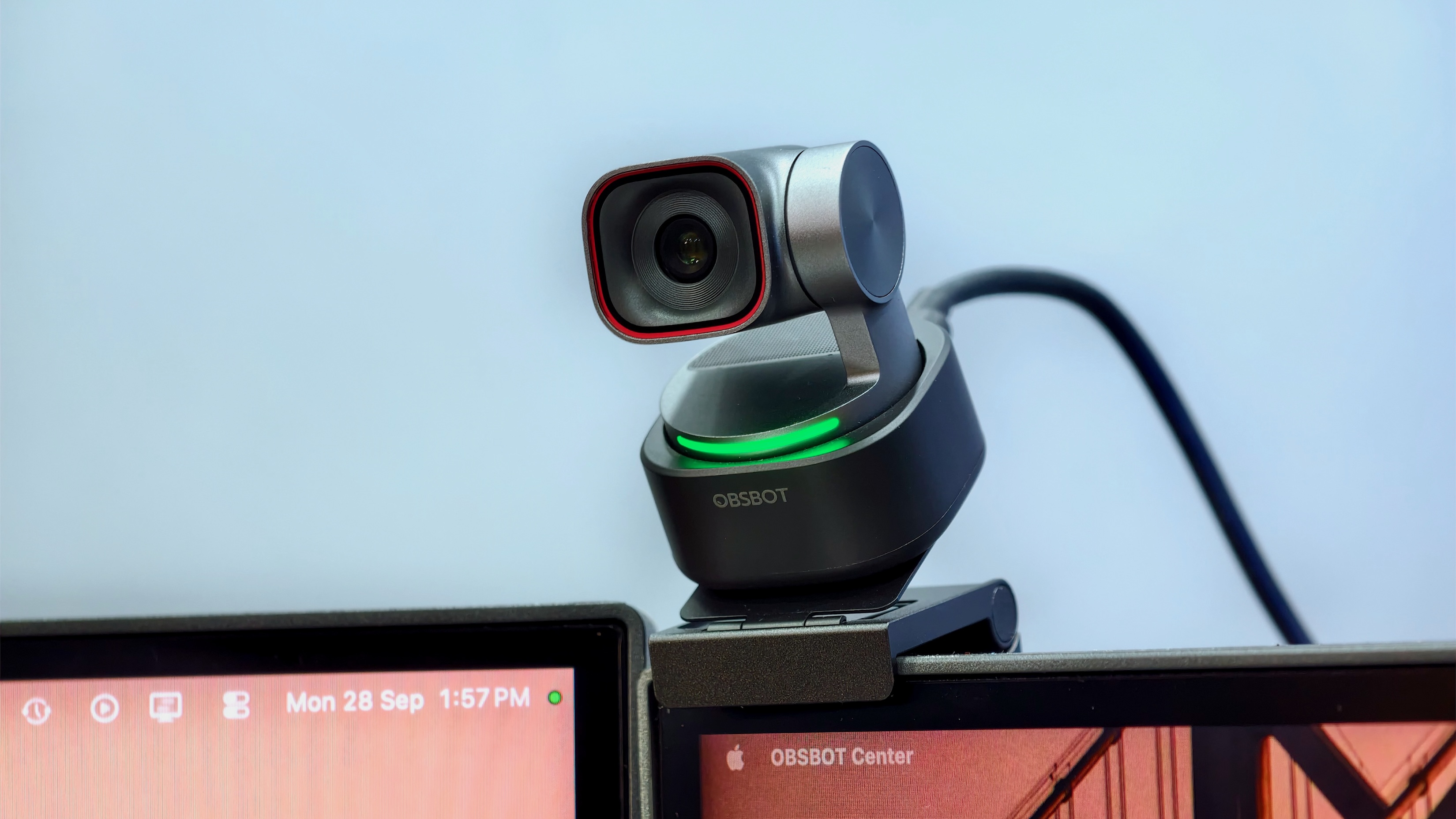
Photo: Rajesh Pandey/Cult of Mac
My other gripe is with the Obsbot Tiny 3’s bundled USB cable. Its straight connector sticks out from the back of the webcam and looks odd on such a tiny device. I bought a right-angle adapter from Amazon for about $1, which made the setup look a lot cleaner. It’s a cheap fix, but Obsbot should have included an L-shaped cable in the box, especially at this price point.
Image quality is the reason to buy
At my desk, my MacBook Pro is docked and powering multiple displays and peripherals. Before switching to the Obsbot Tiny 3, I relied on a Creative 4K webcam, with my MacBook’s 12MP FaceTime camera handling calls on the go.
Since the Creative cam also shot in 4K, resolution alone was not the upgrade here. But while both are 4K webcams on paper, the Tiny 3’s picture is far better.
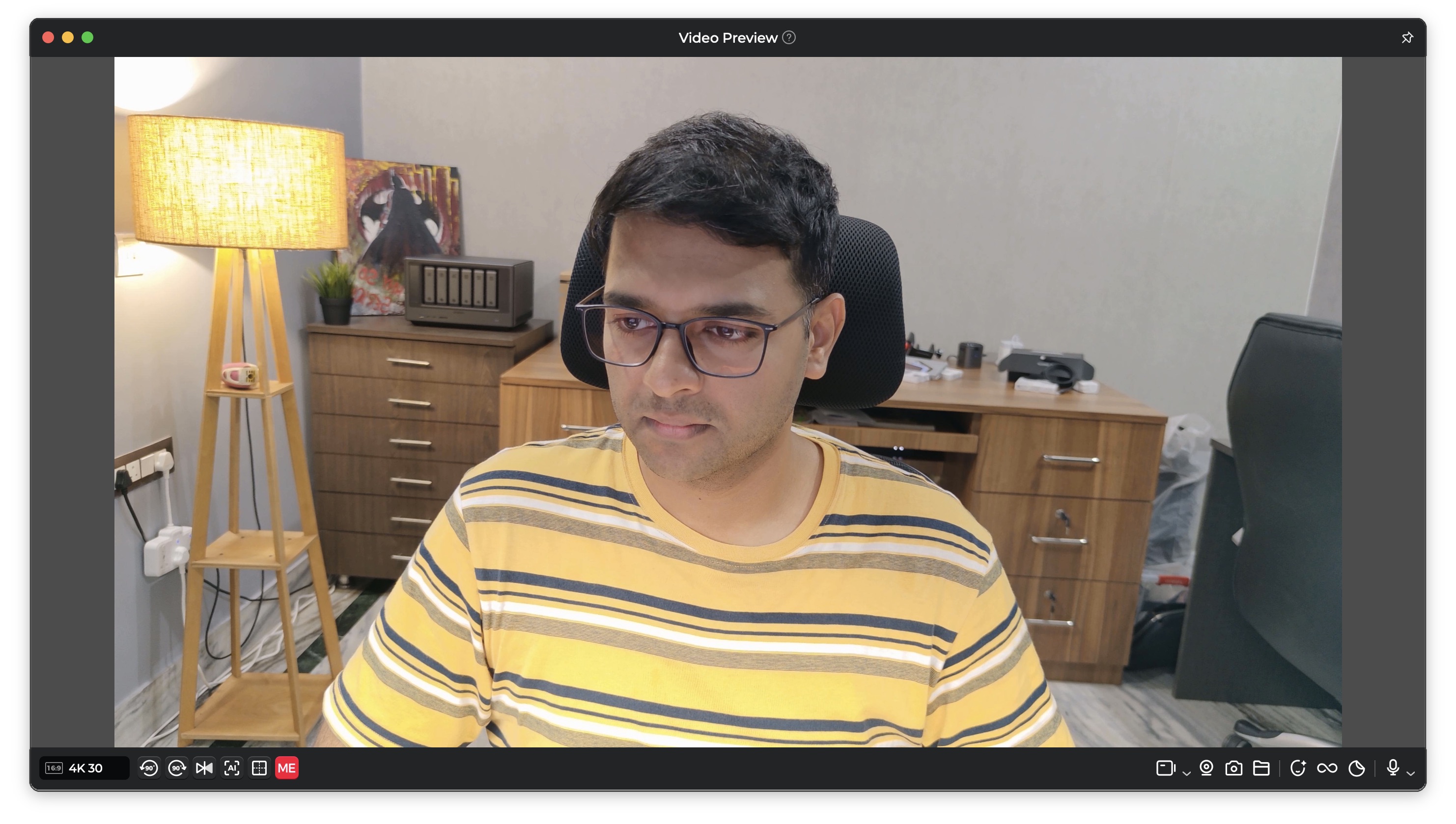
I even connected the Tiny 3 to my iPad over USB-C during a road trip, and it worked well. The Obsbot Live app doesn’t expose all the controls, but it worked well enough for online calls and press briefings.
Screenshot: Rajesh Pandey/Cult of Mac
I am not a big fan of the iPad Pro’s camera for video calls, so the Tiny 3’s ability to work with the tablet as a webcam was a big plus. While using a Tiny 3 with an iPad might sound wacky, it can be a boon for creators, vloggers and streamers.
That big sensor makes a big difference in image quality, with the wide f/1.8 aperture adding a natural depth of field. Even in low light, the Tiny 3 captured a lot of detail, with good skin tones and no unwanted noise.
It handles bright backgrounds well, too. Frankly, the difference in image quality over my Creative 4K webcam — and even the MacBook Pro’s 12MP FaceTime camera — is ridiculous. The video quality is good enough that you could even use the Tiny 3 for podcasting or production work.
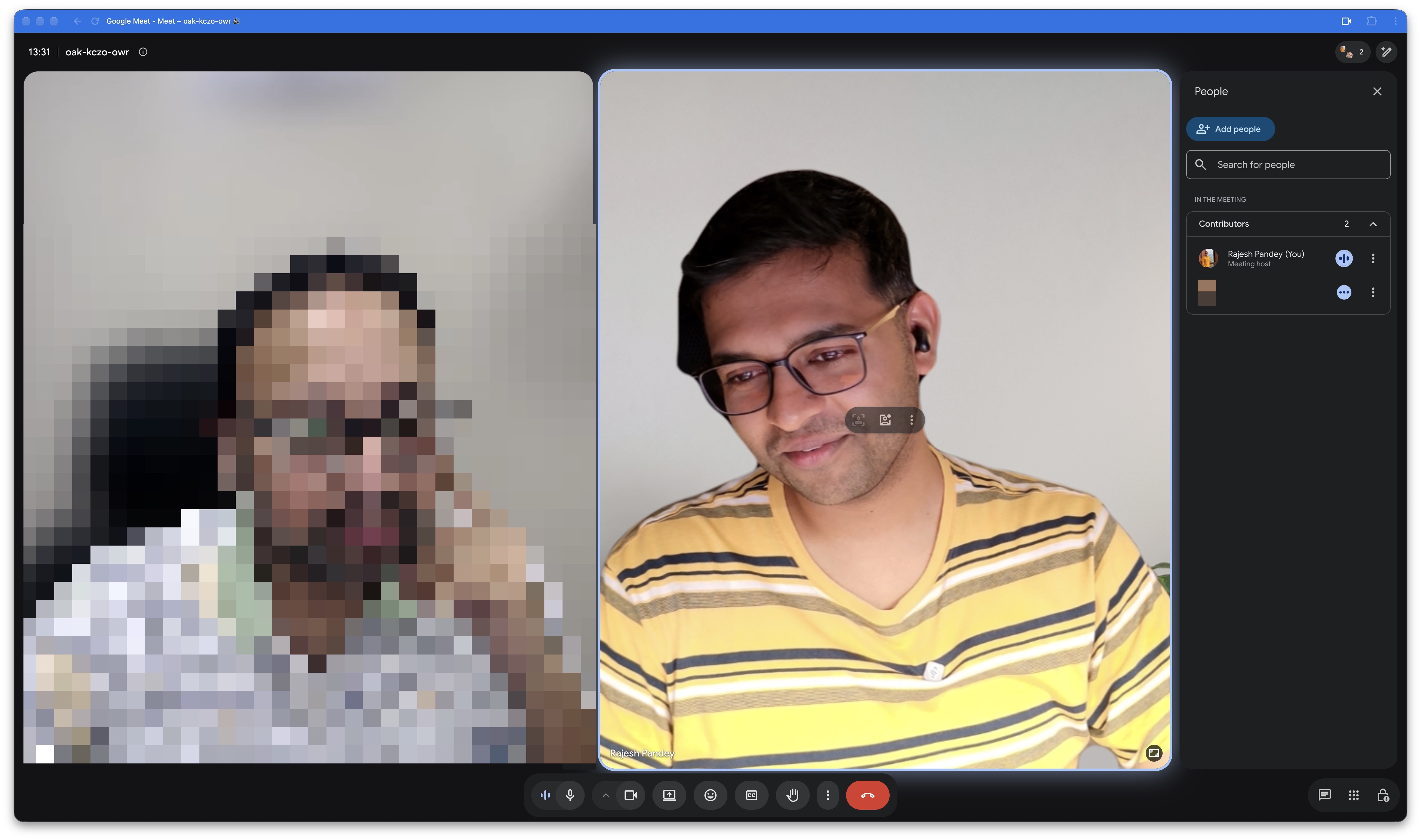
Photo: Rajesh Pandey/Cult of Mac
The Obsbot Tiny 3 offers up to 4x manual digital zoom, too. In the Obsbot Center software, I could pick between 4K at 30fps or Full HD at up to 60fps. The camera supports up to 120fps at Full HD, so the options you see will depend on your setup.
It can do portrait mode, too, but you must physically rotate the camera. Still, this is great if you plan to use the Tiny 3 for Instagram or TikTok live streams.
Tracking that keeps up
The motorized gimbal is the Obsbot Tiny 3’s other big strength. I used it on multiple calls over a couple of weeks, and it consistently kept me in frame, even when I got up and walked around.
Hand tracking worked well, too. There’s also a Desk Mode, which tilts the camera down to show your desk. That’s handy if you want to show a drawing or demonstrate something during an online class. Image quality can take a hit in this mode, but nothing too bad.
The base of the webcam houses an LED ring that lights up when the camera is on. It even tells what the camera is doing. It turned from green to purple whenever I enabled Desk Mode, hand tracking or voice tracking, so I did not have to open the app to check.
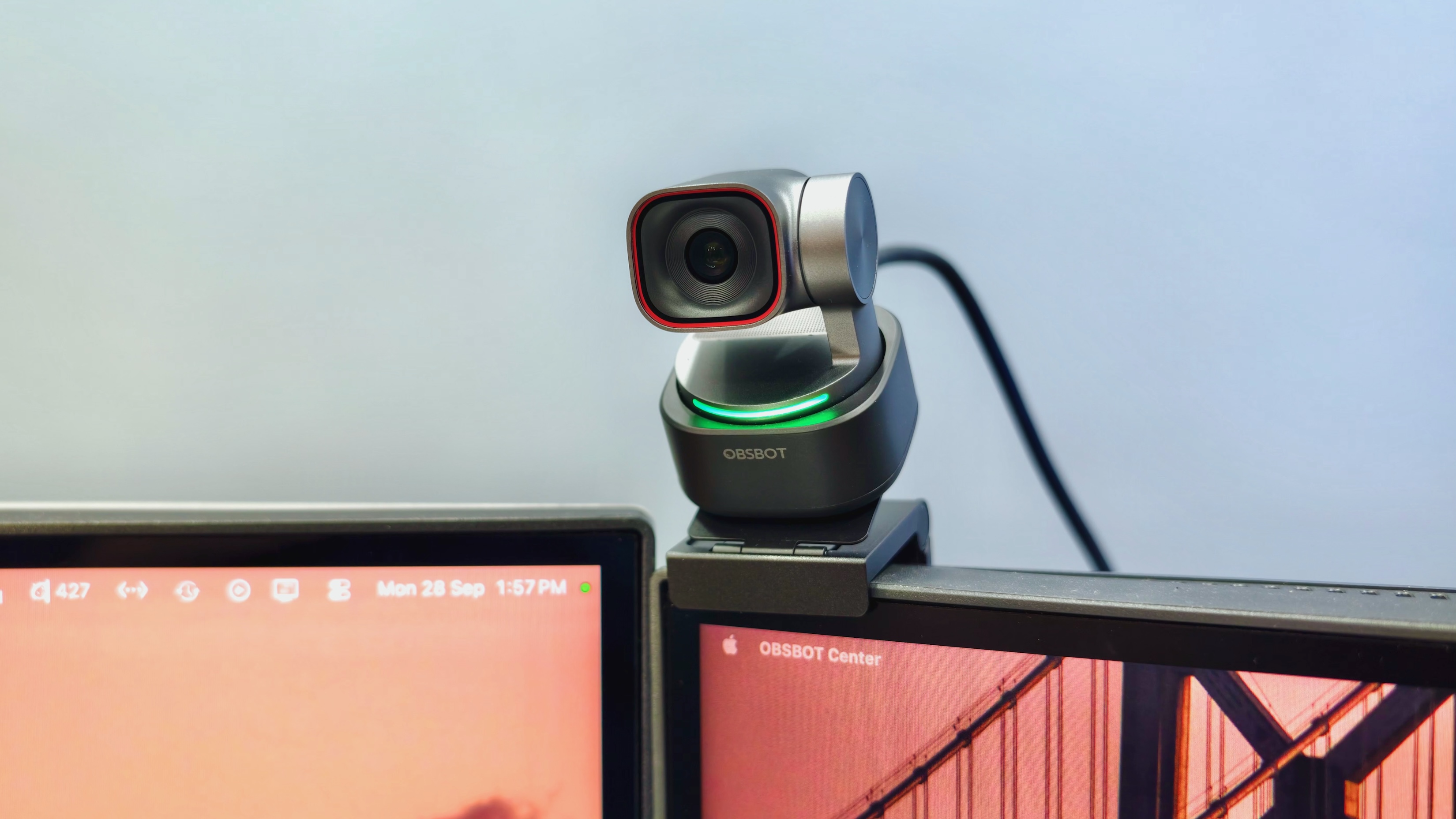
Photo: Rajesh Pandey/Cult of Mac
I really liked the voice control feature. With the option enabled, saying “Hi Tiny” wakes the webcam; saying “Sleep Tiny” puts it back to sleep. I could also ask it to zoom, follow me or switch to different preset positions. It worked mostly well in my testing, although reliability suffered when I strayed too far from the camera.
In such cases, the Obsbot Tiny 3’s gesture tracking came to the rescue. I could use specific hand shapes to zoom in or out of the frame. The only problem was remembering the right gesture for the job.
Apart from gestures and voice commands, you can control the Tiny 3 from your phone using the Obsbot Live app.
Decent microphones that work while the camera sleeps
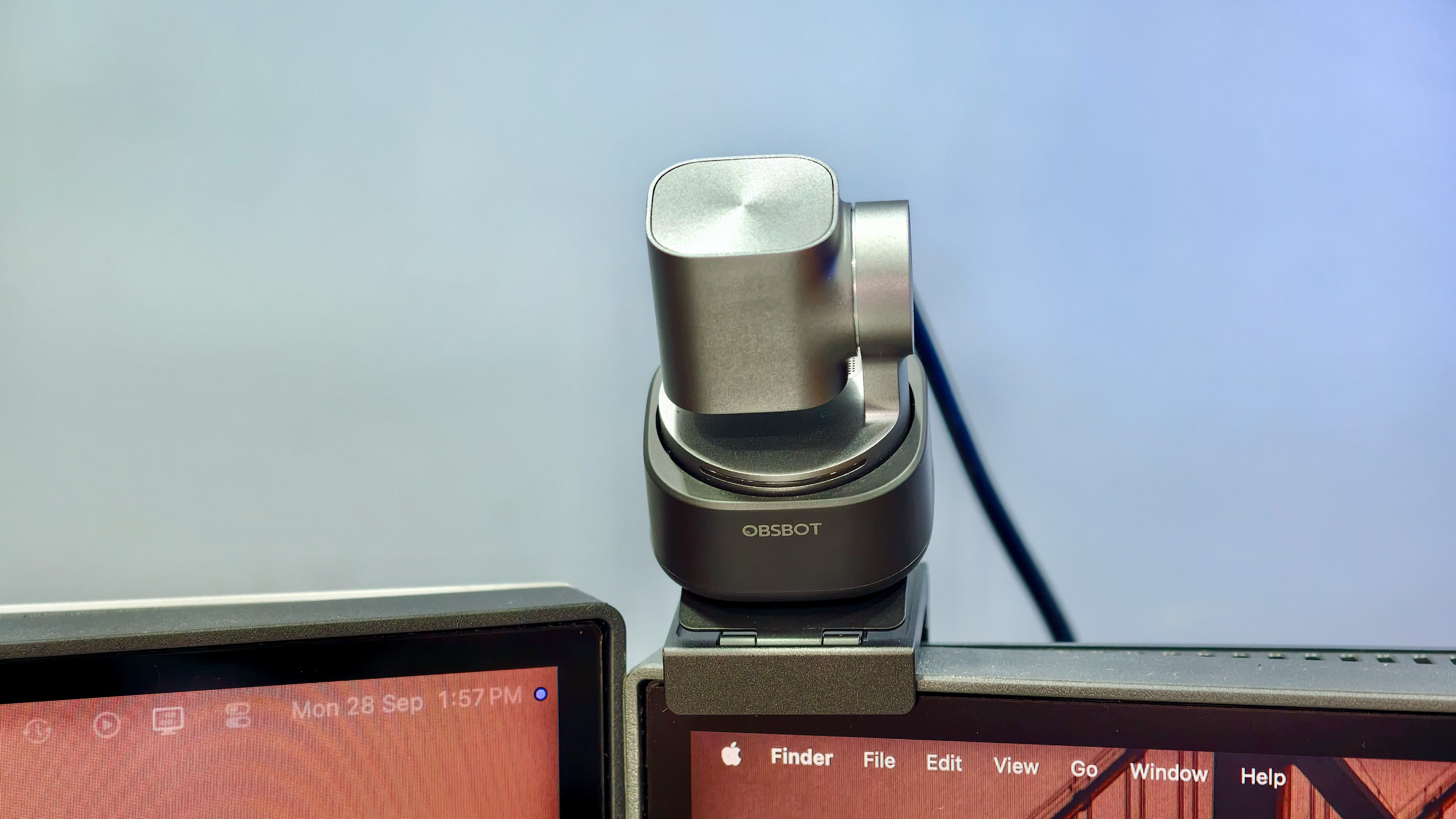
Photo: Rajesh Pandey/Cult of Mac
The Obsbot Tiny 3 packs one omnidirectional microphone and two directional MEMS mics. Combined, they did a good job of picking up my voice and filtering out background noise.
Is the sound quality as good as a dedicated microphone? No. I will even rate it as slightly inferior to my M5 MacBook Pro’s built-in mic. But it is more than good enough for video calls. For live streams and professional recordings, I would recommend using a dedicated microphone.
You can pick from different audio modes in the Obsbot Center app, depending on your needs. Spatial Audio is a great one to show off, as it lets the person on the other side hear where your voice is coming from in the room.
The audio quality holds up as long as you are sitting in front of the camera. Move away, and it understandably drops.
One thing I like is that the microphone can stay active while the camera sleeps. (You must enable this in Obsbot Center’s Audio settings.) That makes it useful for voice typing with Wispr Flow, as you don’t have to wake the camera first.
That is, once you figure out what the truncated label means. And that’s the biggest problem I encountered with the Obsbot Tiny 3 during testing for this review. The software lets the hardware down.
Obsbot Center lets the hardware down
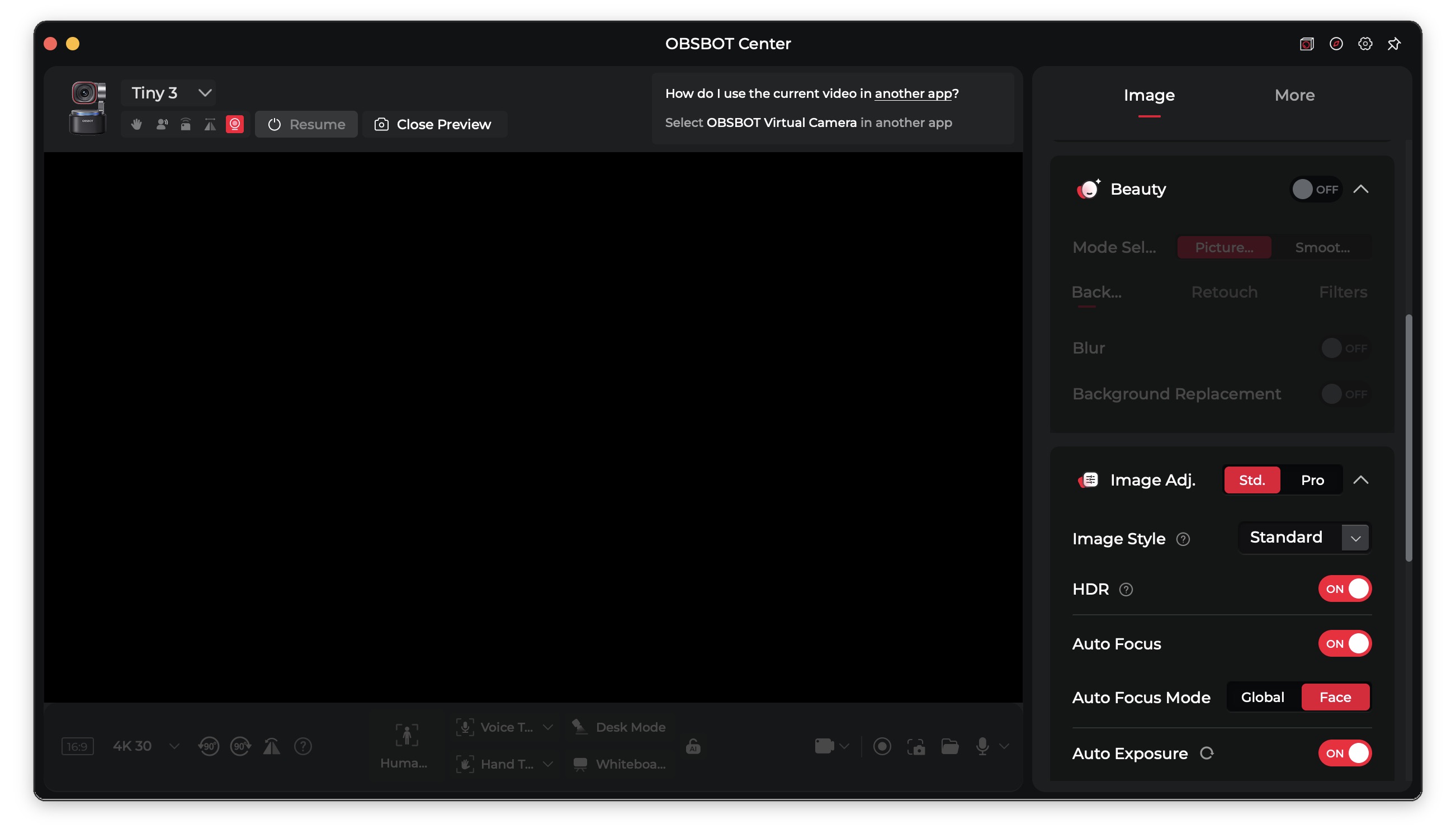
Obsbot Center is the Mac app that controls the Tiny 3, and it does not lack settings. You can toggle HDR and autofocus, switch between global and face-priority autofocus, and adjust exposure, anti-flicker, color temperature and contrast.
It also lets you save up to three presets and switch between them, even with your voice. So, you can set up one for meetings and another for recording, without changing all the settings each time.
Then there are the beauty and background effects, including face retouching, background blur and background replacement. Not all of them are available on every computer. Thankfully, you can turn them off.
The problem is the app itself. Several labels are cut off, and I could not resize the window to read them.
The microphone setting is the worst example. In the Audio panel, the label reads “Microphone Status During…” — hiding the part that tells you when the setting applies. Other controls suffer from the same problem.
Screenshot: Rajesh Pandey/Cult of Mac
Pro mode adds even more controls, but it limps along with the same poorly arranged interface and fixed window size. Switching between the Lite and Pro modes also requires restarting the app.
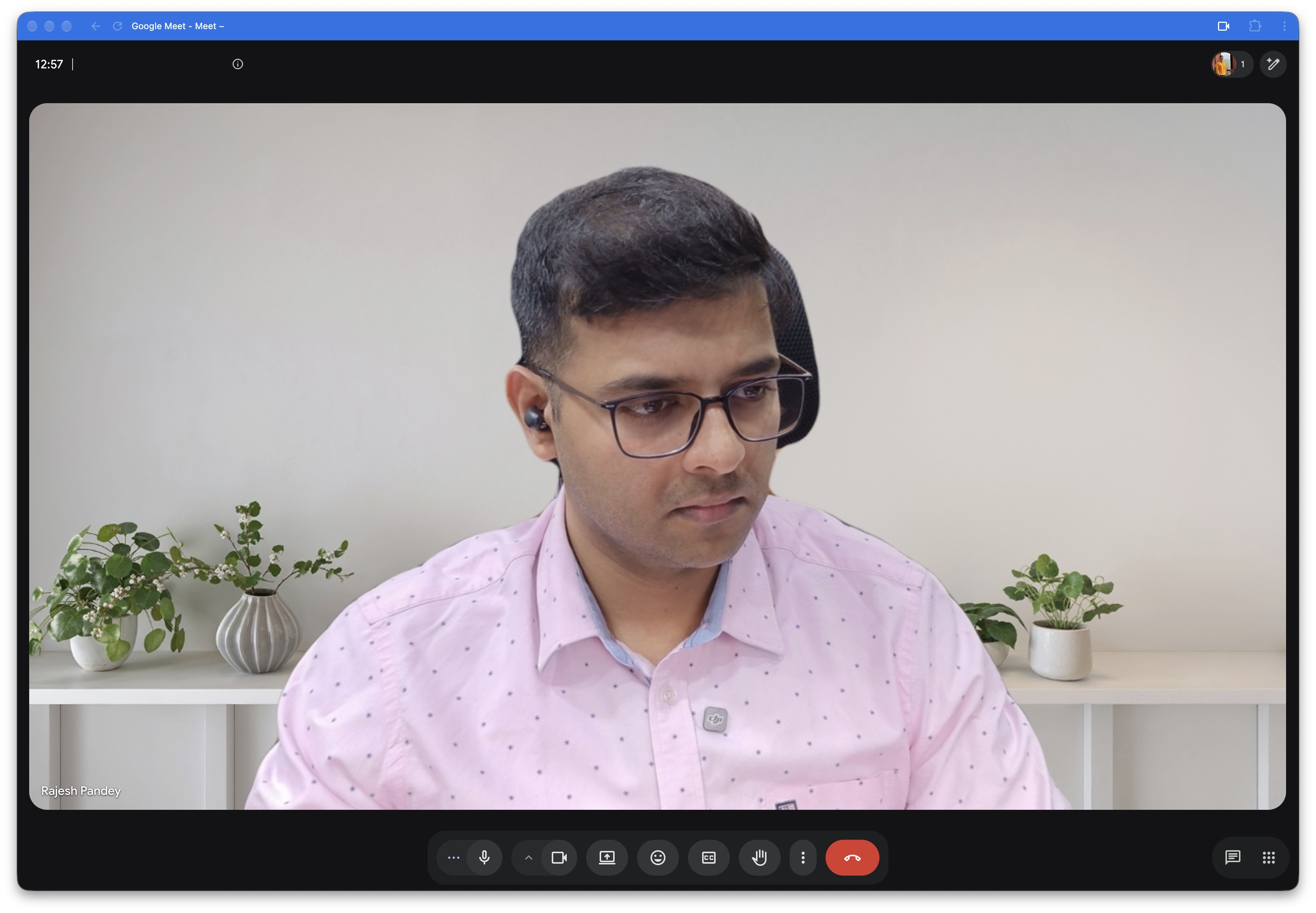
Photo: Rajesh Pandey/Cult of Mac
To get the best picture, you must have Obsbot Center running in the background. The app also provides a virtual camera feed with the software effects applied.
To use it in Google Meet, I had to select Obsbot Virtual Camera from the camera dropdown. (You will need to use that setting in other apps, too.)
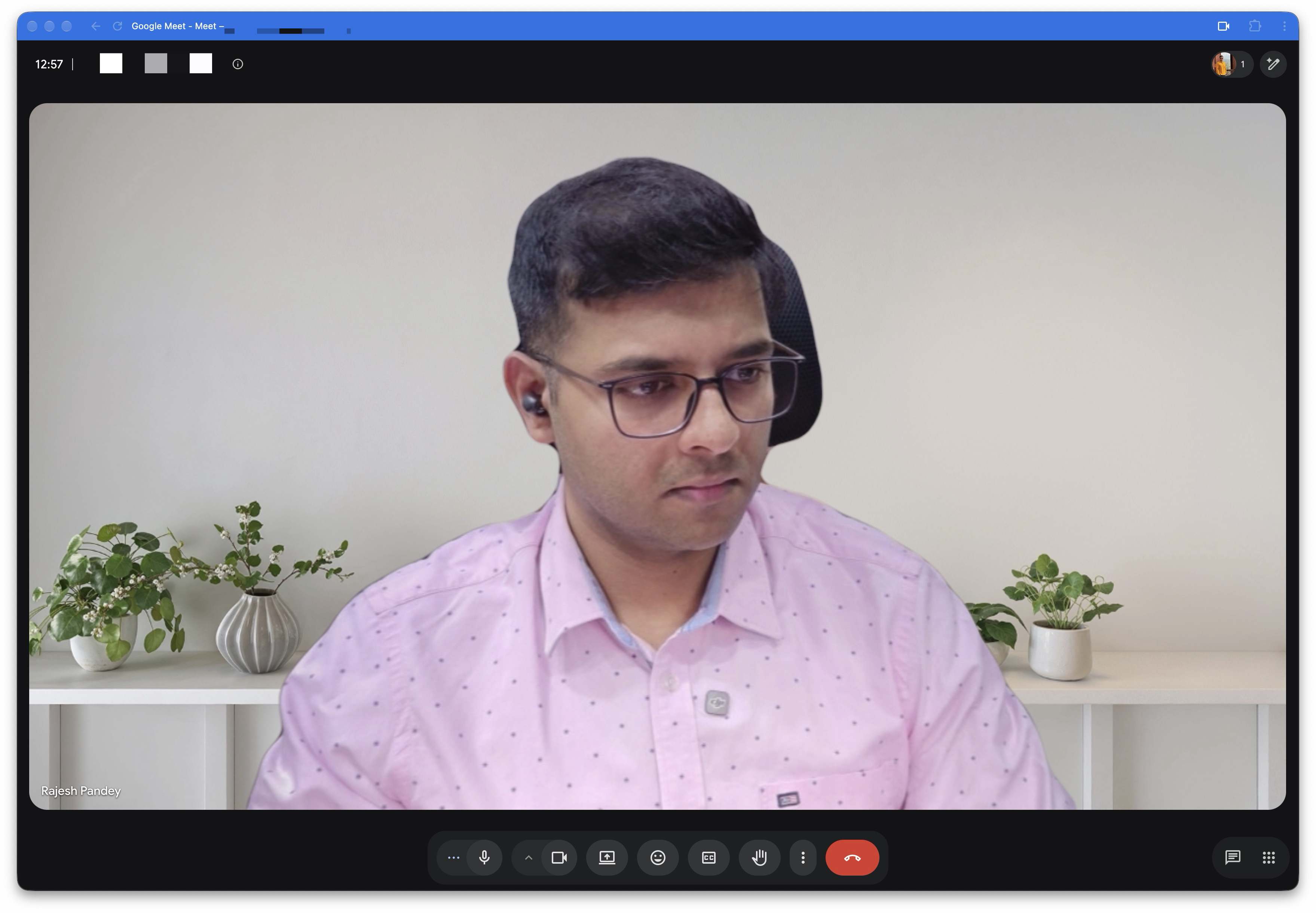
Photo: Rajesh Pandey/Cult of Mac
Without the app, the picture quality takes a big hit. Can you use the Obsbot Tiny 3 without the desktop software? Yes. But that kind of negates the whole point of buying such an expensive webcam.
It runs hot, and there’s no privacy shutter
In my testing, I noticed that after 30 or 40 minutes of a video call, the Obsbot Tiny 3 got noticeably hot. It never shut down or interrupted my calls. Even so, keep this in mind if you plan long streaming sessions, as I did not test the webcam for much longer than that.
The tiny cam also lacks a physical privacy shutter. Instead, the camera points down when it goes to sleep, so I can tell at a glance that it is not looking at me. The large status light is hard to miss, too. But if you prefer a privacy shutter-like solution, that’s not an option here.
Is the Obsbot Tiny 3 worth your money?
From a hardware standpoint, the Obsbot Tiny 3 is excellent. The image quality, build quality and tracking make it a big upgrade over a regular webcam and the MacBook’s built-in camera. However, the software lets it down.
At $349, the Tiny 3 is an expensive webcam, and I expect a more polished app at this price. The cut-off labels and fixed window are especially annoying if you stream and change settings often.
For video calls, meetings and online classes, those things seem like less of a problem. Set up the camera once, leave Obsbot Center running in the background, and you won’t need to open the app every day.
And if you can live with the app’s shortcomings, the Tiny 3’s image quality makes it easy to recommend as long as you can afford its steep price and look past the sub-par desktop software.
If you’re not willing to spend so much and can compromise a bit on the picture quality, the $199 Tiny 3 Lite is a better recommendation. It uses a smaller but still relatively large 1/2-inch CMOS sensor.
★★★★☆
Pricing and availability
The Obsbot Tiny 3 lists for $349. The carrying case and mount come in the box.
The OBSBOT Tiny 3 pairs a 1/1.28-inch sensor with 4K video and a gimbal that uses AI tracking to keep you in frame, while voice and gesture controls let you adjust framing hands-free. The three-microphone array pick-up your voice with crystal clarity.
- Excellent image quality
- Reliable gimbal and hand tracking
- Compact, well-built hardware with a carrying case
- Poorly designed Mac app
- Mount may not fit thicker monitors
- Can run hot if you plan long streaming sessions
Obsbot provided Cult of Mac with a review unit for this article. See our reviews policy, and check out more in-depth reviews of Apple-related items.

Rajesh has been writing about consumer technology for over a decade, with a strong focus on iPhones, Macs and Apple’s ecosystem. He enjoys digging into Apple software updates, hardware changes, and discovering new Mac apps that make work faster and more enjoyable.
You can reach out to him at mail[at]rajeshpandey.me.

