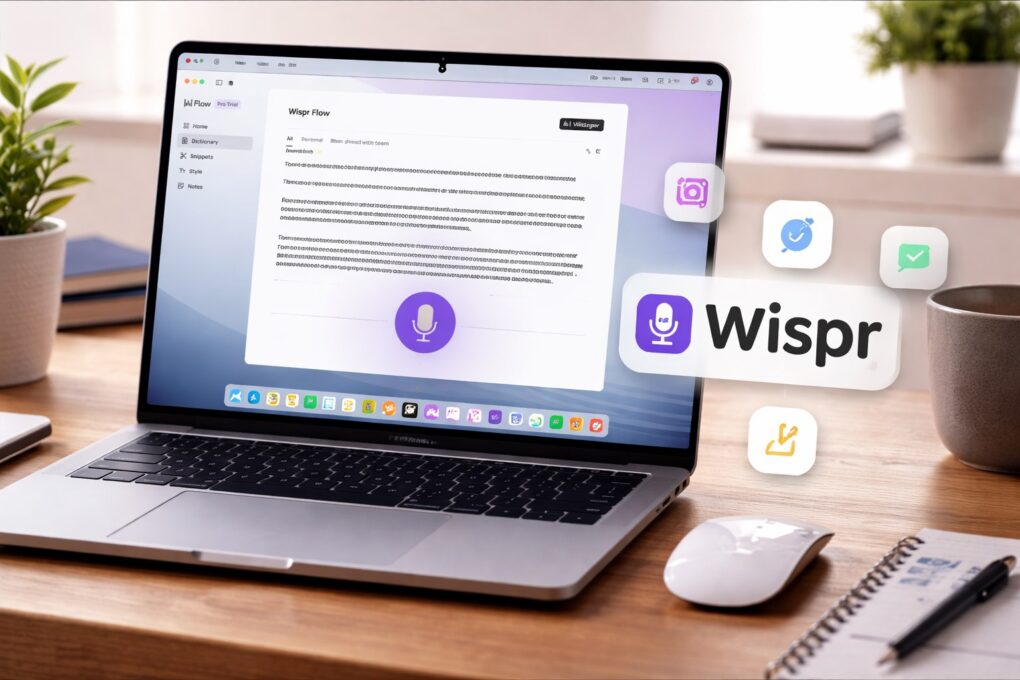

The way I type on my Mac hasn’t changed in years. But then, I started using Wispr Flow — an AI-powered voice-to-text app for Mac. It has reshaped how I write on my Mac, making me more efficient and faster.
It’s not just about typing faster. Using your voice for typing also feels more natural in many cases. Here’s how Wispr Flow has changed how I write on my Mac, and why I can’t go back.
Wispr Flow: A Mac speech-to-text app that actually works
I spend eight to 10 hours in front of my Mac each day, typing at least 3,000 to 4,000 words. Despite an ergonomic setup and using one of the best Mac keyboards around, the Logitech MX Keys S, my hands feel tired toward the end of the day.
I set up several shortcuts and snippets to save a few keystrokes and seconds, but that did not really help. That’s when I decided to dive deep into the world of voice-to-text options.
The problem with Apple’s voice-to-text system on Mac
Last year, I experimented with the built-in voice-to-text feature in macOS to see if it could genuinely replace typing for me. I use voice typing extensively on my iPhone and iPad, and because it works entirely on-device, it’s incredibly fast and dependable.
So, I assigned a double-tap of the Option key as the shortcut on my Mac, making it easy to trigger dictation anywhere. In any text field, I could just hit Option twice and start speaking whatever I wanted to type.
On paper, it sounded like the perfect fix for my tired fingers. In practice, though, it didn’t work out. Apple’s voice-to-text on the Mac might be fast, any brief pause to think or redo a sentence would throw it off entirely.
Apple’s voice-to-text shines on the iPhone. On the Mac, though, dictating longer ideas means pausing to think, and the system just isn’t built to handle that.
Wispr Flow to the rescue
Screenshot: Rajesh Pandey/Cult of Mac
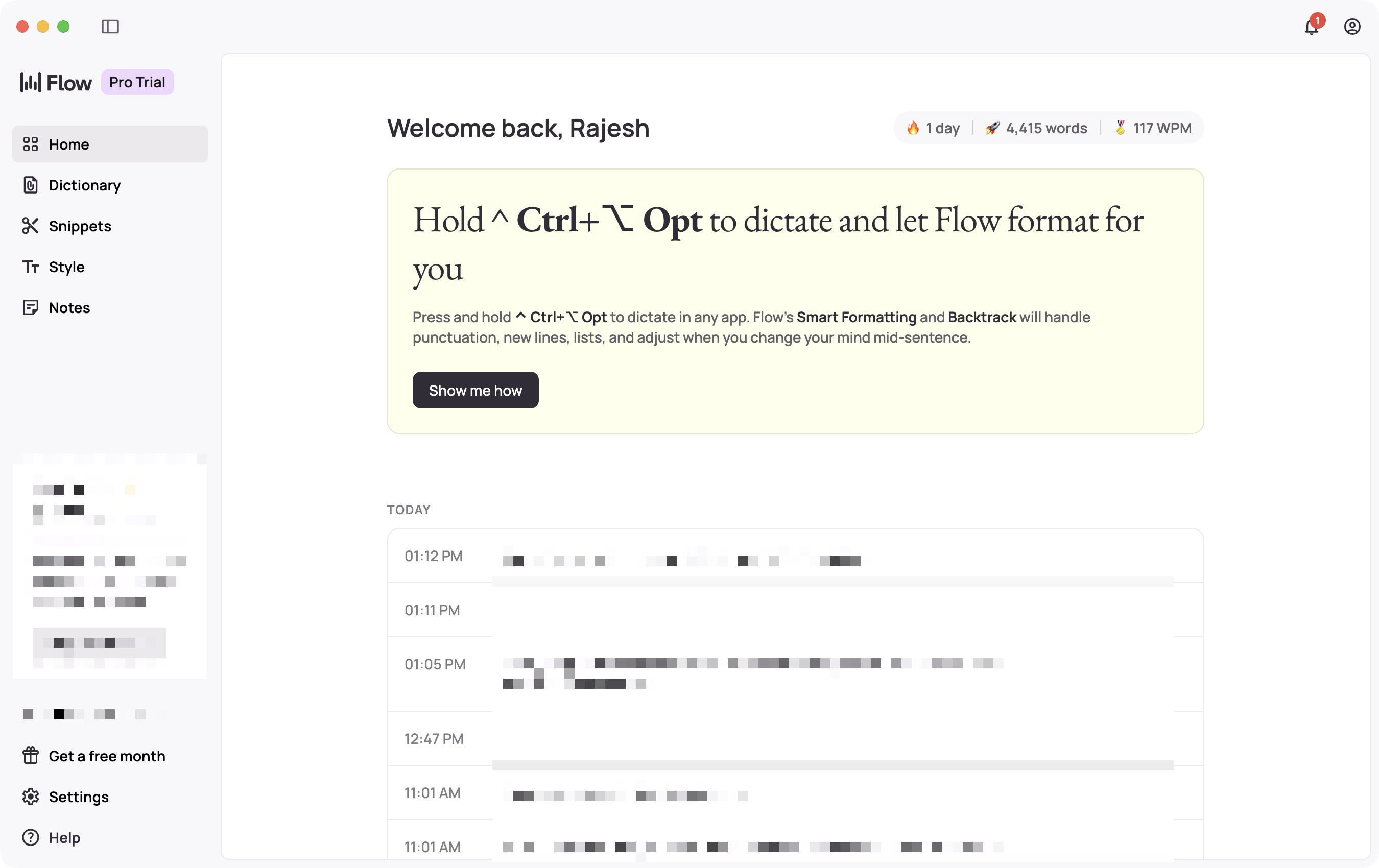
After initially giving up on the idea of using voice-to-text on my Mac, I came across Wispr Flow. I only got around to trying it a few weeks ago — and I regret not doing so sooner.
Wispr Flow does not just transcribe spoken words; it uses AI to understand how people actually speak, and it makes adjustments in real time. I can pause mid-sentence and ask it to delete what I just said or rephrase a thought halfway through. It almost never falters. And even when Wispr Flow does slip up, it learns from those mistakes and rarely repeats them the next time around.
The ability to change my sentence or thought midway through a sentence makes Wispr Flow feel seamless and almost magical in daily use.
Thanks to its AI smarts, the Mac speech-to-text app also knows what not to transcribe. It skips filler words like “uh” and “umm.” It also automatically adds punctuation most of the time. And if it fails, I can say “comma” or “full stop,” and Wispr Flow fixes the punctuation instantly.
What’s even better is that Wispr Flow works with more than 100 languages. So, you are not limited to speaking only English for voice-to-text to work. In my testing, it works reliably well across the multiple languages that I tried.
If you are into coding, Wispr Flow will supercharge your productivity when using AI-powered IDEs and help you get more done with less friction.
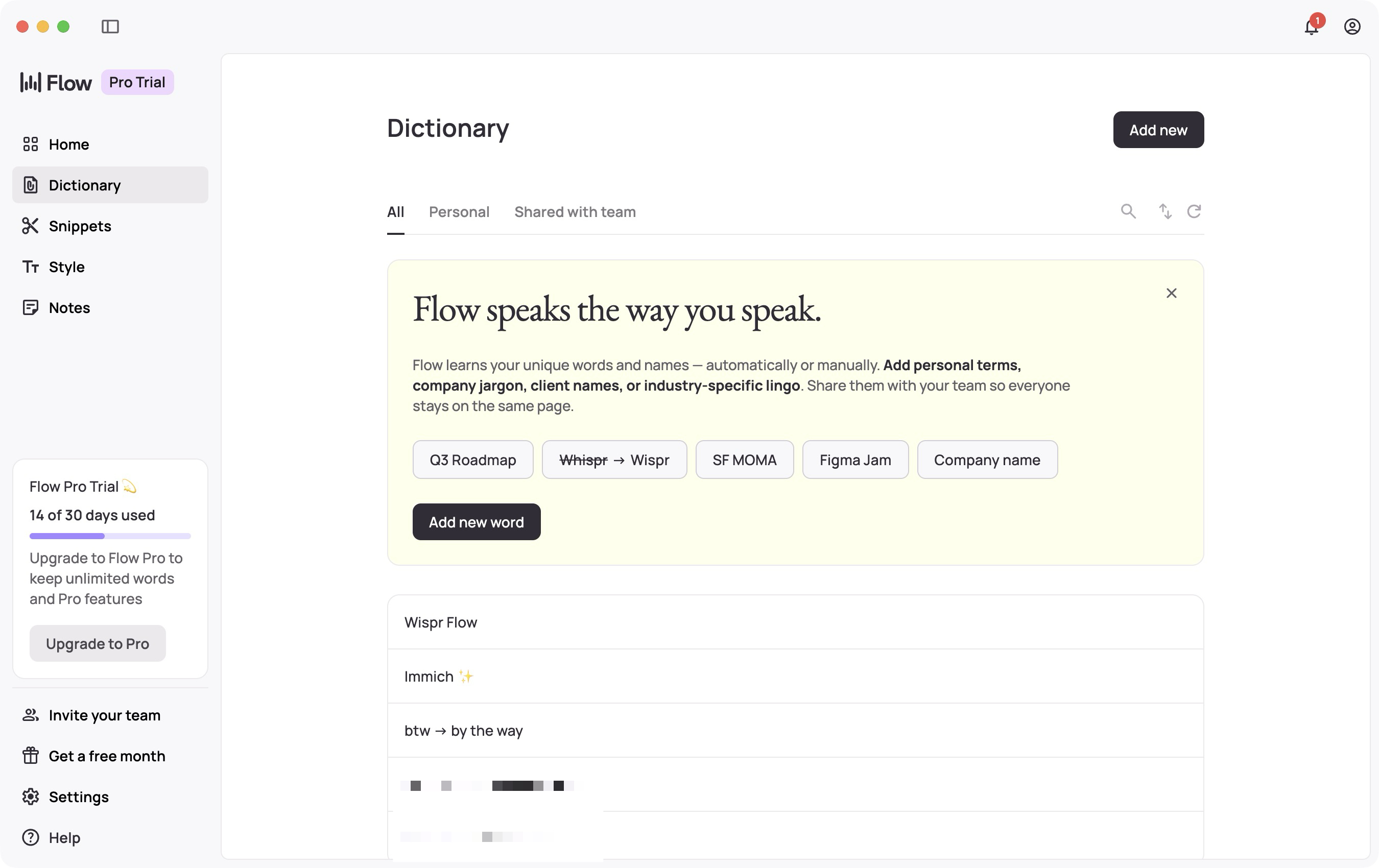
Wispr Flow also lets you set different writing styles for different apps. I use a more casual tone for personal messages in WhatsApp, Telegram and the Messages app. For work conversations in Slack and emails, it switches to a more formal style automatically.
The magical experience works even with a poor mic
Screenshot: Rajesh Pandey/Cult of Mac
On my Mac mini, I use a Rode microphone connected through a CalDigit TS5 Plus Thunderbolt dock. The mic’s gain runs fairly low, to the point where I can’t reliably use it for voice notes. The output is too quiet unless I’m speaking loudly and very close to it.
Yet, Wispr Flow works flawlessly despite this challenging setup. Despite the low gain and the microphone sitting more than an arm’s length away from me,
Wispr Flow still picks up my voice accurately and transcribes everything without missing words. And magically, it can accurately pick up my voice even with music playing in the background.
The same holds true on my MacBook Pro when I’m out in public. Even when I’m whispering in a cafe or a shared workspace, Wispr Flow has no trouble understanding and transcribing what I’m saying. No other voice-to-text app for Mac that I’ve tried before can deliver that level of sensitivity and accuracy.
Another reason Wispr Flow feels refreshingly easy to use is how quickly it can be triggered — and how instantly it’s ready to go. The initial setup walks you through everything. After that, the app stays completely out of the way.
On my Mac mini, I’ve mapped Ctrl + Option to trigger the AI-powered voice-to-text, while on my MacBook Pro, I use the Fn key. In both cases, Wispr Flow activates instantly, making voice typing feel like it’s always just a keystroke (or a key combo) away.
Wispr Flow voice-to-text works in all text fields
Screenshot: Rajesh Pandey/Cult of Mac
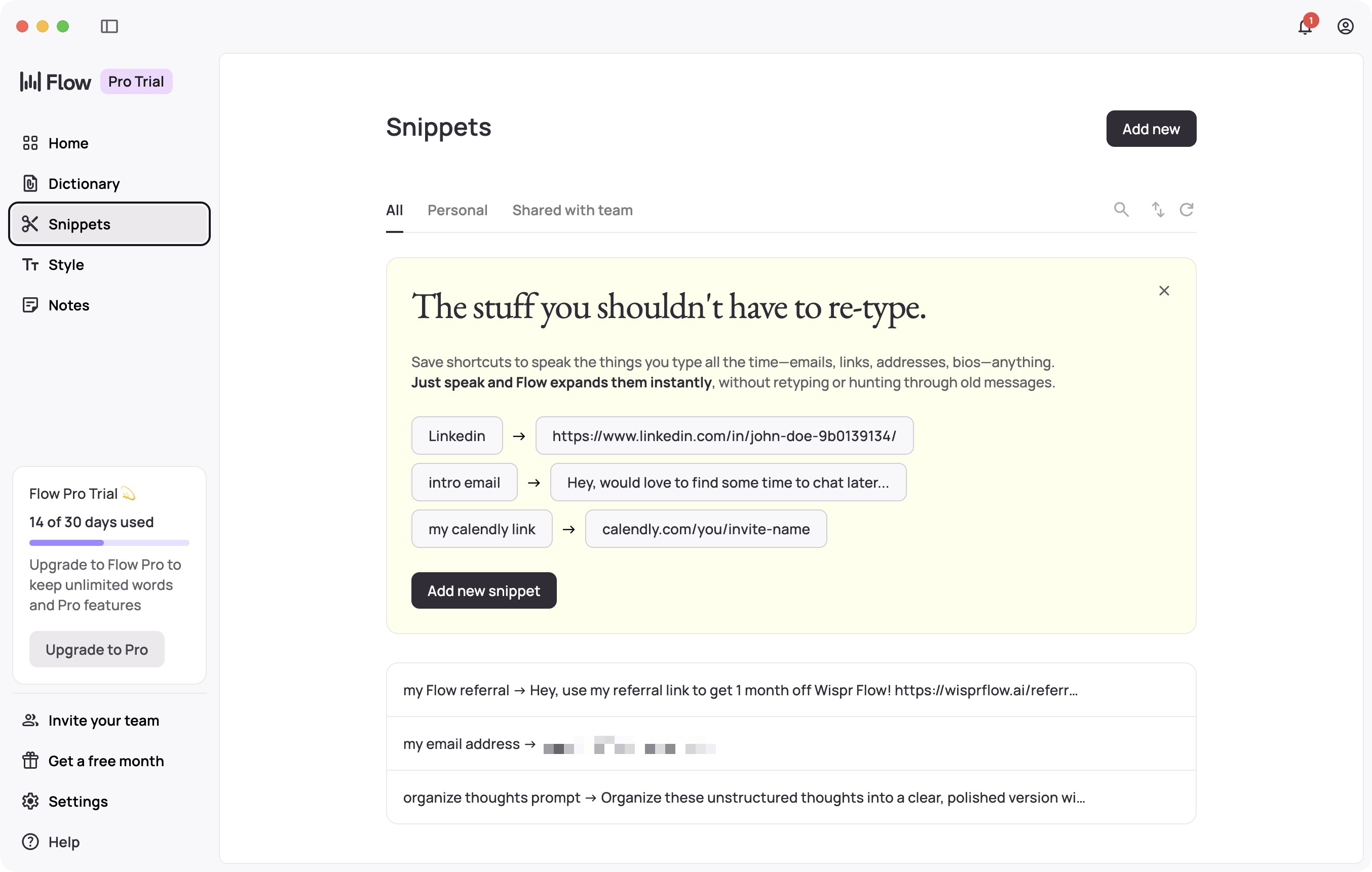
Wispr Flow works in any text input field. In the month I’ve been using it, I’ve relied on it to write long articles, chat with friends, send Slack messages and even enter AI prompts. The difference in my productivity has been obvious. I get more work done with less friction.
When I’m deep in a writing session, and an urgent message comes in from my wife, I simply switch apps, trigger Wispr Flow, dictate my reply, hit enter, and jump right back to writing. The whole thing takes a second or two, so my workflow stays completely uninterrupted.
On weekends, when I’m experimenting with different AI tools, Wispr Flow becomes even more valuable. Instead of typing out long, detailed prompts, I speak my thoughts naturally and refine them on the fly. This makes it much easier to explain complex ideas, add nuance and iterate quickly.
Ultimately, the better prompts result in better outputs. Wispr Flow is an easier way to work with AI tools.
Command mode: An experimental feature that offers
Wispr can do more than just voice transcription. It includes a Command Mode that can directly modify highlighted text or carry out actions on your behalf.
For example, after using Wispr to quickly dictate a rough draft of an email, I highlight the text. Then, I use Command Mode to tighten it up and add polish. This lets me clean up the email without switching apps or breaking my flow.
I can even ask a question directly. Wispr uses Perplexity to find the answer and deliver more information on the subject.
Command Mode is currently available as an experimental feature in Wispr Flow. To use it, you must activate it manually.
The privacy factor
Privacy is understandably a concern with any voice-to-text tool, especially one that relies on AI processing. Wispr Flow sends audio to its servers to generate accurate transcriptions, which might raise some alarm bells.
While the company says it does not store recordings long-term or use them for training without consent, privacy-conscious users might want to look elsewhere.
If Wispr Flow isn’t for you
If Wispr Flow isn’t quite your thing, there are a few alternatives worth considering. Apple’s built-in Dictation on macOS remains the most private option since it runs entirely on-device. However, it struggles with longer, more natural dictation.
Tools like MacWhisper and AI notetaker Otter offer solid transcription accuracy, though they work better for recordings than live, always-on typing. None of them quite match Wispr Flow’s real-time flexibility, but they’re viable options depending on your workflow and privacy priorities.
Wispr Flow pricing
Wispr Flow offers a free tier that includes up to 2,000 words per week on Mac or Windows and 1,000 per week on iPhone. The Pro plan costs $15 per month when billed annually. It unlocks unlimited dictation across all supported platforms, along with access to Command Mode and early access to new features.
For students, Wispr offers a three-month free trial, with a 50% discount available on the Pro plan after that.
Download from: Wispr Flow

Rajesh has been writing about consumer technology for over a decade, with a strong focus on iPhones, Macs and Apple’s ecosystem. He enjoys digging into Apple software updates, hardware changes, and discovering new Mac apps that make work faster and more enjoyable.
You can reach out to him at mail[at]rajeshpandey.me.

