Mobile menu toggle

Newsstand - page 66

Steve Jobs’ brief for iPad: A piece of glass for emailing on the toilet

By

Steve Jobs’ brief for iPad: A piece of glass for emailing on the toilet
The iPad's natural home, apparently.
Photo: Charlie Sorrel/Cult of Mac

Steve Jobs’ on-stage iPad pitch to customers saw him relaxing in a luxury chair. His brief to Apple engineers actually building the iPad? “I want a single piece of glass I can use to read email on the toilet.”

That’s according to Imran Chaudhri, a 21-year Apple veteran, now chairman and president of Humane. Chaudhri was responding to a recent article about the iPad’s origins which appeared in the New York Times.

Option-tap the Touch Bar to open all kinds of preferences

By

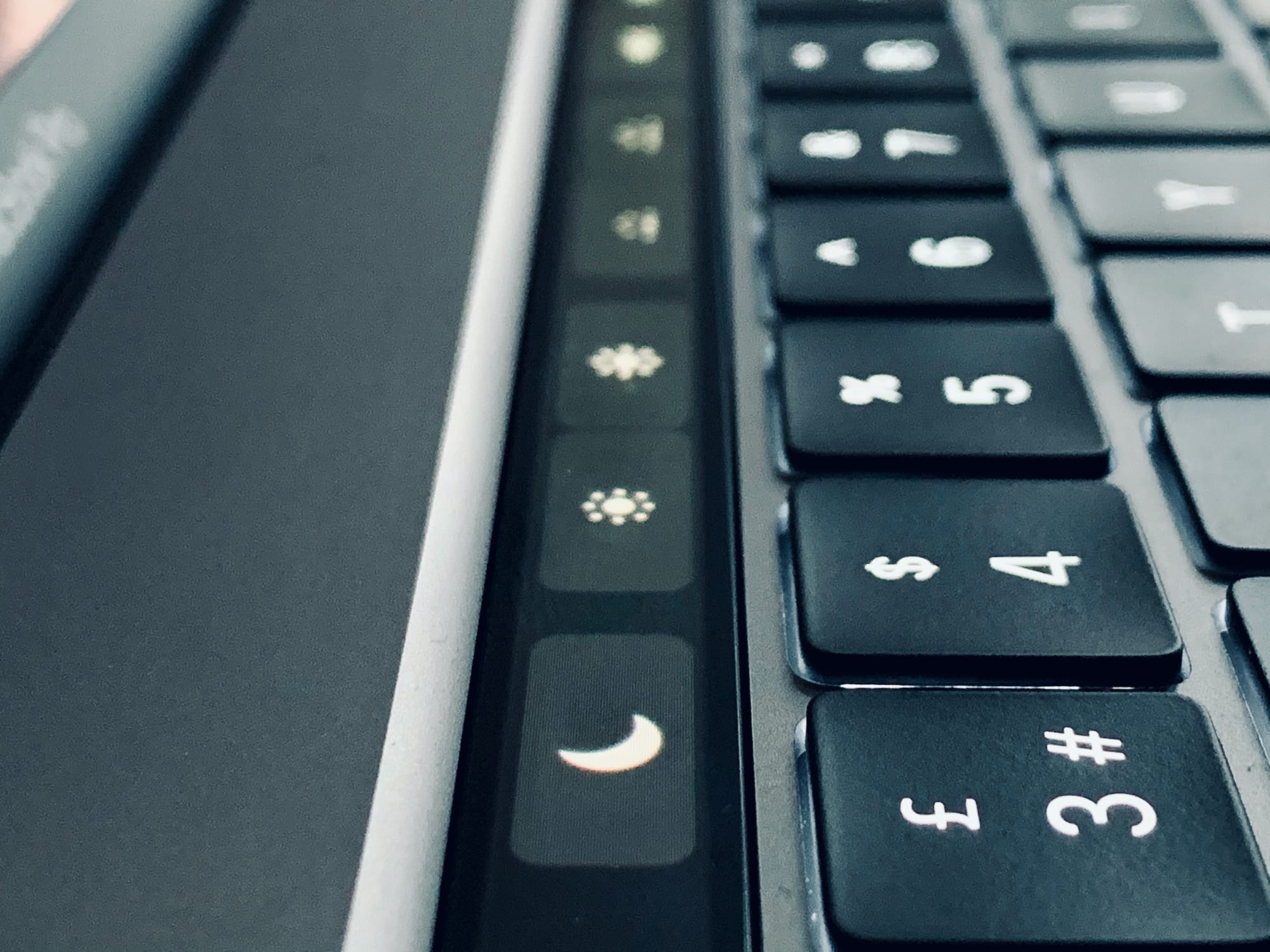
option Touch Bar Mac
Option-tap these icons to open Preferences.
Photo: Charlie Sorrel/Cult of Mac

If you have a Mac with a Touch Bar, do this right now. Hold down the Option key (⌥), and tap the volume icon in the Touch Bar. For non-Touch Bar-using readers, this is what happened: The Mac’s Sound Preferences launched instantly.

This is such a typical Mac feature that it should be obvious. But when I shared this tip with fellow Touch Bar aficionado and Cult of Mac writer Graham Bower, he was all like, “Oh!” and, “That’s pretty neat!”

So, what other tricks can be done with the Option key and the Touch Bar?

Can’t launch your apps on macOS Catalina? Here’s the fix

By

no entry sign
Catalina makes opening non-approved apps scary.
Photo: Charlie Sorrel/Cult of Mac

macOS 10.15 Catalina is ruthless about launching unknown apps. Unless your app comes direct from the App Store, or the app’s developer got the app notarized by Apple, it won’t launch. Double click on it, and you’ll see a warning — and nothing else. There’s no option to say you trust the app and launch it despite Catalina’s warnings.

But you can still launch those apps. It’s just that Apple hides the controls in the hope that you’ll give up. It’s petty, and it shows a lack of respect for you, the user. However, it’s also dead easy to fix this problem. Let’s see how to launch any app on macOS Catalina.

How to unlock your Mac with Apple Watch

By

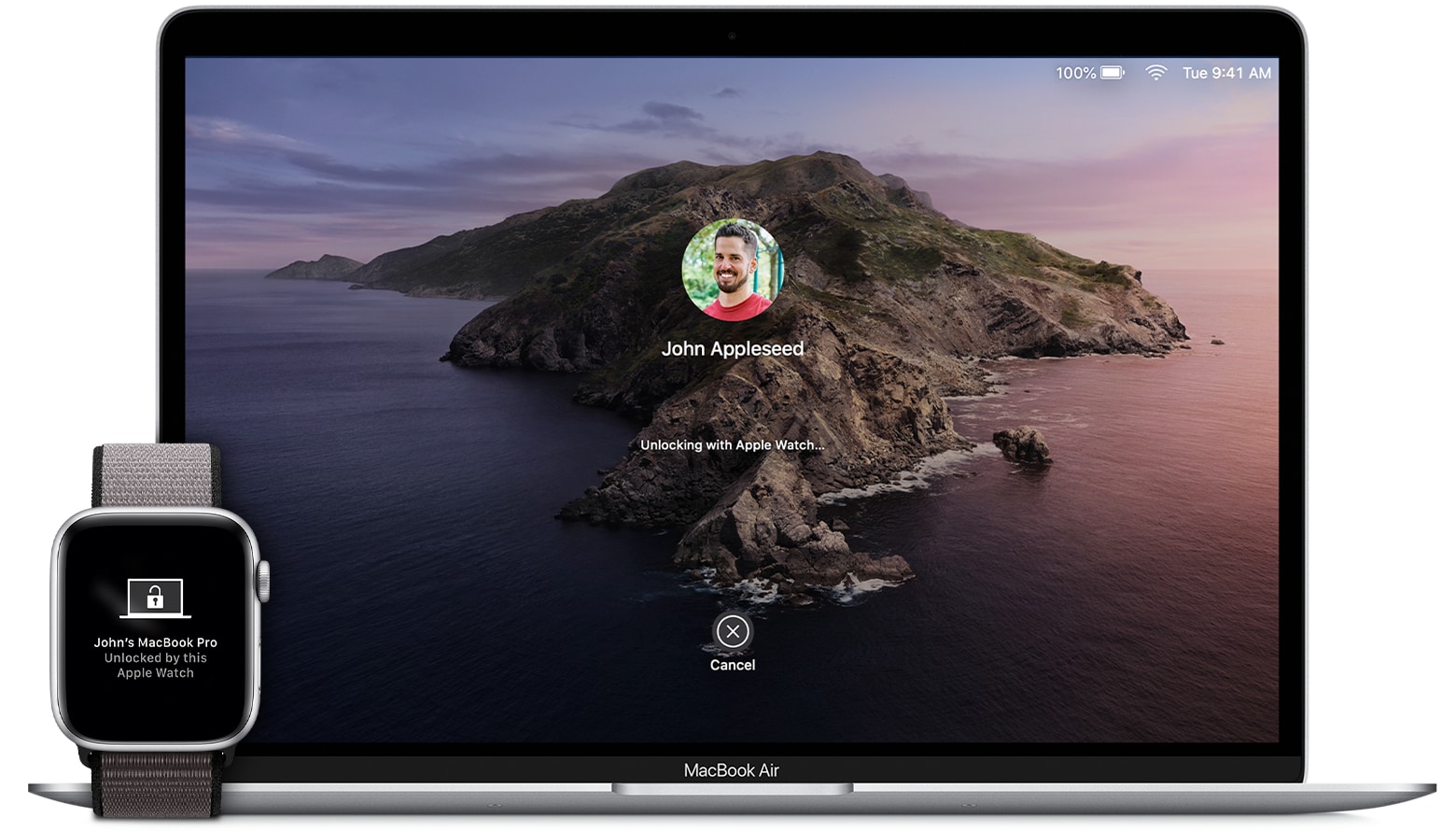
Apple Watch Unlock in action.
Photo: Apple

Maybe my favorite Continuity feature is Apple Watch Unlock for the Mac. Once you set it up, you’ll never need to enter your password to unlock your Mac ever again — not until you restart it, anyway. It’s one of the best examples of Apple’s It Just Works™ philosophy, and it will change the way you use your Mac.

The new Mac Pro proves Apple’s still got it! Plus, our best of the year picks, on The CultCast

By

CultCast 418
Apple's back, and the Mac Pro proves it.
Photo: @YSR50

This week on The CultCast: The Mac Pro isn’t just a beauty, it’s also a beast. We cover our first impressions, plus discuss some of the insane upgrades available for Apple’s new powerhouse Mac. Plus, we reveal more of our favorite tech, shows, movies and more in our Best of the Year picks, part 2!

This episode supported by

Easily create a beautiful website all by yourself, at Squarespace.com/cultcast. Use offer code CultCast at checkout to get 10% off your first purchase of a website or domain.

Foldable iPhone concept makes us tired of waiting for the future

By

8-inch foldable iPhone concept
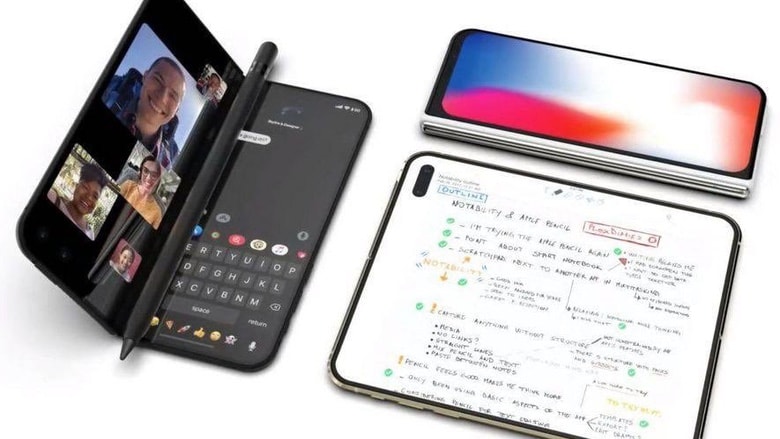
This concept device is about the size of an iPhone 11, but opens into an iPad mini.
Concept: Ben Geskin

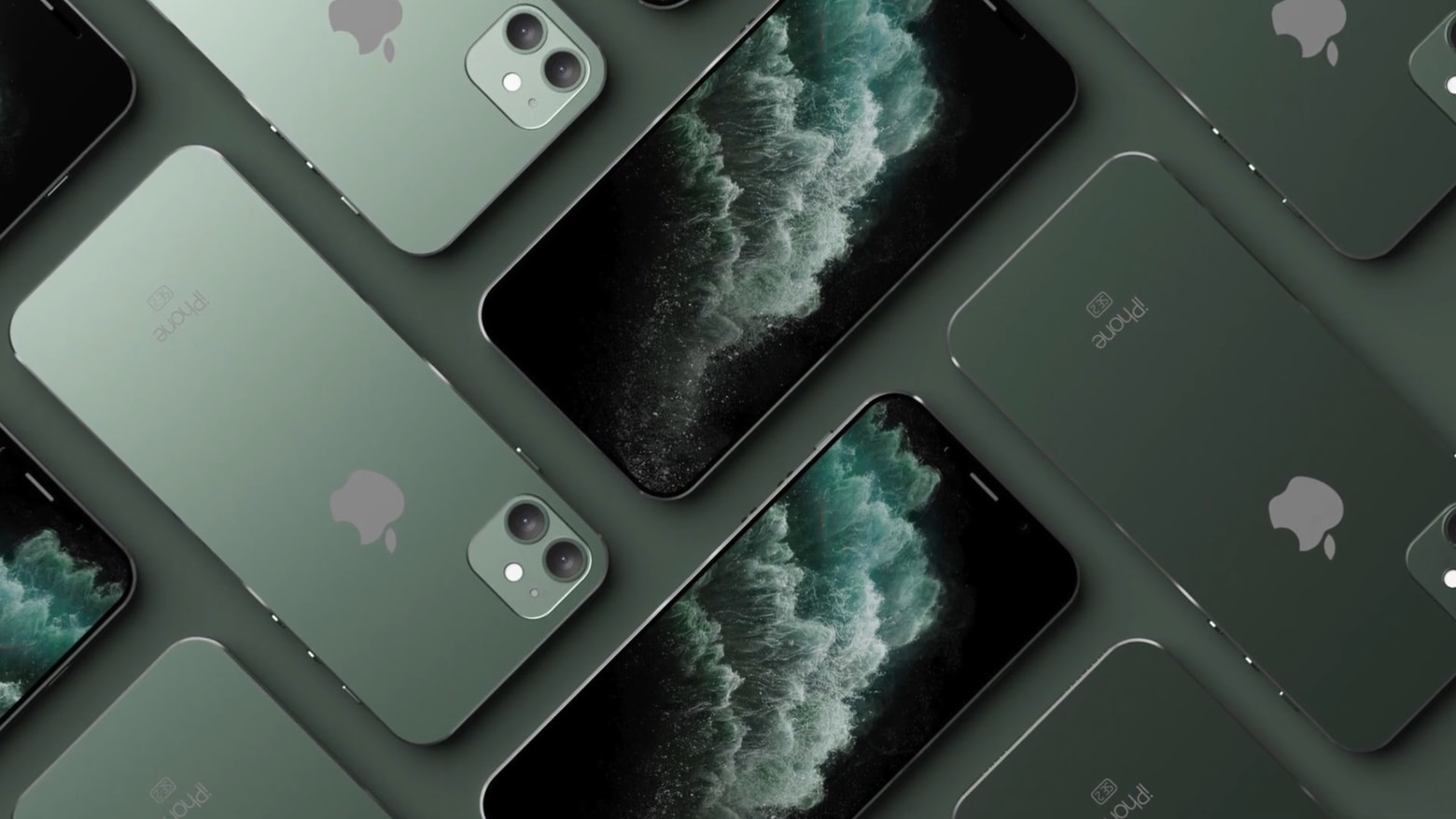
A foldable iPhone is probably somewhere in Apple’s future, but a concept designer shows us just how amazing it might look today.

The flexible display allows this dream device to be both phone and small tablet.

Which buttons should Apple bring back next?

By

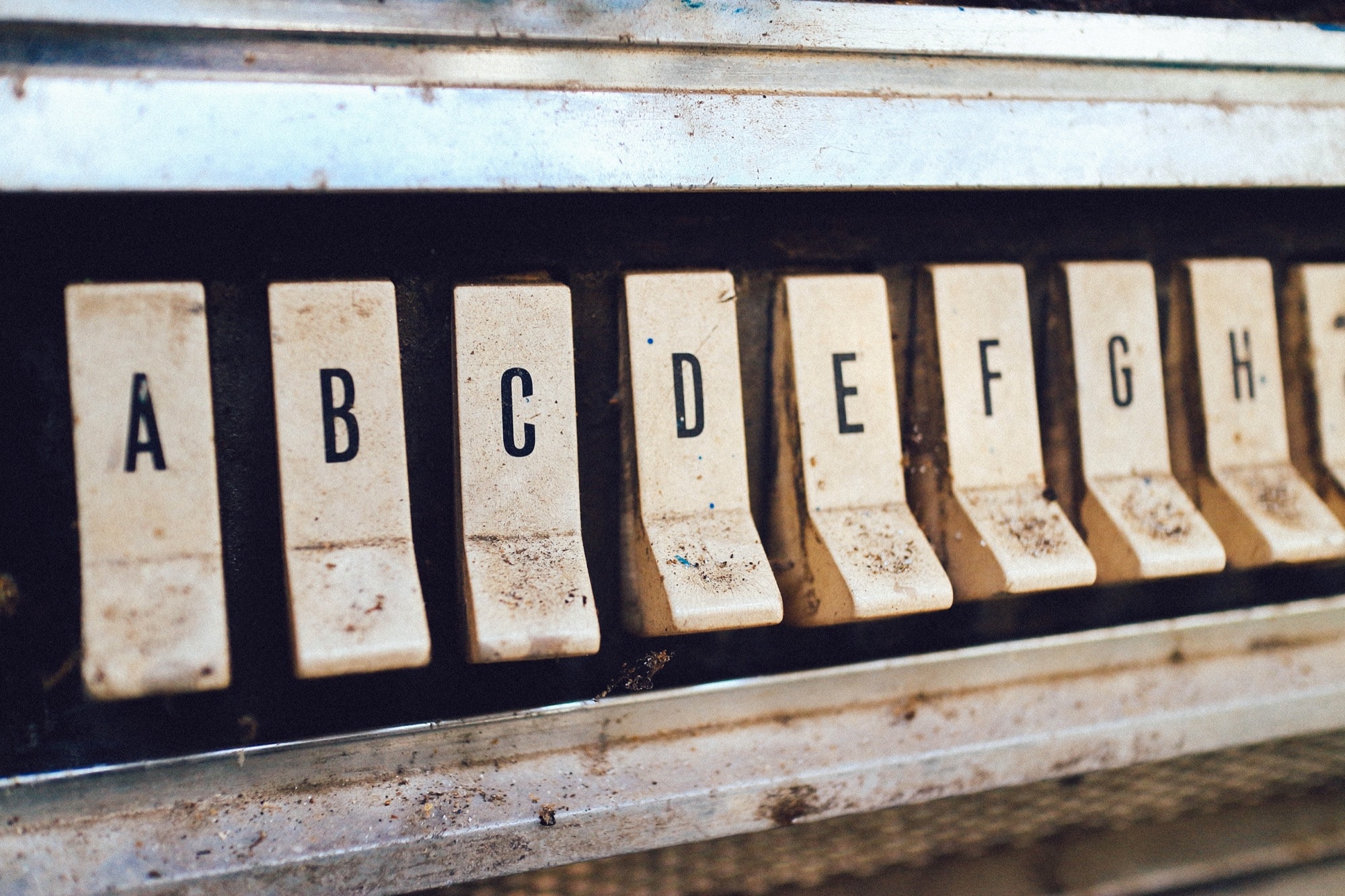
Buttons. Who doesn't love them? What buttons should Apple add to its products going forward?
Buttons. Who doesn't love them?
Photo: Diomari/Unsplash CC

It may have nothing to do with Jony Ive leaving the company, but Apple has been adding buttons back to its devices. It’s a slow start, but hopefully it’s the beginning of a trend. The new 16-inch MacBook Pro added an Escape key, and a separate power button (you can press the Touch ID button). Plus, the recently introduced iPhone 11 battery case added a dedicated camera button.

After what seems like decades of removing useful hardware features, is Apple finally seeing the error of its ways? And, if so, what buttons would we like to see next? Let’s take a look at the current lay of the land.

Continuity Sketch turns the iPad into a graphics tablet for your Mac

By

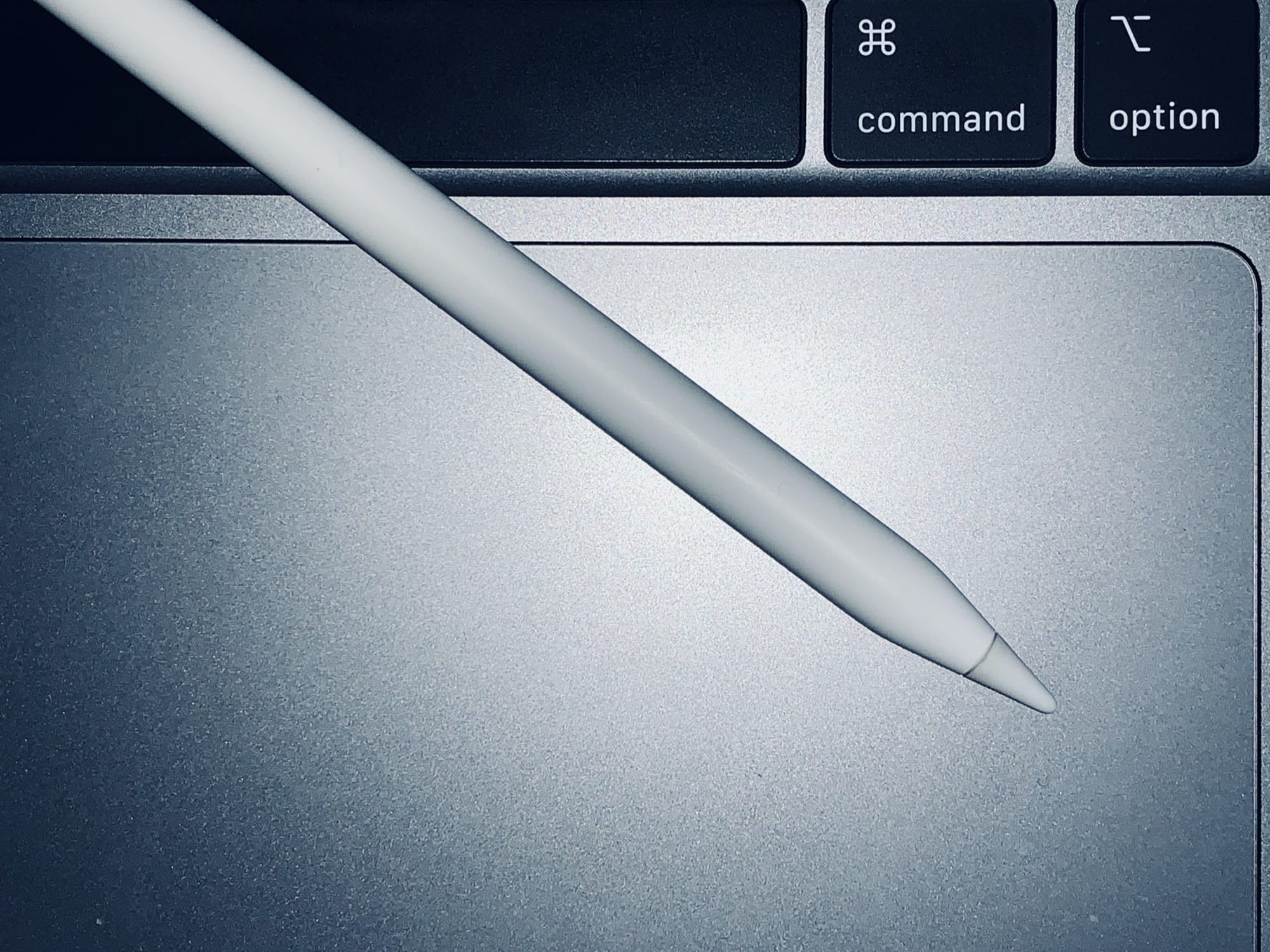
Continuity Sketch is like having an Apple Pencil for your Mac.
Photo: Charlie Sorrel/Cult of Mac

You can sign a PDF on your Mac using the giant MacBook trackpad, and you can mark up PDFs and screenshots, too. But all that stuff is much easier on the iPad, especially if you have an Apple Pencil. The problem is getting it there. But in macOS Catalina, you don’t have to “get it” anywhere. Screenshots and PDFs magically show up on nearby iPads, where you can sign them or mark them up. Then you can return them to your Mac. These features are called Continuity Sketch and Continuity Markup, and they’re killer.

You know how the UPS guy holds up his brown scanner box for you to sign? PDF markup is like that, only on your iPad — and you never feel guilty about ordering too many parcels.

Sleek wireless charger has your iPhone covered in 3 ways [Review]

By

Review of RapidX MyPort wireless charger
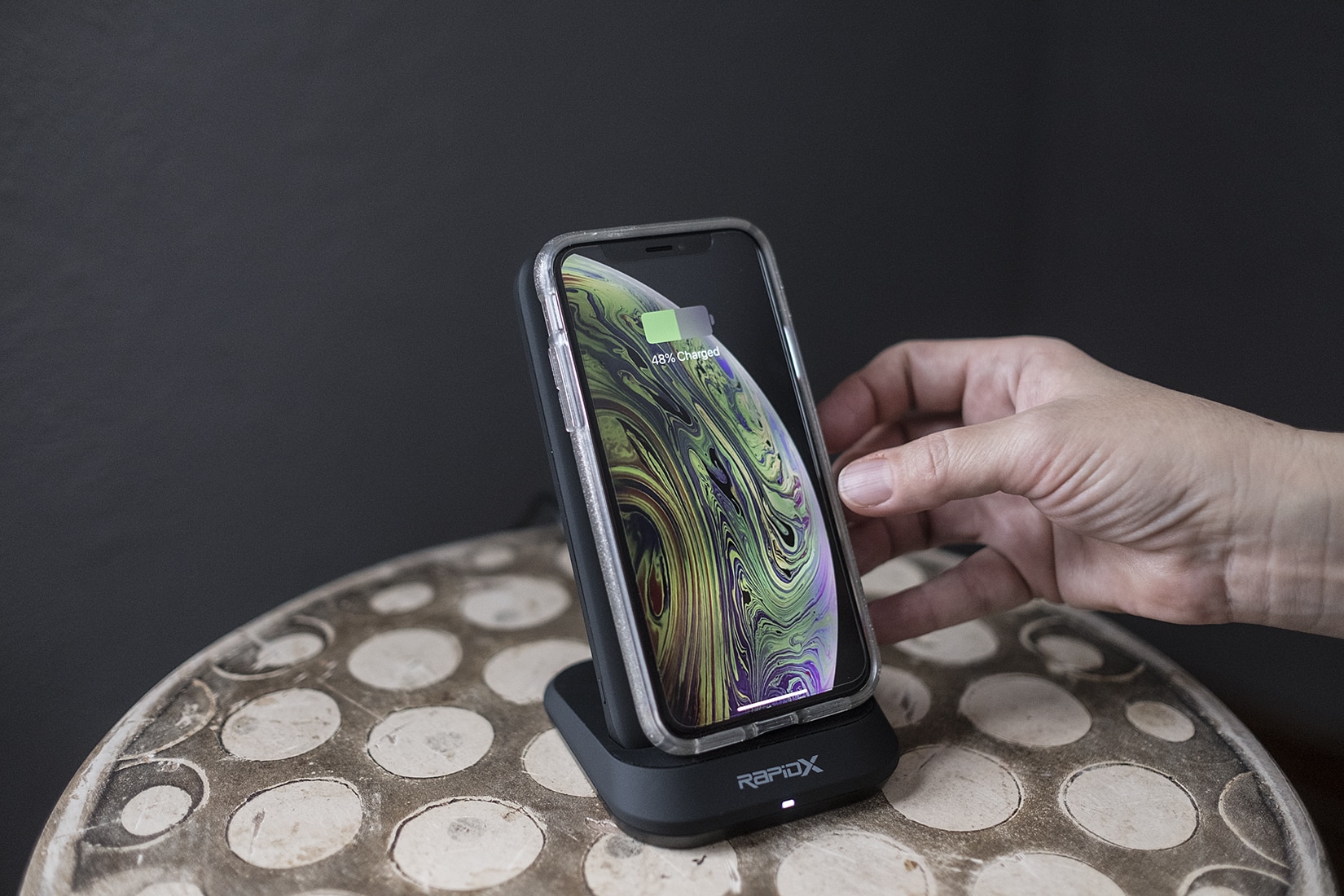
It's a wireless charging stand as well as a stand-in for on-the-go charging.
Photo: David Pierini/Cult of Mac

Many wireless chargers are designed to serve three mobile devices. The RapidX MyPort is made to selflessly serve one device in three different ways.

MyPort is first a smartphone stand to wirelessly charge your iPhone. But the vertical charging element has a restless side. It begs to be detached from the base to travel as a companion to your iPhone. It works as a portable wireless charger. And, with its two USB ports (one USB-A, one USB-C), it becomes a quick-charging wired power bank.

2019 Mac Pro isn’t the most expensive Mac ever. Not by a long shot.

By

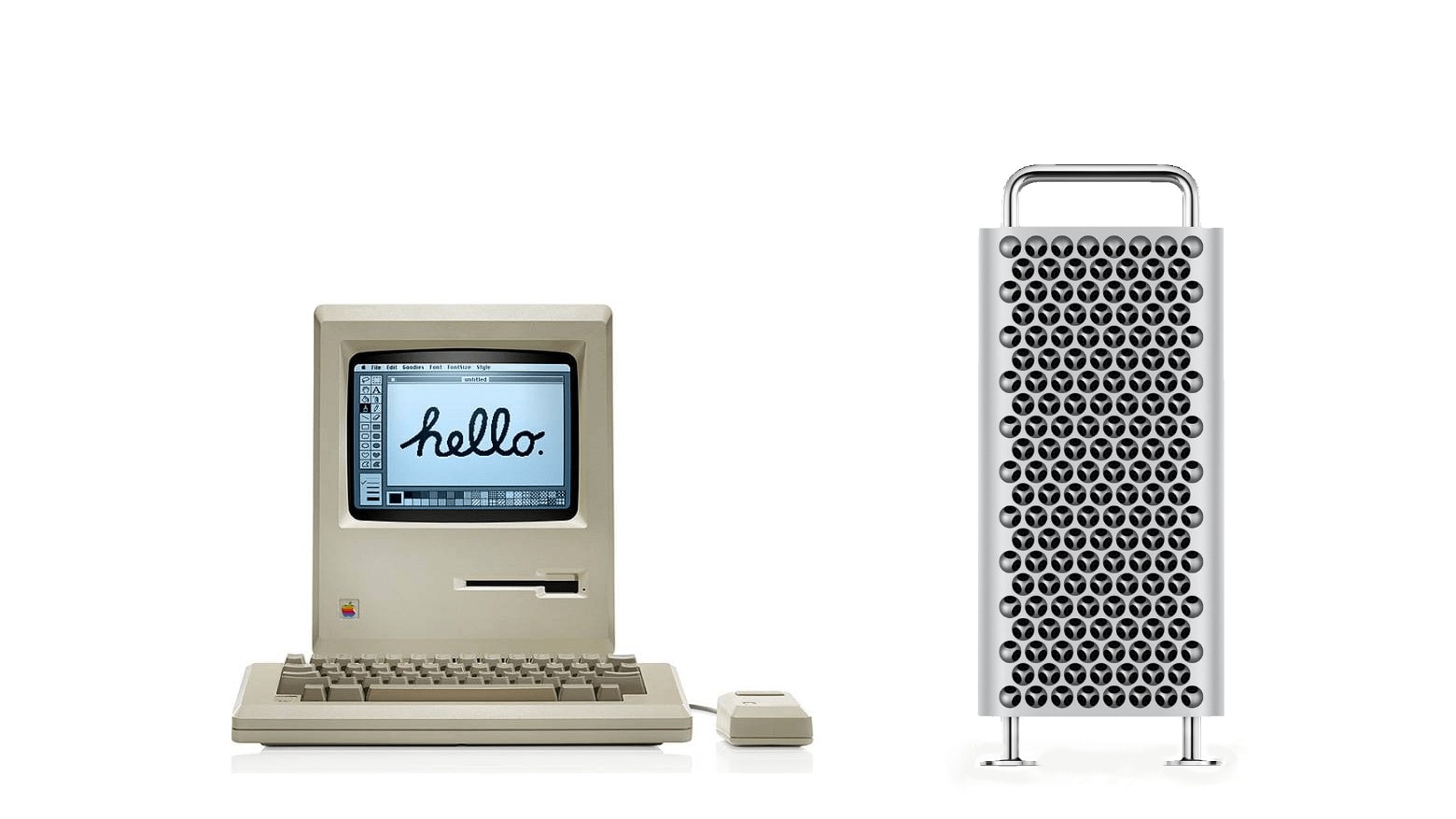
2019 Mac Pro and original Macintosh 128K: Which cost more.
One of these two cost a lot more than the other. Which one might surprise you.
Photo: Apple/Cult of Mac

There has been much handwaving over the $5,999 price tag on the 2019 Mac Pro. It’s often been criticized for being Apple’s expensive computer ever.

But it’s not. And it’s not even close, if you factor in inflation. Many of the early Macs cost much more than $6,000 in today’s dollars.

5 best alternatives to Apple’s $400 Mac Pro wheels

By

Smart Car convertible.
Photo: Public Domain

If you want to add four wheels to your already-expensive Mac Pro, then they’ll cost you almost $100 apiece. Not that you can even buy them separately. You have to specify the $400 option when you buy. The wheels are a part of the Mac Pro’s steel frame, so there’s no way to add them after purchase.

Or is there? We found five good options to let you wheel your Mac Pro around the office, or to perhaps grab the power cable and take the new computer out for a walk like a dog. Or even to sit on the thing and take it for a spin, go-kart-style, down the nearest hill.

10 copies of new Cult of Mac book are now up for grabs

By

The Cult of Mac 2E
Enter. You may be one of 10 lucky winners to receive a free copy of The Cult of Mac 2E.
Photo: Leander Kahney/Cult of Mac

We want to put free copies of The Cult of Mac 2nd Edition on 10 coffee tables across the United States.

Now through Dec. 20, the Cult of Mac website will accept entries to give away this Mac book that is every bit as beautiful as a MacBook. All you have to do is enter your email in the submission widget below.

How to run iOS shortcuts from your Mac

By

Shortcuts on Mac.
Shortcuts on Mac — kinda.
Photo: Charlie Sorrel/Cult of Mac

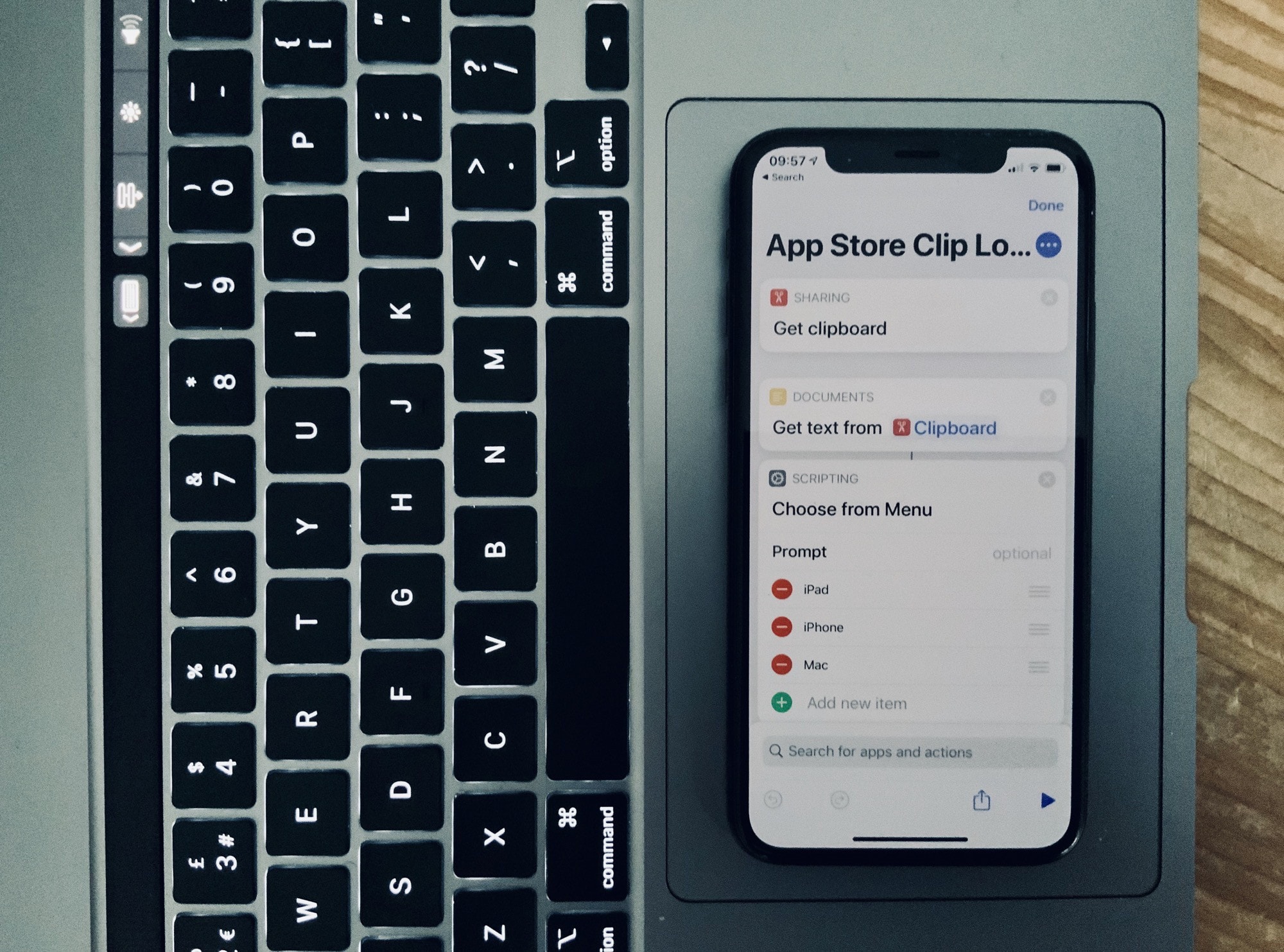
While it is possible to get the Shortcuts app running in macOS Catalina via Catalyst, you can’t do much with it. But what about the next best thing? How about selecting something on your Mac, then tapping a shortcut on your iPhone, and then having the result show up back on your Mac?

I’ve been doing this for the past few weeks, and it’s not only a workaround, but a genuinely useful — and reliable — way to “run” iOS shortcuts on the Mac. Let’s get right into it.

Apple shows you how to properly upgrade your new Mac Pro

By

2019-Mac-Pro-upgrade
Don't pull yours apart without watching Apple's videos first.
Photo: Apple

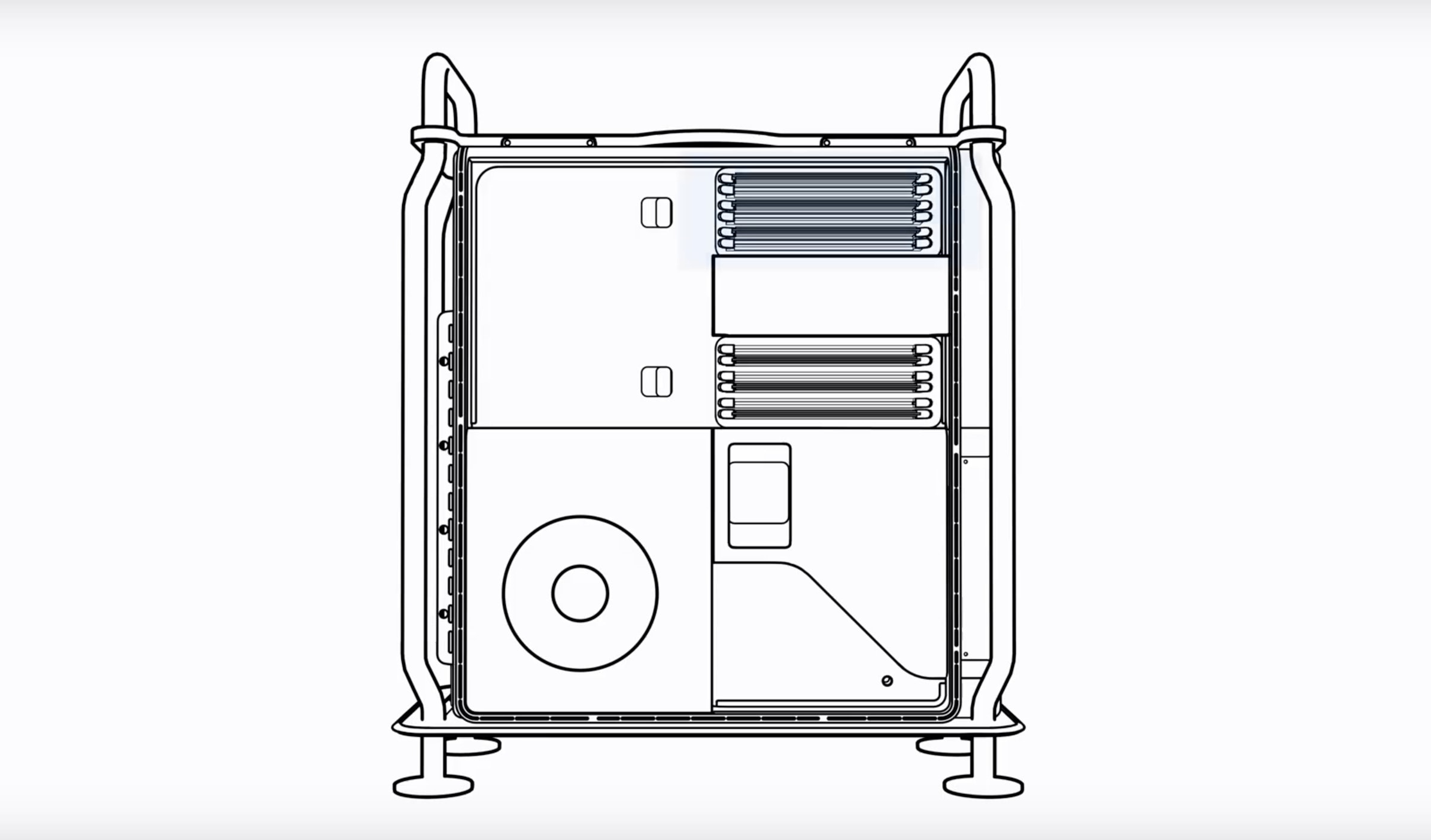
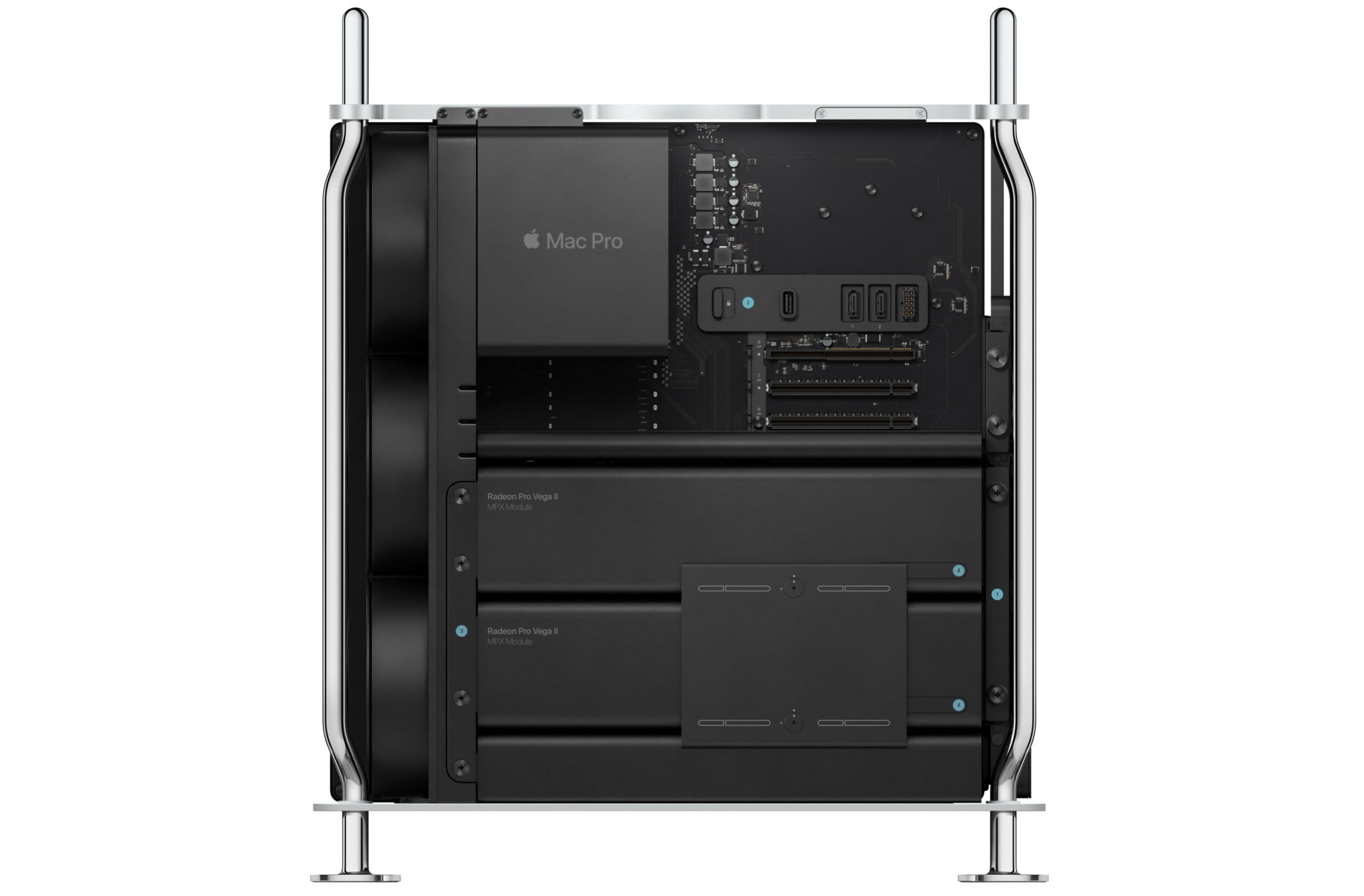
The 2019 Mac Pro is the most customizable Apple computer we’ve seen in years. You can swap and upgrade almost every component — including its GPUs, memory, and more.

But you must do it properly. Apple’s new how-to videos take you through the upgrade process step-by-step to help ensure nothing goes wrong. And they make it look so simple.

Keychron K2 is the only mechanical keyboard you should get for iPad [Review]

By

keychron k2
Clickety-clacky, there's no going back
Photo: Charlie Sorrel/Cult of Mac

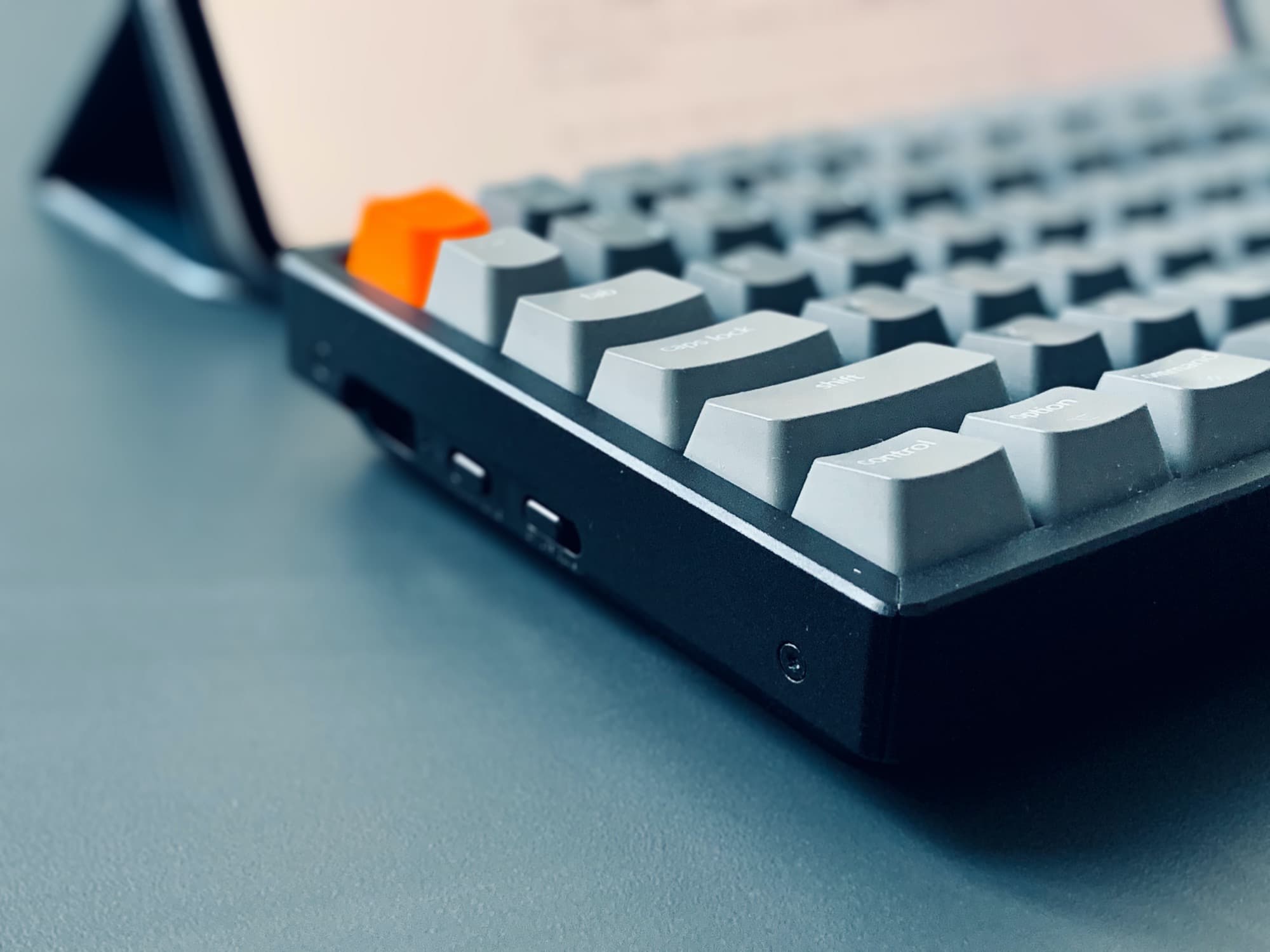
You probably need a keyboard. If you have an iMac, then you already have the one Apple included the box. If you have an iPad or a MacBook, then you should have that thing up on a stand at eye level, with a keyboard and mouse/trackpad attached so you don’t kill your neck/back/wrists. And if you want a clicky keyboard that works great with all three, then pretty much your best (and only) option is the Keychron K2, a beautiful, solid little device that can work with just about any device you have.

Magic Keyboard and Mouse in silver and black require buying $6,000 Mac Pro

By

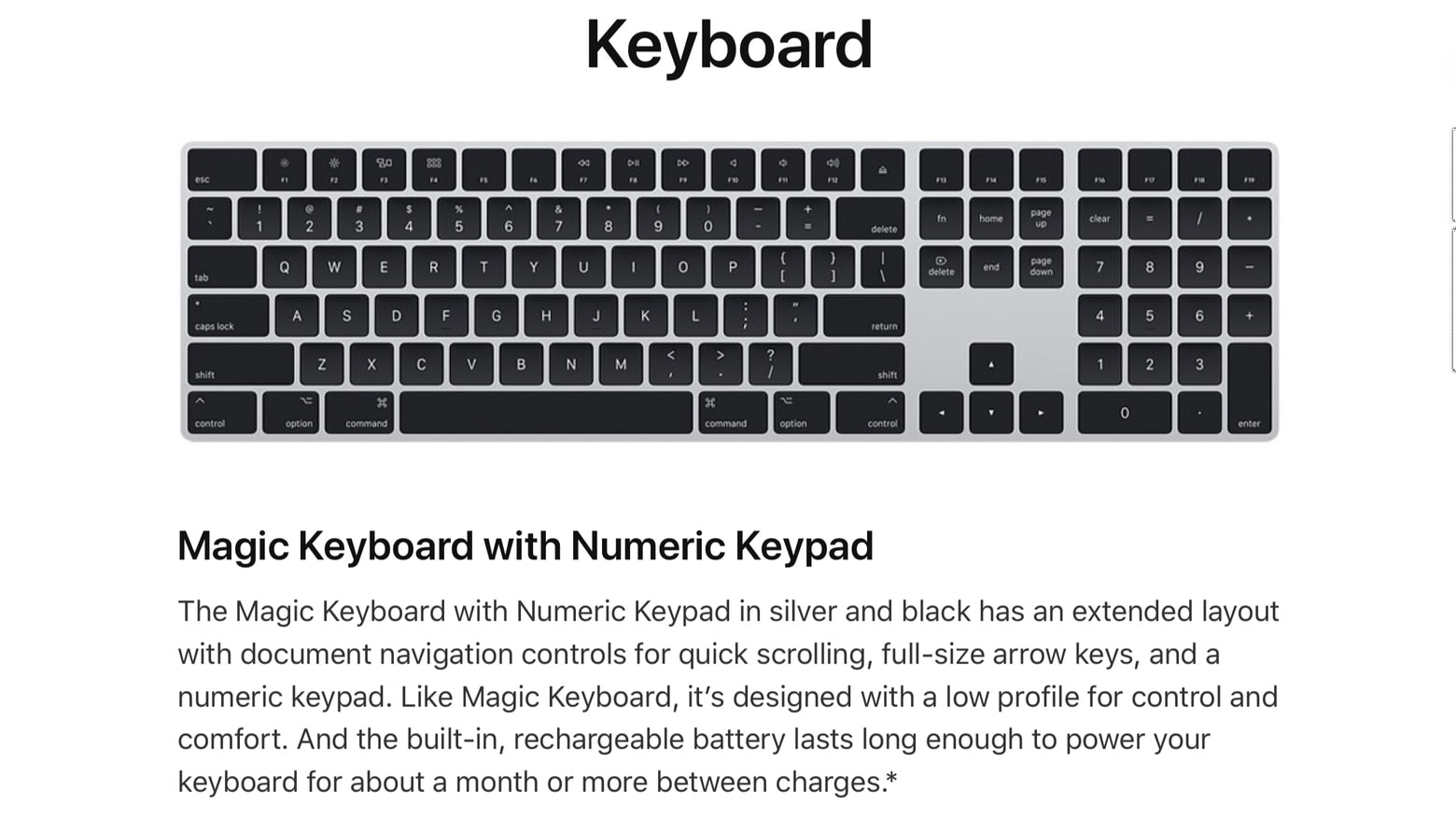
Apple Magic Keyboard in black and silver is surprisingly expensive.
Getting the new Apple Magic Keyboard in black and silver costs much more than you might expect.
Photo: Apple

A black-and-silver Magic Keyboard, Mouse 2 and Trackpad 2 debuted in Apple’s product lineup today, but only a fortunate few can order them. As it stands now, these accessories are only available for people who also buy a 2019 Mac Pro.

But that’s likely to change soon.

Vertical panoramas are the iPhone camera’s hidden jewel

By

It's not a vertical panorama, but at least if fits at the top of this post.
Photo: Charlie Sorrel/Cult of Mac

Panoramas are those super-wide, letterboxed strips of photos that look spectacular, and that are impossible to fit into Instagram. Maybe you already shoot a lot of panoramas, and maybe you even use the pano camera to create amazing glitch photos.

But did you consider that panoramas don’t have to be super-wide? They don’t even have to be horizontal. Let’s take a look at vertical panoramas — the iPhone photographer’s surprisingly great secret weapon.

A maxed-out Mac Pro costs an eye-watering $53,000

By

2019-Mac-Pro-insides
And a 16-inch MacBook Pro!
Photo: Apple

The 2019 Mac Pro is finally available to order, with prices starting at $5,999. That’s not cheap … until you compare it to the cost of a maxed-out model with all the bells and whistles.

Add every available upgrade and Apple’s newest machine suddenly skyrockets to an eye-watering $52,748.

That’s $12,848 more than a Tesla Cybertruck!

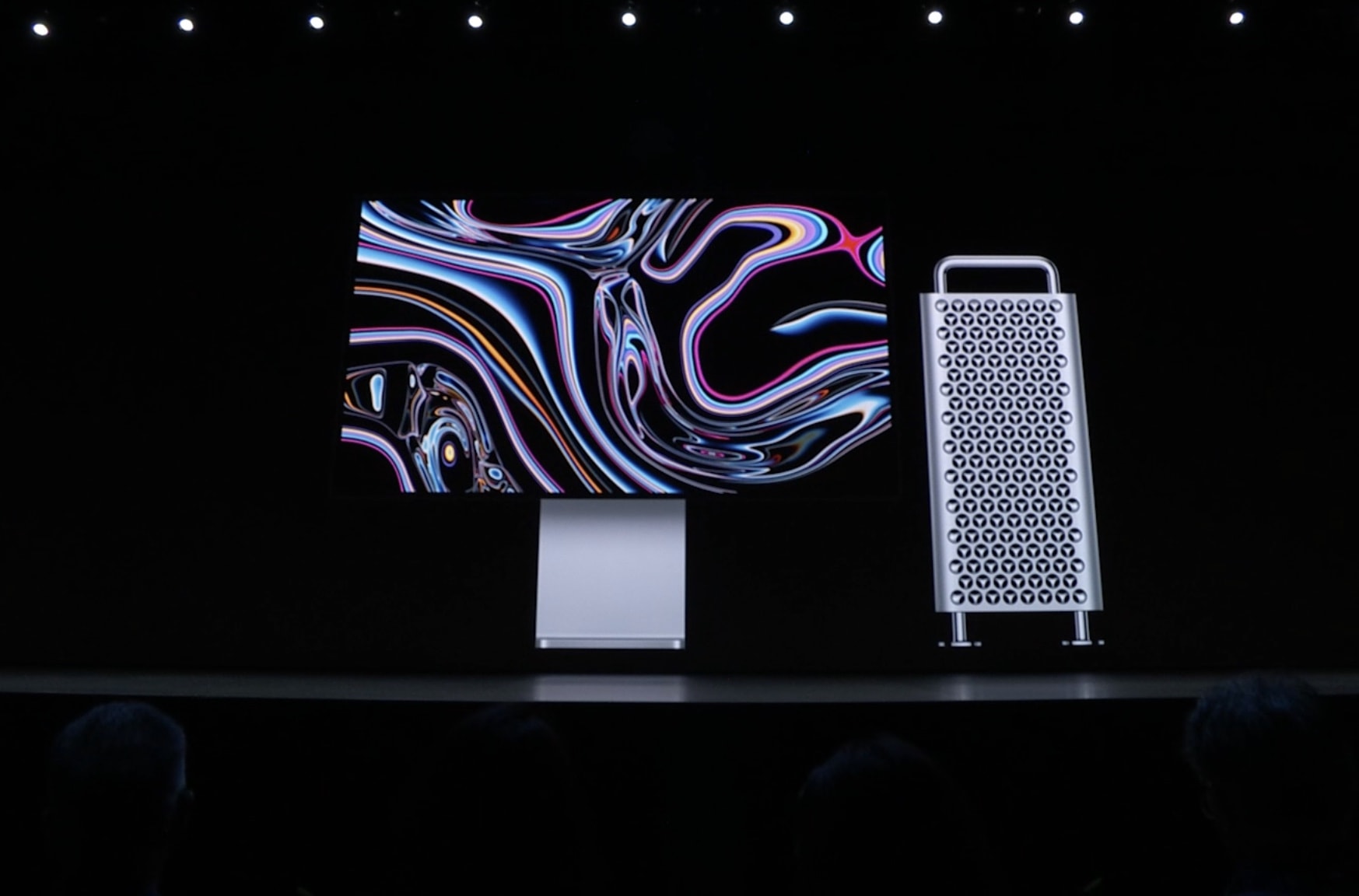
Apple’s powerful Mac Pro and Pro Display XDR arrive at last

By

The new Mac Pro is a beautiful beast.
The 2019 Mac Pro workstation and 6K Pro Display XDR display can be ordered today.
Photo: Apple

The wait for the most powerful — and the most expensive — macOS computer ever just ended. Apple began taking orders for the 2019 Mac Pro this morning, after announcing the workstation that boasts a 28-core processor way back in June.

The companion 32-inch Pro Display XDR went up for sale today, too, also at a price that only professionals can afford.

These stocking stuffers are the perfect gift for tech lovers

By

stocking stuffers 2019
You don't have to give a big gift to make someone's holiday memorable with these great stocking stuffers.
Photo: Ian Fuchs/Cult of Mac

The holidays are near, and the season of gift-giving is here. Finding that perfect something for your loved ones can be tricky, but sometimes it’s the little things that really make the difference.

Whether it’s a stocking stuffer, a secret Santa gift or you just need something quick and easy, these are five excellent gift ideas to point you in the right direction.

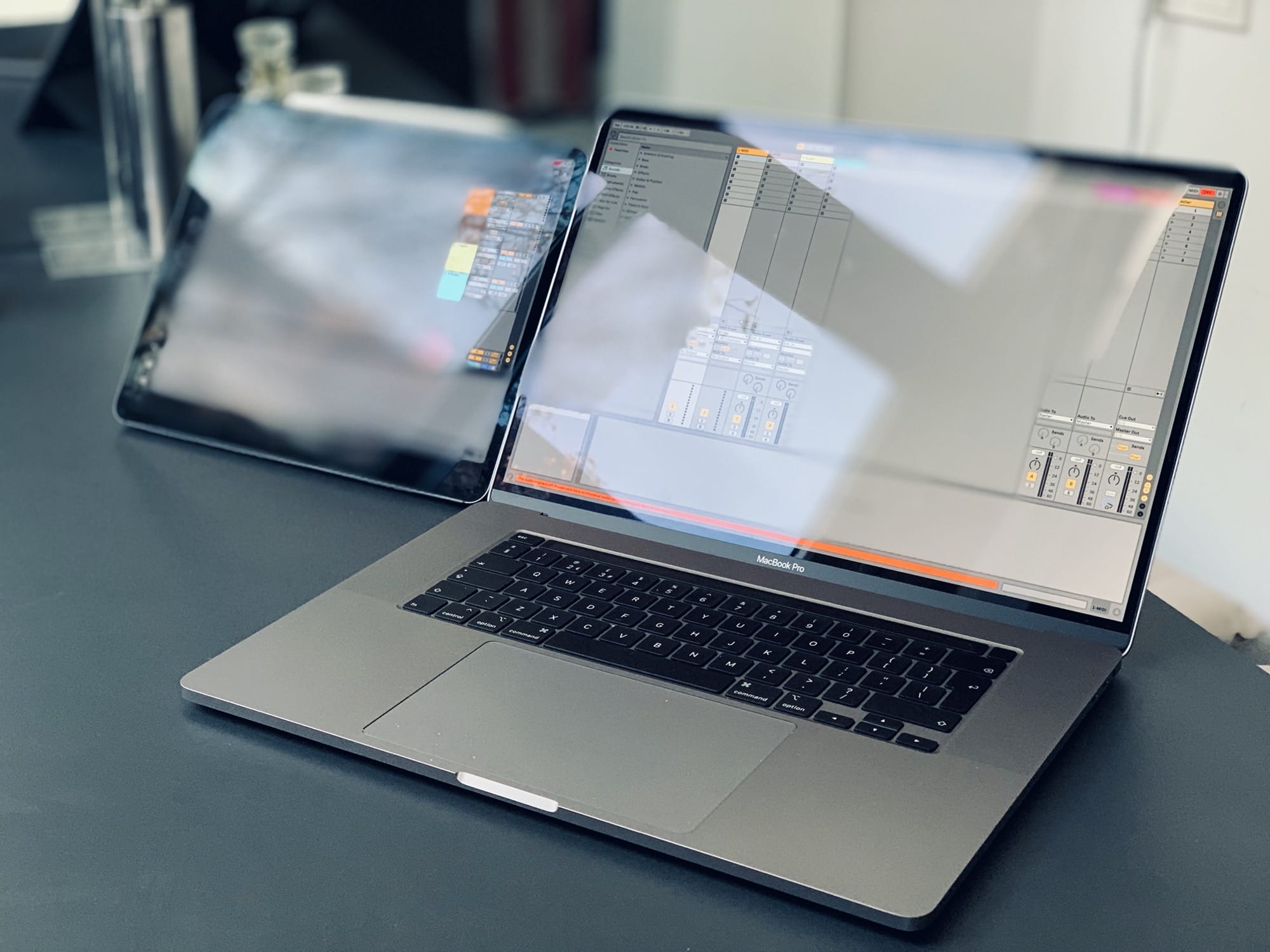
Sidecar is the closest we’ll get to a touchscreen Mac, and it’s good enough [Opinion]

By

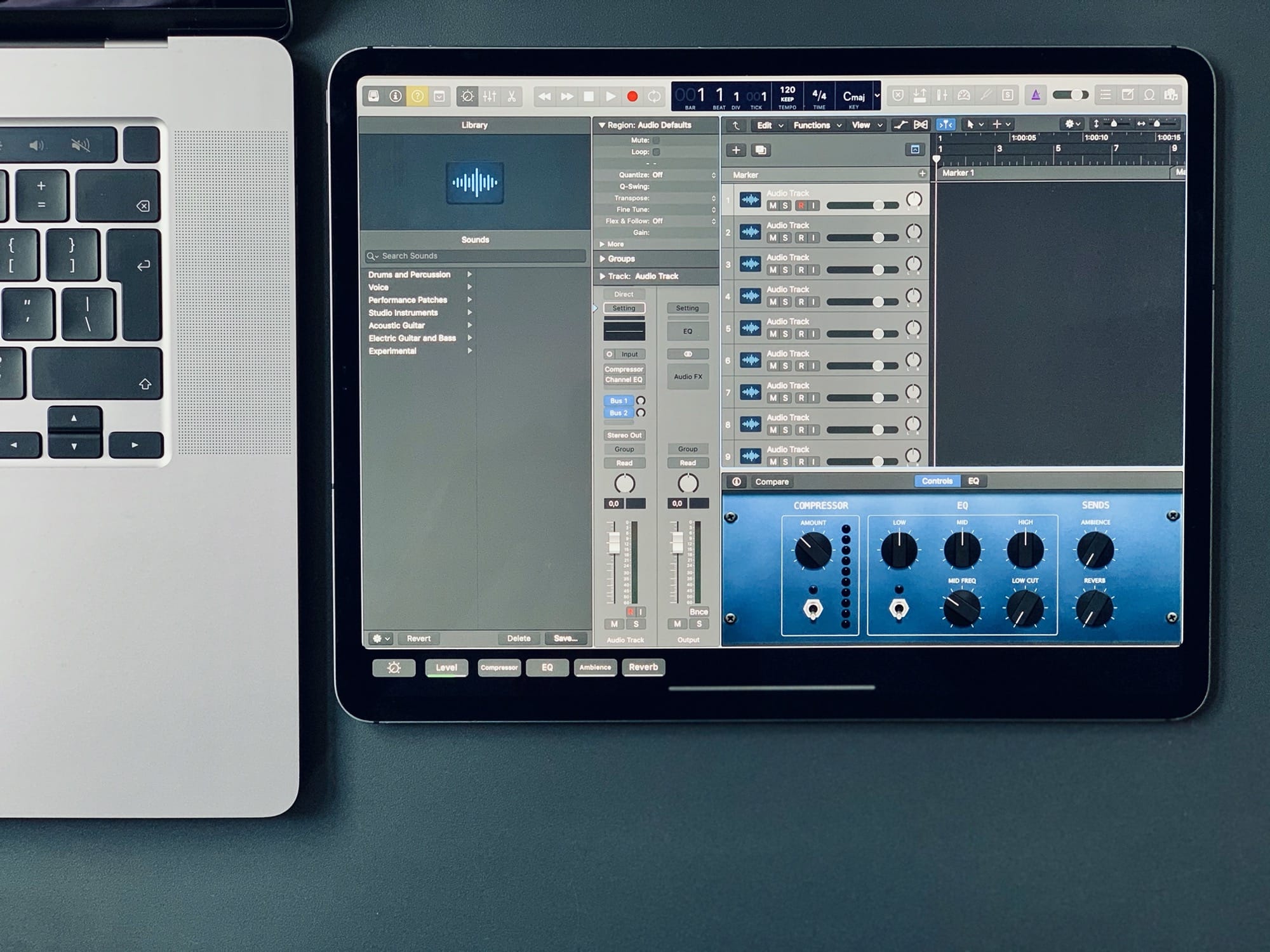
Ableton on Mac and iPad.
Photo: Charlie Sorrel/Cult of Mac

We will never see a touchscreen Mac. Apple has made this clear over and over. Whenever one of its executives is asked about a touchscreen Mac in an interview, the answer is always the same: macOS is for trackpads, and iPadOS for is for touch. Combining them would compromise both.

I agree. While I do catch myself tapping the Mac’s screen from time to time, there’s no way I’d want the Mac redesigned for touch. For one thing, you’d lose all the accuracy of the mouse, because clicking targets would have to be big enough for your fingers. But it doesn’t matter, because Apple has already made a touch option for the Mac. It’s Sidecar, and it’s amazing.

How to arrange your iPad’s window in Catalina’s Sidecar

By

Yes, that's Logic Pro X 'running' on an iPad.
Yes, that's Logic Pro X "running" on an iPad in Sidecar.
Photo: Charlie Sorrel/Cult of Mac

Sidecar, which lets you use an iPad as an external display for your Mac, is an unexpectedly amazing new feature in macOS Catalina. You just move any window to the iPad, and there it is. You can either mouse over to that window with the Mac, just like using any other external display, or you can pick up an Apple Pencil, and use it in the Mac app, directly from the iPad’s screen. And, like any regular external display, you can choose where the iPad’s screen exists.

Today we’re going to see how to move the iPad’s screen from left to right in the Sidecar setup.

Space-saving USB-C docking stand sports a whopping 11 ports [Review]

By

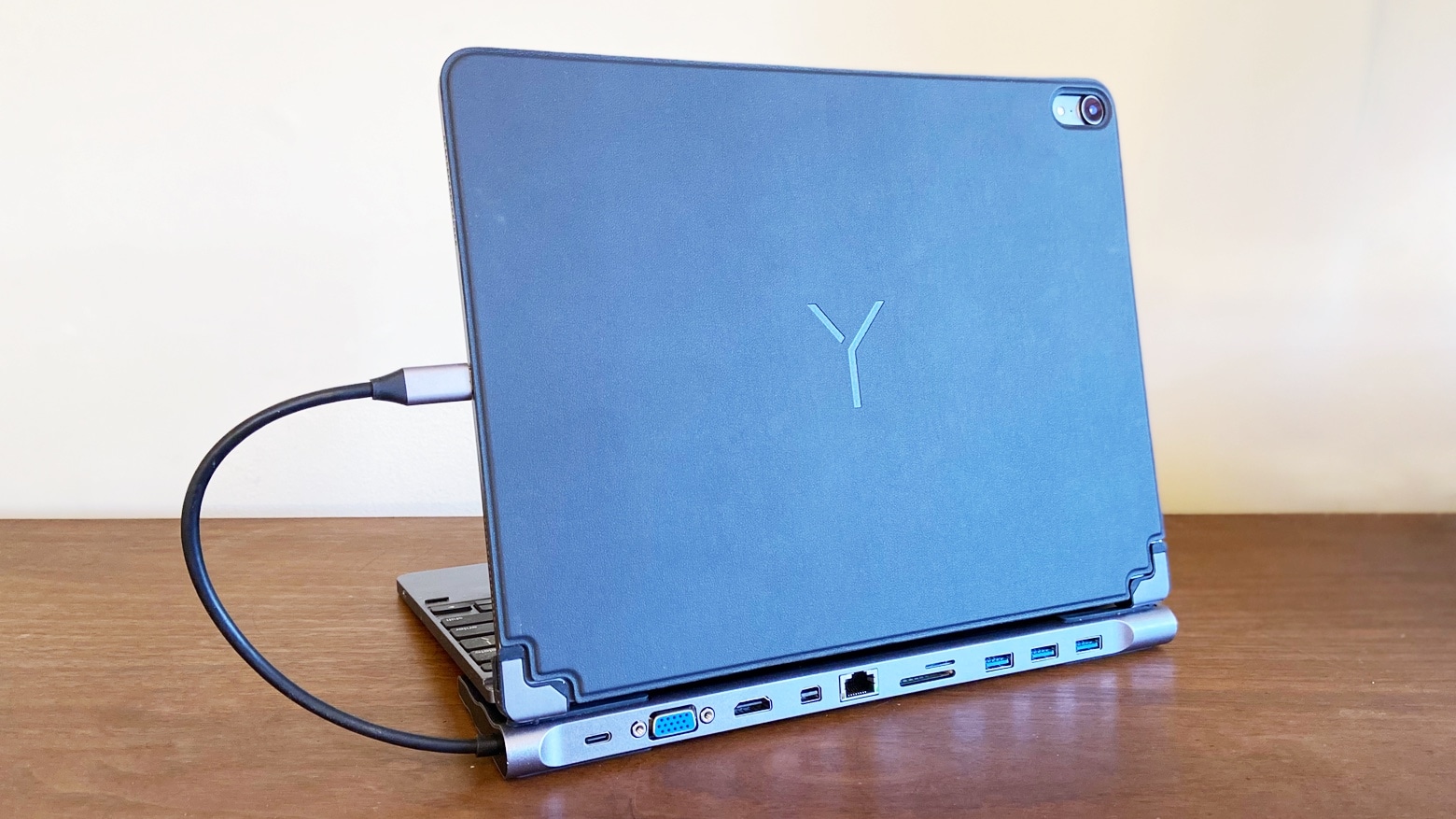
Brando 11-In-1 Hub Type-C Docking Stand adds all the ports you could want
Brando’s Docking Stand adds nearly a dozen ports, both common and obscure.
Photo: Ed Hardy/Cult of Mac

Forget your frustrations with the minimal number of ports on your MacBook or iPad Pro. The Brando 11-In-1 Hub Type-C Docking Stand lets you connect virtually any peripheral to your computer. There’s a trio of USB-A ports, Ethernet, HDMI and an SD card reader. And that’s only the start.

Get the full list, and see how well this multi-port stands up to real world use, in this review.