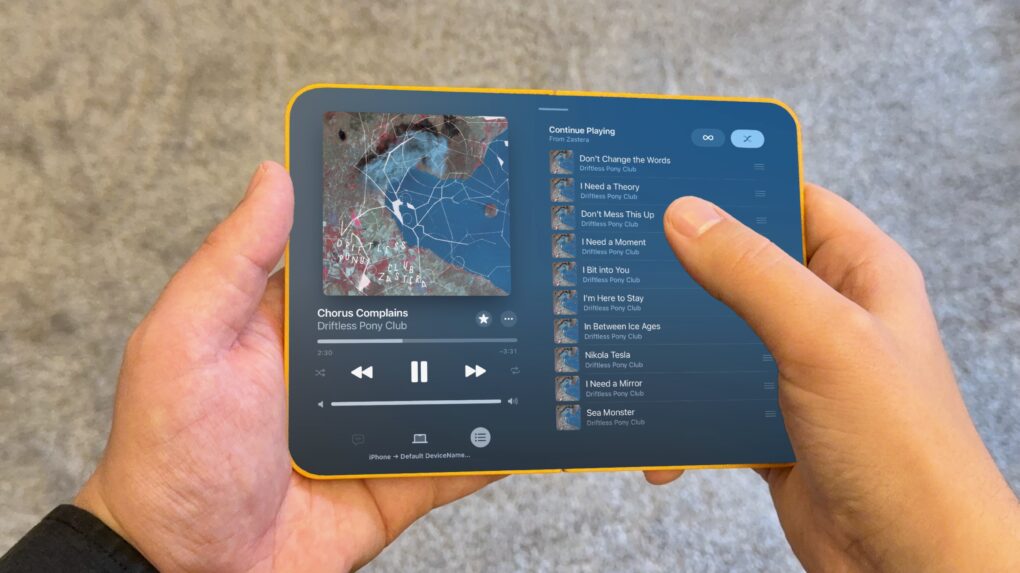
iPhone Mirroring in macOS Golden Gate gives us a clue about what the first folding iPhone will be like. For the first time, you can resize the window to any arbitrary size. That means you can stretch the screen to the rumored dimensions of Apple’s upcoming foldable and see how your favorite apps will look and work.
After all, it’s going to be an unusual iPhone. The unfolded inner screen will be roughly iPad mini-size, with an outer screen that’s much shorter and wider than any iPhone made in the last 15 years.
I took some screenshots of various Apple apps to demonstrate what the folding iPhone’s user interface will look like.
Resizable iPhone apps show what the folding iPhone will be like
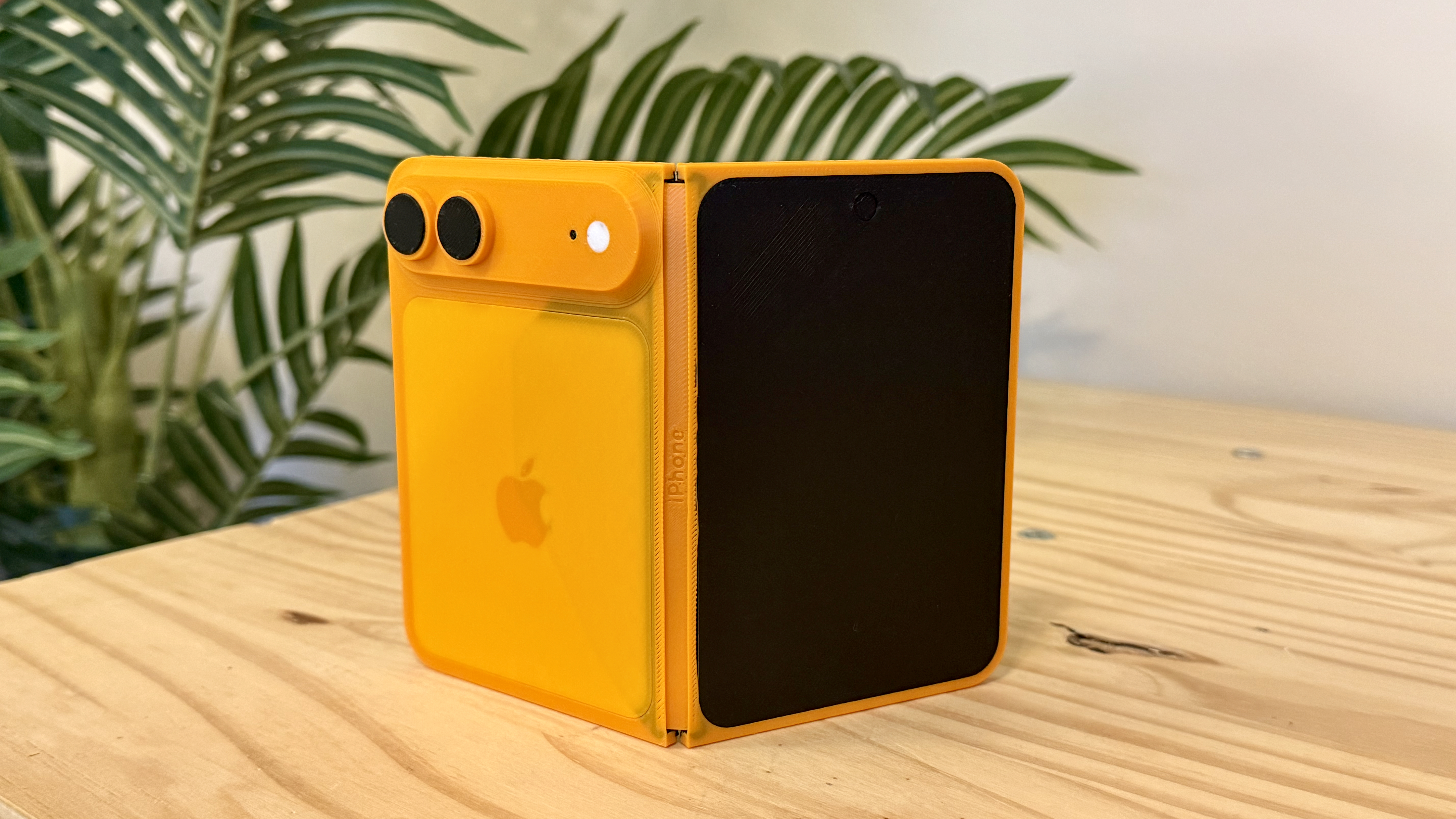
Photo: D. Griffin Jones/Cult of Mac
The folding iPhone reportedly will have the shortest and widest aspect ratio of any model since the iPhone 4s in 2011. The iPhone 5 moved to a taller 16:9 size, and from the all-screen iPhone X onward, the iPhone has been roughly 2:1. Rumor has it the inner, unfolded screen will be 4:3, meaning the outer screen will be 2:3.
If you want to see how it looks for yourself, my process is simple:
- Install the macOS Golden Gate and iOS 27 betas.
- Launch iPhone Mirroring and open an app (Apple’s built-in apps work best).
- Resize the window until it’s about 3.3 × 4.7 inches for the outer display, or 6.5 × 4.7 inches for the unfolded display. If you have a 3D-printed mockup, you can just hold it against the screen and size it to match.
If you don’t want to risk putting the betas on your own devices — probably a smart move — you can check out the gallery below instead.
Notes and Mail
Screenshot: D. Griffin Jones/Cult of Mac
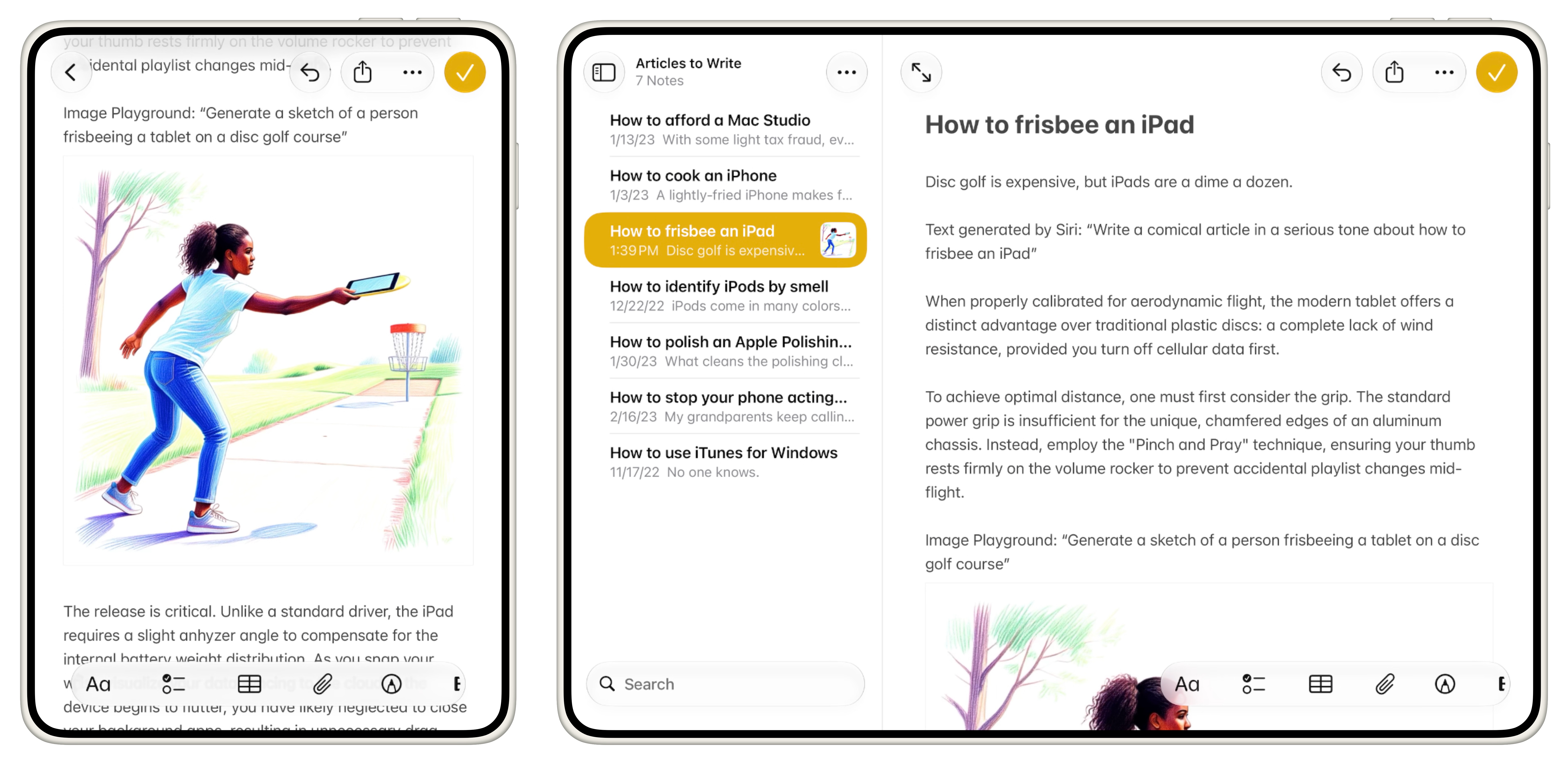
Apps like Mail and Notes will likely look something like this. You’ll have your list of items on the left and the contents on the right. This’ll be super-handy for triaging email or flipping through a bunch of school notes.
The leftmost column — for your list of mailboxes, or folders of notes — only appears temporarily. It floats over the screen when you tap on the sidebar button. Only the largest iPads support a permanent three-column layout, so that’s unlikely to change for this device. It would be cramped.
Music
Screenshot: D. Griffin Jones/Cult of Mac
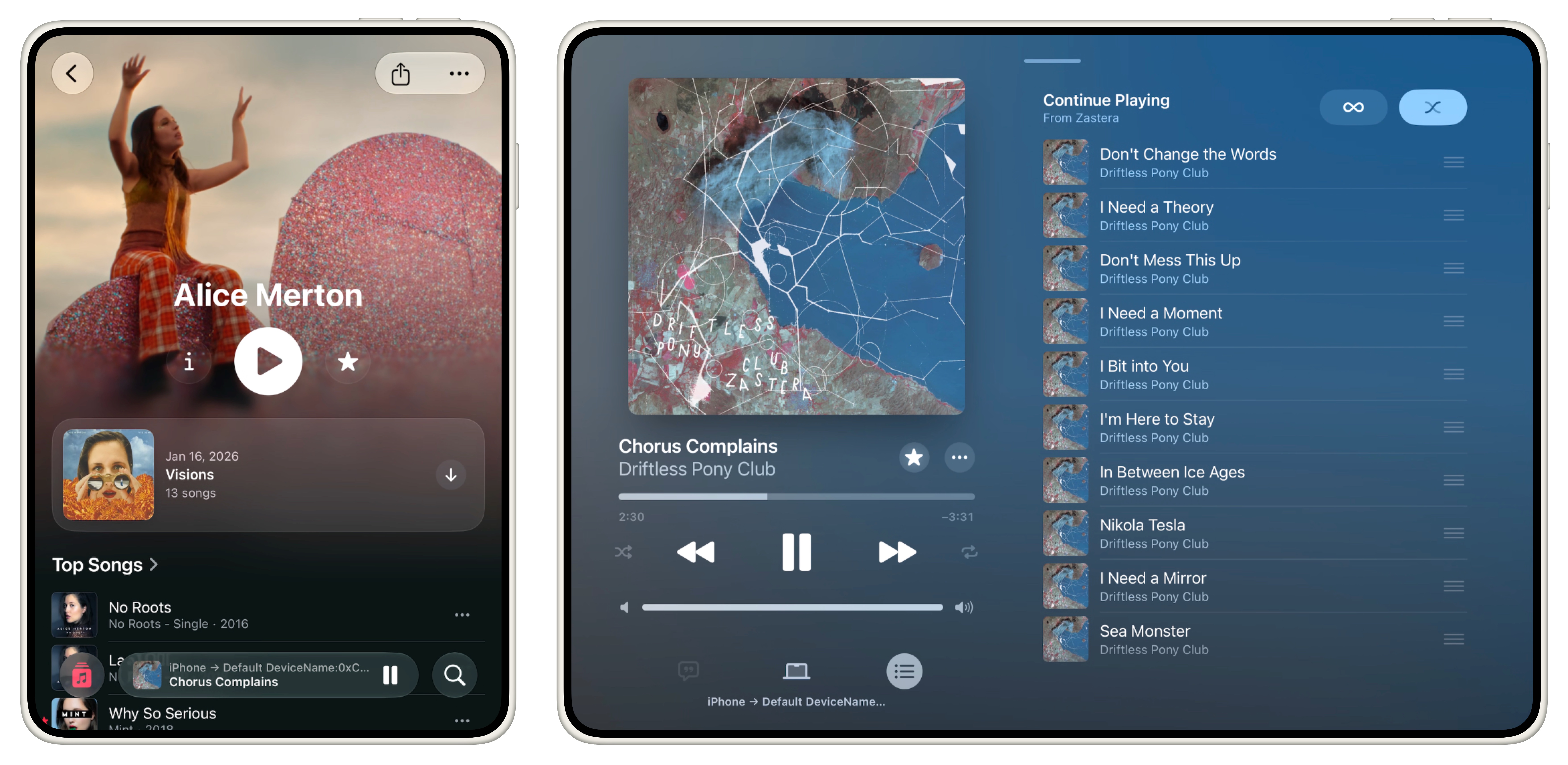
In the Music app, the short-and-wide aspect ratio comes to bite the outer screen. The full-width artwork on top leaves you very little room to see the content beneath it. The songs in the “Top Songs” section leave a lot of whitespace — it’s not quite wide enough to show two columns.
In the first iOS 27 developer beta, the bottom navigation is a little broken. It still uses the iPhone-class layout, stretching the playback controls much wider than intended, even on the unfolded screen. This will likely change before release.
The Now Playing screen works very well in the unfolded state, though. You can see the queue, history or lyrics on the right half, with the playback controls always visible on the left, and with full-size artwork, too.
The Podcasts app looks and works very similarly.
Calendar
Screenshot: D. Griffin Jones/Cult of Mac
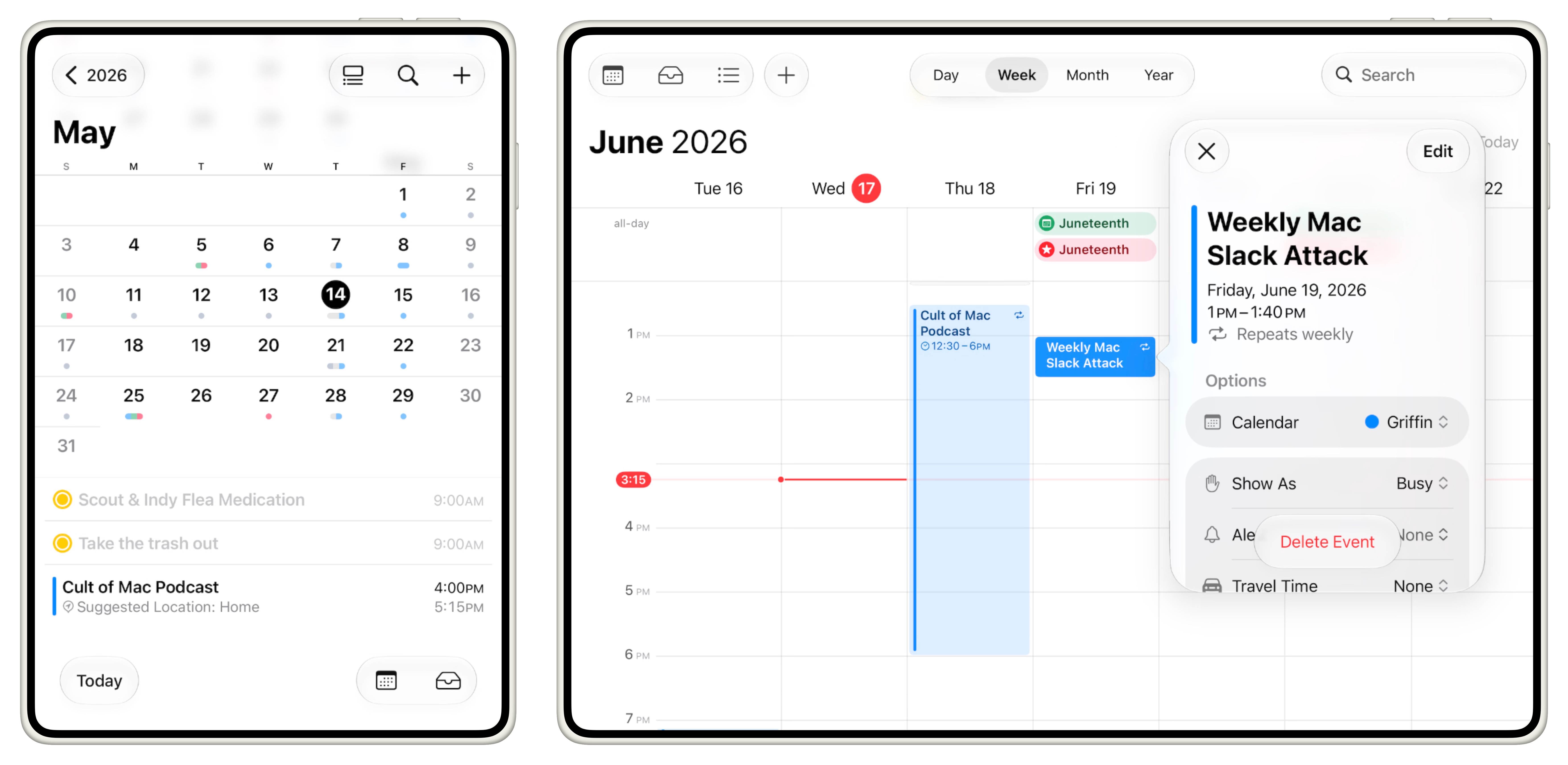
In Calendar, the split month/day view on the outer screen again seems vertically challenged, especially on a month that spans six weeks. There’s only room for three items on the list view below.
In the unfolded view, you can see a full week at a time. Since the aspect ratio is much taller than a regular iPhone turned horizontal, it’s actually useful for the first time on an iPhone. Tapping on an event pops up the event details in a floating inspector pane, so you can make edits while seeing the rest of the week.
Reminders
Screenshot: D. Griffin Jones/Cult of Mac
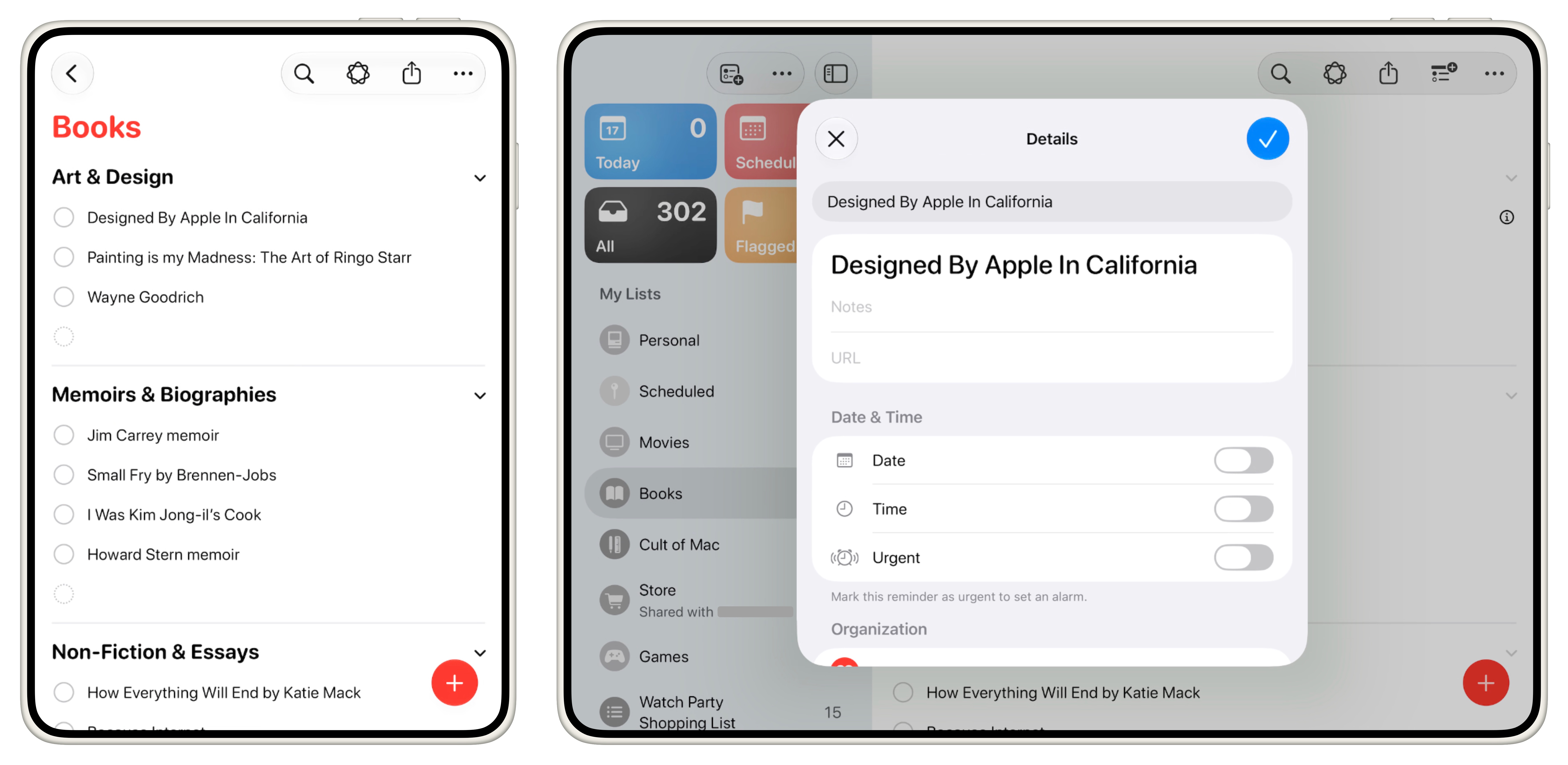
Reminders takes a different approach to its inspector pane. It opens in the center of the screen, dimming the background. While it obscures the other content, it has more room to let its controls breathe.
Safari
Screenshot: D. Griffin Jones/Cult of Mac
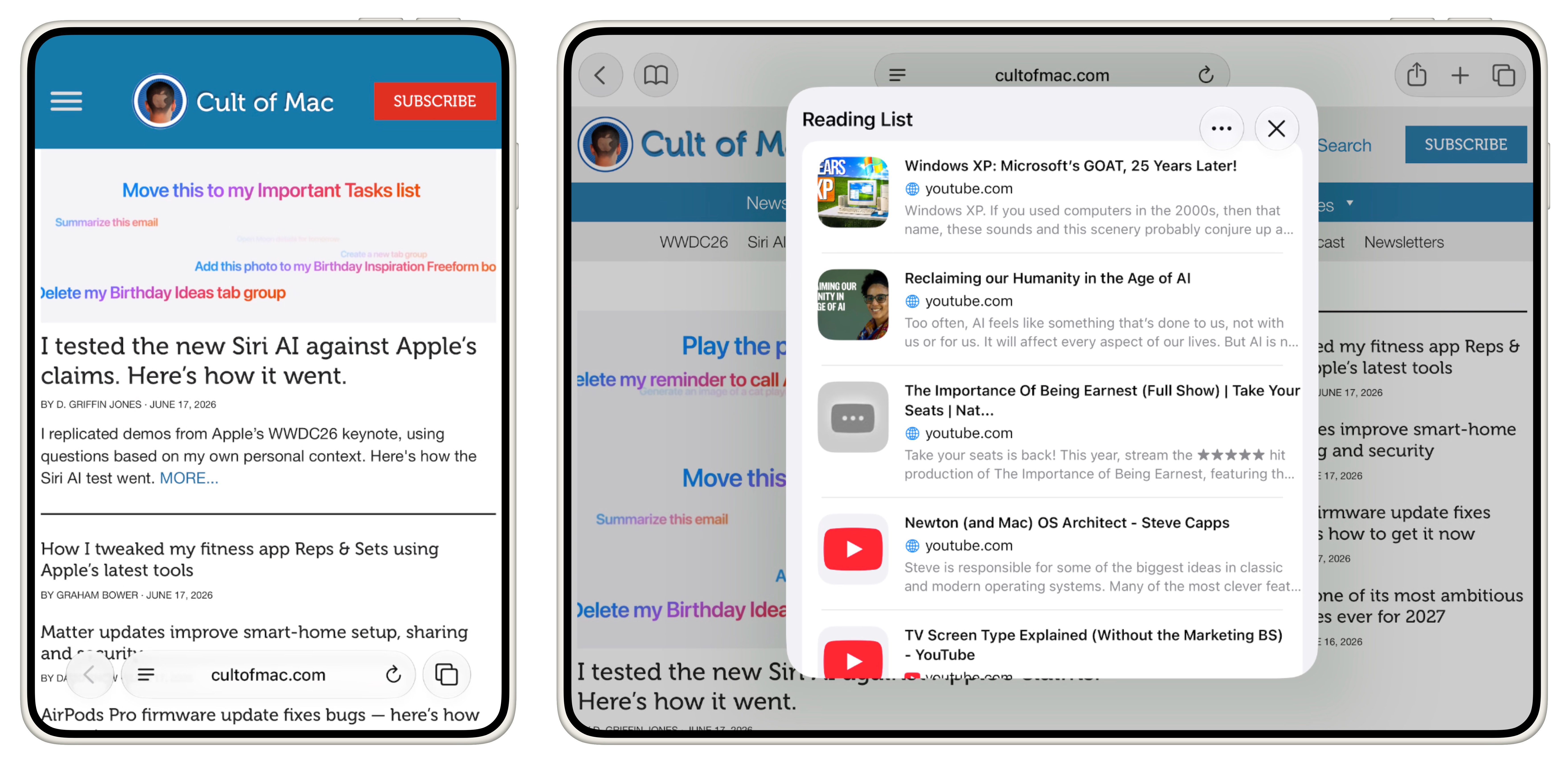
In Safari, the unfolded layout is a true desktop-class web browser. On Cult of Mac, it’s big enough to show our full-size navigation bar.
Curiously, Safari doesn’t show the full tab bar. I have the “Landscape Tab Bar” setting enabled, and I normally see it when I turn my regular iPhone 16 Pro horizontally. Perhaps this is another bug that’ll be ironed out in future betas.
When you tap the Bookmarks button, you don’t get a sidebar like on iPad and Mac. You get a pop-up in the center of the screen, like Reminders.
Weather
Screenshot: D. Griffin Jones/Cult of Mac
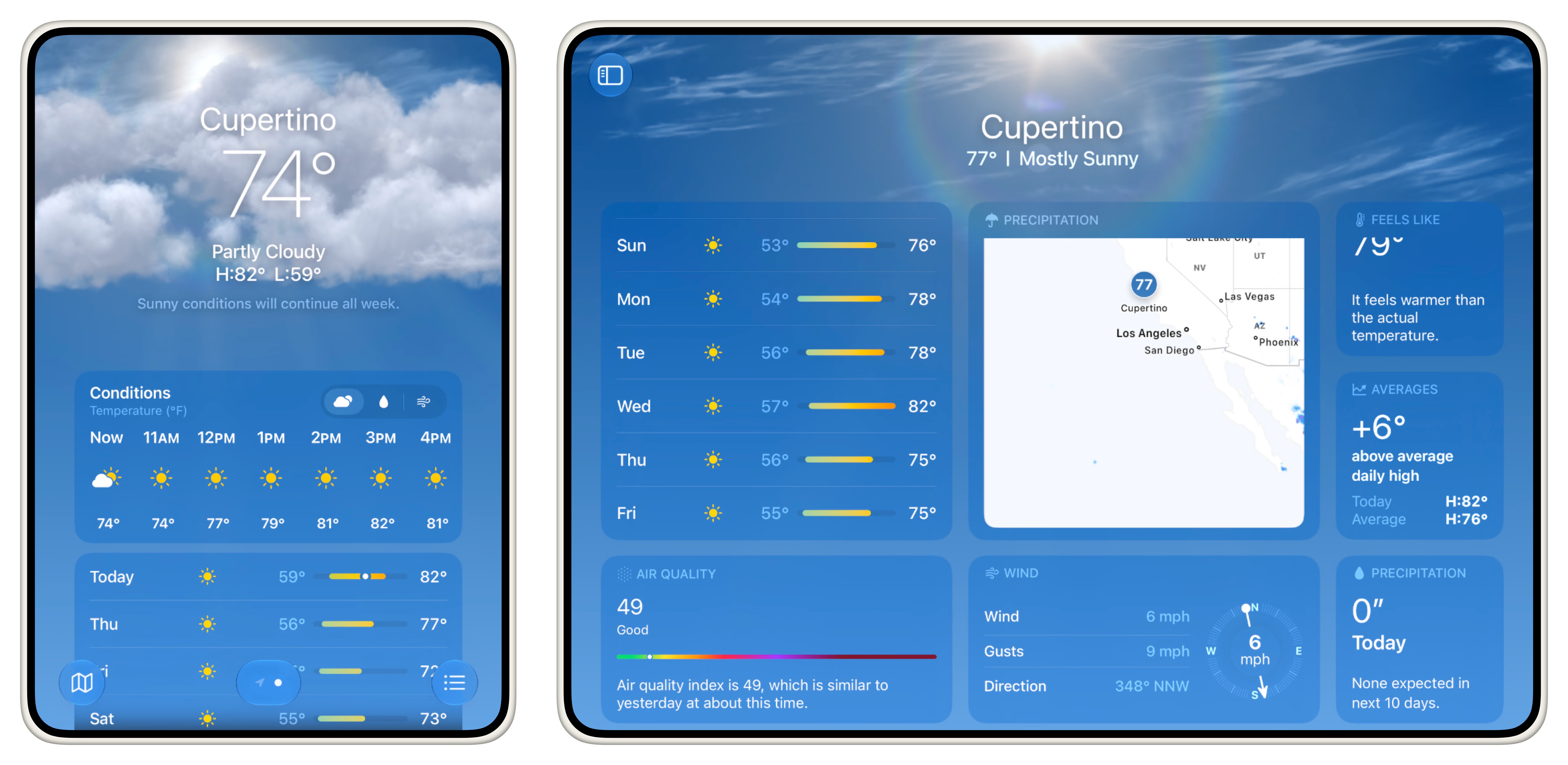
An information-dense app like Weather really benefits from the type of large screen we expect to see in the first folding iPhone. Its sprawling dashboard of various panels of information can show tons of widgets at once.
What I can’t show you
What does the Home Screen look like, and how does it react to being resized? We don’t know. Even in iPhone Mirroring (and the iOS Simulator for developers), the Home Screen stays fixed at its standard aspect ratio.
Control Center works … kind of. You can summon it from inside an app after changing the aspect ratio, but it still only appears at its original size. So half the screen is blank, and the controls at the bottom are cut off. Apple will certainly adjust this in future betas.
I would love to test third-party apps, as well as more complex apps like Pages and Numbers. But alas, those are fixed to the original size and aspect ratio, too. Apps need to be built for iOS 27 to be resizable, so apps from the App Store won’t work until iOS 27 is released.
Seeing how all these apps adapt to the larger screen makes me all the more excited to get my hands on the final product. It’s shaping up to be a real productivity powerhouse — an iPad in your pocket. To use Tim Cook’s own words, I can’t wait to see what Apple does with it.
More folding iPhone rumors
- Why the folding iPhone Ultra might launch in only one color
- Leaker: Foldable iPhone with liquid metal hinge undergoing carrier testing
- New folding iPhone rumors: Leaked image, color hints and a vapor cooling chamber
- iPhone Ultra foldable starts to come into focus
- Folding iPhone could include feature many assumed was off the table

D. Griffin Jones was a writer, podcaster and video producer for Cult of Mac. Griffin has been a passionate computer enthusiast since 2002, when he got his first PC — but since getting a Mac in 2008, he hasn’t turned back. His skills in graphic and web design, along with video and podcast editing, are self-taught over 20+ years. Griffin has a bachelor’s degree in computer science and has written several (unpublished) apps for Mac and iOS. His collection of old computers is made up of 40+ desktops, laptops, PDAs and devices, dating back to the early ’80s.
Griffin writes for his personal blog, Extra Ordinary, and is currently looking for work.


3 responses to “Resizable iPhone apps show what the folding iPhone will be like [Gallery]”
Fun fact, the original iPhone had the same aspect ratio of the rumored iPhone ultra folded
The early 4:3 iPhones were able to use much more of the screen area, with a shorter status bar, square corners and no white space on the bottom to accommodate the Home bar. So the aspect ratio of the folding iPhone’s usable area will be shorter! 😉
Thanks for this! Could you share more screenshots? I would love to see more screenshots and if anything has changed in newer iOS 27 beta versions