Mobile menu toggle

How-To - page 91

Customize your Apple Watch settings

By

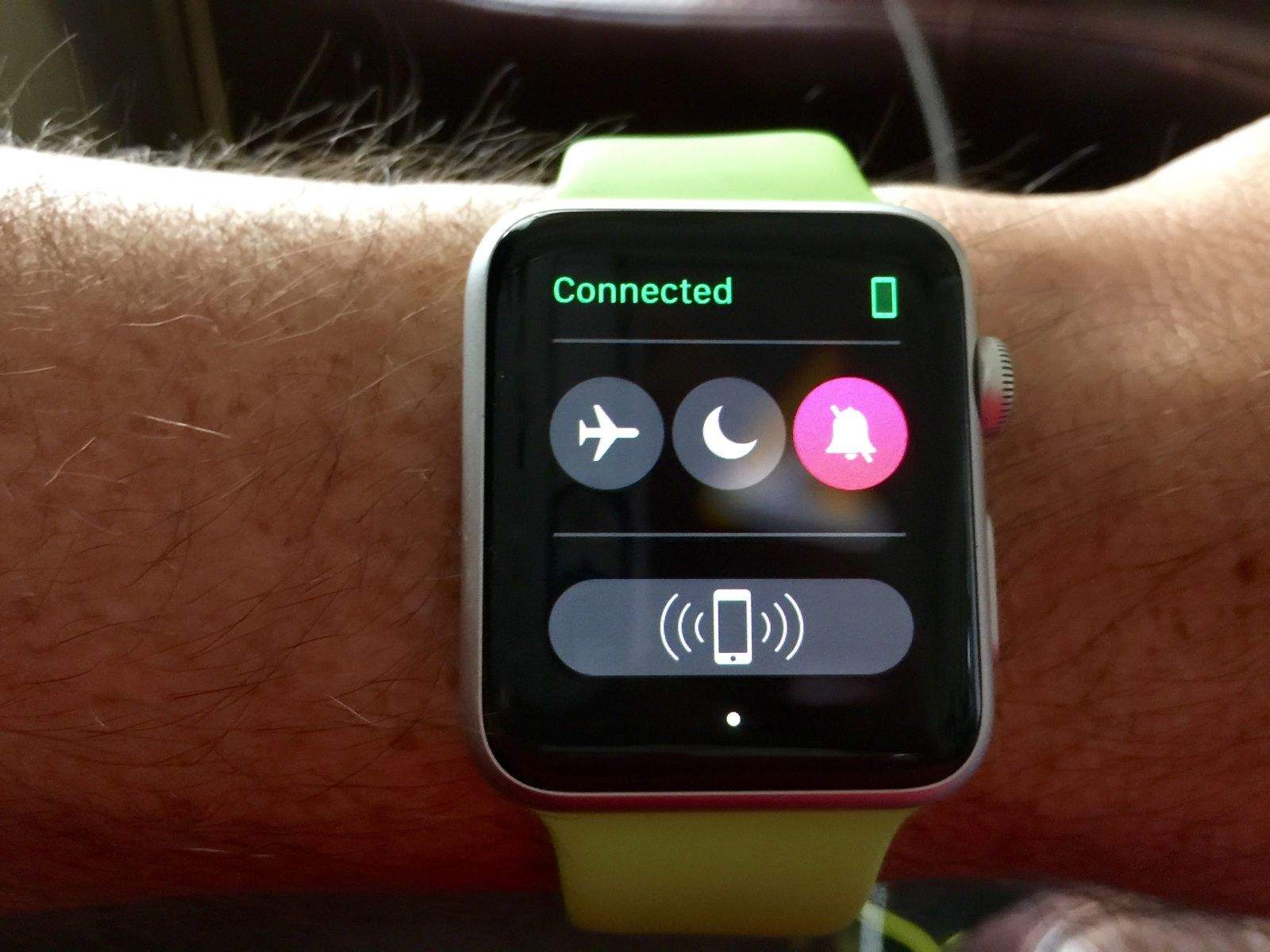
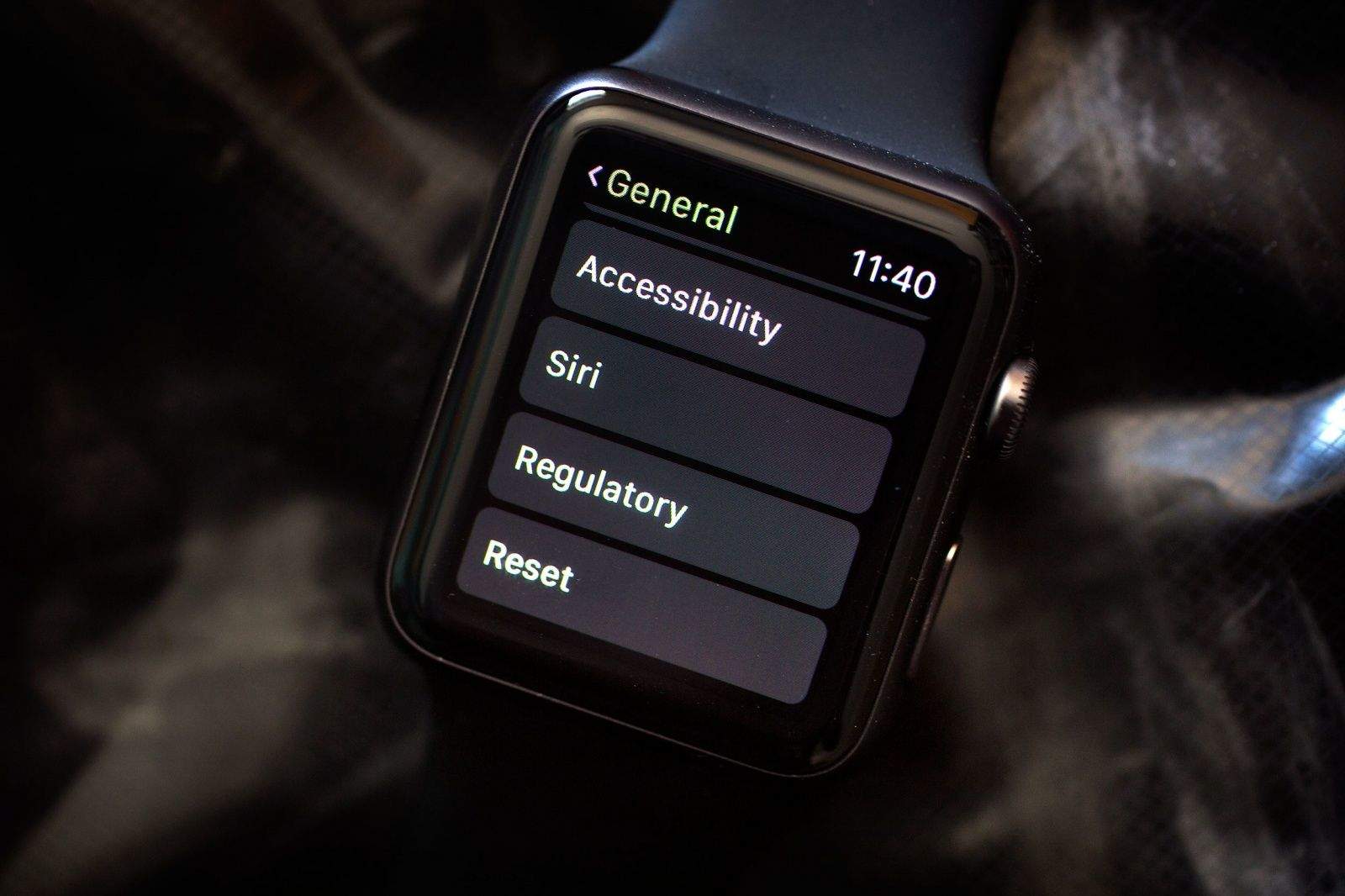
This screen is way too small for all the tweaks available. Photo: Rob LeFebvre/Cult of Mac

Getting your Apple Watch set up is fairly basic, but to truly make this your own personal device, you’ll need to dig into the Apple Watch settings.

You can do all of these things on the Apple Watch itself, but why force yourself to tap and swipe on that tiny screen? Use the Apple Watch app on your iPhone for a much more pleasant experience. You can thank me later.

How to set up your Apple Watch Friends screen

By

Learning the user interface can take some time, and then there are all the subtle tricks.
The Friends screen is one of the most important on the Apple Watch. Photo: Jim Merithew/Cult of Mac
Photo: Jim Merithew/Cult of Mac

After linking your new Apple Watch to your iPhone, your favorite contacts are automatically synced over. But to get the most from the device, you’ll want to make a couple of tweaks to the Apple Watch Friends screen.

It’s truly one of the most important screens on the Apple Watch — here’s how to make the most of it.

How to sync and play music with your Apple Watch

By

Get ready to rock with your Apple Watch. Photo: Apple

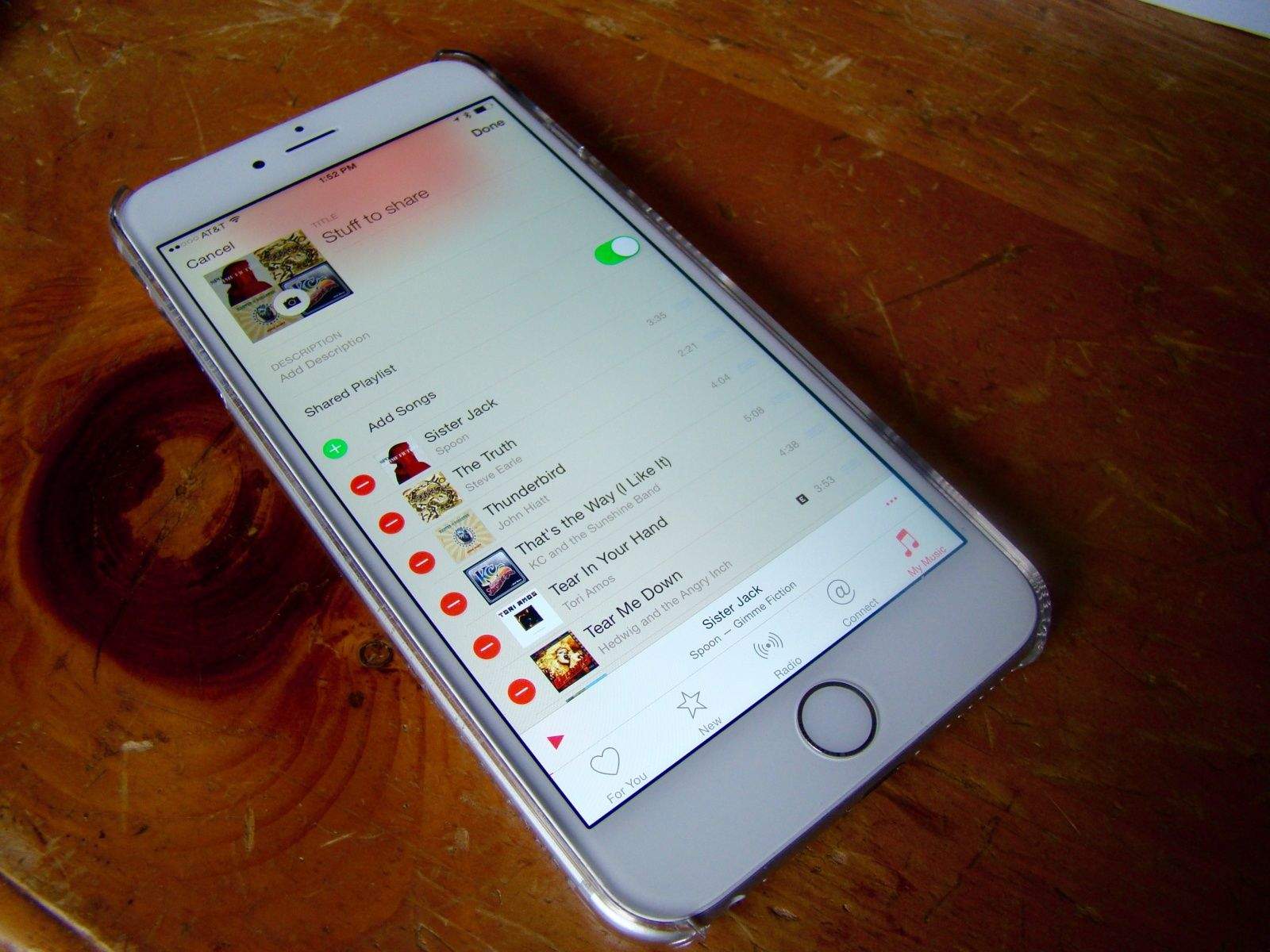
Apple’s smartwatch doesn’t come with much onboard storage, but that doesn’t mean you’re screwed when it comes to Apple Watch music. You can add your own playlists and listen to your favorite tunes using Bluetooth headphones or AirPlay speakers.

To get the songs you want, you need to create a playlist on your iPhone or iTunes, then beam it over to your Apple Watch. Here’s how to do it.

Set up your Apple Watch face the right way

By

There's a lot of utility in this watch face. Photo: Rob LeFebvre/Cult of Mac

 There are 10 Apple Watch faces to choose from, and each one comes with a crazy amount of options. The moon phases widget is pretty neat, but do I really want to clutter up my watch’s minimalist look? If you’re looking for the coolest Apple Watch faces to match your style, there are plenty of customizable options.

The cool thing is that you can almost have it all. Apple makes it pretty easy to pick your preferred Apple Watch face and then tweak the specific options you want to add to (or delete from) your wrist.

Here’s how.

How to set up Apple Pay on Apple Watch

By

How to set up Apple Pay on Apple Watch so you can breeze through checkout lines.
Once you get Apple Pay up and running on Apple Watch, you'll be breezing through checkout in no time.
Photo: Apple

Using Apple Pay on Apple Watch is ridiculously easy. Once you get everything set up, all you have to do is double-click the side button and then hold the Watch face up to a terminal. Apple’s also made it super-easy to add new cards to your Apple Watch, or create a custom Apple Pay profile just for your wrist.

Here’s how to get started with Apple Pay on your Apple Watch

Master your Apple Watch before it arrives

By

Do your homework now so you'll be a master of Apple Watch right out of the gate. Photo: Apple
Do your homework now so you'll be a master of Apple Watch on Day 1. Photo: Apple

Once your Apple Watch arrives, you’re going to slap it on your wrist ASAP. But then what?

There’s a fairly steep learning curve for the Apple Watch, since Apple came up with innovations like Force Touch and the Digital Crown to make wrist computing more manageable. Luckily, there’s an easy way you can avoid being baffled by your shiny new Apple Watch — and it won’t take more than a half-hour of your precious time.

Never miss an iPhone call or alert again

By

Keep your ringtone volume and media volume separate. Photo: Rob LeFebvre/Cult of Mac

There are two different channels for audio on your iOS device: there are ringers and alert sounds and there are media sounds, like from the Music app or various games on your iPhone.

The hardware volume buttons on the side of your iPhone are set to control both by default, but you can separate it out, making the hardware buttons only turn down the media sounds instead of both media and ringer sound.

Here’s our recipe on how to make sure you never miss a call because someone “accidentally” turned your volume all the way down.

Take better selfies with your iPhone’s timer mode

By

Gather all your friends for a groupie with the timer on your iPhone. Photo: Rob LeFebvre/Cult of Mac

It can be tricky to get the best shot when taking a selfie or group shot with your iPhone. If you want a better angle than the length of your arm can provide (or your ridiculous selfie stick will telescope to), you might consider setting your iPhone on a ledge or tripod and using the built-in timer mode to get yourself and everyone else into position before the shutter goes off.

It’s not super-tricky, but you do need to know where to look. Here’s our recipe to enable timer mode on your iPhone.

10 essential Finder tricks every Mac user should know

By

Photo: Yeray Hdez Guerra/FlickrCC
Master your Mac with these 10 Finder tips. Photo: Yeray Hdez Guerra/Flickr CC

In Mac OS X, you’ll spend much of your time in the Finder, the part of your operating system that manages files and such. While you might think you know all there is to know about it, the Finder is a complex and wonderful app — with its own special tricks to master.

Here are 10 essential Finder tips that will help you get the most out of your time working or playing on your Mac.

How to create entirely separate photo libraries in Photos

By

Maybe you just want to have a library full of food pictures, you know? Photo: Rob LeFebvre/Cult of Mac

One of the cooler hidden features of Photos (and iPhoto before it) is the ability to create more than one photo library. You can make one for your home photos, work photos, photos from a different camera, or those racy photos you don’t want the kids tripping over.

It’s pretty simple, but not totally intuitive – there’s no menu item to select to create a new library.

Follow our recipe to create as many different libraries as you like for separate but equal Photos access.

How to hack the new MacBook’s power chime onto the MacBook Air and Pro

By

Original MagSafe connector
Here's how to hack the new MacBook's power chime onto the Air and Pro. Photo: Cult of Mac
Photo: Apple

You know how the iPhone and iPad plays a little chime when you plug it in? The new MacBook also does that. But sadly, the MacBook Air and MacBook Pro remain completely silent when they connect to juice — which can make it hard to tell when you’ve accidentally knocked the MagSafe loose.

If you’ve got a MacBook Pro or MacBook Air, though, it’s easy to hack in the new MacBook’s power-charging sound. Here’s how.

Shield your iPhone fitness data from other apps’ prying eyes

By

Keep your activity data private. Photo: Rob LeFebvre/Cult of Mac

With the advent of Apple’s motion coprocessor chip (the M8 in recent iOS devices), any apps that you download and grant permission to can use this data to enhance their offerings.

This lets apps like RunKeeper, Carrot Fitness and others both gather fitness data from your iPhone as well as send it to the Health app.

This could raise privacy concerns for some, so being able to decide which apps we allow to access our fitness-tracking data — or whether the iPhone tracks these activities at all — can be a helpful.

Here’s our recipe for getting finer-grained control over your fitness-tracking data.

Make iOS Calendar look the way you want

By

Calendar
Press the button. Photo: Rob LeFebvre/Cult of Mac
Photo: Rob LeFebvre/Cult of Mac

Oh, that pesky list view in your iOS Calendar app. It sure likes to go missing in various iOS updates, doesn’t it, like in iOS 7 when it just, sort of, disappeared.

It’s not totally gone now in iOS 8.3, but there is a new way to access it along with a new layout. There are also some funky ways to move around your Calendar app that may not be as intuitive as they should. These aren’t necessarily new to iOS 8.3, but it’s handy to know them, as well.

Here’s the recipe you’ll need to view your iOS Calendar the way you want on your iPhone and iPad.

How to keep iOS gaming sessions from being interrupted

By

Stop getting interrupted when you're gaming. Photo: Rob LeFebvre

I’ve been playing Vainglory quite a bit lately, and the one thing that really distracts me and actually impacts my gameplay (when on my iPad 3) is notifications. They can make the game stutter, which wreaks havok on my ability to gank an enemy Joule from the bushes with my Krul.

Seriously, it’s annoying.

I turned on Do Not Disturb last week to try and get rid of these badges that annoy, but it never worked: I still got notifications from Facebook, Messages and other appss. I did some digging to find out why.

Pro tips for traveling with your MacBook

By

Keep your MacBook safe whilst on the move. Photo: Quentin Meulepas/Flickr
Keep your MacBook safe while you're on the move. Photo: Quentin Meulepas/Flickr

Being a workaholic means I’m always taking my MacBook with me wherever I travel, but carrying around a $2,000 machine is a constant risk. In today’s s video I show you everything you need to know to keep your MacBook safe while you’re on the move.

How to use your MacBook in closed-clamshell mode

By

Save yourself some desk space with this closed MacBook mode. Photo: Rob LeFebvre/Cult of Mac

I was setting up my MacBook Pro with Retina display to work with a new external monitor today, thinking that when I connected to the monitor via HDMI and closed the lid, I’d see the display up on the new monitor.

I was disappointed when I saw absolutely nothing up on my new monitor, so I went searching to find out how to make it work. Is it a special setting in the System Preferences? I haven’t had an external monitor for a while, now; maybe things are more complex.

Luckily for me (and you!), it turned out to be much simpler to make happen. Here’s the recipe.

How to unlock iOS 8.3’s secret Spock emoji

By

A photo of actor Leonard Nimoy playing the role of Spock in Star Trek, with his right hand raised in the Vulcan salute that is represented in the Spock emoji.
iOS 8.3 emoji now include the Vulcan salute. Photo: Star Trek
Photo: Star Trek

The Spock emoji is here — sort of. Apple added support today for the Vulcan salute emoji, the Star Trek-inspired emoji approved as a new Unicode symbol last year.

The new emoji, described by Emojipedia as “a raised hand, with the fingers separated between the ring finger and the middle finger,” is now visible to users on iOS 8.3 and OS X 10.10.3. However, you can’t actually pick the Vulcan salute out of the emoji character sheet just yet.

There’s no word on when Apple will officially add the Spock emoji to the keyboard, but you can start using it right now by following these quick steps.

Become a Safari search master with quick iOS tip

By

Searching within Safari pages is pretty easy, but well-hidden. Photo: Rob LeFebvre

On the Mac, it’s super-easy to search for a word or phrase within the currently loaded page. You simply hit Command-F on your keyboard and Safari, Chrome or any other web browser will open up a little field to type your search terms into.

But what about when you’re using mobile Safari on your iPhone or iPad? How do you find a specific word or phrase there?

It’s pretty simple, but not super-intuitive. Here’s our recipe for finding search terms on your iPhone’s version of Safari.

Top 10 Mac keyboard shortcuts everyone should know

By

Using these simple keyboard tricks will make your life so much better. Photo: Jim Merithew/Cult of Mac
Using these simple keyboard tricks will make your life so much better.
Photo: Jim Merithew/Cult of Mac

Mastering a few crucial Mac keyboard shortcuts will make using your Apple computer easier and much more efficient. Cutting your reliance on your mouse will help you work more quickly, and you’ll undoubtedly impress your family, friends and co-workers to no end. You might even end up becoming the go-to Mac person in your office, and we all know how wonderful that will be.

Here are the top 10 Mac keyboard shortcut tricks you really need to memorize right now, whether you’re a Mac newbie or a veteran user who still uses the mouse for everything out of habit.

How to avoid going full screen in OS X Yosemite

By

You're no longer a slave to this full screen window behavior.  Photo: Rob LeFebvre/Cult of Mac
You're no longer a slave to this full screen window behavior. Photo: Rob LeFebvre/Cult of Mac

As of OS X Yosemite, the little green button in the upper left-hand corner of all your apps and windows has recently undergone a change in function. Instead of maximizing or re-sizing the windows, as in all previous versions of OS X, now the green button will take your window or app full screen.

If you’re tired of going full screen every time you click the green button, here’s how to avoid the screen take over.

Quick tip will speed Mac data recovery and save you from heartache

By

Passwords can lock you out, too. Photo: Rob LeFebvre/Cult of Mac

Let me save you a huge headache — don’t set an EFI password on your Mac unless you have the original receipt for that machine.

If you buy your Mac off Craigslist, like I did, and your daughter writes half a novel for her high school class but never backs it up elsewhere (note – always back up your stuff!), and then her MacBook Air suddenly won’t boot up, the EFI password the previous owner put on the laptop will prevent you or Apple from accessing the hard drive or ever using the computer again.

Hypothetically, of course.

If you don’t want to have to tell your daughter she loses her computer and will need to wait a week while you find a way to connect her SSD to another Mac and find her files, disable that EFI password now.

Here’s how.

Make your Mac safer for your kids

By

Parental control 1
Keep your kids safe with these handy tips!

Keeping your kids safe on your computer is one of the more important things you can focus on as a parent. Mac OS X has a great tool built right in to do just that: Parental Controls.

It’s fairly easy to set up Parental Controls on Mac, but if you need a quick hand at making them work for you, our video will walk you through the process.