Mobile menu toggle

How-To - page 89

How to enable iCloud Drive in iOS 9

By

DSC07210

Photo: Rob LeFebvre/Cult of Mac

iCloud Drive is a Dropbox and Google Drive-type service from Apple that lets you store documents in the cloud, making it super easy to synchronize them between your iOS and OS X devices.

You can access it on your Mac with an icon that shows all the documents you’ve stored in iCloud in a folder-like structure.

Prior to iOS 9, in order to access these documents on your iPhone or iPad, you’d need to open an app that supported iCloud Drive on your device.

Not anymore. iOS 9 comes with its own iCloud Drive app, and here’s how to enable it.

How to get iOS 9 public beta on your iPhone right now

By

iOS 9 public beta is just a few taps away
Photo: Rob LeFebvre/Cult of Mac

If you’ve been itching to get your hands on Apple’s latest public beta for iOS 9, you’re in luck. With new proactive features for Siri, public transit directions in Maps, and a supercharged notes app, not to mention new multitasking and keyboard features for newer iPads, iOS 9 is looking pretty great.

Plus, now that we’re getting closer to the actual Fall release, the iOS 9 beta (release 5) is probably more stable than it was when it first released to the public in July. Of course, all beta software can mess up your iPhone, so don’t apply it unless you’re willing to put up with possible glitches and maybe even a bricked iPhone.

If you’re good with that, though, here’s how to get the iOS 9 beta onto your iPhone (or iPad) right now.

How to listen to Beats 1 shows you’ve missed

By

2015-08-05-020902
Apple Music now lets you jump on the replay.
Photo: Apple

Apple Music now offers replays of several Beats 1 shows through a feature called Beats 1 Replays.

These full replays aren’t particularly easy to find, but here’s how you can locate them and catch up with shows you’ve missed in their entirety.

How to get rid of old iCloud backups on your iPhone

By

Clean up iCloud to make room for bigger backups.
Photo: Rob LeFebvre/Cult of Mac

If you’ve been using iCloud to back up your iOS devices for a while like I have, chances are you’ve got a few older backup files crufting up your iCloud storage space.

If you want to maximize the space on your iCloud account, you might want to delete some of these older iCloud backups to make room for more.

Here’s how to do that.

Master web notifications in Safari and Chrome

By

MacBook Air
The World Wide Web would like you to pay attention.
Photo: Apple

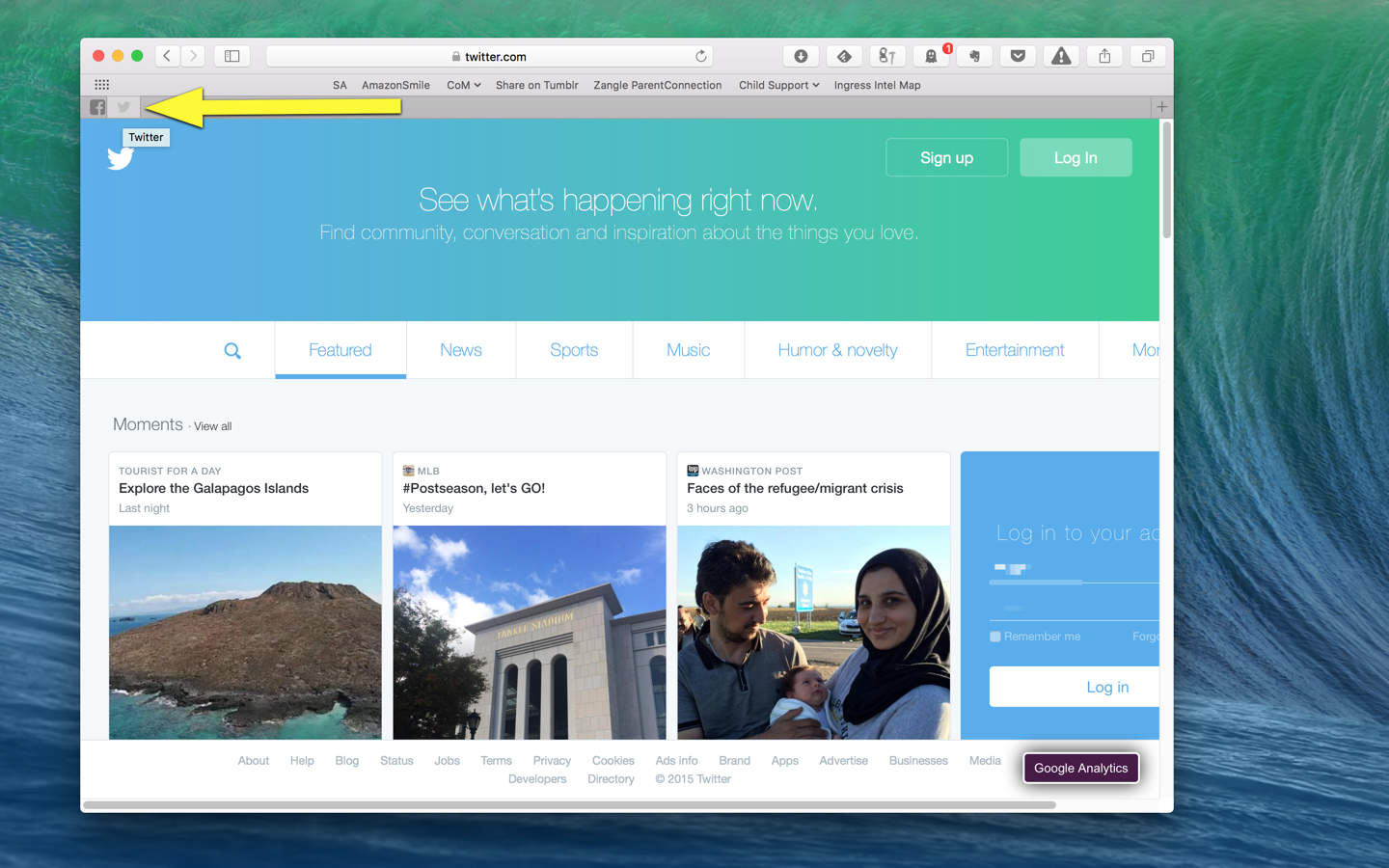
Websites these days have another tool to engage you: the desktop notification. Many sites, this one included, allow you to opt in to a system of popup notices that encourage you to click through and see new content.

Of course, not all content is created equal, and you might someday wish to stop being notified of new cat photos from that feline-friendly website.

Here’s how to manage web notifications using two of the Mac’s most popular web browsers, Safari and Chrome.

How to keep your Apple Watch Glances quick

By

Sorry, but you can't get rid of this Glance.
Photo: Rob LeFebvre/Cult of Mac

Most every app I’ve installed on my Apple Watch brings some sort of Glance along with it. While that’s a neato-keen thing to put in your App description to sell more apps, I’m not convinced that every app I have needs to be on my wrist.

Nuzzle, Words with Friends, Tile, Fandango, Foursquare: These are all apps I surely do not need or want on my Apple Watch.

Here’s how to clean up your Apple Watch Glances section for a much more focused and clear informational workflow. Because seriously, how many swipes do I need to get to the battery Glance?

How iCloud could save your Mac from El Capitan’s destruction

By

The cloud service that often lets people down saved me from catastrophe.
Apple's often unreliable cloud service sure saved me from a potential catastrophe.
Photo: Apple

As you may have heard, Apple released the public beta for OS X El Capitan yesterday. Since I tend to ignore the risks of beta software in favor of all the new features, I downloaded it on my mid-2011 MacBook Air. Do yourself a favor: don’t be like me. Understand and acknowledge the risks of beta software. It’ll save you time and data.

How to follow non-artist profiles in Apple Music Connect

By

You'll see way more new music suggestions this way.
Photo: Rob LeFebvre/Cult of Mac

Apple Music Connect is like another version of Apple’s failed Ping service. It’s being promoted as a way to keep in touch with your favorite artists, but man is it impersonal.

My Connect page is full of bland PR-style stuff and links to buy music from artists I’m following. There’s just not enough quality posts in there to justify checking it each day.

Until now. Jonathan Poritsky has a fantastic idea over at his music blog: why not follow the folks on Apple Music who actually share and curate music? Follow Julie Adenuga, Zane Lowe, or any of the genre or curator profiles hidden in Apple Music.

These are the folks that are sharing amazing music. Here’s how to follow them.

3 easy ways to record Beats 1 audio onto your Mac

By

beats-1-radio-shows-day-one - 1

Screen: George Tinari/Cult of Mac

Beats 1 is live 24 hours a day, seven days a week, and it’s a fantastic way to get your dose of what’s happening right now in urban music.

Problem is, just like the terrestrial radio that it uses as its model, Beats 1 doesn’t have an archived recording of its shows. If you want to hear a specific DJ or interview, you have to tune in.

There are ways, however, of recording the audio stream with varying degrees of “free” and “easy.” Two of them involve some technical know how while the third will require you to drop some cash. Check it out.

Keep your kids ‘safe’ and remove swear words from Apple Music

By

Parental Advisory label
Apple Music streams music bleep-free unless you take some action.
Photo: Wikipedia

Apple Music is the latest way to stream a ridiculous number of tunes on demand. And with all that variety, you’re going to get some cursing in there. It’s just how a lot of musicians work.

But if you don’t want to hear all of those bleepables and swears, it’s a pretty quick fix to keep it from showing up in your stream. Here’s how to do it.

Create and share Apple Music playlists with your buddies

By

Like mix tapes for modern lovers.
Photo: Rob LeFebvre/Cult of Mac

One of the cool things you can do with a streaming service like Apple Music, Spotify, or Rdio, is making and sharing playlists. It’s a way to seriously curate your own musical taste, and then show off by sending along to others.

It’s not super tricky, but the downside of such a new user interface like the one in the just released Apple Music is that things may not be where you think they should be.

With that in mind, let’s jump right in and make a new playlist. Then let’s learn how to share it with our Apple Music buddies.

Did iCloud Music Library break your collection? Here’s a fix

By

Maybe wait until you try this on your own Mac.
Photo: Apple

Several iTunes users have taken to the Apple Discussion forums to complain about iCloud Music Library — part of the iTunes 12.2 update — has destroyed their music libraries.

Discussions user Tuff Ghost explains that everything was fine with his 13,000 song iTunes library, until he installed iTunes 12.2 on his Mac and allowed it to enable iCloud Music Library.

“All of the (sic) sudden it starts overwriting my album art with completely wrong art (example: Weezer showed art for a Radiohead album) on both my iMac AND my iPhone, screwing up metadata by putting random songs in albums where they didn’t belong (there was a Cursive album where the first track was listed as a Foo Fighters song).”

When he clicked to listen to a song, it would play a completely different one, like the metadata for the files was completely incorrect.

If this is happening to you, another Discussions user may have found a solution.

ProTip: Get your Apple Music username before someone else does

By

Add your unique username for Apple Music Connect before someone else snags it.
Screen: Rob LeFebvre/Cult of Mac

When you sign in to Apple Music, you have access to Apple’s new music-centric sharing and socializing system, Connect.

While Ping may have come to an an ignominious end, Connect has the advantage of being integrated into the new, exciting Apple Music to the very core, and will let everyone signed into an Apple ID account (not just Apple Music members) use the system to follow their favorite artist.

When you comment on a Connect post, though, you’ll be known by a user name, which uses the @ symbol just like Twitter.

If you want to have something unique, though, you’ll need to act quickly and enter it now, before the service gets clogged up with all the other people that might want your specific user name. Here’s how to do just that.

How to not get auto-charged for your Apple Music subscription

By

You'll still get your three months, just not charged for the fourth automatically.
Screen: Rob LeFebvre/Cult of Mac

So, you’ve gotten the three month trial subscription for Apple Music, right? How exciting!

Chances are, you’ll forget all about it and, whether you love the service or not, you’ll get auto-charged in September for the $10 to $15 you chose when you signed up for your Apple Music subscription.

If you want to make sure that you aren’t automatically charged again, here’s how to turn that function off.

How to reset and re-pair your Apple Watch

By

Apple Watch reset
Apple Watch reset
Photo: Jim Merithew/Cult of Mac

If your Apple Watch stops responding to your iPhone, you can reboot it or you can turn the Bluetooth connection off and on. If that doesn’t work to reconnect your Watch, you might need to reset it, and then you’ll need to re-pair it.

Here’s how.

Plan better stories to make your iPhone videos come alive

By

Mobile editing is much easier when you have a plan.
Photo: Apple

We’ve all done it before: we head to the family reunion, the wedding, the kid’s birthday party and we just shoot everything. We have no plan except that we think we’ll have time later to edit it down to something interesting.

Unfortunately, that just leads to a bloated iPhone with too many unnecessary video files. Plus, you know you’re never going to get around to sitting down and looking through all that footage again. Ugh.

With a good plan, however, and a firm grasp of one simple storytelling technique, you’ll avoid this problem and create some amazing videos without a whole lot of extra work.

Here’s how.

Capture blur-free iPhone vids with this tip

By

Lock focus and exposure values for better video (and photos).
Photo: Steve Brooks/Image North

Your iPhone is set up as a still camera first and foremost, so it tends to automatically focus and expose your images. This is fantastic when you need a quick snapshot, but when you’re taking video, the constant re-focusing and exposure adjustment just makes everything look blurry and amateur.

You can tap the screen in either video or photo modes to get a quick adjustment, but the minute you or or subject moves, all bets are off. Your best chance, then, at keeping your iPhone videos blur-free is to lock the focus and exposure.

Here’s how.

Siri’s dance jokes are only one step up from dad puns

By

Not only is Siri helpful, but she's got some bad puns to share as well.
Photo: Apple

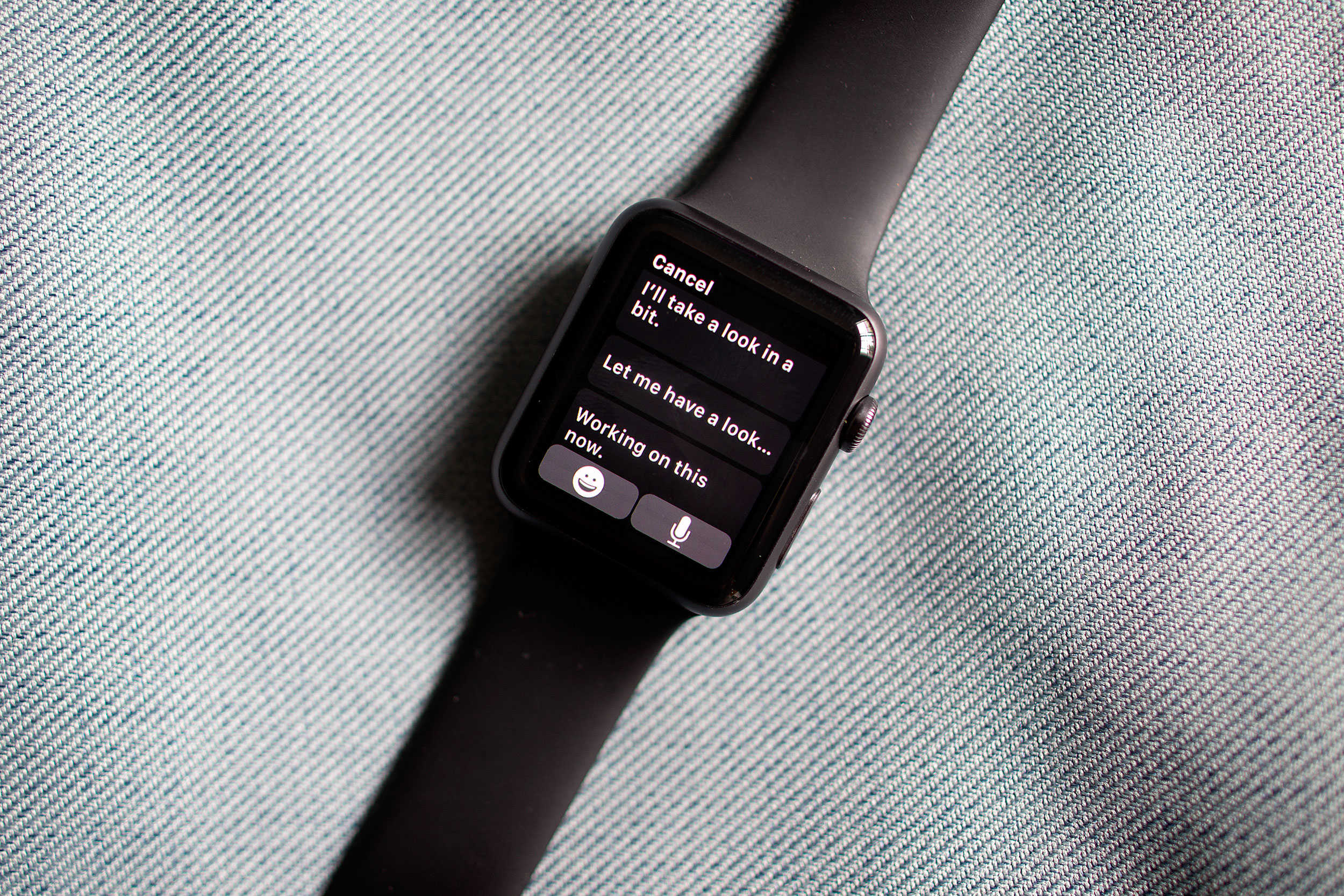
Apple Watch owners have to rely on Siri more than iPhone users do, what with the lack of the keyboard and such. However, Siri’s got some funny easter eggs built right in, and it’s fun to try and figure them out.

Use your Apple Watch to ask Siri to show you her dance moves and she’ll bust out some lines that are funny, sure but end up sounding more like dad jokes, to be honest.

#ProTip: How to get users in the habit of using your app

By

Sally Shepard was speaking at AltConf about how to get users to actually use your app.
Photo: Jim Merithew/Cult of Mac

Cult of Mac is at WWDC and AltConf fishing for ProTips. It’s a rich hunting ground — it’s the world’s biggest gathering of Apple developers, the alpha geeks, experts par excellence. What’s a ProTip? A ProTip is a nugget of knowledge, a little bit of expertise from someone in the know — a pro.

It sounds counterintuitive, but for many iOS developers, the easy part is getting people to download their app from the App Store. The hard part is getting people to use the app. Ideally, developers want them to use the app regularly. They want them to get into the habit of using it.

How do you do that? Sally Shepard, an app consultant who spent many years working with big publishers, has a great little tip.

How to install El Capitan safely on your Mac right now

By

Hair Force One rocking the El Capitan reveal.
Trying out El Capitan on your Mac isn't too hard.
Photo: Apple

If you’ve got an Apple developer account and a Mac, you might want to instal the latest OS X 10.11, better known as El Capitan, onto your machine right now.

Until it’s out of beta, though, you might want to consider installing it on a second partition of your Macintosh, in case things get wonky. It is a beta, after all, and you should never rely on a beta for a mission-critical device.

If you’re un-daunted still, here’s how to install El Capitan safely onto another partition on your Mac to try it out without nuking your current install of Yosemite.

How to install Apple Watch beta ASAP

By

watchOS 2 is available to developers today.
Photo: Apple

If you’re an early adopter of Apple Watch as well as a registered Apple developer, you can get the new watchOS 2 on your wrist right now. It takes a bit of effort, including getting into your copy of Xcode, but it seems like that might be worth it for those of us who like to get all the new stuff right away, as well as the folks that are making tomorrow’s apps for today’s it device.

Here’s how you get your Apple Watch beta set up.

How to install iOS 9 beta on your iPhone or iPad right now

By

iOS-9-changes
New features and improvements are coming to iOS 9.
Photo: Apple

If you’re curious about the new changes coming to iOS 9 and you’ve got an Apple Developer account, you can head over and get the latest operating system for Apple’s mobile devices (iPhone and iPad) from the developer website.

You’ll need to register your iPhone or iPad with the Developer website, first, then download the new iOS 9 beta and install it. Here’s the breakdown of getting iOS 9 onto your iPhone or iPad, which is required if you want to try and install watchOS 2 beta for your Apple Watch.

Weird Digital Crown fix will make you fear for your Apple Watch

By

Yikes! Water and electronics still freak me out.
Photo: Rob LeFebvre/Cult of Mac

My Apple Watch is getting a little crufty. I wear it every day, including when I sweat a lot — like during a run, for example.

Recently, the Digital Crown started to get a little tough to turn. It took extra effort to spin the darn thing, and I wasn’t able to rotate it smoothly anymore.

Luckily, Apple had me covered — but I wasn’t prepared for what I had to do to get this Digital Crown fix to work.

How Force Touch unlocks the power of your Apple Watch

By

Apple Watch-style Force Touch is coming to both iPhone models this September.
Sometimes it's OK to just push really hard.
Photo: Apple

Early adopters of the Apple Watch are still exploring the new wearable to discover all its hidden functionality. The least obvious feature in Apple’s newest device is Force Touch, which lets you change some settings by pressing firmly on the screen.

It’s a weird thing to get used to, and sometimes it’s even tough to remember that it’s an option, so here’s a handy guide to everything that Force Touch can do with the apps included on your new Apple Watch.

Get your Safari bookmarks from your Mac to your iPhone

By

Bookmarks everywhere!
Photo: Rob LeFebvre/Cult of Mac

I took the plunge and downloaded a password manager today, and when I was researching how to use it on my iPhone, one help page said I needed to put some bookmarklets onto my Mac and then move them over to the iPhone.

Problem was, I wasn’t sure how to make that happen; I figured it was just automatic.

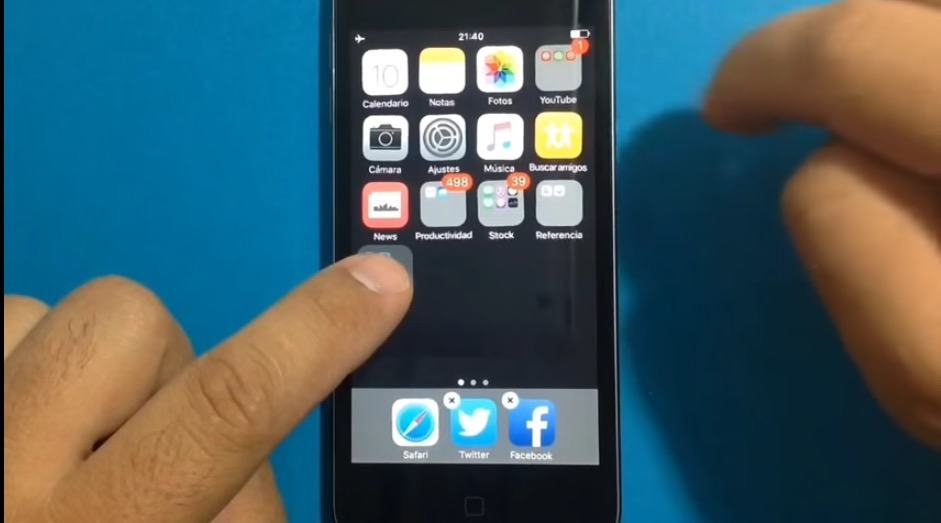
It might be magically enabled for you, but if you’re like me and don’t know how to get your Safari bookmarks from one device to the other, here’s how to get it to work.