A Critter Carol is a delightful holiday treat from Apple. Photo: Apple
Apple delivered some of its most memorable advertising campaigns in 2025, blending storytelling, humor and technical innovation. From emotional tributes to playful satire, the tech giant demonstrated why it remains a marketing powerhouse.
Here are the best Apple ads of 2025, which really helped define Cupertino’s creative year.
This feature could save you in a pinch. Image: D. Griffin Jones/Cult of Mac
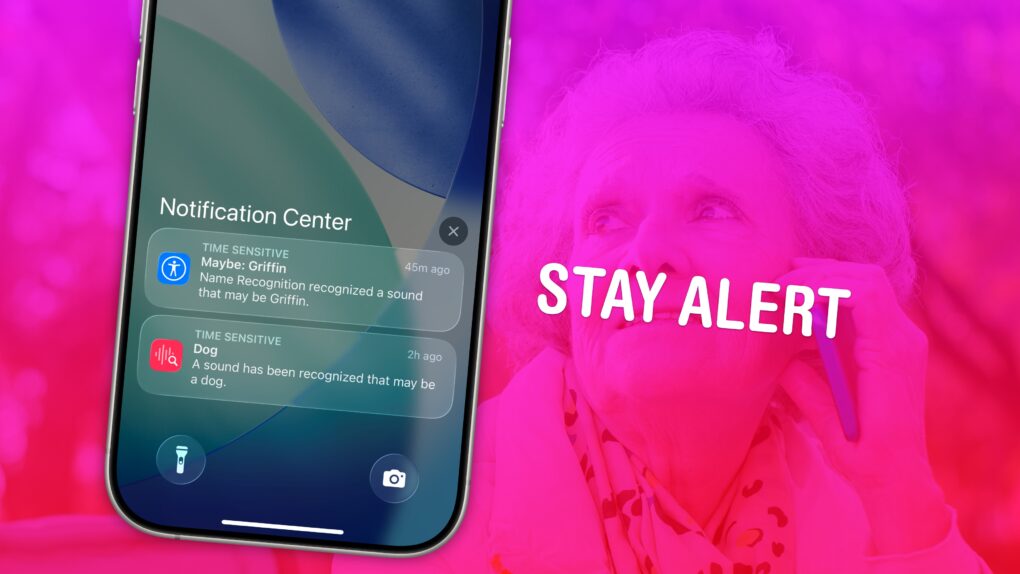
If you have trouble hearing, you might miss the sound of a knock on the door, a barking dog, or even worse — a smoke detector. Or, you might miss someone calling your name when they’re trying to get your attention. It’s less serious, but much more annoying. With Sound Recognition, you can get a prominent alarm and a buzz on your Apple Watch or iPhone when your phone hears the sounds you choose.
When Sound Recognition is enabled, your iPhone will continuously listen for dangerous sounds. It could, literally, be a lifesaving feature for you or a loved one. And Name Recognition lets you train your phone on how to recognize your name.
Here’s how to use these important safety and productivity features.
Your iPhone can read text from websites and iMessages (and even words in photos). Here's how to make it happen. Image: D. Griffin Jones/Cult of Mac
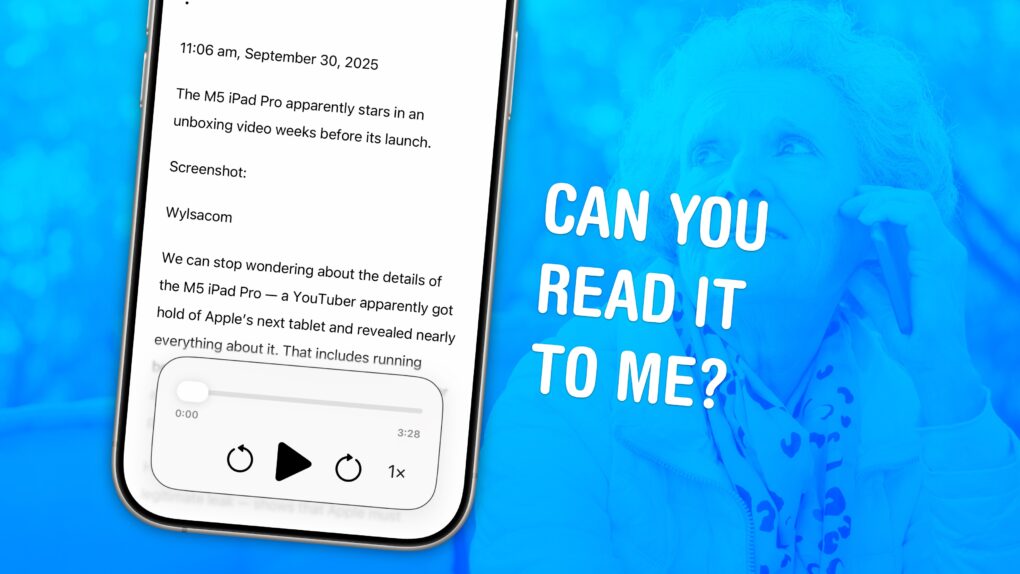
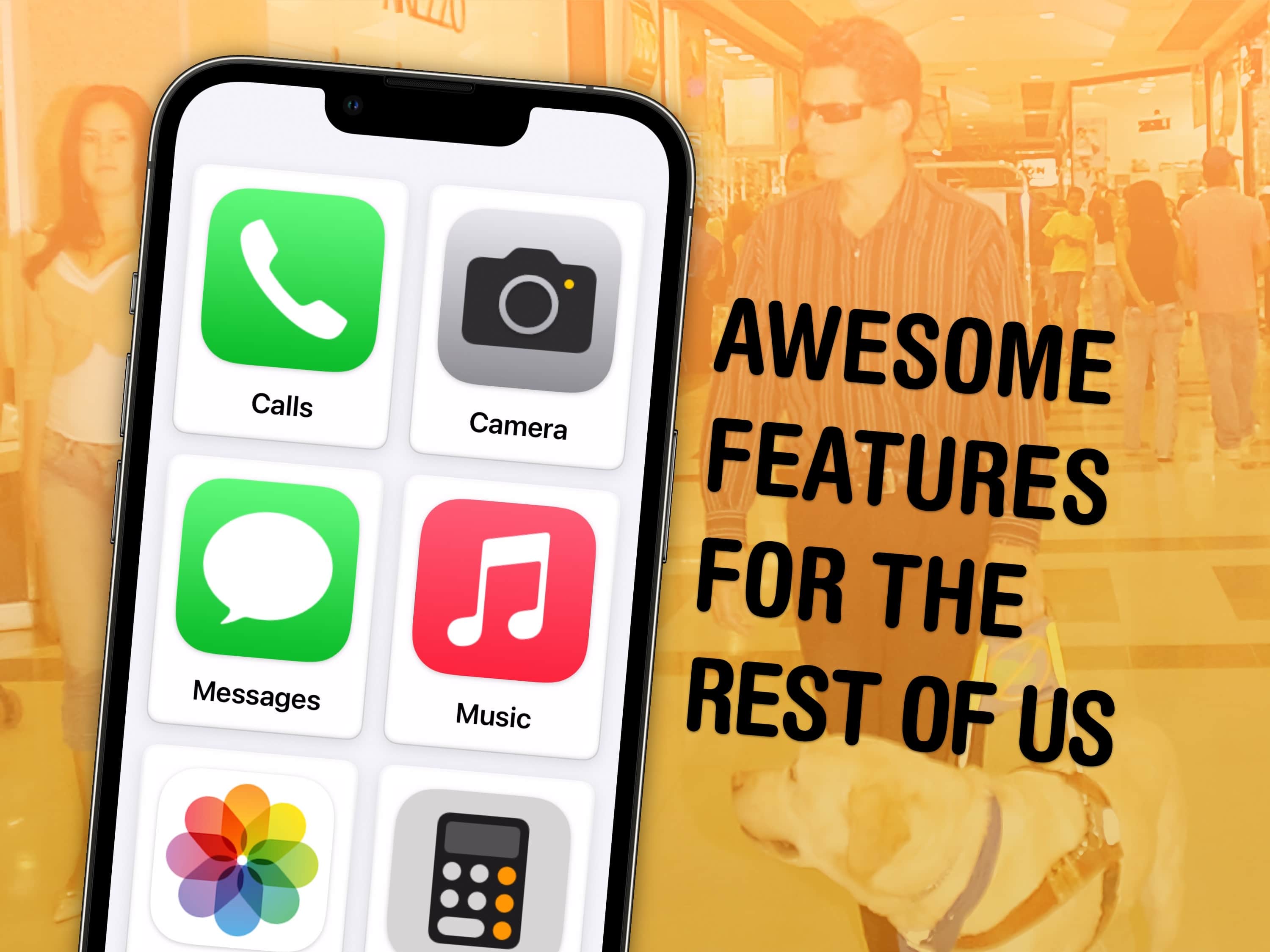
You can have your iPhone read out loud any text on its screen with a useful accessibility feature called Accessibility Reader. Apple designed this feature for people who have trouble reading small text, but you will find it handy even if you don’t — in lots of situations.
For instance, your iPhone can read recipes aloud while your hands are busy cooking. Or you can quickly hear how to pronounce a word you don’t know — that’s what I use Accessibility Reader for most often. You can even hear what you’re typing as you write.
The potential applications for everyday use are incredibly broad. Here’s how to use Accessibility Reader and all of the iPhone’s Read & Speak features.
A comprehensive suite of new Apple accessibility upgrades relying on Apple silicon and machine learning to enhance usability across products and services will launch later this year, the iPhone giant said Tuesday.
The innovations aim to make Apple devices more usable for people with various disabilities. Those include visual impairments, hearing loss, mobility challenges and cognitive differences.
“At Apple, accessibility is part of our DNA,” said Tim Cook, Apple’s CEO. “Making technology for everyone is a priority for all of us, and we’re proud of the innovations we’re sharing this year. That includes tools to help people access crucial information, explore the world around them, and do what they love.”
Add another level to your music. Image: D. Griffin Jones/Cult of Mac
The new Music Haptics accessibility feature in iOS 18 adds another dimension to audio: vibration. Taking advantage of the incredible precision of the iPhone’s Taptic Engine, the feature brings to life a specially recorded track of rhythmic vibrations and buzzing patterns timed to certain Apple Music songs.
Switch it on, and you can hold your iPhone in your hands and feel your music in a whole new way. Keep reading to see how the feature works (or watch our video that explains it all).
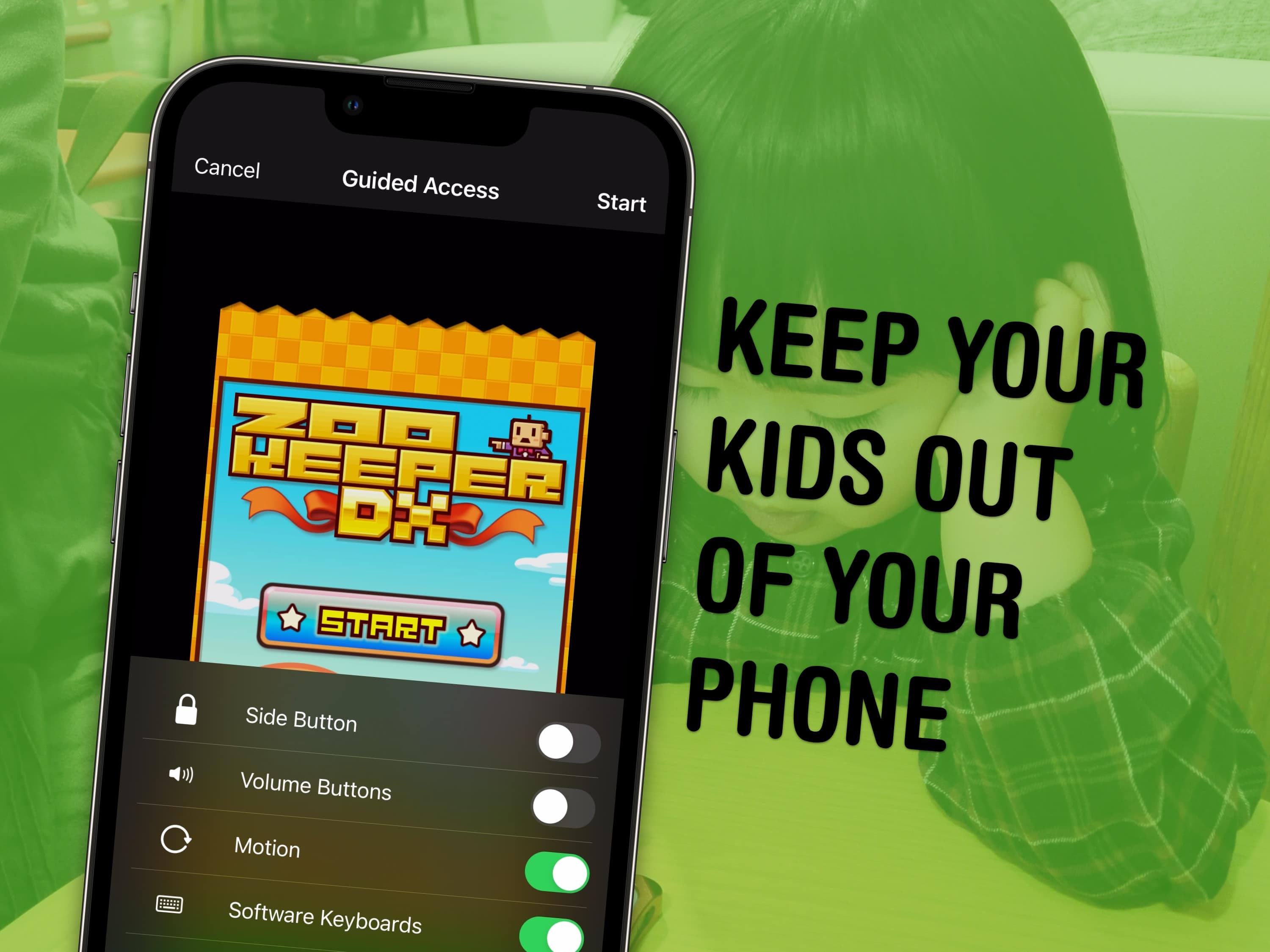
Lock your kids into a game (like Zookeeper) when they have your phone. Image: MIKI Yoshihito/Wikimedia Commons/D. Griffin Jones/Cult of Mac
You can use a feature called Guided Access to lock down your iPhone to a single app before you hand it to a kid or someone else. You might want to let your offspring play a game, or pass your phone around for controlling music, or hand it off to show someone a video … but you probably don’t want them going rogue and reading your texts or calling your mom.
In Accessibility settings, you can enable Guided Access to limit your iPhone to a single app before you hand it off. It’s a kind of quick and dirty “guest mode.”
This will help you keep your phone — and your privacy — safe. You can even disable features like the volume buttons and set up time limits.
Sometimes it can be hard reading your screen. Image: D. Griffin Jones/Cult of Mac
It’s easy to zoom in on your Mac screen and get a closer look at your display. If the text is just too small to read, or perhaps you’re making some graphics and you need pixel-perfect alignment, a simple tweak to your Mac settings is all you need.
Using your Mac’s zoom feature, you can hit a keyboard shortcut or use a multitouch gesture on your trackpad to zoom in on your screen. I’ll show you how to use this handy feature. Plus, I’ll cover Hover Text and Display Scaling, two more features that help you embiggen the words on your Mac screen.
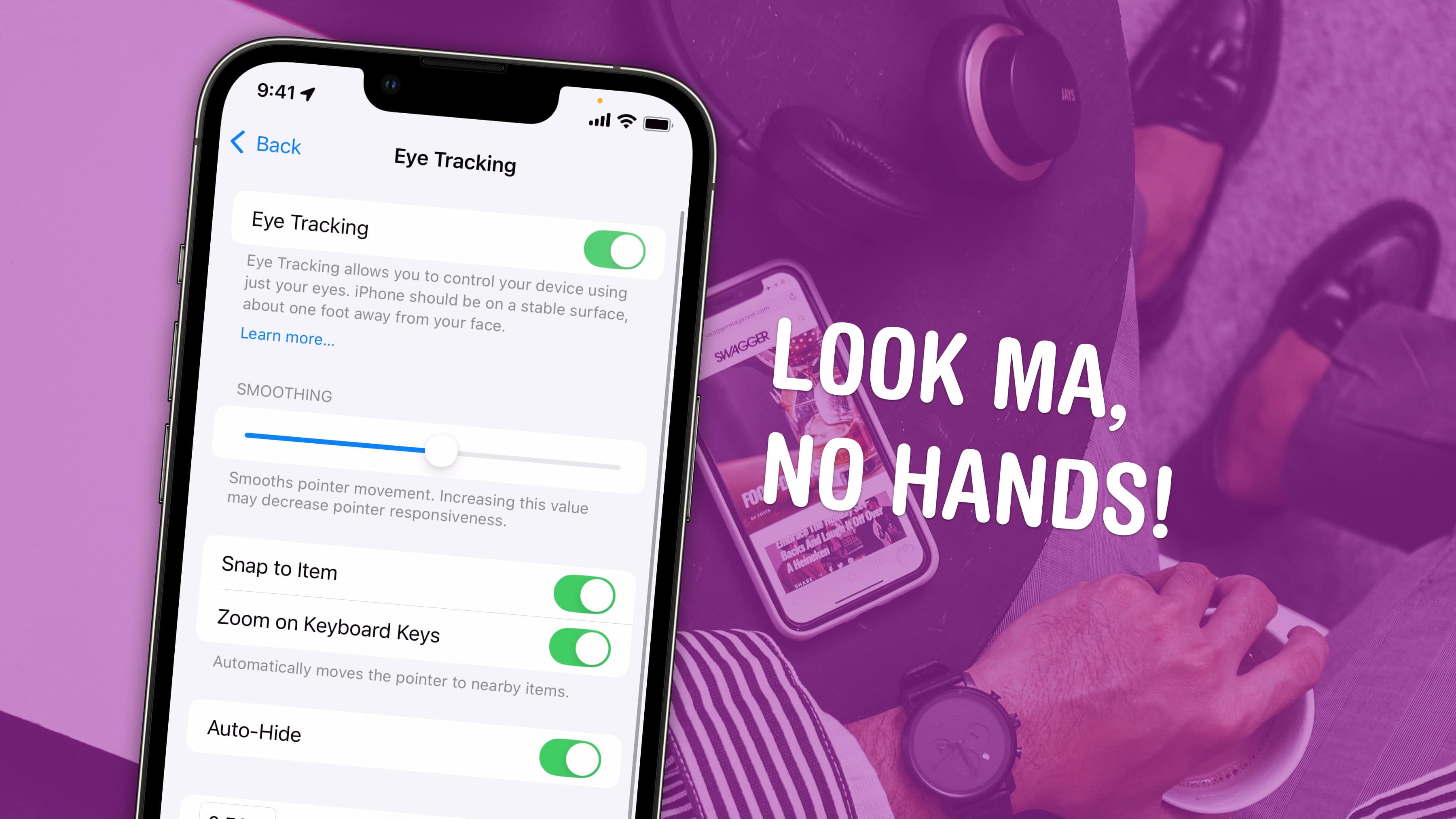
Control your iPhone from afar. Image: D. Griffin Jones/Cult of Mac
Eye Tracking is a pretty remarkable and ambitious accessibility feature that lets you control your iPhone entirely with your eyes. You can use this feature in a pinch if you need to use your phone with soapy hands while doing the dishes or with grimy hands while working on a car or doing other dirty work. Alternatively, if you’re losing your fine motor skills, this feature could be an essential one to learn.
Likely borrowing some of the software from the advanced Vision Pro headset, this feature lets you control your iPhone hands-free. And once you set up Eye Tracking, you can use the iPhone’s Sound Actions feature. It lets you perform certain functions, like toggling your flashlight or taking a screenshot, just by making various mouth noises.
As a passenger, of course. Image: D. Griffin Jones/Cult of Mac
Apple’s Vehicle Motion Cues feature will help you use your iPhone in the car by reducing feelings of motion sickness. With the feature turned on, dots along the edge of your iPhone screen will animate in sync with the motion of the plane, train or automobile you’re riding in.
According to Apple, “Motion sickness is commonly caused by a sensory conflict between what a person sees and what they feel.” Apple says these animations “reduce sensory conflict.”
It may sound weird, but the feature evidently works really well. Here’s how you can enable it.
Chill out and silence the sounds of your environment with the sounds of rain, the ocean and more. Image: D. Griffin Jones/Cult of Mac/W.carter/Wikimedia Commons
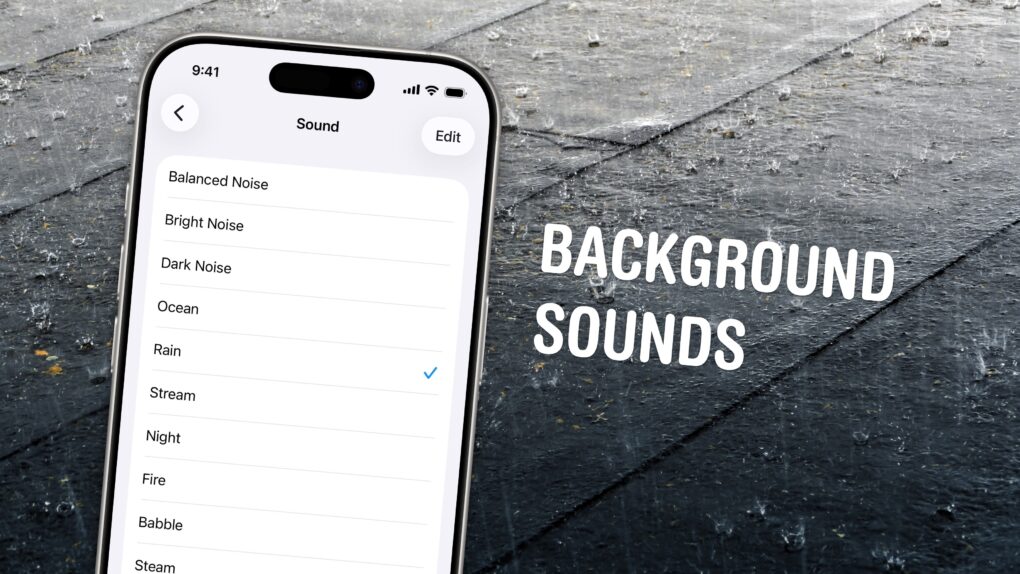
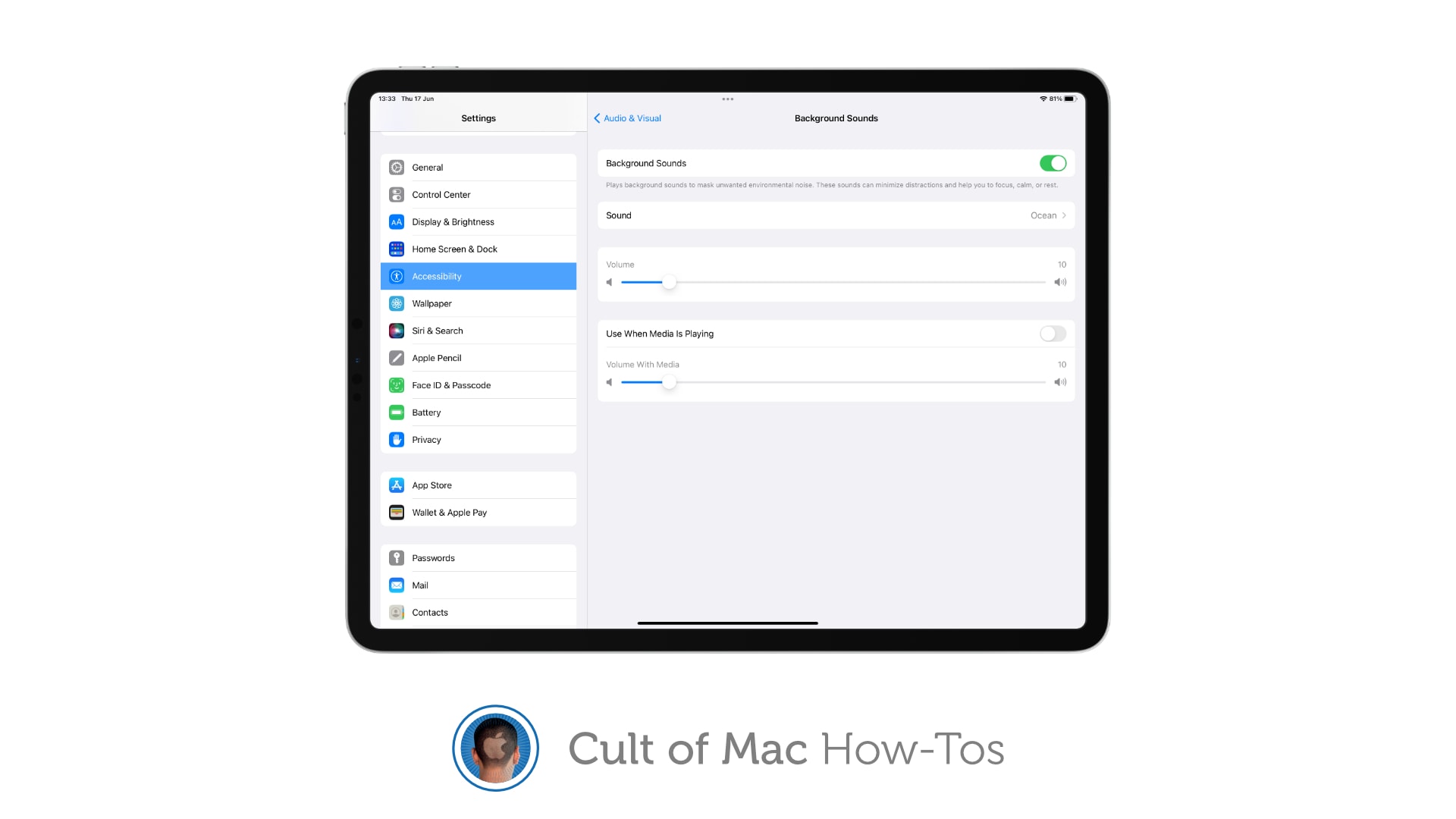
Working in an office or in the city, you’re probably inundated with noise from people chattering, cars running and nearby music. Your iPhone has a built-in feature called Background Sounds for playing rain noises or white noise to tune it all out.
You don’t need to download any apps or pay a cent; it comes for free on your Mac and iPhone. Let me show you how it works.
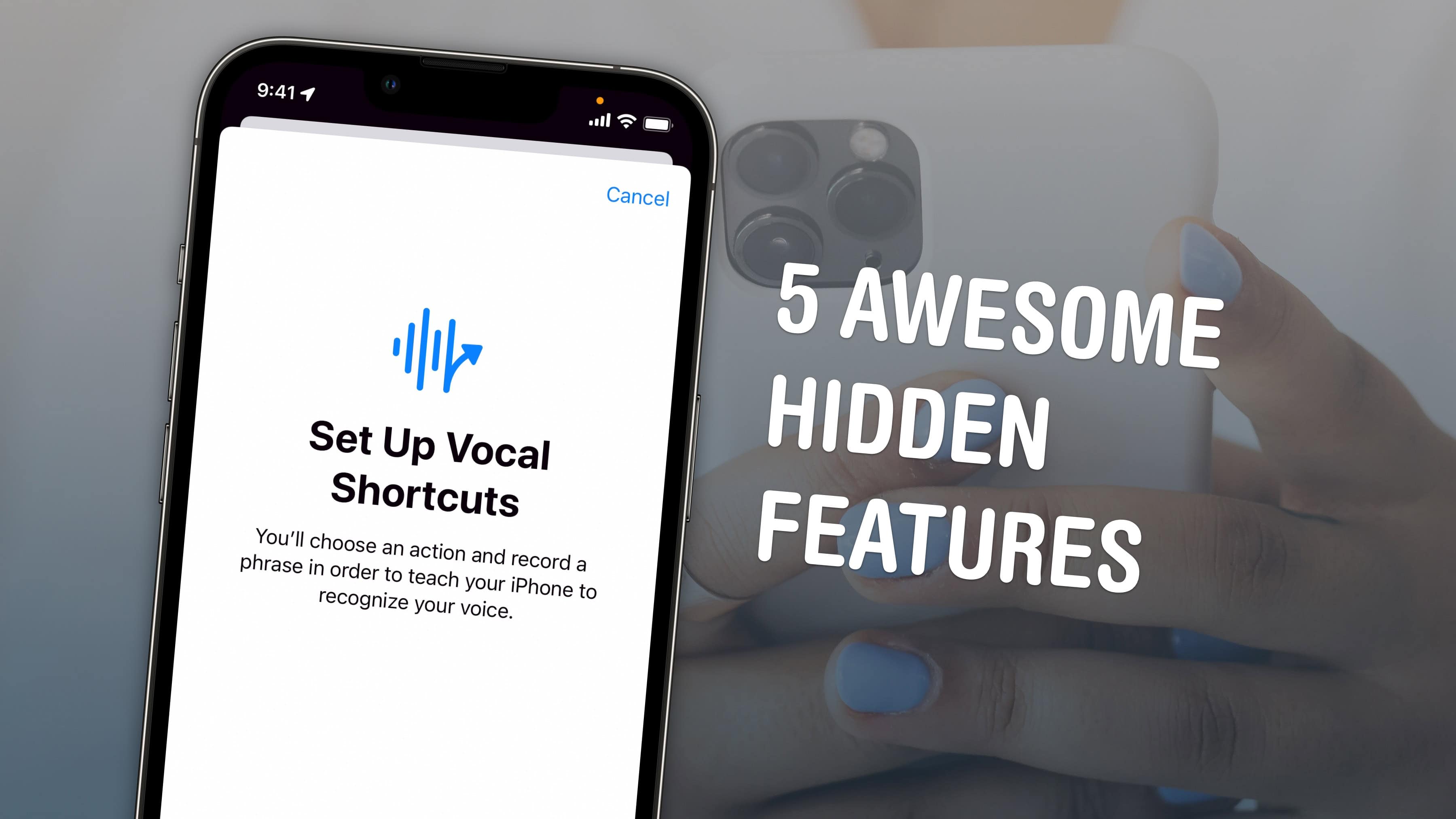
Apple buried these great features in iOS 18's accessibility settings. Image: D. Griffin Jones/Cult of Mac
iOS 18 is getting a bunch of cool new accessibility features this year, including bringing eye tracking to the iPhone for the first time. You also can feel haptic music, control your phone with custom voice commands, use your phone in the car without suffering from motion sickness, and improve the accuracy of Siri and dictation.
The side button does much more than you think. Who needs an action button? Image: D. Griffin Jones/Cult of Mac
The iPhone 15 Pro’s customizable Action button lets you pick from several presets, including Accessibility — which lets you choose from 25 different accessibility features that you can toggle on or off. These features aren’t limited to the iPhone 15 Pro’s Action button, either. On any older iPhone, you can simply triple-click the side button to access those same 25 accessibility features.
Here are all 25 of the accessibility features you can assign to a button on your iPhone — and what they do.
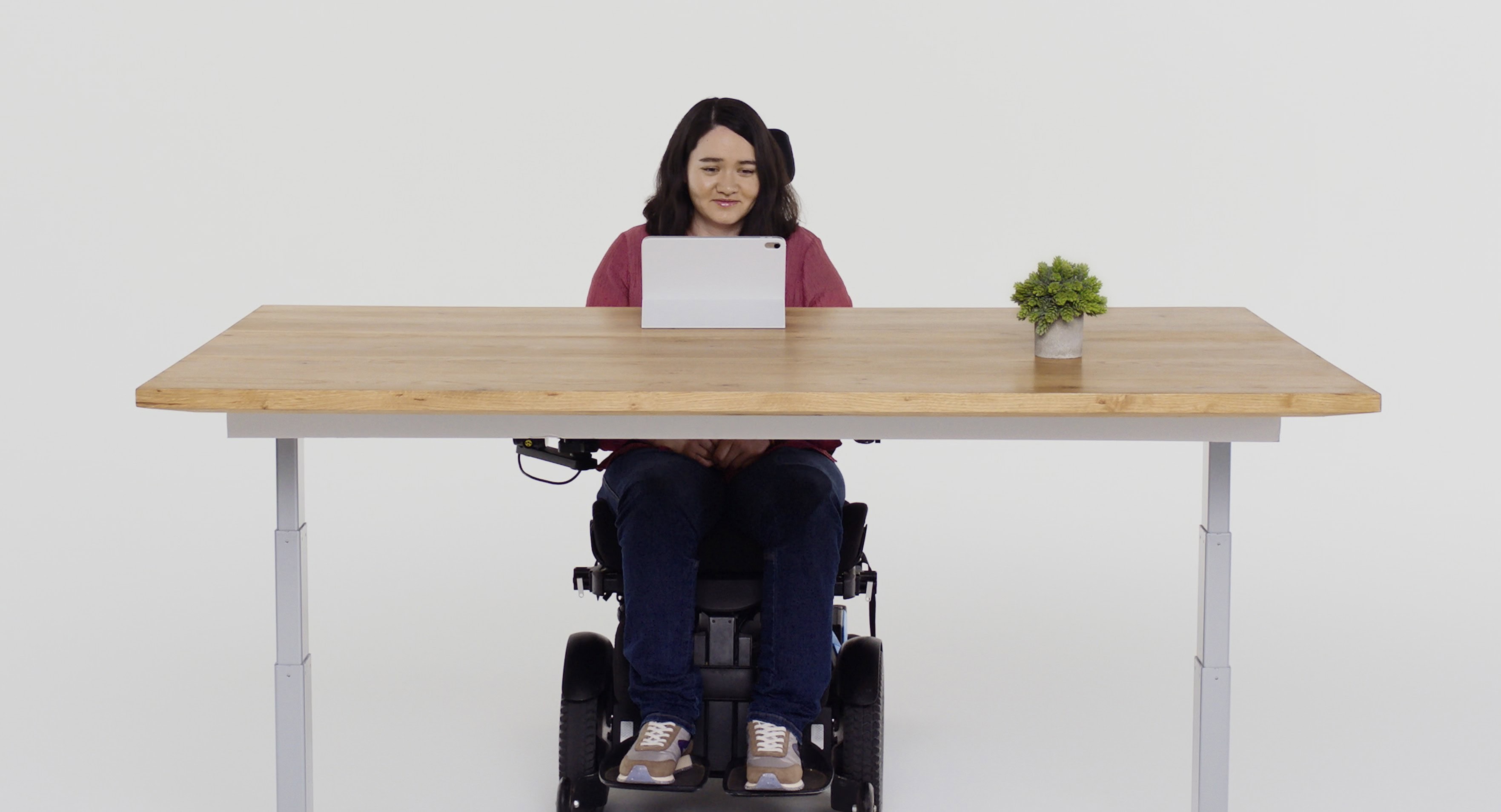
With Eye Tracking, a user can navigate iPhone or iPad using just their eyes. Photo: Apple
Apple showcased some remarkable new accessibility features for people with disabilities Wednesday, including Eye Tracking, Music Haptics and Vocal Shortcuts.
The new features, coming later this year to Apple devices, harness Apple silicon, artificial intelligence and machine learning. They will come mainly to iPhone and iPad, though some new ones will appear in Vision Pro’s visionOS, too.
“We believe deeply in the transformative power of innovation to enrich lives,” said Apple CEO Tim Cook in a press release. “That’s why for nearly 40 years, Apple has championed inclusive design by embedding accessibility at the core of our hardware and software. We’re continuously pushing the boundaries of technology, and these new features reflect our long-standing commitment to delivering the best possible experience to all of our users.”
Your iPhone has a text-to-speech feature built-in. You don’t need to download an app. Image: D. Griffin Jones/Cult of Mac
In iOS 17, the iPhone got a built-in text-to-speech feature called Live Speech. You can even use Live Speech with a digital version of your own voice called Personal Voice.
Apple devised Personal Voice for users “at risk of losing their ability to speak — such as those with a recent diagnosis of ALS (amyotrophic lateral sclerosis) or other conditions that can progressively impact speaking ability.” It was the subject of a touching and heartfelt video Apple made called “The Lost Voice.”
What’s new in iOS accessibility? You might be surprised. Image: Antonio Cruz/Wikimedia Commons/D. Griffin Jones/Cult of Mac
If you haven’t looked at any of Apple’s accessibility features because you’re not blind or deaf, and don’t think they would make your life easier, you might be surprised.
Apple built a handful of accessibility features into iOS 17 that let people with various disabilities use the iPhone in new and unexpected ways. However, absolutely anyone can take advantage of these tools, which prove surprisingly helpful in certain situations.
In iOS 17, five accessibility features take things even further. Assistive Access simplifies your phone to its bare features to make it easier to use; Live Speech and Personal Voice let you type on the keyboard to speak using your own voice; Detection Mode and Point and Speak help you get around using your iPhone camera.
Our hands-on demo will show you what these features can do for you.
Imagine getting a text from a friend and your iPhone reads it to you in your friend’s voice. Photo: Rodolfo Clix/Ed Hardy/Cult of Mac
Apple’s newly announced Personal Voice technology enables an iPhone to read text in the user’s own voice. The same tech could be used to read incoming text messages in the sender’s own voice, making them feel more personal.
This isn’t a theory — Apple submitted a patent for exactly this idea in early 2023.
Apple will bring Assistive Access, Live Speech and Personal Voice to iPad and iPhone. Photo: Apple
Just can’t wait for WWDC23? Apparently, Apple can’t either because it’s already starting announcing new features that will almost certainly be in iOS 17, iPadOS 17 and macOS 14.
These are aimed at those with disabilities, and include Live Speech and Personal Voice. These will allow those with speech disabilities to participate in conversations in a synthesized voice that sounds like the user.
You can read a podcast! …kinda. Image: D. Griffin Jones/Cult of Mac
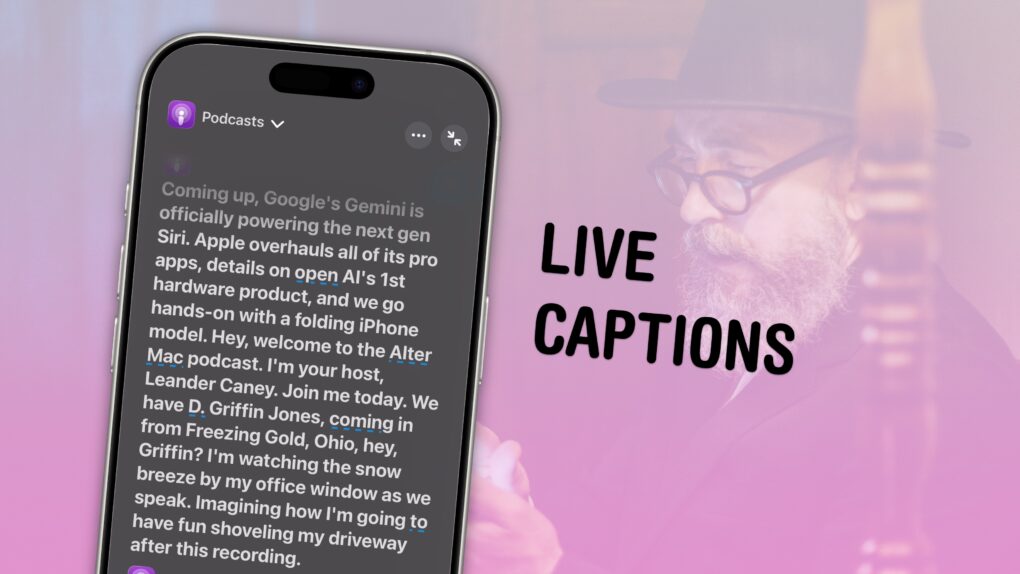
Live Captions on the iPhone generate subtitles of any media playing on your iPhone, or heard from the microphone in the real world. Powered by the Neural Engine in Apple’s custom silicon, the capability to turn words from music, videos and real-time conversations into real-time text is a boon to many users, in many different situations.
If you’re hard of hearing, for instance, the ability to see instant captions on the screen is a game changer. Or, if you don’t have headphones when you’re sitting in bed late at night and your partner is asleep – or you’re in any situation where you don’t want to make noise, like on the bus or in an office – you can turn on Live Captions to get subtitles.
The applications are endless and exciting. Here’s how to use Live Captions.
A product design Apple would be proud of -- Signia Active Pro hearing aids. Photo: Signia
Apple’s next big thing might not be a car or an AR headset. Thanks to a rule change announced this week by the Food and Drug Administration, Cupertino could soon add hearing aids to its product lineup. The potential market is huge, and Apple stands uniquely positioned to disrupt the status quo.
The new rules allow companies like Apple to sell hearing aids over the counter and online, so buyers can set them up in the comfort of their own homes. Previously, if you wanted to buy hearing aids, your only option was to make an appointment for a hearing test and fitting at a specialist store.
This small change looks set to have a big impact. FDA Commissioner Dr. Robert Califf told CNN he expects the ruling “will unleash the power of American industry to improve the technology.” And there’s one company in particular that has all the know-how to do just that — Apple.
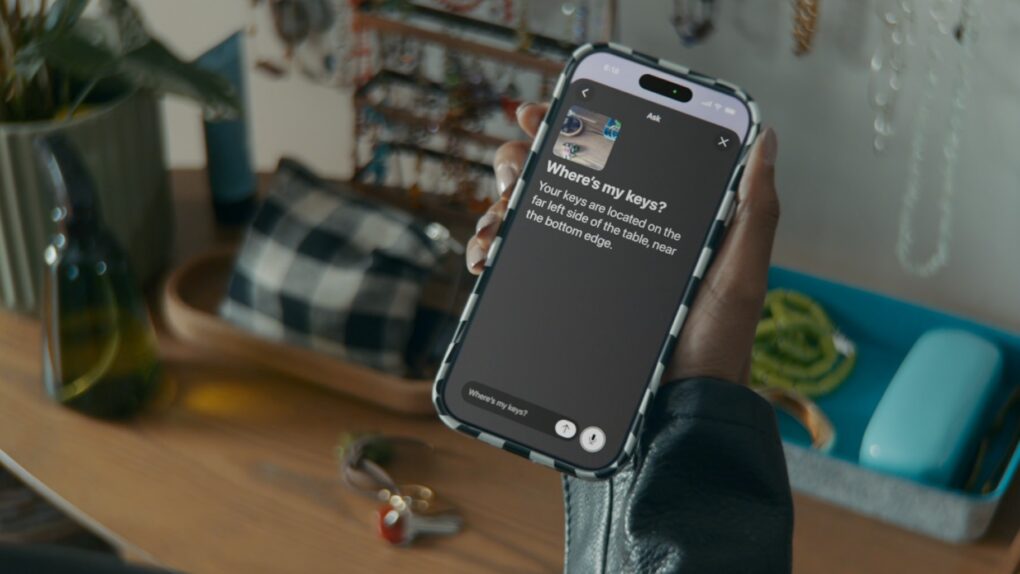
Door Detection can find and verbally describe a door to an iPhone or iPad user. Screenshot: Apple
Apple’s Door Detection uses advancements in hardware, software, and machine learning to help people who are blind or low vision use their iPhone and iPad to navigate the last few feet to their destination.
This is one of several innovative software features unveiled Tuesday with new ways for users with disabilities. These include Live Captions, Apple Watch Mirroring and more.
No need for third-party sound apps anymore. Image: Killian Bell/Cult of Mac
One of the upgrades to Accessibility in iOS and iPadOS 15 is a new Background Sounds feature that plays relaxing audio tracks to help you stay calm and focused, and to block out background distractions.
Here’s how to do an iPhone spying trick. Use it for fun, not evil. Photo: Ed Hardy/Cult of Mac
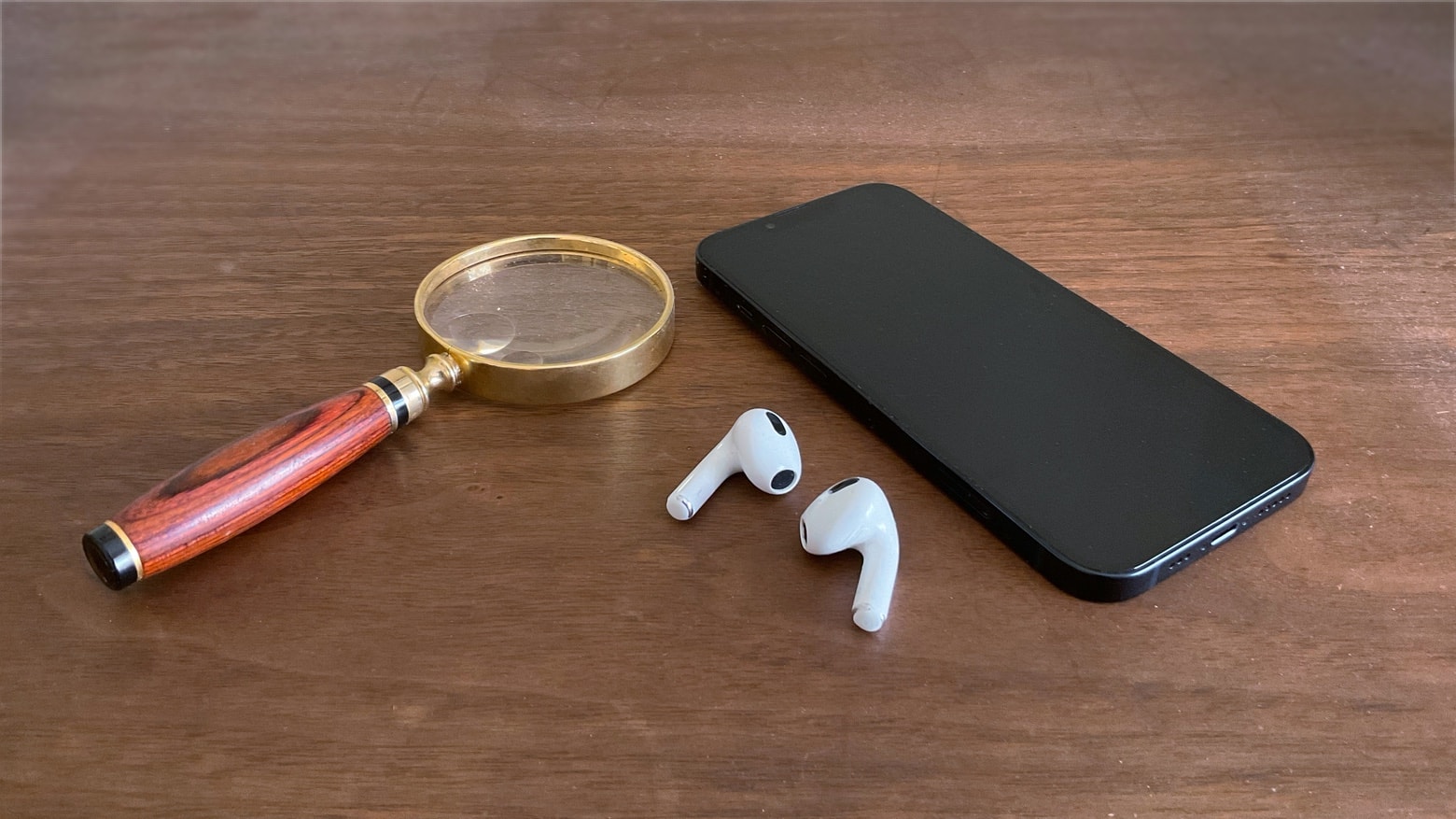
An iPhone and AirPods can be used to listen to conversations without people knowing. Such iPhone spying is really just a tricky use of the Live Listen feature built into iOS.
And, even if you’re not a budding James Bond, knowing about this trick could keep someone from eavesdropping on you. Here’s what to do if you want to use your iPhone to spy on someone. (Or what to watch out for if you don’t want to fall victim to iPhone spying.)
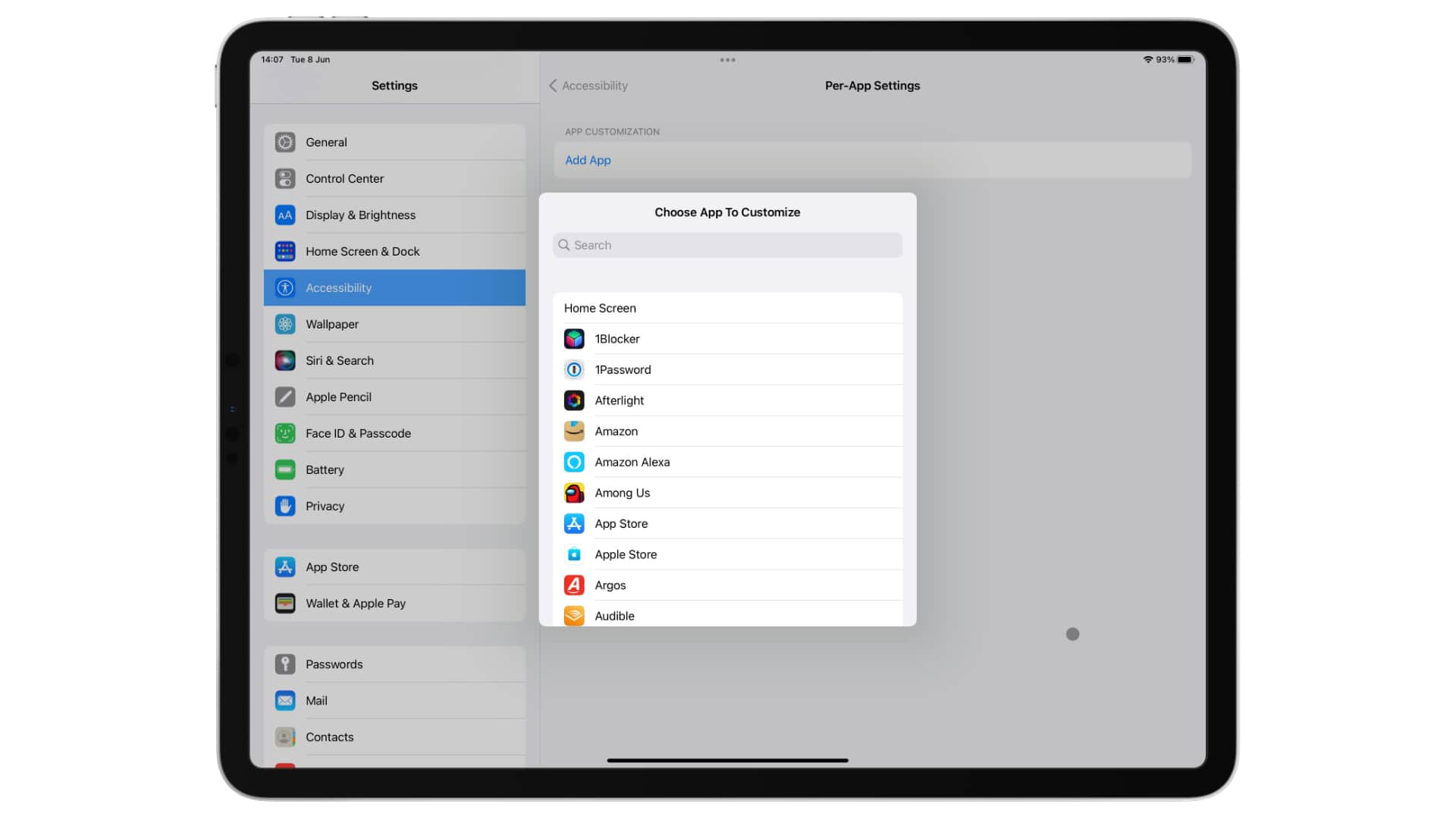
Customize apps without changing everything. Image: Cult of Mac
iOS and iPadOS 15 give you the ability to specify accessibility settings for individual apps. The change lets you adjust things like text size, increase contrast, invert colors and more only where you need to.
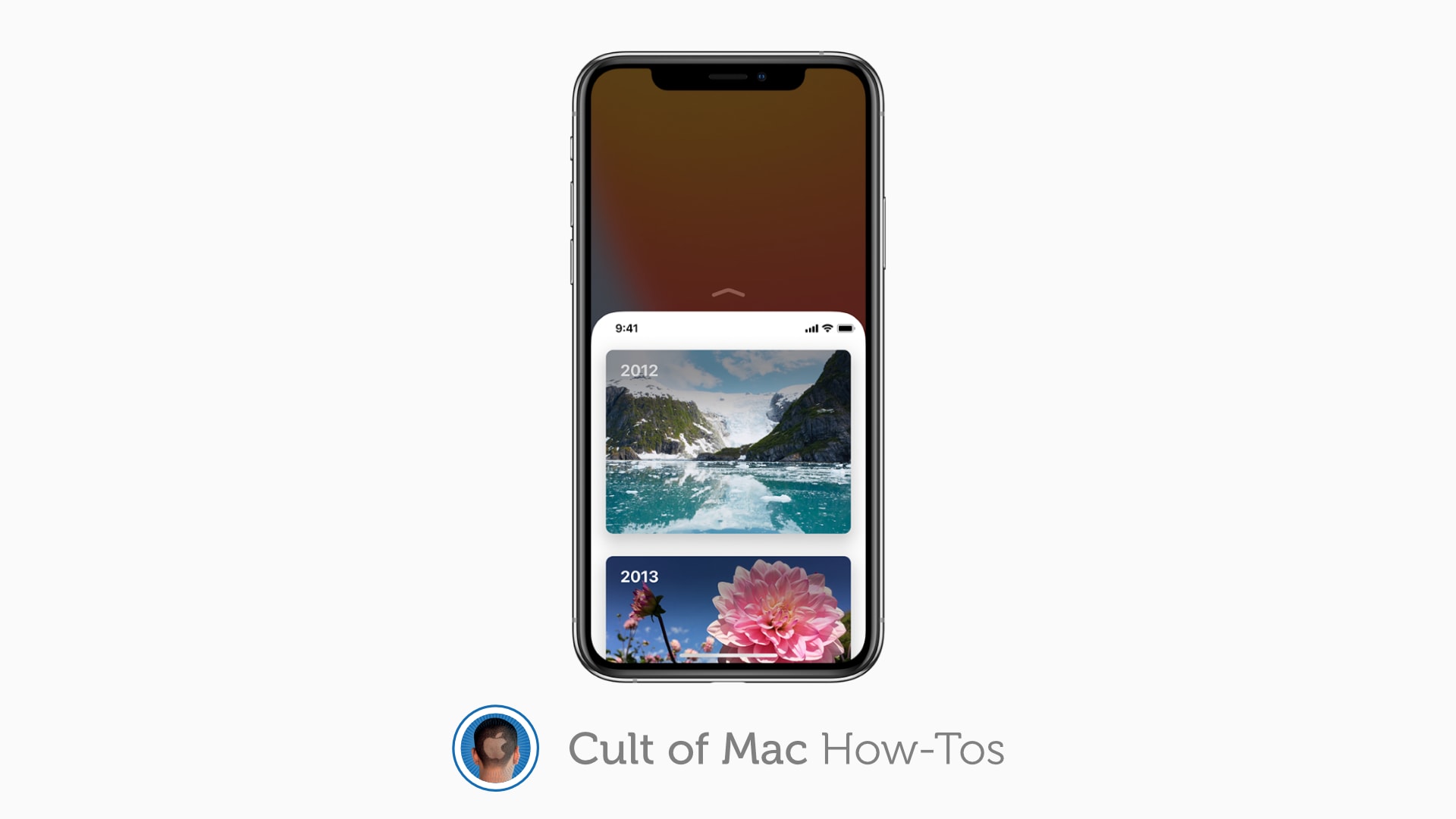
Reachability makes even the largest iPhone models easy to use one-handed. Image: Apple/Cult of Mac
Reachability remains alive and well in iOS 14 — even if you have an iPhone without a Home button. The feature, which makes even the largest iPhone models easier to operate with one hand, is super-simple to use with just a quick flick of the thumb.
However, Reachability is disabled by default, so you’ll need to turn it on. Here’s how to enable and use Reachability in the latest iPhone firmware.
AssistiveTouch lets users control Apple Watch by clenching their fists. Photo: Apple
Apple plans to release software updates this year that will make its devices far easier to use for people with mobility, vision, hearing and cognitive disabilities.
The features include AssistiveTouch for Apple Watch, which offers astonishing new ways for people with limited mobility to control the smartwatch without tapping its screen. The new feature uses Apple Watch’s array of sensors to interpret the wearer’s movement into interactions.
Cupertino showcased AssistiveTouch for Apple Watch — which lets users maneuver a cursor on the wearable’s screen simply by clenching their fist and pinching their fingers together, among other things — in a remarkable video. (We embedded the video below — definitely watch it.)
But AssistiveTouch for Apple Watch is just the beginning of Apple’s latest big push into accessibility.