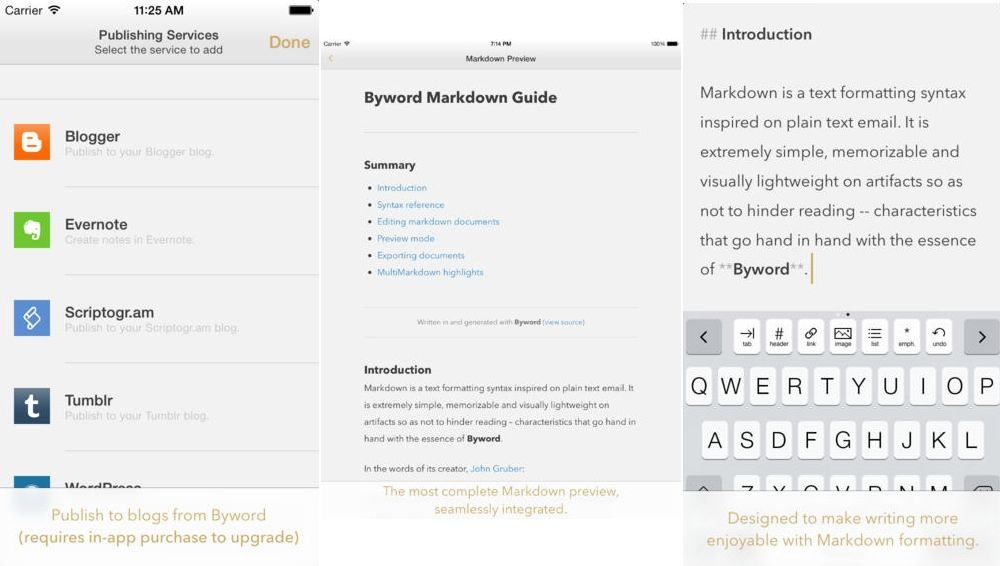
Byword on iOS just got around 100 times more rad, and way easier to use, with the addition of one single feature: keyboard shortcuts. It doesn’t sound like much, but in addition to adding bold and italics using just the keyboard, you can also control pretty much every aspect of the app, all without reaching up to touch the screen.
Back in the day, I used to care for a couple of labs full of Macs. Invariably, I’d find myself in the lab at the end of the day, shutting them all down for the night. I’d run up and down the rows of eMacs or whatever they were at the time, and hit the power button, then click on the Shut Down button. Or, if I was feeling frisky, I’d just hold down the power button until they shut off.
This took some time, needless to say. I wish I’d known of these useful keyboard commands to shut down or sleep the Macs, saving myself several minutes each day.
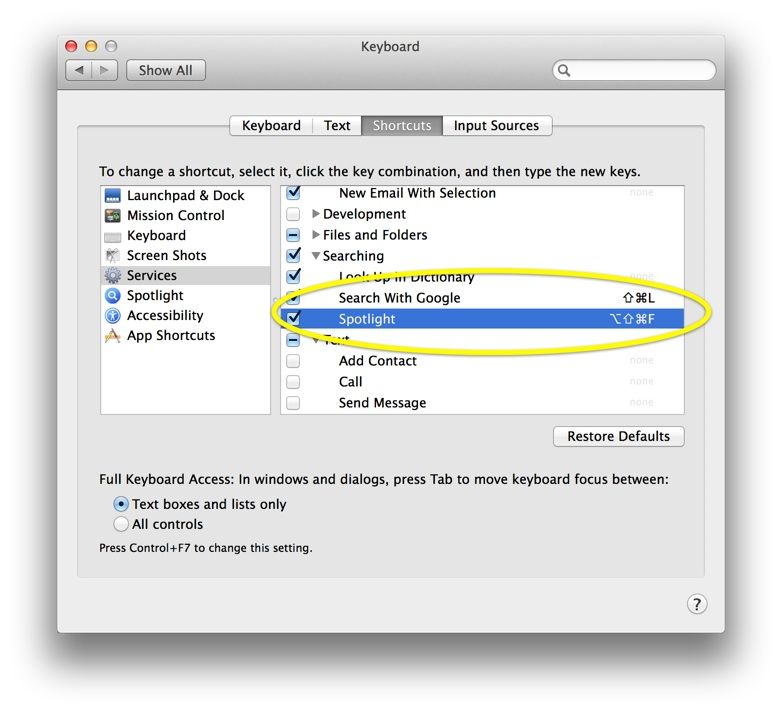
Searching for stuff is a big part of what we do on our computers, right? I know that I use Google daily for searching, both for topical information as well as just plain old “where is that website” search. Both Safari and Chrome search right from the address bar, and Spotlight has been in the upper right corner of Mac OS X for several iterations now.
There’s a faster way to access your preferred search engine and Spotlight, however, using only your keyboard.
When you’re writing up a long document, or even in the middle of a simple one, it’s good to be able to move around and edit in the text without taking your hands off the keyboard. All the little switches from keyboard to mouse and back again take up valuable time, and–perhaps more importantly–force you to change the way your brain is processing information.
Using the arrow keys is a good way to move the cursor around, and of course there are the standard Command key shortcuts, but did you know that there’s some legacy keyboard shortcuts that come to us all the way back in Emacs, a popular text editing program for Unix, the operating system Mac OS X is based?
There are, and here are a few good ones. I’ve tested them in Text Edit, but chances are several Mac text editing programs will take advantage of these.
I thought that iOS 7 was ready to go on the iPad, but today I’m actually trying to do some work, and my cloud of optimism has been quickly dispelled. It’s a combination of OS-level bugginess and apps which have been too-hastily updated, and it’s causing all sorts of trouble.
The biggest problem? Using an external Bluetooth keyboard. So it’s pretty ironic that this post is about the excellent new keyboard shortcuts in iOS 7. Especially in Safari.
<!–more–>
The Tao of Mac blog points us to three great new shortcuts, lifted straight from OS X:
Cmd+L to move the focus to the location bar
Cmd+T to open a new tab
Cmd+W to close a tab
This is surprisingly useful, although I’m ungrateful enough to wonder why there’s no way to navigate between tabs. I’ve rattled away at my Logitech K811 and no combo of arrow key or square brackets and modifiers seems to work.
Another great side-effect of that Cmd+L shortcut is that you can now trigger an in-page search from the keyboard: just hit Cmd+L and type your query. At the bottom of the list that pops up are the in-page results, and because you’re using an external keyboard, there’s no on-screen keyboard to get in the way.
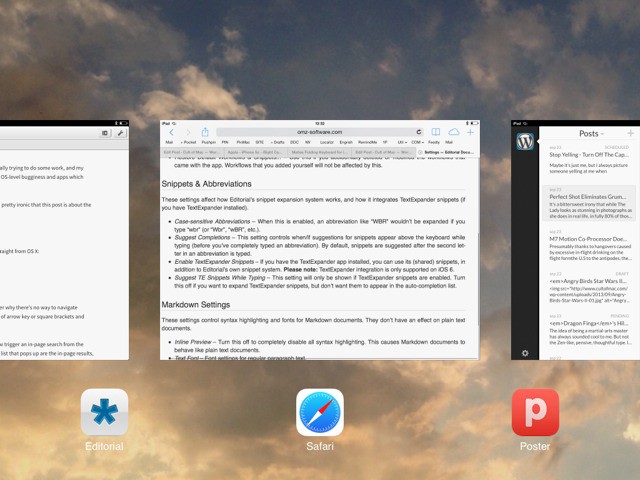
Also, double-tapping the Logitech’s home button takes you into the app-switcher view, and in iOS 7 that means that the previous app’s screen thumbnail pops into view. Combine this with the fact that any keystrokes are passed to the current app (even though you can’t see it), and you can now copy-type from one app to the next. Very nice indeed. Sadly, you need to reach up and tap the screen to actually switch to the app.
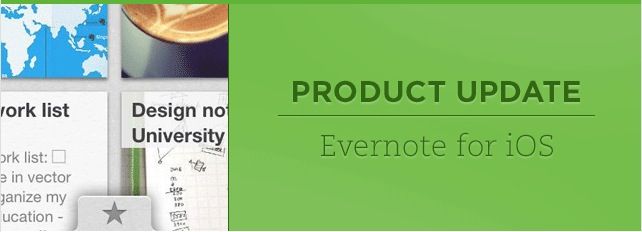
The official Evernote app for iOS now allows you to mark up images, PDFs, and notes thanks to the Skitch integration added in its latest update today. The release also brings shortcuts, recent notes, the ability to submit support requests, and more.
If there’s one part of iOS that Apple needs to be paying more attention to, it’s the lockscreen. Case in point: jailbreak developers and concept designers are coming up with some really innovate ideas for making use of the first screen we all see when we check our iPhones.
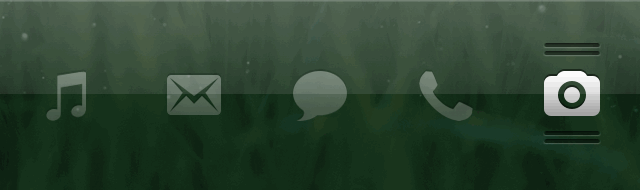
Axis, a new jailbreak tweak that began as a simple concept some months ago, is another great example of doing more with the lockscreen. Apps can be assigned to the bottom of the screen and quickly opened with a swipe gesture.
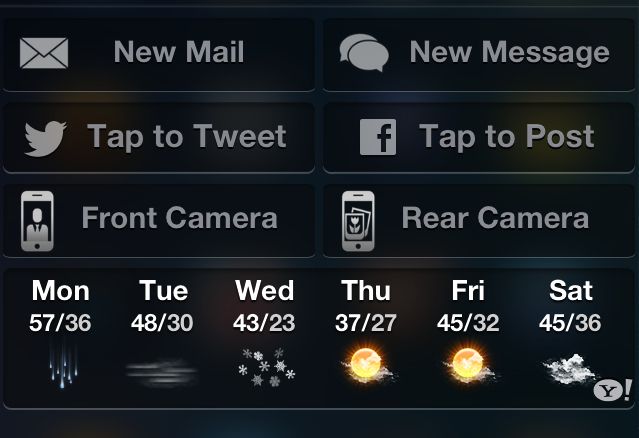
Wish you could do more with Notification Center in iOS 6? Besides the couple of stock widgets Apple includes, there isn’t a lot of functionality to be found. On my iPhone, it usually feels like a waste of space. What if you could compose an email or quickly access your camera alongside notifications?
Jailbreaking allows you to do that and more, thanks to a couple of handy Cydia tweaks.