Mobile menu toggle

Search results for: shortcuts

Things for iPad adds insanely good keyboard shortcuts

By

Things now has the best keyboard support of any iOS app
Photo: Cult of Mac

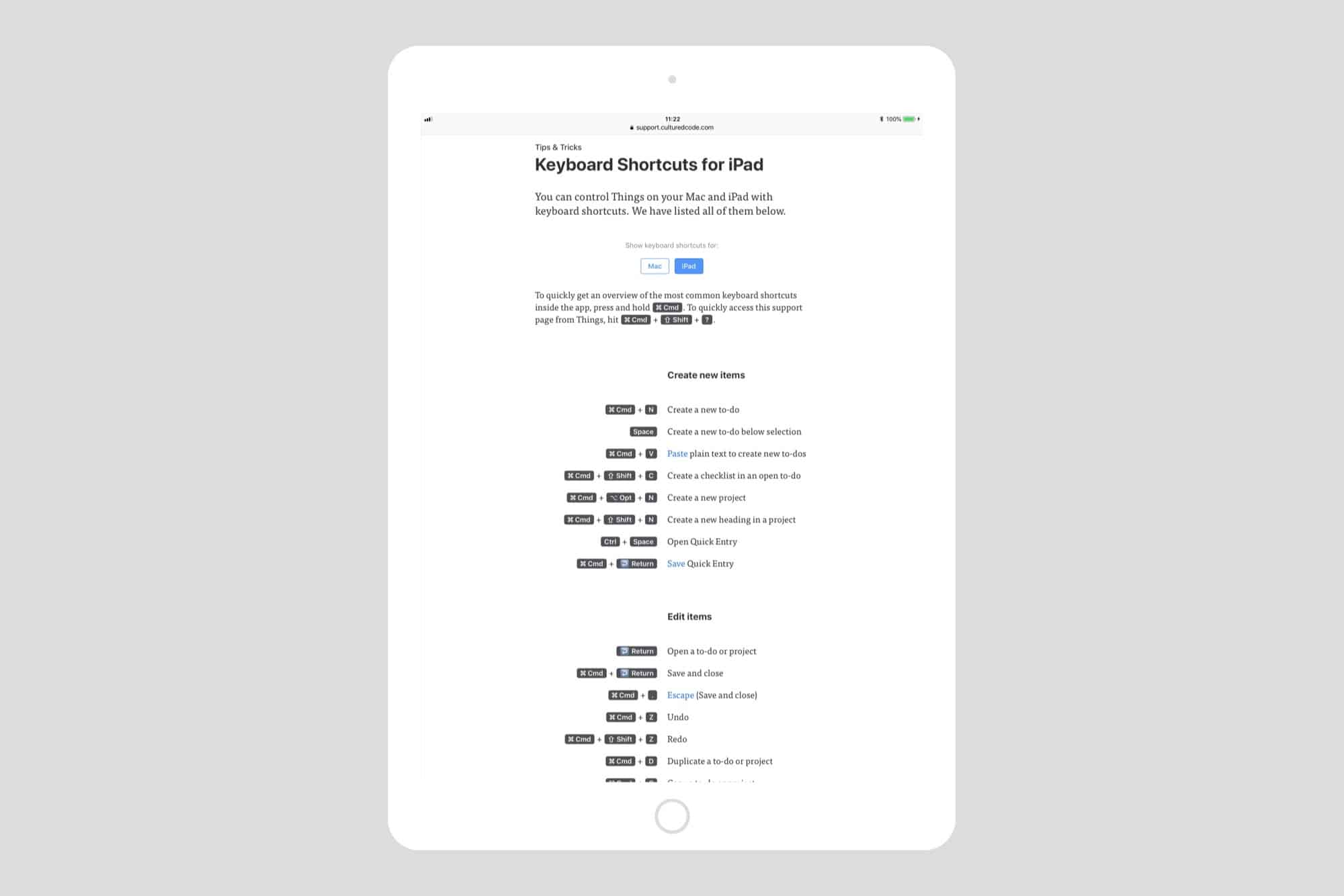
Cultured Code’s lovely to-do app Things just got a massive update on iOS, and set the standard for iPad keyboard support at the same time. Now you can control pretty much anything from the keyboard, in a way that’s intuitive and useful, and not just there for power-nerds.

Also — finally — this update lets you drag tasks onto the Things sidebar to add them to your lists.

Try these great emoji shortcuts on iPhone and iPad

By

emoji iPhone quicktype
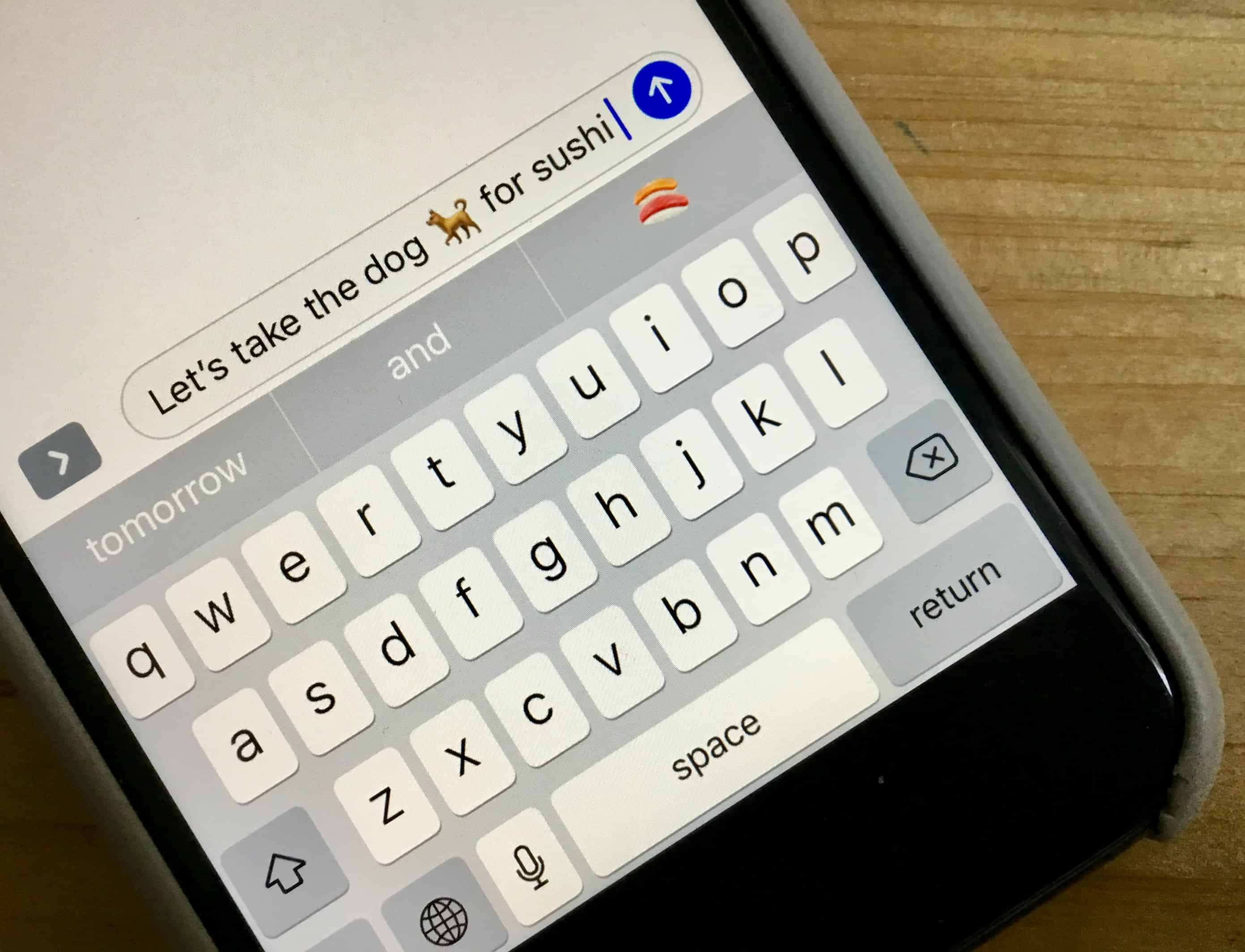
What dog doesn't like sushi?
Photo: Cult of Mac

Who doesn’t love emoji? People with bad eyesight, that’s who. Everyone else, everyone everywhere, loves the little pictures of medals, flags, headphones, eggplants, and feces. What we don’t like is finding them by swiping around the keyboard section of an iPhone screen. In some ways it’s a metaphor for human existence. We love to manipulate the meaning of symbols through context and juxtaposition, the way a standup comic does, but we’re too lazy to spend the time to do it properly.

Happily for the future of the human race, there are shortcuts to great emoji if you’re using iOS. Let’s take a look.

How to add quick keyboard shortcuts for emojis on Mac and iOS

By

emoji text replacements
Adding shortcuts for your favorite Emoji is easy.
Photo: Cult of Mac

If you use emojis, the iOS keyboard is fantastic. It suggests emojis for you as you type words, and you can insert them into your messages with a tap. But what about the Mac? How can you add emojis with the keyboard on the desktop? And how can you force iOS to remember shortcuts for your favorite emoji on the iPhone and iPad? The answer to both is Text Replacement, which is built into both macOS and iOS.

iOS 11 lets you customize left and right AirPod double-tap shortcuts

By

AirPods
iOS 11 brings independent left/right controls to AirPods.
Photo: Cult of Mac

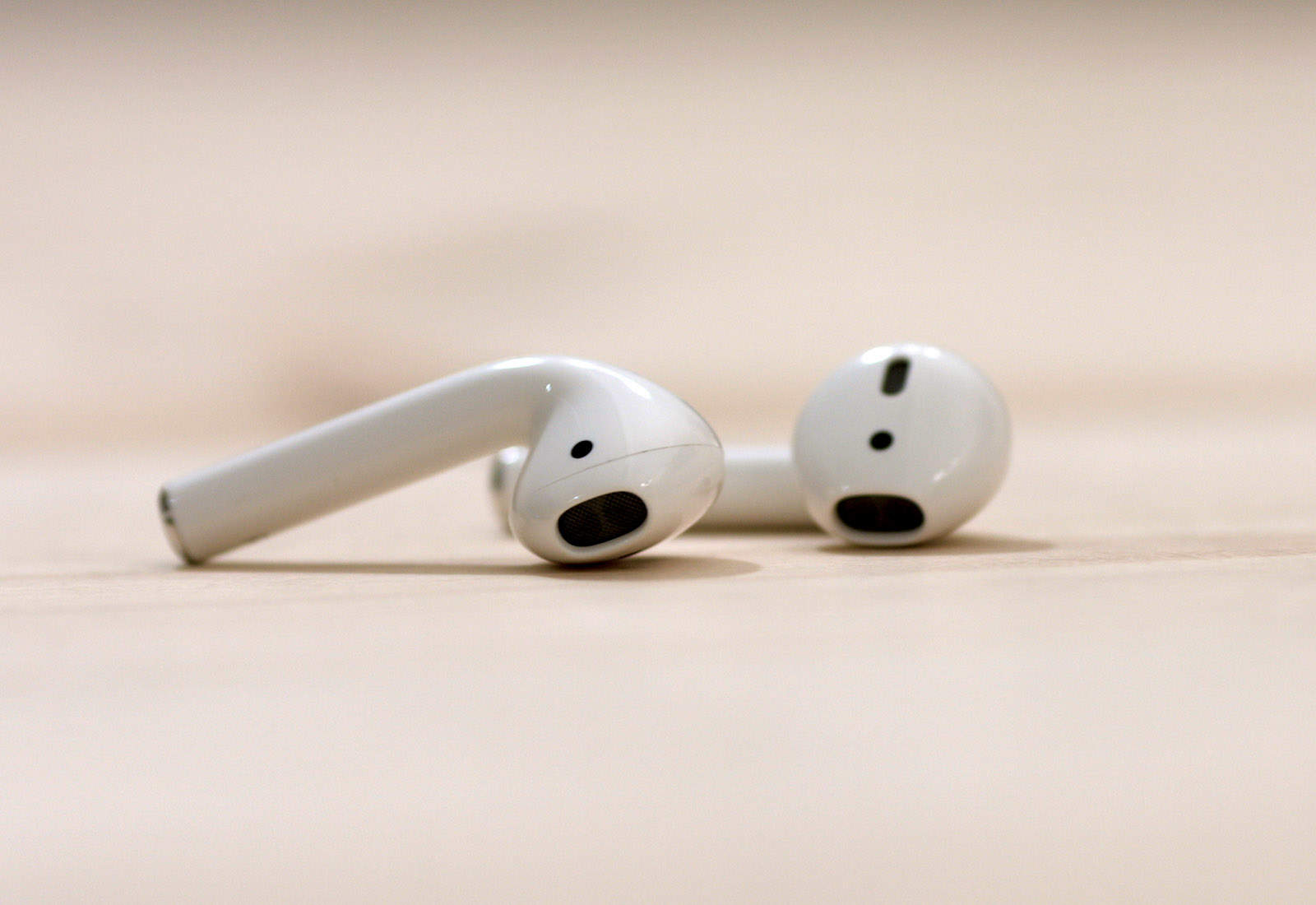
iOS 11 is full of small tweaks that have a big impact. Today’s tip is one of those. In iOS 10, you can customize the double-tap shortcuts on your Apple AirPods to perform various actions — invoke Siri, or play/pause, for example. But the same shortcut would apply to both AirPods. In iOS 11, you can customize each AirPod independently. So, your left ear could be set to call Siri, and your right ear set to play and pause. That’s double the options, with just a software update!

How to use the most useful Finder keyboard shortcuts

By

useful keyboard shortcuts
Ditch the trackpad and use the keyboard instead.
Photo: Charlie Sorrel/Cult of Mac

You probably spend a lot of time in the macOS Finder. Much of it is likely spent pointing and clicking, using the trackpad pointer to duplicate files, or to click back to the folder you were in a moment ago.

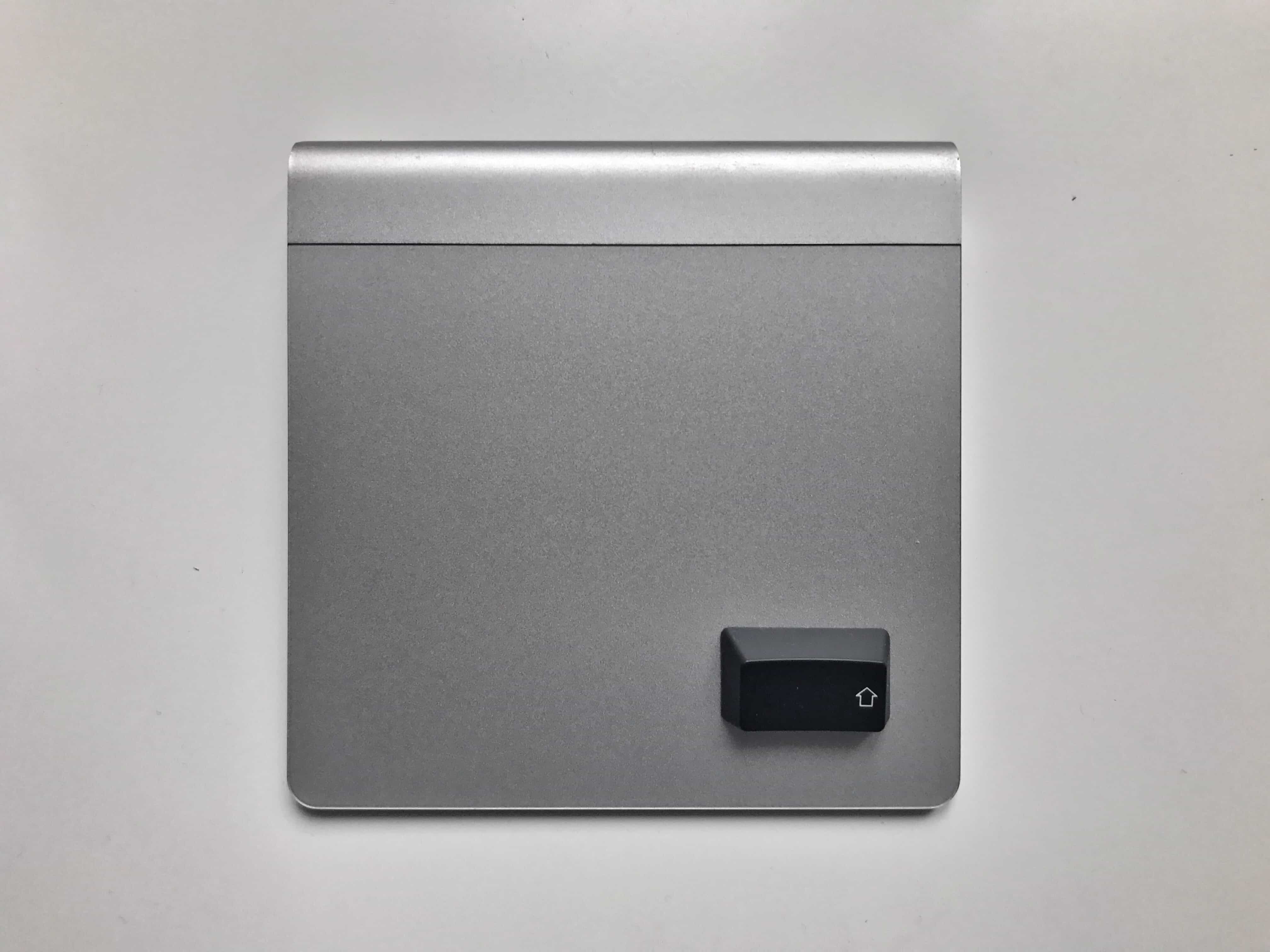
But, like most Mac apps, the Finder offers a ton of useful keyboard shortcuts — to create new folders, navigate files and change what you see in the Finder window. If you learn a couple of them, you can spend a lot less time dithering with your mouse. You will also look like a cool TV or movie hacker if you click on the keyboard instead.

Today, we’ll look at the most useful day-to-day Finder keyboard shortcuts.

How to use the new keyboard shortcuts in iOS 11’s Files app

By

Files app keyboard shortcuts
Photo: Charlie Sorrel/Cult of Mac

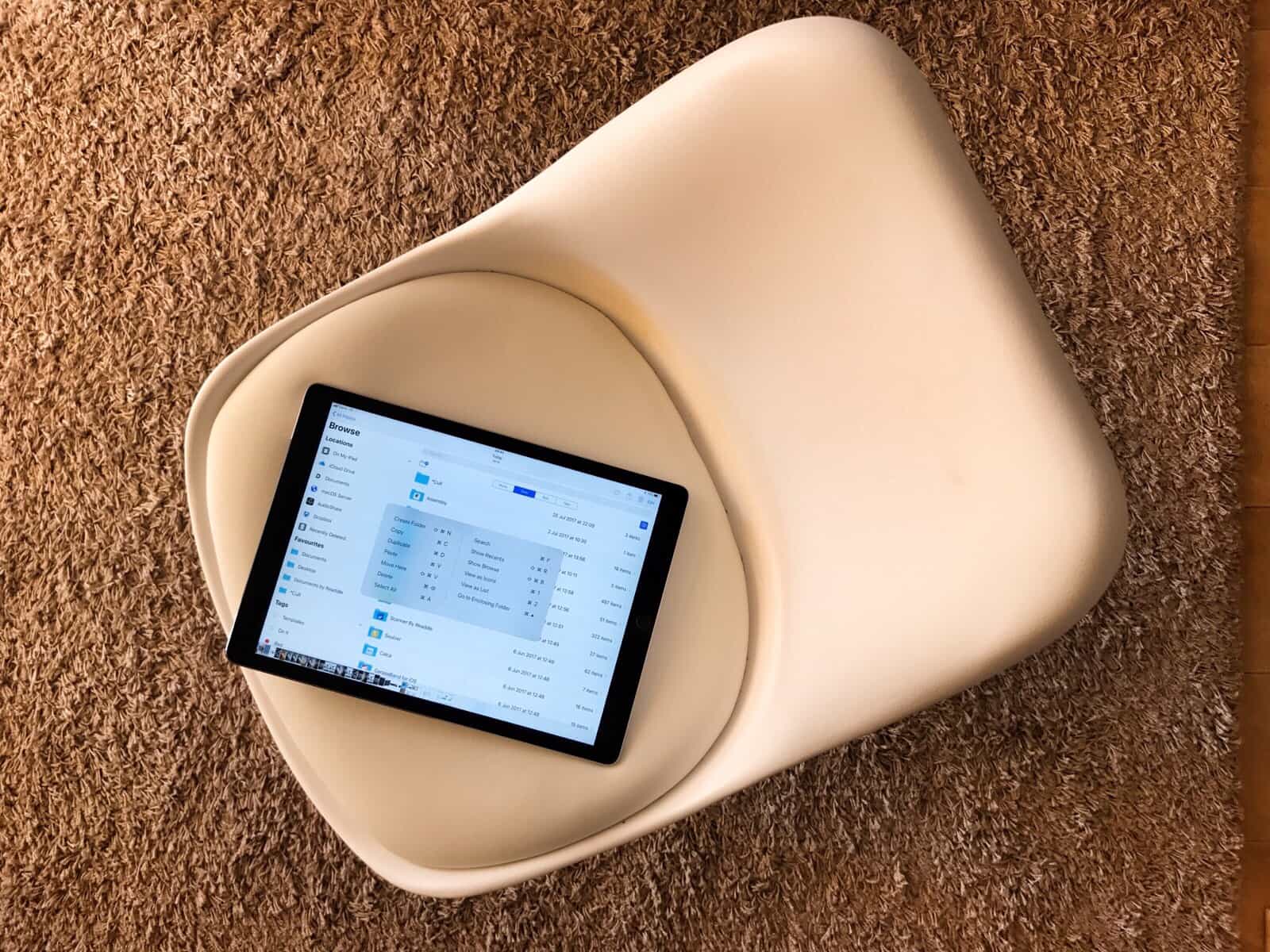
The Files app is iOS 11’s Finder. You can use it to browse the files in your iCloud Drive, along with files and folders in your Dropbox, and inside other apps that open up their file systems to iOS. Apple has also added some keyboard shortcuts to the Files app. This lets you carry out many common tasks without touching the screen when you have a hardware keyboard attached.

Most of the new keyboard shortcuts are great, and show how serious Apple is about the new user-accessible iOS file system. But some serious limitations mean you’ll still need to reach up and tap the screen to do the most basic things.

All the keyboard shortcuts you’ll ever need for Safari on iPad

By

iPad keyboard shortcuts safari
Control mobile Safari without taking your hands off the keyboard.
Photo: Charlie Sorrel/Cult of Mac

Safari on the Mac is almost entirely controllable by the keyboard. You can open tabs, navigate forms on the page, and search through pages. And even if there’s no built-in shortcut, the Mac lets you add custom shortcuts to any menu item. The iPad isn’t quite so well-served, but you’d be surprised at just how many keyboard shortcuts there are for Safari on the iPad. In fact, there are so many great shortcuts that you may even forget you’re not using a Mac. Let’s take a look.

Five keyboard shortcuts every iPad user should know

By

ipad-pro-smart-keyboard-safari
Rotating advertiser IDs make a lot of sense.
Photo: Apple

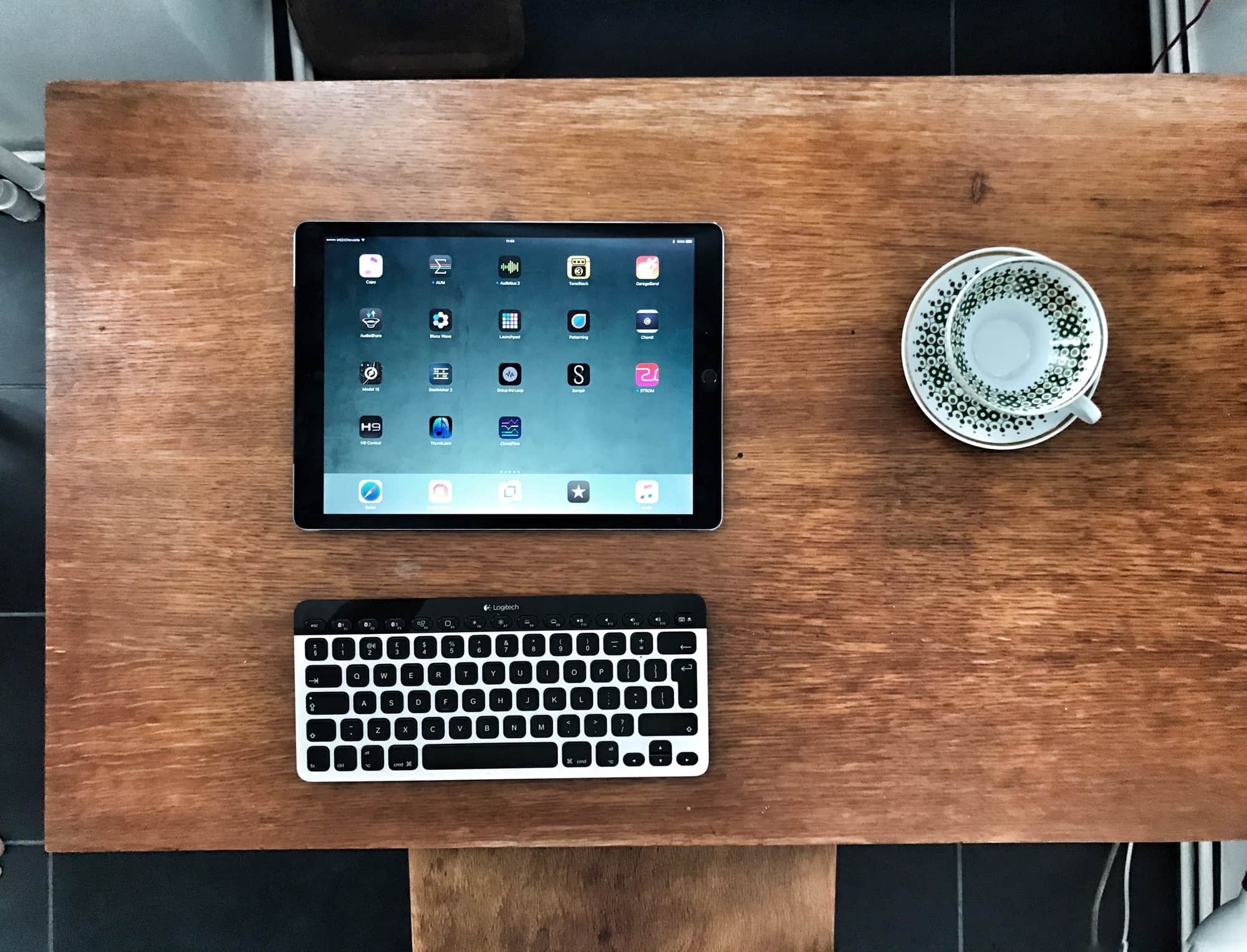
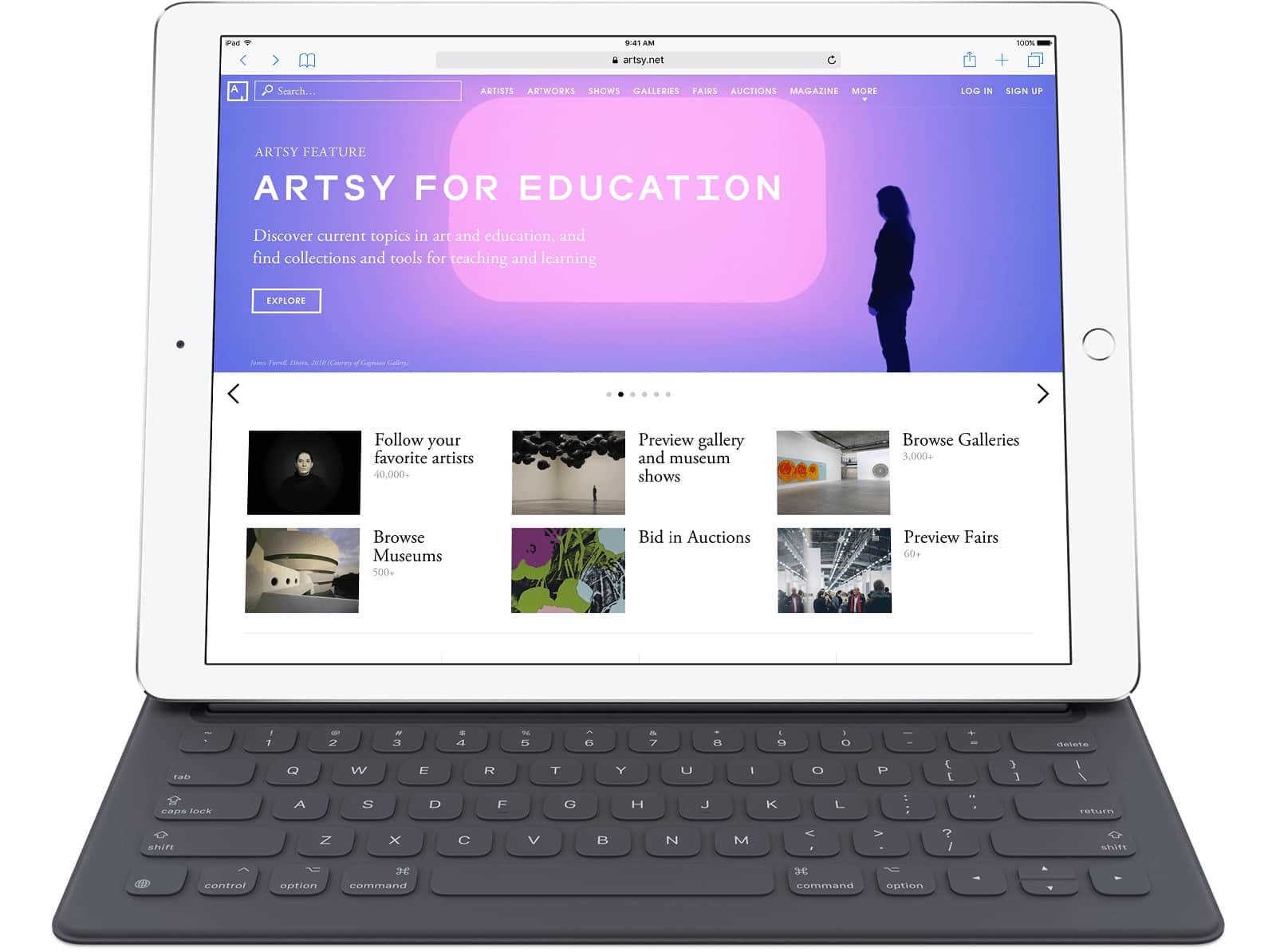
The iPad might be designed for touch, but it’s also surprisingly good with an external hardware keyboard, and includes excellent support for keyboard shortcuts. What’s more, it shares many keyboard shortcuts with the Mac, so if you have these already ingrained in your muscle-memory, they’ll carry right across. Let’s take a look at five of the most useful keyboard shortcuts for the iPad (and iPhone).

Quick Tip: 3-D Touch Control Center icons for some surprising shortcuts

By

3-d touch control center banner
Look at all the neat stuff you can do with Control Center, just by pressing a little harder.
Photo: Cult of Mac

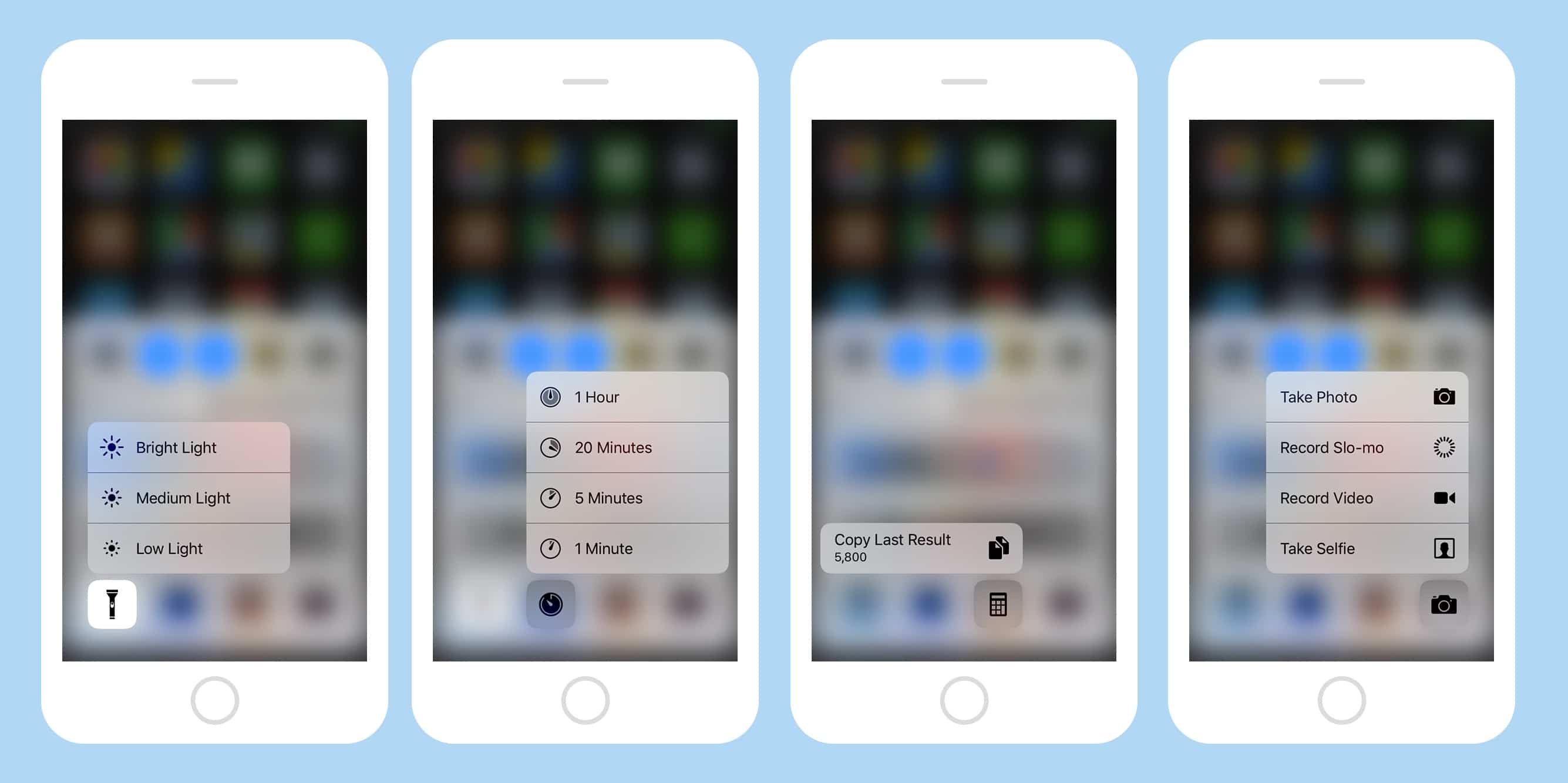
It pays to experiment with 3-D Touch, the feature that lets you press harder on your iPhone’s screen to get extra functions. But while we may be used to force-touching app icons, there are all kinds of other spots where it works. For instance, you press on the row of icons at the bottom of the Control Center to access some fantastic shortcuts.

Make your Mac truly your own with custom shortcuts [Deals]

By

Vastly expand your menu of keyboard shortcuts with this award winning app.
Photo: Cult of Mac Deals

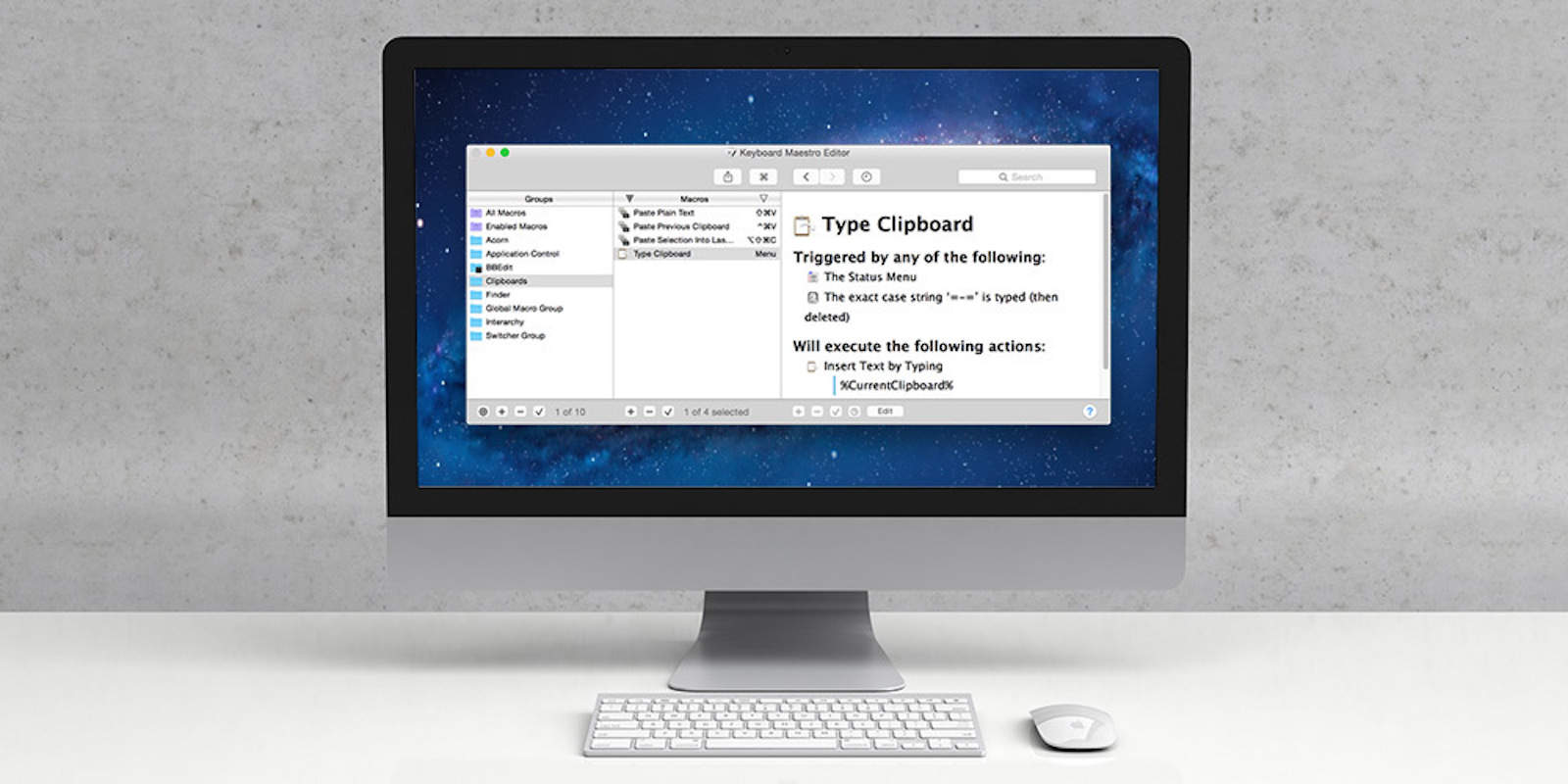
When you first get a Mac, your power user friends probably tell you about the time-saving benefits of learning all the keyboard shortcuts. That’s certainly true, but there’s a whole new dimension of efficiency that opens up with Keyboard Maestro, winner of Macworld Editor’s Choice Award in the category of Productivity Software. It lets you create and record custom macro shortcuts that can be activated at any time, and right now you can get it for a mere $19.99 at Cult of Mac Deals.

1 5 6 7 8 9 121