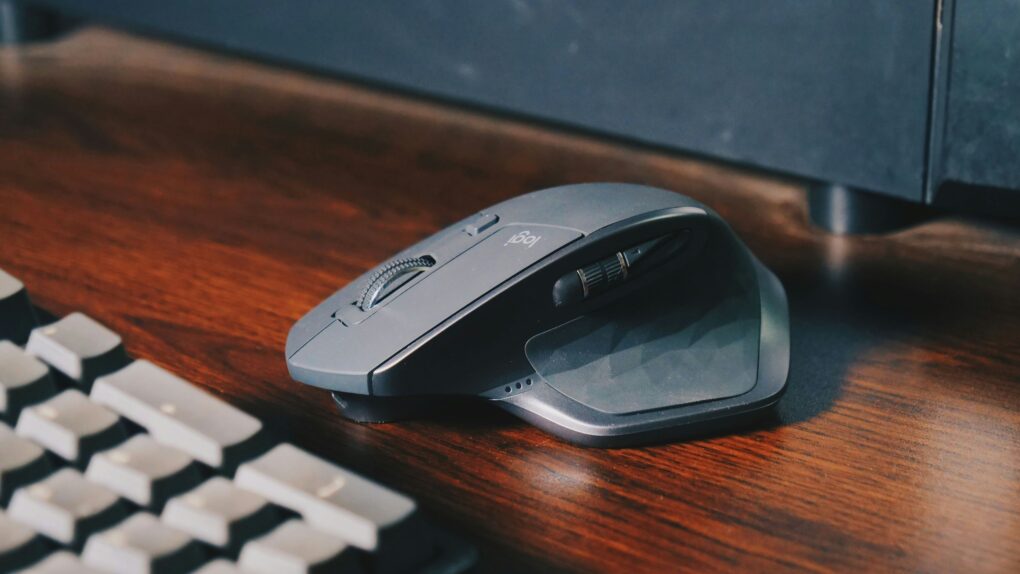
I love my Logitech MX Master 3S and MX Keys S keyboard. They are my go-to devices for my Mac. However, I don’t feel the same way about Logi Options+, Logitech’s companion app for its mice and keyboards.
The software feels unnecessarily bloated for what I need it to do. So, I replaced it with a third-party alternative called BetterMouse that’s lighter and even more feature-rich.
I like Logitech hardware, not Logi Options+
When it comes to Mac accessories, the hardware itself is only half of the equation. Software can make or break a mouse, keyboard or audio interface.
In this case, the Logitech MX Master 3S proves comfortable, precise and loaded with multiple useful buttons. Its horizontal thumb wheel and its gesture button make navigating macOS much easier. But without the companion Logi Options+ app, the MX Master 3S and the MX Keys S keyboard act like any other basic mouse and keyboard.
That’s the same story with every other Logitech mouse and keyboard. To get the most out of Logitech’s hardware, you must install and use the Logi Options+ app. All customization options and advanced features are only accessible through the app.
There is simply no reason that Logi Options+ must be running in the background on my Mac for something as basic as even smooth scrolling to work.
Logitech’s Mac app is a resource hog
The problem is that Logi Options+ is bloated and packs several unnecessary features. For a companion app to a mouse and keyboard, it takes up a lot of resources. On average, I have seen it using between 400MB and 500MB of memory on my Mac.
I am not alone in feeling frustrated with Logi Options+. Reddit (2) and other Mac forums are full of frustrated Mac users complaining about the app’s size, excessive memory use and resource consumption. Worse, some customizations tend to break after app updates, further worsening the experience.
In January, an expired certificate prevented Logi Options+ from launching on several macOS versions. Until that problem was resolved, it essentially turned Logitech’s expensive and excellent mice and keyboards into dumb peripherals.
While I understand bugs, that incident highlighted the biggest problem with Logi Options+. Logitech tied too much core functionality to its hardware’s companion app, even though the software’s primary purpose should be to configure a mouse and keyboard and be done with it.
BetterMouse does more than Logi Options+ with far less bloat
Screenshot: Rajesh Pandey/Cult of Mac
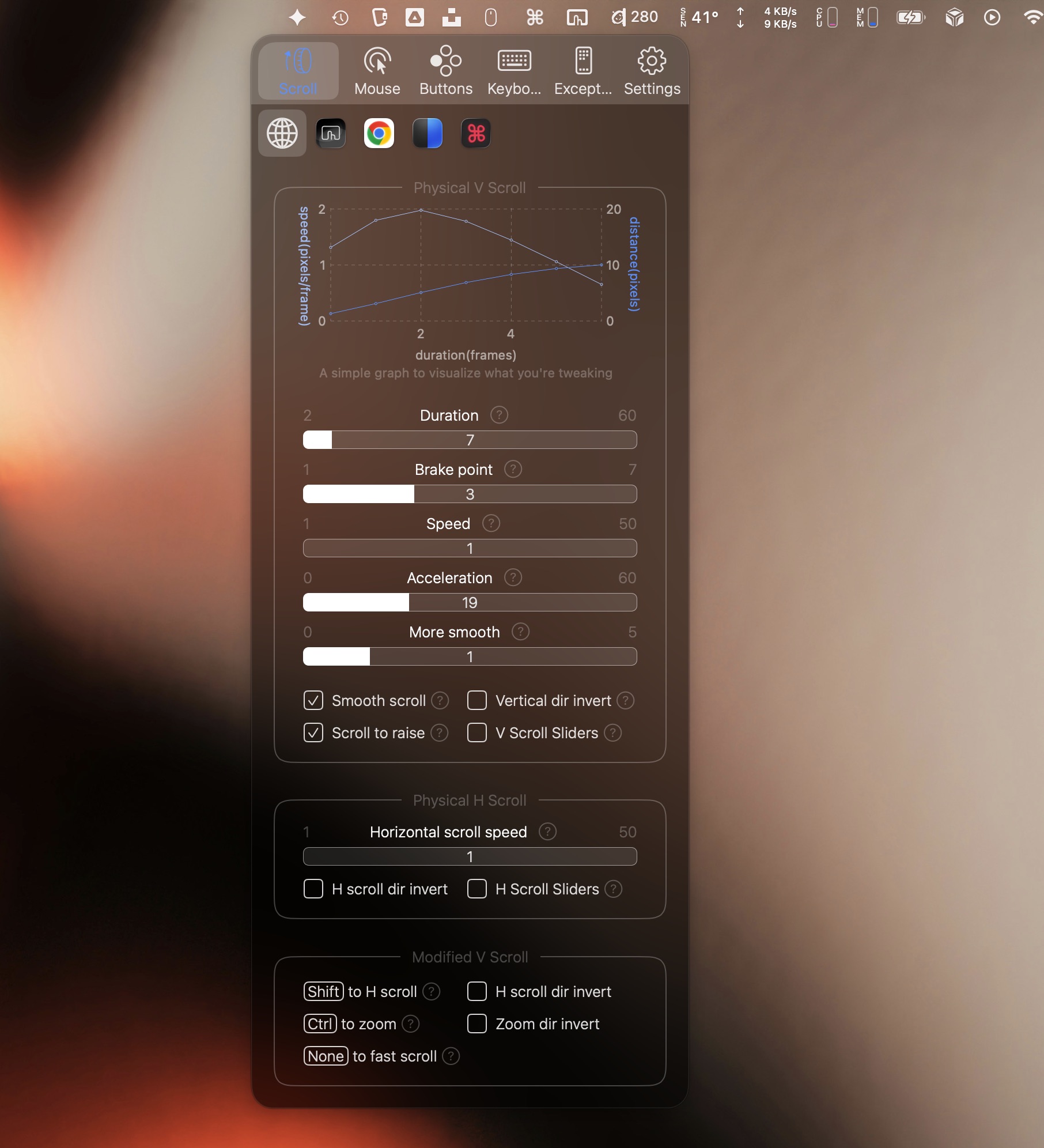
Frustrated with the bloat and resource consumption of Logi Options+, I ultimately switched to BetterMouse. This third-party app supplies everything I need from Logi Options+ while offering more granular control over my mouse, all in a lightweight 5MB package.
Unlike Logi Options+, BetterMouse does not install separate system extensions to get things done. It does not even need internet access to work. It only requires macOS’ Accessibility permissions to trigger shortcuts and actions outside the app. (That’s something most mouse-remapping Mac apps need.)
After switching to BetterMouse from Logi Options+, smooth scrolling was one of the first options I enabled. Unlike Logitech’s app, BetterMouse provides granular control over smooth scrolling’s speed, acceleration and duration for greater flexibility.
The difference is most noticeable in Google’s Chrome browser, where I spend a significant portion of my working day. I have tuned the scrolling so that small wheel movements remain precise, while a faster spin lets me move quickly through long articles and webpages. It sounds like a minor improvement, but scrolling is something I do hundreds of times every day.
With BetterMouse, I can get more out of every button
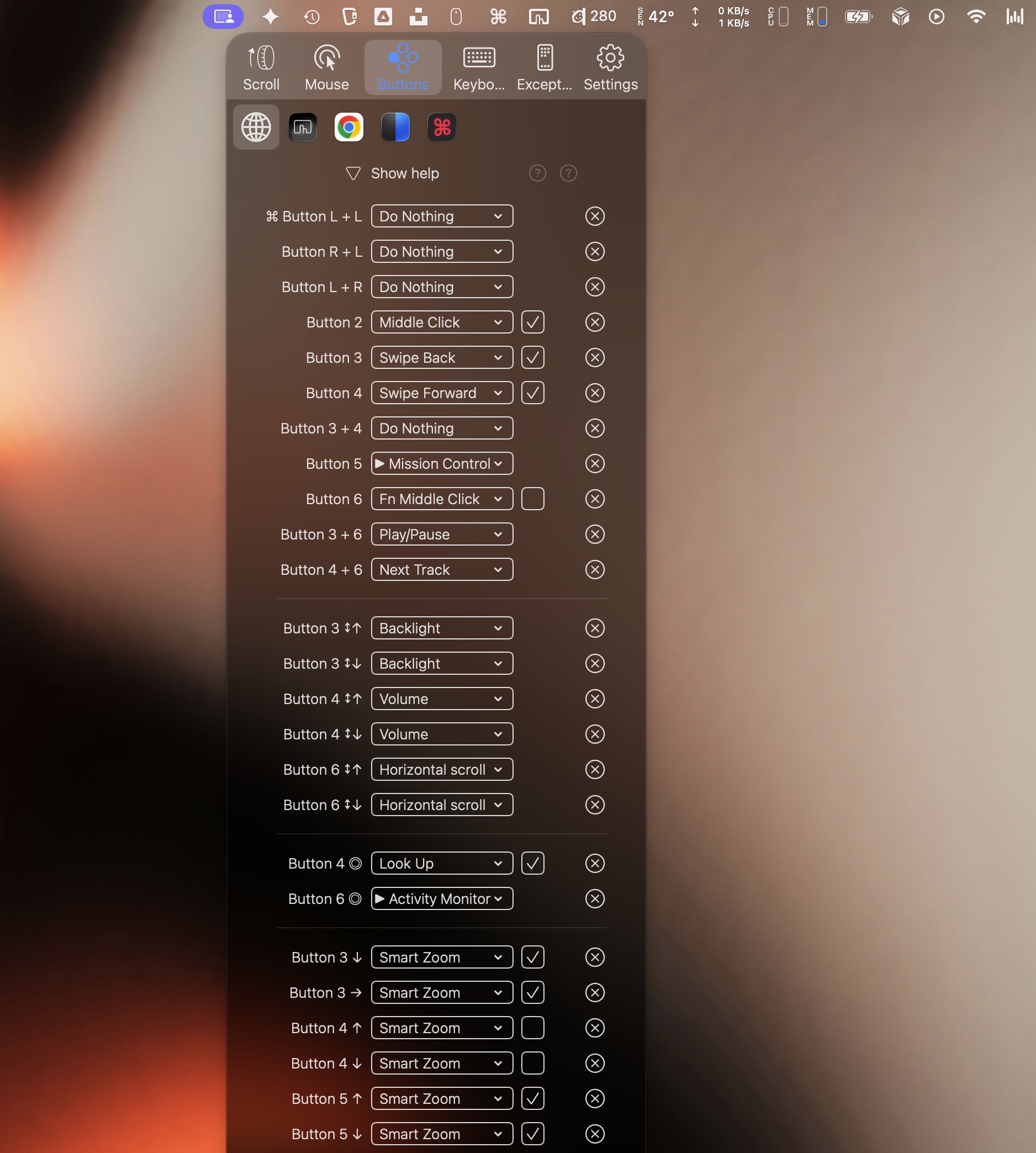
Logi Options+ lets me reassign buttons, but BetterMouse goes much further. It can assign different actions when I click, hold, drag or scroll with the same button. I can also combine these actions with modifier keys to ensure there’s no conflict with other apps.
My BetterMouse configuration already includes profiles for multiple Logitech mice, including the MX Master 3, MX Master 3S and MX Anywhere 3. I use different DPI and thumbwheel settings for each of them instead of forcing every mouse to behave identically.
I also have a dedicated Google Chrome profile. Clicking the gesture button opens Mission Control, while holding it and moving the mouse sideways re-creates macOS’ three-finger swipe gestures. This allows me to move between Spaces without taking my hand off the mouse.
Extensive options you can set for individual apps
Screenshot: Rajesh Pandey/Cult of Mac
BetterMouse can also change the scrolling, button and keyboard mappings depending on the active app. So, I can have the same set of shortcuts or gestures perform different actions based on the app I’m currently using.
For example, in Chrome, I use the thumb wheel to switch between tabs instead of scrolling horizontally. In Finder, the same thumb wheel switches between open tabs.
In Final Cut Pro, I use the thumb wheel to horizontally scroll through my video’s timeline. I also changed the wheel mode-shift button’s behavior specifically for Final Cut Pro. A normal press sends the Space bar command to start or pause timeline playback, while a long press triggers Command-B to cut the selected clip at the playhead. Once I leave Final Cut Pro, the button automatically returns to controlling music playback.
I also use one of the MX Master 3S’ side buttons to trigger CleanShot X’s area-capture tool. Screenshots are a regular part of my work, and the mapping lets me start a capture without moving my hand to the keyboard. I assigned it to a long press, so the button retains its normal function when I click it.
Even more advanced capabilities for your Logitech mouse
BetterMouse also supports secondary actions for long presses. I configured one to open Activity Monitor, giving me a quick way to investigate whenever an app starts misbehaving or my Mac feels unusually slow. The normal click can retain its existing function, so I don’t need to sacrifice an entire button for an action I use only occasionally.
I can also assign actions to the wheel mode-shift button on top of the MX Master 3S — the one that switches the scroll wheel between ratchet and free-spin modes — with BetterMouse.
Logi Options+ doesn’t allow this. But with BetterMouse, I mapped the button to play or pause music, putting playback control directly beneath my index finger. It has quickly become one of my most used shortcuts throughout the day.
BetterMouse’s increased control comes with a learning curve

Photo: Ed Hardy/Cult of Mac
Admittedly, Logi Options+ and BetterMouse share many of the same features. But dig a little deeper, and BetterMouse offers far more flexibility while consuming fewer system resources. That makes it a much better fit for my needs.
BetterMouse does have a steeper learning curve, though. Logi Options+ is more straightforward, whereas I had to spend some time configuring BetterMouse to make my Logitech mouse and keyboard work exactly the way I wanted.
Thankfully, the time spent setting it up is mostly a one-off effort. You can export your configuration to a file. So, I can back up my mappings or move them to another Mac without rebuilding everything from scratch. That also makes it easier to experiment, knowing I can quickly return to a setup that works.
The only real downside for Logitech fans is that BetterMouse does not replace some advanced Logi Options+ features, like Logitech Flow and Smart Actions. Since I don’t use those features, I don’t miss them.
Logi Options+ is free, while BetterMouse costs $7.99 (after a seven-day free trial). Still, the one-time price feels reasonable for an app that lets me keep using the Logitech hardware I love without the companion software I don’t.
Download: BetterMouse
More how-tos for Mac power users
Want even more ways to get more out of your Mac? Check out these how-tos for power users from Cult of Mac:
- I replaced 7 Apple apps on my Mac. Here’s what I use instead.
- 5 Mac apps that turbocharged my 2025 workflow (and why you need them)
- 12 must-have free Mac apps I always install first

Rajesh has been writing about consumer technology for over a decade, with a strong focus on iPhones, Macs and Apple’s ecosystem. He enjoys digging into Apple software updates, hardware changes, and discovering new Mac apps that make work faster and more enjoyable.
You can reach out to him at mail[at]rajeshpandey.me.


4 responses to “I love my Logitech mouse, but I finally deleted its bloated Mac app”
How do you update the Logitech firmware without Logi Options? Thanks
Just use OpenLogi, it s free and you can install with brew :)
Nice call – always looking to remove junk!
You can try LinguaX.