★★★★☆
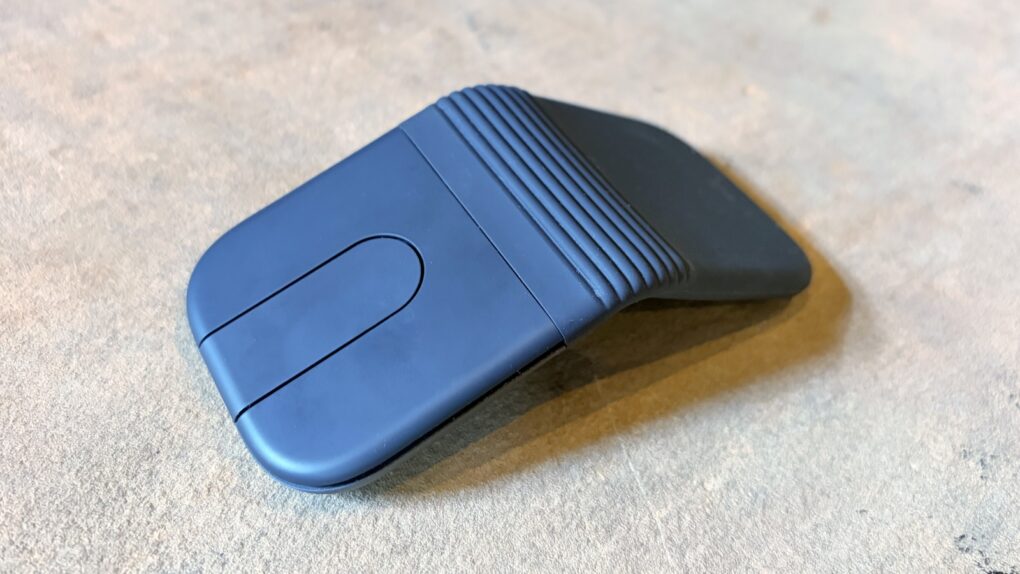
The Logitech Mobi Fold folding travel mouse can make you productive wherever you go. Photo: Ed Hardy/Cult of Mac
The Logitech Mobi Fold is an ultra-portable wireless mouse designed for people who work on the go. It folds to fit easily in a pocket or bag, then unfolds into a full-size mouse when it’s time to work.
I just returned from a beach vacation where I put the Mobi Fold through hours of real-world testing. Here’s what it’s like to use.
★★★★☆
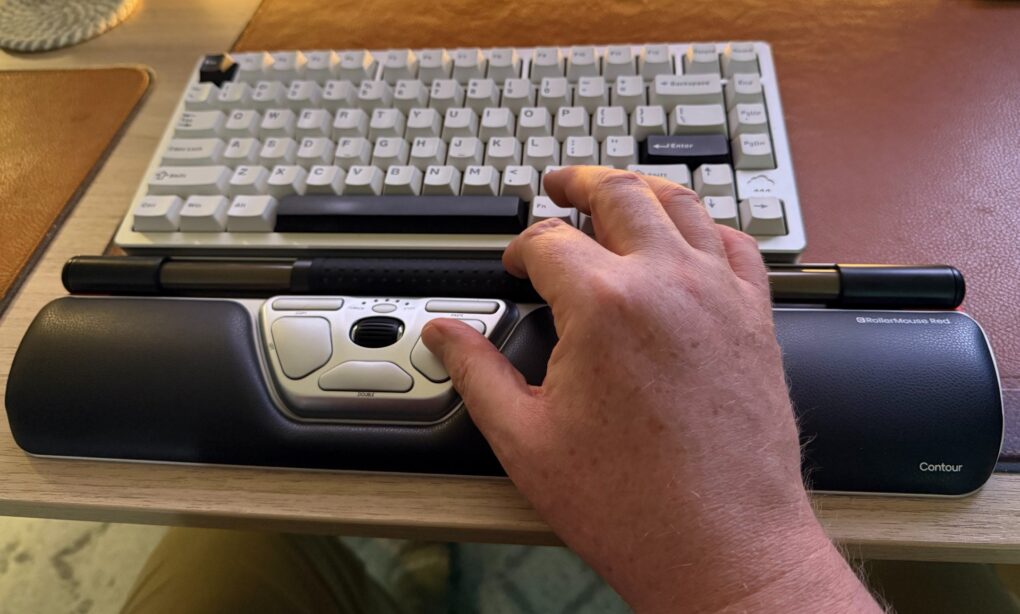
It's a cool and highly functional device, but it might cost too much for most people. For those suffering pain from mousing, though, it could be well worth it. Photo: David Snow/Cult of Mac
Would you spend $394 on a mouse? This Contour RollerMouse Red Wireless review might raise eyebrows, considering the device’s unusual design and premium price tag. The centralized pointing device with roll bar, scroll bar and three unfamiliar buttons in a wrist rest sits in front of your keyboard rather than beside it, challenging typical notions of computer navigation. But for those who need help with pain from repetitive strain injury (RSI), it could make a world of difference.
★★★☆☆
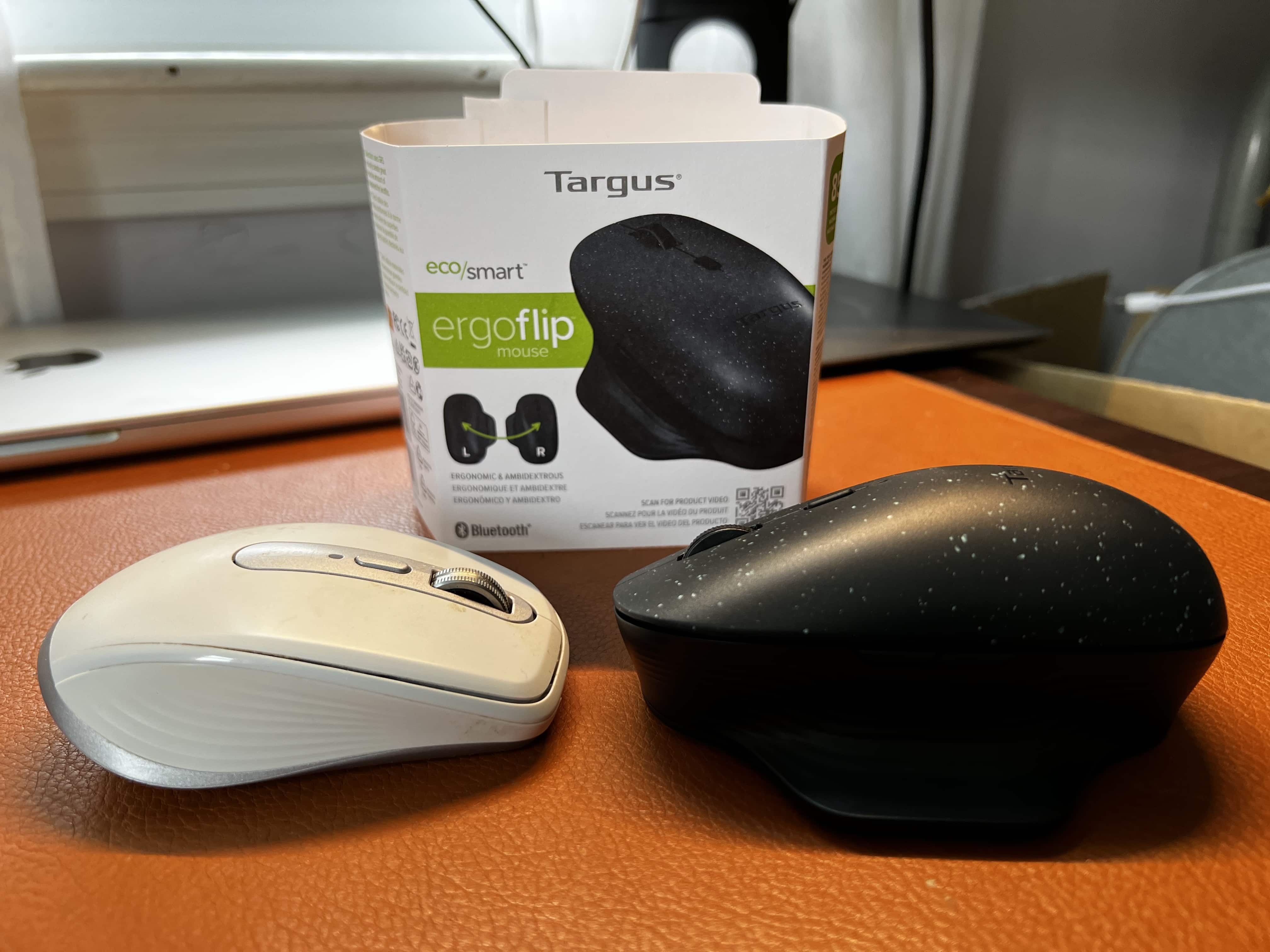
The bulkier Targus ErgoFlip mouse looks like it could take the slender Logitech Anywhere mouse in a fight. Photo: David Snow/Cult of Mac
If you’ve ever suffered hand or wrist discomfort from long sessions at the computer, you probably wished you could switch mousing hands, or maybe use a trackball device. Now Targus has addressed that very issue in ingenious fashion with its new ErgoFlip wireless mouse.
With a magnetic top and a stationary base, the mouse lets you “flip” it anytime you want, using a comfortable, ergonomic grip with either hand, with no need to adjust for right- and left-clicking.
★★★★☆
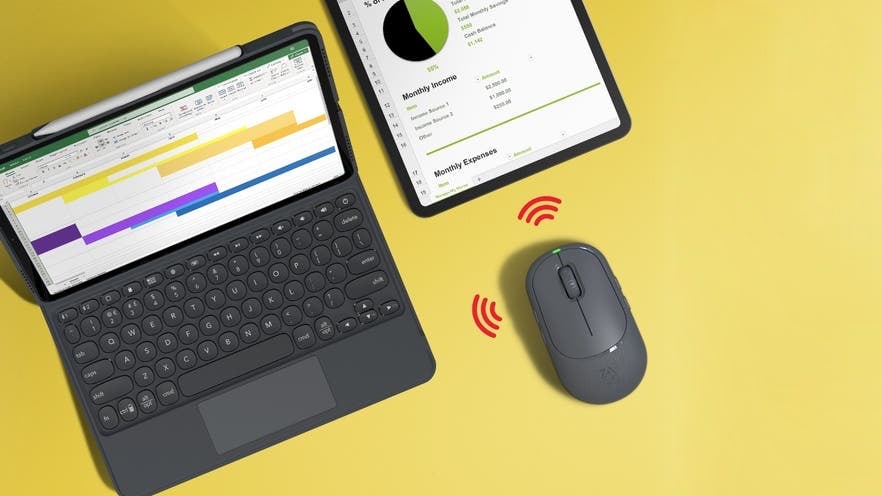
The rugged Zagg Pro Mouse mouse pairs with multiple computers and charges wirelessly. Photo: Ed Hardy/Cult of Mac
Your iMac, MacBook and iPad can easily share the Zagg Pro Mouse. With the press of a button, the rugged Bluetooth mouse switches between multiple computers. As a bonus, the accessory supports wireless charging.
I tested it in my multicomputer office for a couple of weeks. Here’s what it’s like to use every day.
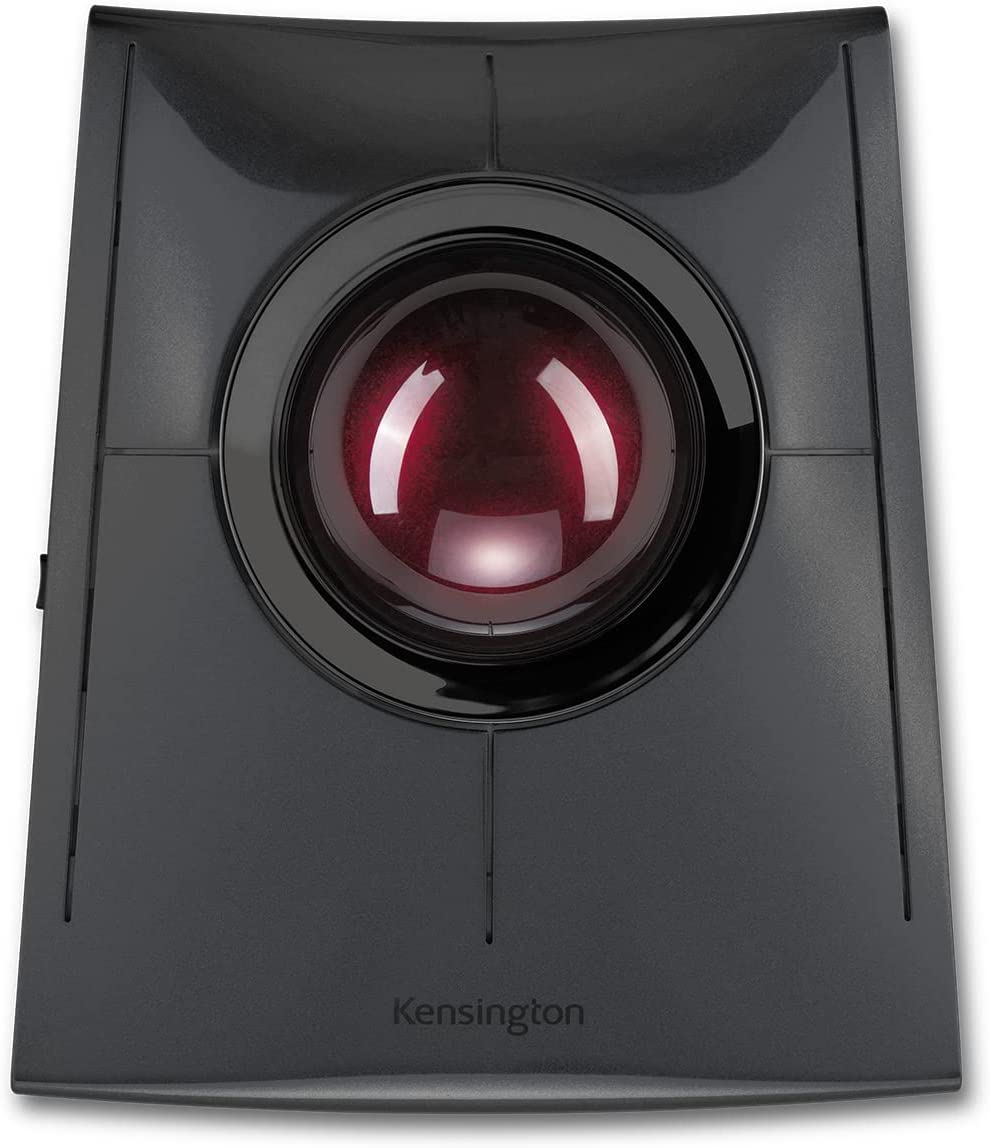
Give the repetitive strain a rest with Kensington's new trackball. Photo: Kensington
If you’re tethered to a computer all day and start to get agonizing pain from repetitive motions, don’t panic. There are lots of ergonomic devices out there to help, including the brand new Kensington SlimBlade Pro Trackball.
It’s like a mouse, but it doesn’t move. You roll the large trackball with your palm and click on the four huge buttons with your fingers or parts of your hand. And it doesn’t matter which hand you favor.
Zagg Pro Mouse can easily flip between several computers. Photo: Zagg
Zagg built plenty of features into its new Pro Mouse. That include support for wireless charging so keeping it topped up just means occasionally placing it on a charging mat.
And the Bluetooth accessory can pair with Mac, MacBook and iPad simultaneously so it’s ready to switch to whichever one you’re using. Plus it works on glass.
You can use classic Mac keyboards and mice with a modern machine thanks to clever adapters and apps. Photo: D. Griffin Jones/Cult of Mac
Apple’s modern keyboards are perfectly adequate but pretty unremarkable. They are anything but fun. But thanks to the wide selection of modern USB adapters from TinkerBOY, you can liven up your setup with long-lost keyboards and mice of yore.
You can use the legendary Apple Extended Keyboard II, with its unique key switches that make typing an almost ecstatic experience. You can get an adapter for the original Macintosh Mouse, for clicking and dragging like it’s 1984.
I get a fair share of products for review at Cult of Mac but none had me excitedly checking the mailbox every day like these. Read on for my experience using TinkerBOY’s keyboard and mouse adapters with a modern Mac.
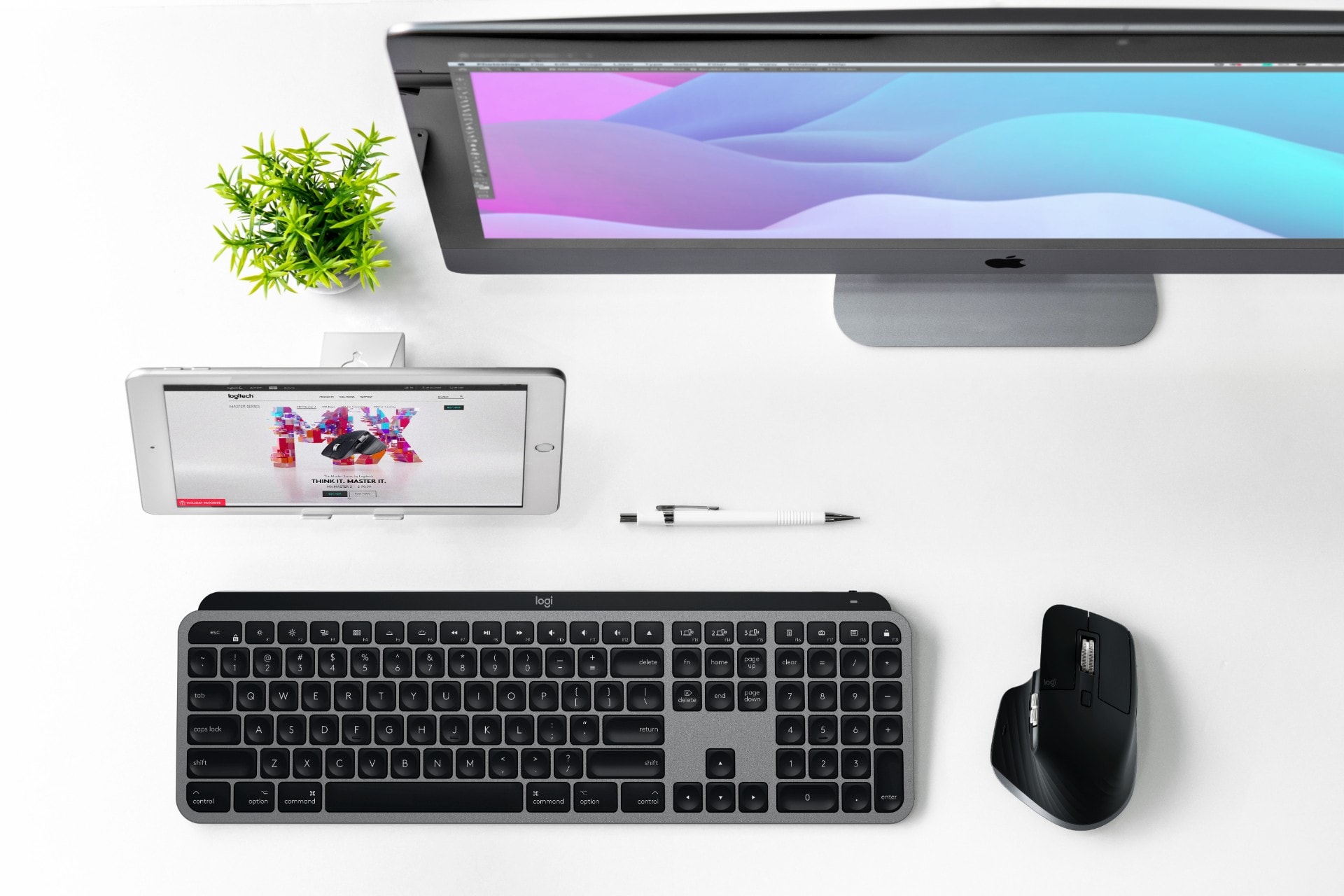
The new Logitech MX Mechanical Wireless Keyboard pairs with the updated MX Master 3S Wireless Mouse. Photo: Logitech
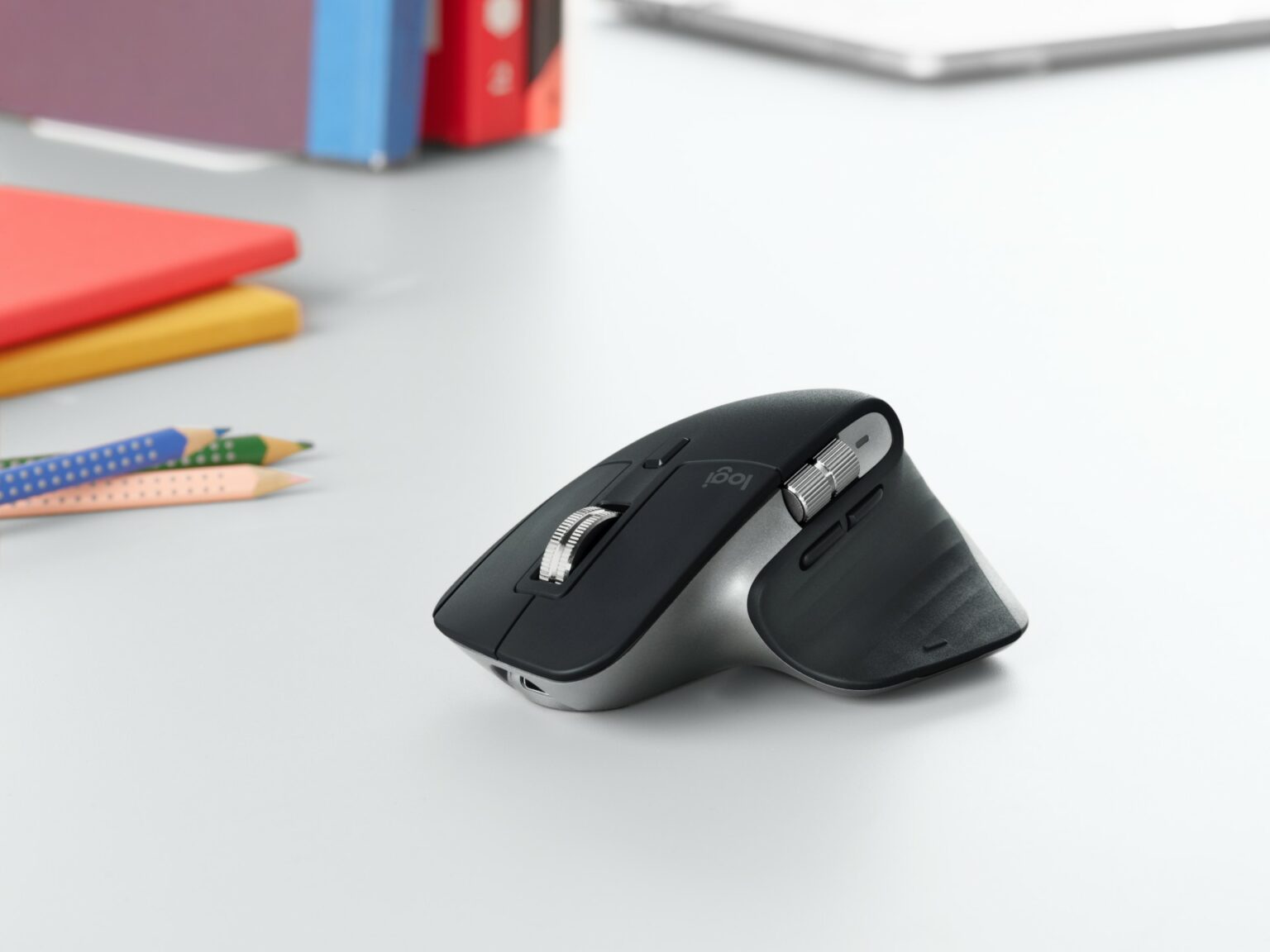
Logitech’s new MX Master 3S upgrades the company’s incredibly popular wireless mouse with a quieter click and a more sensitive sensor. The company also released two new mechanical keyboards, the MX Mechanical and MX Mechanical Mini. They both feature mechanical switches, a departure from Logitech’s MX Keys keyboards.
The MX Master 3S, MX Mechanical and MX Mechanical Mini, which will ship by the end of May, all readily pair with both Macs and PCs.
With the new update, Logitech peripherals like the MX Master 3 mouse should work more smoothly. Photo: Logitech
In what will surely be welcome news for folks who like to use the company’s peripherals with their Macs, Logitech said it’s rolling out full native M1 support in the latest beta version of its Logi Options+ software.
If you use Logitech products, you may think of it as Logi Options. Logi Options+ replaces that software and features some enhancements in addition to the native support for Silicon Macs.
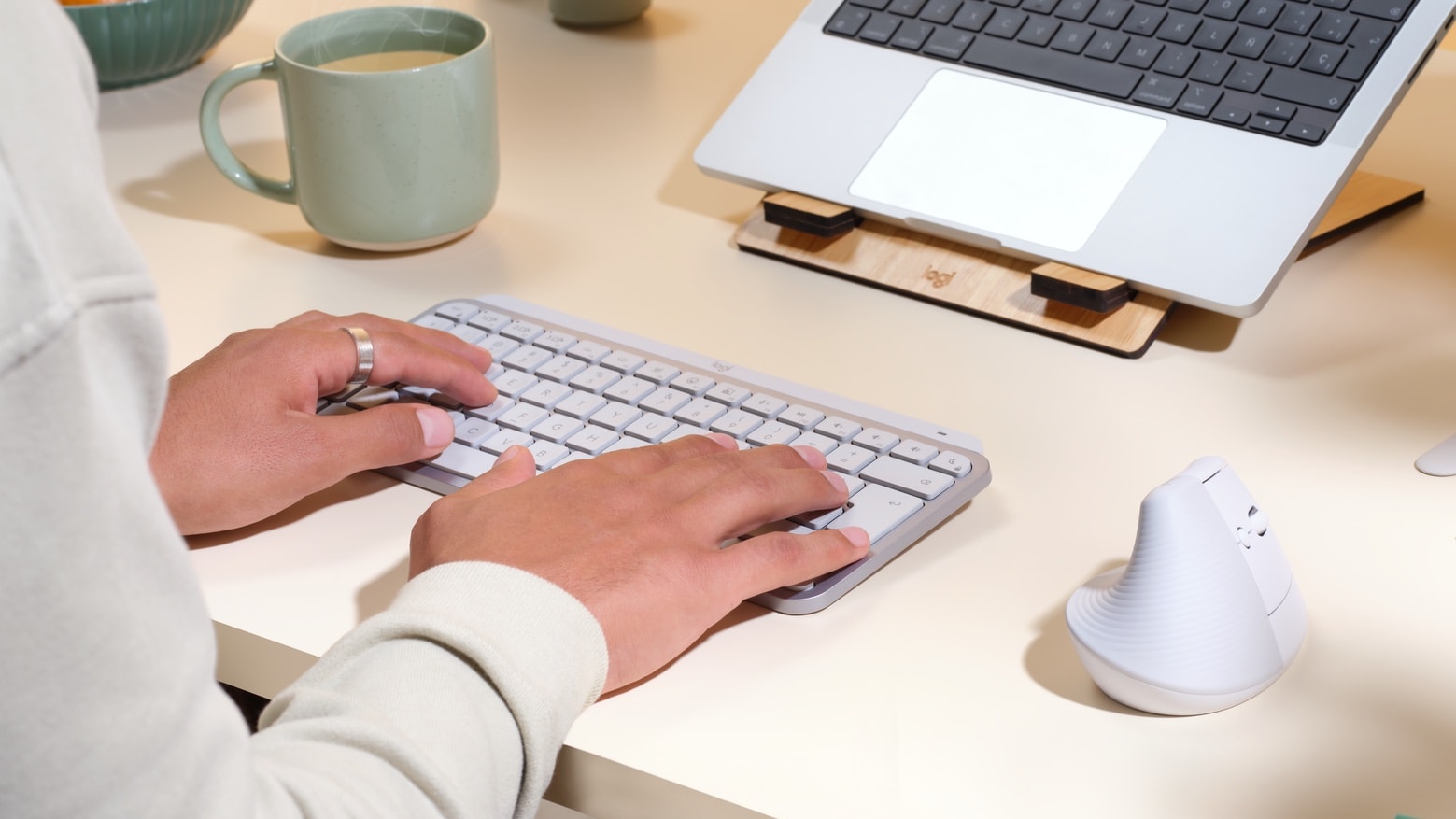
Logitech’s new Pop collection hopes to make dark, drab desks a thing of the past. Both its Pop Keys keyboard, which features real mechanical keys, and the Pop Mouse sport quirky designs with bright and colorful finishes.
Prices start at $39.99, and they work great with Apple devices, including Mac and iPad. You can order yours this month.
Save on stellar accessories in Logitech’s big Memorial Day sale. You can get up to 56% off mice, keyboards, webcams and more, with prices starting at a mere $7.99. Start shopping before the sale ends!
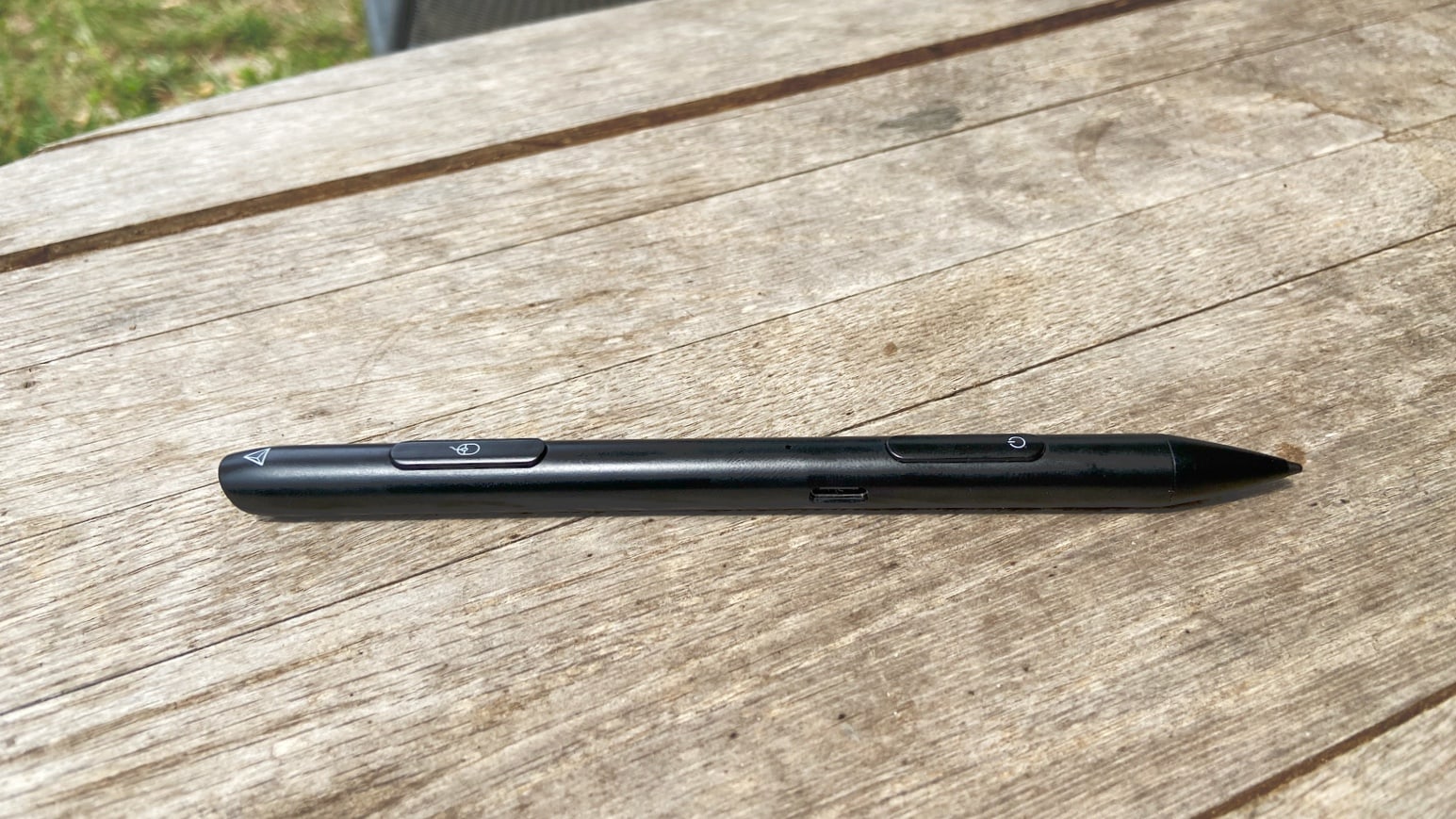
The Adonit Note-M is a 2-in-1 stylus and mouse for iPad. Photo: Ed Hardy/Cult of Mac
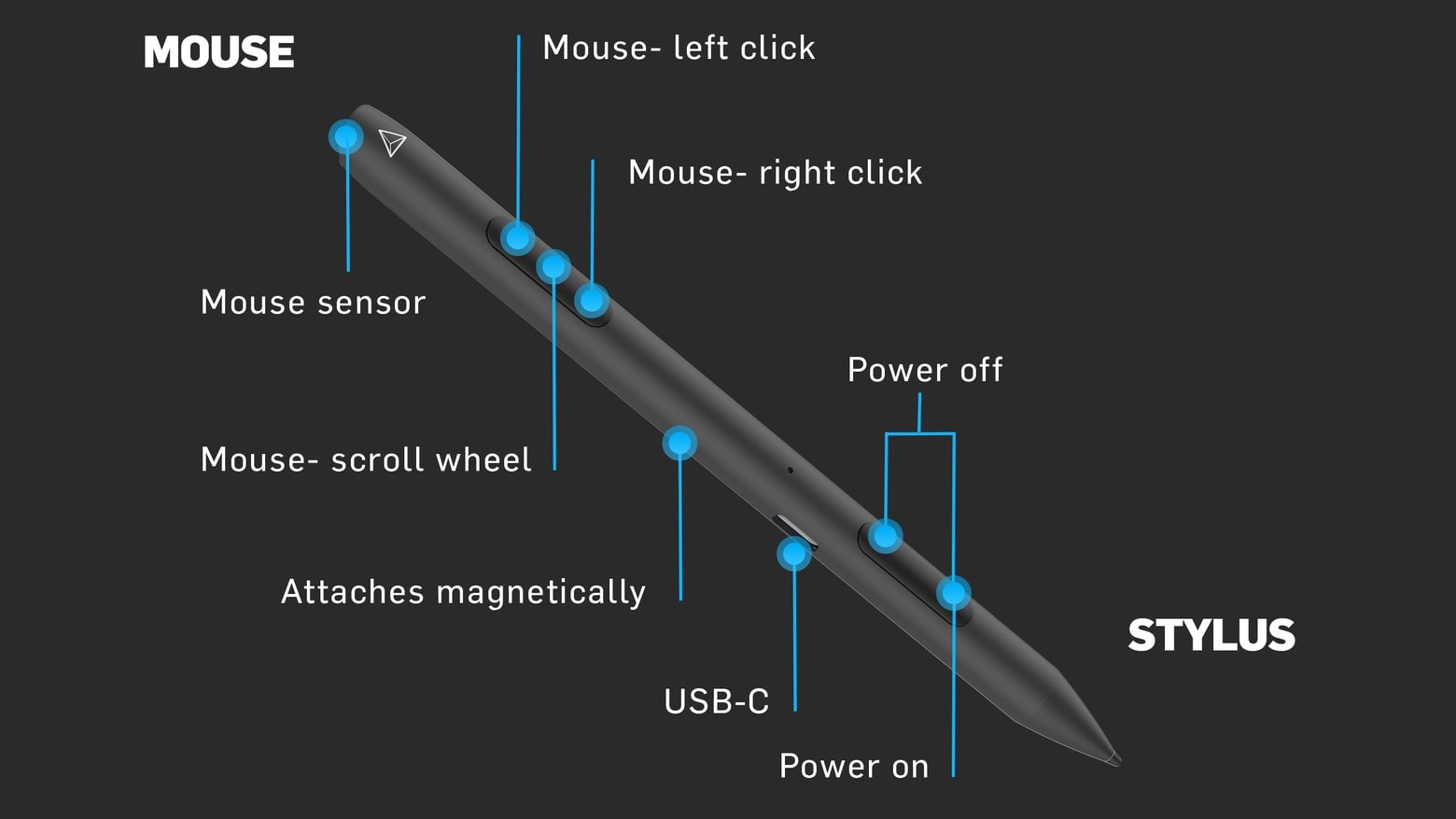
iPadOS offers full support for mice, and it also supports styli. But carrying around both can be a bit of a hassle. That’s where the Adonit Note-M comes in. It’s a stylus that’s also a mouse. And one that’ll attach itself to the side of an iPad Pro.
I extensively tested this innovative accessory. Here’s how it performs in real-world use.
Why carry just an iPad stylus when the Adonit Note-M is also a mouse? Photo: Adonit
You can use a stylus with your iPad, or a mouse. Or you could try the newly unveiled Adonit Note-M, which is both.
One end of this accessory acts as a stylus on the iPad display. Flip it around, and a motion sensor on the other end lets the Note-M function as a mouse on almost any surface.
The high-end MX Series keyboard and mouse from Logitech get a Mac-oriented overhaul. Photo: Logitech
Logitech launched Mac versions of its popular MX Keys and MX Master 3 on Tuesday, giving the pro keyboard and mouse a space gray makeover and adding some Apple-specific tweaks.
Most of the changes seem totally awesome for the “Mac purists” Logitech is targeting with these high-end accessories. One change might not be so welcome, though, depending on your experience with Bluetooth peripherals.
The company also released a new Mac-oriented version of its smaller K380 keyboard in white and pink color options.
It's like turning your iPad into a portable Windows PC. Photo: Harpal Singh/Unsplash
While a large number of iOS users are also Mac customers, many people will use an iPhone or iPad but also rely on a Windows PC in some capacity. For those customers, Microsoft’s Remote Desktop app is a great tool, letting them access and use their professional or enterprise Windows PC through another device.
The latest update for the app is a big one for iPad owners — adding some eagerly anticipated features to the iOS app, including support for the Apple Magic Mouse 2 and Apple Magic Trackpad 2, external mice, and more.
Trackpad gestures transform the iPad into something entirely new. Photo: Charlie Sorrel/Cult of Mac
The trackpad and mouse support Apple added in iOS 13.4 is just amazing. It’s like getting a whole new computer, just by updating your iPad. I’ve been using it for a week for so now, and I want to share my favorite trackpad gestures.
If you use a trackpad with your iPad, these gestures will change the way you use your tablet.
So many ways to control an iPad. Photo: Charlie Sorrel/Cult of Mac
The new mouse and trackpad support coming in iPadOS 13.4 is just fantastic. And, in typical Apple fashion, it just works as soon as you connect a trackpad or mouse via Bluetooth or USB. But there are also plenty of options to customize how the mouse behaves, and even how the pointer looks.
You may already have checked the obvious options in the Settings app under General > Trackpad & Mouse. But several hidden iPad Pointer Control options offer even deeper customizations.
Pretty much any mouse will work with the iPad in iPadOS 13.4. Photo: Charlie Sorrel/Cult of Mac
Apple’s new Magic Keyboard case for the iPad Pro looks amazing. But its most impressive feature (aside from that incredibly solid-looking hinge) will become available to any iPad owner with a mouse or trackpad laying around. The new trackpad support coming next week in iOS 13.4 works with pretty much any Bluetooth or USB mouse. You just connect the peripheral, and a cursor appears on the iPad screen.
This is a much, much better system than the cobbled-together mouse support that already exists in iOS 13’s Accessibility settings. Instead of simply imitating a finger on-screen, Apple completely rethought how a cursor should work on a touch-based device. This thing is deep, as we’re about to see.
Here’s a hands-on look at the new iPad mouse and trackpad features.
Craig Federighi and new iPad features? What more could you want? Photo: Apple
Apple is bringing true trackpad support (and improved mouse support) to the iPad. Get ready to enjoy it by learning all the new gestures from Craig Federighi, Apple’s senior vice president of Software Engineering.
In a new video released by Apple Wednesday, Federighi demonstrates the improvements and shows how simple swipes can help you access Control Center, switch between apps in Slide Over, return to the Home screen, and more.
Bag 'em! It's time to accessorize that monster laptop. Photo: WaterField Designs
Your shiny new 16-inch MacBook Pro arrives this week, and of course you want to deck it out with all the latest accessories. What you need will depend on what you use your computer for, but almost everyone will want a case, a keyboard and a mouse. And there are plenty of other MacBook Pro accessories you might need to get the job done.
Check out our guide for dongles, cables and even battery packs that will help you get the most out of your new MacBook Pro.
There's just one problem — and that's Apple. Photo: Ed Hardy/Cult of Mac
Better mouse support on iPad could be the “perfect disruption” to PC gaming, one analyst believes.
Apple has already added the ability to control iPhone and iPad with a mouse in its latest software updates. Future enhancements could help it become a more compelling notebook computer replacement.
But will Apple ever give us full mouse support in iPadOS?
iOS 13 lets you plug almost any USB device into your iPhone or iPad. Photo: Charlie Sorrel/Cult of Mac
iOS 13, which launches today, focuses more on adding a range of incredibly useful features and tweaks rather than pursuing a bold, overarching new direction. For instance, Safari on iPad now functions as a full desktop browser, just like on your Mac. Another great addition is the redesigned share sheet, which includes a top row of one-tap buttons for easily sharing with friends via iMessage. If you’re curious about when someone shares their location how do you see it, iOS also introduces enhancements to location-sharing features, which you can learn more abouthere.
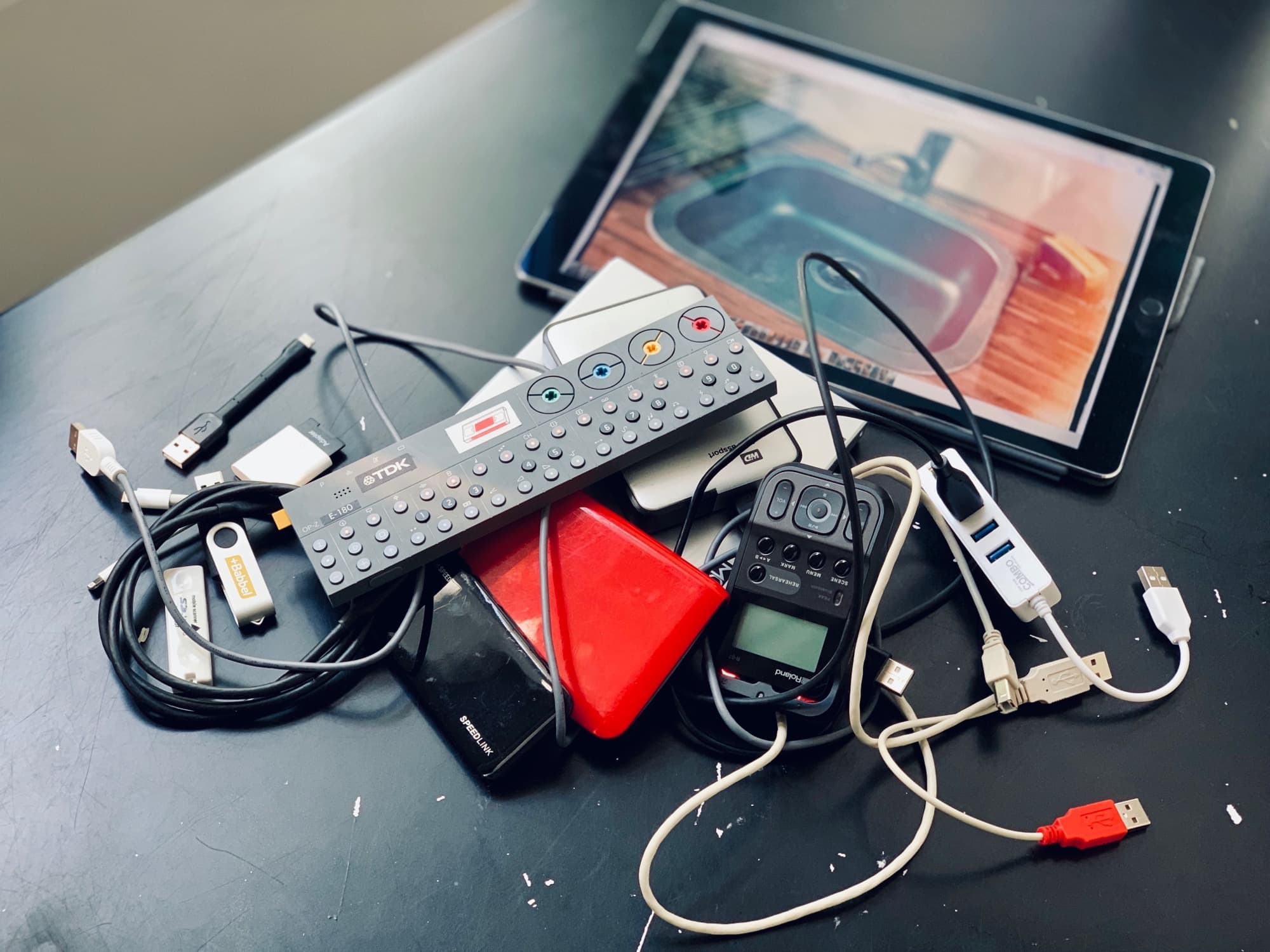
Or, in iPadOS 13, which ships at the end of the month, you can plug in pretty much any USB device and it will work. Hard drives, SD cards full of movies, anything.
So, while you’re waiting for the new version of iOS to install on your device(s), check out all the new iOS 13 features right here.
iOS 13.1 beta 1 brings back almost every cool feature dropped from previous betas. Photo: Charlie Sorrel/Cult of Mac
Surprisingly, iOS 13.1 is already in beta. It looks like Apple’s release strategy this year is to freeze the current beta version of iOS 13.0 in order to get it ready for the new iPhones expected on September 10. Meanwhile, Apple continues to test the next version, adding back some features removed during the beta period — Shortcuts automations, for example.
So, what other new (or revived) features will you find in iOS 13.1 beta 1?
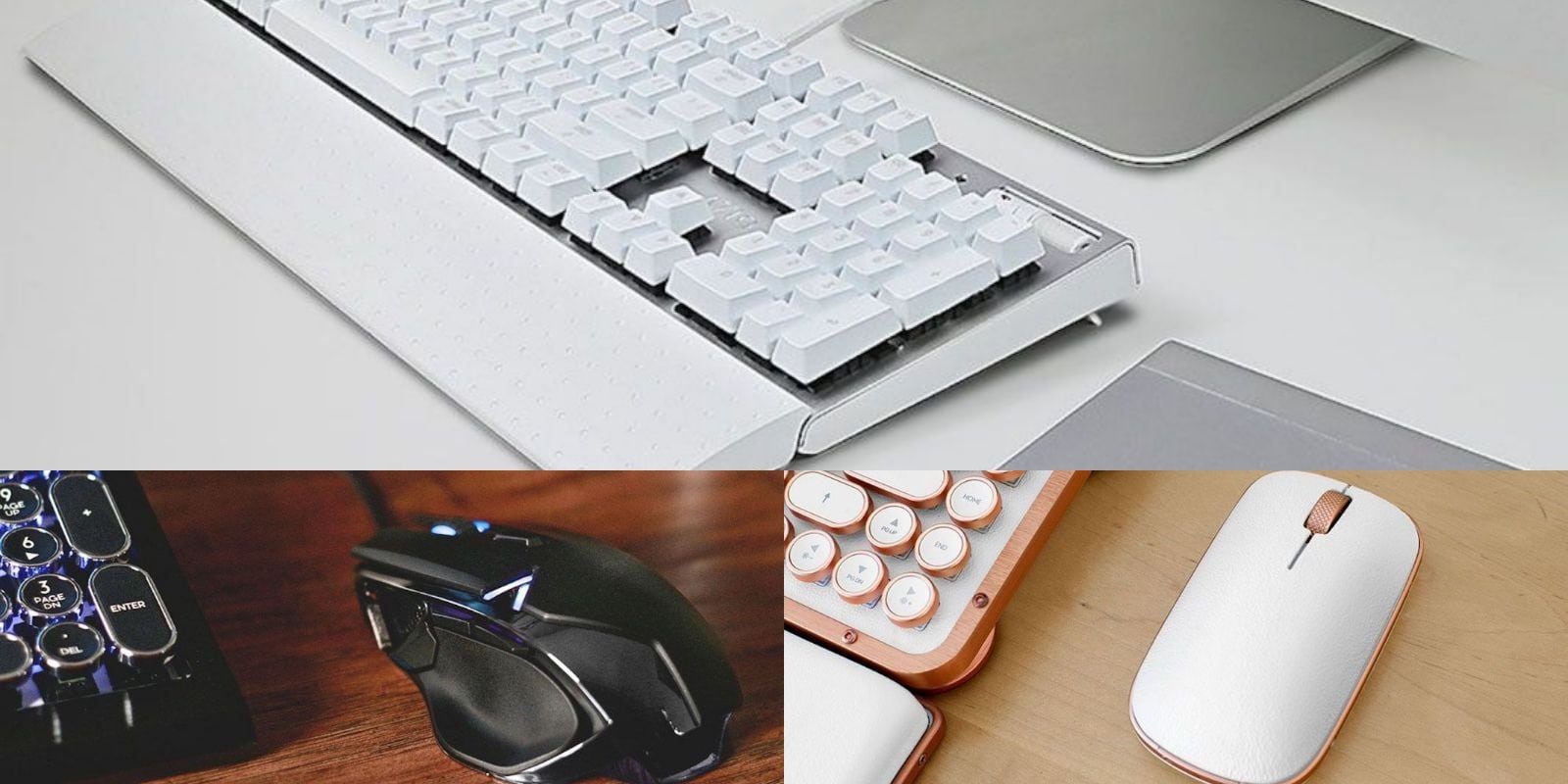
This roundup of keyboard and mice offers an easy way to enhance your Mac's feel and functionality. Photo: Cult of Mac Deals
Using your computer is only as fast and effective as what you use to interface with it. That means your mouse and keyboard, so these upgrades from Azio offer a way to work and play better with your Mac.

![This rugged mouse will conquer your multicomputer setup [Review]](https://www.cultofmac.com/wp-content/uploads/2022/12/Zagg-Pro-Mouse-hero.jpg "This rugged mouse will conquer your multicomputer setup [Review] ★★★★☆")