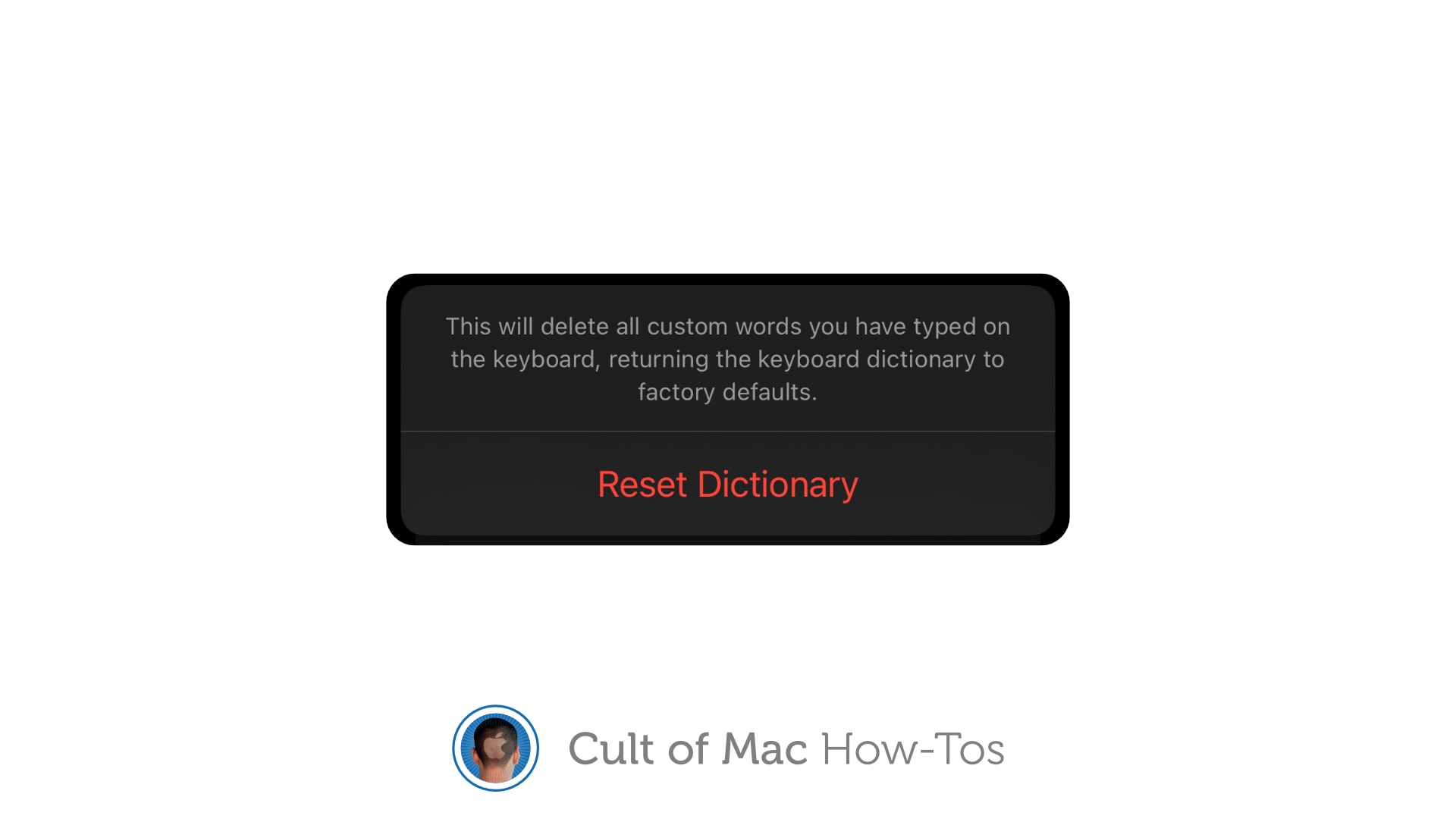
Make a fresh start with autocorrect. Image: Killian Bell/Cult of Mac
If autocorrect repeatedly serves up ridiculous options, you can reset your iPhone keyboard to eliminate weird additions to its dictionary. This comes in handy when you find that autocorrect suddenly starts changing words it doesn’t need to change, or offering up other strange glitches.
It just takes a second to reset the keyboard dictionary on iPhone or iPad. We’ll show you how.
As a passenger, of course. Image: D. Griffin Jones/Cult of Mac
Apple’s Vehicle Motion Cues feature will help you use your iPhone in the car by reducing feelings of motion sickness. With the feature turned on, dots along the edge of your iPhone screen will animate in sync with the motion of the plane, train or automobile you’re riding in.
According to Apple, “Motion sickness is commonly caused by a sensory conflict between what a person sees and what they feel.” Apple says these animations “reduce sensory conflict.”
It may sound weird, but the feature evidently works really well. Here’s how you can enable it.
This (kind of) free app can handle it all for you. Image: D. Griffin Jones/Cult of Mac
To tackle your party planning, the new Apple Invites app can help you get organized with RSVPs and keep everybody up to date. It can even handle a shared music playlist and photo album that anyone can contribute to.
And yes, you can invite people who don’t have the app installed yet, don’t have an Apple Account or don’t have an Apple device at all. You can invite people via email; they can RSVP on the web and get follow-up notifications in their inbox.
Apple's operating systems give you the option to encrypt much of the data stored on iCloud. Photo: Cult of Mac
Apple offers end-to-end encryption for many more types of iCloud data than it once did. Advanced Data Protection encrypts iCloud Photos, Notes, iCloud Backup and more. But you have to activate the feature to take advantage of the data protection. It is easy … once you find the switch buried in Settings.
We can save you some time. Here’s how and why you should activate it.
Are you ready for some championship football? (Not to mention the Apple Music Super Bowl LIX Halftime Show featuring rapper Kendrick Lamar.) Photo: Fox Sports
Even folks who don’t pay for access to TV channels can stream the Super Bowl live — and for free — on any Apple device or on the web. For Super Bowl LIX this Sunday, Fox Sports plans to stage a “takeover” of the Tubi streaming app. The free live Super Bowl stream will include a pregame run-up and the Apple Music Super Bowl LIX Halftime Show featuring rapper Kendrick Lamar. And it requires no viewer sign-in.
So now what’s your excuse to blow off the year’s biggest sporting event? Oh, you probably hate football, not to mention all the commercialist hoopla that comes with America’s modern-day gladiatorial bloodsport. Oh well. For tens of millions of others, Super Bowl Sunday is like a national holiday.
The Notes app on your iPhone transcribes audio to text for free.. Image: D. Griffin Jones/Cult of Mac
In the updated Notes app in iOS 18, you can transcribe audio to text for free: Your iPhone will automatically transcribe voice notes for later.
This is a great feature to use in a college class, if you want to record audio of a lecture alongside your notes. You can use it in meetings — the irritating in-person kind — for recording what people actually said alongside your notes. It’s also great for generating podcast transcripts or any kind of writing. It’s a quick and easy way to get a first draft.
One of the best iPhone features. Image: D. Griffin Jones/Cult of Mac
Find My iPhone, a feature available in Apple’s Find My app, will help you locate your lost phone. You can find it using any other Apple device you own or by borrowing a friend’s device. You can even ping your iPhone from your Apple Watch.
From Find My, you can also remotely lock down your lost iPhone, put the device into a special Lost Mode, or even wipe its contents. You should take a peek at this incredibly useful app before you have to.
Before you buy Apple gear, get to know the ins and outs of reseller reviews so you can avoid scams. Photo: Kindel [email protected]
If you shop for Apple gear through a reseller, you’re probably scouring reviews to find a legitimate deal — or at least avoid disaster. Smart move. Apple reseller reviews can help you spot shady operators faster than Face ID unlocks your iPhone.
But if you want to dodge scams and shop like a pro, you need to know how to read between the lines of Apple reseller reviews. Follow the guidelines below to protect yourself from the ever-more-sophisticated scams surrounding real and fake Apple products in the reseller market.
Save yourself the pain of getting your phone out of your pocket. Image: Apple/D. Griffin Jones/Cult of Mac
iPhone Mirroring on the Mac lets you control your phone using your computer — a handy convenience when your iPhone is in your pocket, purse or backpack. All your iPhone notifications can be mirrored onto your Mac as well, letting you triage them and take care of business without touching your phone and interrupting your workflow.
This feature also could come in handy if you shatter your iPhone screen. You can mirror an otherwise unusable iPhone to your Mac to make sure it’s backed up. You could even factory-reset your broken phone before sending it in for repair or replacement.
Here’s how iPhone mirroring works. Keep reading or watch our video.
It probably won’t, but it may. Image: Helitak430/Wikimedia Commons/D. Griffin Jones/Cult of Mac
It’s very important to set up your iPhone Medical ID so it’s ready in case you find yourself in an emergency situation. First responders can check your iPhone to get critical information about any allergies or preexisting conditions that could make a huge difference in their ability to help you.
It might be unpleasant to think about, but providing this vital information could prove lifesaving if an accident leaves you unconscious.
If you haven’t yet done so you’ll be happy to know it only takes a couple of minutes to update your medical records in the Health app on your iPhone. Here’s how to do it.
The quickest way to hide those pesky notifications. Image: D. Griffin Jones/Cult of Mac
Is a group chat blowing up at an inopportune time and distracting the hell out of you? There’s an easy fix. You can hide alerts on your iPhone from a particularly noisy group chat in Messages. It’s like switching on Do Not Disturb — but for a single person or conversation. You can hide alerts permanently or temporarily.
With the Hide Alerts feature, you can silence alerts from a specific app in a similar manner, silencing it while letting all other notifications through. Better yet, you can hide alerts directly from your iPhone’s Lock Screen, which makes it easy to switch them on and off at a moment’s notice.
This guide tells you everything you need to know about RCS. Image: D. Griffin Jones/Cult of Mac
Rich Communication Services messaging is new to iPhone, and it makes chatting with Android users much more fun. RCS messaging makes features like read receipts, video and file attachments and named group chats — previously exclusive to iMessage (and some apps) — possible between iPhone and Android.
No apps to download, just run a shortcut and get on with it. Image: D. Griffin Jones/Cult of Mac
You can convert a PDF to JPG on your iPhone instantly and for free — without downloading any sketchy apps or using any slow and confusing websites. This feature works using Shortcuts, a versatile automation system built into your iPhone. To learn more, check outthis guide on making PDFs on iPhone and iPad.
After you download the shortcut, you can convert any PDF into a JPG straight from the share sheet on your iPhone. Watch the video or keep reading below to see how it works.
Copy a link to a YouTube video that starts partway through and save everyone some time. Image: D. Griffin Jones/Cult of Mac
Say you want to send someone a YouTube link with a timestamp, to show them a specific part halfway through. Doing this is really easy from both the YouTube website or the app.
Let me show you how to share a YouTube video that starts at a specific time.
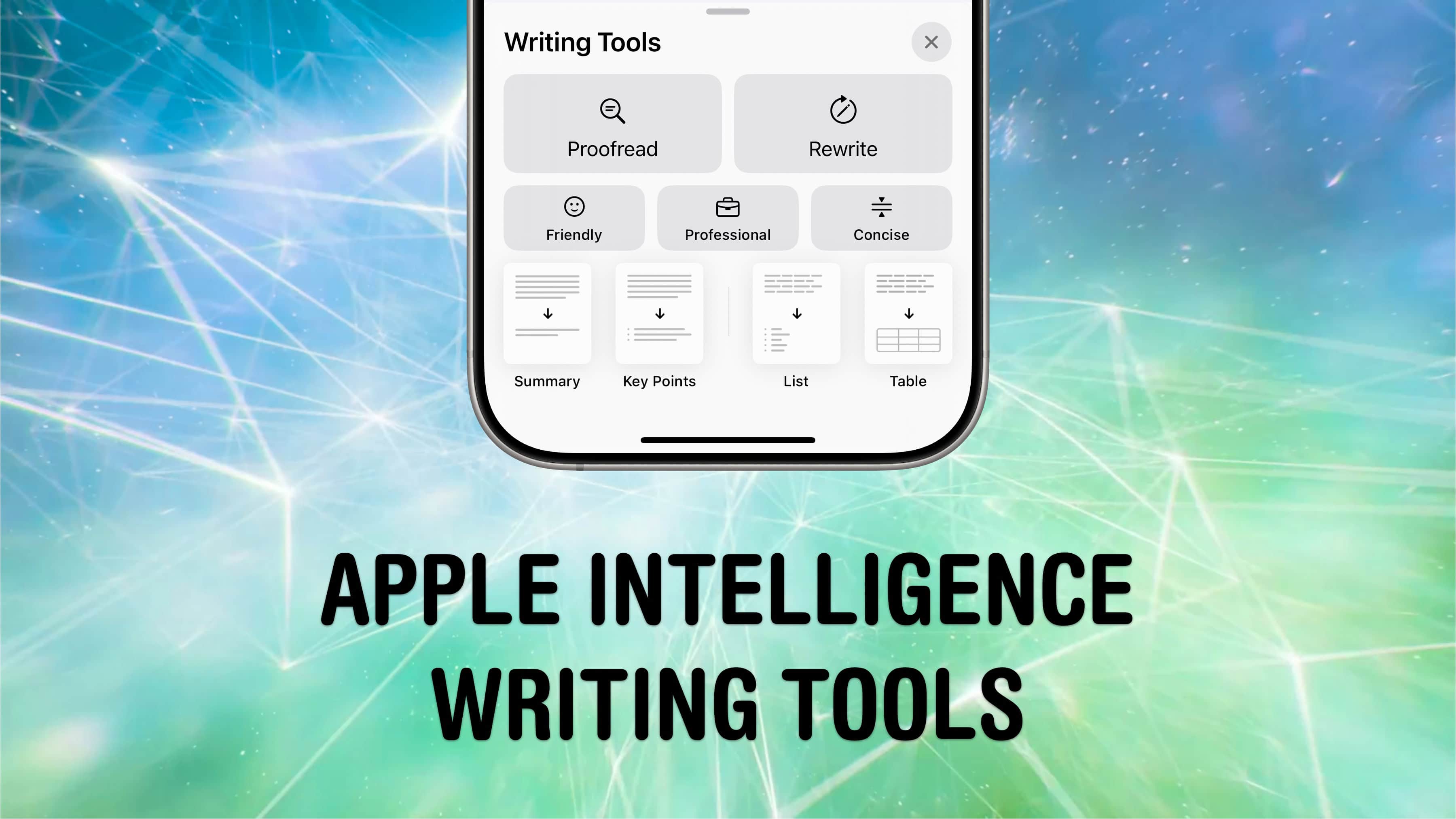
The writing tools are the most fleshed out Apple Intelligence feature, at least at first. Image: D. Griffin Jones/Cult of Mac
One of the top Apple Intelligence features is a new set of system-wide AI writing tools. You can invoke these intelligent writing helpers anytime, anywhere to help you compose, edit, rewrite, summarize, reformat or proofread text.
In my experience, they can really streamline reformatting a document and can be helpful for making your written communication better. Here’s how to make the most of Apple Intelligence writing tools.
Or, more accurately, back up your iMessage history. Image: D. Griffin Jones/Cult of Mac
You can back up your text messages (and iMessages) with iMessage Exporter, a free tool for the Mac. Whether you want to preserve your family message history for sentimental reasons, or need to keep conversation records for business, iMessage Exporter will get the job done.
You might already back up your messages in iCloud, but Apple charges an arm and a leg for space. You can save space (and money) by making a local backup and clearing out your cloud storage.
Create a wallpaper that can switch with a single tap. GIF: D. Griffin Jones/Cult of Mac
In just a few minutes, you can create a cool iPhone Lock Screen wallpaper that can switch between two images with just a tap. Add the right images to your photo library, and you can toggle between them like magic.
For instance, you might pair up nearly identical photos of a muscle car with and without its headlights on. That way, when you tap your iPhone screen, the car’s lights flash on or off. Or maybe you take duplicate photos of your boss and add fiery red laser eyes to one of them so you can tap between “nice boss” and “boss from hell.”
To pull off this fun iPhone wallpaper trick, you need to add the right kinds of images to your photo library — I’ll share a few examples — and then create a custom Photo Shuffle wallpaper to toggle between them. Watch the video or keep reading below.
Start the year off saving cash by canceling any App Store subscriptions you don't want. Photo: David Švihovec/Unsplash License/Modified by Cult of Mac
It’s a new year, and it’s a fine time to clear out some of the mistakes of the past. That includes no longer paying for apps or services you don’t use anymore. Luckily, it’s easy — if you know how to cancel subscriptions on your Apple devices.
Here’s how to find everything you’ve signed up for through the App Store, see what it’s costing you, and cancel it if you’ve lost interest. Or perhaps save a bit of money by changing how often you’re billed.
Journal lets you build a scrapbook or a diary on your iPhone. Image: D. Griffin Jones/Cult of Mac
A diary can be a great and invaluable record of your life, but who has time for that? Well, now you do: Apple’s iPhone Journal app makes keeping a diary a breeze. Really, it couldn’t be any easier.
Apple’s Journal app, newly updated in iOS 18, lets you build a record of your life into a multimedia digital diary. Your iPhone will pull together details from your photos, locations and events to give you prompts for memories worth writing about.
Here’s the nitty gritty on using the Journal app — and its latest features.
One of these iMacs is actually an external display, with specs similar to the Apple Studio Display. Photo: Run Young/YouTube
With some careful modding, you can use an iMac as a display — and save more than $1,300 to get a high-end monitor similar to Apple’s pricey Studio Display.
Apple’s Studio Display is one of only a small handful of 27-inch Retina 5K displays on the market, boasting a resolution of 5,120 × 2880. Unfortunately, it costs quite a handful — $1,599. If you have an old iMac 5K sitting around, you already have a computer with the exact same display panel inside. So if you are willing to spend about $190 in parts and can convert it to a Studio Display, you can save a big chunk of change.
Here’s how you can mod it yourself — but be warned, it’s not for the faint of heart.
You can quickly and secretly switch out of Private Browsing without anyone noticing. Image: Dosso Dossi/Public domain
So, you’ve been using Safari’s Private Browsing mode on your iPhone or iPad, for whatever reason, but you forget to close out of the tab. The next time you open Safari, you’ll be thrown into whatever unscrupulous web page you had open last time — and the result can range from unfortunate to embarrassing, depending upon what you were looking at and where you are when you unexpectedly resume the Private Browsing session.
Luckily, iOS offers a foolproof way to avoid reopening a Private Browsing mode session. Let me show you how.
You’ll be one happy duck with your new AirPods. Photo: Apple
If you’re a super lucky duck, then Santa may have left you a pair of AirPods. They are truly one of the best products Apple ever made, because they really do offer a huge upgrade on all previous headphones. Here’s how to set up your new AirPods.
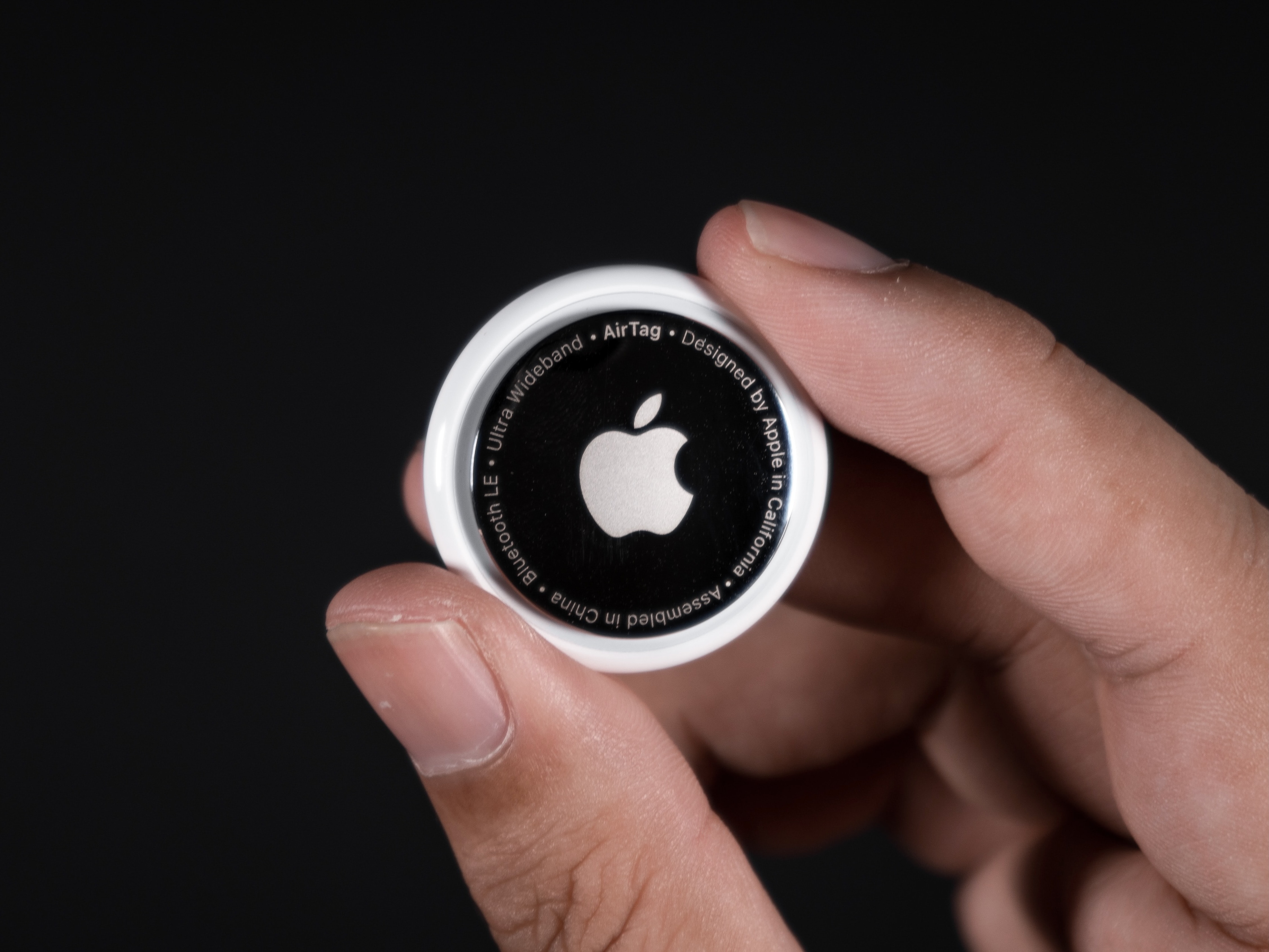
Stick an AirTag in your car in case it's stolen. Photo: Mark Chan/Unsplash
The Apple AirTag is arguably among the company’s most useful product releases in recent years. Once you set up an AirTag, it gives you powerful options for locating it (and whatever you attach it to). Put one of Apple’s tracking tags on an item like a keychain or luggage, and you can easily track its location from your iPhone, Mac, or iPad. If you’re wondering,do AirTags make noise, the answer is yes, but only in specific circumstances.
Since AirTag’s launch, numerous reports have detailed how the tracking tag helped owners find lost items. If you recently acquired an AirTag, here’s how you can set it up the right way and use it properly.
NORAD’s Santa tracker app is available for iPhone and iPad. And there’s a website for Macs. Photo: NORAD
It’s Christmas Eve, and Santa Claus is on his way. You can find out exactly where he is with the help of the NORAD Santa tracker and your Mac or iPhone. You can even track Jolly Old Saint Nick’s progress in real time.
Here’s how to keep an eye on Kris Kringle‘s progress.
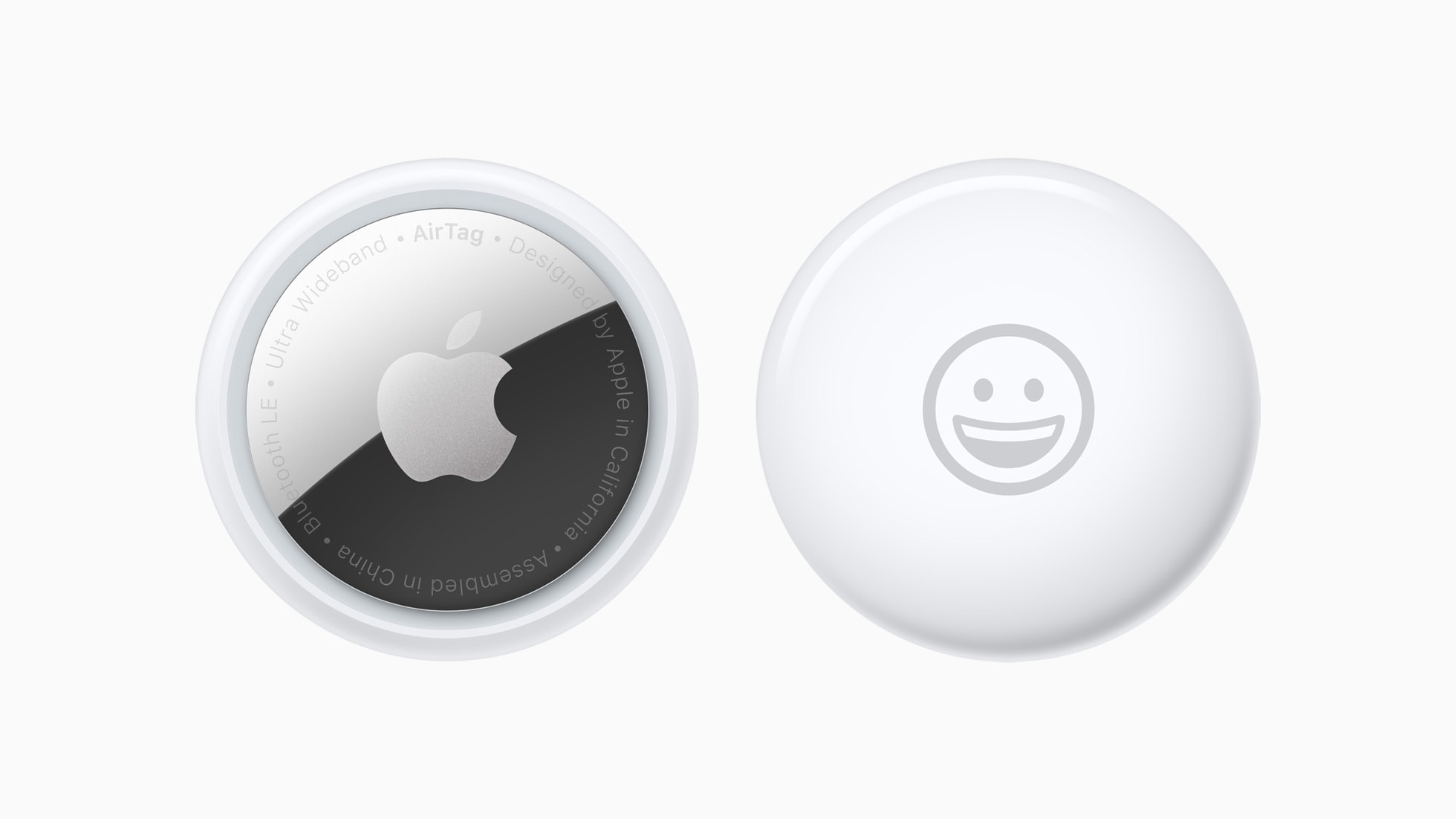
You can share an Apple AirTag with up to five people. Here’s how. Photo: Apple
When Apple launched the AirTag, you could link the tracking tags to only one person. Luckily, Apple expanded that. Now you can share an AirTag with up to five other people, so each one can see where it is.
Here’s how to share an AirTag with family members or friends.