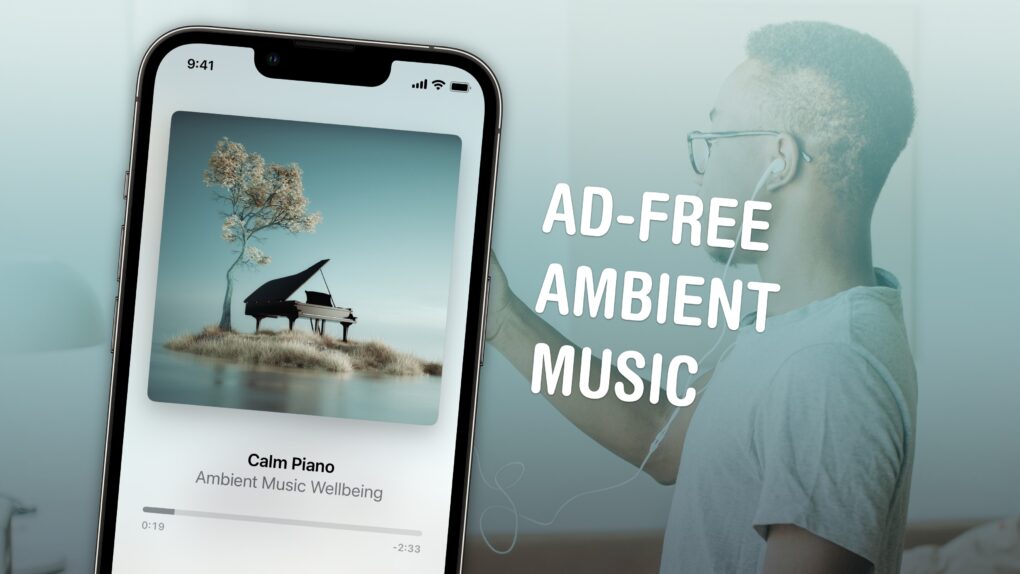
Throw on some background sounds without any fuss. Image: D. Griffin Jones/Cult of Mac
If you like working, sleeping, relaxing or meditating to ambient music — and you own an iPhone — you’re in luck. You can now play background tunes from Control Center on your iPhone. The feature is ad-free and doesn’t require a subscription to Apple Music.
If you usually put on a lo-fi music stream on YouTube, you should give this new feature a shot instead. You don’t need to keep the YouTube app open, and annoying ads won’t interrupt you.
Here’s how the iPhone’s ambient music feature works.
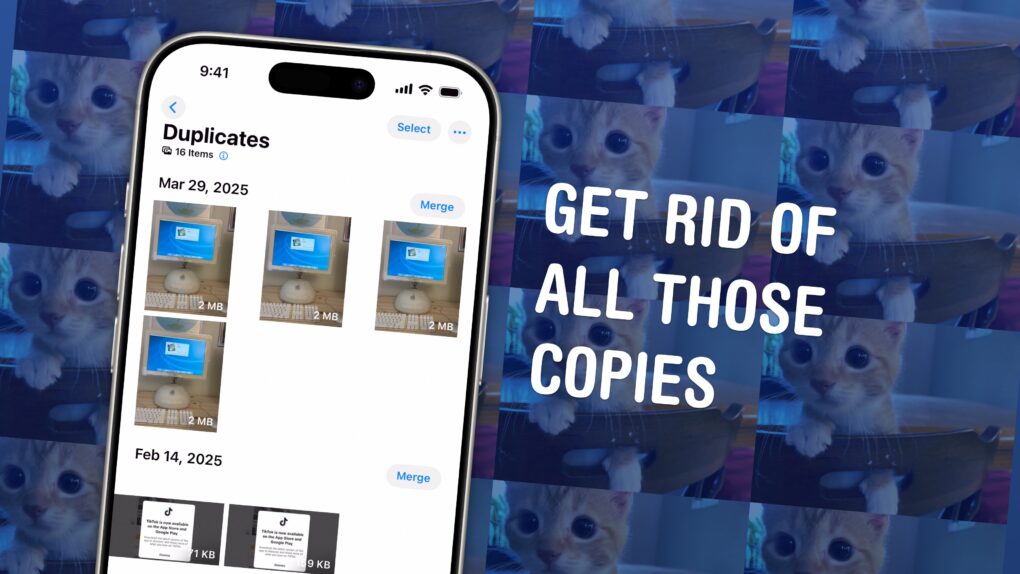
Find and delete copies of your photos on your iPhone. Image: D. Griffin Jones/Cult of Mac
You could have dozens of copies of the same images in your Photos library, taking up space on your phone and in your iCloud account. Luckily, Apple offers an easy-to-use little tool that lets you find duplicate photos and delete the copies, all right from the Photos app.
These types of duplicate images can accumulate more quickly than you might expect. They arise if you make a copy of a photo to edit, if you screenshot a photo to bump it to the top of your Camera Roll, or if you and your partner both upload the same picture to your Shared iCloud Photo Library. In fact, I found hundreds of duplicates in my own carefully curated library.
It’s a surprisingly sophisticated feature that took Apple engineers a fair amount of smarts to cook up (more on that later). Here’s how to use Apple’s duplicate image remover and get rid of all those unnecessary files. Keep reading or watch our video instructions.
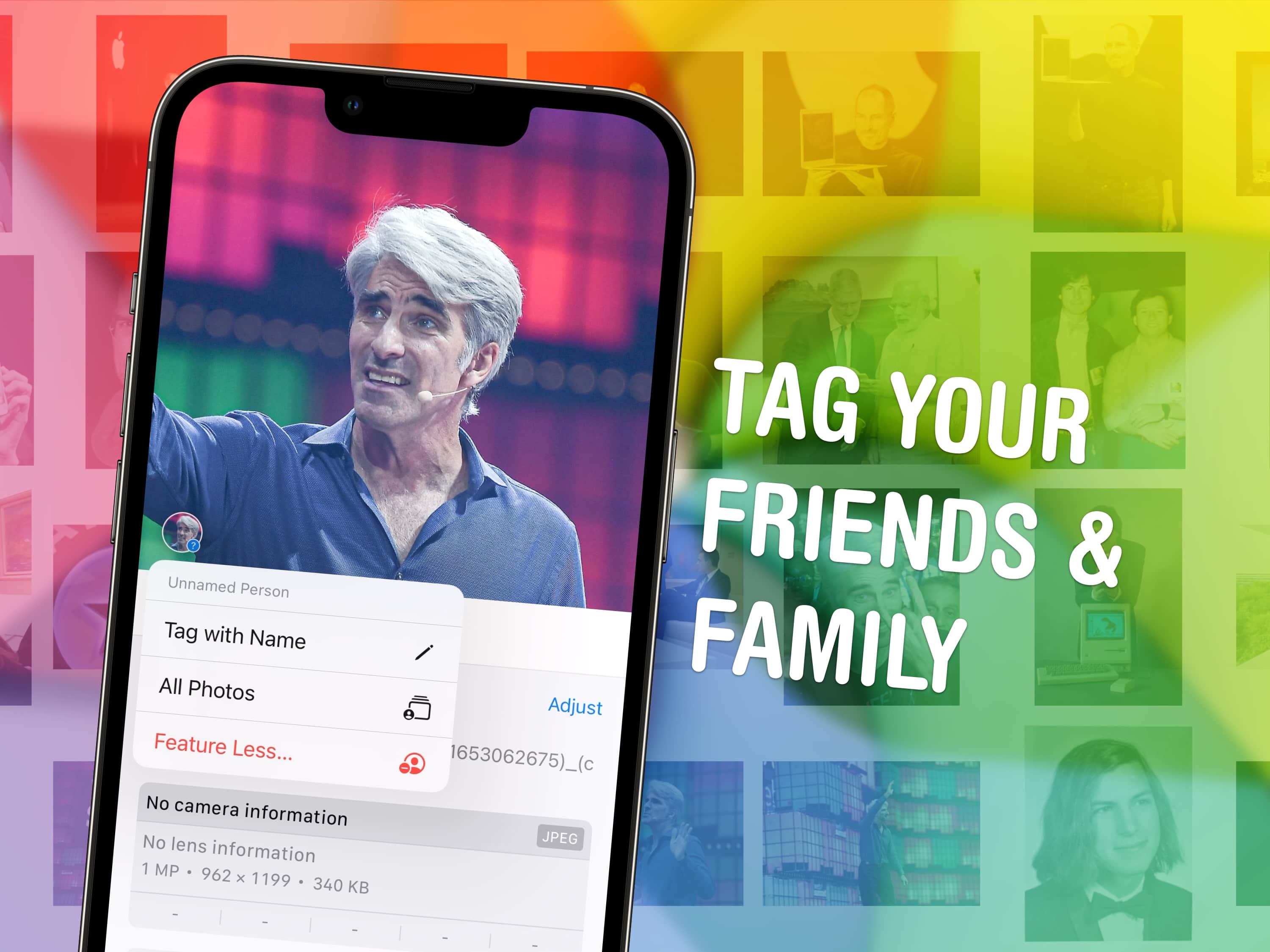
Despite what my hairline would imply, Craig Federighi is not family. Just friend. Image: D. Griffin Jones/Cult of Mac
You can quickly tag photos on your iPhone with the names of your friends, family members and pets so you can easily find pictures of them later on. The Photos app will detect pictures of people automatically — you just need to give them a name. I’ll show you how to fine-tune the results as well.
I’ll show you how to find this long-standing feature in the new Photos app and make the most of it. Keep reading or watch our video guide.
Vision Pro Guest mode is how you can share your Vision Pro with someone else. Because if you own one of Apple’s new AR/VR headsets, everyone you know is inevitably going to want to try it on. That’s where Vision Pro Guest Mode comes in.
With the release of visionOS 2.4 and iOS 18.4, setting up Guest Mode is much easier than before. The old way still works — but to make sharing your headset more seamless, you should follow the instructions below. There’s a little bit of setup, but then it should be smooth sailing.
This is how to set up a guest user on Vision Pro. Keep reading or watch our video.
After much research, I’ve finally discovered some other uses for Siri. Image: D. Griffin Jones/Cult of Mac
Believe it or not, there are actually quite a few helpful tricks Siri can do — besides setting timers and sending texts. Granted, there’s a lot of things Siri can’t do, especially with the recent news that the smarter, more capable Siri promised with Apple Intelligence and the total LLM-powered overhaul are both significantly delayed.
Nonetheless, after many hours of research, I have come across six neat things you can ask Siri you might find surprising or handy. Keep reading our list or watch our video.
Safari isn't the only options as default iPhone browser. You can change it. Image: Ed Hardy/Cult of Mac
You can easily change the default browser on your iPhone if you prefer to use Google Chrome, Mozilla Firefox, Microsoft Edge or any other alternative. Maybe you use a PC at home and want your bookmarks, history and passwords to sync to your iPhone. Or maybe you simply prefer something other than Apple’s Safari browser.
Whichever browser you set as your iPhone’s default will open when you tap on a link from Messages or Mail, get AirDropped a URL, scan a QR code, search the web with Siri and perform other tasks. This doesn’t mean Safari will be deleted, however. Apple’s stock app will remain installed on your iPhone if case you decide to switch back (which is super-easy).
Here’s how to change the default browser on your iPhone — and transfer your bookmarks and data, too. Keep reading or watch our quick video.
You create space in iCloud by deleting old backups. Here’s how. Image: Ed Hardy/Cult of Mac
It’s World Backup Day, a good opportunity to learn how to clear iCloud storage of old backup files made by iPhone and iPad. Are you running out of iCloud storage space? Worried about privacy? You might want to delete some old backups from the cloud.
The good news is erasing these files is easy if you know the steps to follow. Here’s how.
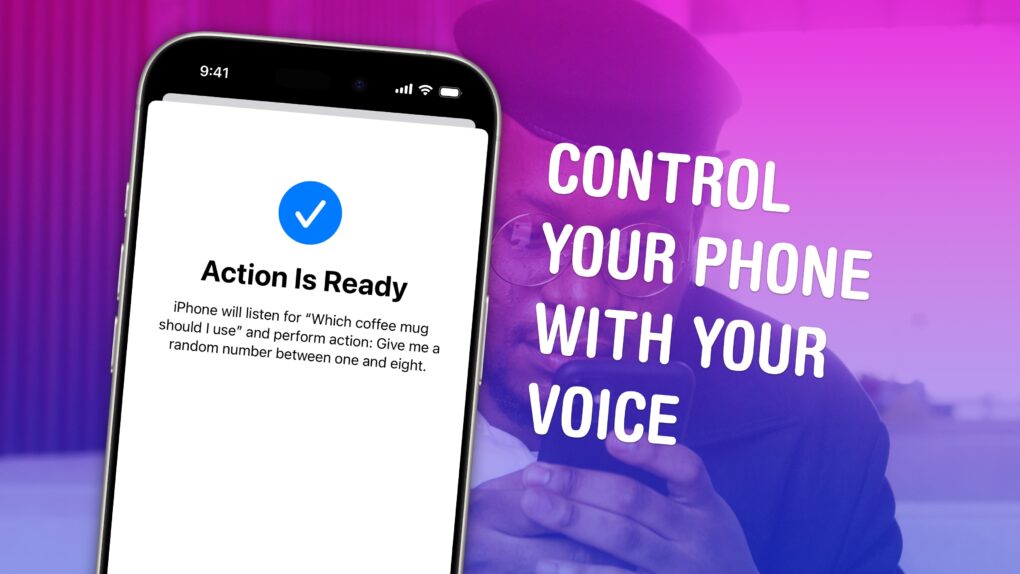
Vocal Shortcuts can feel like a superpower. Image: D. Griffin Jones/Cult of Mac
Vocal Shortcuts let you control your phone by speaking a command out loud. Think “Hey Siri,” but for running your own custom actions from Apple’s Shortcuts app. (Here’s a quick rundown on Shortcuts, if you’re not familiar with this powerful tool.)
Using Vocal Shortcuts is a versatile way to automate tasks on your iPhone with the power of your voice alone. You don’t need to make space on your Home Screen for a Shortcuts widget, type anything into Spotlight or, god forbid, open the Shortcuts app.
You can create a Vocal Shortcut that opens an app you use often, like the Apple TV remote, for instant access with your voice.
You can even use this feature as a roundabout way to use “OK Google” — or whatever your favorite alternative voice assistant may be — instead of Siri.
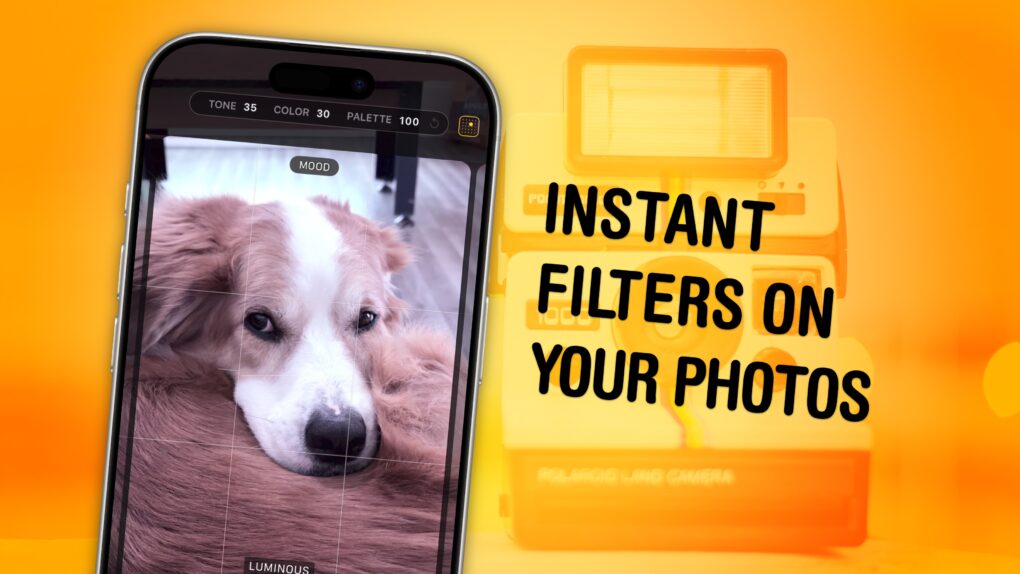
Apply fun styles to your photos — while you’re taking them. Image: D. Griffin Jones/Cult of Mac
The Photographic Styles feature built into your iPhone’s camera can give your pictures a radically different aesthetic. And once you nail down your personal photo style or styles, you can make sure all your pictures use these specific filters. And on a newer iPhone, you can edit them after the fact.
Photographic Styles can save you the time you’d waste editing your pictures in Instagram or VSCO. Since they live in the iPhone’s camera and in Apple’s Photos app, you can see them while you’re shooting your pictures, too. Read on to see how to edit your photos in these different styles or watch our video below.
Another year, another window management feature on the Mac. Image: Apple/D. Griffin Jones/Cult of Mac
Window snapping and tiling is a new way to quickly organize your Mac desktop. It lets you throw the two apps you’re working on side by side so you can focus on them.
Window snapping proves more versatile than fullscreen mode, which the Mac has had ever since OS X Lion. Using fullscreen mode comes with a few compromises. For one, fullscreen mode only supports two windows side by side. And while you’re in fullscreen mode, you can’t have any other apps visible — fullscreen apps exist in a separate space from everything else.
With window snapping, you can have your Mac windows tiled in halves, quarters or a mix — you pick the orderly layout that works best for the task at hand. You can use gestures or keyboard shortcuts for quick tiling. Or you can control the tiling from your Mac’s menu bar. Keep reading or watch our video to learn how this cool Mac productivity feature works.
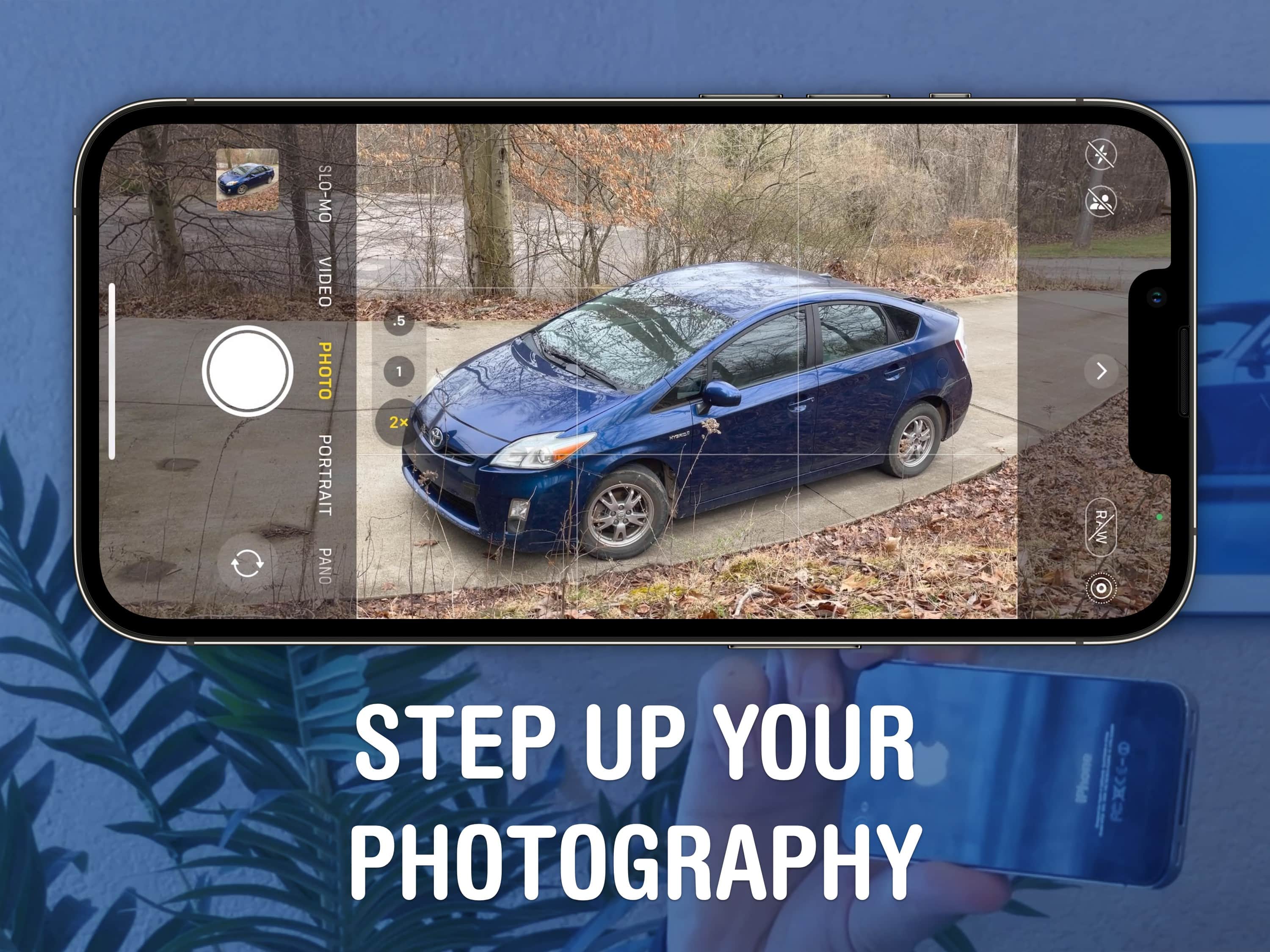
A beautiful, well-framed picture will almost make a Prius look good. Image: D. Griffin Jones/Cult of Mac
You should get comfortable with the world’s handiest camera so you can capture memories that will last a lifetime. After all, more and more people are leaving behind family point-and-shoot cameras for the smartphones in their pockets. With our iPhone photography tips, you won’t need the latest and greatest in your pocket.
If you know the ins and outs of photography, you can make the most out of a years-old camera. In fact, the winner of the 2020 iPhone Photography Awards took the prize-winning picture on an iPhone 4!
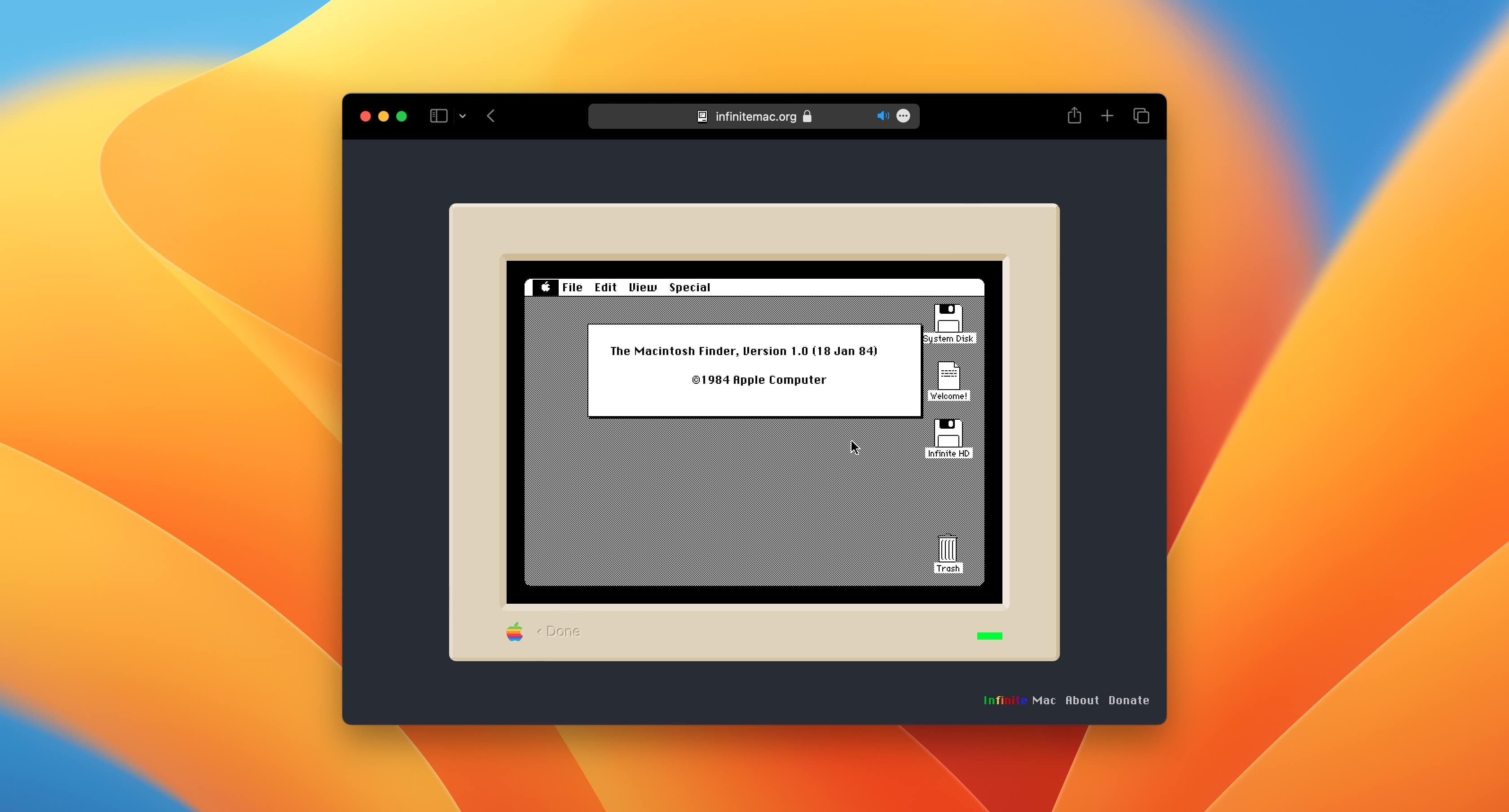
Experience 1984 from the comfort of 2023. Screenshot: D. Griffin Jones/Cult of Mac
You don’t need to buy an old Macintosh to experience classic Mac OS anymore. In fact, you don’t even need to fiddle around installing an emulator and downloading ROMs. Thanks to Infinite Mac, you can boot up every major release of Mac OS from the 1980s and ’90s right in your web browser.
With more than 25 Apple computers and devices in my collection, I’m something of a vintage Mac collector. It’s an expensive hobby that few can indulge in, but the Infinite Mac website lets you experience one of the joys of collecting vintage gear: Taking ancient software for a spin on a vintage Mac.
How to keep spam texts at bay… and how effective it might (not) be. Image: EEIM/Wikimedia Commons/D. Griffin Jones/Cult of Mac
How can you report a spam text you get on your iPhone, and what happens when you report it? Where does the report go? Does anyone look at these things?
Apple has useful tools like Hide My Email and Sign in with Apple for managing email spam, but text spam can be far more annoying. You don’t have a spam filter for your texts, and texts can be easier to fake.
If you’re getting spam texts, there are a few different steps you can take to can it, and I’ll walk you through all of them.
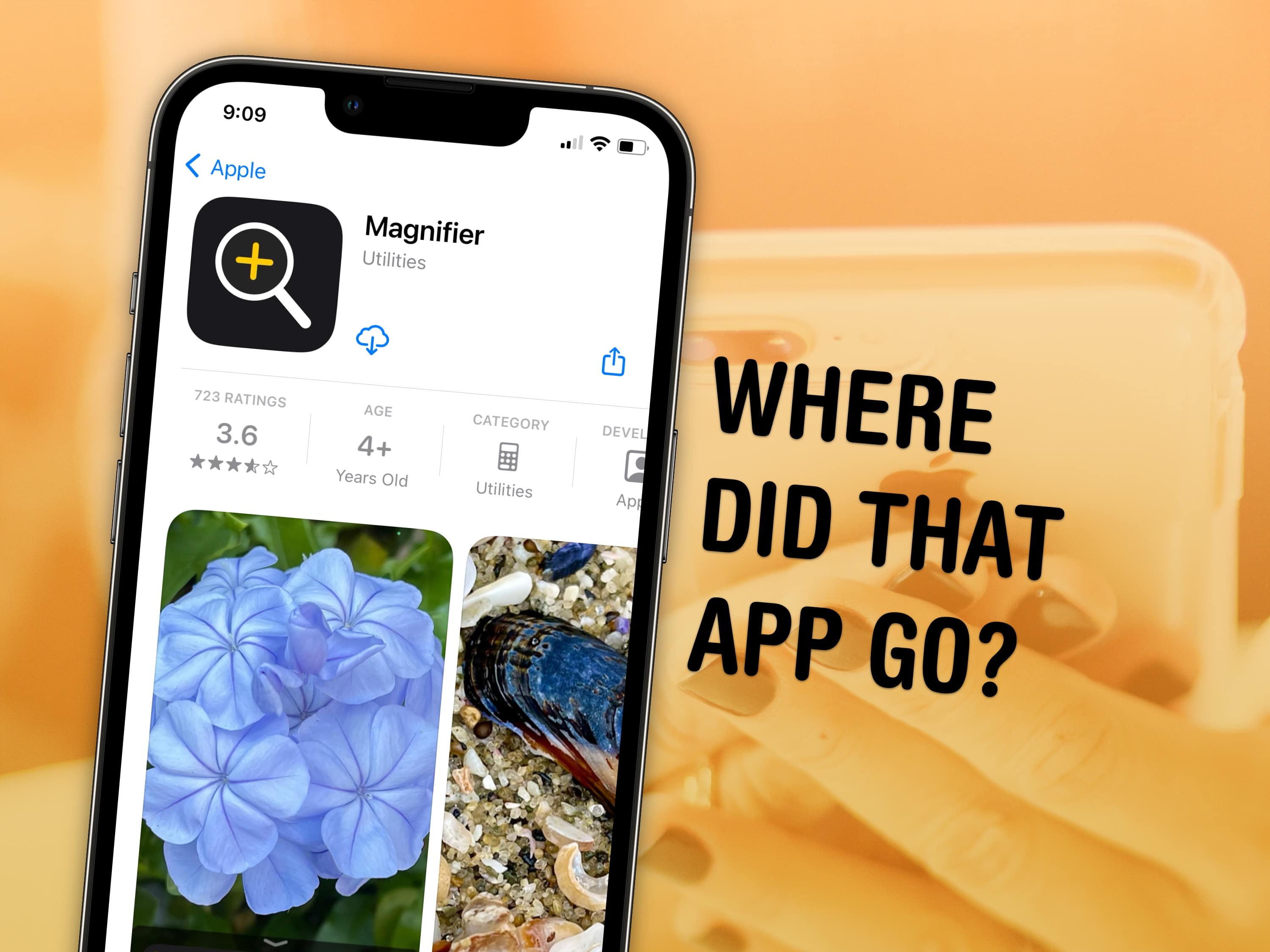
Sometimes these things just disappear on you. Image: Kristin Hardwick/Wikimedia Commons/D. Griffin Jones/Cult of Mac
You can visit the App Store to download Apple apps like Music, Podcasts, Weather, Maps and Find My missing from your iPhone or iPad. If you can’t find them. It’s possible you uninstalled them and your device needs to download them again. Or they might have simply disappeared from your Home Screen, and are now hiding in the App Library.
There are also a few iPhone apps that Apple hasn’t made available on iPad. This was the case with Calculator until very recently, so you may need to install an update to get it.
I’ll walk you through all the possibilities, showing you how to get Apple’s stock apps back on your iPhone or iPad.
Here’s what to do without Advanced Data Protection. Image: Apple/D. Griffin Jones/Cult of Mac
If you want to keep your iCloud data completely private and secure, but you live in the United Kingdom — where Apple is rolling back Advanced Data Protection to comply with government demands — you’ll need an alternative to iCloud sync and backup features.
That’s because the only option is to not use iCloud. There’s no getting around it: without Advanced Data Protection, your iCloud backups can potentially be snooped on.
Turning off iCloud will have many negative ramifications. iCloud manages syncing services across all your devices. If you own an iPhone, Mac and/or iPad, iCloud makes sure all your messages, photos, app data, notes, passwords, bookmarks, etc., appear everywhere.
Without Advanced Data Protection, there are still a few of these backup services that are end-to-end encrypted. But a few critical services, like device backups, are not — and if you don’t disable them, you’ll have a big hole in your data security. Keep reading or watch our video.
This is the best way to give everyone the Wi-Fi password. Image: D. Griffin Jones/Cult of Mac
When guests come over, it’s common courtesy to share your Wi-Fi password — and your iPhone offers plenty of tricks up its sleeve to make it easy.
You don’t need to go through your photo library to look up the picture you took of the bottom of your router, then read the long string of numbers and letters. Instead, you can show them a convenient QR code to connect them instantly. Or, if they’re in your contacts, you can share the password with a single button tap. For your Android and Windows friends, you can look up any saved Wi-Fi password from either Settings, or, well … Passwords. If you often work with colors, a Nix Mini Color Sensor can make identifying and matching colors quick and effortless.
Add another level to your music. Image: D. Griffin Jones/Cult of Mac
The new Music Haptics accessibility feature in iOS 18 adds another dimension to audio: vibration. Taking advantage of the incredible precision of the iPhone’s Taptic Engine, the feature brings to life a specially recorded track of rhythmic vibrations and buzzing patterns timed to certain Apple Music songs.
Switch it on, and you can hold your iPhone in your hands and feel your music in a whole new way. Keep reading to see how the feature works (or watch our video that explains it all).
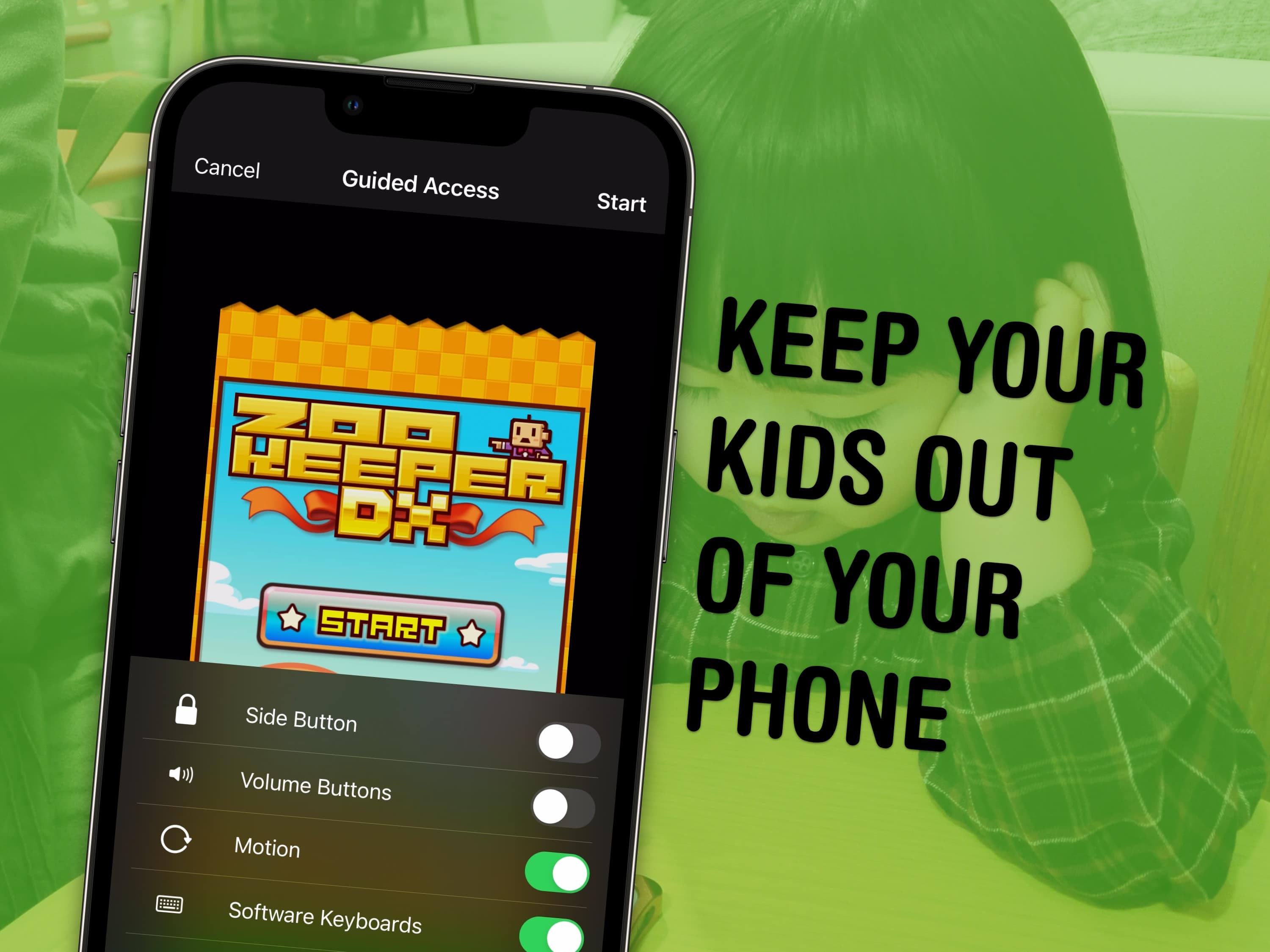
Lock your kids into a game (like Zookeeper) when they have your phone. Image: MIKI Yoshihito/Wikimedia Commons/D. Griffin Jones/Cult of Mac
You can use a feature called Guided Access to lock down your iPhone to a single app before you hand it to a kid or someone else. You might want to let your offspring play a game, or pass your phone around for controlling music, or hand it off to show someone a video … but you probably don’t want them going rogue and reading your texts or calling your mom.
In Accessibility settings, you can enable Guided Access to limit your iPhone to a single app before you hand it off. It’s a kind of quick and dirty “guest mode.”
This will help you keep your phone — and your privacy — safe. You can even disable features like the volume buttons and set up time limits.
Sometimes it can be hard reading your screen. Image: D. Griffin Jones/Cult of Mac
It’s easy to zoom in on your Mac screen and get a closer look at your display. If the text is just too small to read, or perhaps you’re making some graphics and you need pixel-perfect alignment, a simple tweak to your Mac settings is all you need.
Using your Mac’s zoom feature, you can hit a keyboard shortcut or use a multitouch gesture on your trackpad to zoom in on your screen. I’ll show you how to use this handy feature. Plus, I’ll cover Hover Text and Display Scaling, two more features that help you embiggen the words on your Mac screen.
There are a lot of ways to customize the Lock Screen in iOS 16. Image: D. Griffin Jones/Cult of Mac
You can radically customize the Lock Screen of your iPhone with a bunch of widgets, aesthetics and styles. If you liked the themed custom Home Screens people were putting together using Shortcuts and Widgetsmith, you’ll love the level of creativity you can express with customized Lock Screens.
All of your photos and files are in the cloud anyway — with iCloud.com, you can access them from any computer. Image: Matthew Bowden/Wikimedia Commons, D. Griffin Jones/Cult of Mac
You can use the iCloud website to access all of your online Apple services from any computer, tablet or phone. This includes Find My, Mail, Photos, Invites, Files, Pages, Numbers, Keynote, Notes, Calendar and Reminders. It’s really convenient if you need to find a lost device, print a file or download a picture from a different computer you’re not signed into.
The iCloud website provides easy access to all of Apple’s cloud services — and it’s even customizable for those who use it often. Let me show you how it works.
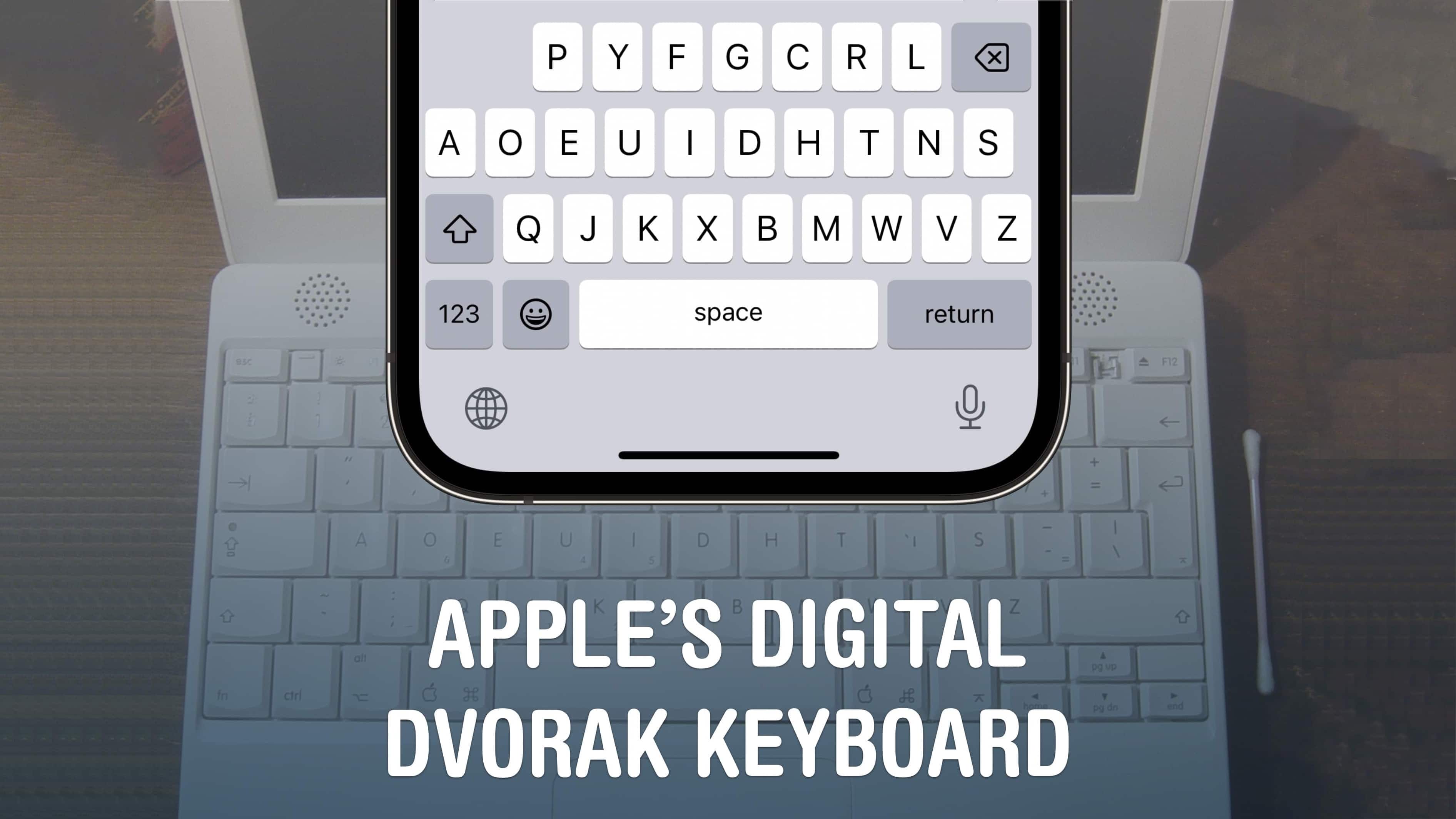
Apple’s digital Dvorak keyboard brings the alternative layout to iPhone. Image: Michael Bunsen/Wikimedia Commons and D. Griffin Jones/Cult of Mac
The Dvorak keyboard layout offers a different way of arranging the 26 letters of the alphabet. Dvorak puts all the most common letters right on the center row for increased typing speed. It also balances the most common letters across all 10 fingers to reduce strain. Physical Dvorak keyboards have been available for computers forever, but finally, you can get it on your iPhone and iPad.
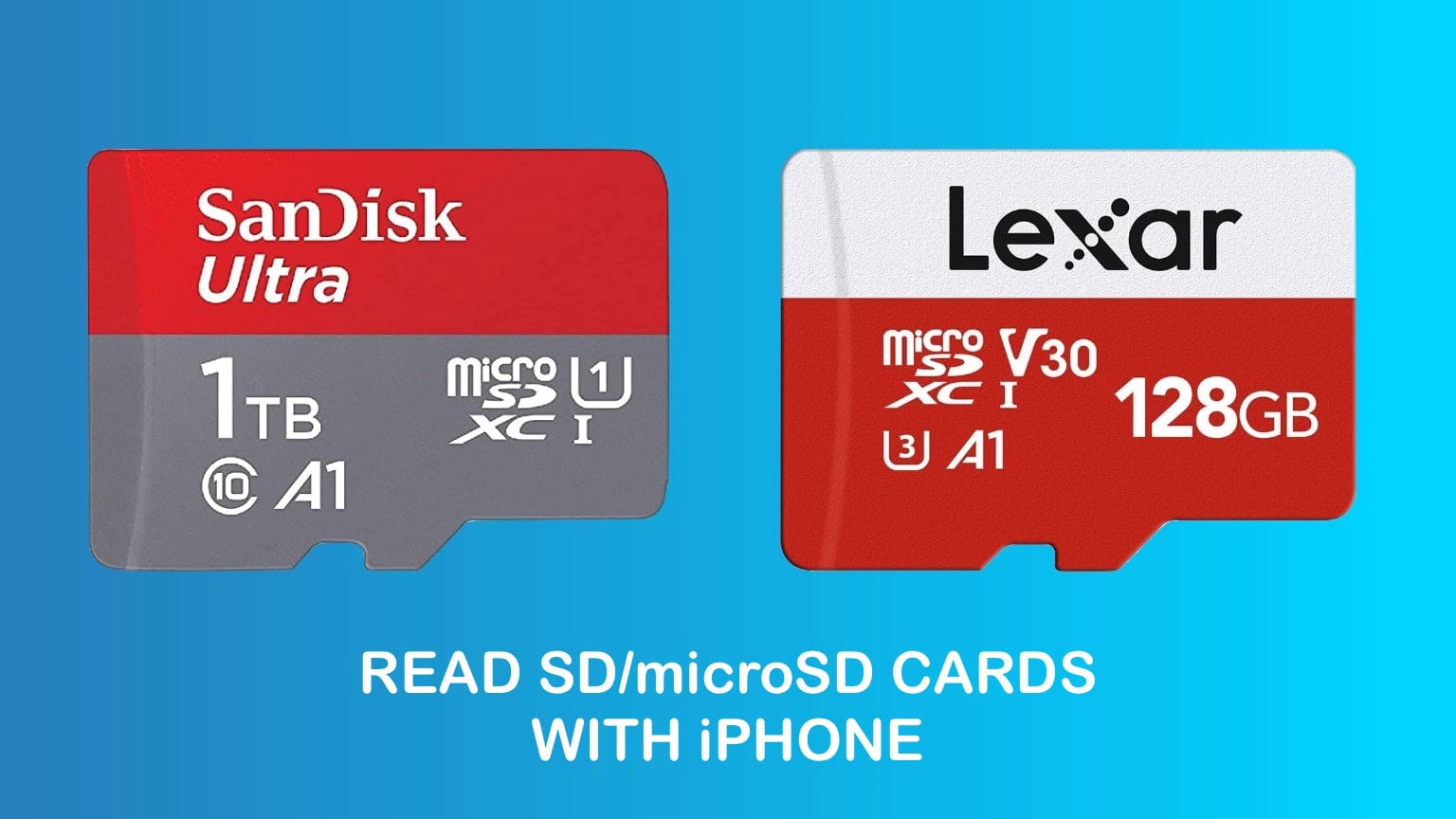
Your iPhone and SD or microSD cards can be friends. Image: Cult of Mac
While your iPhone doesn’t have a built-in microSD card reader, adding a plug-in memory card reader is easy. And it requires no additional software. The same goes for iPads.
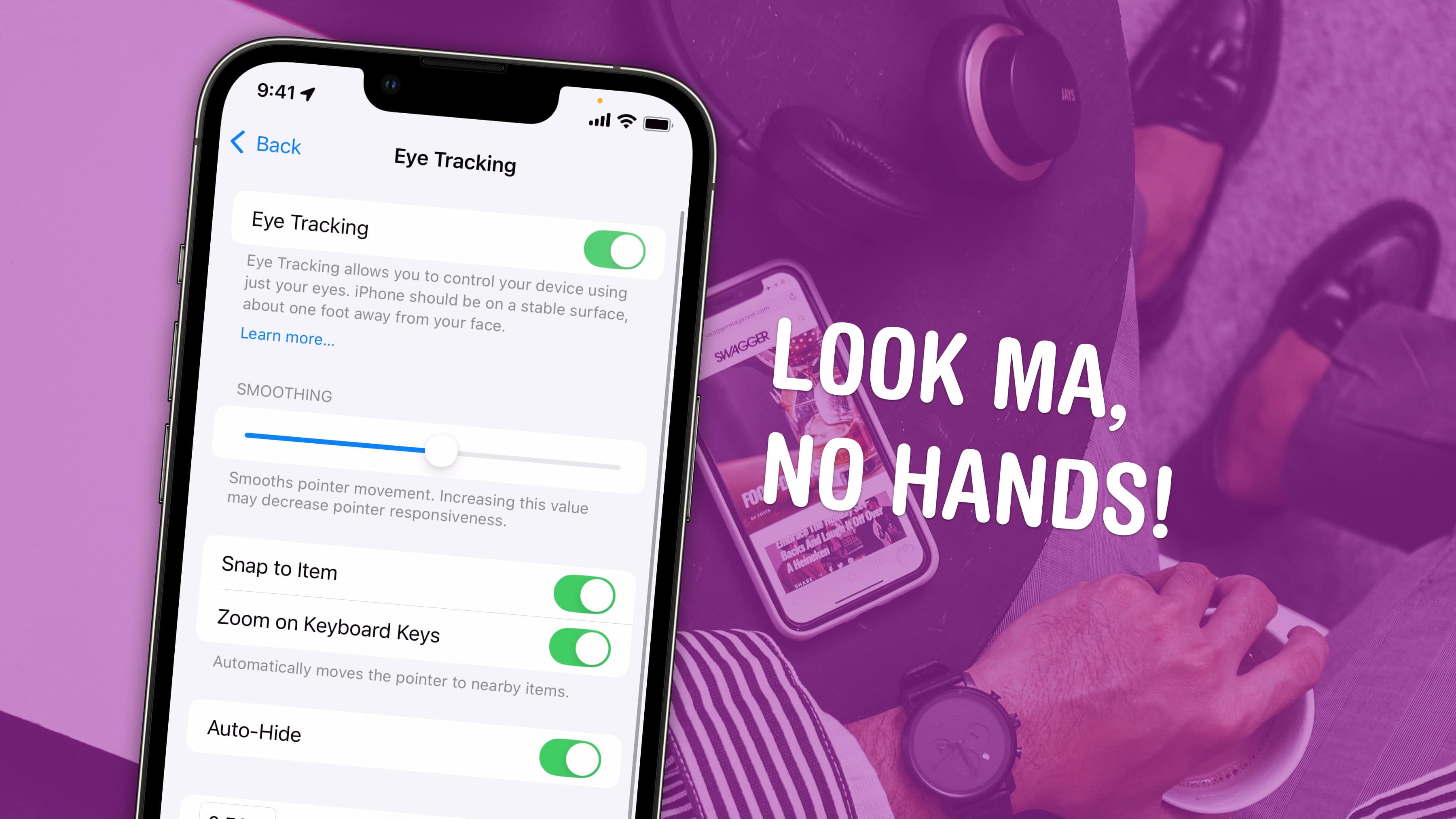
Control your iPhone from afar. Image: D. Griffin Jones/Cult of Mac
Eye Tracking is a pretty remarkable and ambitious accessibility feature that lets you control your iPhone entirely with your eyes. You can use this feature in a pinch if you need to use your phone with soapy hands while doing the dishes or with grimy hands while working on a car or doing other dirty work. Alternatively, if you’re losing your fine motor skills, this feature could be an essential one to learn.
Likely borrowing some of the software from the advanced Vision Pro headset, this feature lets you control your iPhone hands-free. And once you set up Eye Tracking, you can use the iPhone’s Sound Actions feature. It lets you perform certain functions, like toggling your flashlight or taking a screenshot, just by making various mouth noises.