If you want to create the best possible Keynote presentation, you should follow a few simple rules — and ape the style of the keynote GOAT, Steve Jobs.
He was the best in the business of hosting live press events. It’s no surprise that Apple’s Keynote app was literally made for him as the target audience, then later turned into a product for everyone else.
If you want your presentation to look as professional and polished as a Stevenote, here’s what you should do.
How to make a beautiful Keynote presentation
While flashy graphics and design trends come and go, the most effective presentation advice still comes from Steve Jobs, who taught by doing. The Apple co-founder turned product launches into must-watch events, thanks to his strikingly simple slides. They married minimal text with bold imagery and relentlessly focused on a single idea at a time.
If your Keynote deck looks amateurish or feels cluttered due to information overload, you should take a step back and borrow the presentation principles that helped Jobs sell everything from the iMac to the iPhone.
Whether you’re working on a school project, an investor slide deck, a trade show presentation or a comedic entry for a PowerPoint party, Keynote should be your app of choice. You should trust the presentation app made by the company that popularized the format.
And these practical Keynote tips will help you build cleaner, sharper slides that look more professional and keep your audience focused on what truly matters.
Table of contents: Keynote presentation tips
- Use a built-in template
- Keep the slides short and to the point
- Use built-in text styles
- Remove the background from images, if necessary
- Swap stock photos with more relevant images
- More app guides
Use a built-in Keynote template for your presentation
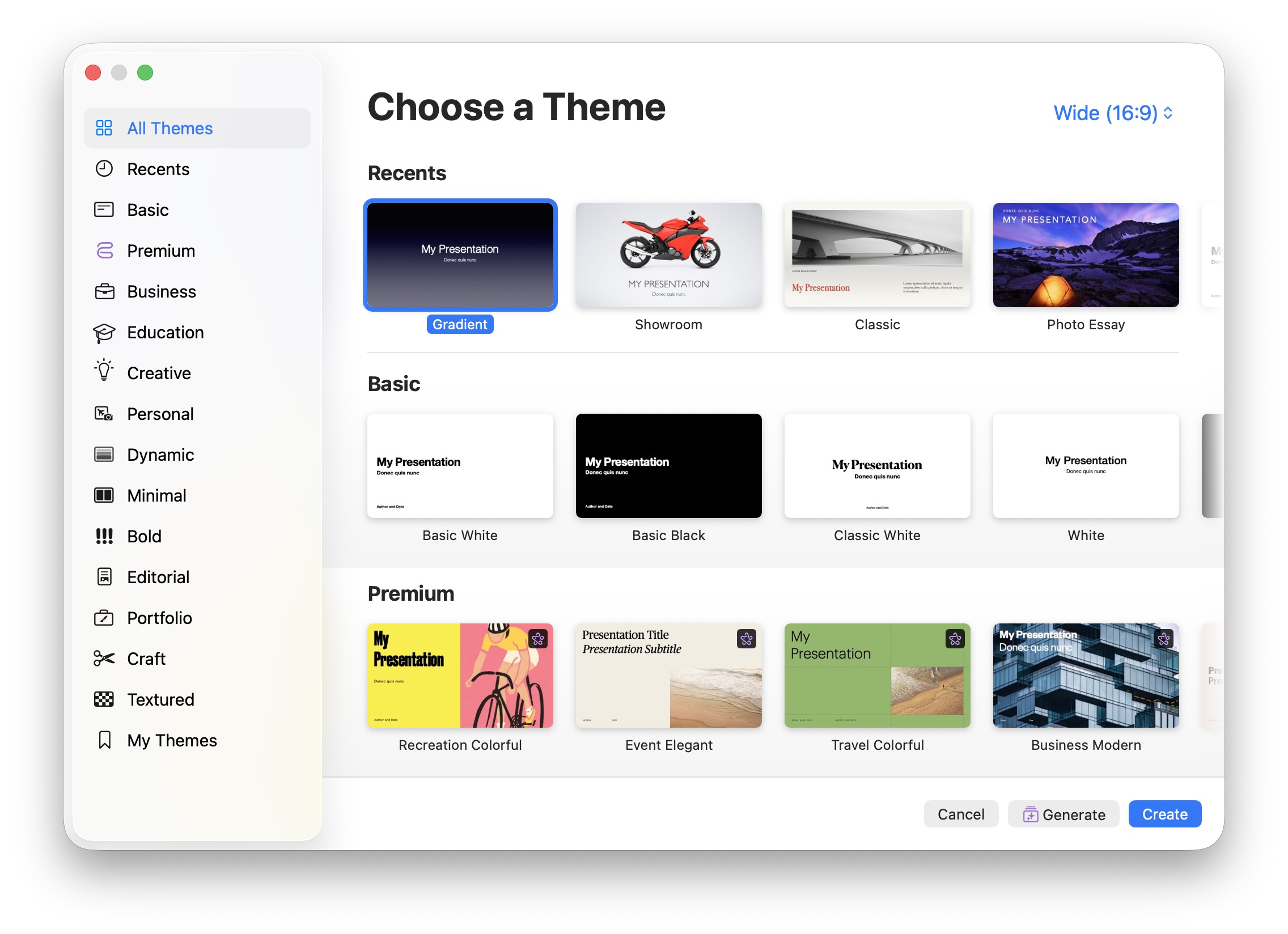
Screenshot: D. Griffin Jones/Cult of Mac
Apple employs incredibly talented graphic designers, and using one of the free, built-in Keynote templates they already produced will save you tons of time. Rather than designing your slides from scratch, look through all the categories and see if one fits the aesthetic you want.
Unfortunately, since Apple introduced the Creator Studio subscription bundle, you need to scroll past a lot of paywalled themes to get to the free ones. (Any theme with a purple star icon in the corner is exclusive to paying subscribers.) Still, Apple provides plenty of free themes.
Steve Jobs always used the Gradient template, which you can find in the Minimal category. It works well if your presentation is mostly textual. The simple blue-gray gradient looks tasteful and professional.
Keep the slides in your Keynote presentation short and to the point
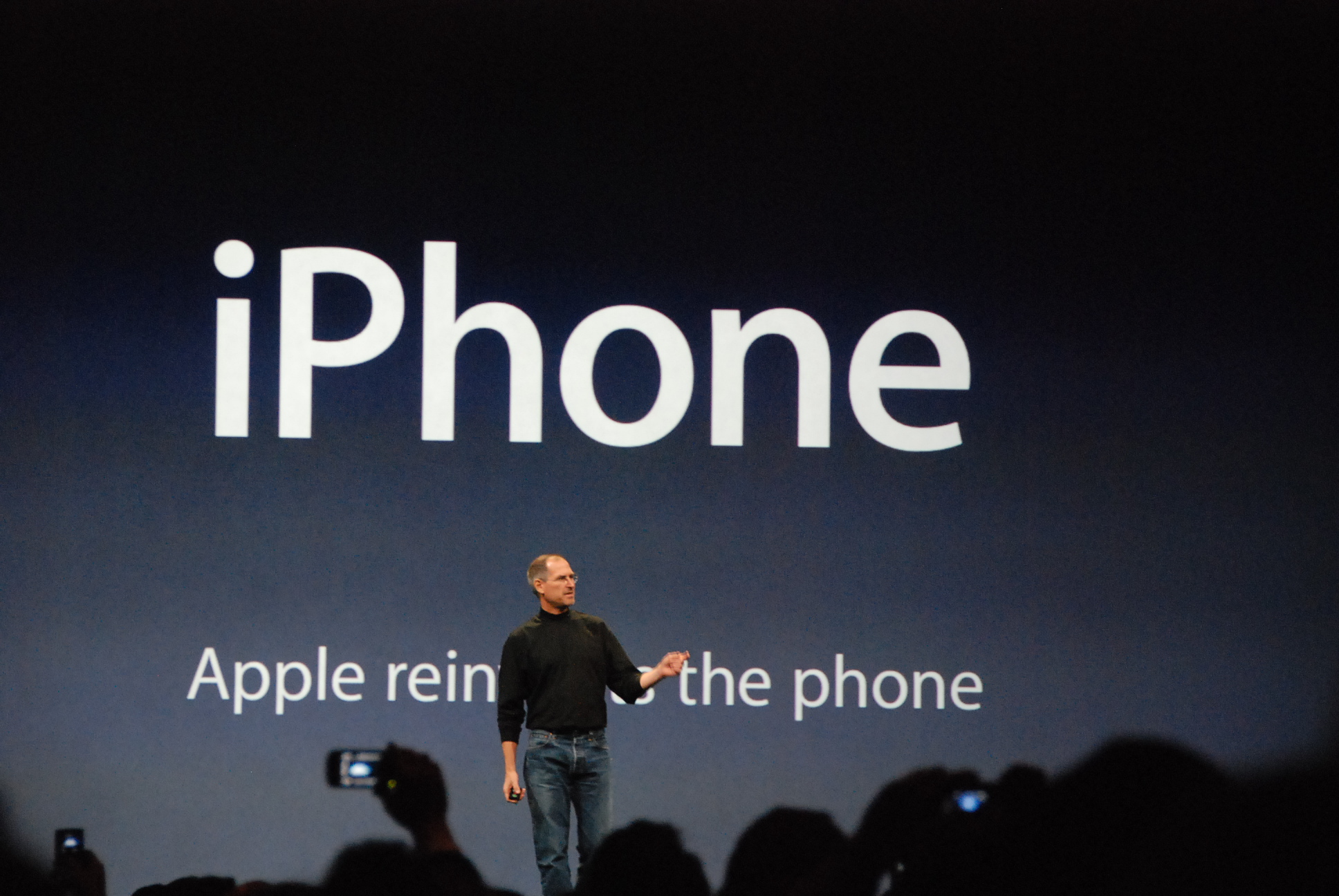
Photo: Blake Patterson, CC BY 2.0, via Wikimedia Commons
Something you’ll notice about Steve Jobs’ presentations is that there are rarely more than a few words on a slide at once. The main content comes from his oral presentation, not from reading the slide.
It’s hard for the audience to read and listen to you at the same time. Extra words on the screen do nothing but distract. If you must explain a somewhat complex topic, you shouldn’t stick it all into one slide — spread it out across a bunch of them.
Steve could get away with having so little text on each slide because he exhaustively rehearsed every presentation. If you don’t have all that time to spare, don’t worry — you can put additional text into the notes field. Go to View > Show Presenter Notes (⇧⌘P) to bring it up. This will prove useful if you have your own screen to see the notes as you give your presentation.
You can ignore this rule if your presentation is primarily going to be read without any in-person speech, like a school project or investor slide deck.
Use built-in text styles
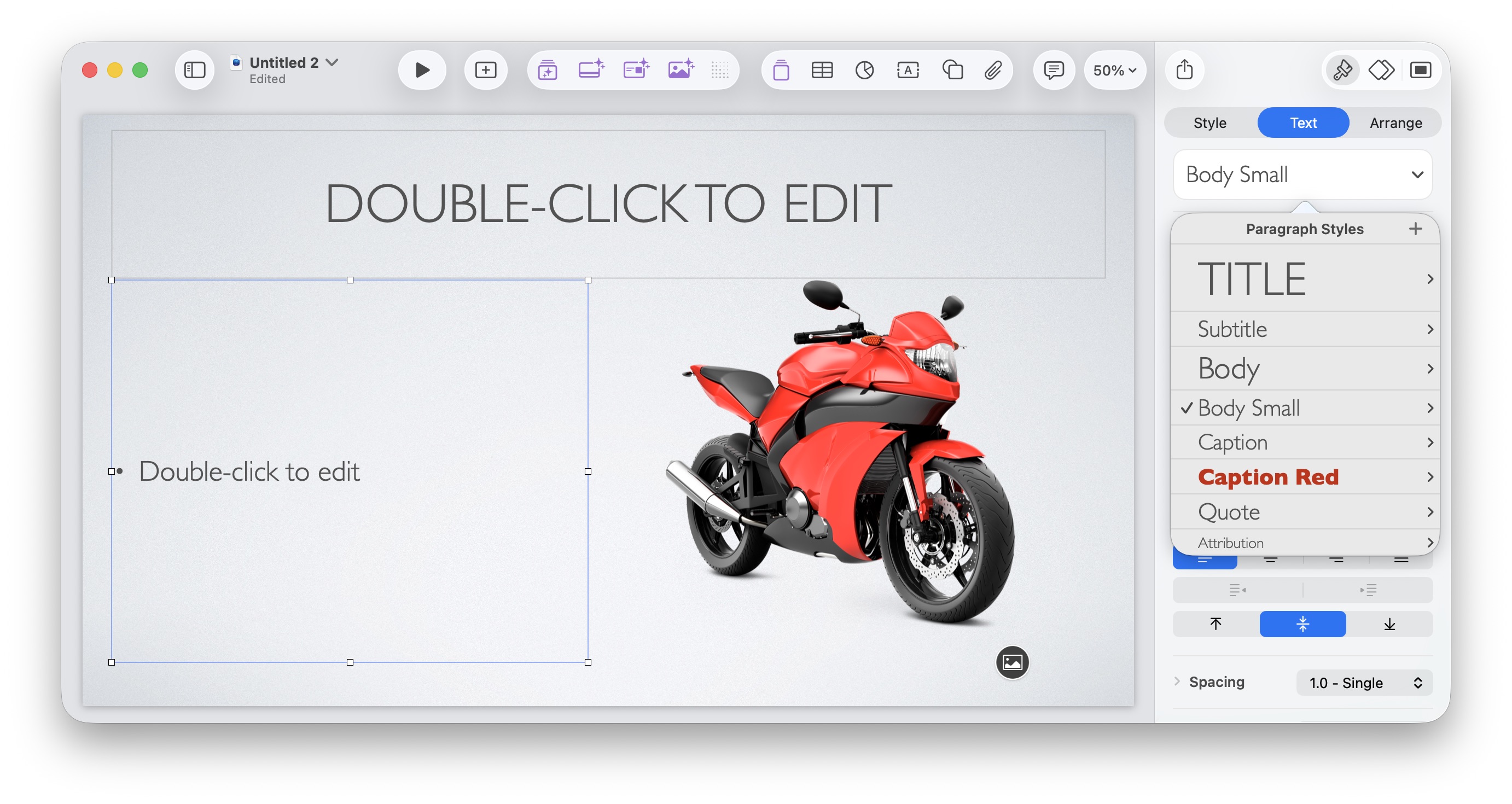
Screenshot: D. Griffin Jones/Cult of Mac
Before you go about making text bigger or bolder or underlined willy-nilly, try some of the text styles built into your Keynote theme. While editing a text box, go to the formatting sidebar on the right and click the Text tab. The big dropdown menu at the top will let you choose between preformatted styles for headers, body text, captions, quotes and more.
If you need to copy and paste text from the web or another document, you should paste without formatting to make sure you don’t mess up the styles. Go to Edit > Paste and Match Style or hit Shift-Option-Command-V (⇧⌥⌘V). Paste and Match Style is also the default setting if you paste using the clipboard manager in Spotlight.
Steve Jobs rarely deviated from the default font on his slides. He used Garamond and Marker Felt in the early years upon his return to Apple in 1997, but switched in 2002 to the simple sans serif font Myriad.
While the default font on the Gradient theme uses Helvetica, if you want to match Jobs’ style perfectly, change the font to Myriad Pro. It’s built into your Mac. Then, click the Update button in the Text tab to change all the text using that style in your presentation to Myriad.
Remove the background from images, if necessary

Screenshot: D. Griffin Jones/Cult of Mac
When mixing images with text, it’ll look a lot cleaner if you remove the background from a picture. Right-click on an image from Safari, Finder, Preview or wherever, and select Copy Subject. That’ll copy the subject of the photo on a transparent background. Paste (⌘V) it into Keynote to add it to your slide.
It’s more successful in photos where the subject is on a pretty solid or plain background, or if the background is out of focus.
Since Steve Jobs used the Gradient theme, which has a plain dark background, he always used images with backgrounds cut out. It would have looked out of place if he put a picture with a big white square around it in the middle of a dark slide. The only exception he made was for photos that completely filled the frame of the slide.
Swap stock photos with more relevant images to make your Keynote presentation shine
Screenshot: D. Griffin Jones/Cult of Mac
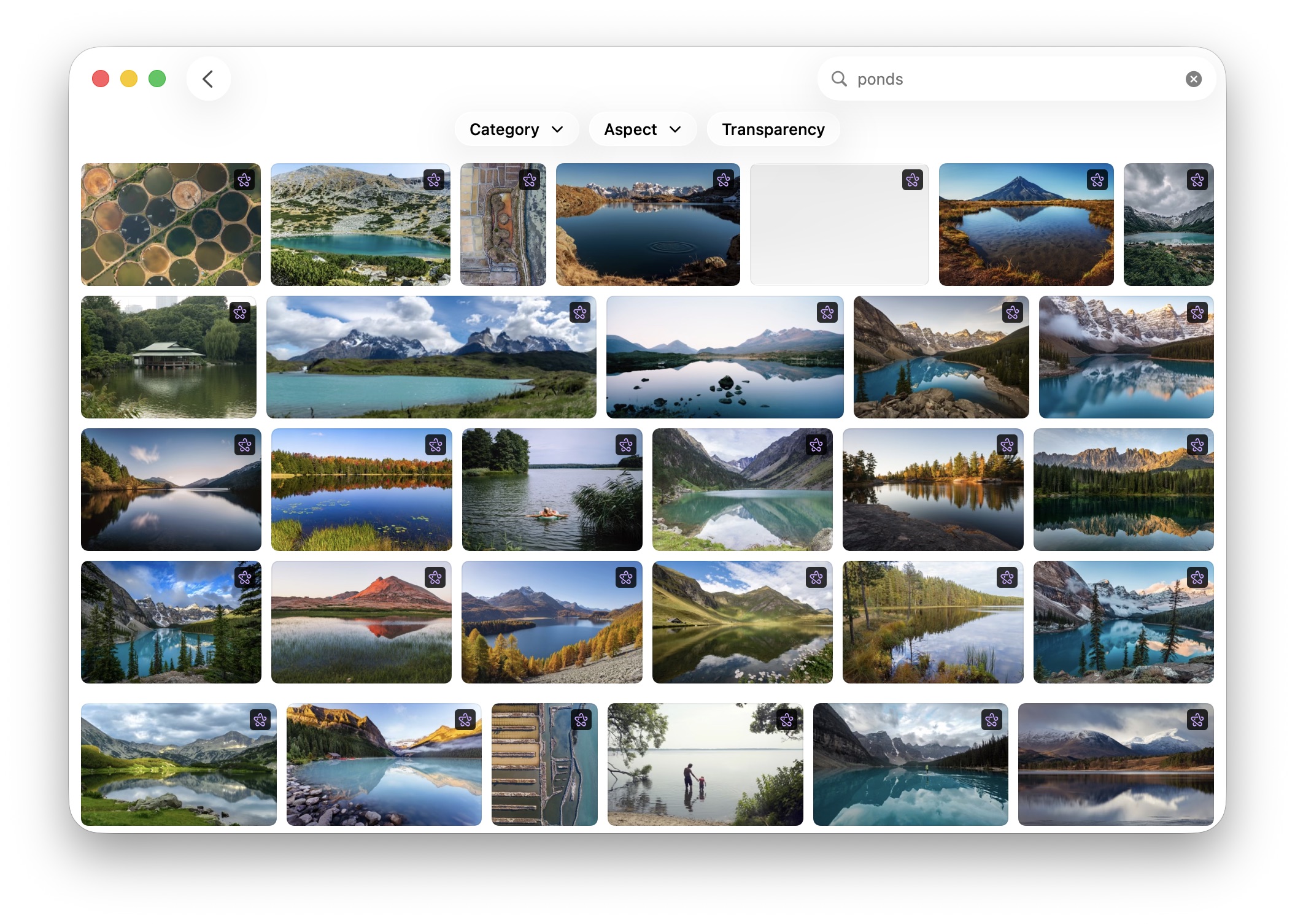
For slides with full-size photos, you can easily replace the stock images that come with the template.
- Click the Replace Image button in the lower-right corner of the Keynote app to pick a photo from your computer for your presentation.
- Go to Pexels or a similar free service to find tons of high-quality and completely royalty-free photos.
- If you pay for an Apple Creator Studio subscription, you can use stock photos from the included Content Hub. Click the Content Hub button, the purple square to the left of the Table, Chart, Text and Shape buttons. All the images and assets are thoroughly tagged, so you can use the Search field just like Google Images.
Watch Steve Jobs’ iPhone keynote
You can see how effectively Steve Jobs used all these Keynote presentation tips in his masterful unveiling of the iPhone in 2007:
More guides to using Apple apps
Now that you know how to make a stellar Keynote presentation, why not master other Apple apps?
- Preview is a powerful tool to view, edit and mark up PDFs.
- Final Cut Camera is a bespoke pro camera app that puts more advanced manual controls in your hands.
- Invites can help your party planning and organization with RSVPs that keep everybody up to date. It can even handle a shared music playlist and photo album that anyone can contribute to.
- Journal makes keeping a diary a breeze. Your iPhone will pull together details from your photos, locations and events to give you prompts for memories worth writing about.
- Apple News offers a bunch of great daily puzzles for Apple News+ subscribers.

D. Griffin Jones was a writer, podcaster and video producer for Cult of Mac. Griffin has been a passionate computer enthusiast since 2002, when he got his first PC — but since getting a Mac in 2008, he hasn’t turned back. His skills in graphic and web design, along with video and podcast editing, are self-taught over 20+ years. Griffin has a bachelor’s degree in computer science and has written several (unpublished) apps for Mac and iOS. His collection of old computers is made up of 40+ desktops, laptops, PDAs and devices, dating back to the early ’80s.
Griffin writes for his personal blog, Extra Ordinary, and is currently looking for work.

