
In-App Purchases are no joke. With the Freemium model becoming a mainstay for many popular apps, iOS users may get confused and can easily rack up a $100 tab in minutes. To prevent this from happening to you we’re going to show you how to disable all in-app purchases.
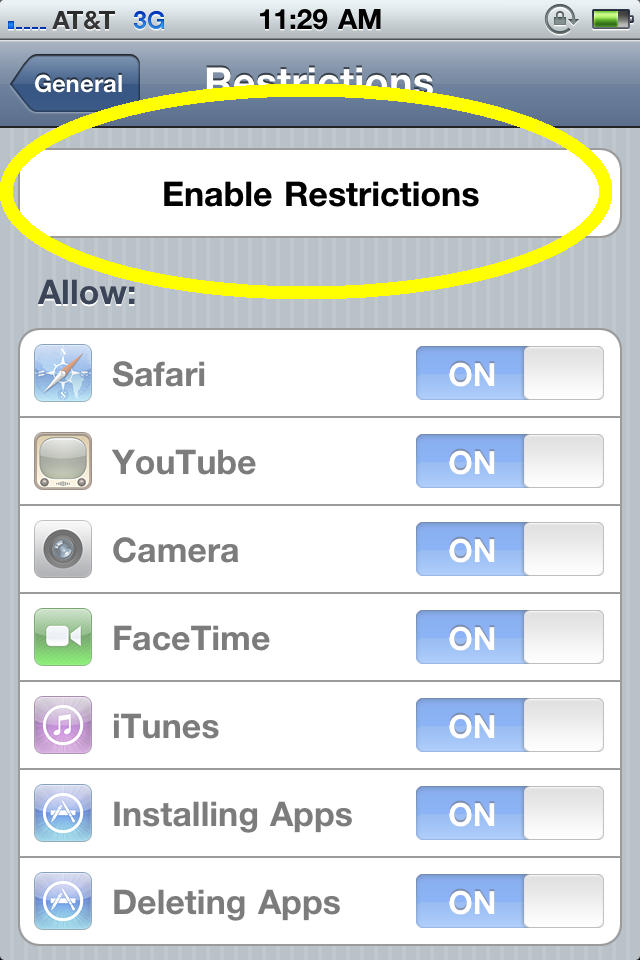
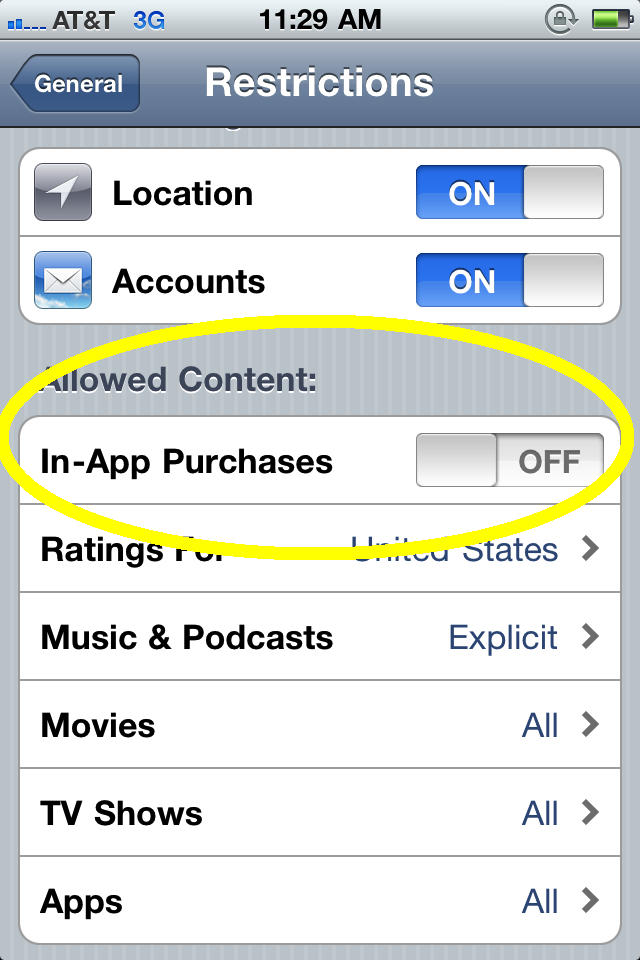
The process is extremely simple. You just go to Settings>>General>>Restrictions>>Enter PIN>>Enable Restrictions>>In-App Purchases Off.
I’ve included screenshots of the whole thing too, just incase you get lost.
Step 1: Go to Settings

Step 2: Go to General

Step 3: Under General go to Restrictions

Step 4: Enter your Passcode
Step 5: Select “Enable Restrictions”
Step 6: Toggle the switch for In-App Purchases to OFF

Buster Hein is a freelance writer who lives in Phoenix, Arizona. Twitter: @bst3r.


21 responses to “Save Yourself the Unwanted Bill and Disable In-App Purchases [How To]”
Not only that, but I would suggest that you purposefully forget your restrictions passcode as well, so that you can’t turn it off.