
The Safari web browser on your iPhone got a minimalist toolbar with iOS 26. You don’t have to use it, though. You can restore the full-featured Safari t00lbar — with all the traditional browser controls like sharing, bookmarks and tabs — by simply changing one setting.
Here’s what to do if you want to restore Safari’s toolbar to the way it used to be.
How to restore iPhone’s Safari toolbar, which shrank in iOS 26
iOS 26 brought a massive redesign to the iPhone’s operating system, with a divisive Liquid Glass user interface and tweaks to many Apple apps. Some people love the broad changes; others prefer the familiar user interface of iOS 18. (If you’re in the latter camp, see our how-to: Secret trick will stop your iPhone from updating to iOS 26 — forever!)
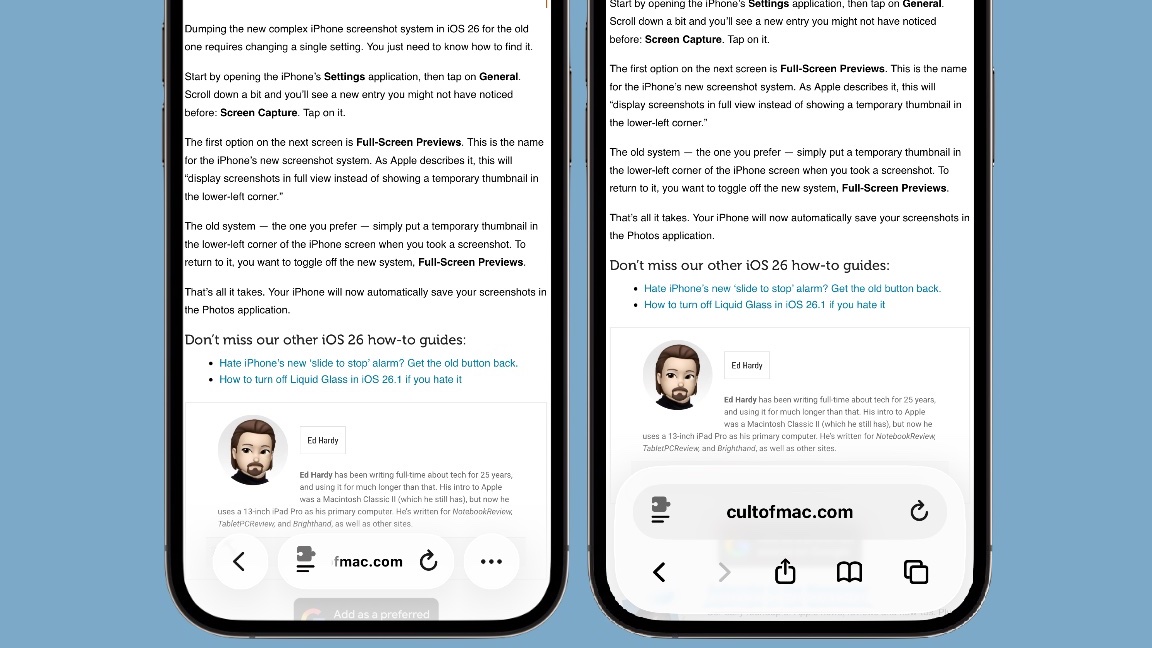
In Safari, Apple downsized the browser toolbar with a minimal, content-first design. A back/forward button remains, as does the address bar and a more button. These dynamically adapt as you scroll, shrinking out of the way to prioritize web content, and then reappearing when needed.
However, certain controls got tucked behind menus rather than being always visible. That means getting to your bookmarks or tabs is an extra tap away, which is annoying if you use those things constantly.
New design vs. old design: Extra taps required
Screenshots: Ed Hardy/Cult of Mac
While the streamlined toolbar creates a cleaner look and more screen space — especially on smaller iPhones — it also represents a shift away from the always-on, full-height toolbar some users prefer.
Luckily, as with some other controversial features of iOS 26, Apple provides an easy way to undue the change if the new Safari browser controls give you a headache.
If you want the full version back, it just takes a moment. Here’s what to do.
How to get the full Safari toolbar back on your iPhone
Screenshots: Ed Hardy/Cult of Mac
You can change your iPhone’s Safari toolbar to make it look and function just like it did in iOS 18. All you need to do is change a single setting. It’s a bit buried, though.
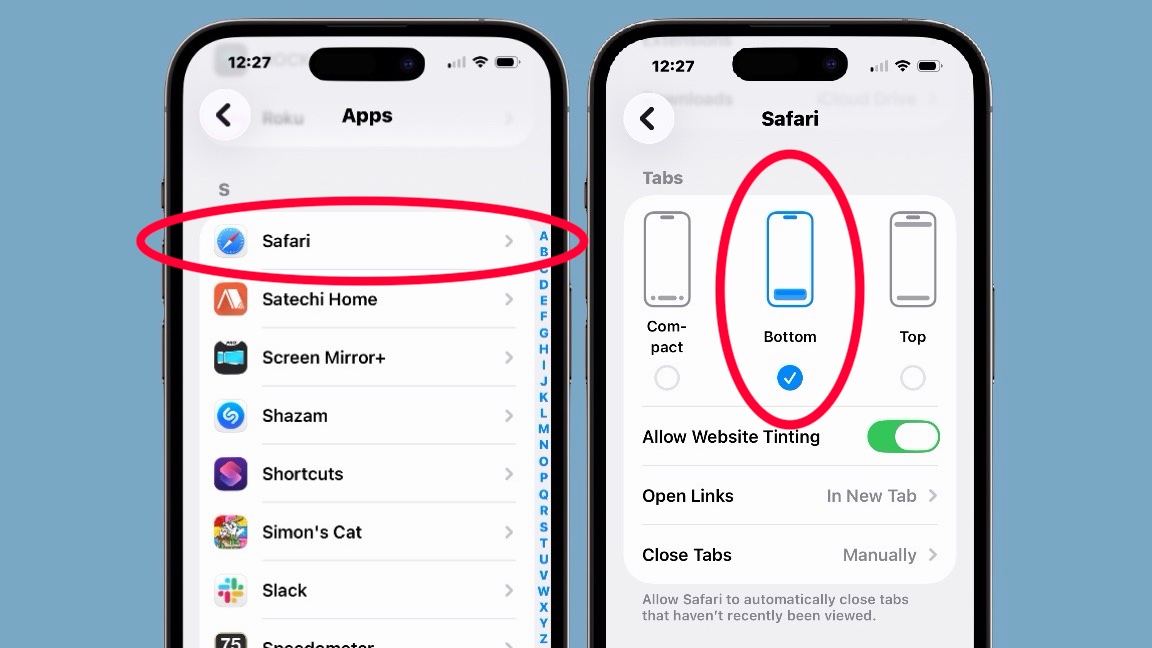
Start by opening the iPhone’s Settings app, then tap on Apps (it’s way at the bottom of the list). Then find Safari on the resulting alphabetical list of apps. Tap on it.
On the next screen, look for a section labeled Tabs. Under it, you’ll see three options: Compact, Bottom and Top.
Compact is the new version. The one you probably want is Bottom. That puts the iPhone’s Safari toolbar at the bottom of the screen, closer to your fingers, so it’s easier to tap on the controls. Alternatively, you can choose Top, which makes Safari look more like the Mac or iPad versions of the browser.
There you go — return to Safari and you have the full-size toolbar back on your iPhone.
Don’t miss our other iOS 26 how-to guides:
- Hate iPhone’s new ‘slide to stop’ alarm? Get the old button back.
- How to turn off Liquid Glass in iOS 26.1 if you hate it
- Make taking iPhone screenshots easy again

Ed Hardy has been writing full-time about tech for 26 years, and using it for much longer than that. His intro to Apple was a Macintosh SE/30 (which he still has), but now he uses a 13-inch iPad Pro as his primary computer.
That’s because he’s a “tablet first” type of guy. Rather than use a Macbook, he connects a keyboard case to the iPad. And instead of a desktop Mac, he connects his tablet to a 27-inch display and full-size keyboard. (So don’t try to tell him that everyone has to use a Mac to be productive.)
Before coming to Cult of Mac, Ed wrote for NotebookReview, TabletPCReview and Brighthand, as well as other sites.


2 responses to “Missing Safari’s full Toolbar? Here’s how to bring it back to your iPhone.”
Does not work. My safari setting do not have option for selecting Tab placement on bottom. Please update your article with correct information. Iphone 14 pro max user.
Unfortunately this doesn’t seem to work anymore after the upgrade to iOS 26.4.1 on my iPhone 17 Pro Max 🤕