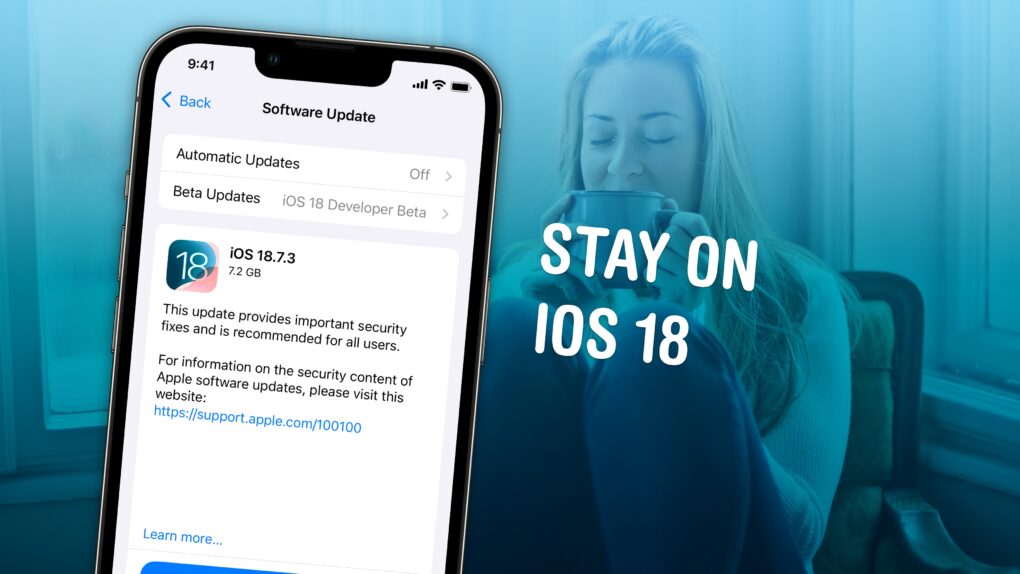
Not ready to take a gamble on iOS 26? You can stop an iOS update in its tracks if you don’t want to be pushed into the latest version.
There are all kinds of reasons you might not want to upgrade. Maybe you like the speed and stability of iOS 18. Perhaps you don’t want Apple’s divisive new Liquid Glass user interface slowing down your aging iPhone.
While Apple is finally starting to push people to update to iOS 26, you don’t need to go along with the crowd. Obviously, you can disable automatic updates to put on the brakes, but it won’t be long before Apple starts sending push notifications and red badges, encouraging you to update.
Luckily, there’s a secret trick to hide those and make sure your phone stays on iOS 18 for as long as you like. Here’s how.
Stop the iOS 26 update and stay on 18
Apple rolls out its major software updates incrementally. On release day, you can manually download and install an iOS update from Settings. About a month later, Apple starts recommending the update by default when you go to your iPhone‘s Software Update screen. The final stage is when Apple begins sending notifications and badges urging people to install the new version.
This can be frustrating if you don’t want the update, but there’s a trick to make sure your phone never gets it. And even if you don’t update to iOS 26, you’ll still get a few years of security updates on whatever version of iOS you stay on.
Granted, you can’t delay forever — when you replace your iPhone, it’ll come with the new version. And after a while, apps and features might start to break or stop updating on older versions of iOS.
Nonetheless, here’s how to avoid iOS 26 and Liquid Glass until you’re ready for the update.
Table of contents: How to stop your iPhone from updating to iOS 26
- Change your iPhone’s update settings
- Switch to the iOS 18 beta
- Install iOS 18 updates
- iOS 26 features
Change your iPhone’s update settings
Screenshot: D. Griffin Jones/Cult of Mac
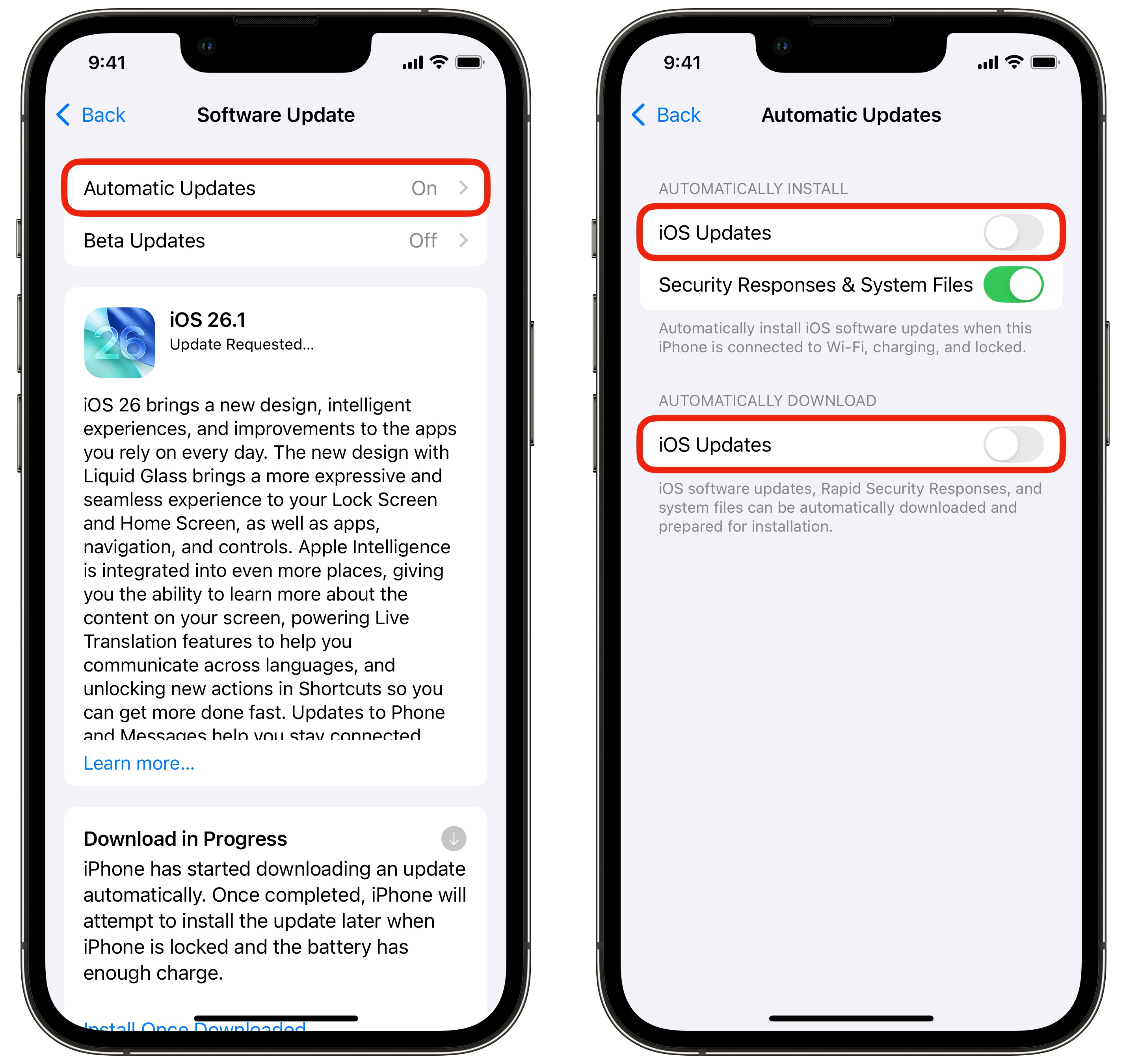
If you want to avoid updating to iOS 26, the first thing you need to do is turn off automatic updates. Go to Settings > General > Software Update > Automatic Updates. Switch off the setting at the top that automatically installs iOS Updates. Then, turn off the other setting for automatically downloading iOS Updates.
However, to be on the safe side, you can leave the middle setting on to install Security Responses & System Files. According to Apple, system files will “improve iPhone functionality without changing the software version.”
Switch to the iOS 18 beta
Screenshot: D. Griffin Jones/Cult of Mac
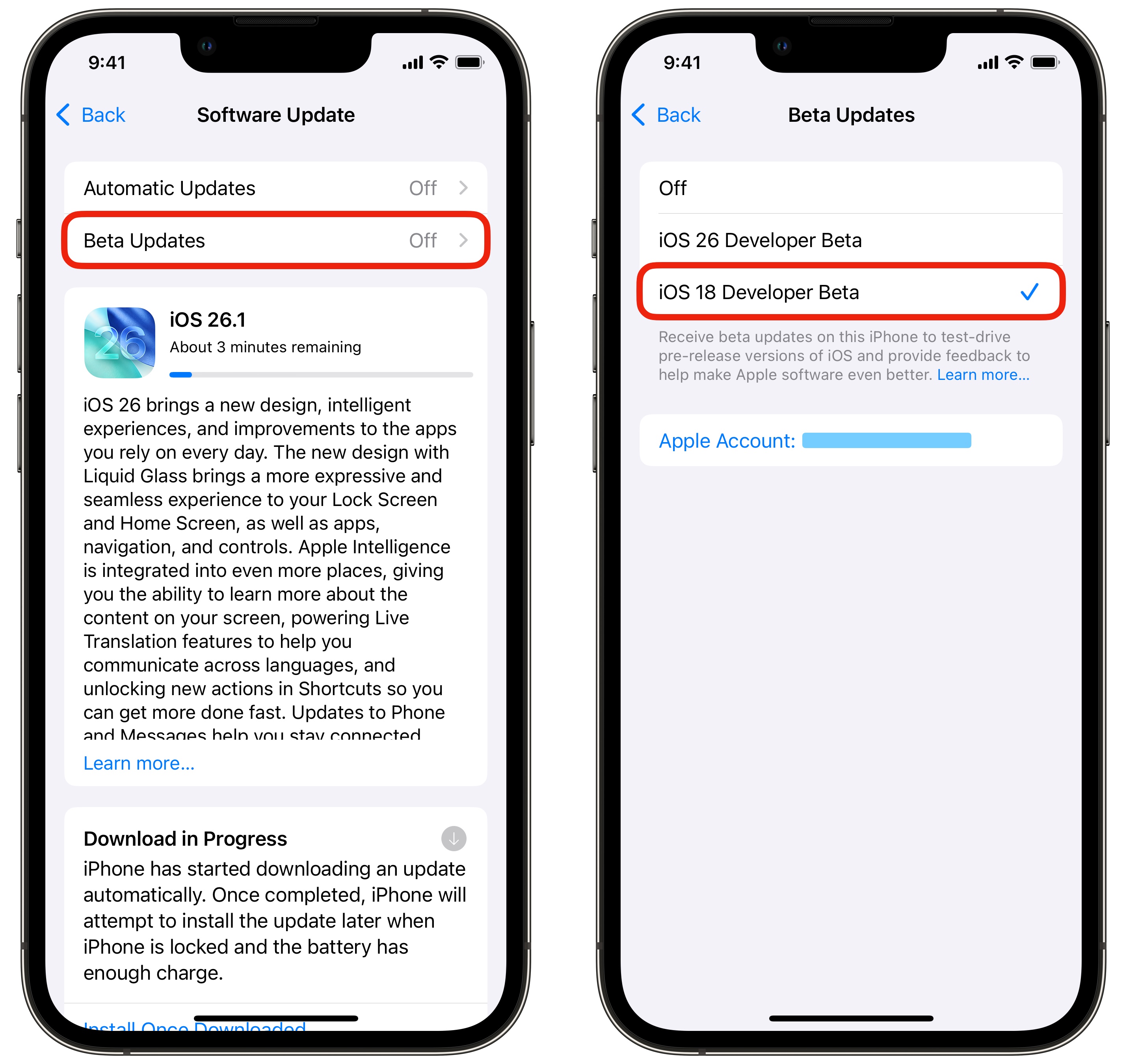
Now for the sneaky part, where you stop the iOS 26 update dead in its tracks. Go back to Software Update, then tap Beta Updates. (If this option doesn’t appear, open this link to enroll in the Apple Beta Software Program. Then tap Start your enrollment, sign in using your Apple Account, and agree to the terms. After that, you should be able to see the “Beta Updates” section in Software Update.)
In Beta Updates, you’ll see three options: Off, iOS 26 Developer Beta and iOS 18 Developer Beta. Tap iOS 18 Developer Beta. Switching to this beta track means Apple will never present an iOS 26 update to you.
You might see a warning that your iOS 26.1 download will be deleted. That’s exactly what you want. If you see this, tap OK.
Install iOS 18 updates
Finally, go back to Software Update and you’ll see the iOS 26 update replaced by an iOS 18 update. Or, you might see nothing at all. Feel free to install these security updates to iOS 18.
Congratulations — you’ve stopped the iOS 26 update, and you’re free of Liquid Glass (at least on your iPhone).
New features in iOS 26
If you do end up updating to iOS 26, you can check out some of its new features here:
- Everything new in iOS 26: Liquid Glass and 70+ new features
- Everything new in iOS 26.1: Tone down Liquid Glass, if you dare

D. Griffin Jones was a writer, podcaster and video producer for Cult of Mac. Griffin has been a passionate computer enthusiast since 2002, when he got his first PC — but since getting a Mac in 2008, he hasn’t turned back. His skills in graphic and web design, along with video and podcast editing, are self-taught over 20+ years. Griffin has a bachelor’s degree in computer science and has written several (unpublished) apps for Mac and iOS. His collection of old computers is made up of 40+ desktops, laptops, PDAs and devices, dating back to the early ’80s.
Griffin writes for his personal blog, Extra Ordinary, and is currently looking for work.


2 responses to “Secret trick will stop your iPhone from updating to iOS 26 — forever!”
How do I get rid of iOS 26? It’s HORRIBLE.
this does not work. phone updated to 26 anyway.