
iPhone screenshots can be simple again. Change a setting, and you can get rid of the complex new system Apple created for iOS 26 to capture an image of your iPhone screen.
Here’s what to do. Don’t worry — switching back is easy.
iPhone screenshots really come in handy
People take iPhone screenshots as a quick way to preserve exactly what’s on their screen at a specific moment, whether it’s important information, a memorable conversation or something they want to share online.
Screenshots are commonly used to save receipts, directions, confirmation pages, and error messages, or to remember social media posts, messages and settings without relying on an internet connection later. They also make it easy to communicate visually — showing tech support a problem, sharing a funny moment with friends or documenting something for work or school — turning what’s on the screen into a permanent reference with the press of a couple of buttons.
Complicating something simple
Some people take iPhone screenshots all the time. It used to be easy: simply press the Side Button and Volume Up Button simultaneously.
Screenshots: Ed Hardy/Cult of Mac
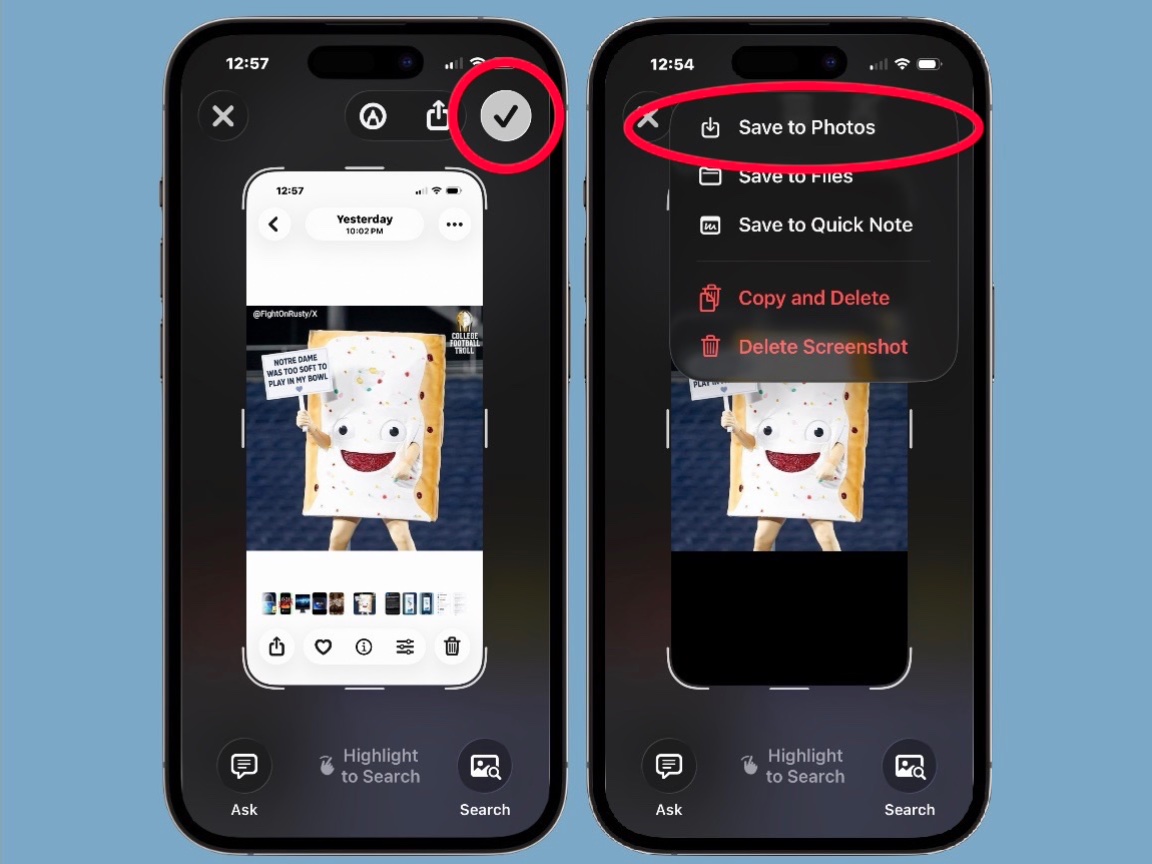
But iOS 26 added a new system. In some ways, it’s better — it certainly includes more functionality. You still trigger it the same way, but now you can immediately draw on the image, crop it, send the image to other apps or save it. But it also requires you to manually tell your iPhone to save the screenshot. For reference, do so by tapping on the large checkmark in the upper-right corner of the screen then choosing Save to Photos (see image above).
But if all you ever want to do is save the iPhone screenshot as soon as you capture it, the new system is extra hassle. Here’s how to switch back to the old system that immediately saves new screenshots to the Photos application.
How to make taking iPhone screenshots easy again
Screenshots: Ed Hardy/Cult of Mac
Dumping the new complex iPhone screenshot system in iOS 26 for the old one requires changing a single setting. You just need to know how to find it.
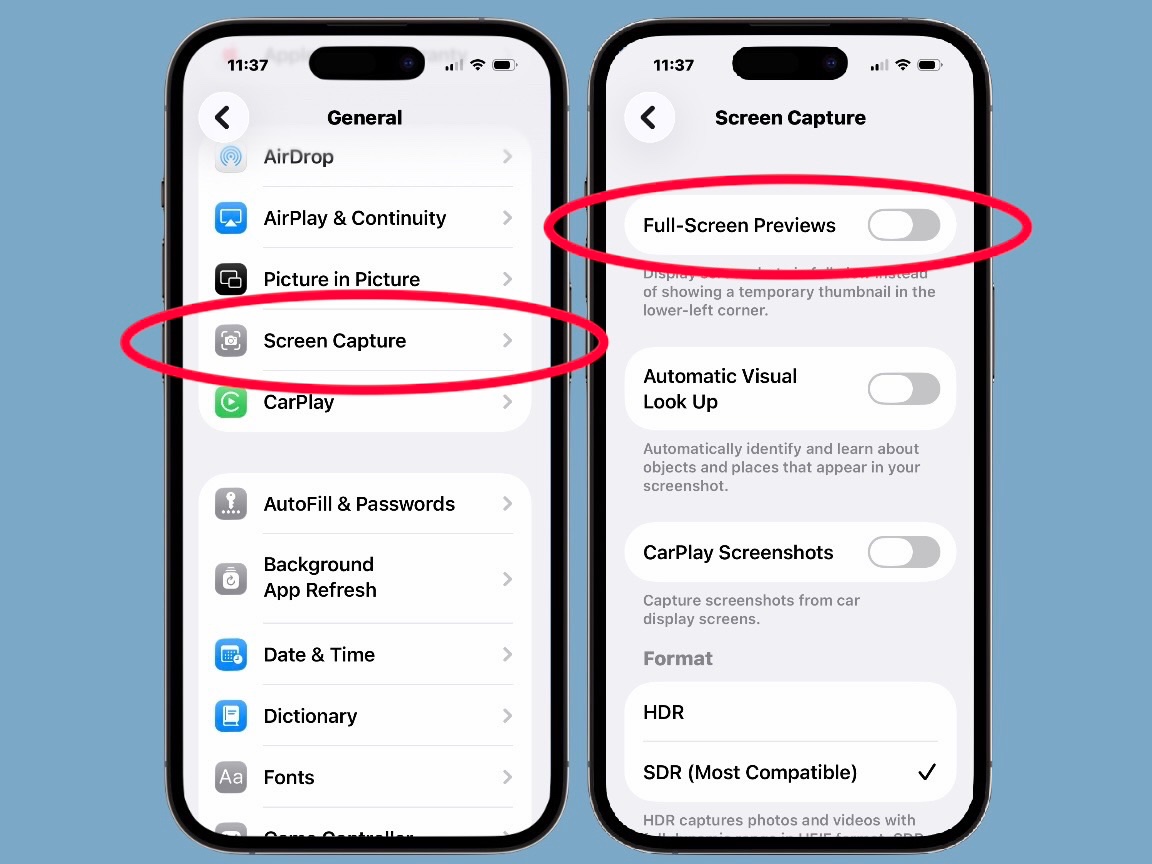
Start by opening the iPhone’s Settings application, then tap on General. Scroll down a bit and you’ll see a new entry you might not have noticed before: Screen Capture. Tap on it.
The first option on the next screen is Full-Screen Previews. This is the name for the iPhone’s new screenshot system. As Apple describes it, this will “display screenshots in full view instead of showing a temporary thumbnail in the lower-left corner.”
The old system — the one you prefer — simply put a temporary thumbnail in the lower-left corner of the iPhone screen when you took a screenshot. To return to it, you want to toggle off the new system, Full-Screen Previews.
That’s all it takes. Your iPhone will now automatically save your screenshots in the Photos application.
Don’t miss our other iOS 26 how-to guides:
- Hate iPhone’s new ‘slide to stop’ alarm? Get the old button back.
- How to turn off Liquid Glass in iOS 26.1 if you hate it

Ed Hardy has been writing full-time about tech for 26 years, and using it for much longer than that. His intro to Apple was a Macintosh SE/30 (which he still has), but now he uses a 13-inch iPad Pro as his primary computer.
That’s because he’s a “tablet first” type of guy. Rather than use a Macbook, he connects a keyboard case to the iPad. And instead of a desktop Mac, he connects his tablet to a 27-inch display and full-size keyboard. (So don’t try to tell him that everyone has to use a Mac to be productive.)
Before coming to Cult of Mac, Ed wrote for NotebookReview, TabletPCReview and Brighthand, as well as other sites.

